

Introduction
This article explains how to use the newsfeed in RosterElf to share updates with your staff. You will learn how to open the newsfeed, create a post, select which site receives it, add an attachment, and require staff to acknowledge they have read it.
The newsfeed is a one-to-many broadcast tool. Unlike team chat, which is designed for two-way conversations, the newsfeed is built for announcements that all staff or a specific site needs to see — such as parking updates, policy changes, or safety notices.
1. Opening the newsfeed
1.1 Navigate to the newsfeed
1.1.1 Log in to RosterElf. You will land on the Dashboard by default.
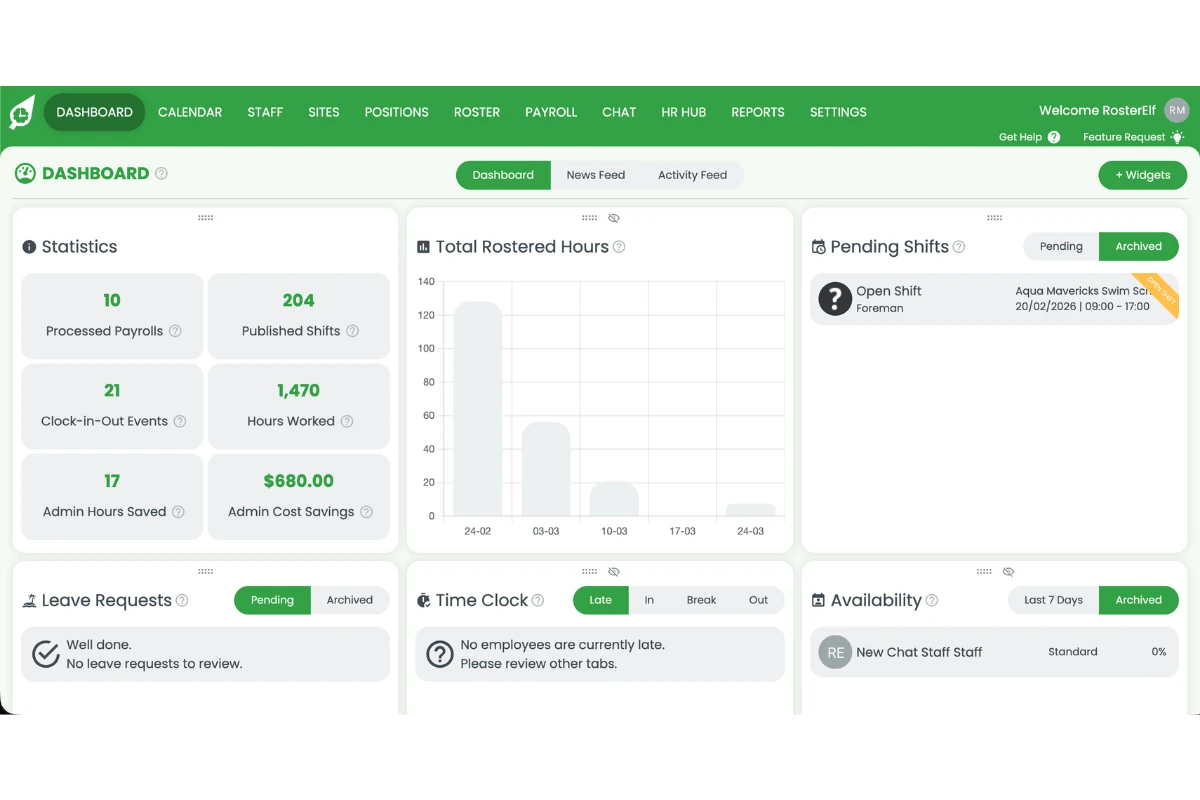
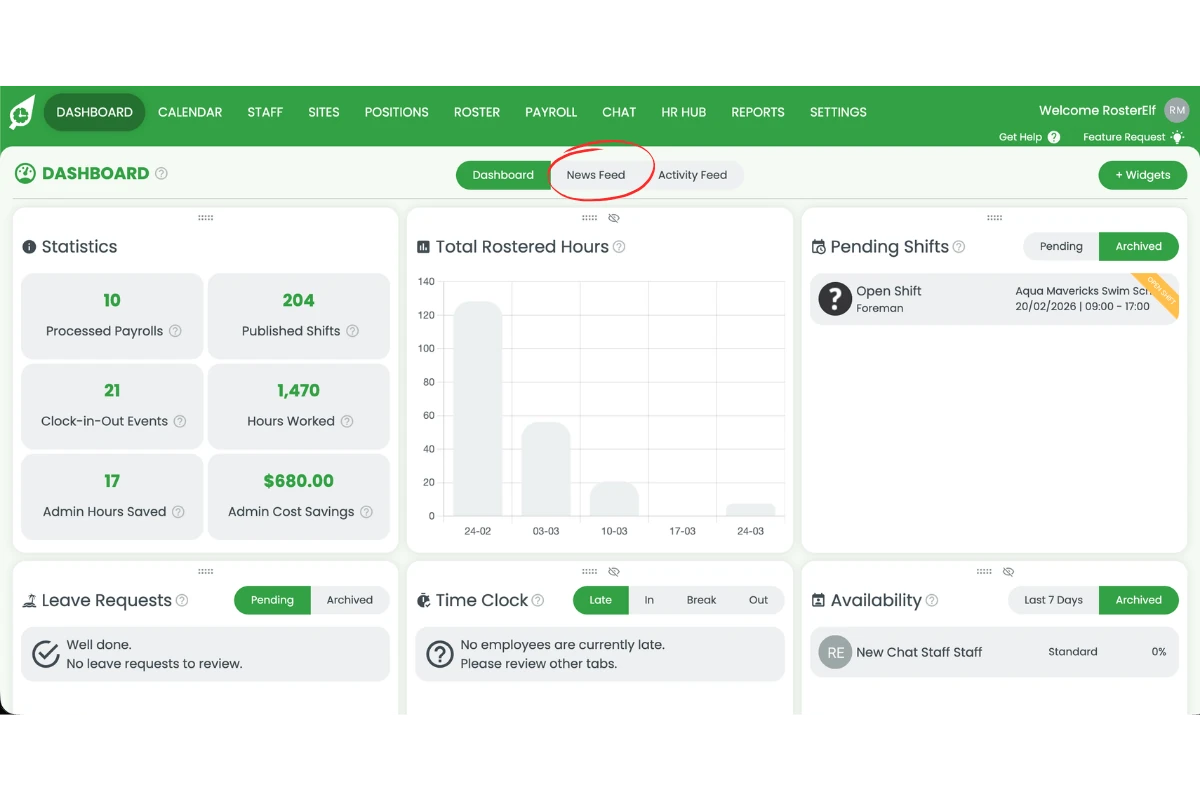
1.1.2 Click the News Feed tab at the top centre of the Dashboard.
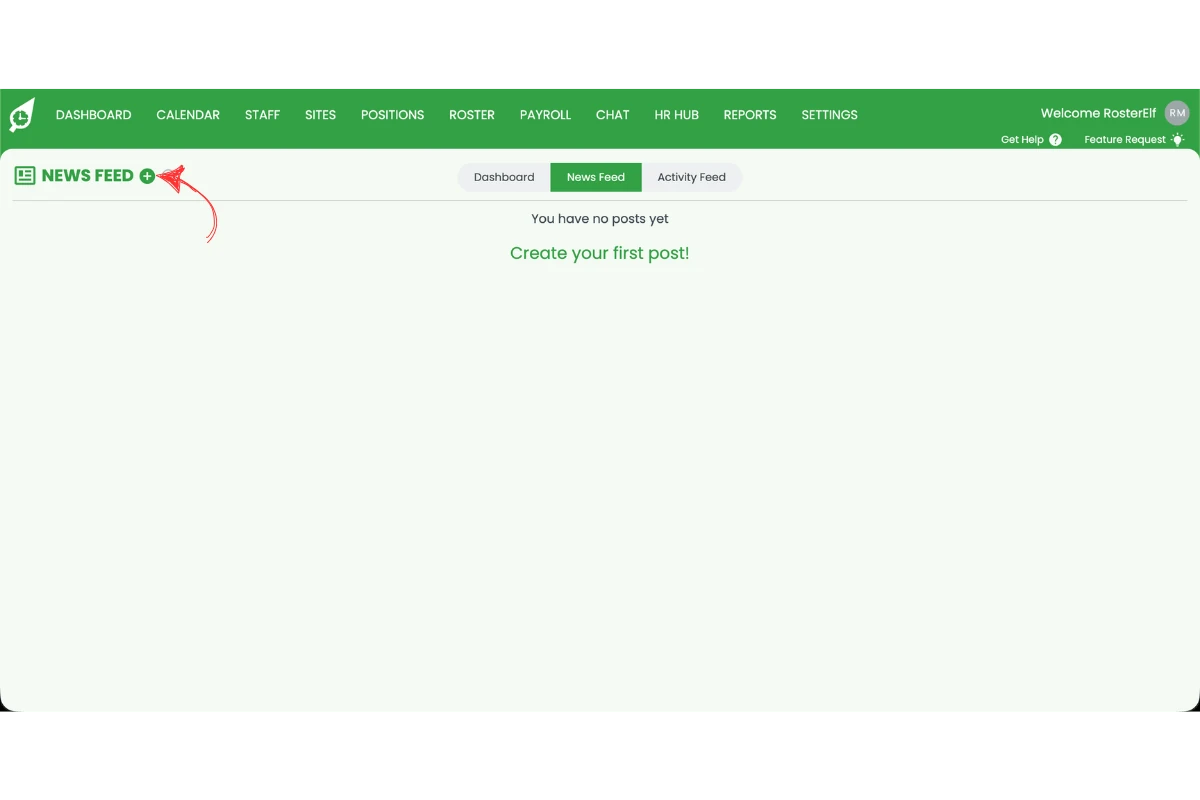
1.1.3 The News Feed screen will open, showing any existing posts or an empty state if no posts exist yet.
2. Creating a post
2.1 Open the add post form
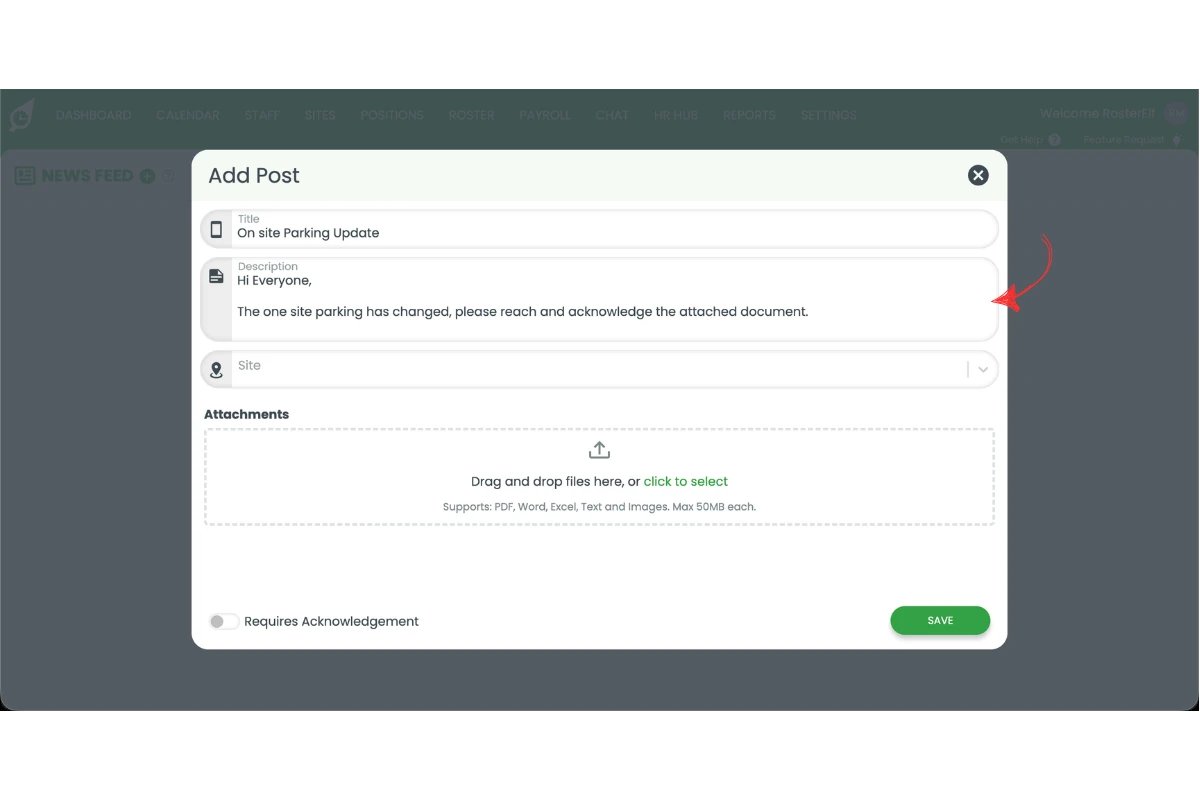
2.1.1 Press the + button next to the News Feed heading to open the Add Post form.
2.2 Add a title
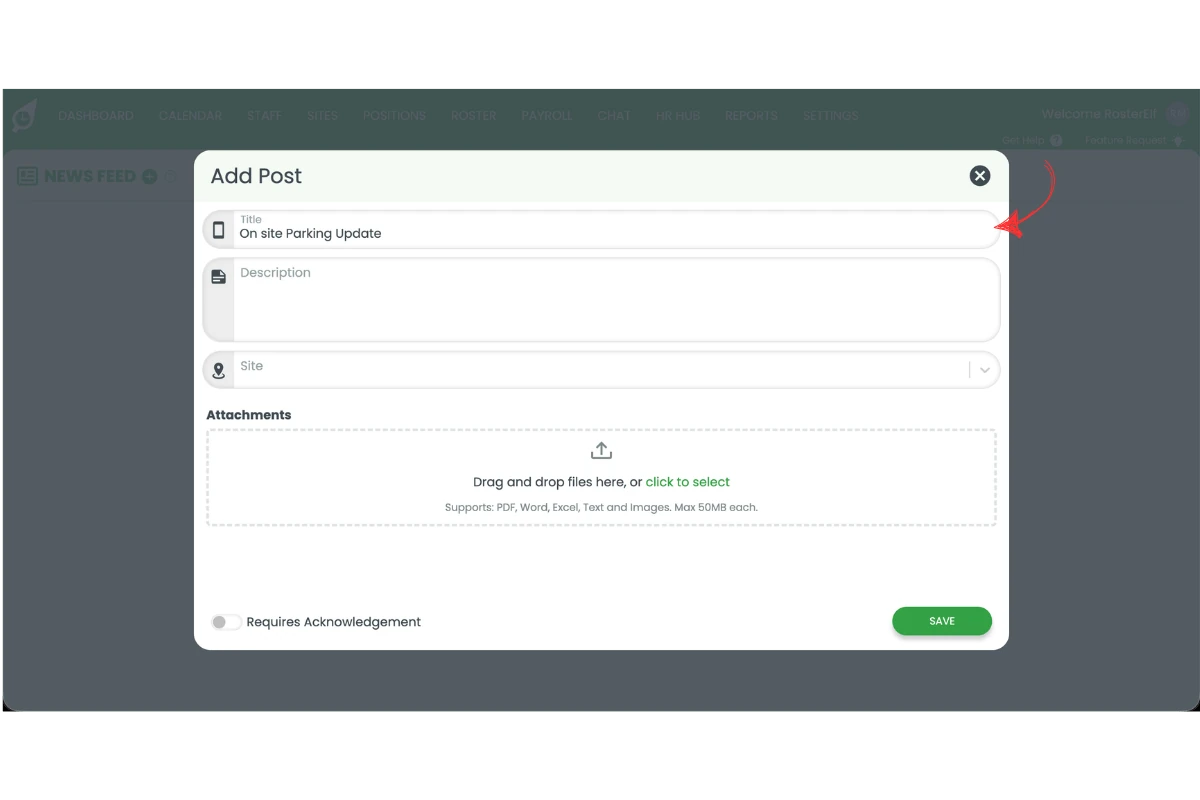
2.2.1 Click the Title field and enter a clear, descriptive title for your post.
2.3 Add a description
2.3.1 Click the Description field and enter the body of your message.
2.4 Select a site
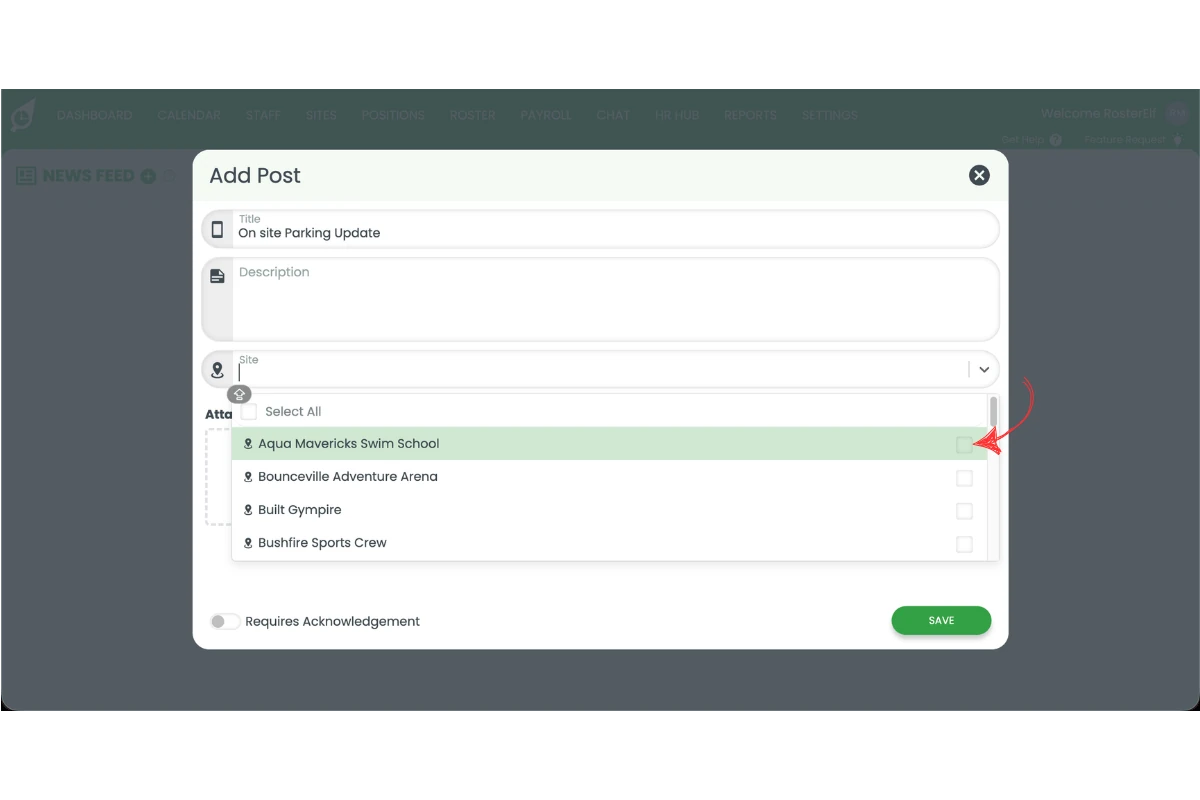
2.4.1 Click the Site dropdown to open the site list.
2.4.2 Select one or more sites. Use Select All to target all locations.
3. Adding an attachment
3.1 Upload a file
3.1.1 In the Attachments section, drag and drop a file or click click to select to browse your files.
3.1.2 Supported file types: PDF, Word, Excel, text files, and images. Maximum 50MB per file.
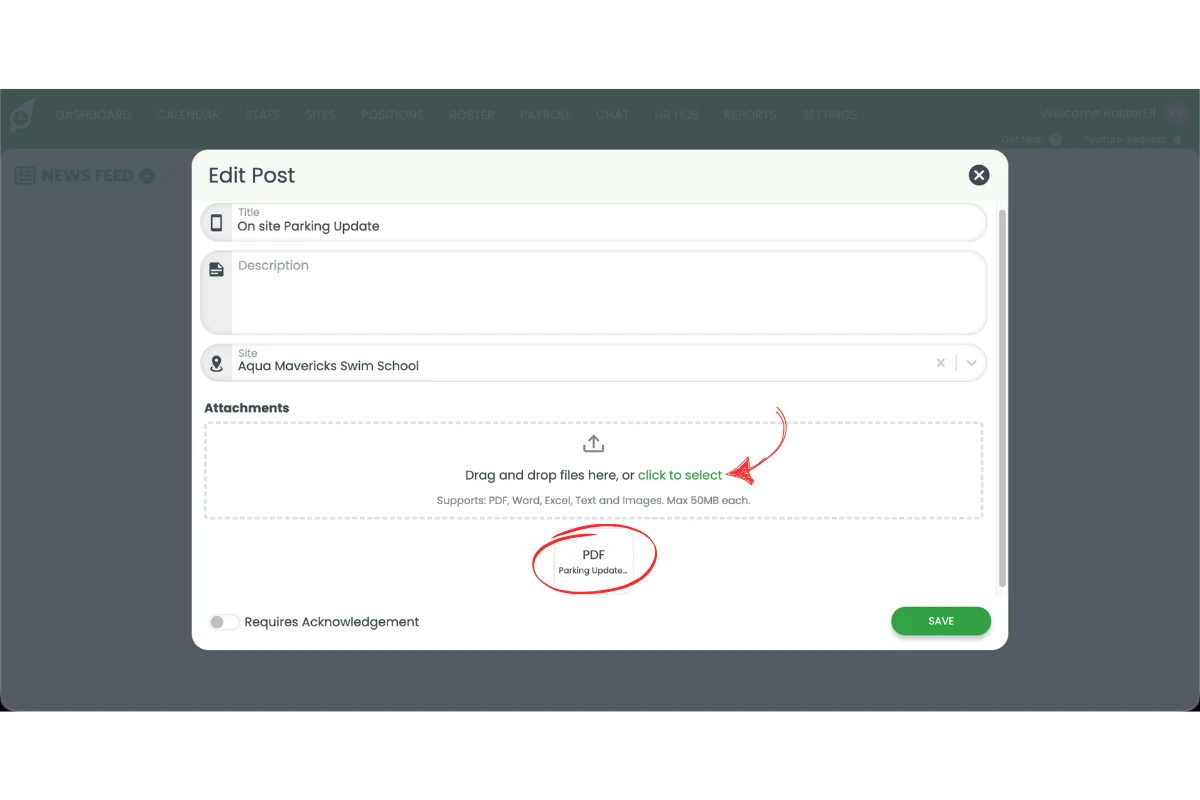
3.1.3 The uploaded file will appear below the upload area. You can upload multiple files if needed.
4. Requiring acknowledgement
4.1 Toggle acknowledgement on
4.1.1 At the bottom of the form, toggle on Requires Acknowledgement if you need staff to confirm they have read the post. Green = on, grey = off.
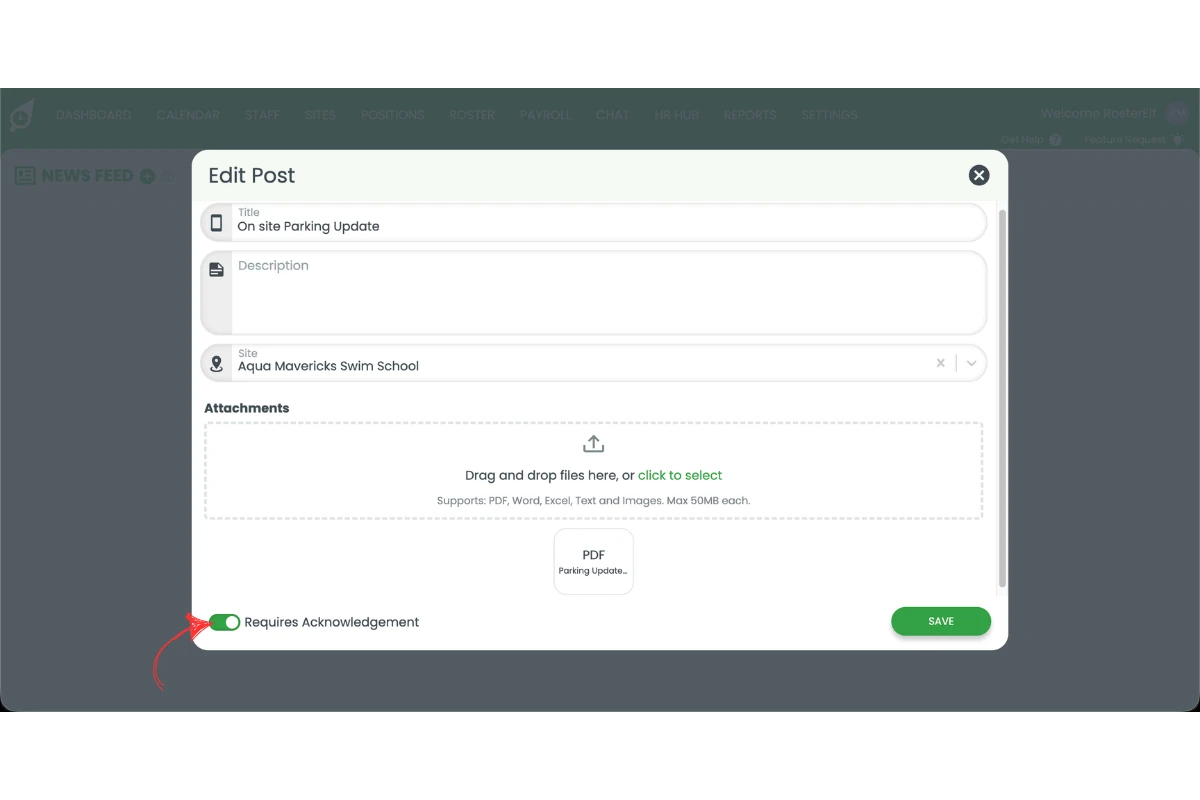
4.1.2 When enabled, staff will be required to acknowledge the post before it clears from their feed. This is useful for policy updates, safety notices, and any communication you may need to reference later.
5. Saving the post
5.1 Publish your post
5.1.1 Once you have added your title, description, site, and any attachments or acknowledgement settings, press Save.
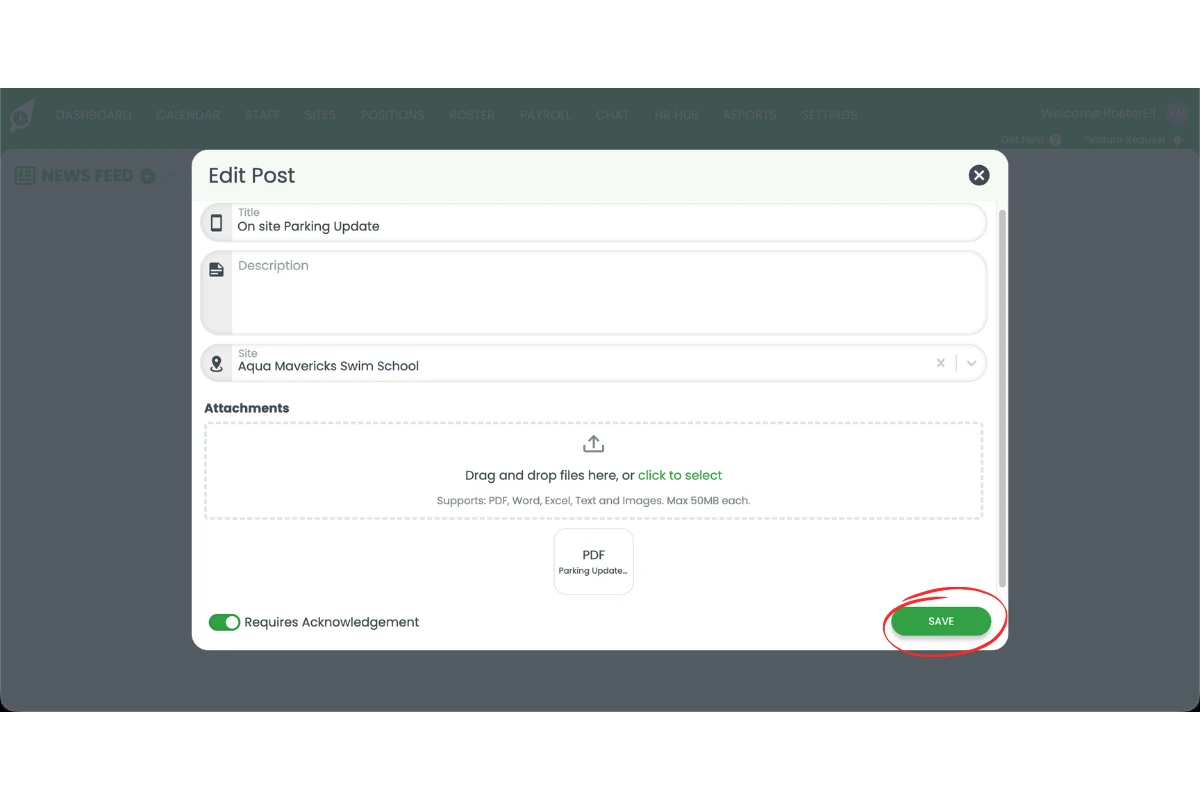
5.1.2 The post will be published and visible to staff at the selected site(s) in their newsfeed.
Frequently asked questions
1. What is the newsfeed feature in RosterElf?
The newsfeed feature in RosterElf allows you to share updates, announcements, and important information with your staff in one central location. It helps ensure all team members stay informed and aligned with business communications.
2. How do I use the newsfeed feature to create a post?
To use the newsfeed feature, open RosterElf, go to Newsfeed, and press the plus symbol to create a post. Add a title, description, select a site, and press Save. You can also include attachments and enable acknowledgement if required.
3. Can I choose which staff see my newsfeed post?
Yes, you can select a specific site when creating a post. This ensures only relevant staff members at that location receive the update, improving communication and reducing unnecessary notifications.
4. What does acknowledgement mean in the newsfeed feature?
Acknowledgement allows you to require staff to confirm they have read a post. When enabled, staff must acknowledge the update, helping ensure important information is seen and understood.
5. Can I add attachments when using the newsfeed feature?
Yes, you can add attachments such as documents or files to your newsfeed post. This is useful for sharing policies, procedures, or additional information alongside your update.
6. Is this the same as the comment I add when publishing shifts?
No. The comment you add in the Publish Shifts modal only appears in the notification for that specific batch of shifts. The newsfeed is separate — it’s a persistent, one-to-many announcement staff can see on their dashboard regardless of which shifts they’re rostered on.