

Acknowledge newsfeed posts on smartphone in RosterElf
This article explains how to acknowledge posts on smartphone in RosterElf. Acknowledging posts ensures you confirm that you have read and understood important updates shared by your employer. These updates may include announcements, policies, or urgent messages that require your attention.
Using the RosterElf smartphone app makes it easy to stay informed while on the go. You can quickly access the newsfeed, view posts, and acknowledge them in just a few steps. This helps your employer track who has seen the information and ensures clear communication across the team.
Following this guide will help you acknowledge posts correctly using your smartphone. This ensures you remain up to date with workplace information and meet any acknowledgement requirements set by your employer. To learn how admins create posts that require acknowledgement, see how to create a newsfeed post on the RosterElf smartphone app.
1. Acknowledge post on smartphone
This section explains how to acknowledge a post on smartphone in RosterElf. You will learn how to access the newsfeed, locate the post, and confirm your acknowledgement. Acknowledging posts is important as it confirms you have read key updates from your employer. It also helps maintain clear communication and accountability within your team.
The process is simple and can be completed directly from the RosterElf smartphone app. Once acknowledged, your employer will be notified that you have seen the post. This ensures nothing is missed and all staff remain informed.
1.1 Access and acknowledge a post on smartphone
1.1.1 Open the RosterElf smartphone app on your device.
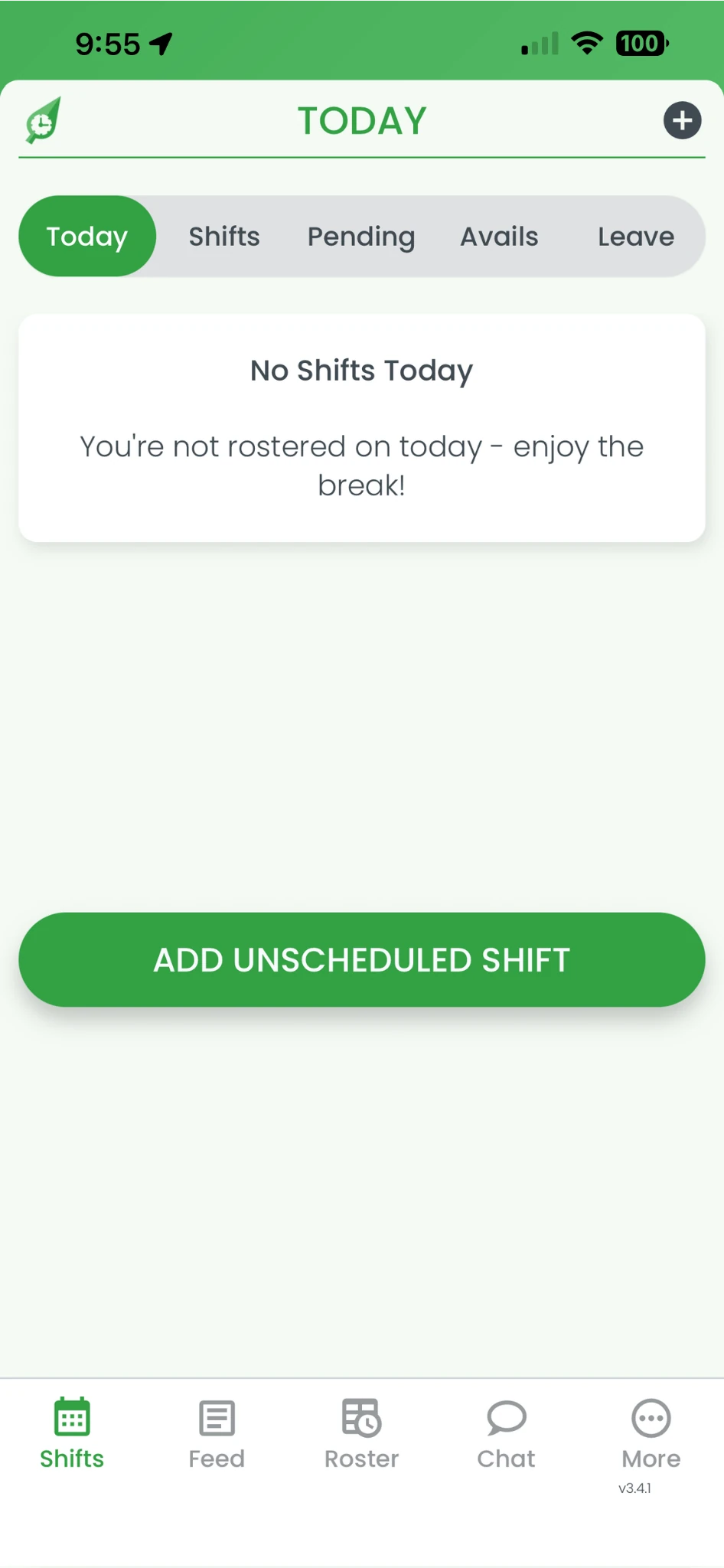
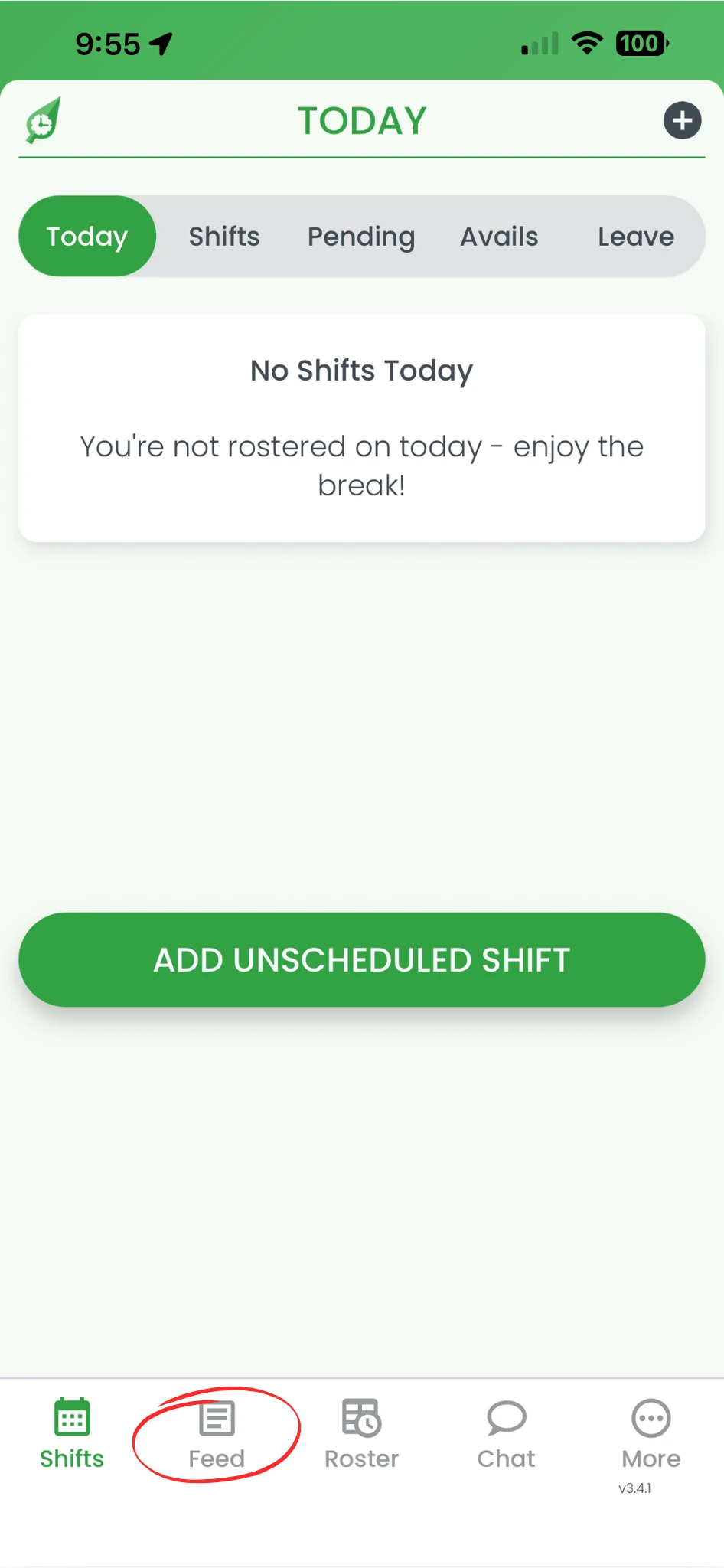
1.1.2 Press Feed to open the newsfeed.
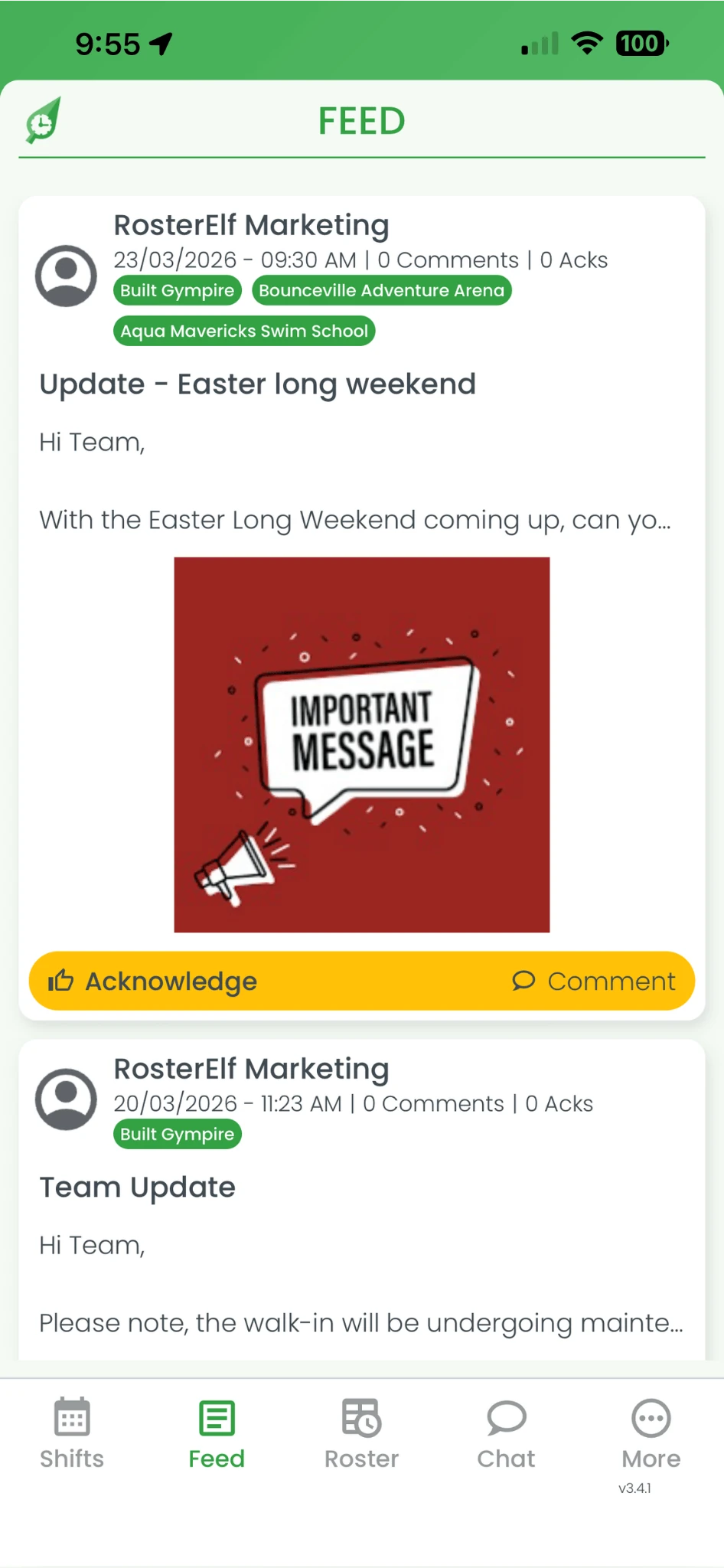
1.1.3 Select the post you need to acknowledge.
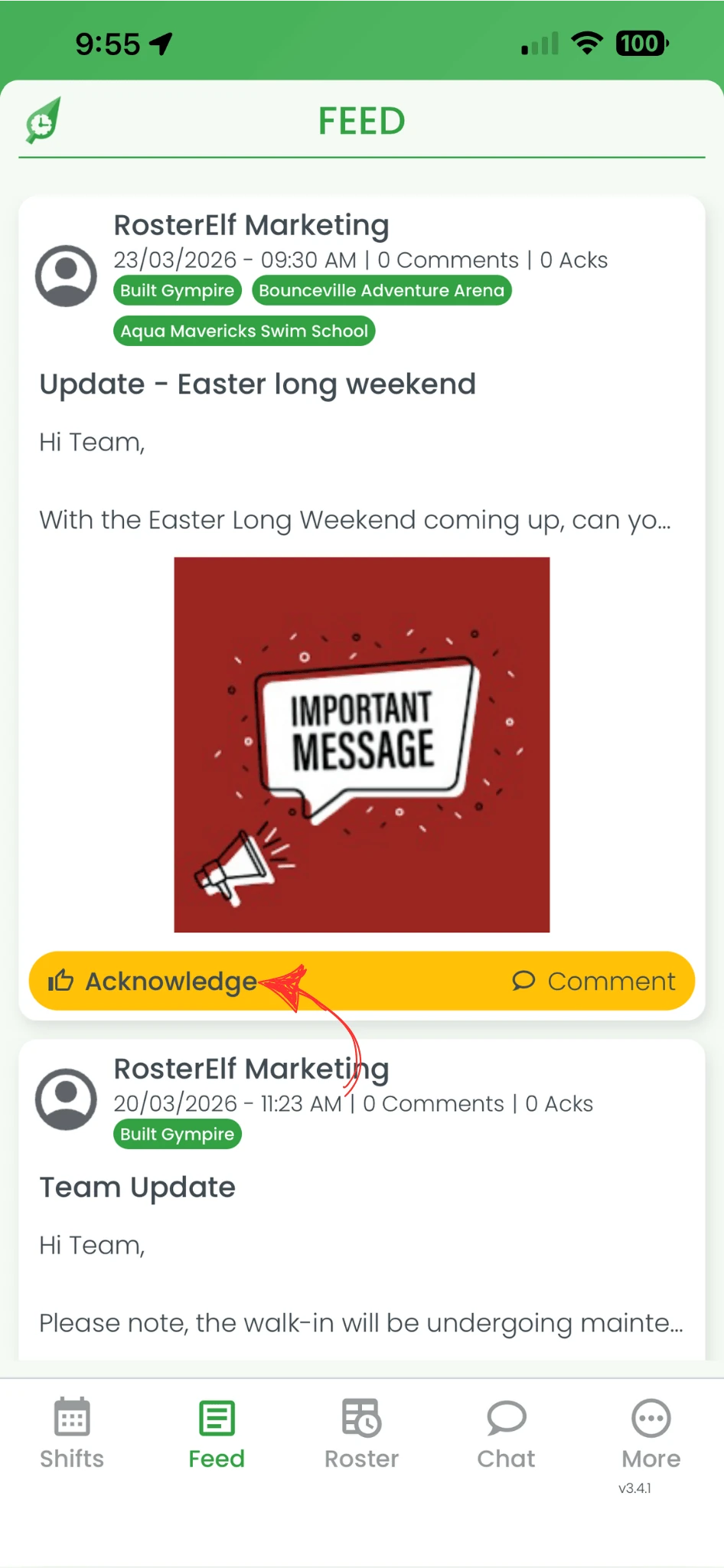
1.1.4 Press Acknowledge on the post.
1.1.5 Confirm your acknowledgement.
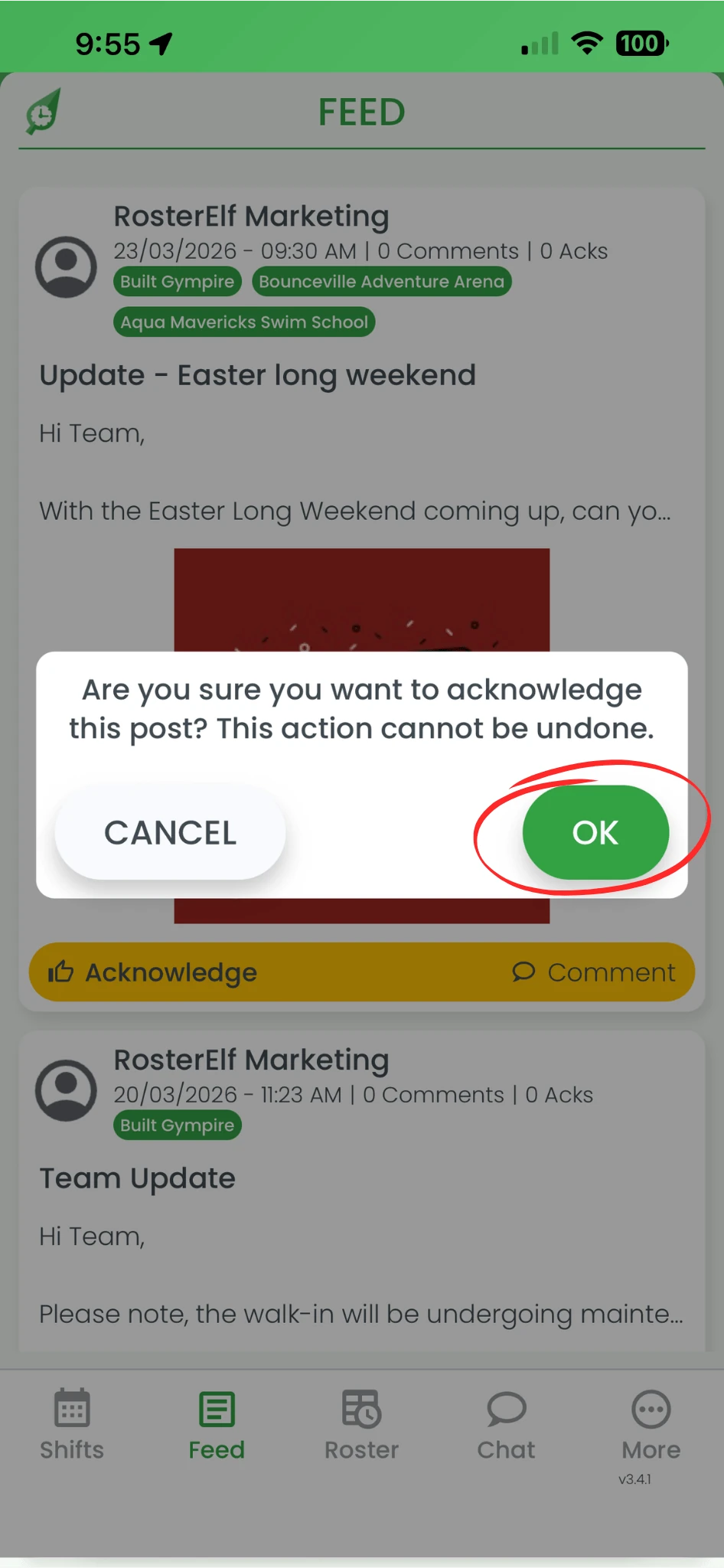
Your acknowledgement is now recorded. Your employer will be able to see that you have read the post. To learn how to create newsfeed posts from a desktop browser, see how to use the newsfeed in RosterElf to share updates.
Frequently asked questions
1. What does acknowledging a post on smartphone in RosterElf mean?
Acknowledging a post on smartphone in RosterElf means you confirm that you have read and understood a message shared by your employer. This may include updates such as shift changes, announcements, or policies.
2. How do I acknowledge a post on smartphone in RosterElf?
To acknowledge a post on smartphone in RosterElf, open the app, go to the feed, select the post, press Acknowledge, and confirm. This completes the process and notifies your employer.
3. Why do I need to acknowledge a post on smartphone?
You need to acknowledge a post on smartphone to confirm you have seen important updates. This helps your employer track communication and ensures all staff stay informed.
4. Where can I find posts to acknowledge on smartphone?
You can find posts to acknowledge on smartphone in the Feed section of the RosterElf app. This is where all updates and announcements are shared.
5. What happens after I acknowledge a post on smartphone?
After you acknowledge a post on smartphone, your confirmation is recorded in RosterElf. Your employer can see that you have read the post, which helps maintain clear communication and accountability.