

Before you can create newsfeed posts in RosterElf, an admin must first turn on the newsfeed feature in settings. This guide walks through enabling newsfeed and optionally allowing managers to post. Once enabled, you can start sharing updates and announcements with your team straight away.
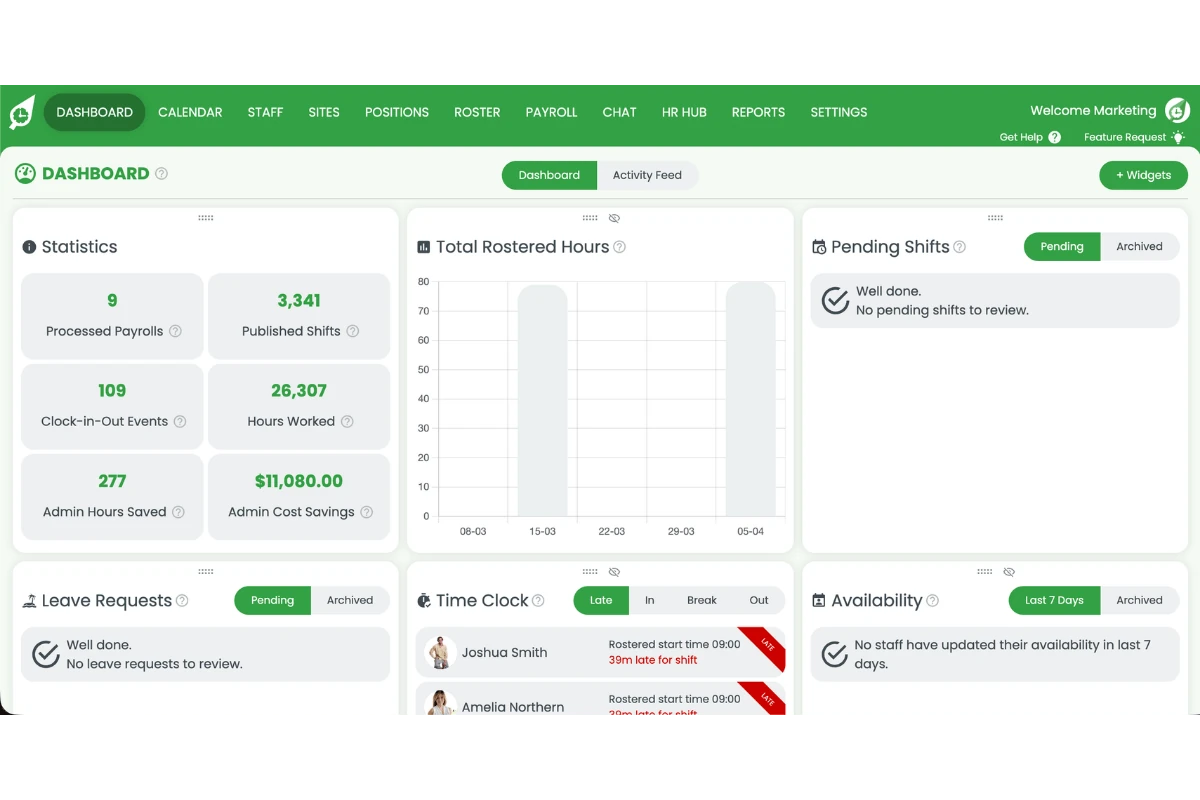
1. Go to settings
1.1 Log in to RosterElf and go to the main dashboard.
1.2 Click Settings in the top navigation bar.
2. Open chat settings
2.1 In the Settings dropdown, click Chat.
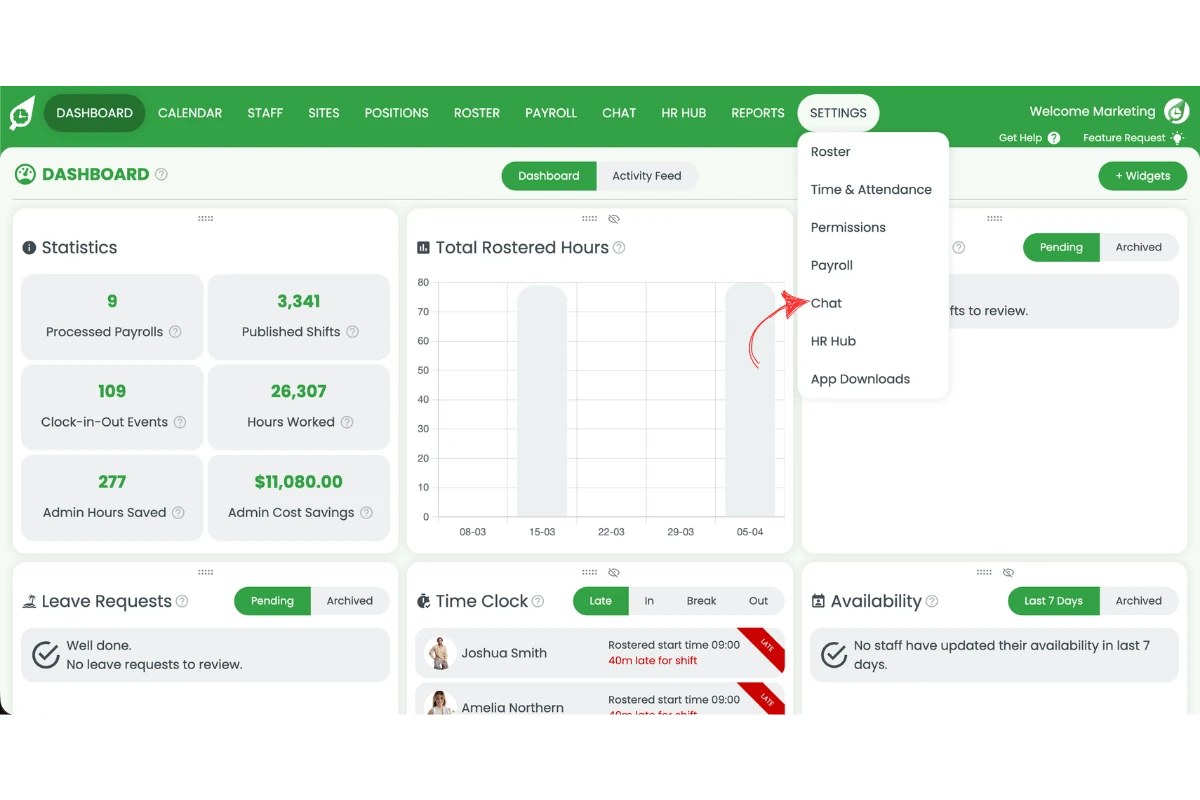
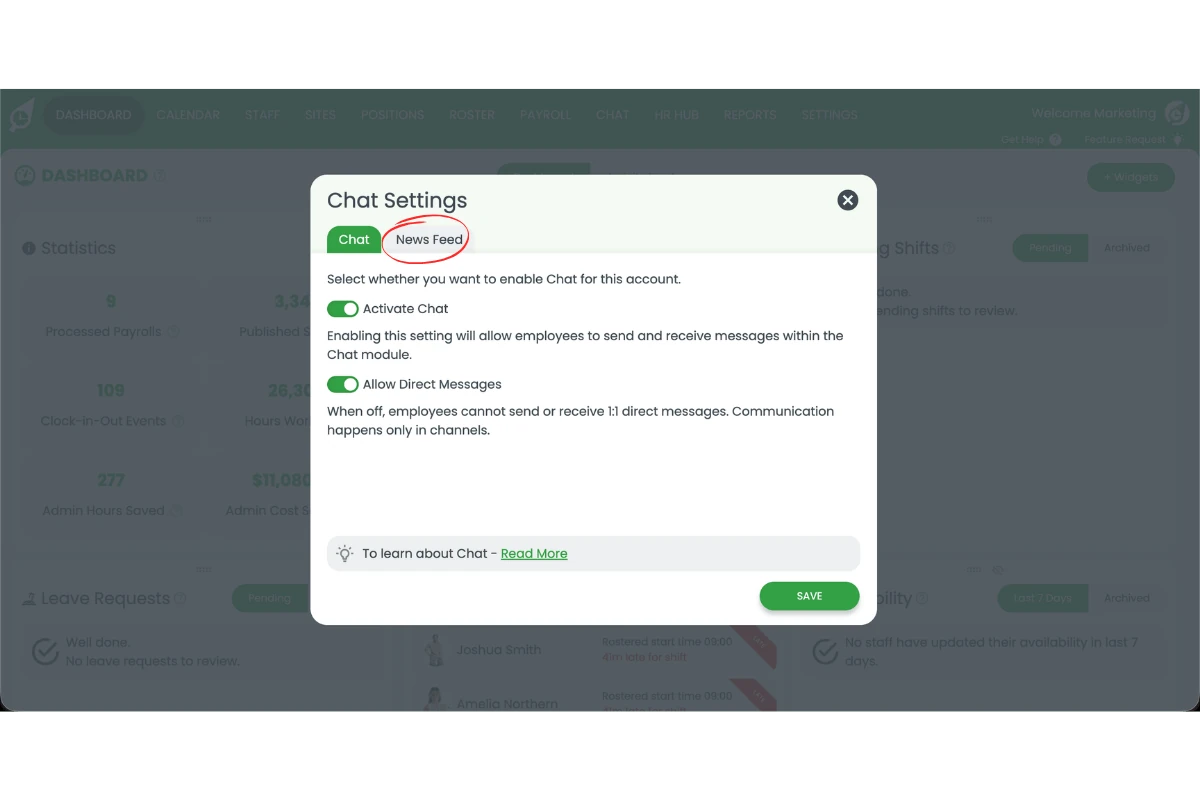
2.2 The Chat Settings modal will open.
2.3 Click the News Feed tab at the top of the modal.
3. Enable newsfeed
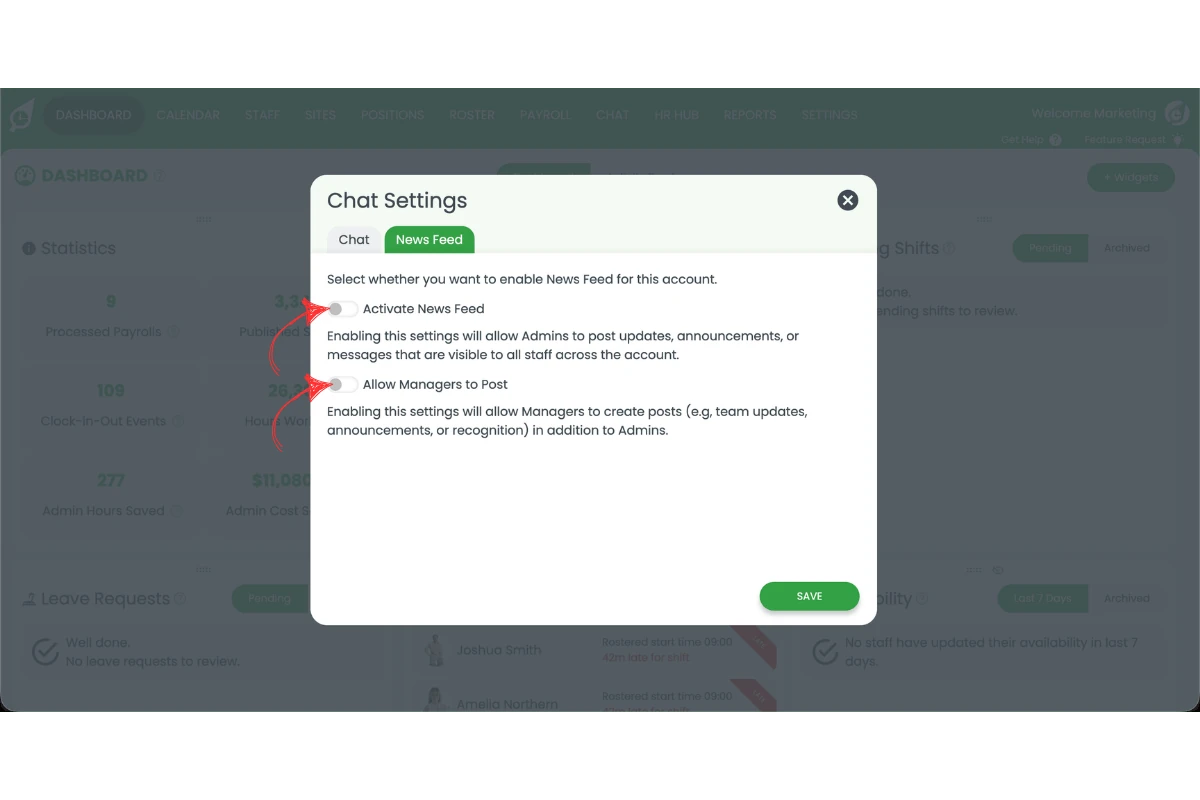
3.1 On the News Feed tab, toggle on Activate News Feed.
This enables the newsfeed feature account-wide. Admins will be able to create and publish posts visible to all staff.
4. Allow managers to post (optional)
4.1 If you want managers to be able to create newsfeed posts (not just admins), also toggle on Allow Managers to Post.
Leave this off if you want to restrict newsfeed posting to admins only.
5. Save
5.1 Click Save to apply the changes.
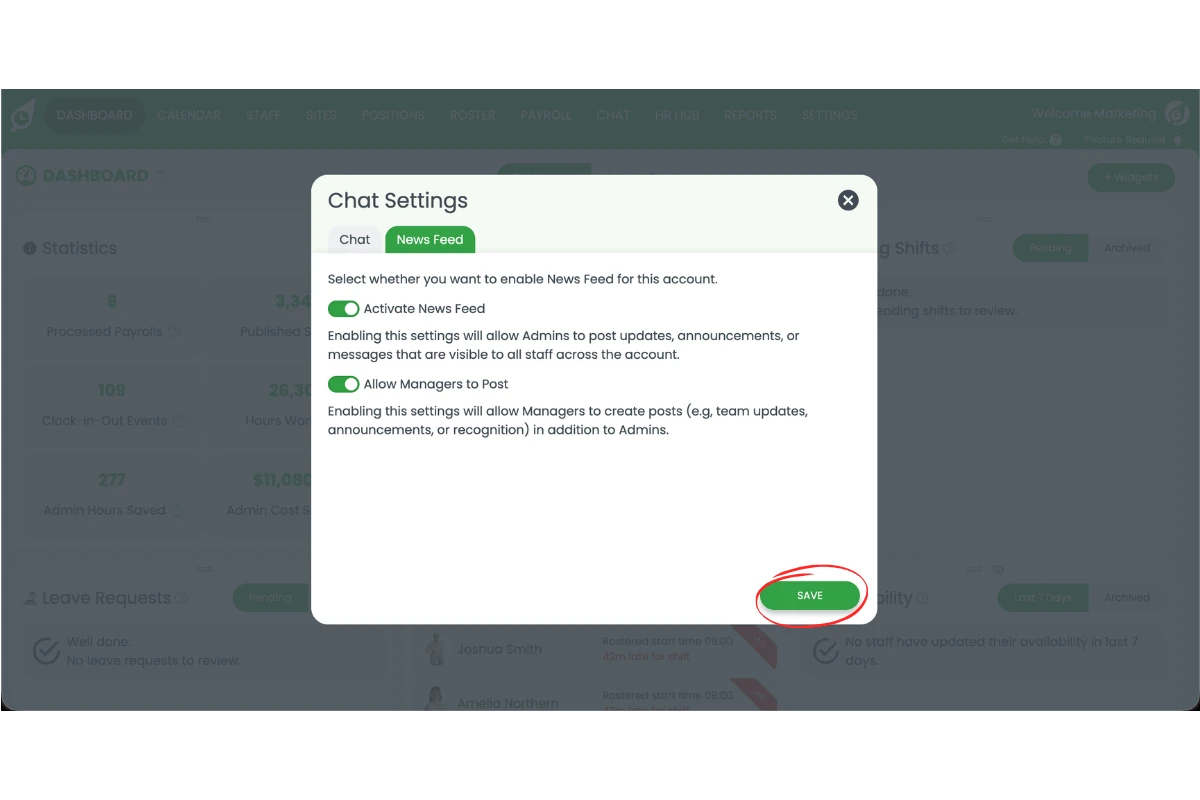
Newsfeed is now active. You can start creating your first post right away.
Frequently asked questions
1. Where do I find the newsfeed setting in RosterElf?
Newsfeed is enabled inside Chat Settings. From the dashboard, click Settings in the top navigation, select Chat, then switch to the News Feed tab.
2. Who can turn on the newsfeed feature?
Only admins can enable or disable the newsfeed feature. The setting is found in Chat Settings, which is only accessible to admin-level users.
3. What does "Allow Managers to Post" mean?
When this toggle is enabled, managers can create and publish newsfeed posts in addition to admins. When it is off, only admins can post.
4. Can I enable newsfeed without enabling chat?
Yes. The Chat and News Feed toggles are independent. You can activate News Feed on its own without enabling the Chat messaging feature.
5. What happens after I enable newsfeed?
Once enabled, the Newsfeed option appears in the navigation for all users. Admins (and managers if permitted) can start creating posts immediately. Staff will see posts in their newsfeed and can acknowledge them if required.