

Create newsfeed posts on smartphone in RosterElf
This article explains how to create a newsfeed post on the RosterElf smartphone app. Using the newsfeed on your smartphone allows you to share updates with your team quickly and from anywhere. This is useful when you need to communicate urgent announcements or important business updates while on the go.
The RosterElf smartphone app makes it simple to create and publish posts directly from your device. You can add a title, include a detailed description, select the correct site, and attach files if needed. You can also request acknowledgement to ensure staff confirm they have read the message.
To learn how to create newsfeed posts from a desktop browser, see how to use the newsfeed in RosterElf to share updates. To delete or edit an existing post, see how to delete and amend a newsfeed post in RosterElf.
1. How to create a newsfeed post on smartphone
This section explains how to create a newsfeed post on the RosterElf smartphone app. You will learn how to access the newsfeed from the mobile app, create a new post, and complete all required fields. Creating posts from your smartphone allows you to communicate with your team quickly and efficiently, ensuring important updates are shared in real time no matter where you are.
1.1 Create a newsfeed post in the smartphone app
1.1.1 Open the RosterElf smartphone app on your device.
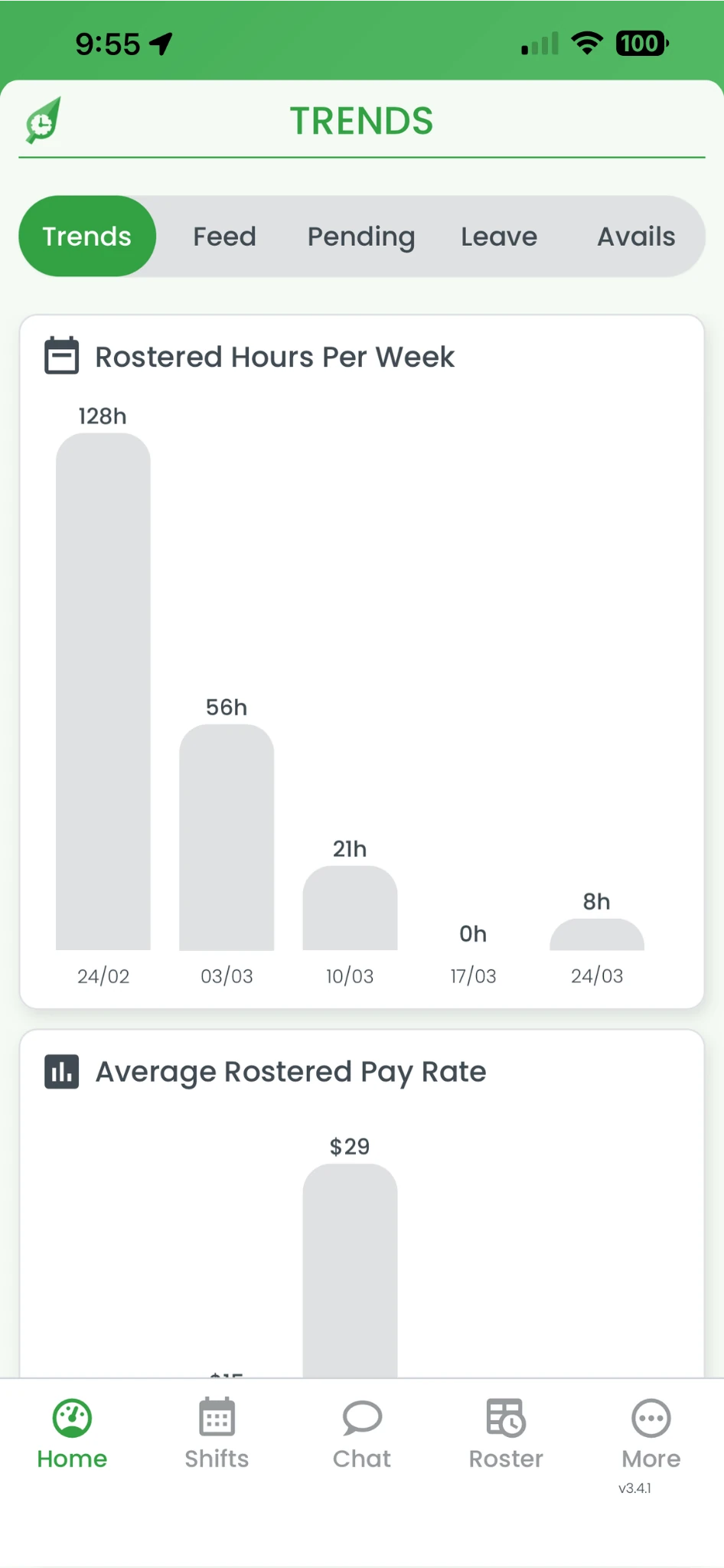
1.1.2 Press Home in the bottom navigation bar.
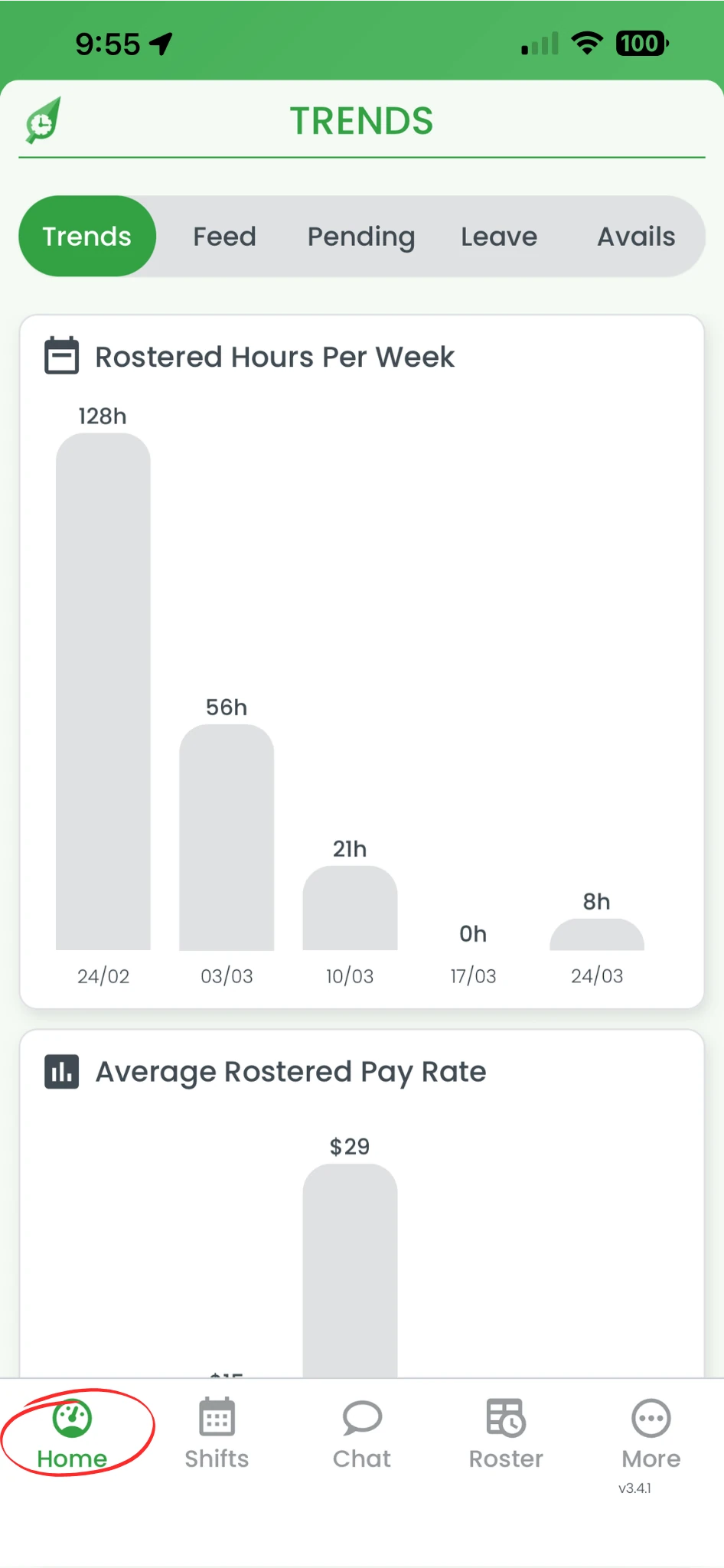
1.1.3 Press Feed in the tab bar at the top of the screen.
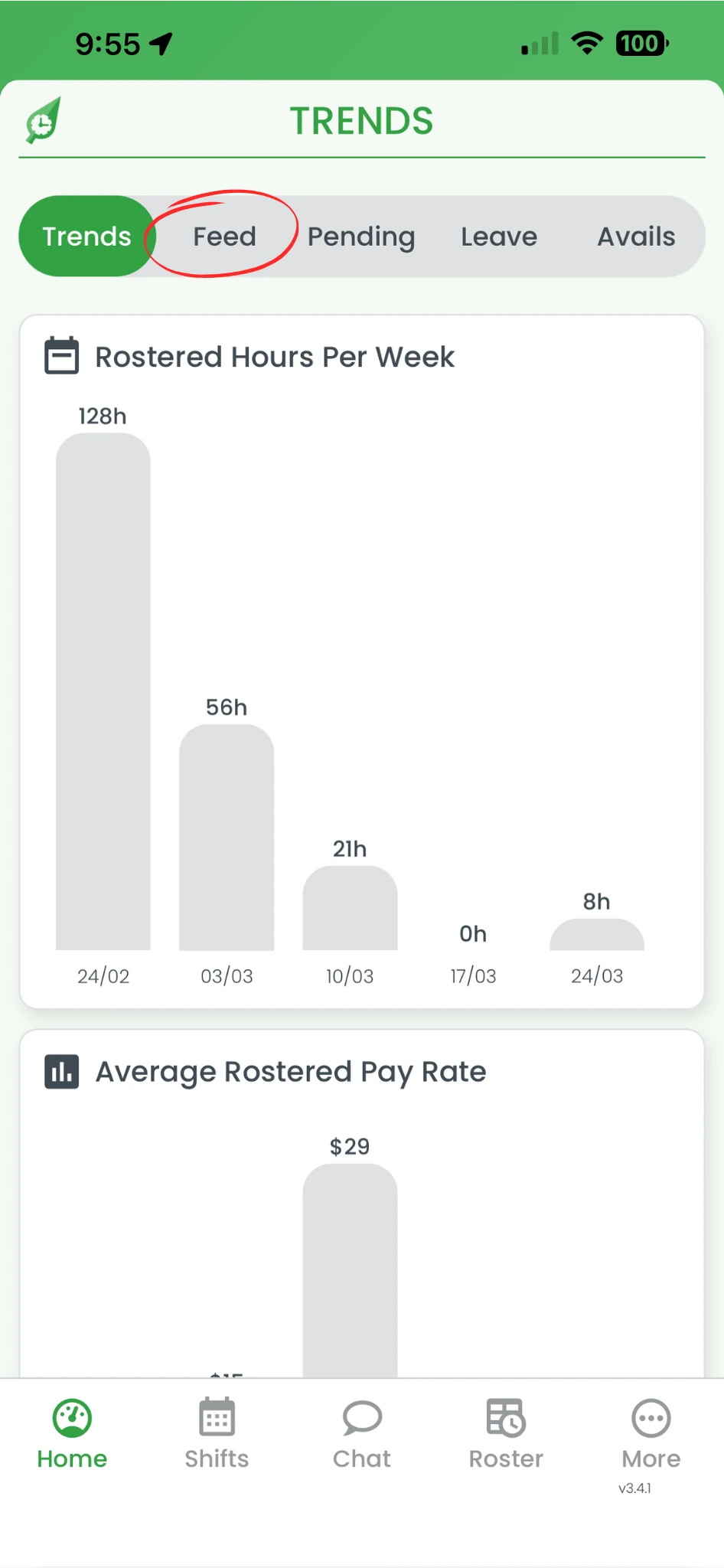
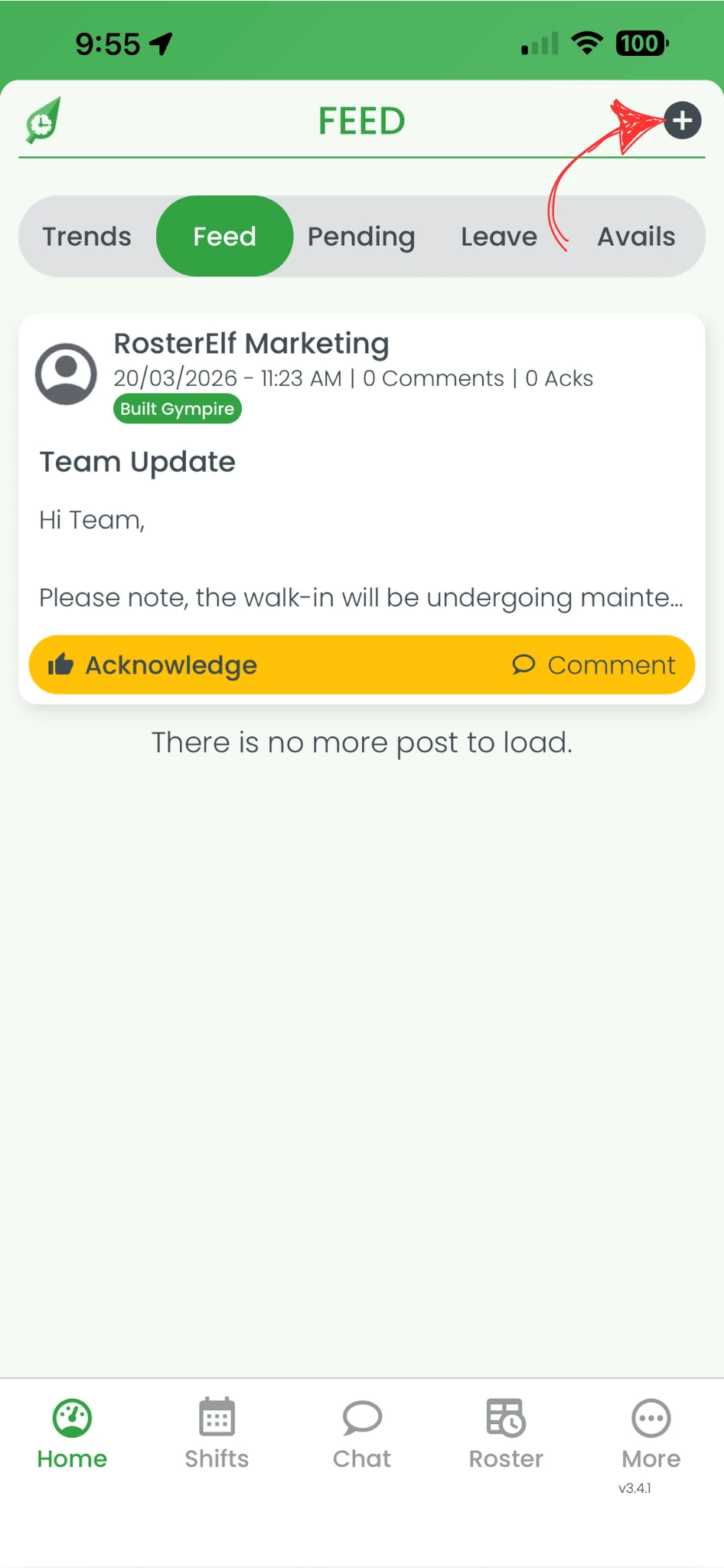
1.1.4 Press the + symbol in the top right corner to add a new post.
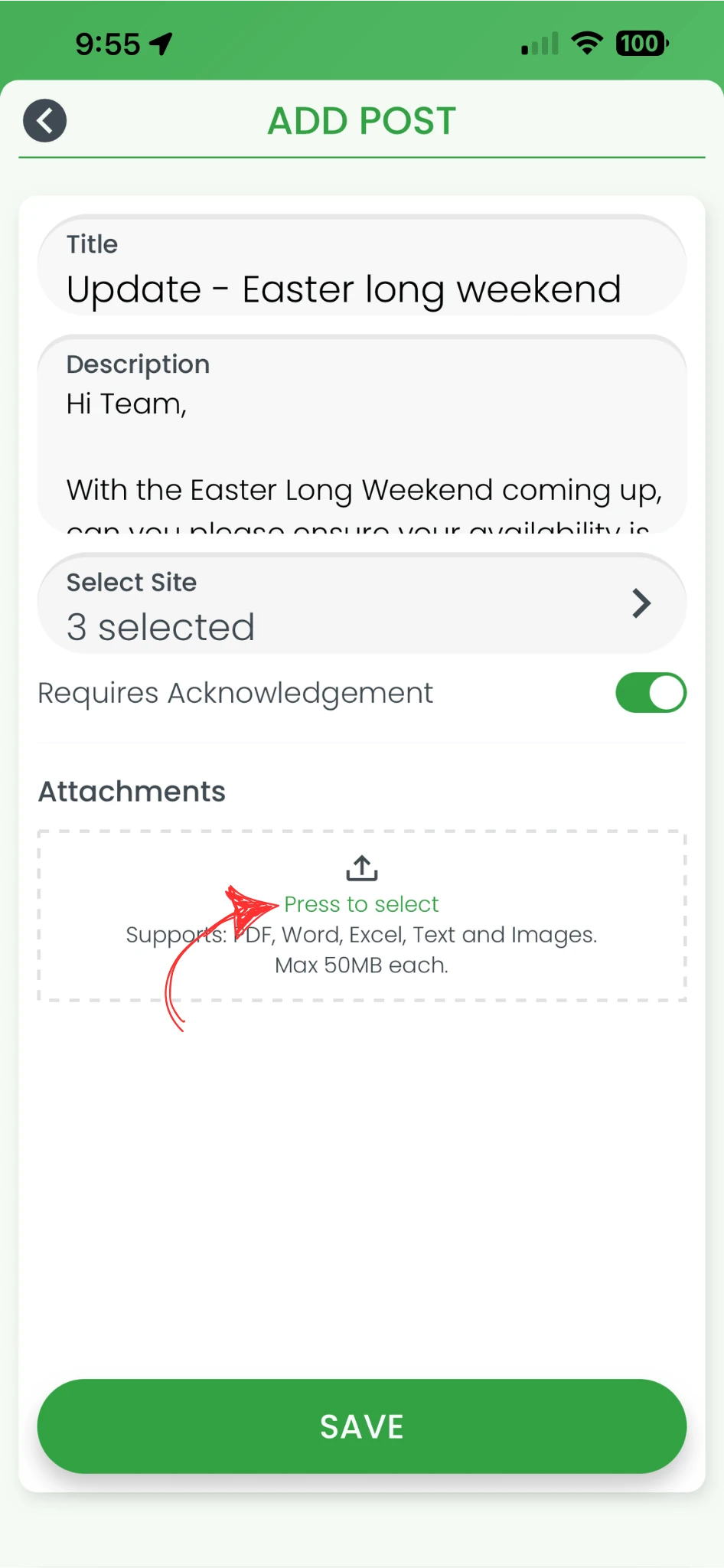
1.1.5 Enter your title in the Title field.
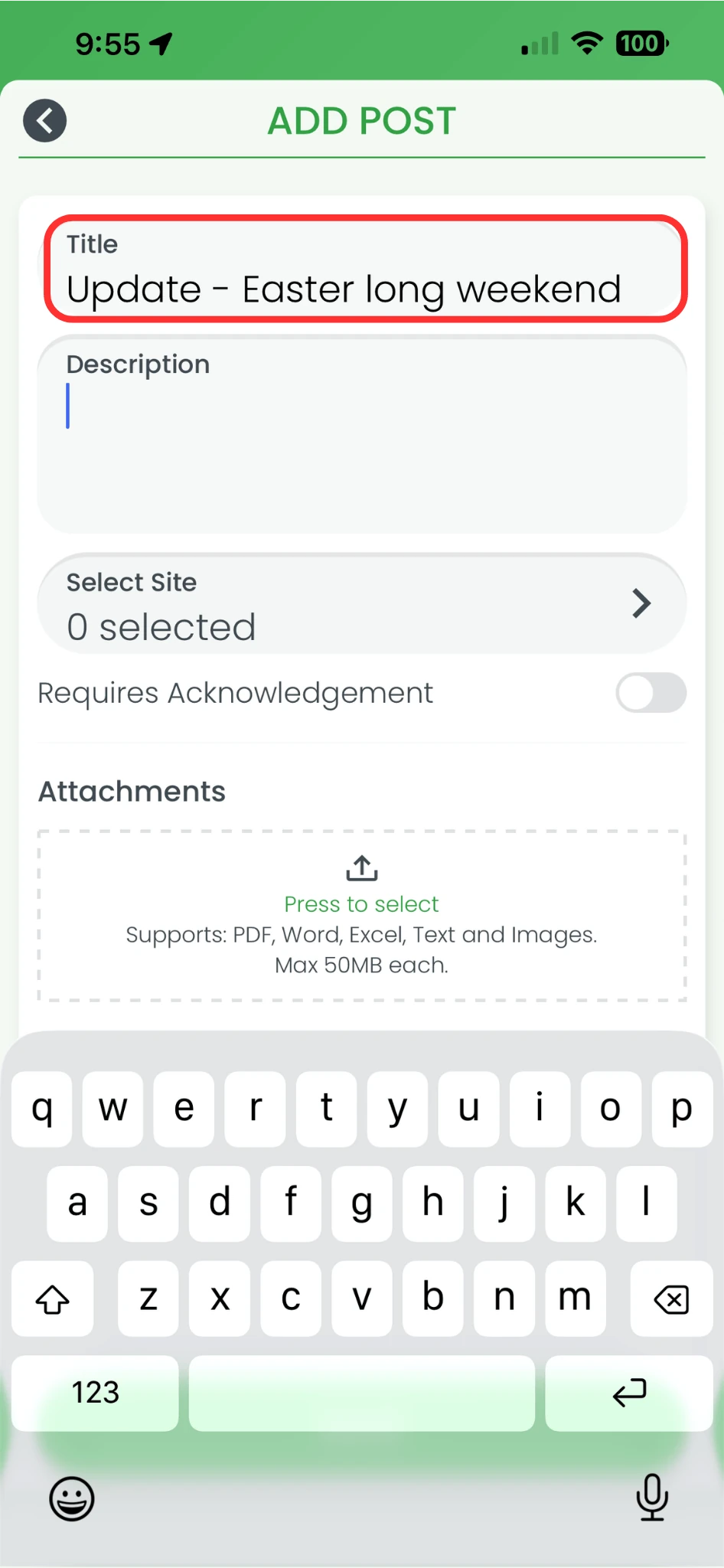
1.1.6 Enter your message in the Description field.
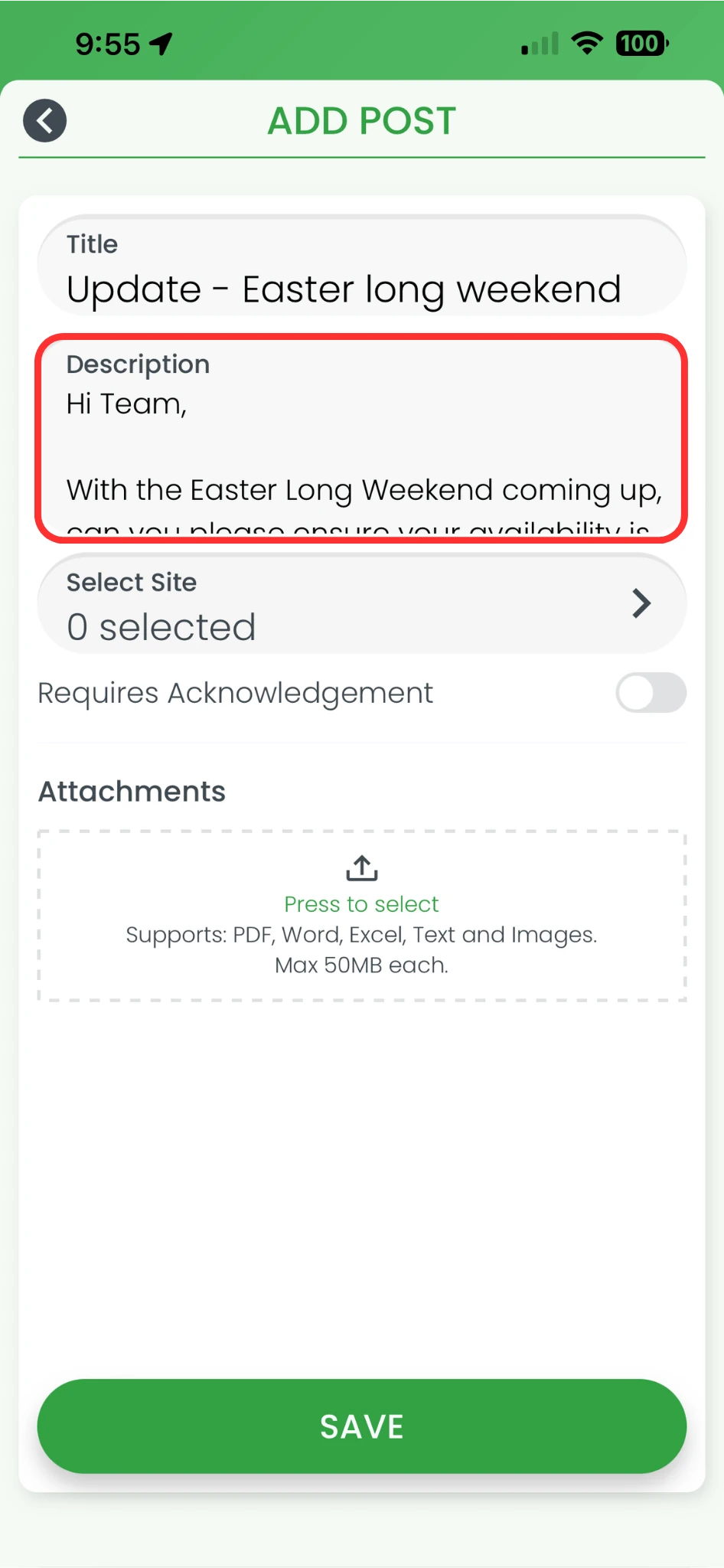
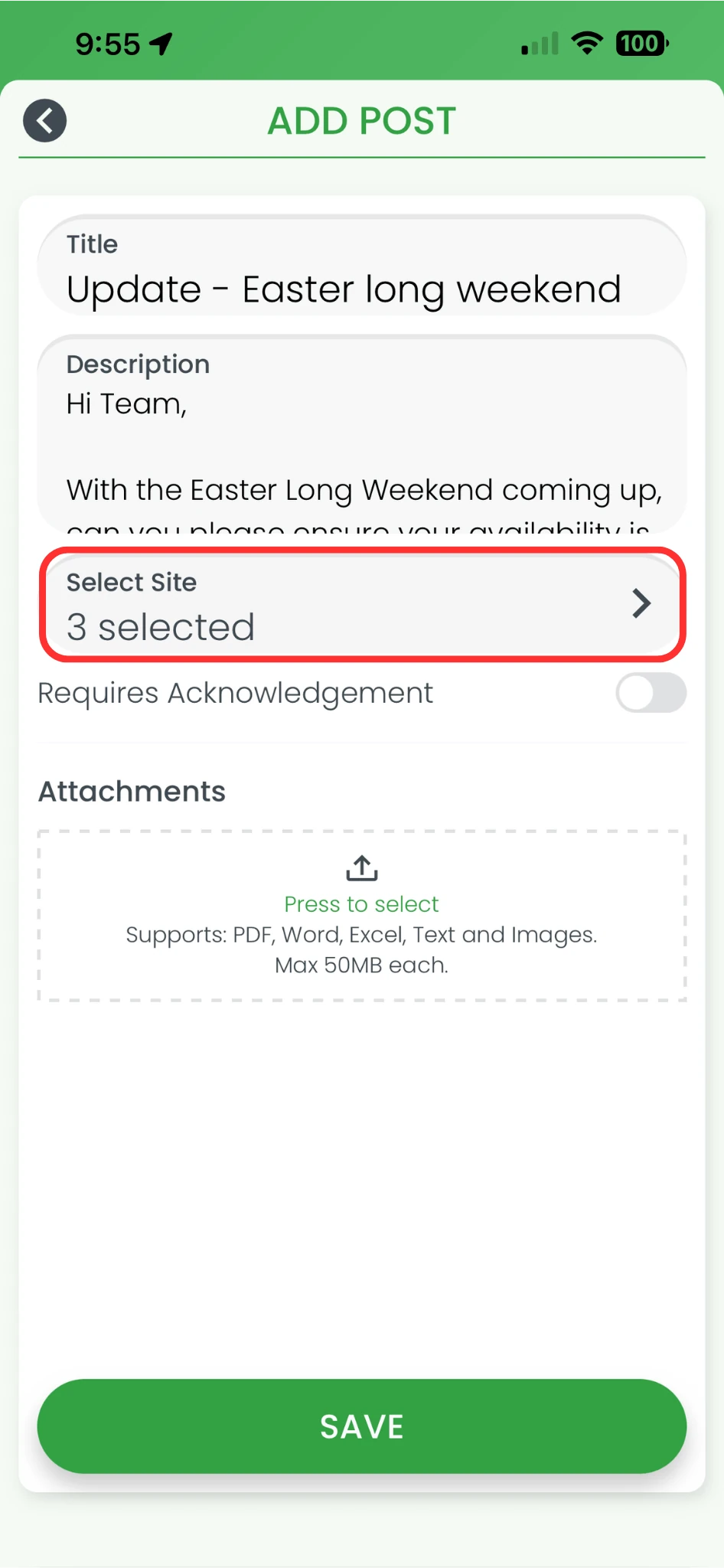
1.1.7 Tap Select Site and choose the site you want to post to.
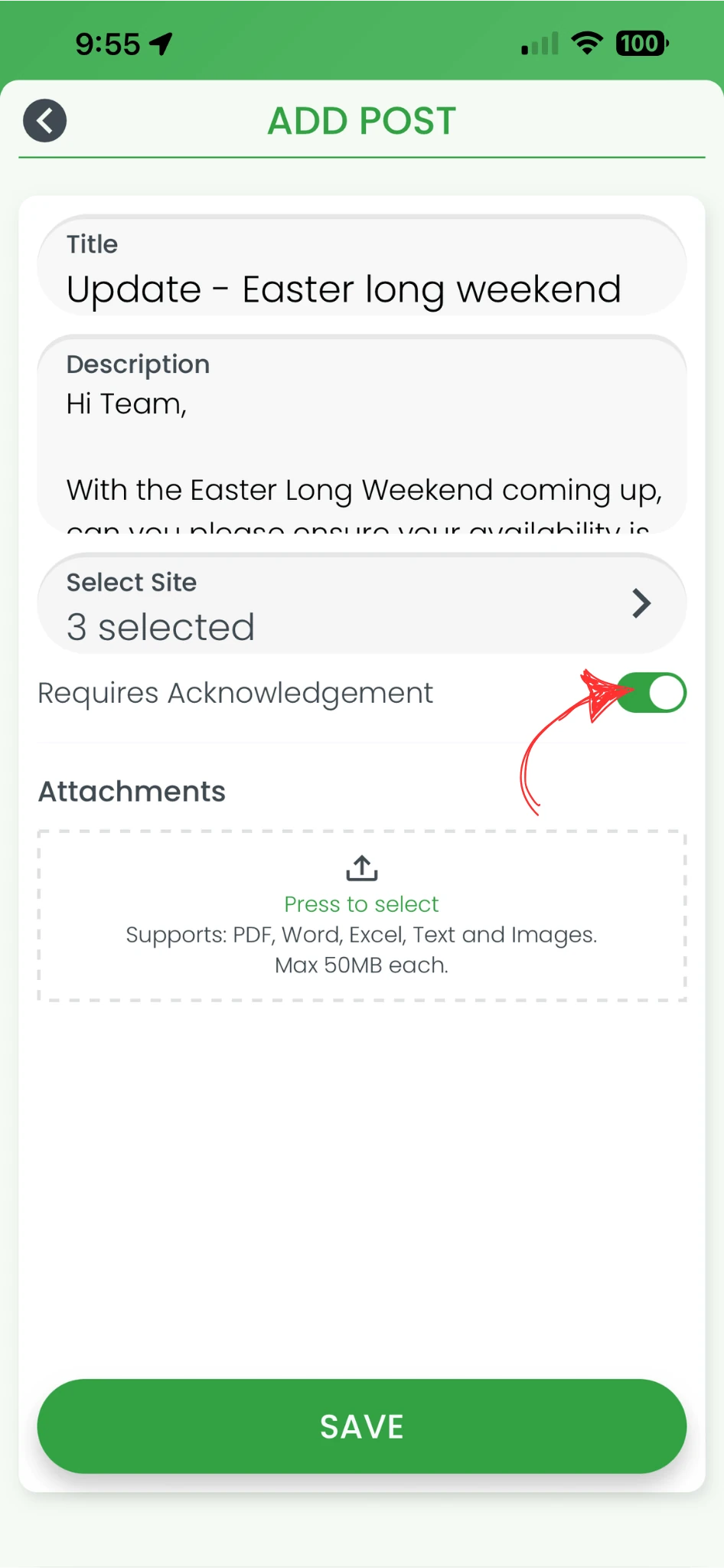
1.1.8 Toggle on Requires Acknowledgement if you need staff to confirm they have read the post.
Note
If you toggle on Requires Acknowledgement, you will not be able to edit the post after saving. To make changes, you will need to delete the post and create a new one.
1.1.9 Press Press to select in the Attachments section to add a file if required.
1.1.10 Press Save to publish the post to the selected site(s).
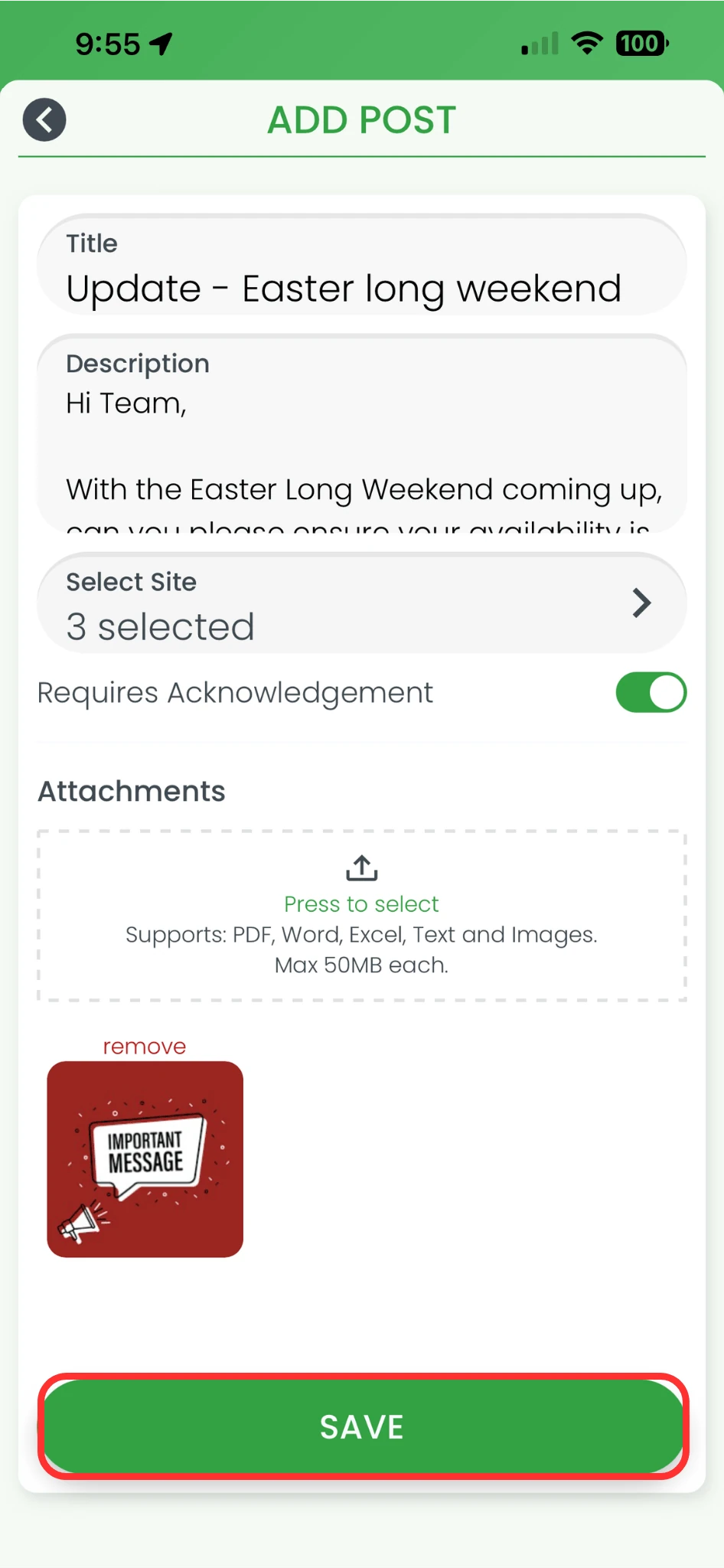
The post will be published and visible to staff at the selected site(s) in their newsfeed immediately.
Frequently asked questions
1. What is a newsfeed post in the RosterElf app?
A newsfeed post in the RosterElf smartphone app is a way to share updates with your team from your mobile device. You can post announcements, reminders, or important information directly from your phone. This allows you to communicate with staff quickly, even when you are not at your computer.
2. How do I create a newsfeed post on the RosterElf smartphone app?
To create a newsfeed post on the RosterElf smartphone app, open the app and press Home, then select Feed. Press the + symbol to start a new post. Enter your title and description, choose the site, and press Save. This process lets you publish updates in just a few steps.
3. Can I request staff acknowledgement for a newsfeed post on smartphone?
Yes, you can request acknowledgement when creating a newsfeed post on the RosterElf smartphone app. Toggle on Requires Acknowledgement before saving your post. This ensures staff confirm they have read the message, which is useful for important or time-sensitive updates.
4. Can I add attachments to a newsfeed post on smartphone?
Yes, you can add attachments when creating a newsfeed post on the RosterElf smartphone app. Press Press to select in the Attachments section to upload files such as documents or images. This helps your team better understand the information you are sharing.
5. Why should I use the smartphone app to create newsfeed posts?
Creating newsfeed posts on the RosterElf smartphone app allows you to share updates in real time from anywhere. It improves communication, keeps staff informed, and ensures important messages are delivered quickly. This is especially useful for urgent updates or when you are away from your computer.
6. Why can't I amend my post after saving?
If you toggled on Requires Acknowledgement when creating the post, you will not be able to edit it after saving. To make changes, you will need to delete the post and create a new one. See how to delete and amend a newsfeed post for details.