

Disclaimer
This guide provides general information only and should not be relied upon as professional advice. Payroll and accounting requirements can vary depending on your business circumstances. Always check with your accountant or contact MYOB directly to confirm the best approach for your situation.
This article explains common MYOB AccountRight payroll errors that may appear when exporting payroll data from RosterElf to MYOB AccountRight. These errors are usually caused by missing payroll settings, incorrect payroll category names, or employee setup issues inside MYOB AccountRight.
Understanding these errors helps businesses resolve payroll export problems faster and reduce delays when processing payroll. Most errors can be fixed by reviewing payroll categories, employee payroll settings, or standard pay configurations inside MYOB AccountRight. Correct payroll setup also helps maintain accurate payroll records between both systems. If you are using MYOB My Business, see the guide on fixing MYOB My Business import errors.
This guide explains the most common MYOB AccountRight payroll errors and how to resolve them step by step. You will learn how to remove standard pay settings, check payroll category names, confirm employee payroll links, and review hourly wage category settings. Before working through these errors, confirm your MYOB account is correctly configured by reviewing the guide on setting up MYOB for integration.
1. Remove standard pay in MYOB AccountRight
This section explains how to remove standard pay settings from an employee profile in MYOB AccountRight. Removing the standard pay value helps avoid additional hours automatically applied to payroll in MYOB. This process is commonly required when MYOB AccountRight is automatically applying base hourly rates that do not match the payroll information sent from RosterElf.
Following these steps will help remove the standard pay amount linked to the employee profile and reduce payroll export issues during processing.
1.1 Remove standard pay steps
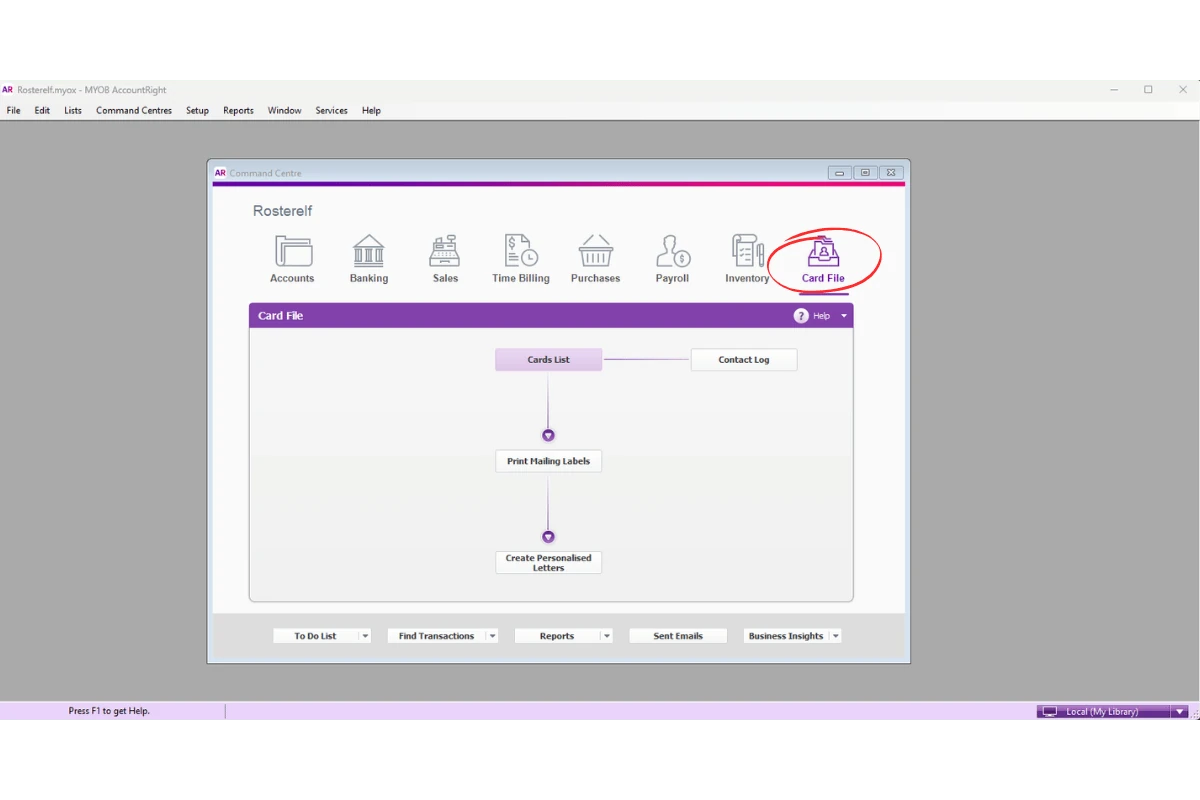
1.1.1 Open Card File.
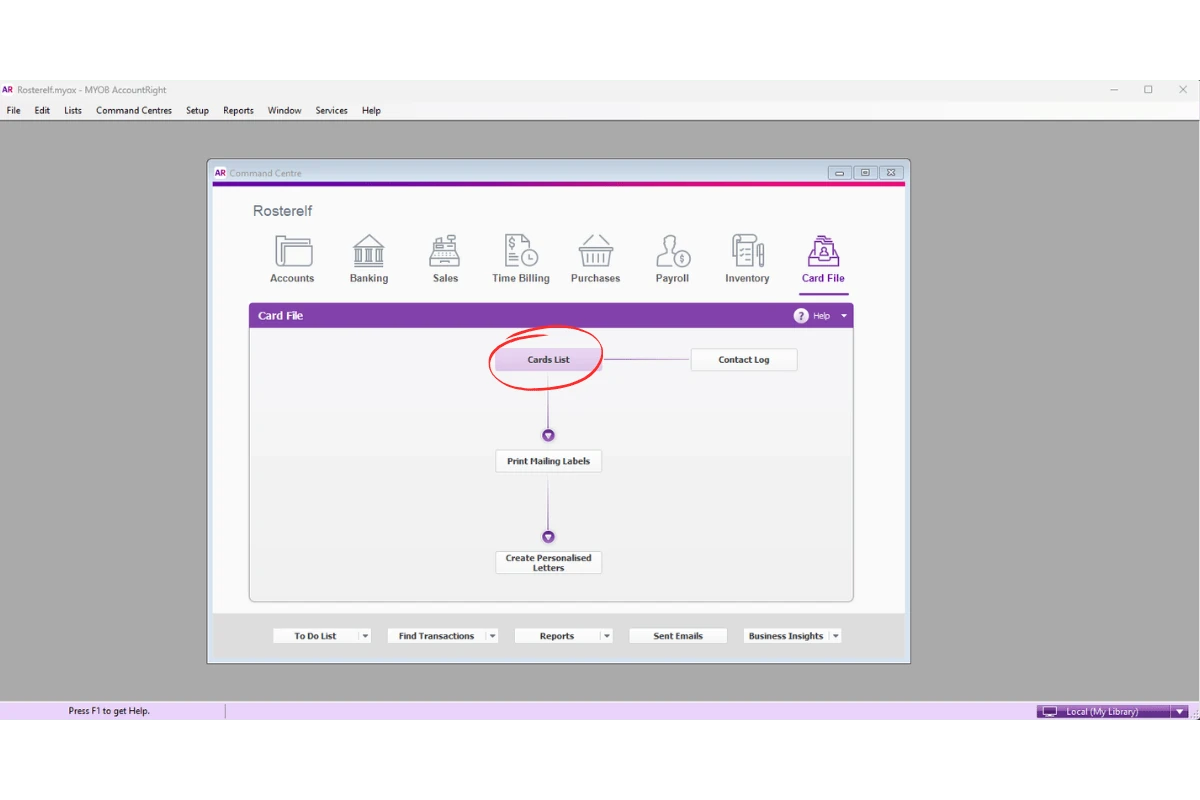
1.1.2 Press Card List.
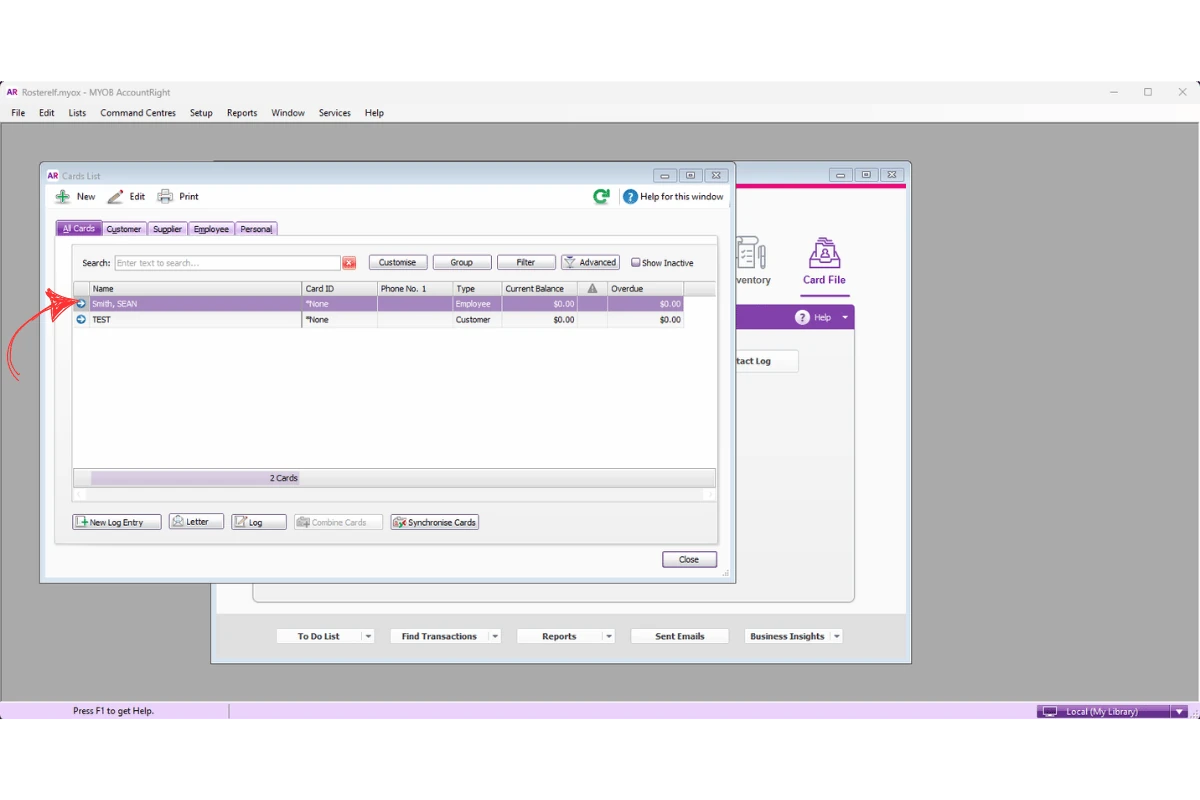
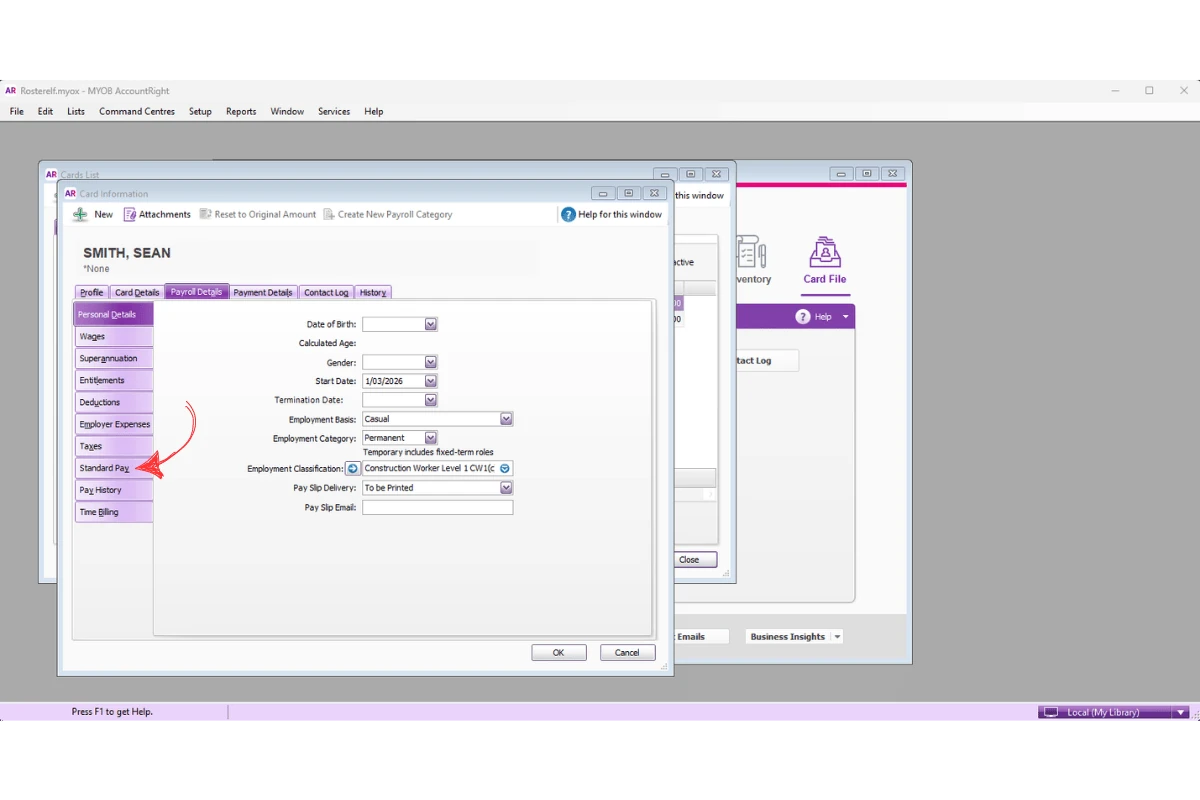
1.1.3 Select Employee.
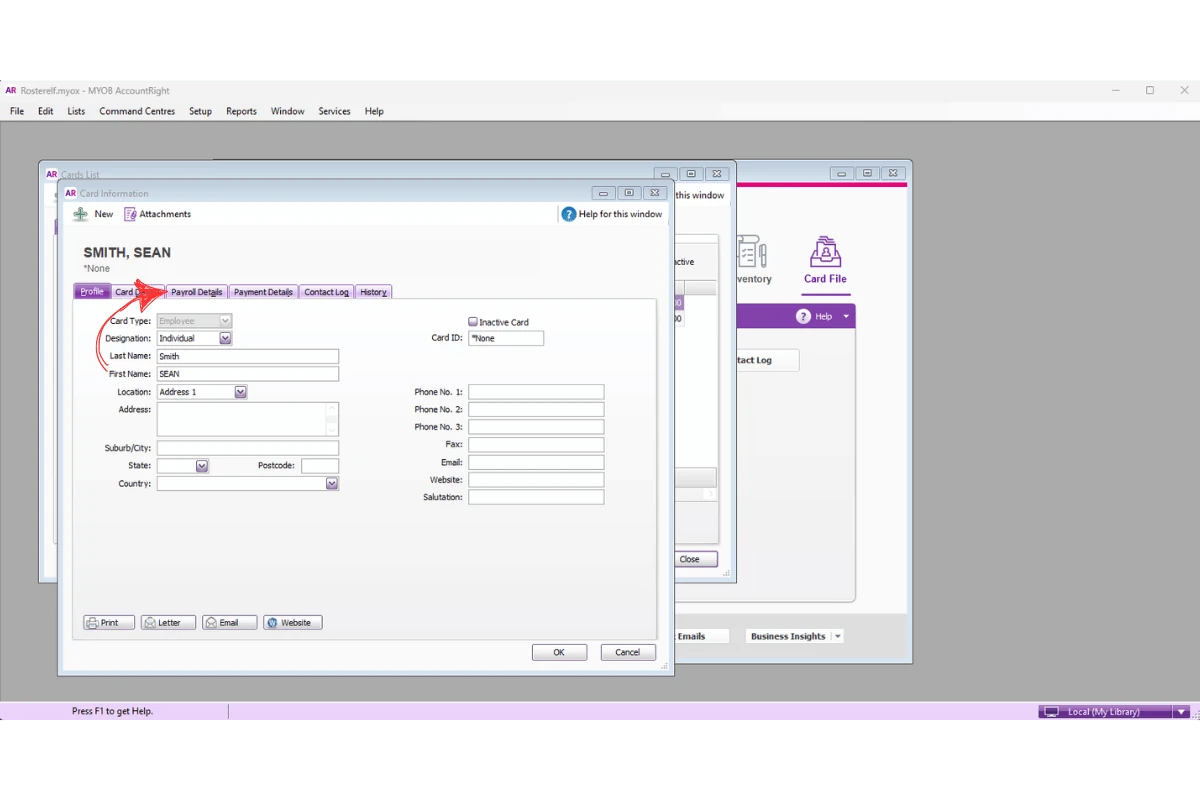
1.1.4 Press Payroll Details.
1.1.5 Open Standard Pay.
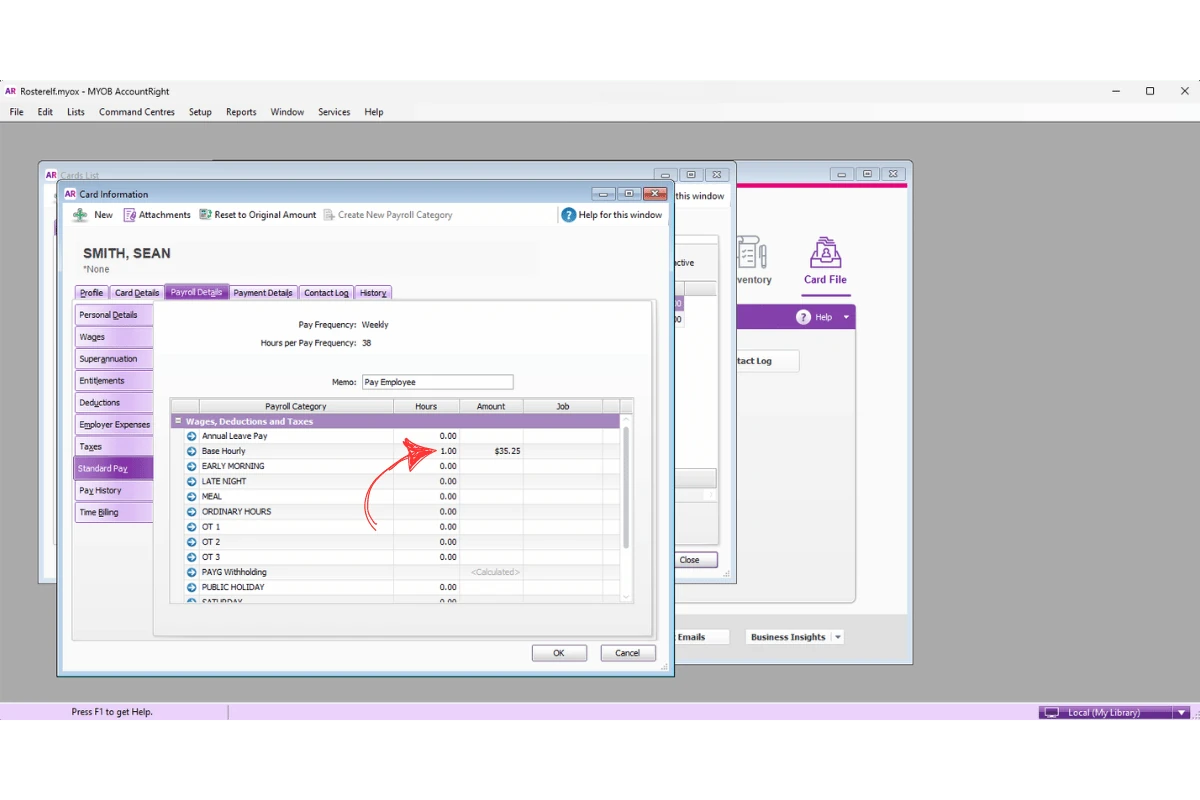
1.1.6 Delete the number next to Base Hourly.
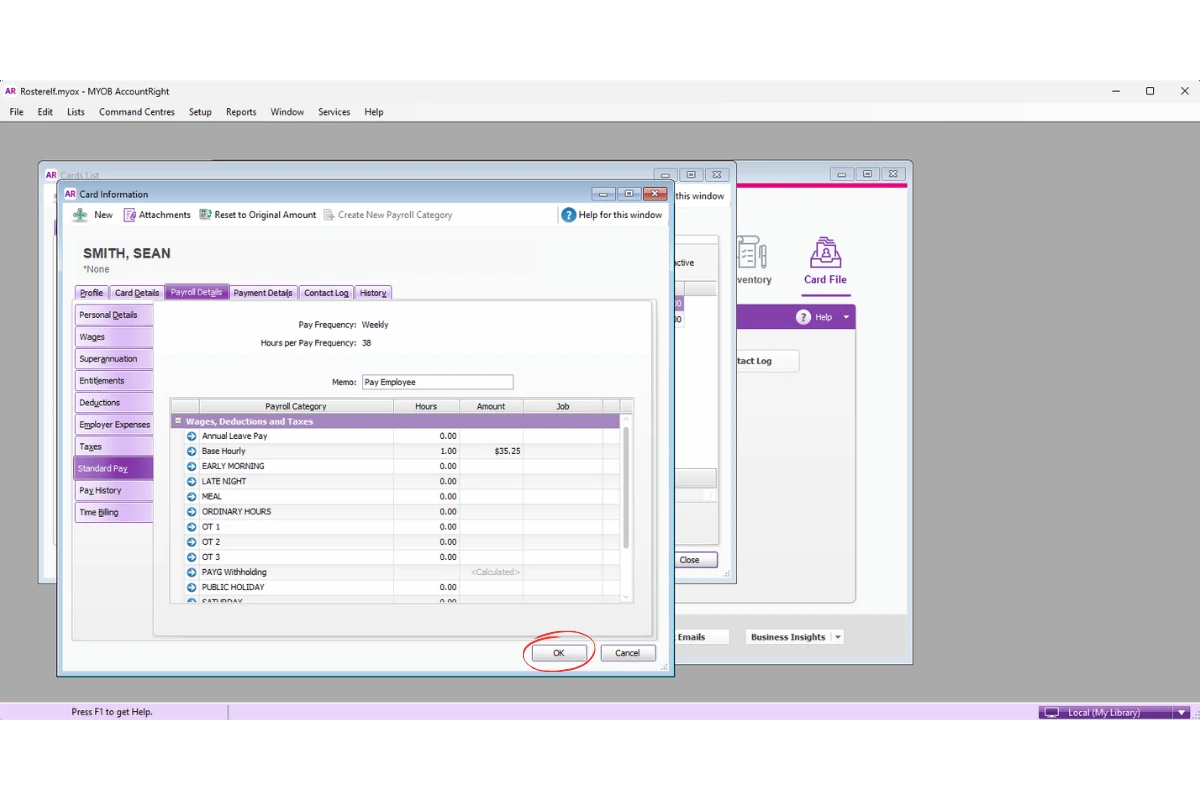
1.1.7 Press OK to save.
2. Fix error -216: payroll category not found
This section explains how to resolve Error -216 in MYOB AccountRight. This error usually appears when the payroll category name inside MYOB AccountRight does not match the payroll category configured in RosterElf.
Matching payroll category names between both systems helps payroll exports process correctly. Even small spelling differences, spaces, or missing characters can cause this payroll error to appear during export. Following these steps will help confirm the payroll category exists and matches the payroll category name configured in RosterElf.
2.1 Check payroll category names
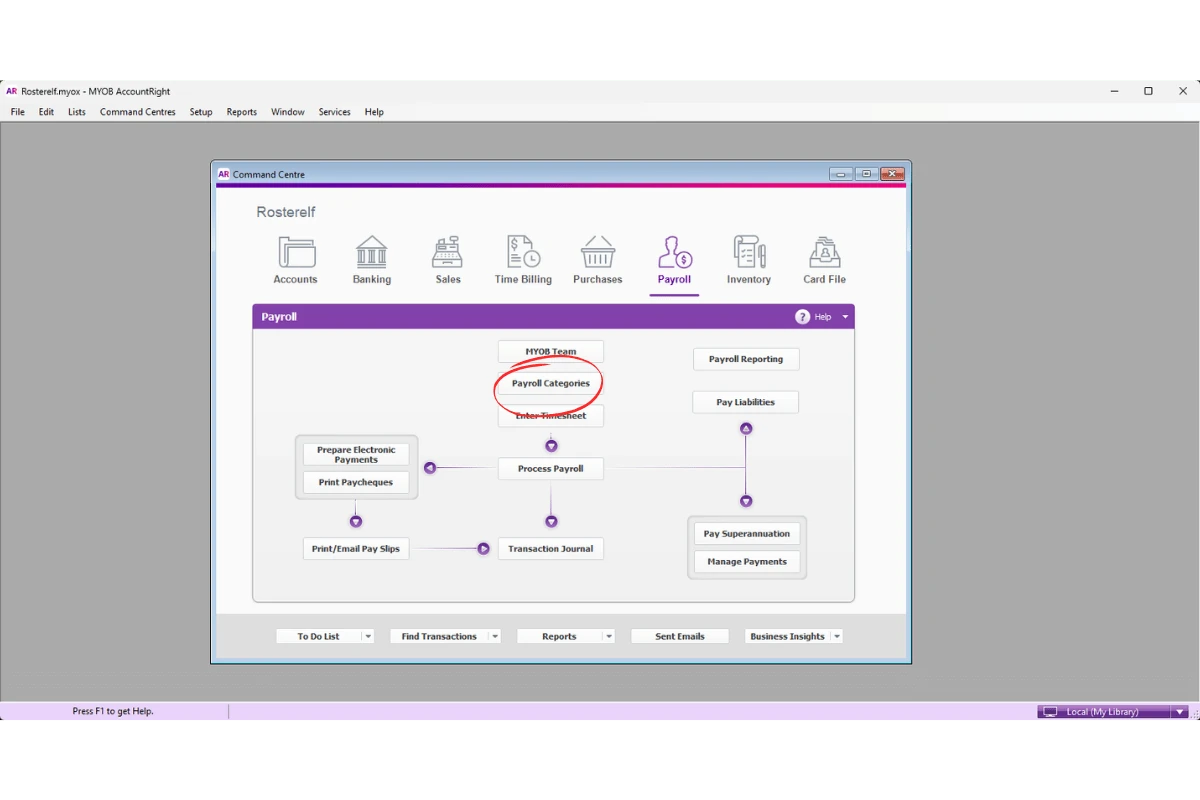
2.1.1 Open Payroll.
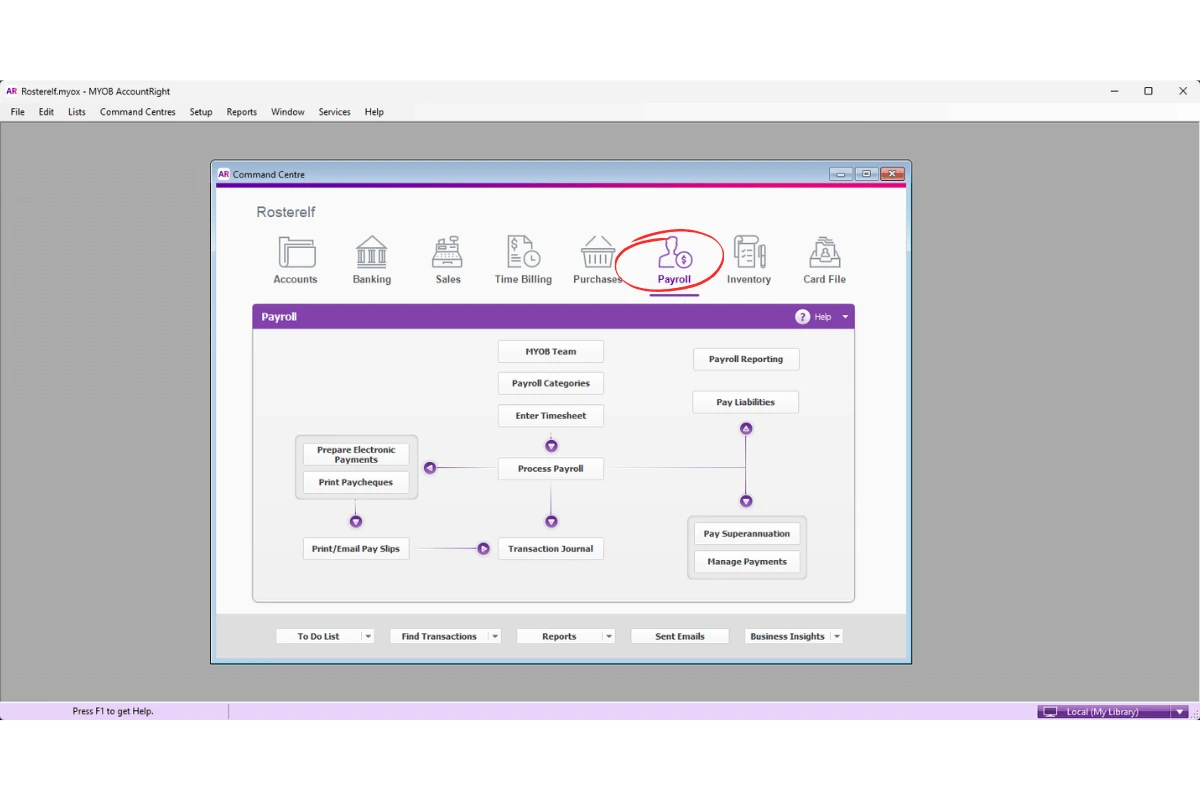
2.1.2 Press Payroll Categories.
2.1.3 Open the Wages tab.
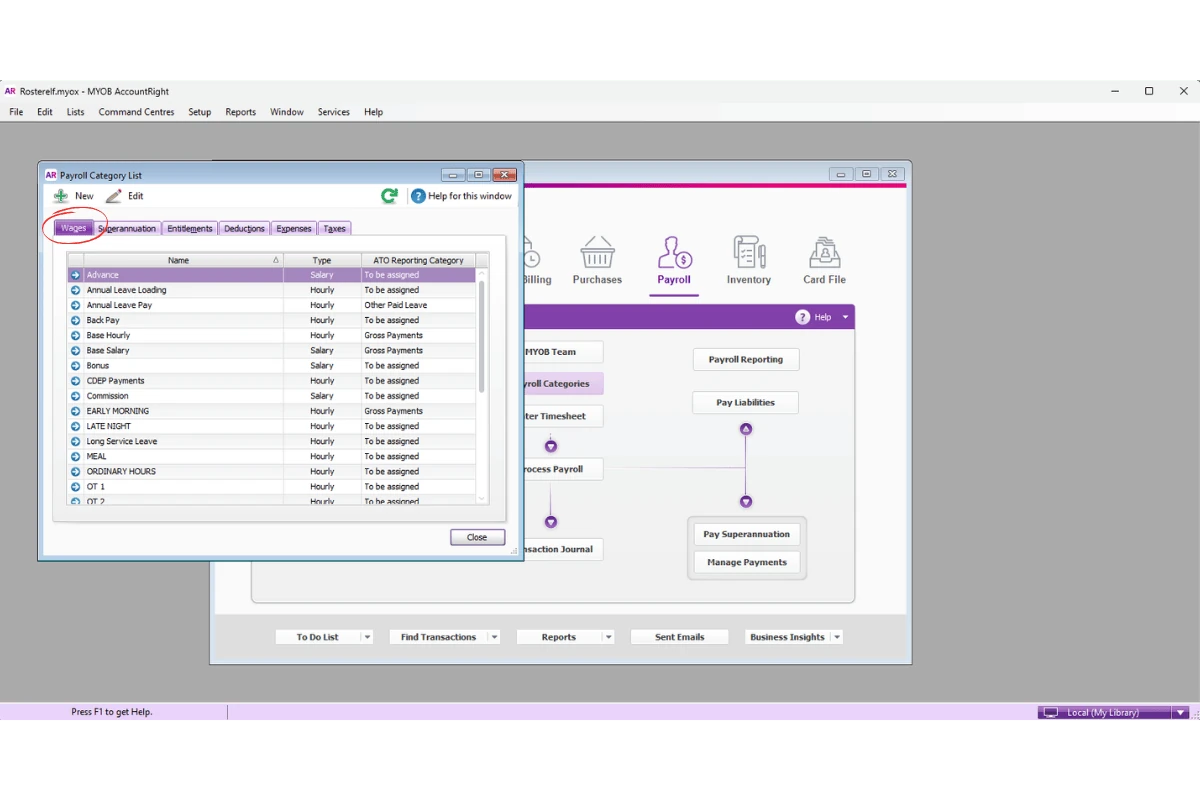
2.1.4 Check the payroll category name matches RosterElf exactly, including spelling, spaces, and capitalisation.
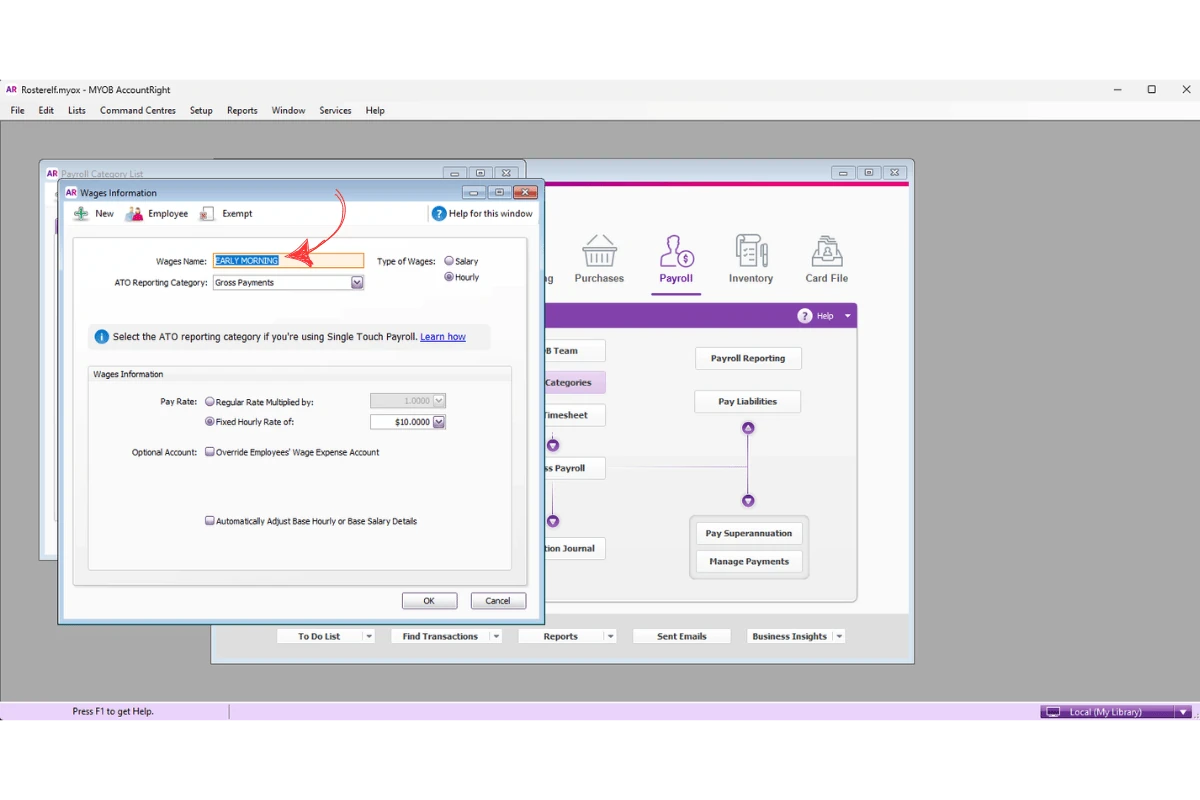
3. Fix error -217: payroll category not linked to employee
This section explains how to resolve Error -217 in MYOB AccountRight. This error appears when the payroll category is not linked to the employee profile inside MYOB AccountRight.
Linking payroll categories to employees helps MYOB AccountRight correctly receive payroll information from RosterElf. If the payroll category is not selected under the employee profile, the payroll export cannot apply the payroll category during processing. Following these steps will help confirm the payroll category is linked to the employee correctly.
3.1 Link payroll category to employee
3.1.1 Open Card File.
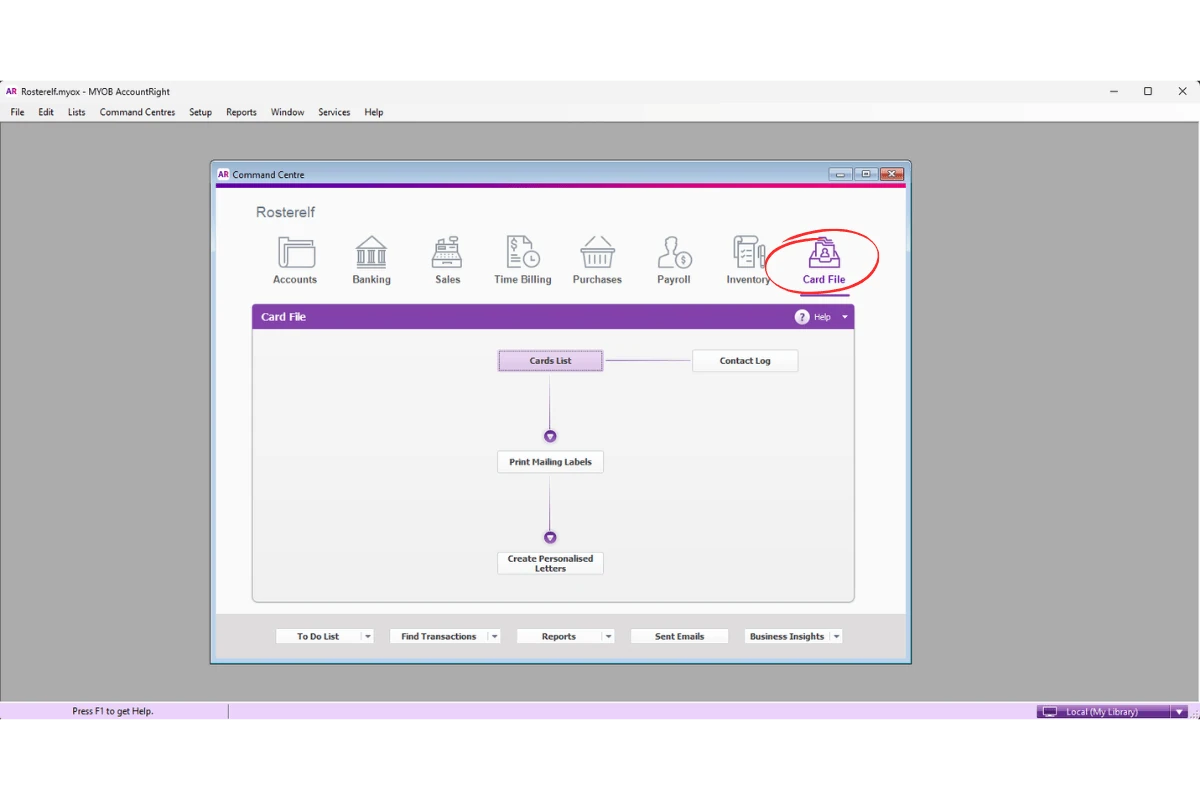
3.1.2 Press Card List.
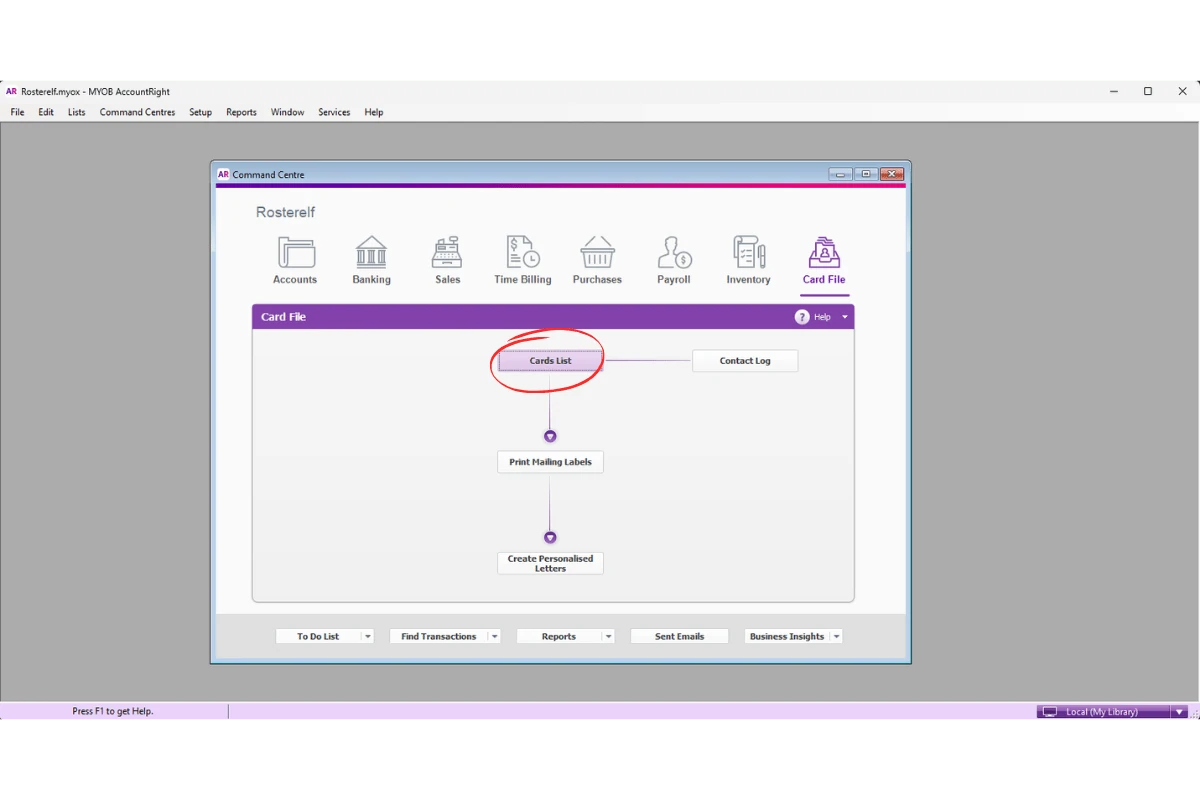
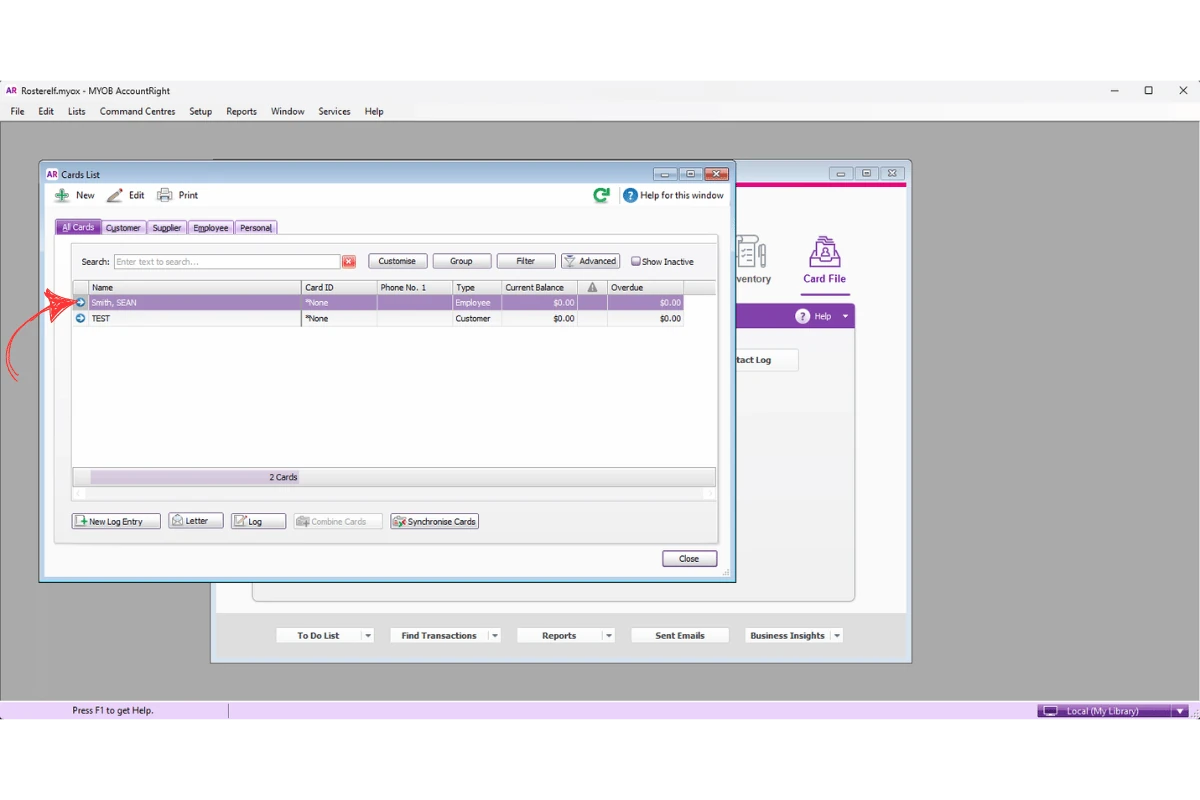
3.1.3 Open the relevant employee profile.
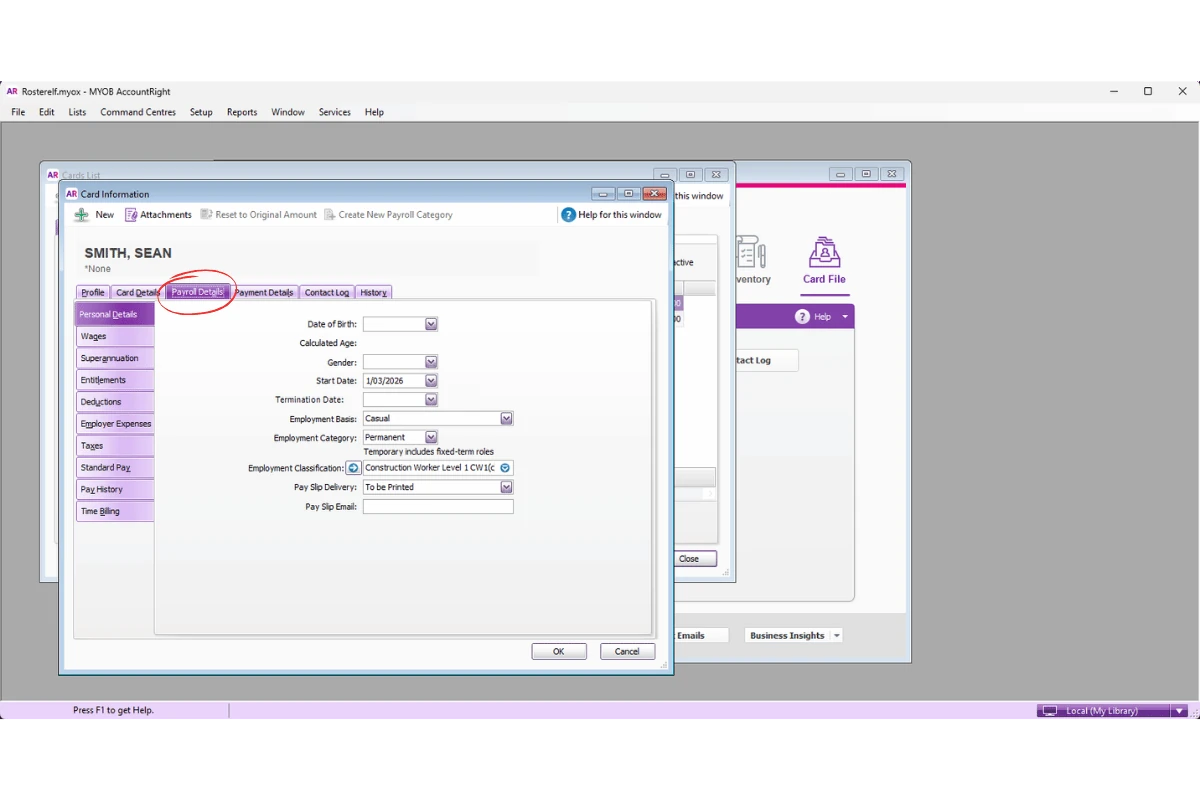
3.1.4 Press Payroll Details.
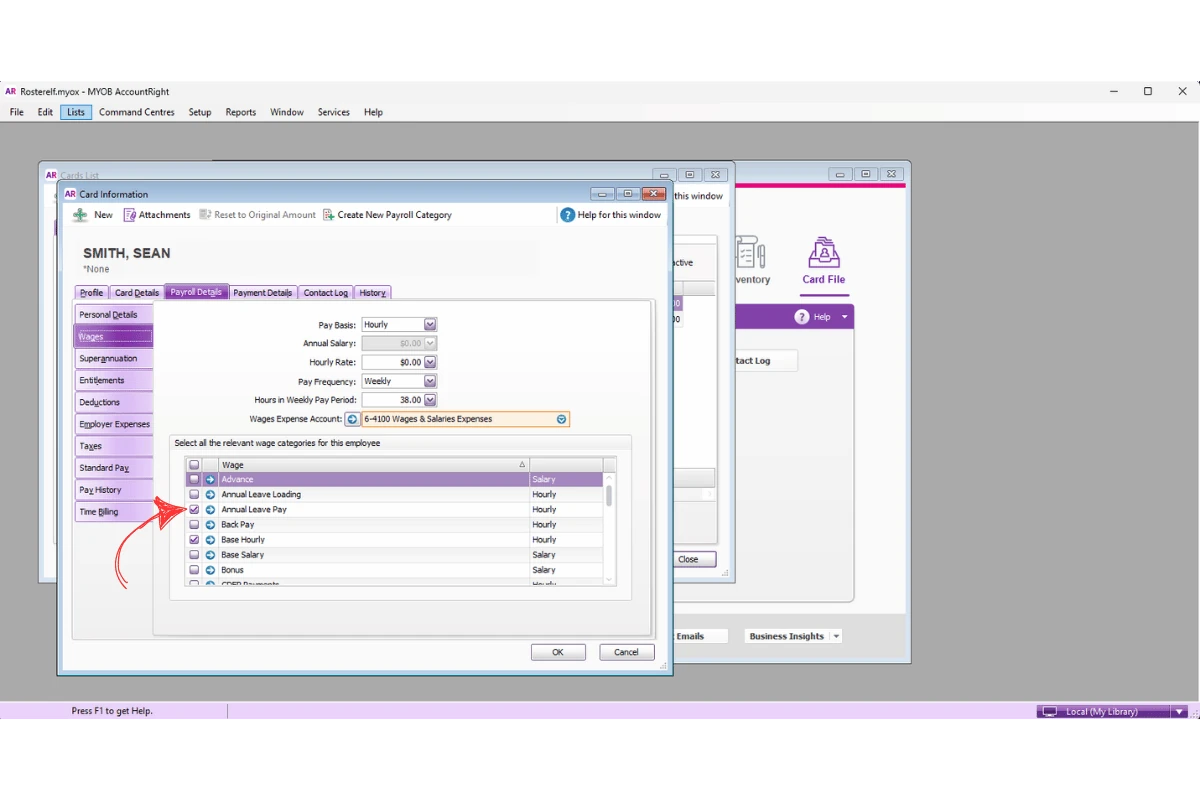
3.1.5 Open Wages.
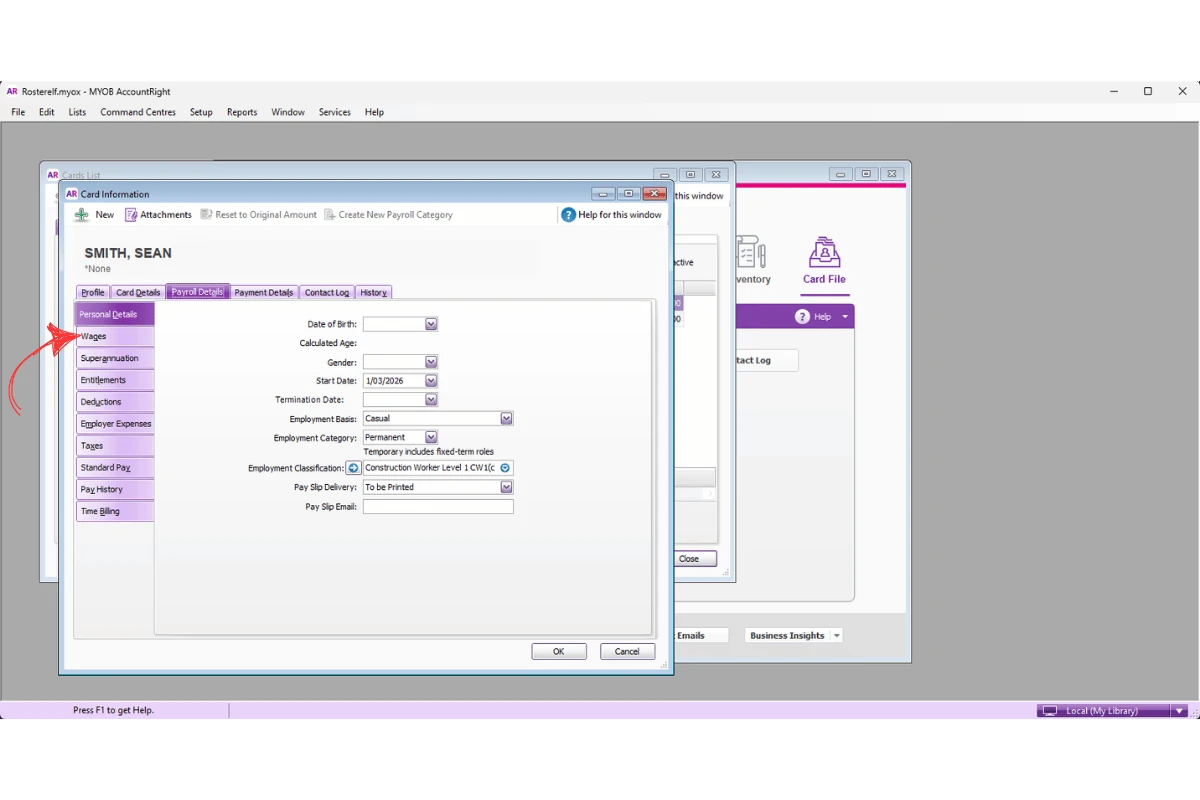
3.1.6 Check the payroll category is ticked.
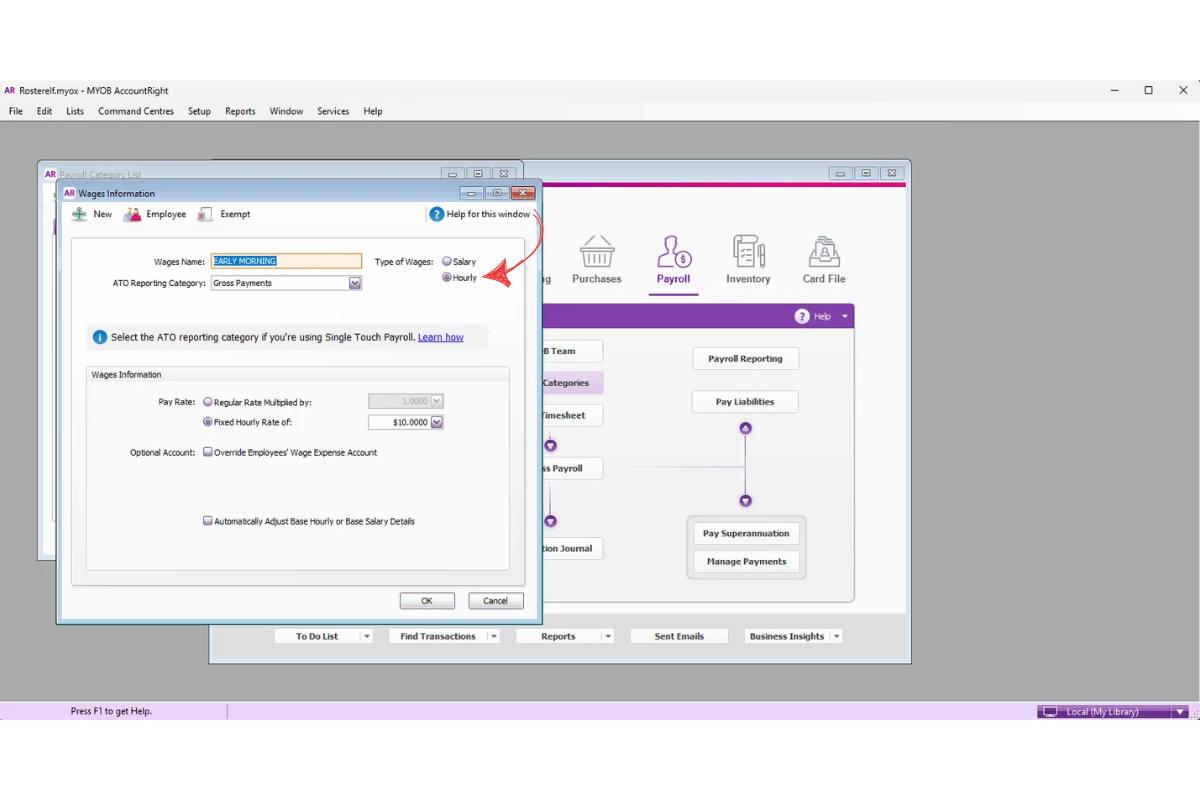
4. Fix error -218: payroll category is not an hourly wage category
This section explains how to resolve Error -218 in MYOB AccountRight. This error appears when the payroll category is not configured as an hourly wage category inside MYOB AccountRight.
Setting the payroll category as an hourly wage category allows MYOB AccountRight to correctly process hourly payroll information exported from RosterElf. If the category is configured incorrectly, the payroll export may fail during processing. Following these steps will help confirm the payroll category is configured as an hourly wage category.
4.1 Check hourly wage payroll category
4.1.1 Open Payroll.
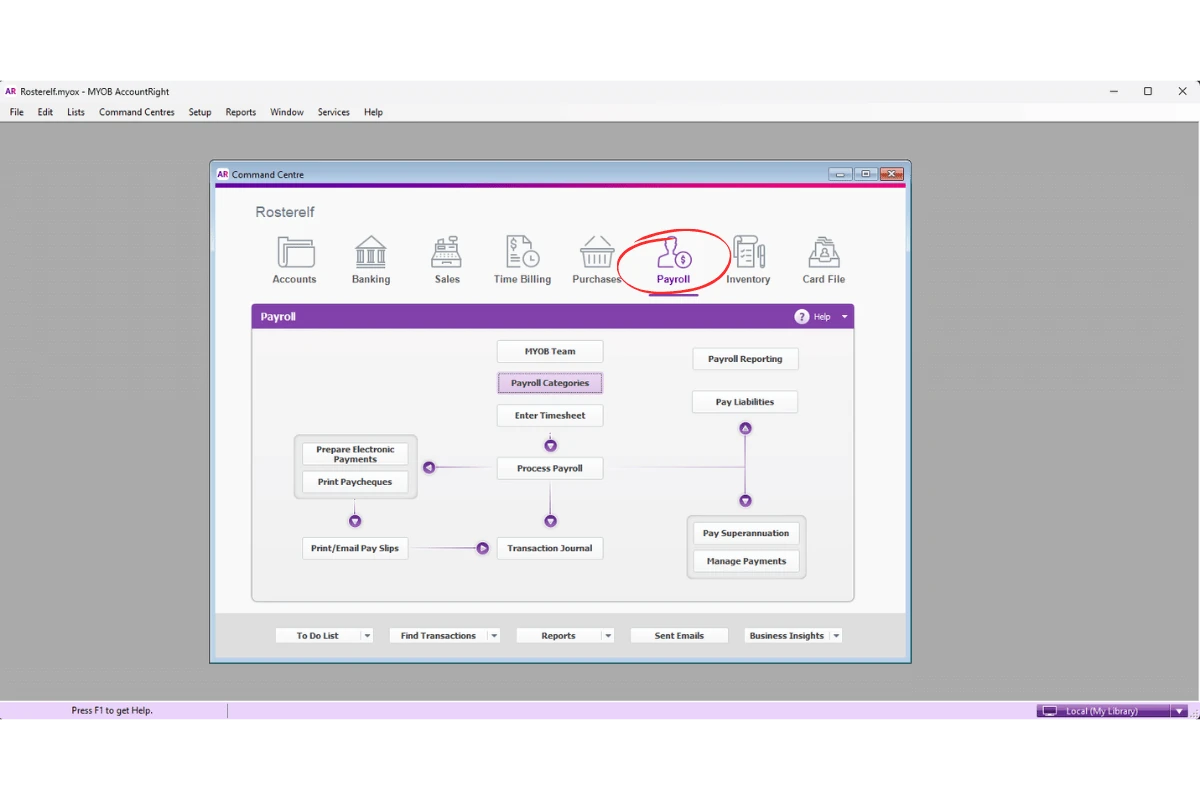
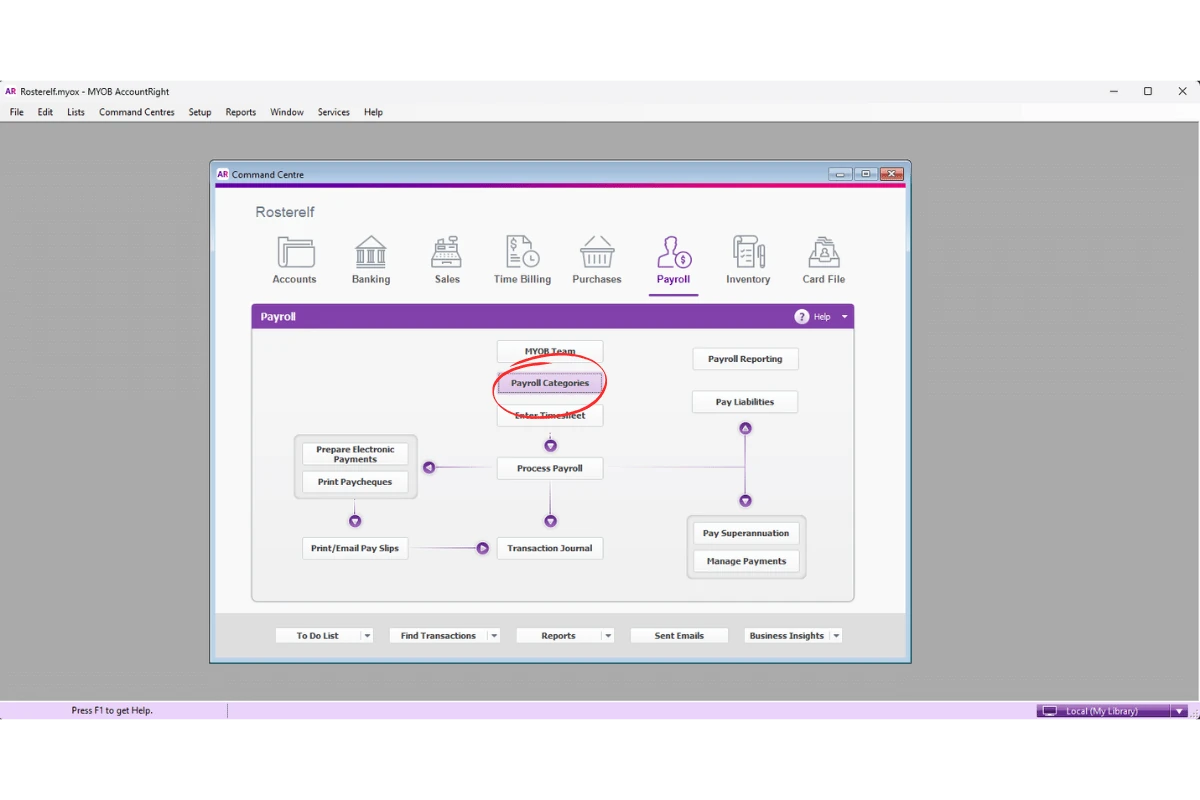
4.1.2 Press Payroll Categories.
4.1.3 Open the Wages tab.
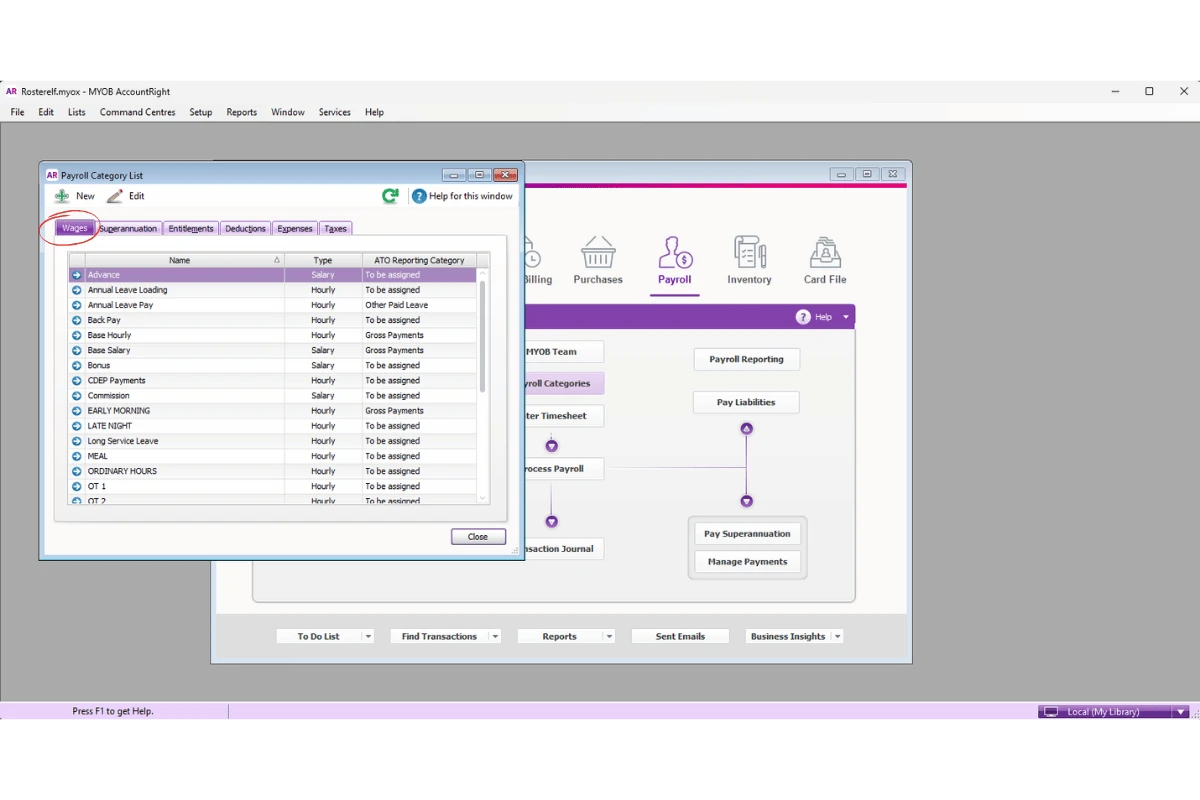
4.1.4 Open the relevant payroll category.
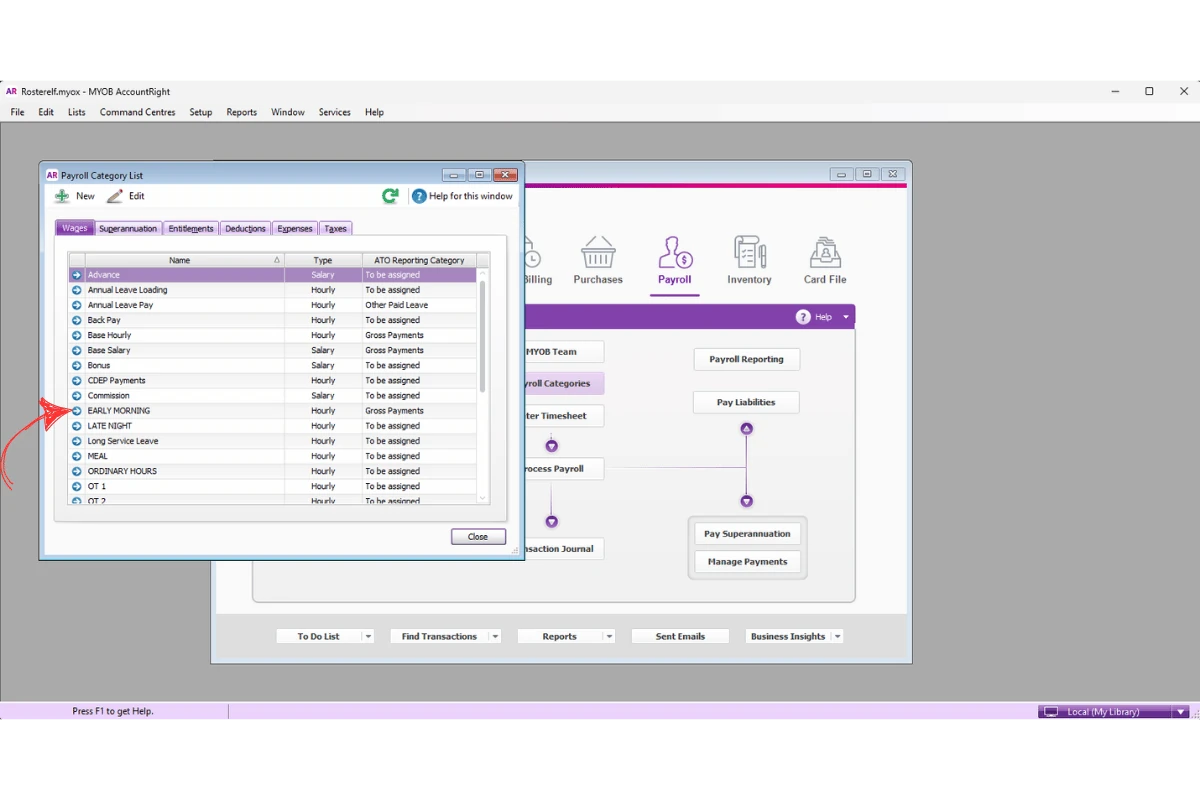
4.1.5 Confirm the category is set as Hourly.
5. Fix error -296: employee not found
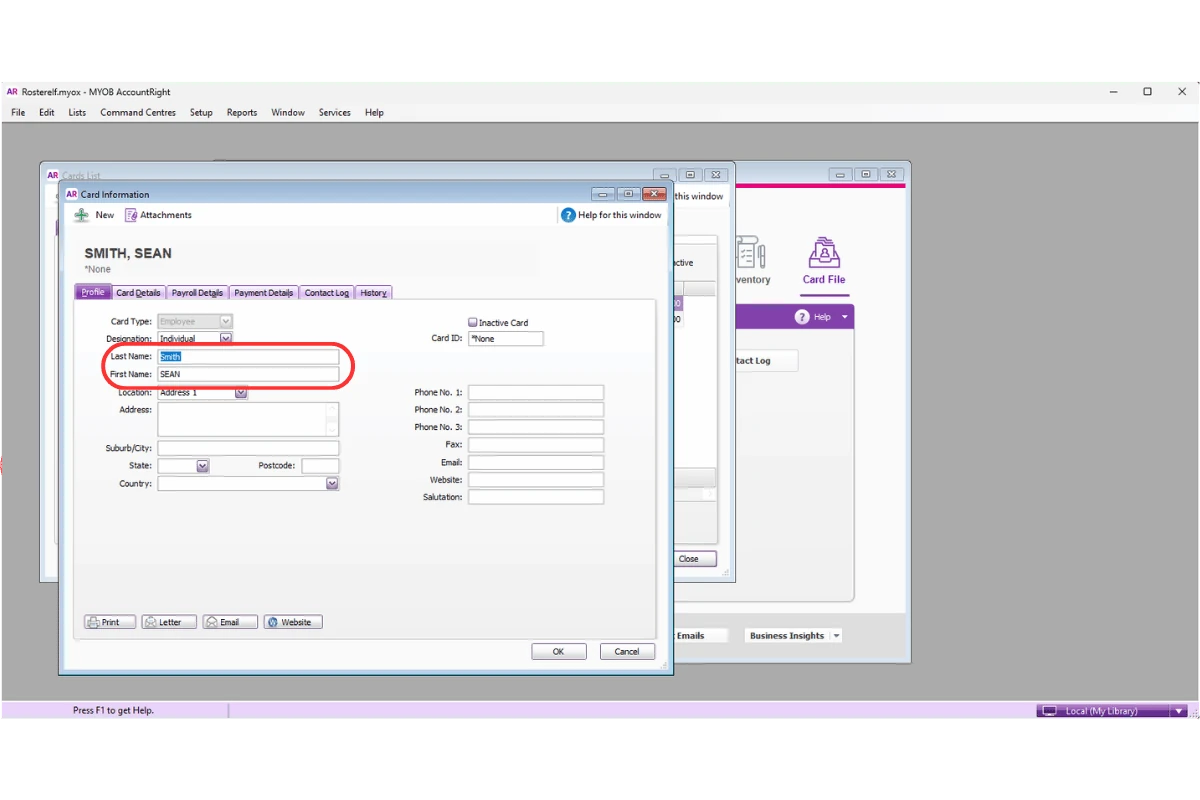
This section explains how to resolve Error -296 in MYOB AccountRight. This error appears when the employee name in MYOB AccountRight does not match the employee name configured in RosterElf.
Matching employee names between both systems helps payroll exports process successfully. Differences in spelling, spaces, or special characters may prevent MYOB AccountRight from locating the correct employee profile during export. Following these steps will help confirm the employee name matches correctly between both systems.
5.1 Check employee name matches
5.1.1 Open Card File.
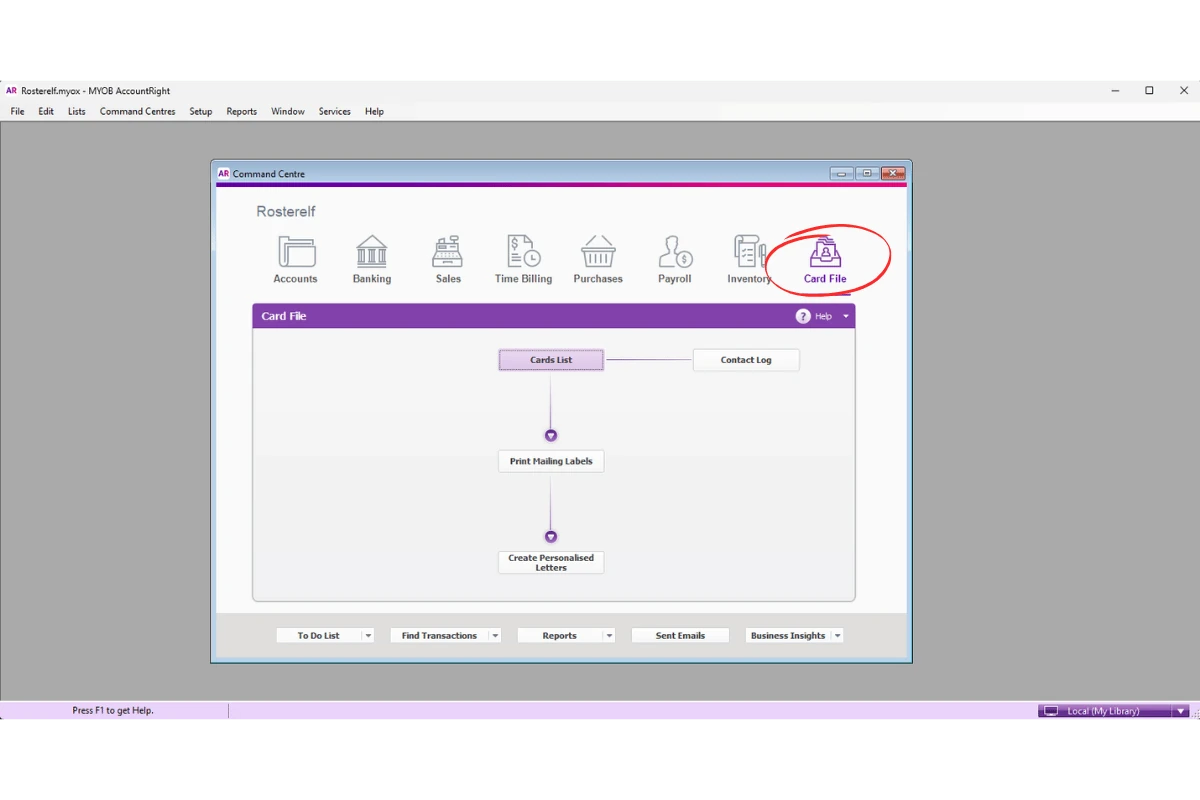
5.1.2 Press Card List.
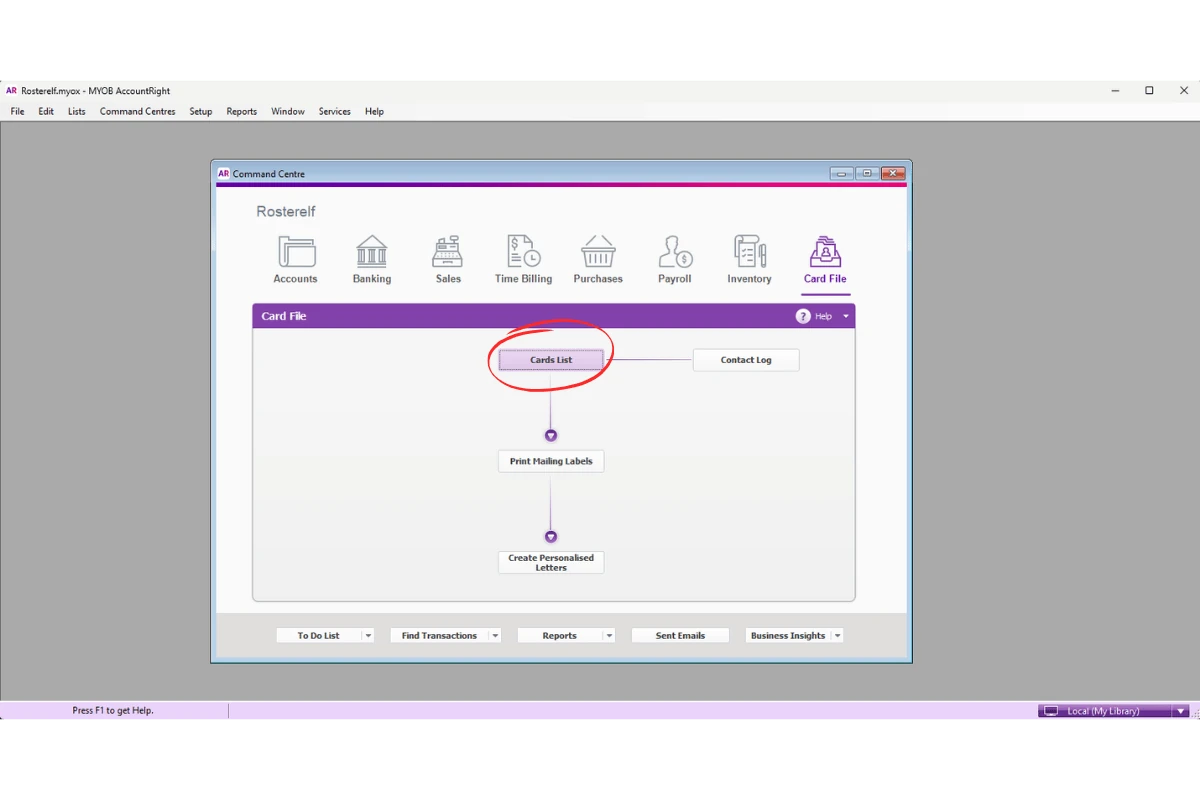
5.1.3 Select Employee.
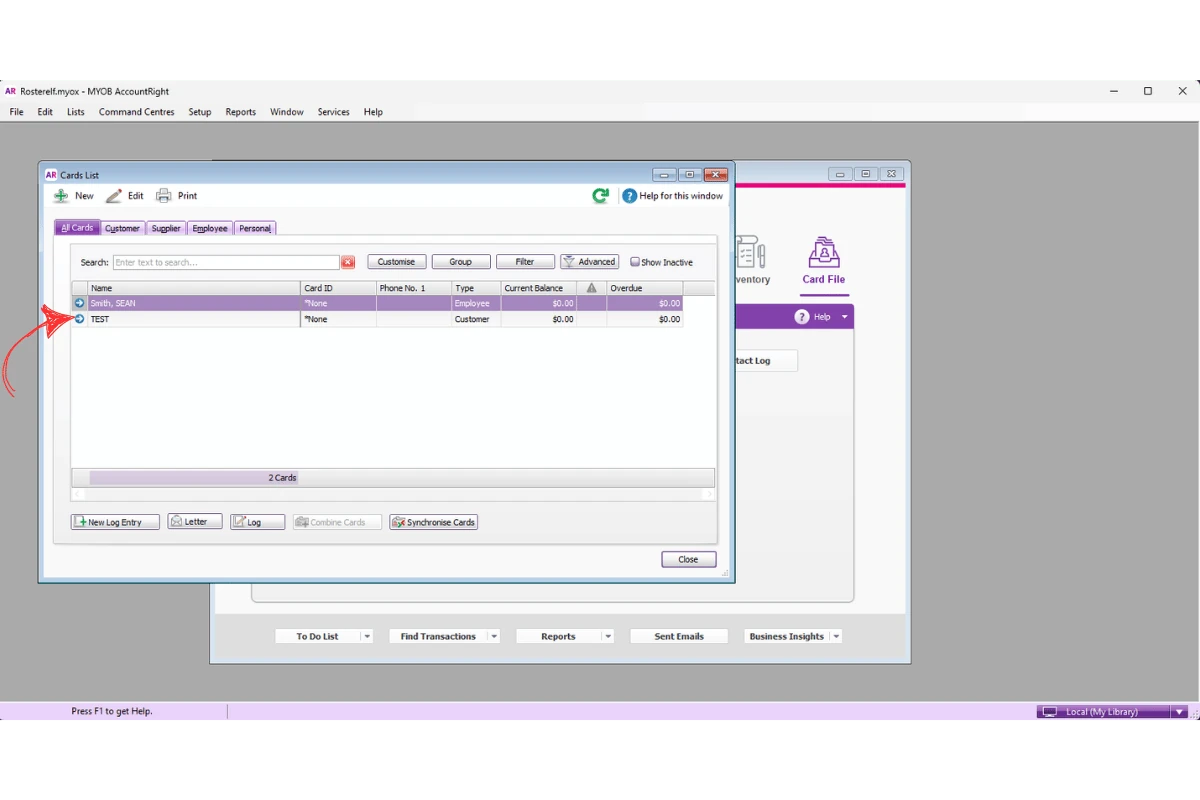
5.1.4 Check the employee name matches RosterElf exactly, including spelling, spaces, and any special characters.
Frequently asked questions
1. Why am I getting payroll export errors in MYOB AccountRight?
Payroll export errors in MYOB AccountRight are usually caused by incorrect payroll settings, missing payroll category links, or employee setup issues. These errors can prevent payroll information from exporting correctly from RosterElf into MYOB AccountRight. Reviewing payroll categories, employee payroll details, and standard pay settings will usually resolve the issue.
2. What causes Error -216 payroll category not found in MYOB AccountRight?
Error -216 appears when the payroll category name in MYOB AccountRight does not match the payroll category name in RosterElf. Even small spelling differences, spaces, or missing characters can cause this issue. Check the payroll category names in both systems and make sure they match exactly.
3. How do I fix Error -217 payroll category is not linked to employee?
Error -217 appears when the payroll category has not been assigned to the employee profile in MYOB AccountRight. To fix this issue, open the employee profile, go to Payroll Details, open the Wages section, and confirm the correct payroll category is ticked for the employee.
4. Why am I getting Error -218 payroll category is not an hourly wage category?
Error -218 appears when the payroll category in MYOB AccountRight is not configured as an hourly wage category. Open Payroll Categories, select the relevant wage category, and confirm the category type is set to Hourly. This allows MYOB AccountRight to process payroll exports correctly from RosterElf.
5. What does Error -296 employee not found mean in MYOB AccountRight?
Error -296 appears when the employee name in MYOB AccountRight does not match the employee name in RosterElf. Differences in spelling, spaces, or special characters can stop MYOB AccountRight from locating the correct employee during payroll export. Check both systems and confirm the employee names match exactly.