
What is team chat in RosterElf?
Email chains and group SMS messages create communication chaos. Team chat in RosterElf brings all your workforce conversations into one place—instant messaging, file sharing, and team coordination without leaving your rostering software.
This article explains the new team chat feature in RosterElf. You will learn why traditional communication methods create gaps, how chat improves team coordination, and when to use chat for your workforce. We also cover the simple setup process and answer common questions about managing chat channels and messages.
Team chat is designed for Australian businesses managing distributed teams across shifts, sites, or roles. It works for hospitality, retail, healthcare, and any industry where fast, clear communication prevents operational issues. By the end of this article, you will understand how to use team chat to improve coordination and reduce communication delays.
Why email and SMS fall short
Email and group SMS work for some business communication, but they create problems for shift-based teams. Email chains become unmanageable with multiple threads, delayed responses, and buried important information. Group SMS costs money, doesn't support file sharing, and lacks proper conversation threading.
When you need to coordinate shift coverage, share urgent updates, or answer quick questions, email and SMS introduce friction. Staff wait hours for responses, messages get lost in crowded inboxes, and there's no easy way to search past conversations. For businesses managing multiple shifts or sites, this communication lag creates operational issues.
Real scenario
A cafe manager needs to notify morning staff about a menu change. Sending individual SMS messages takes 10 minutes and costs money. Creating an email group means checking who has which email address. With team chat, the manager posts once to the #morning-shift channel—everyone sees it instantly, can ask questions, and the conversation is searchable later.
How team chat improves coordination
Team chat eliminates communication delays by bringing conversations into your rostering software. When staff log in to check their roster, they can also send messages, check announcements, and coordinate with their team. This gives you three key benefits:
Instant communication
Messages appear immediately in web and mobile apps. Staff receive push notifications for new messages, ensuring urgent updates reach the right people without delay. This is especially valuable during shift handovers, last-minute changes, or when coordinating coverage gaps.
Organized conversations
Create channels for specific teams, sites, or purposes. A #front-of-house channel keeps hospitality floor staff coordinated, while a #maintenance channel manages facility issues. Direct messages handle one-to-one conversations. This structure prevents information overload and ensures messages reach the right people.
File and context sharing
Share documents, images, and files directly in conversations. Post shift handover notes, share photos of stock issues, or upload policy updates—all within the same platform where staff manage their rosters. This keeps all work-related information in one accessible place.
Best use cases for team chat
Team chat works best for real-time coordination and quick information sharing. Here are three situations where chat delivers the most value:
Shift coordination and coverage
When shifts change, staff call in sick, or you need urgent coverage, chat enables fast coordination. Post to a team channel asking who's available, staff respond immediately, and you fill gaps without playing phone tag. This is perfect for hospitality, retail, and healthcare businesses where shift coverage is time-sensitive.
Team announcements and updates
Share policy changes, menu updates, safety alerts, or operational changes instantly with relevant teams. Create site-specific or role-specific channels so announcements reach the right people without cluttering everyone's notifications. Staff can ask clarifying questions in the same thread, ensuring everyone understands the update.
Quick questions and problem-solving
Staff can ask quick questions about procedures, equipment, or shift details without waiting for email responses or making phone calls. Managers can respond immediately or other experienced team members can help. This reduces downtime from unanswered questions and builds team knowledge sharing.
How to enable team chat
Enabling team chat takes just a few minutes. Here's how it works:
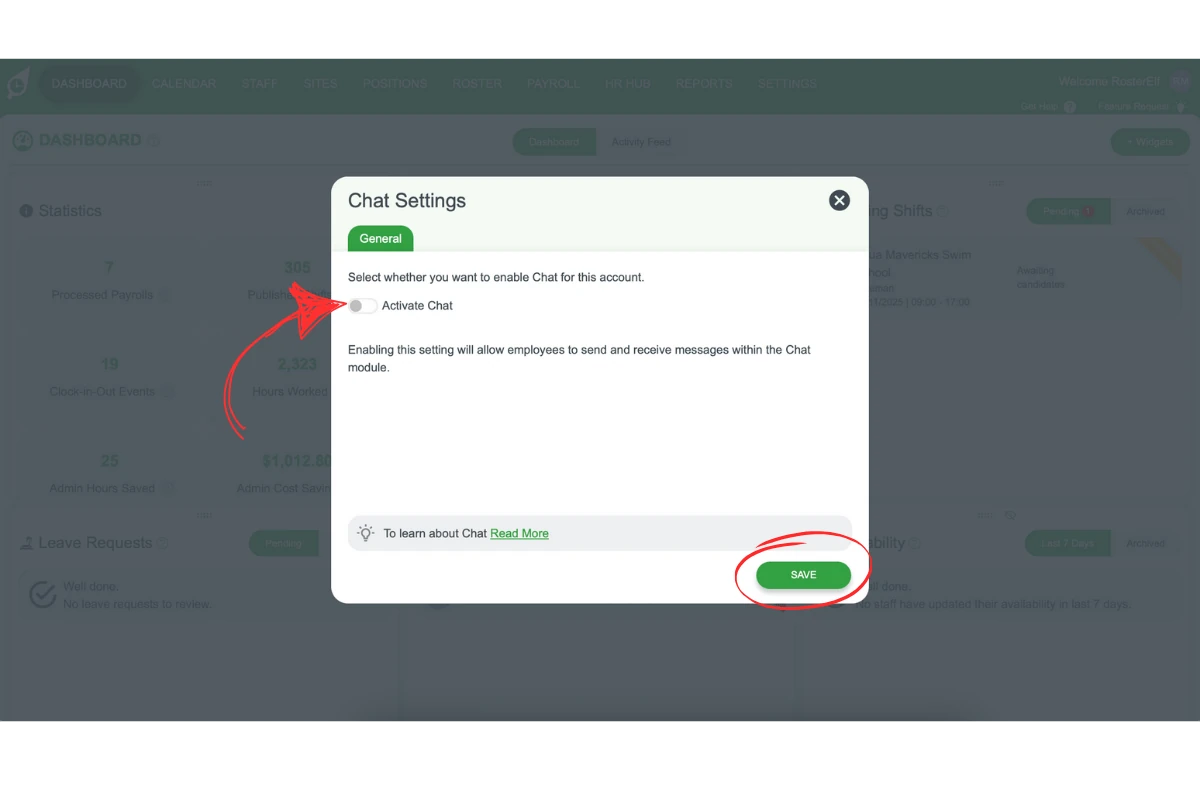
1. Activate chat in settings
Go to Settings, select Chat, toggle "Enable Chat" on, and click Save. This activates chat for your entire account.
2. Set staff permissions
Choose which staff can use chat by adjusting permissions in staff settings. You can enable chat for all staff or specific roles.
3. Create your first channel
Set up channels for teams, sites, or purposes. Click the + icon in chat, name your channel, select members, and start messaging. Staff will see the channel appear in their chat interface immediately.
Ready to enable team chat?
Follow our step-by-step guide with screenshots to activate chat and create your first channels.
View setup guide