
What are salary pay rates?
Salaried employees receive fixed pay, but you still need to know their true shift costs for budgeting and costing. Pay rates for salary staff let you assign hourly rates to salaried employees, giving you accurate labor costs even when staff aren't paid hourly.
This article explains pay rates for salary staff in RosterElf. You will learn why labor costing matters for salaried employees, how pay rates improve budgeting accuracy, and when to use this feature. We also cover the simple setup process and answer common questions about how it affects payroll.
Pay rates for salary staff are designed for Australian businesses with managers, supervisors, or full-time employees on fixed salaries. By the end of this article, you will understand how to use pay rates to track true labor costs and improve roster budgeting.
Why costing matters for salaries
When salaried employees work shifts, their labor cost isn't zero—they're still being paid for that time. Without hourly rates assigned, your roster appears cheaper than it actually is. This makes labor budgets inaccurate and hides the true cost of shifts covered by managers or salaried staff.
The problem compounds when comparing shifts or sites. A shift covered by a salaried manager shows no labor cost, while the same shift covered by hourly staff shows full costs. This makes it impossible to accurately compare shift profitability or site performance.
Real scenario
A retail store has two shifts: morning (covered by hourly casual staff) shows $200 labor cost, while afternoon (covered by a salaried manager) shows $0. The manager's salary is $60,000 annually for 38 hours/week = $30.38/hour. The afternoon shift is actually costing $243 (8 hours × $30.38), but the budget shows zero. This makes the afternoon shift appear more profitable than it is.
How pay rates improve accuracy
Assigning hourly pay rates to salaried employees gives you accurate labor costing across all shifts, regardless of who works them. This provides three key benefits:
Accurate labor budgets
See the true cost of every shift, including those covered by salaried staff. Compare planned versus actual labor costs accurately, identify expensive shifts, and make informed scheduling decisions based on complete cost data.
Fair cost comparisons
Compare labor costs across shifts, days, and sites on an equal basis. Understand whether manager coverage or casual staff coverage is more cost-effective, and allocate resources based on actual costs rather than distorted data.
Better financial visibility
Track true labor spend in real-time. See accurate wage percentages against revenue, identify cost overruns early, and make data-driven decisions about staffing levels and shift patterns.
When to use pay rates
Pay rates for salary staff work best when you need accurate labor costing across your entire workforce. Here are three situations where it delivers the most value:
Multi-site operations
When comparing labor costs across multiple locations, including salaried managers in costing ensures fair site comparisons. See which sites are truly more efficient and where labor spending is highest.
Managers working shifts
Businesses where salaried managers regularly cover shifts—hospitality, retail, healthcare—need to account for manager time in labor costs. This reveals the true cost of shift coverage and helps optimize manager scheduling.
Labor budget accuracy
When you're managing tight labor budgets or tracking wages as percentage of revenue, including salary staff in costing calculations gives you complete visibility and prevents budget surprises.
How to assign pay rates
Assigning pay rates to salary staff takes just a few minutes. Here's how it works:
1. Calculate hourly rate
Divide annual salary by 52 weeks, then by contracted weekly hours. Example: $60,000 ÷ 52 ÷ 38 = $30.38/hour.
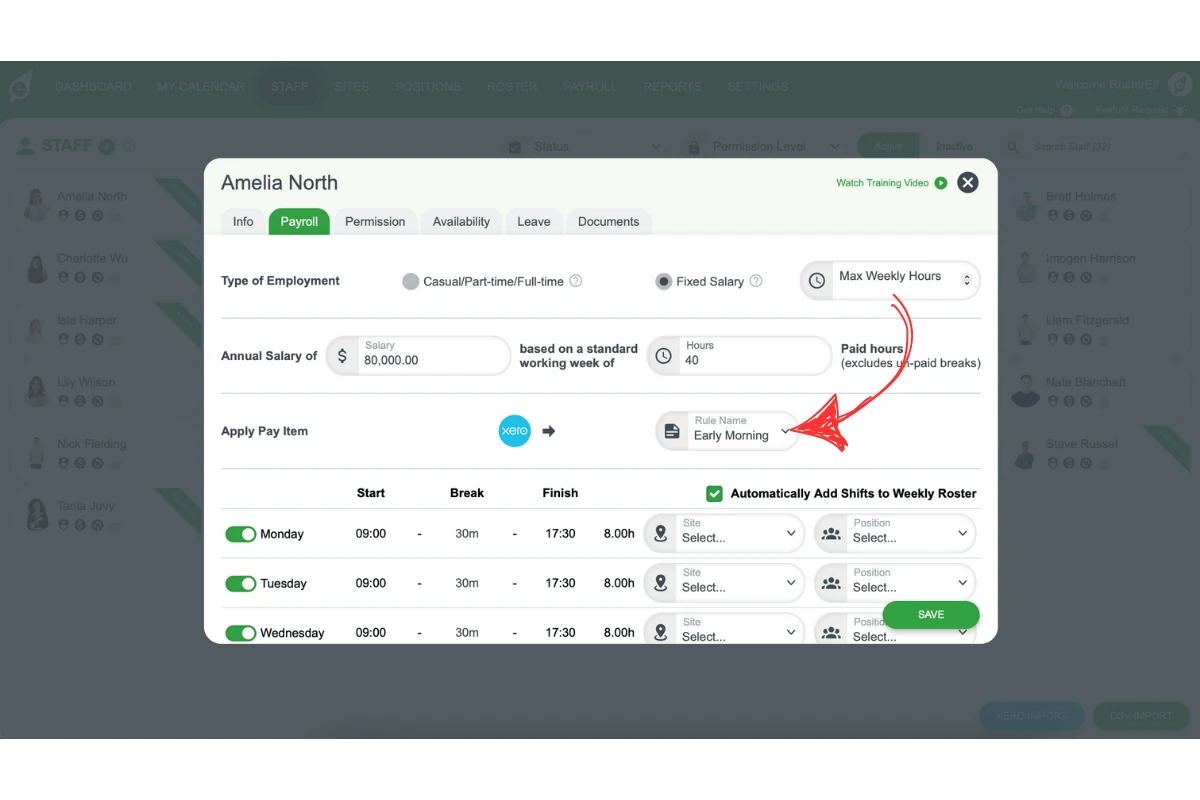
2. Open staff payroll settings
Navigate to the staff member's profile and open their payroll settings.
3. Enter hourly rate
Enter the calculated hourly rate in the pay rate field. Save the settings. RosterElf now uses this rate for labor costing when the employee works shifts.
Ready to set up pay rates?
Follow our step-by-step guide to assign hourly rates to salaried employees.
View setup guide