

This article provides a step-by-step guide to help you link and unlink staff members in RosterElf using the Xero integration. With this process, you can manage staff connections and resolve any syncing issues that might arise. By following these instructions, you’ll ensure that each staff member in Xero is correctly linked to an employee in RosterElf, making your payroll and rostering process smoother.
1. Linking staff in RosterElf using Xero integration
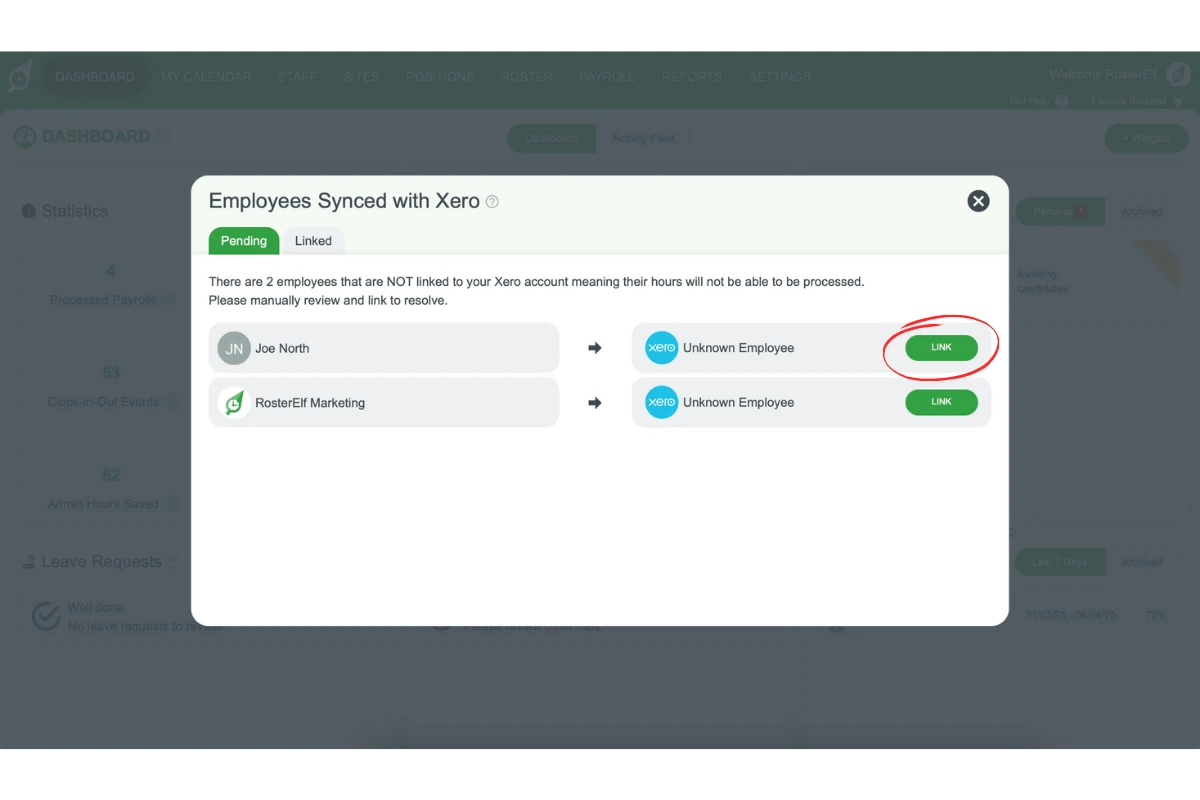
In this section, you’ll learn how to link staff members from Xero to RosterElf. Linking ensures that each Xero employee appears in RosterElf, so you can manage schedules, payroll, and other related tasks seamlessly. Follow these steps to connect your staff members quickly.
1.1 steps to link staff
1.1.1 Go to the Settings tab in RosterElf.
1.1.2 Select Xero Employees from the menu.
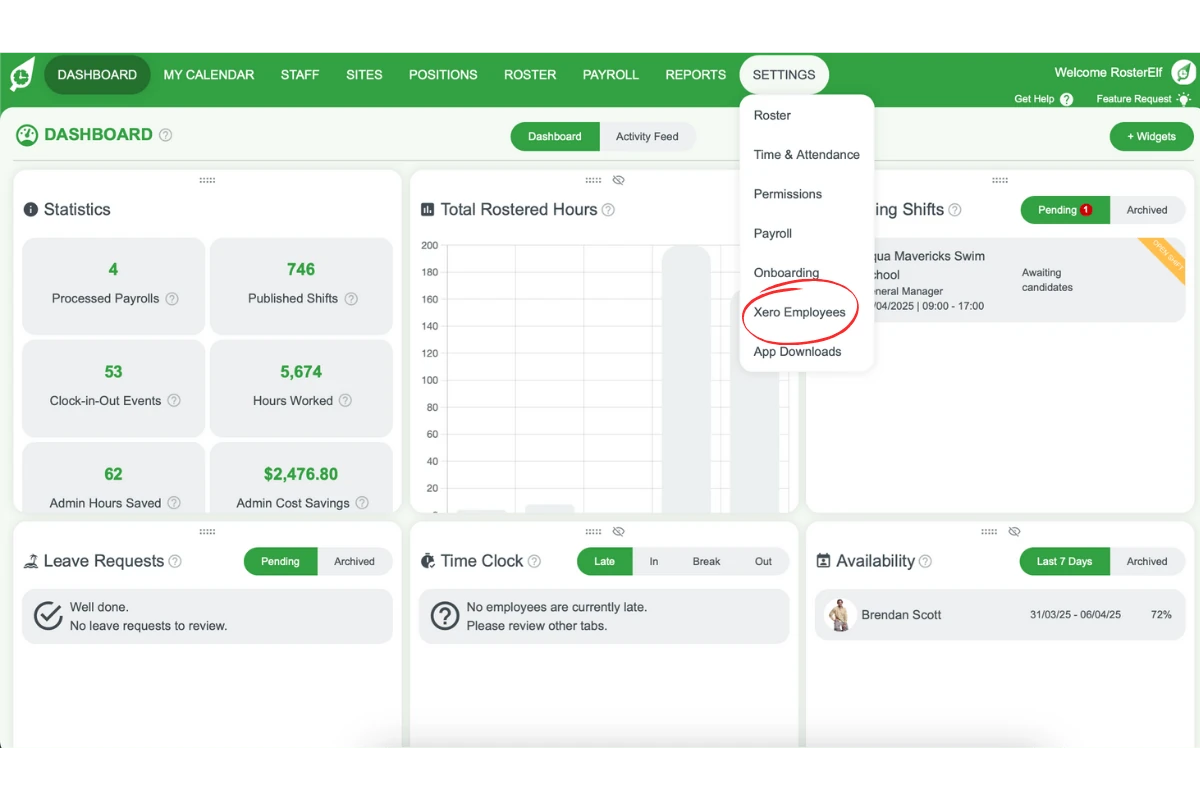
1.1.3 Click Link next to each staff member in the Pending tab.
2. Unlinking staff in RosterElf using Xero integration
This section explains how to unlink staff members in RosterElf from Xero. Unlinking is necessary if a staff member’s information isn’t syncing properly or if a staff member no longer needs a Xero connection. Follow these steps to unlink a staff member.
2.1 steps to unlink staff
2.1.1 Go to the Settings tab in RosterElf.
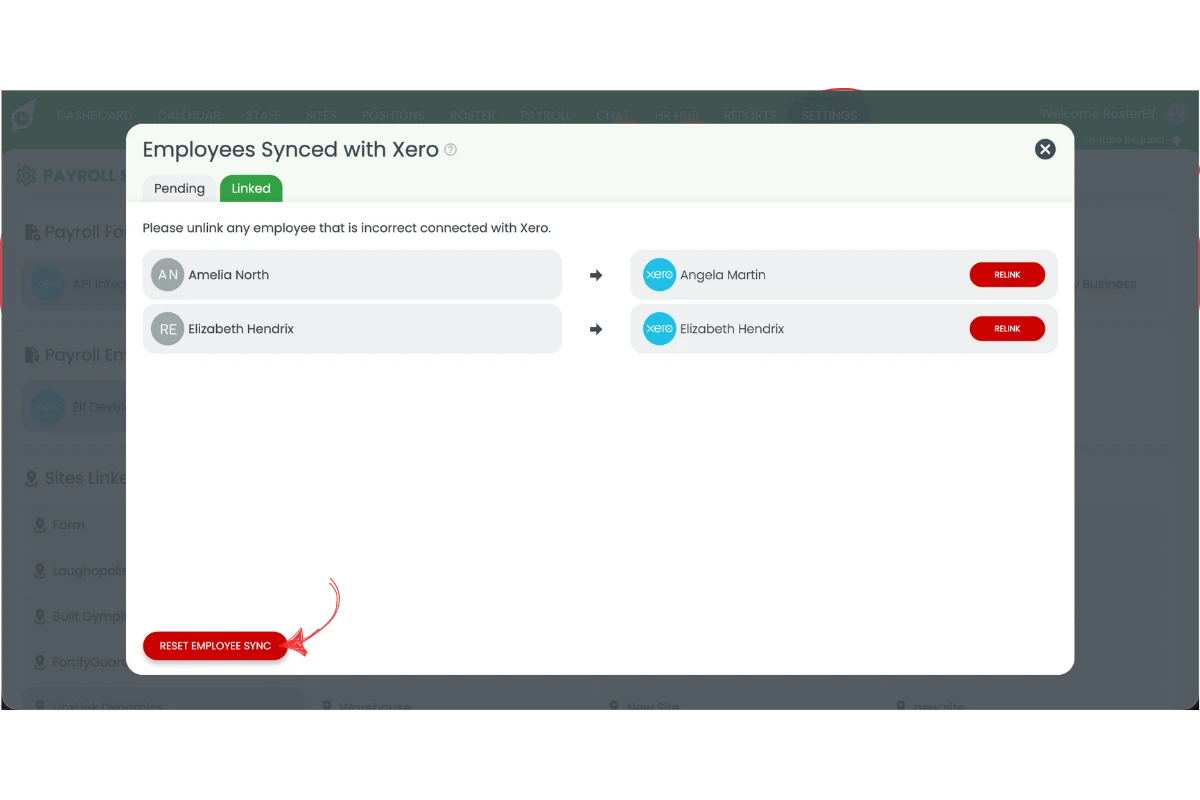
2.1.2 Click on Xero Employees and navigate to the Linked tab.
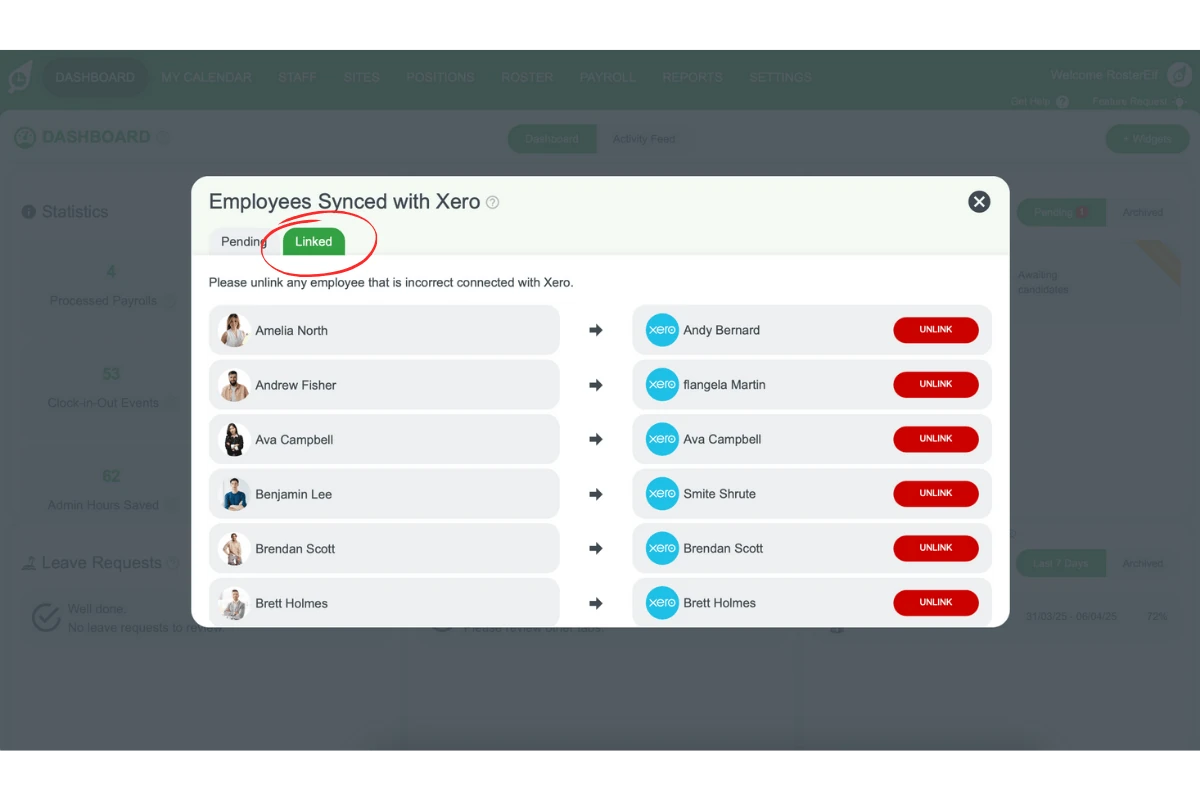
2.1.3 Locate the staff member you wish to relink.
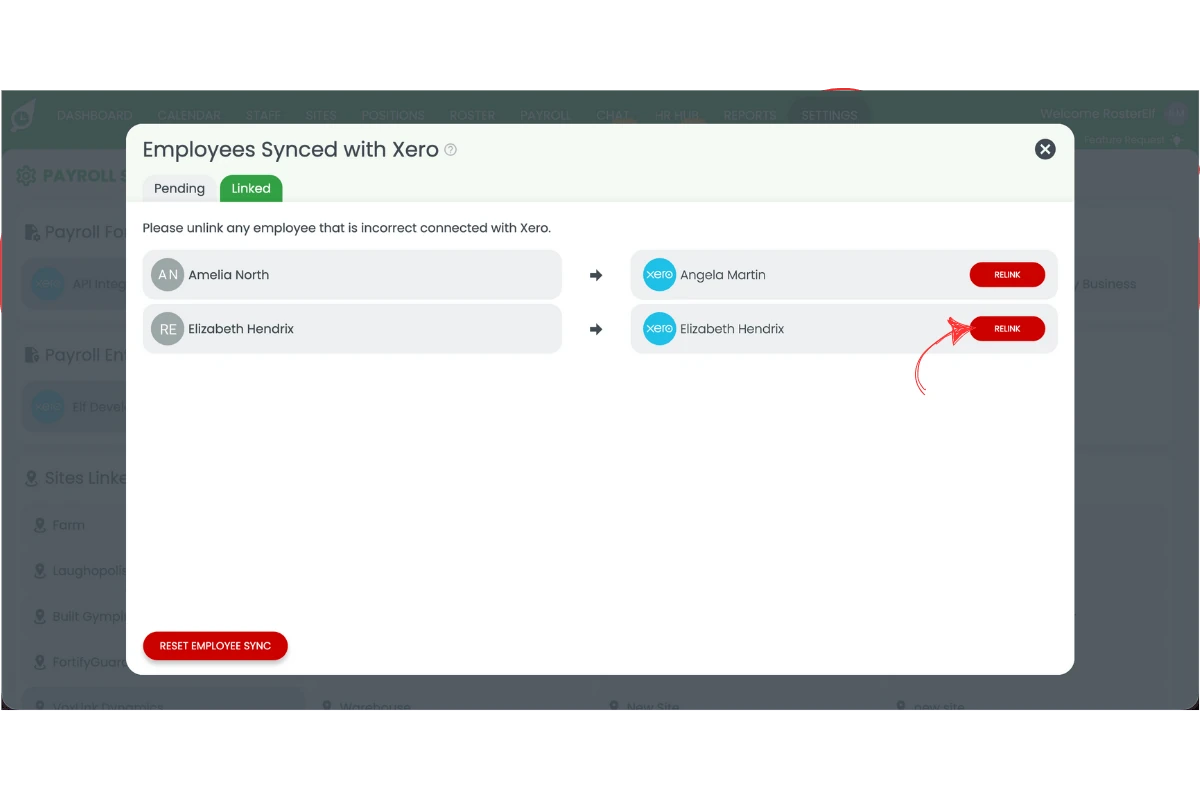
2.1.4 Click on the Relink button next to their name to relink the profile from Xero.
3. Reset all employees links with Xero integration
In this section, you’ll learn how to reset all linked staff members from Xero to RosterElf. Re-linking ensures that each Xero employee appears in RosterElf, so you can manage schedules, payroll, and other related tasks seamlessly. Follow these steps to connect your staff members quickly.
3.1 steps to reset all employee sync
3.1.1 Go to the Settings tab in RosterElf.
3.1.2 Press Xero Employees.
3.1.3 Press Reset Employee Sync.
Frequently asked questions
1. Why should I link staff in RosterElf to Xero?
Linking staff in RosterElf to Xero enables seamless management of schedules, payroll, and syncing, ensuring each staff member’s data is consistent across both platforms.
2. What issues could arise if staff are not correctly linked in Xero and RosterElf?
Incorrect linking can cause payroll or rostering mismatches, leading to errors in pay, scheduling, or reporting. Ensuring staff are linked correctly prevents these issues.
3. Why do I have two profiles for the same employee after syncing with Xero?
This can happen if a Xero sync creates a new staff record instead of matching an employee to their existing RosterElf profile. Keep whichever profile has processed payroll or timesheet history — that’s the one with the real record for that employee — and remove the other, empty duplicate.