

How to update employee leave in Xero
This guide explains how to amend leave details for employees in Xero. By following these steps, you can quickly and accurately update leave information, ensuring records remain up to date. This process is simple and helps maintain compliance with company policies and employee agreements.
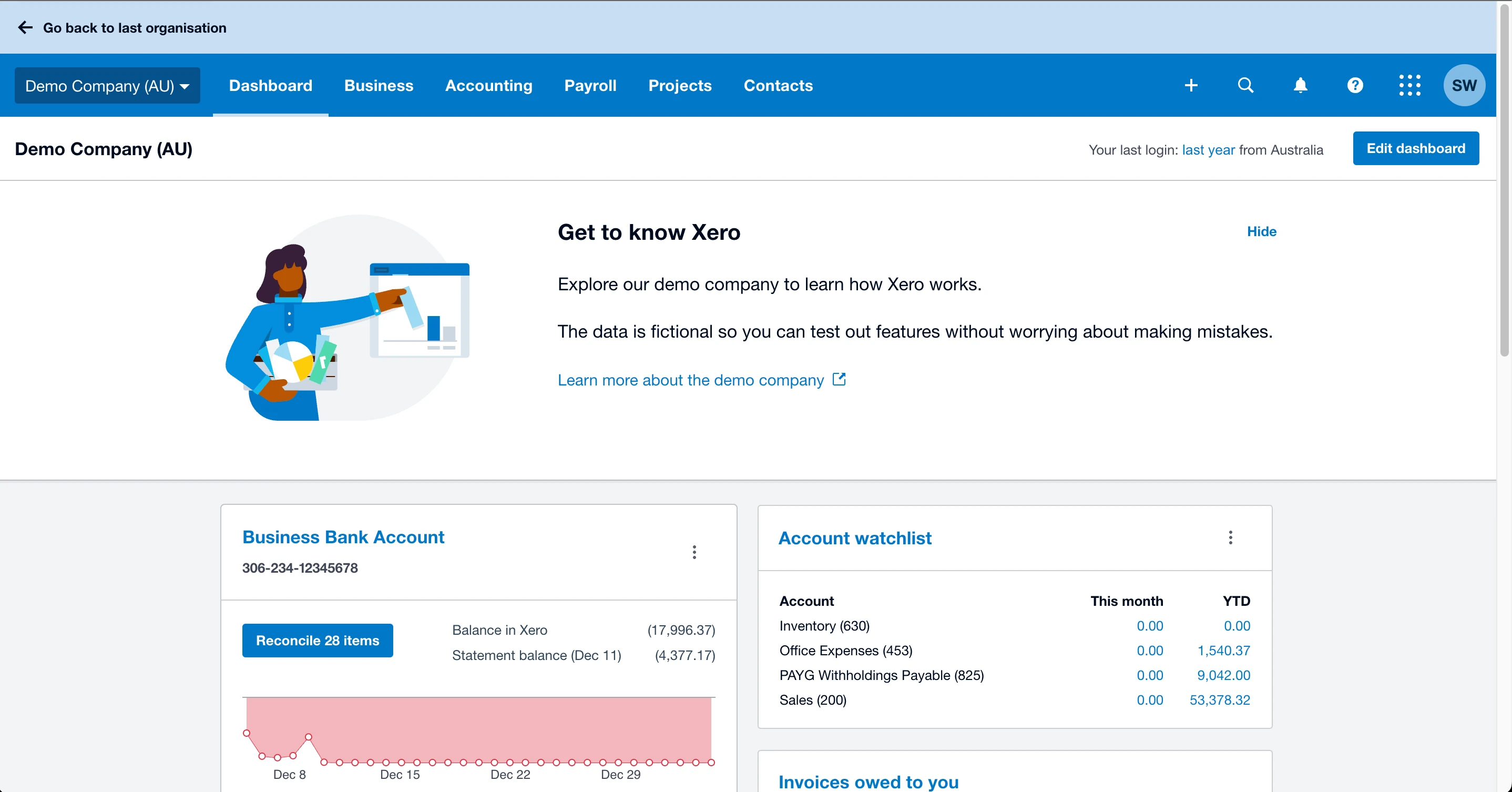
Access the Xero dashboard
To amend employee leave, start by logging into your Xero account and accessing the dashboard. This ensures you can navigate to the necessary features.
1.1 log in to Xero
1.1.1 Open the Xero dashboard.
2. Navigate to employee details
Access the employee details section to locate and update leave records for the specific individual.
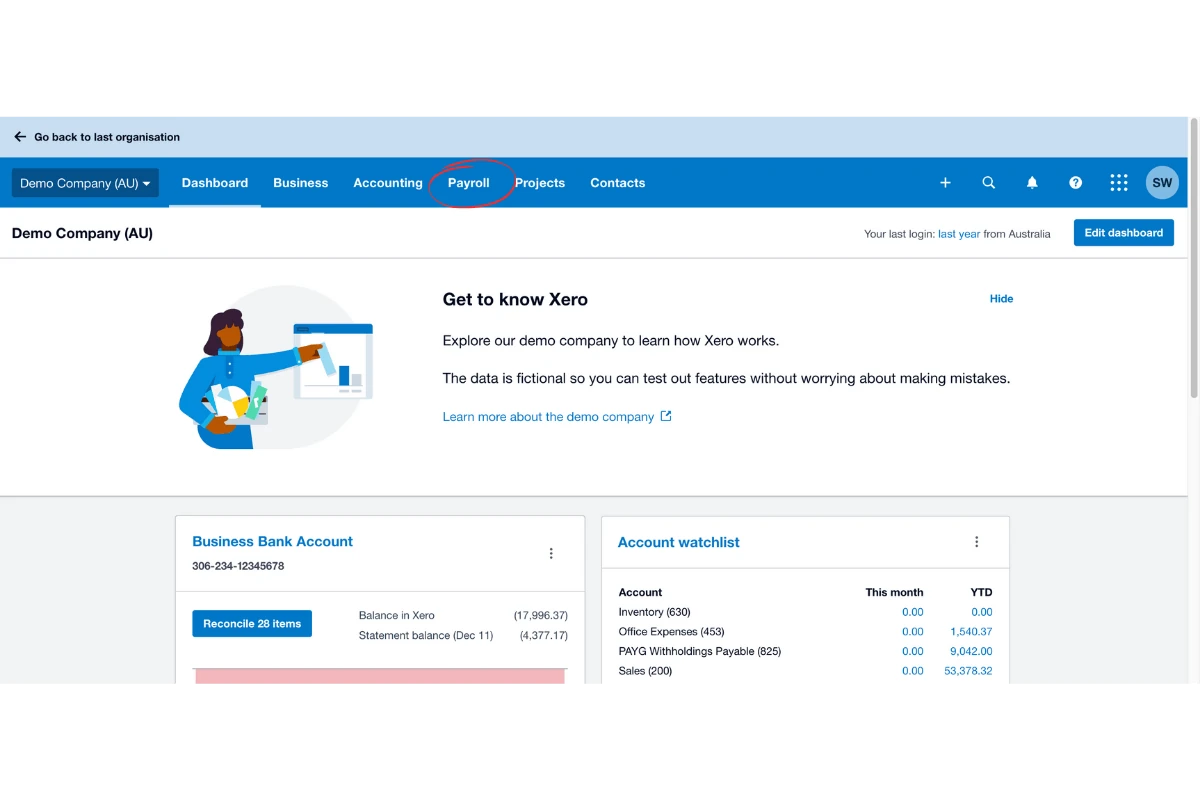
2.1 access payroll
2.1.1 Click Payroll in the main navigation bar.
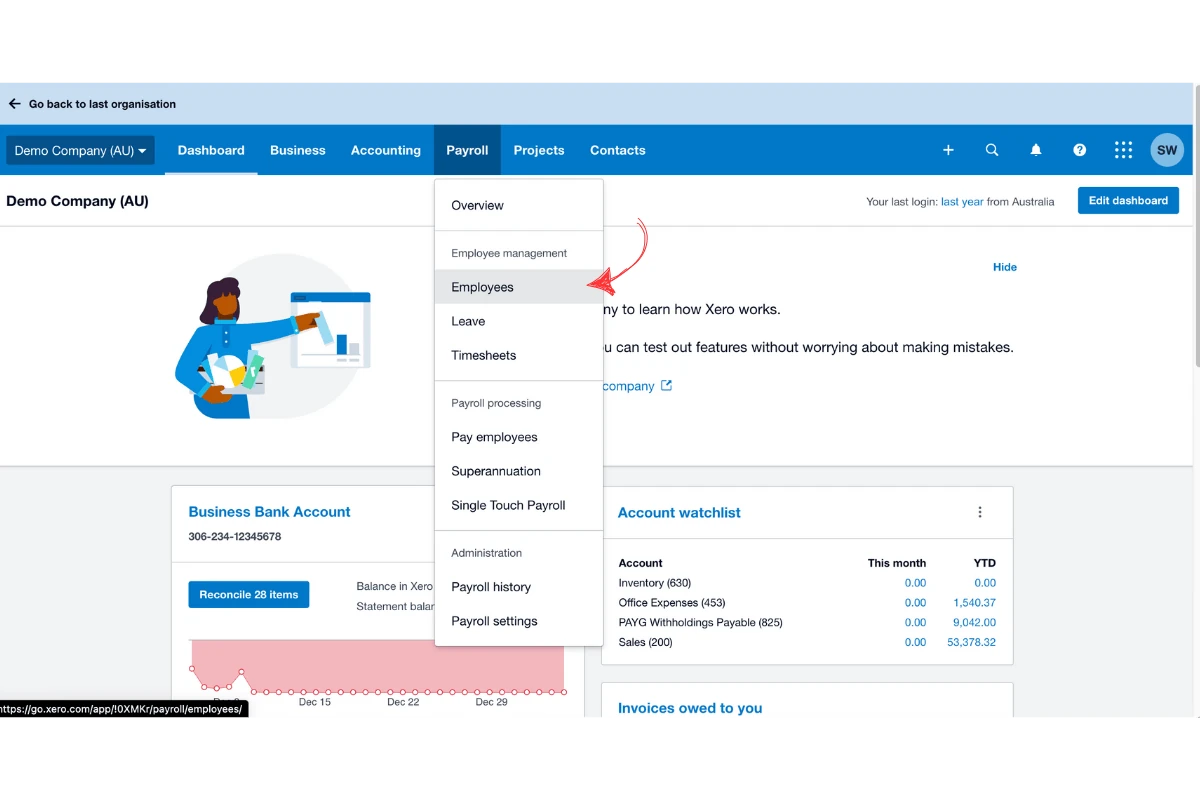
2.2 open employee records
2.2.1 Select Employees from the payroll menu.
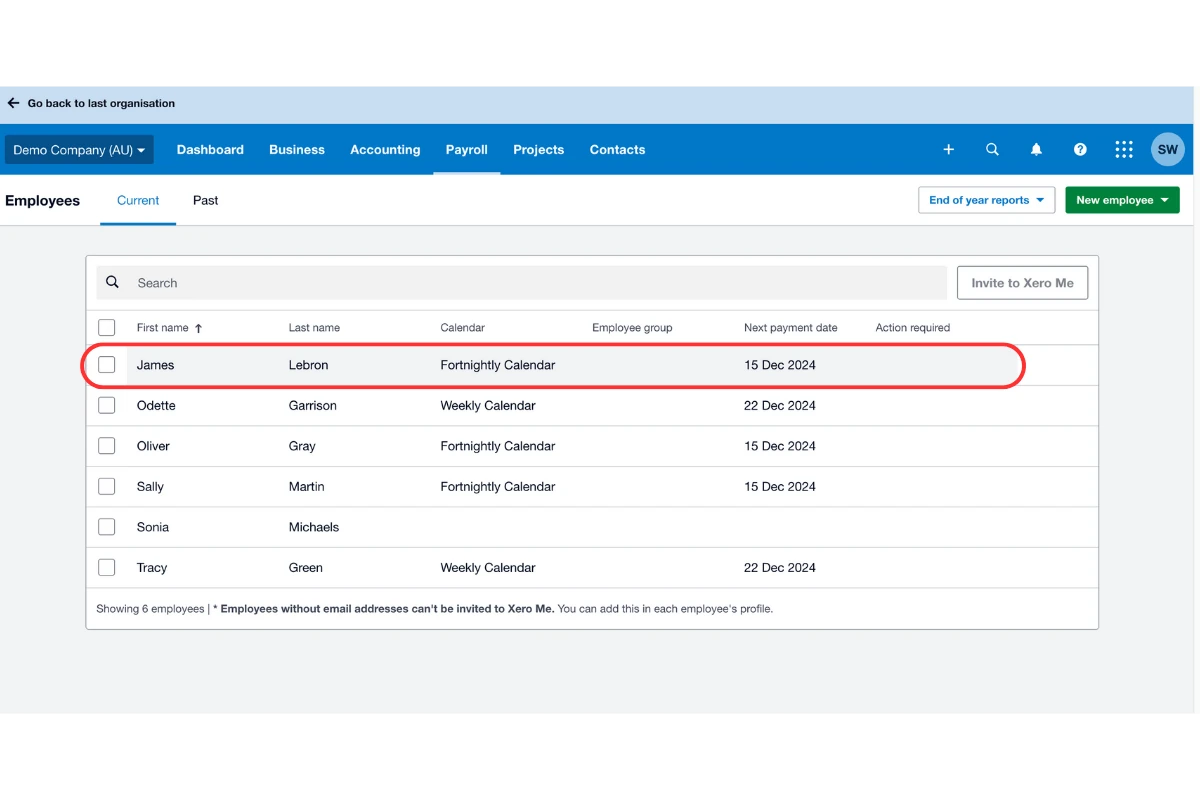
2.2.2 Click on the employee whose leave you want to amend.
3. Amend leave details
Locate the leave section for the selected employee and make the required changes.
3.1 edit leave details
3.1.1 Click the Leave tab under the employee’s profile.
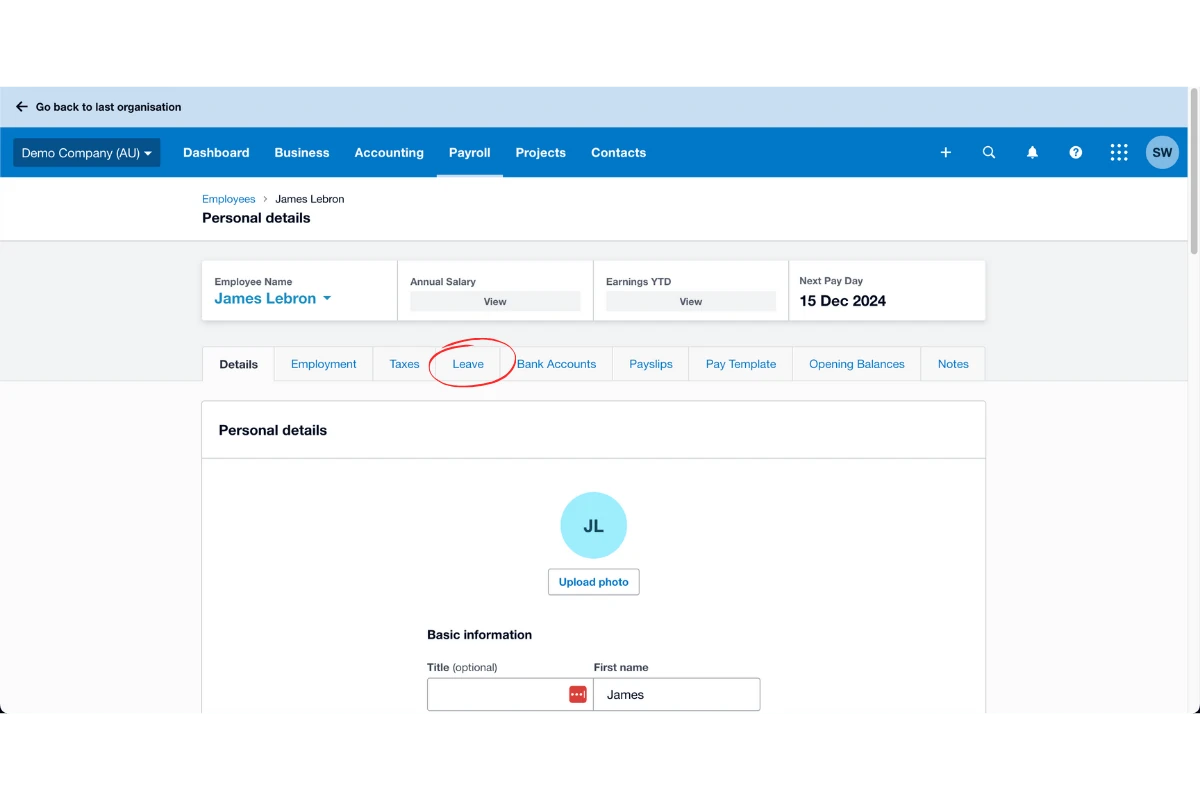
3.1.2 Select the leave record you want to amend.
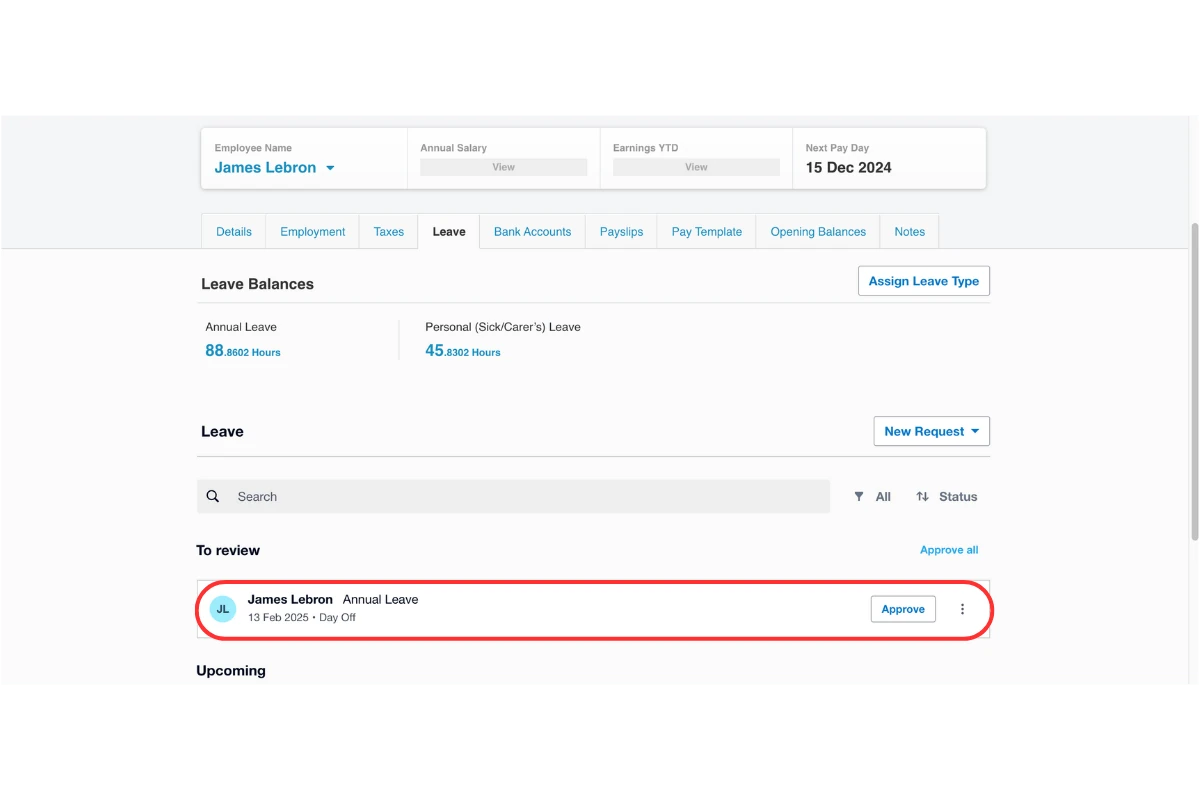
3.1.3 Update the leave details as required.
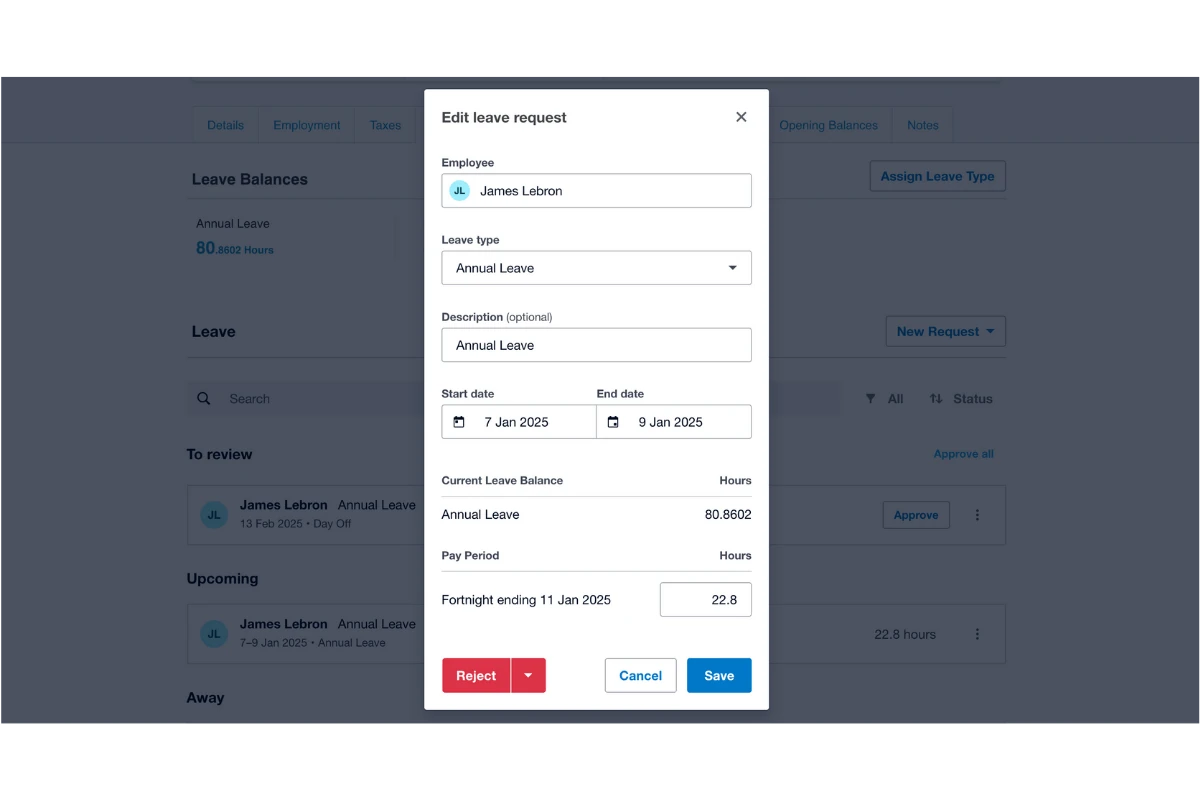
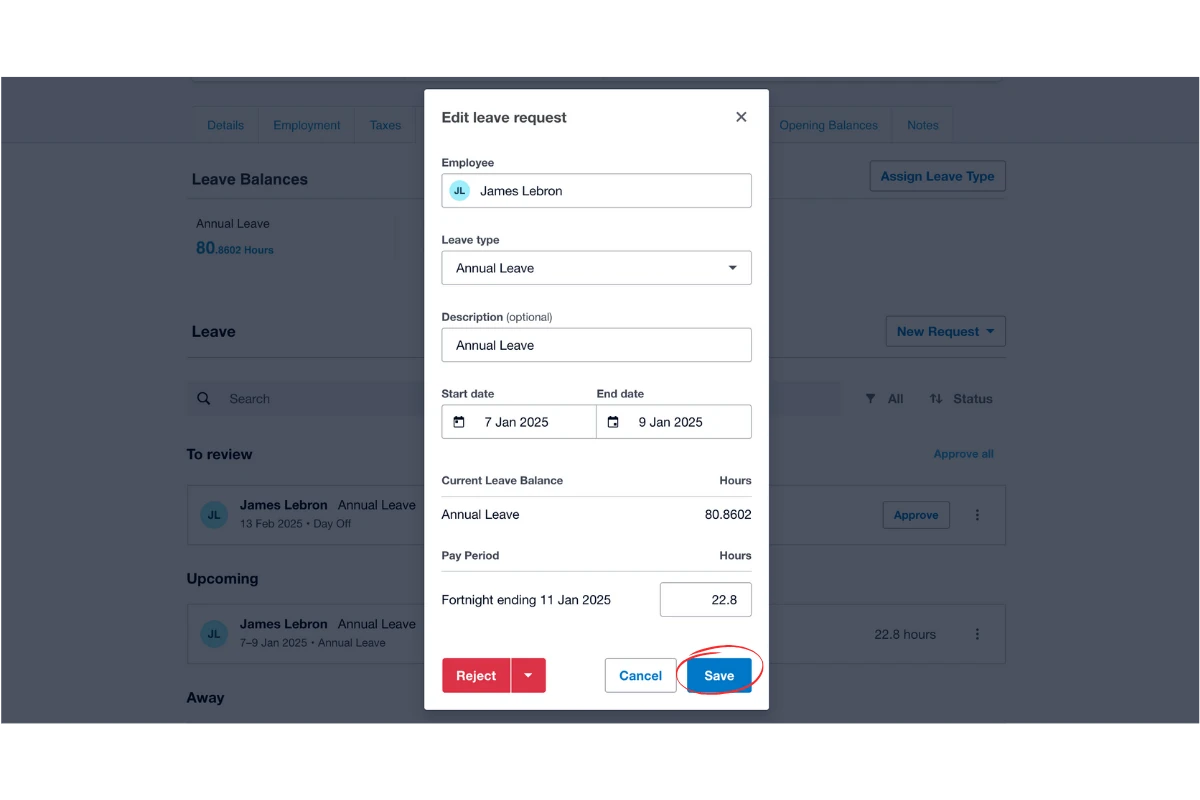
3.2 save changes
3.2.1 Click Save to confirm the updated leave details.
Frequently asked questions
1. Where can I find employee details in Xero?
Click Payroll in the main navigation bar, then select Employees from the payroll menu. Locate the specific employee whose leave details you need to amend.
2. How do I save changes after amending leave details?
After updating the leave record, click the Save button. This ensures that all changes are recorded accurately in Xero. Learn more about Xero payroll integration.