

This article explains how to stop Xero from linking your current staff profiles in RosterElf with archived profiles in Xero. Sometimes, when a staff member has been archived in Xero, the system may attempt to connect them with active staff in RosterElf. This can create confusion and lead to payroll errors.
By following the steps in this guide, you can prevent unwanted links by editing the archived profile in Xero and then unlinking it in RosterElf. This ensures your payroll records stay accurate and your staff profiles remain clean. The process is simple, quick, and can save time by avoiding issues during payroll approval.
1. Update archived profile in Xero
In this step, you will make a small edit to the archived employee profile in Xero. Adding archived to the name makes it easy to identify and prevents RosterElf from linking it to an active employee. This ensures that payroll data stays correct and helps you manage your employee records with confidence.
1.1 edit archived employee profile in Xero
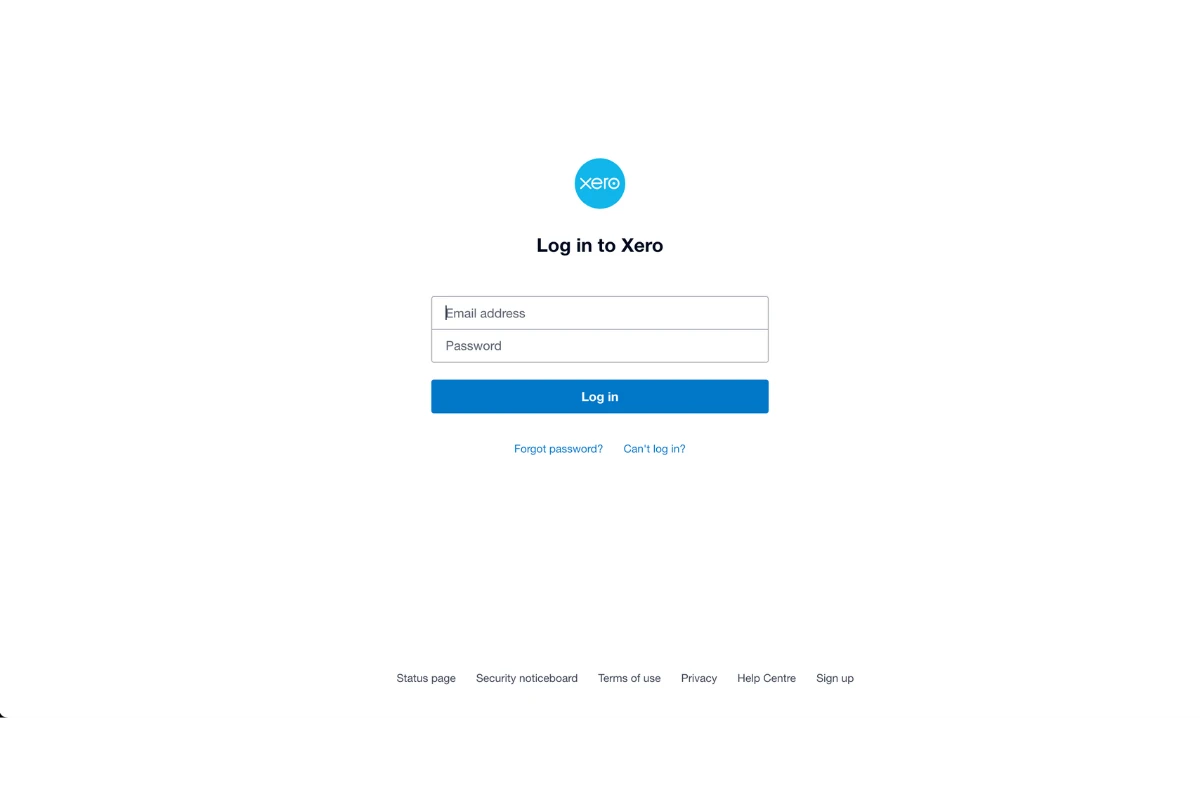
1.1.1 Log into Xero.
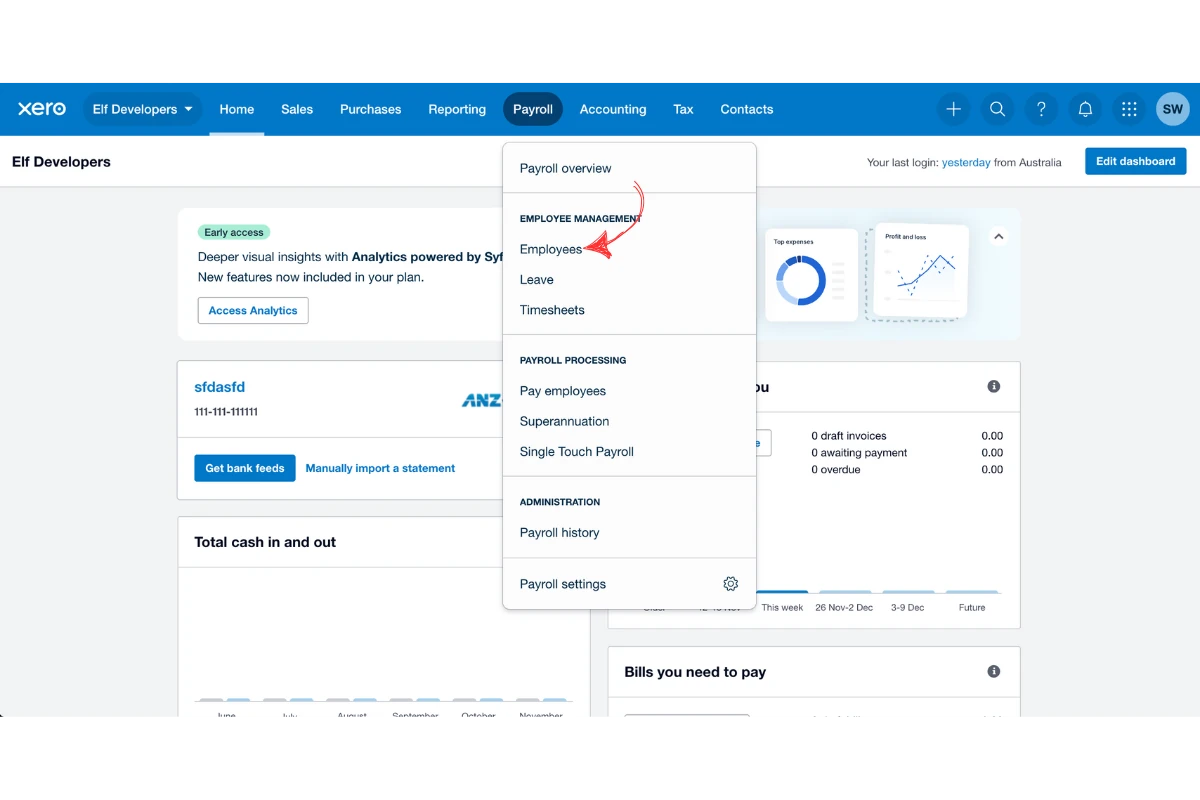
1.1.2 Head to Payroll > Employees.
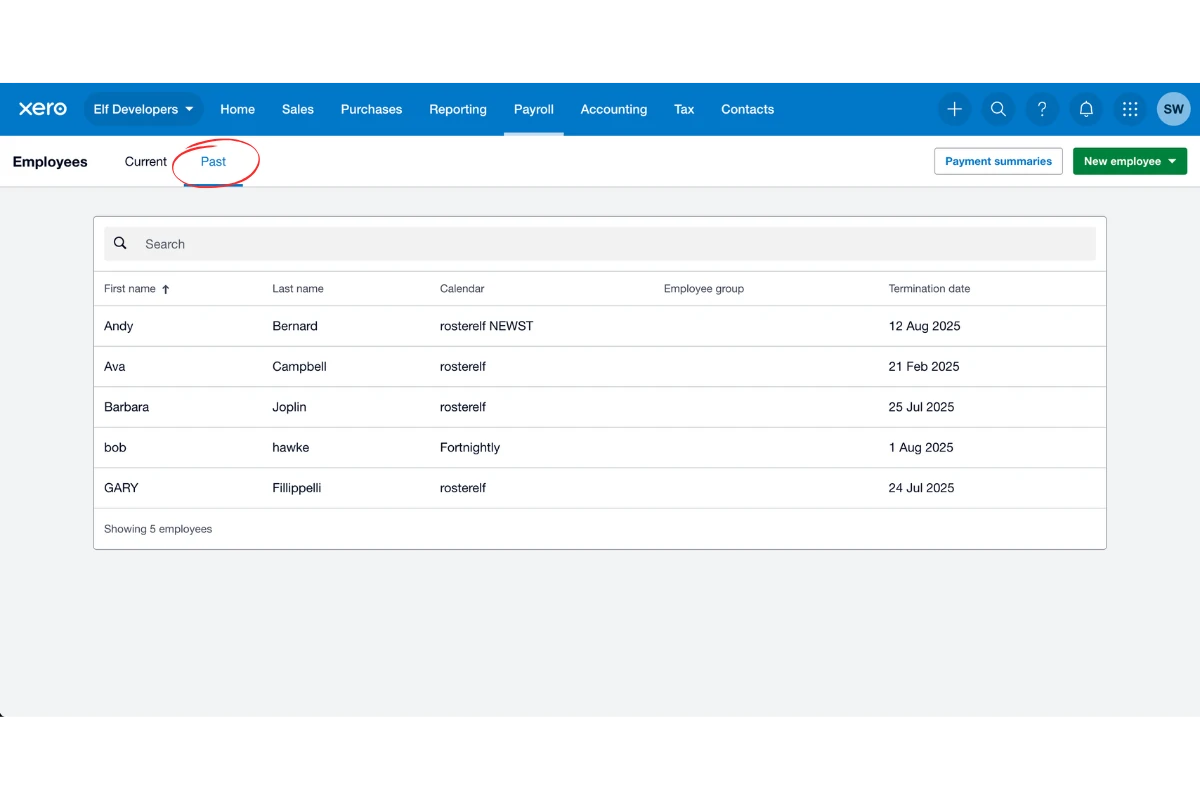
1.1.3 Press Past to view archived staff.
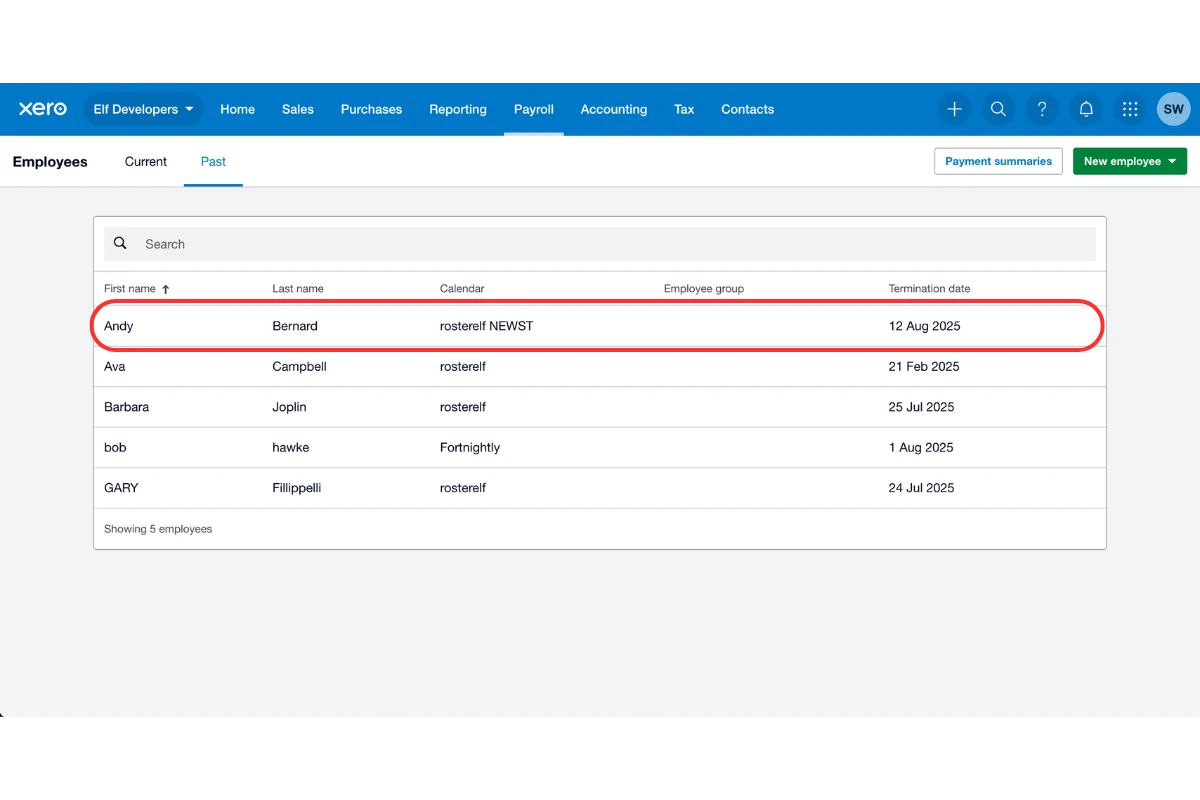
1.1.4 Select the archived employee.
1.1.5 Add archived in the first name field.
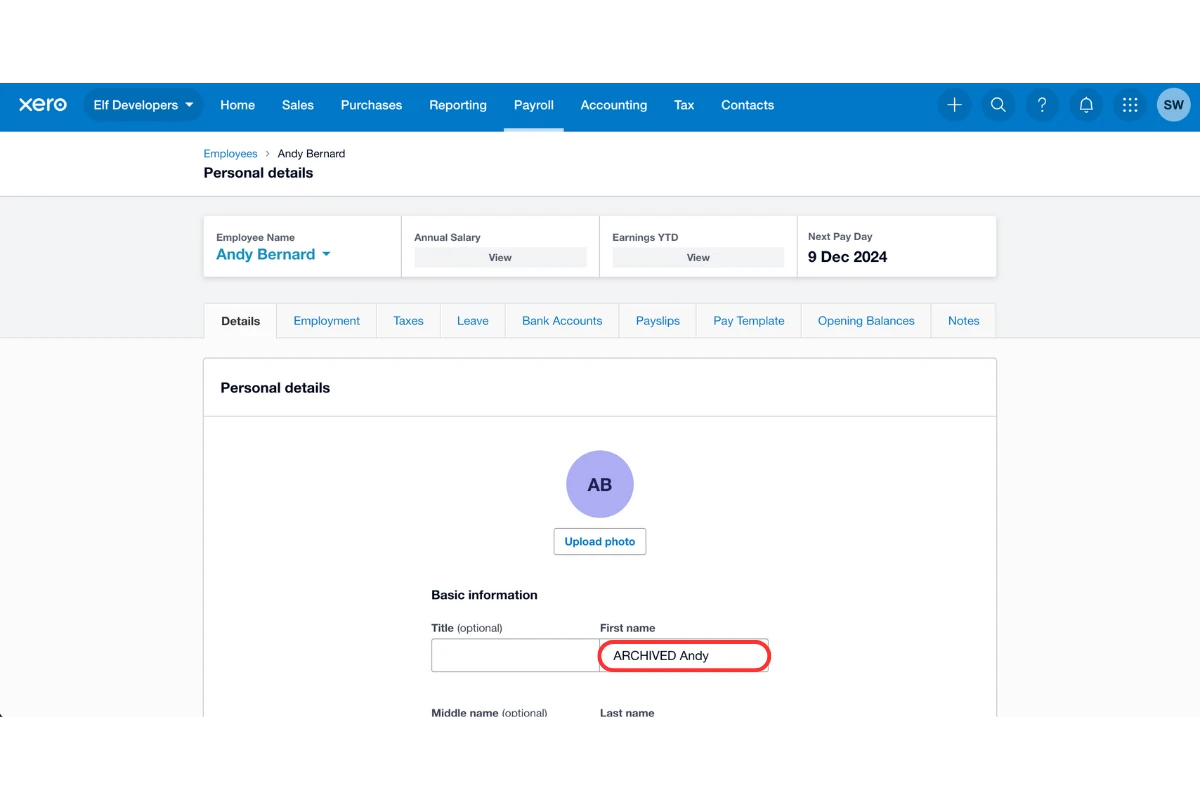
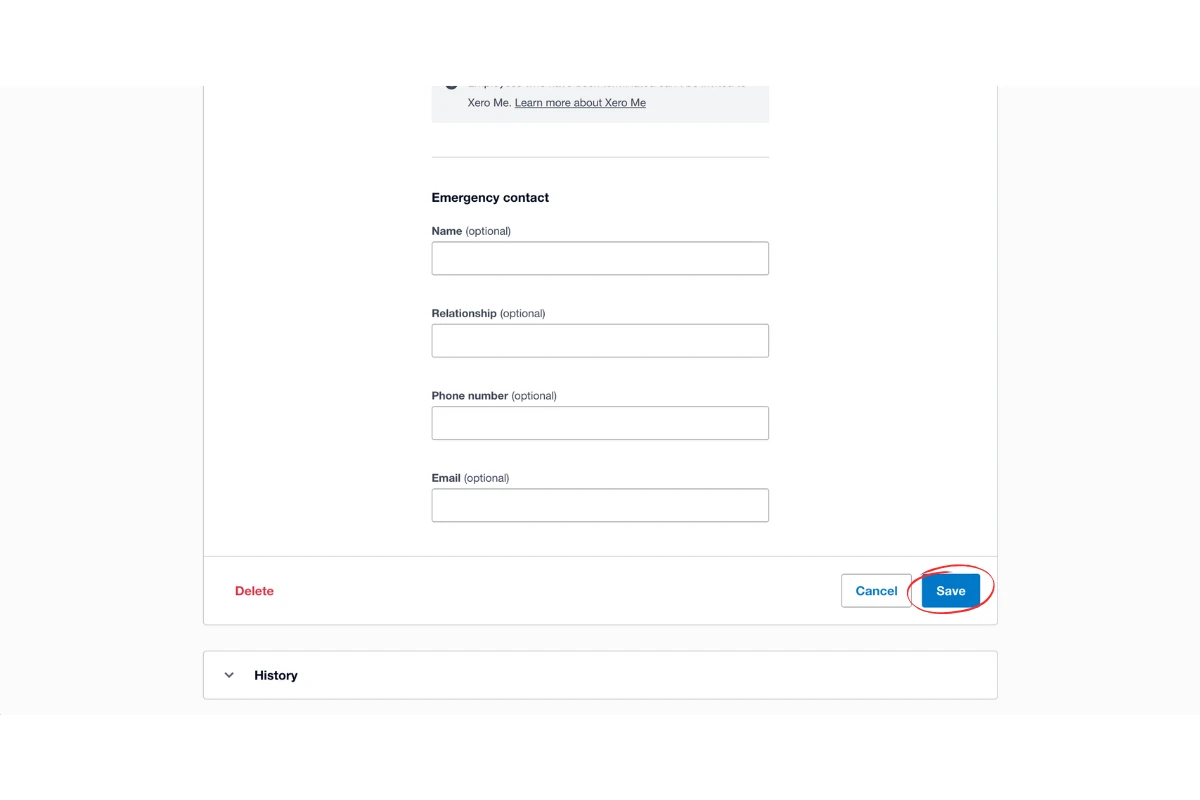
1.1.6 Press save.
2. Unlink archived profile in RosterElf
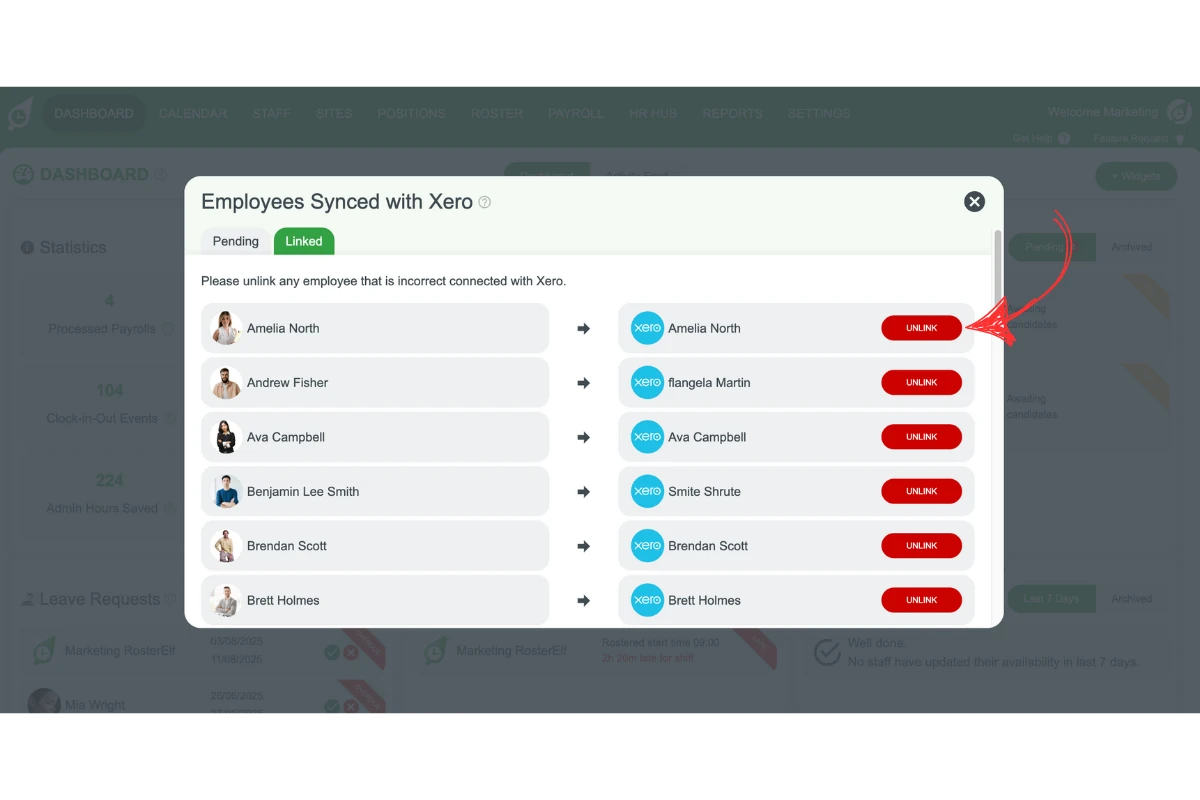
Next, you need to unlink the archived Xero employee from your RosterElf account. This step ensures that the archived profile will not reconnect or cause issues with payroll syncing. Refreshing your screen after unlinking helps confirm the changes are complete.
2.1 unlink employee in RosterElf
2.1.1 Open RosterElf.

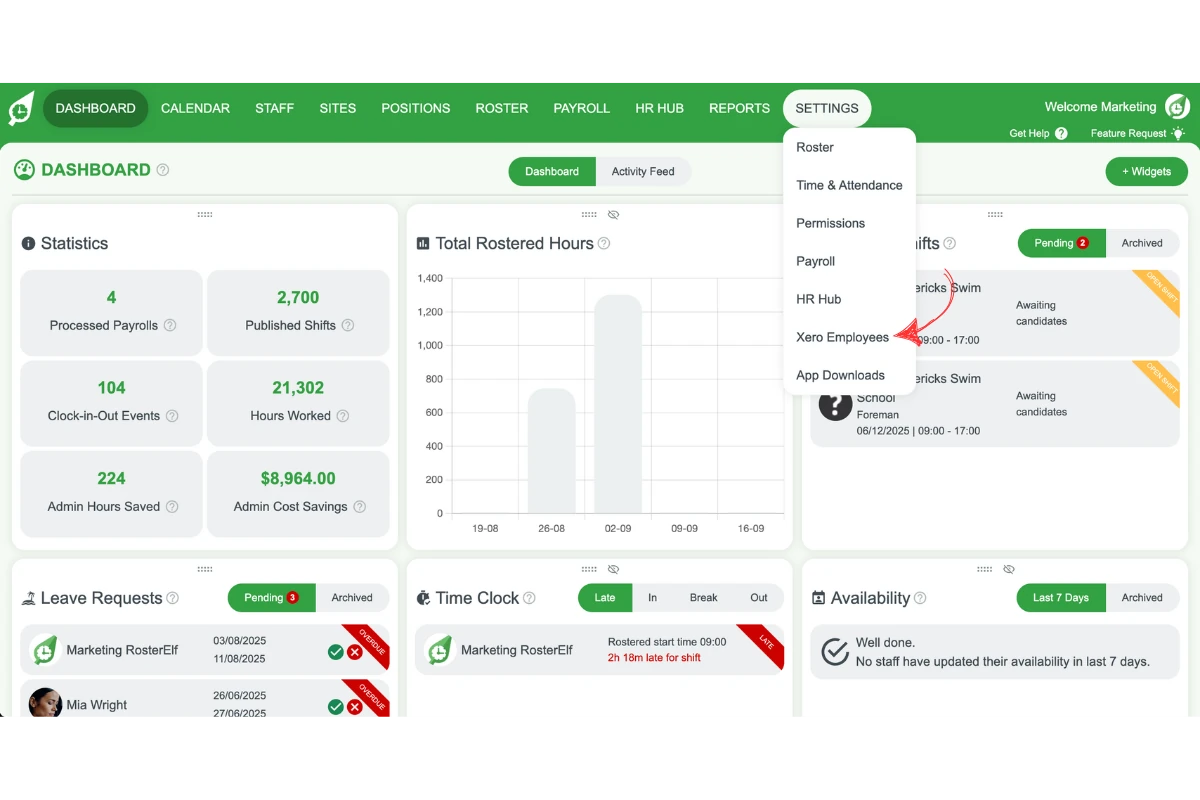
2.1.2 Press Settings > Xero employees.
2.1.3 Select the Linked tab.
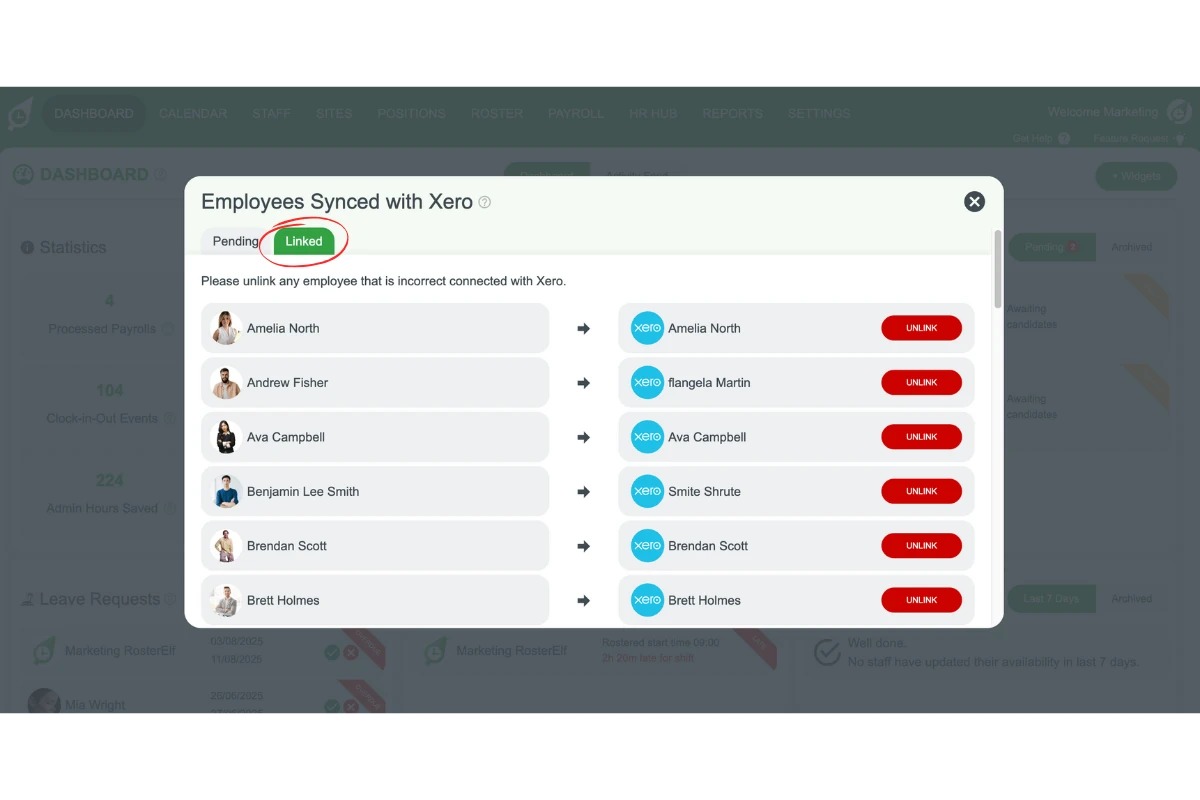
2.1.4 Press Unlink.
Frequently asked questions
1. How do I stop Xero from linking archived staff profiles in RosterElf?
To stop Xero from linking archived staff profiles, edit the archived employee in Xero by adding archived to their first name. Then, in RosterElf, go to Settings > Xero employees, select the archived profile, and press Unlink. Refresh your screen if needed. Learn more about Xero payroll integration.
2. Why should I add archived to an employee’s name in Xero?
Adding archived to the first name field clearly marks the profile as inactive. This prevents RosterElf from connecting the archived employee to an active staff member, keeping your payroll data accurate.
3. Can I unlink an archived Xero employee directly in RosterElf?
Yes. In RosterElf, go to Settings > Xero employees, select the archived employee, and press Unlink. Refresh the screen if required to confirm the change.
4. What are the benefits of unlinking archived staff profiles in Xero and RosterElf?
Unlinking archived profiles helps keep staff records clean, avoids payroll syncing errors, and ensures only current employees are connected. This saves time during payroll approval and prevents mistakes.