

This article explains how to manage payroll in RosterElf and Xero when an employee’s pay rate changes partway through a pay period. Handling mid-pay run rate increases correctly is important for accurate payslips and compliance.
You’ll learn how to process the payroll in RosterElf, adjust timesheets in Xero, and split earnings lines to reflect the new rate. This ensures employees are paid the correct amount for hours worked before and after the rate change.
This guide is ideal for payroll administrators and managers who process wages through RosterElf and Xero. The steps are clear, simple, and help reduce errors in employee payments when rates change during the pay cycle.
1. Process payroll with current rates
This section outlines how to handle a rate increase that takes effect mid pay period. You’ll update the employee’s timesheet in Xero by splitting hours into separate earnings lines, so old and new rates are applied correctly. This method helps ensure payroll compliance and accurate tax reporting.
1.1 process payroll in RosterElf
1.1.1 Log in to your RosterElf account.
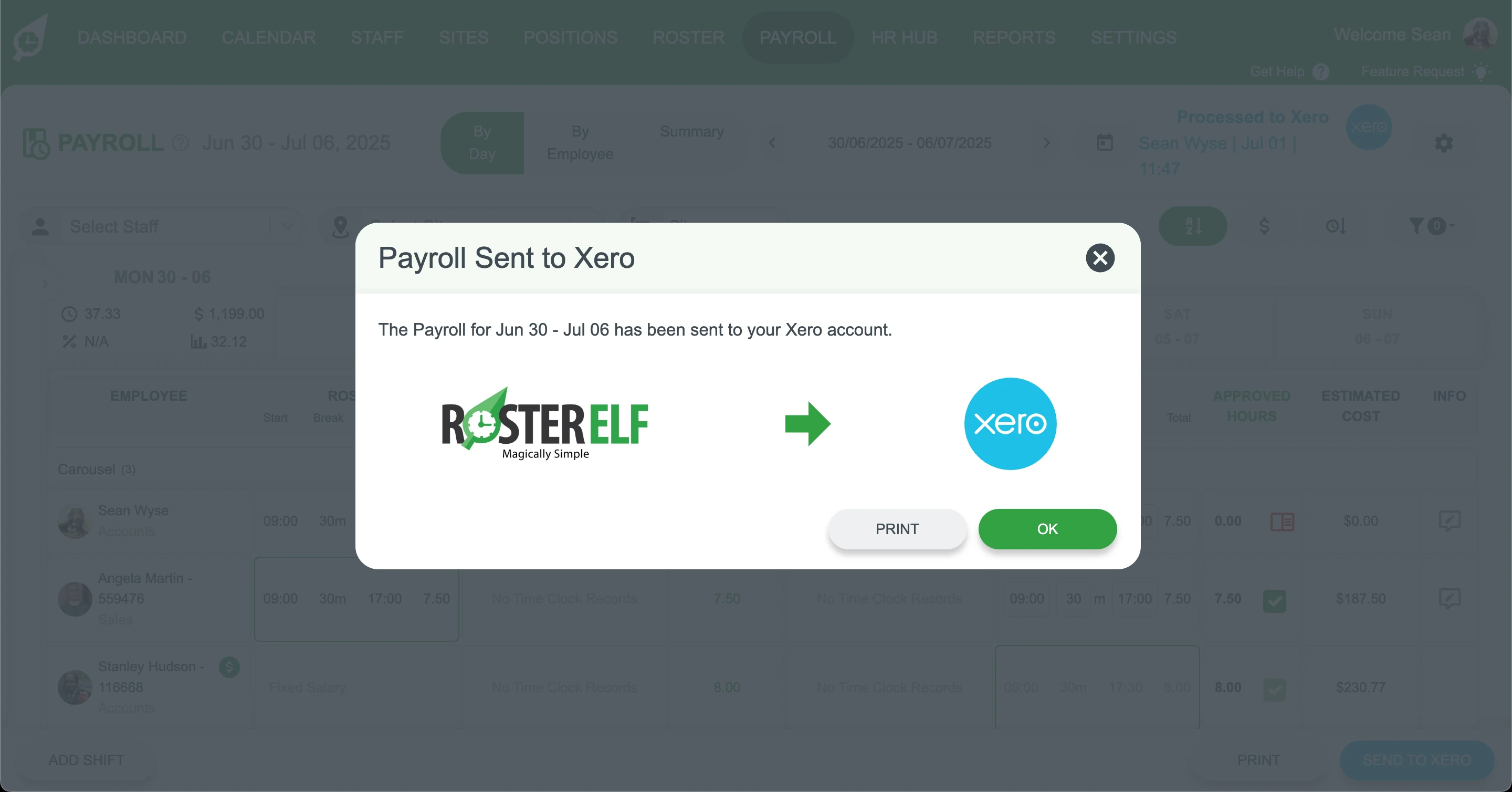
1.1.2 Process the payroll as normal.
1.2 adjust timesheet in Xero
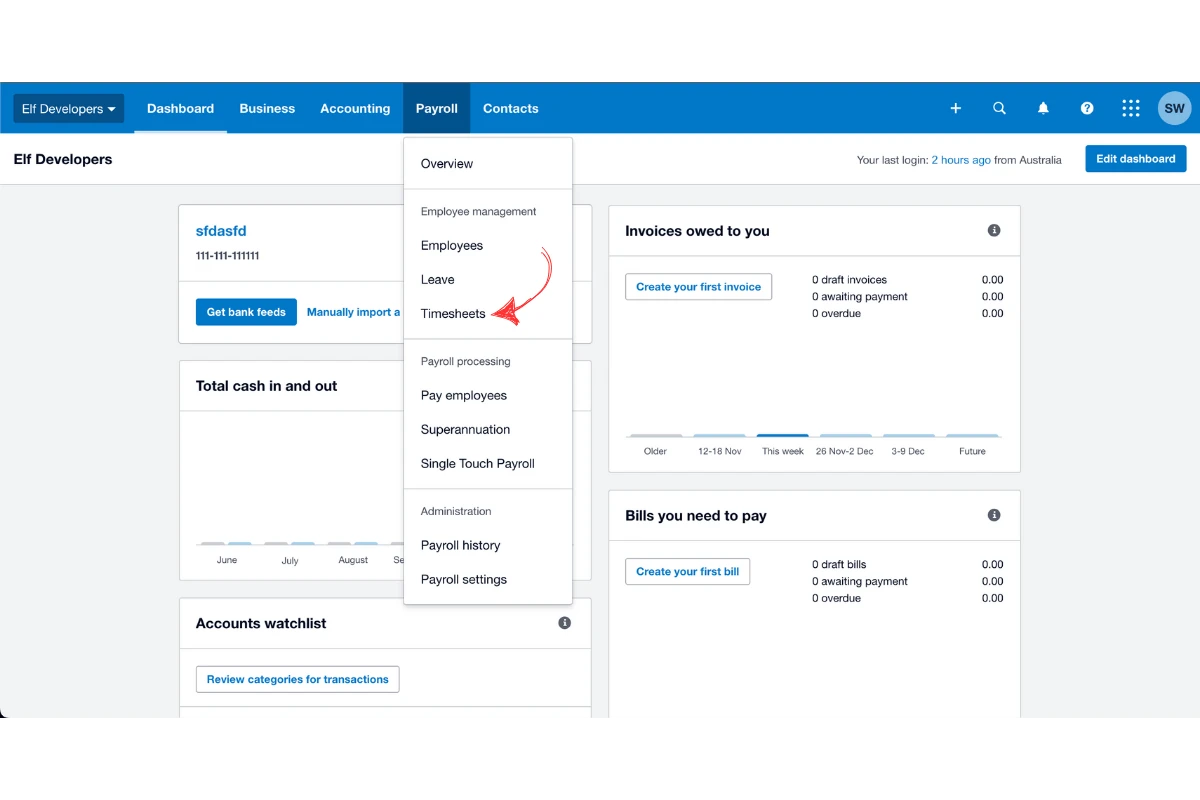
1.2.1 In Xero, go to Payroll then Timesheets.
1.2.2 Open the relevant employee’s timesheet.
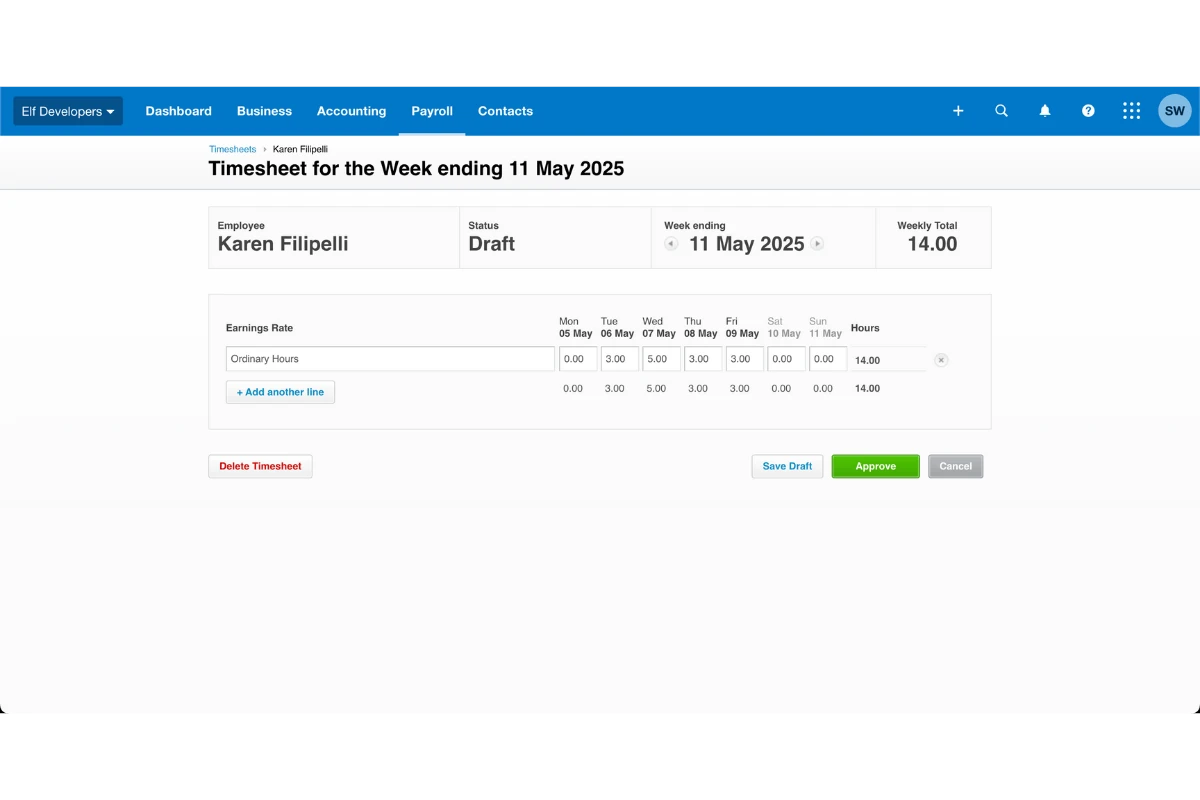
1.2.3 Add a secondary earnings line for the new rate.
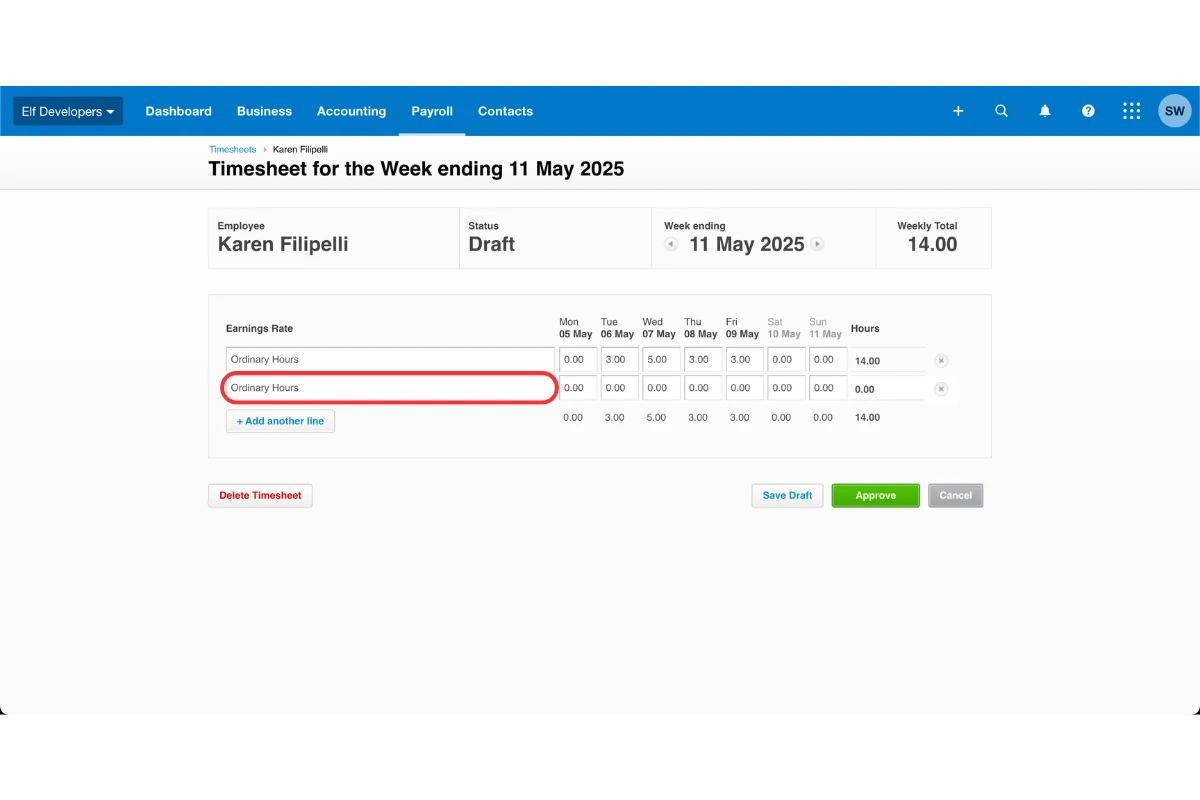
1.2.4 Move the approved hours from 1 July onwards to this new line.
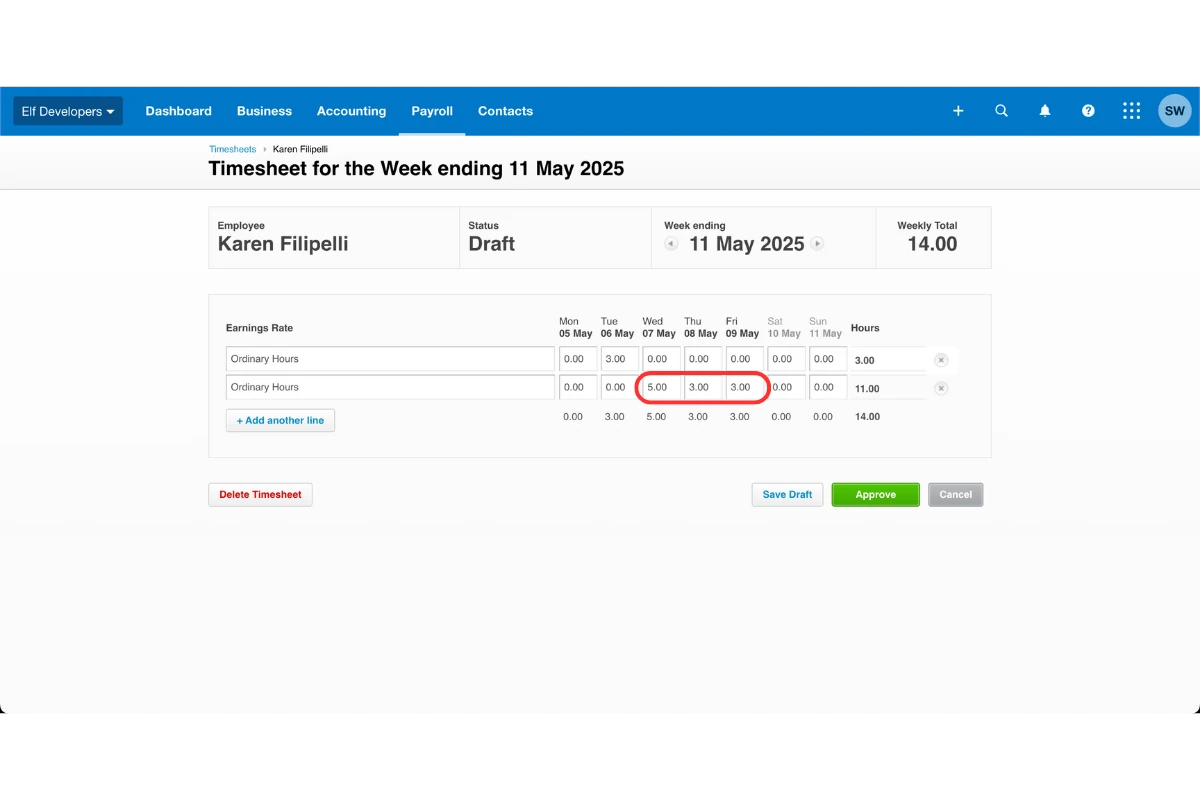
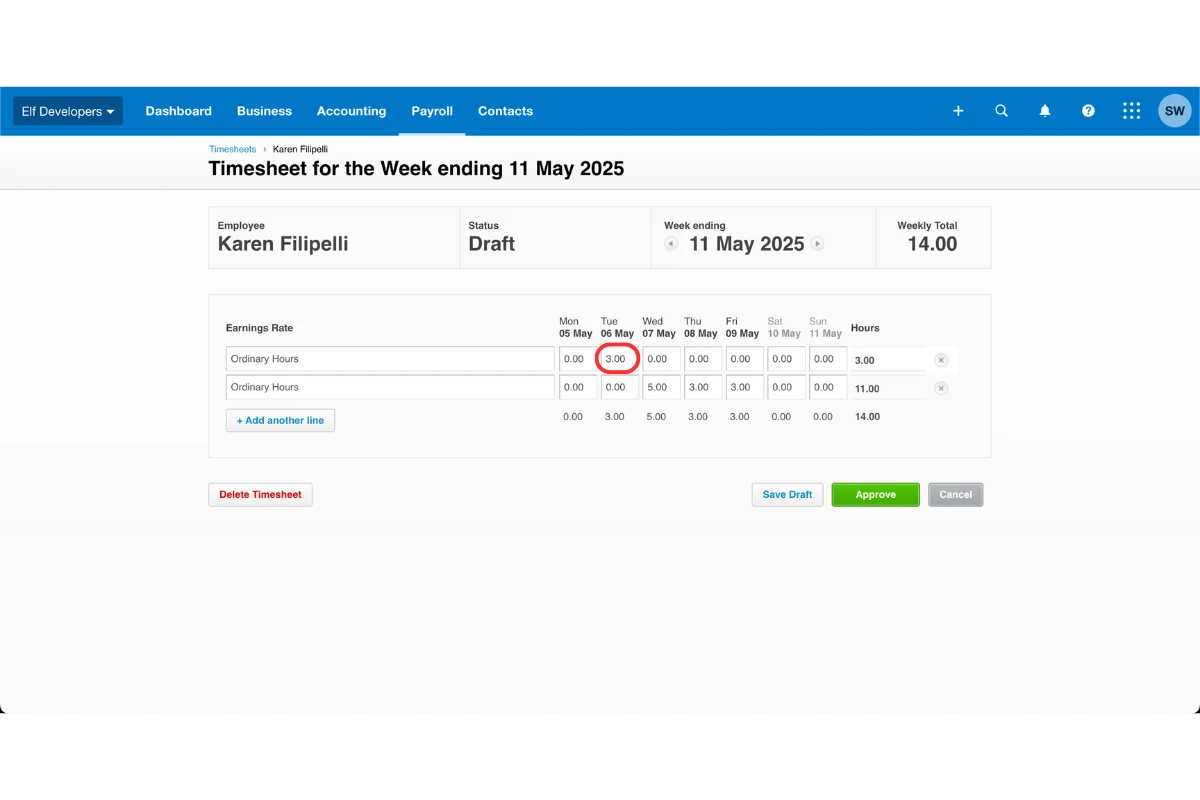
1.2.5 Leave previous hours before 1st of July on the original earnings line.
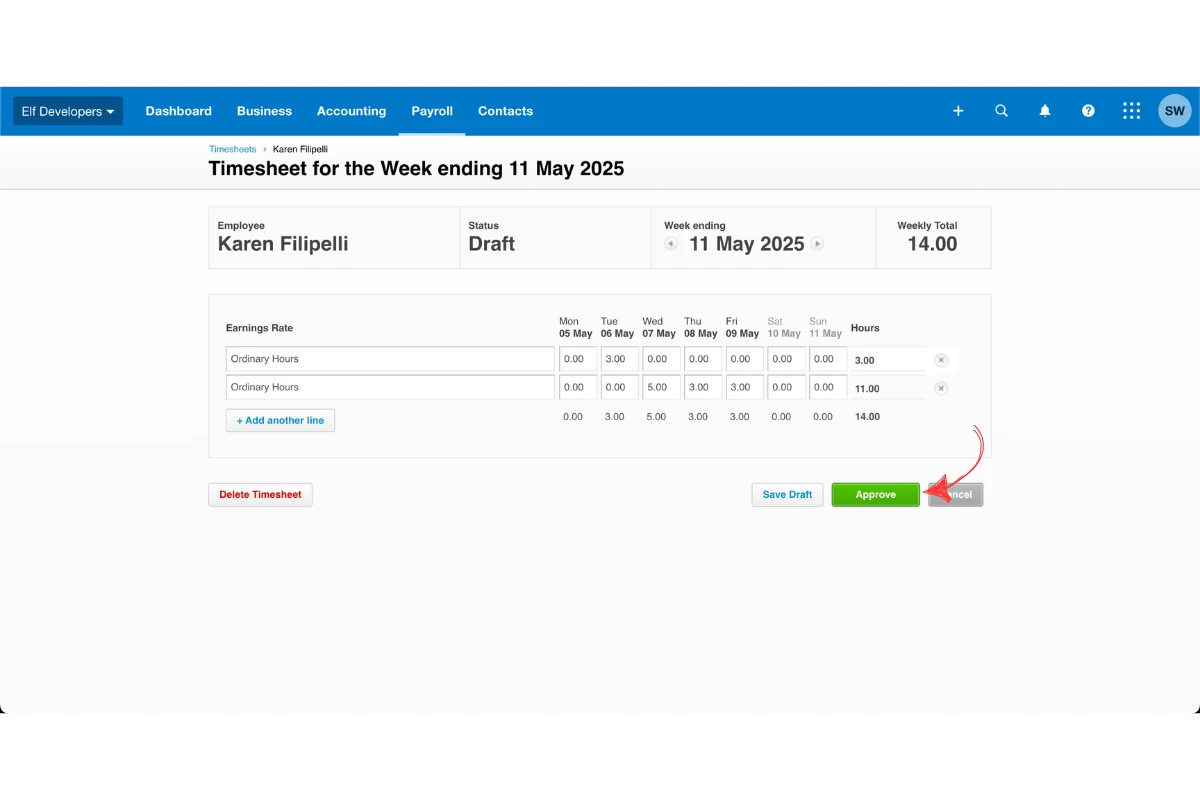
1.2.6 Approve the timesheet.
2. Update the pay slip in Xero
After updating the timesheet, you’ll need to edit the employee’s pay slip to reflect the new pay rate. This step ensures the new rate is applied only to the hours worked after the increase. These adjustments are done in Xero before finalising the pay run.
2.1 adjust pay rate on the payslip
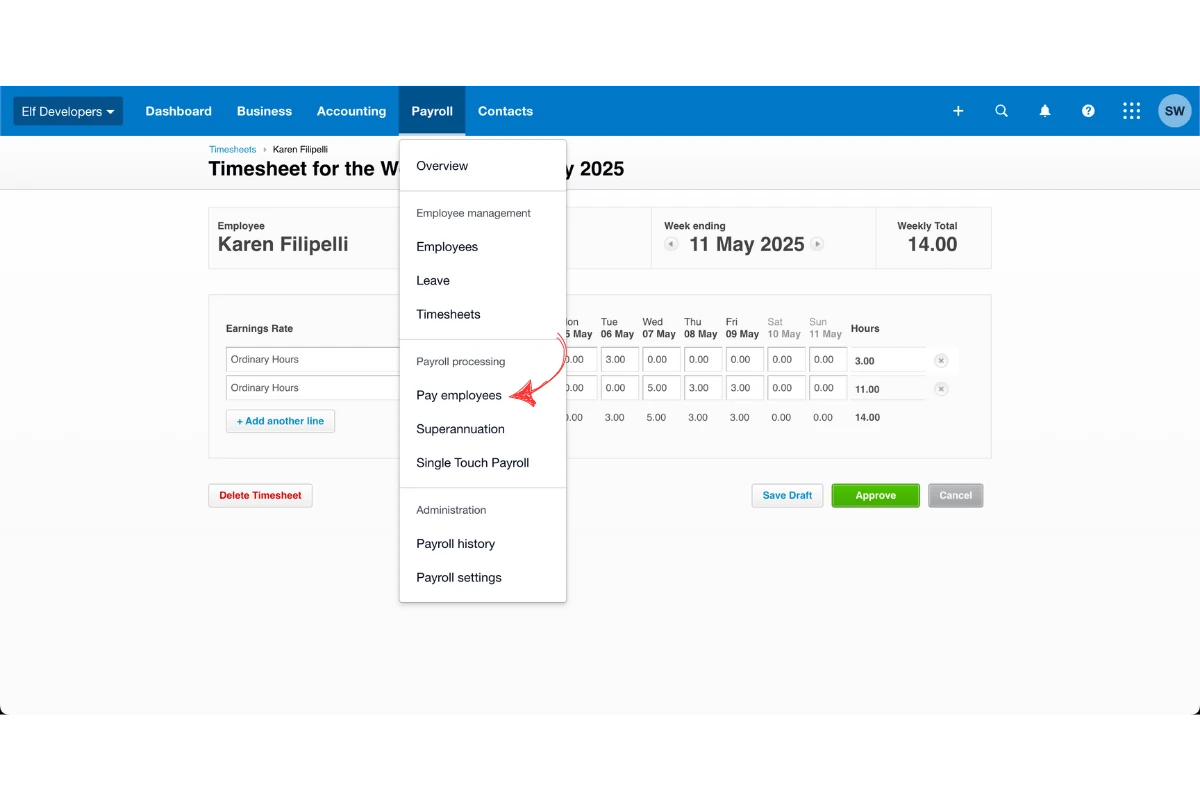
2.1.1 In Xero, go to Payroll then Pay Employees.
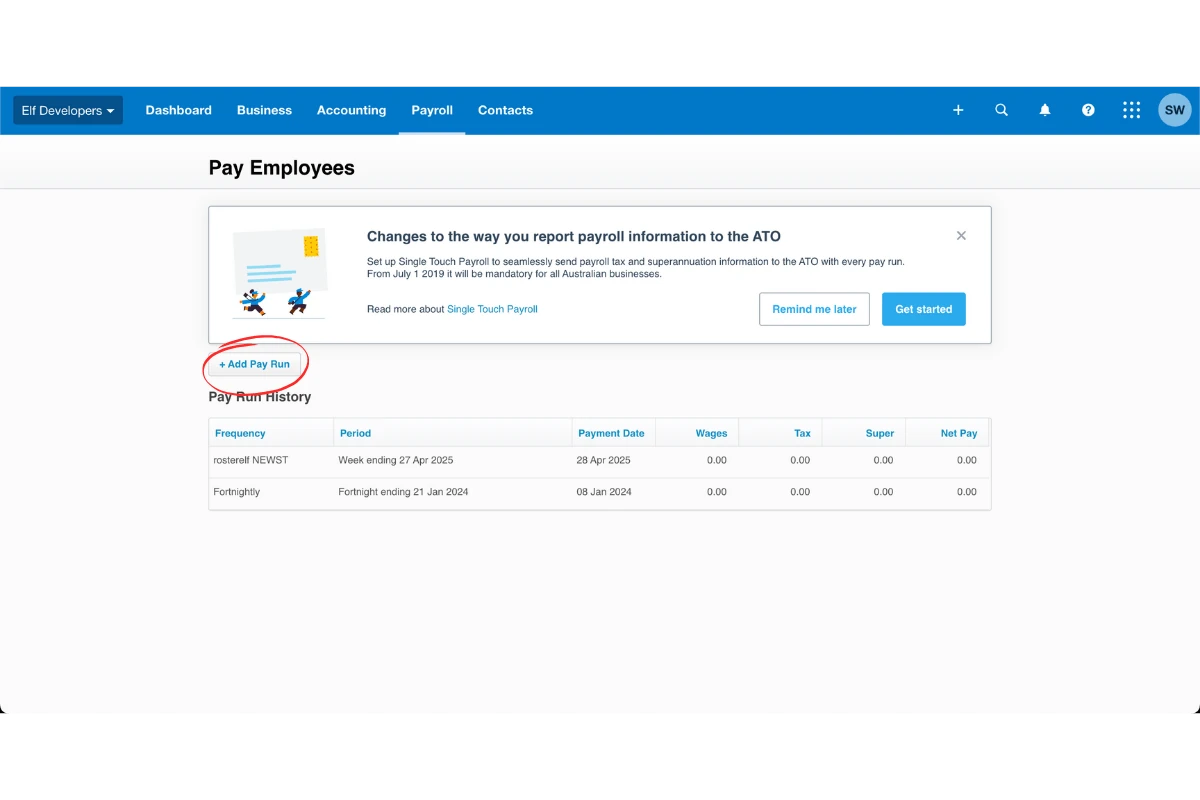
2.1.2 Create a new pay run.
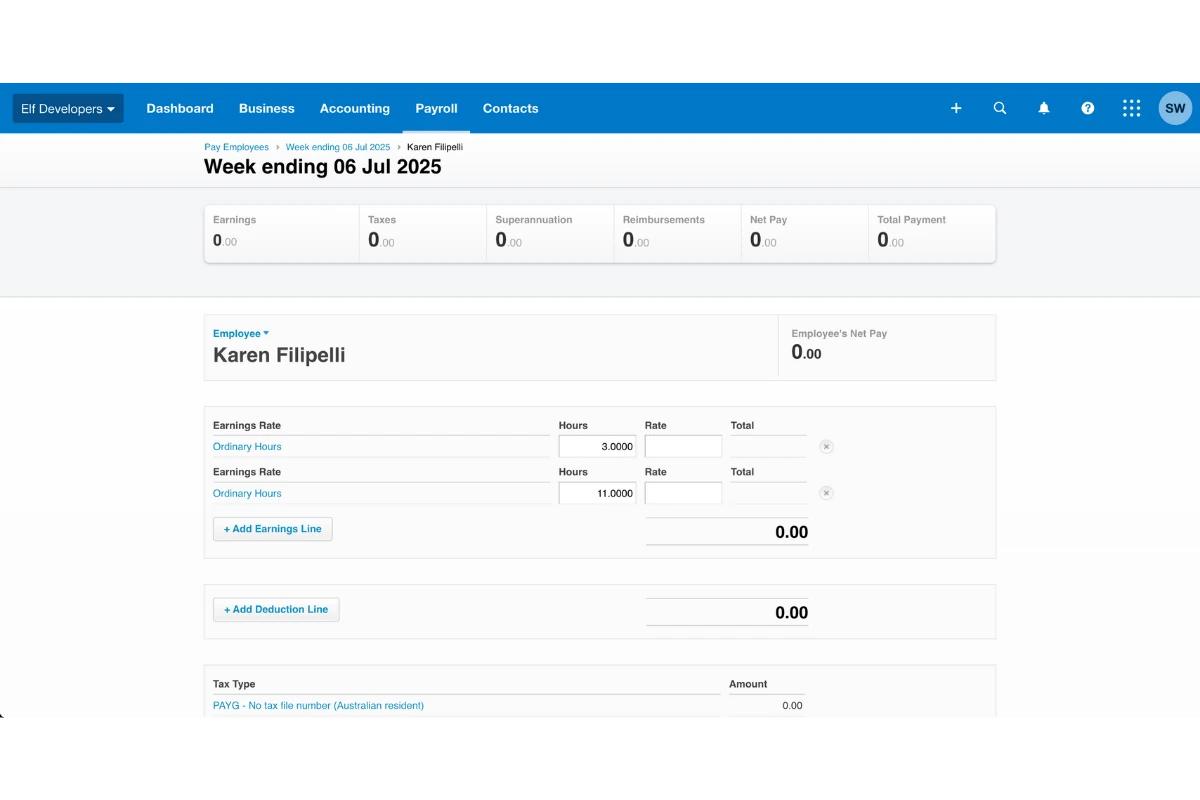
2.1.3 Open the employee’s pay slip.
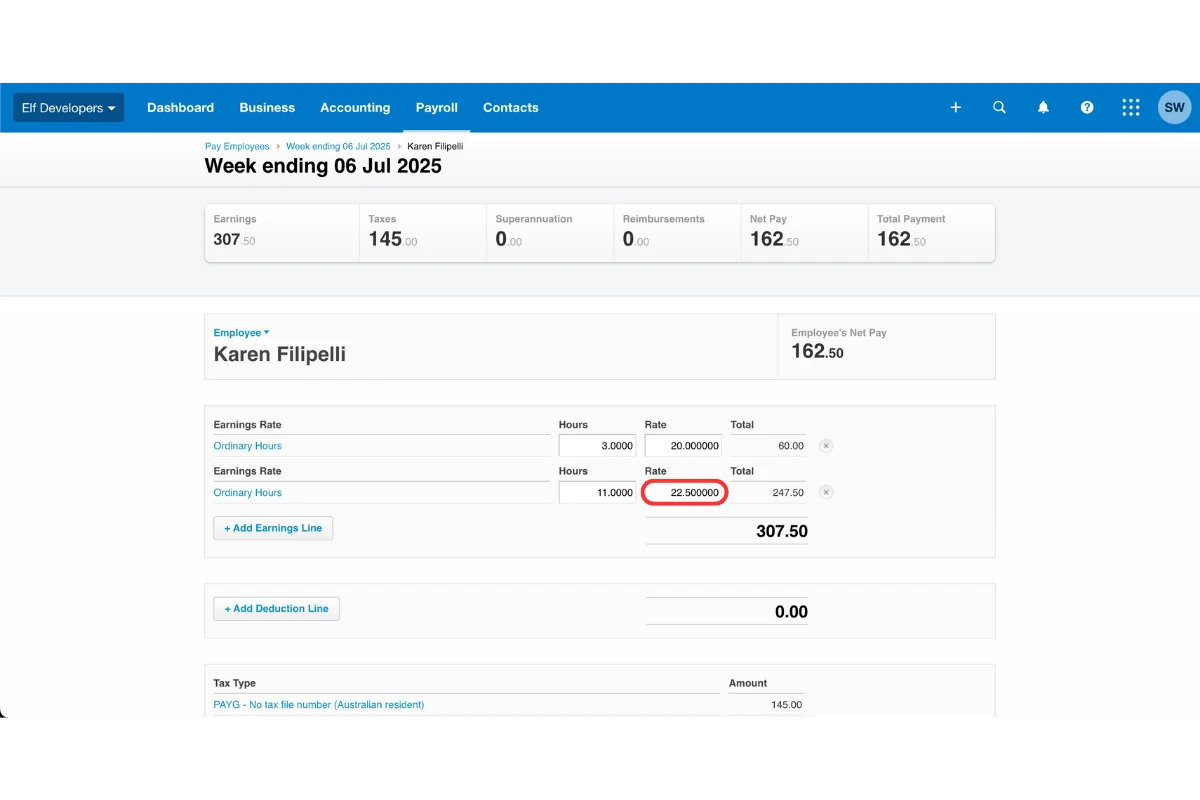
2.1.4 Enter the new rate for the secondary earnings line.
2.1.5 Save your changes.
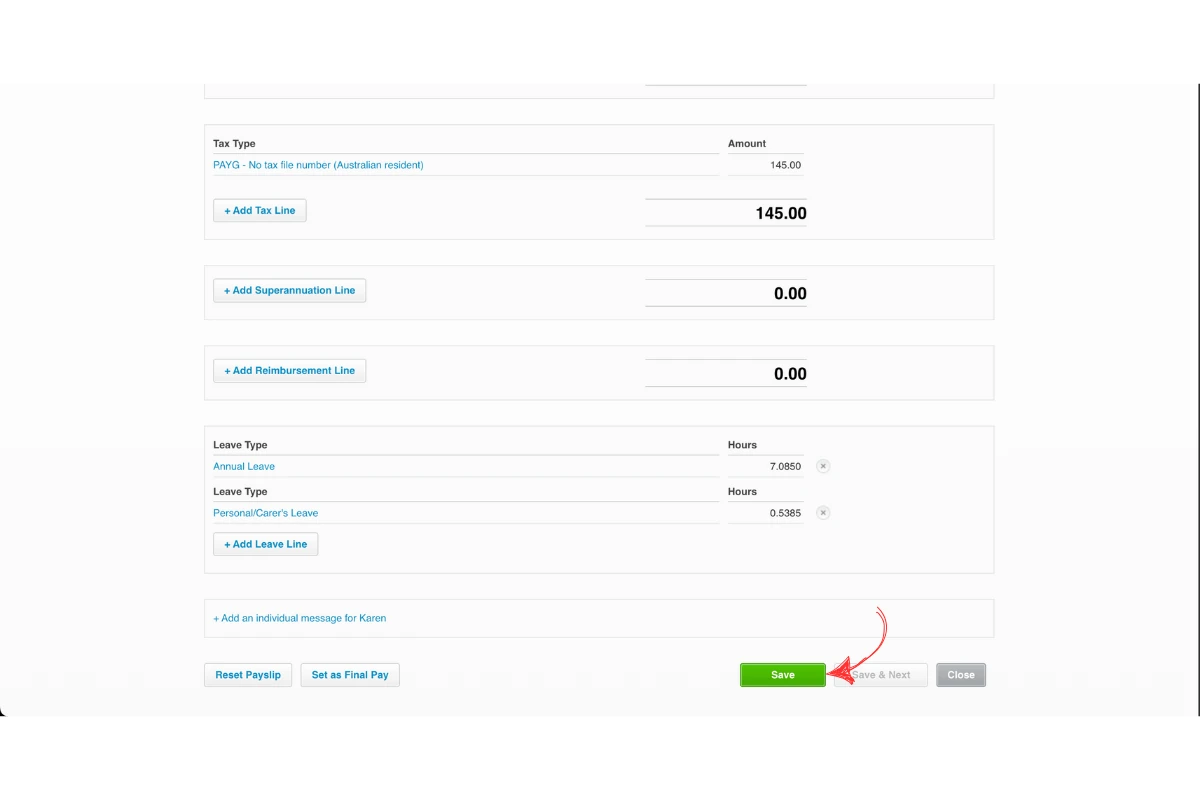
2.1.6 Repeat for other staff with rate changes.
Frequently asked questions
1. How do I manage a pay rate increase in RosterElf and Xero?
Start by processing payroll as usual in RosterElf, then export the timesheet to Xero. In Xero, split the hours into two earnings lines—one for the old rate and one for the new rate—and apply the correct rates on the payslip before finalising the pay run. Learn more about Xero payroll integration.
2. Do I need to manually update the pay slip after a rate change?
Yes. After adjusting the timesheet in Xero, you must open the pay slip, add the new pay rate to the secondary earnings line, and save the changes to ensure accurate payment and compliance.
3. Can I use one earnings line for both old and new pay rates?
No. You should create a separate earnings line in Xero for the hours worked after the rate change. This keeps pay calculations accurate and simplifies compliance with tax and employment laws.