

This article explains how admins and managers can edit or delete published past shifts in RosterElf, with important restrictions to ensure data accuracy. By following this guide, you’ll be able to keep roster data accurate by updating shift details or deleting shifts when allowed. Additionally, this article links to other helpful resources for managing unrostered shifts and making payroll adjustments.
1. Editing a published shift in the past
Admins and managers in RosterElf can modify published past shifts, though certain restrictions apply. While you can change details like shift times or roles, it is not possible to edit rostered staff for past shifts. Follow these steps to make edits efficiently.
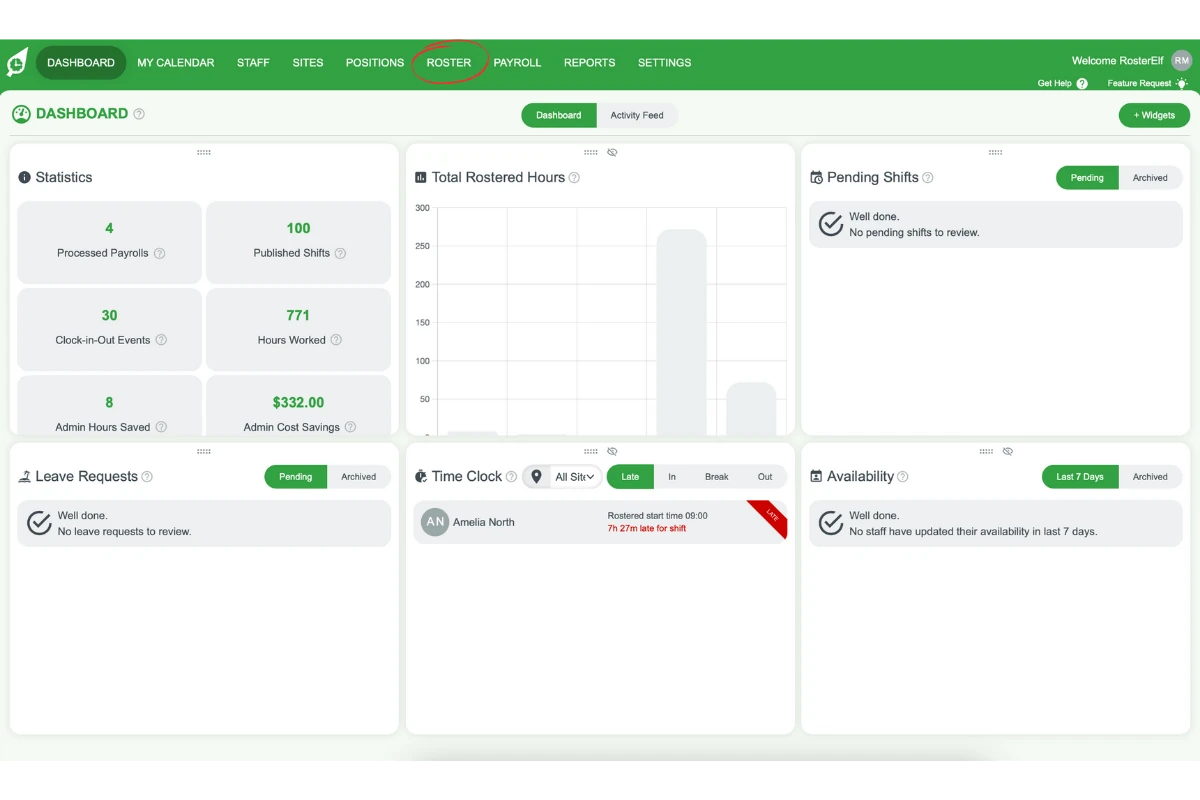
1.1 access the roster view
1.1.1 Go to the top menu and select Roster.
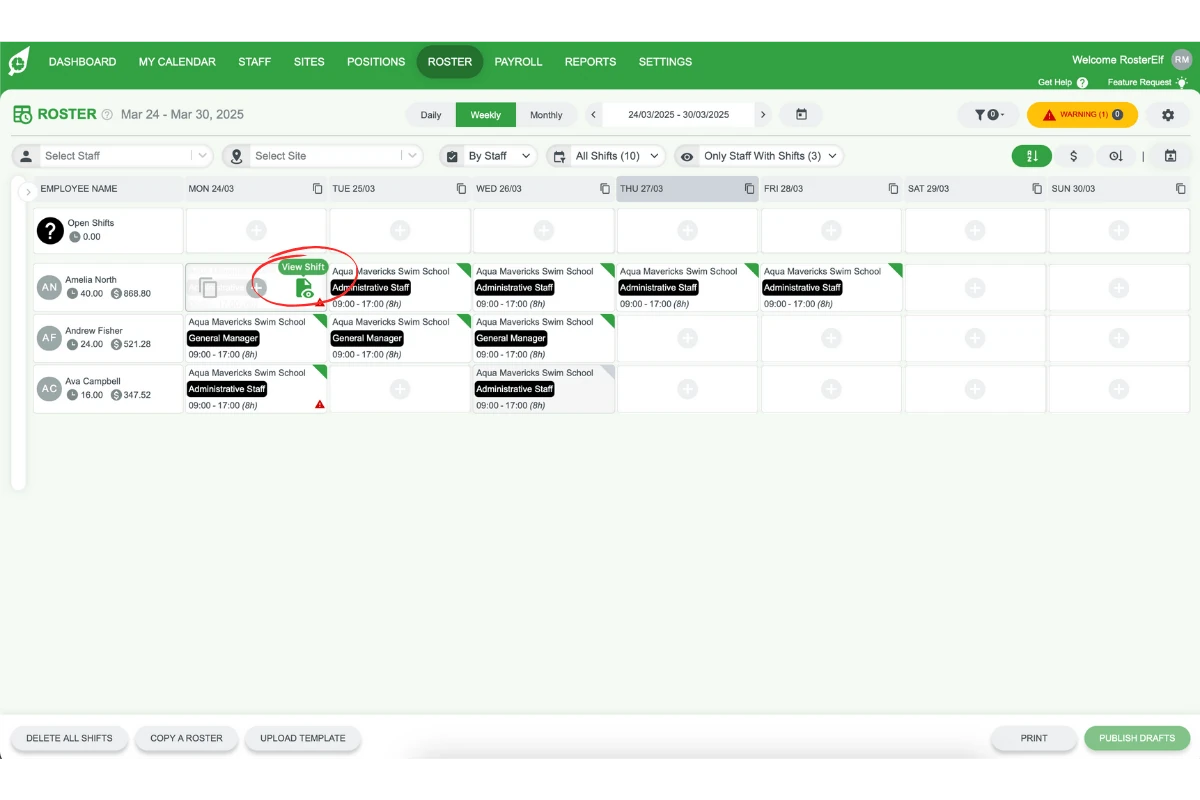
1.2 select the shift
1.2.1 Hover over the published shift you want to edit.
1.2.2 Click on View Shifts to open the shift details.
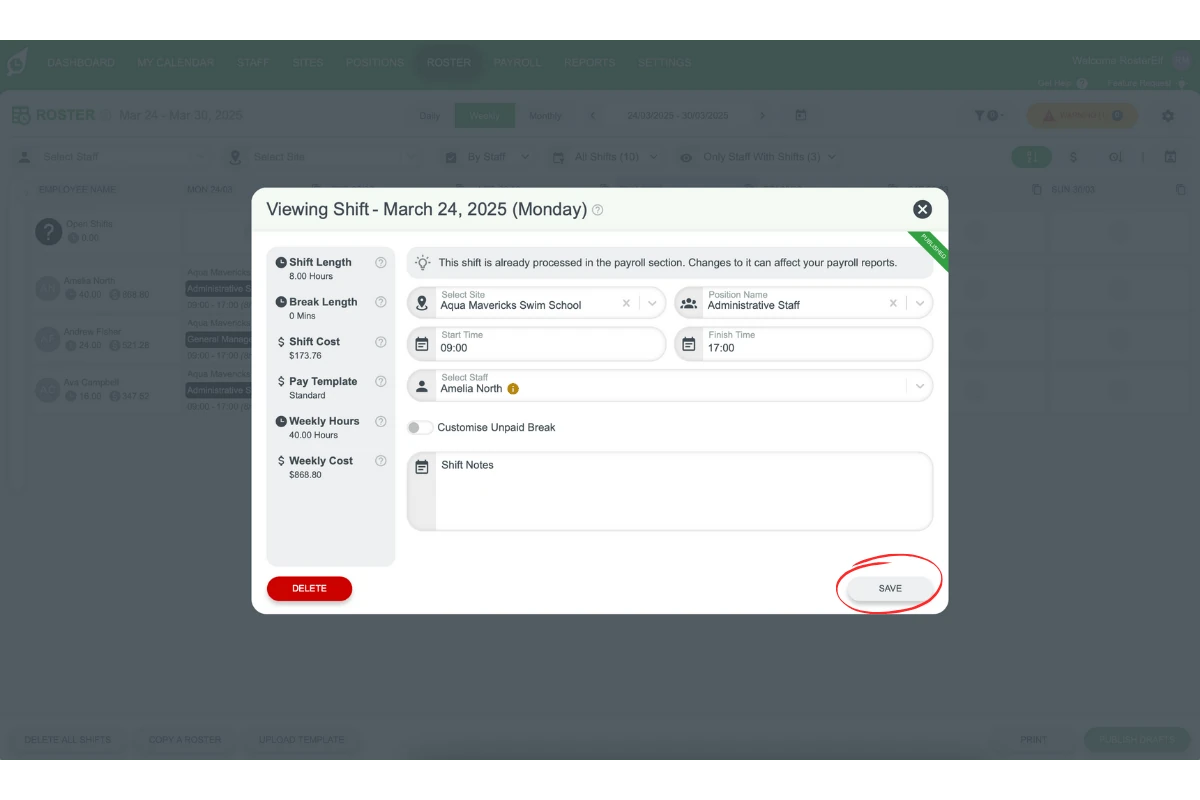
1.3 edit shift details
1.3.1 In the pop-up menu, modify any relevant shift details as required.
1.3.2 Click Save to apply your changes.
2. Deleting a past shift
Past shifts with clock-in-out data cannot be deleted to maintain data accuracy. However, if a published shift has no clock-in-out data, admins and managers can delete it by following these steps.
2.1 check Clock-In-Out data
2.1.1 Open the shift details from Roster.
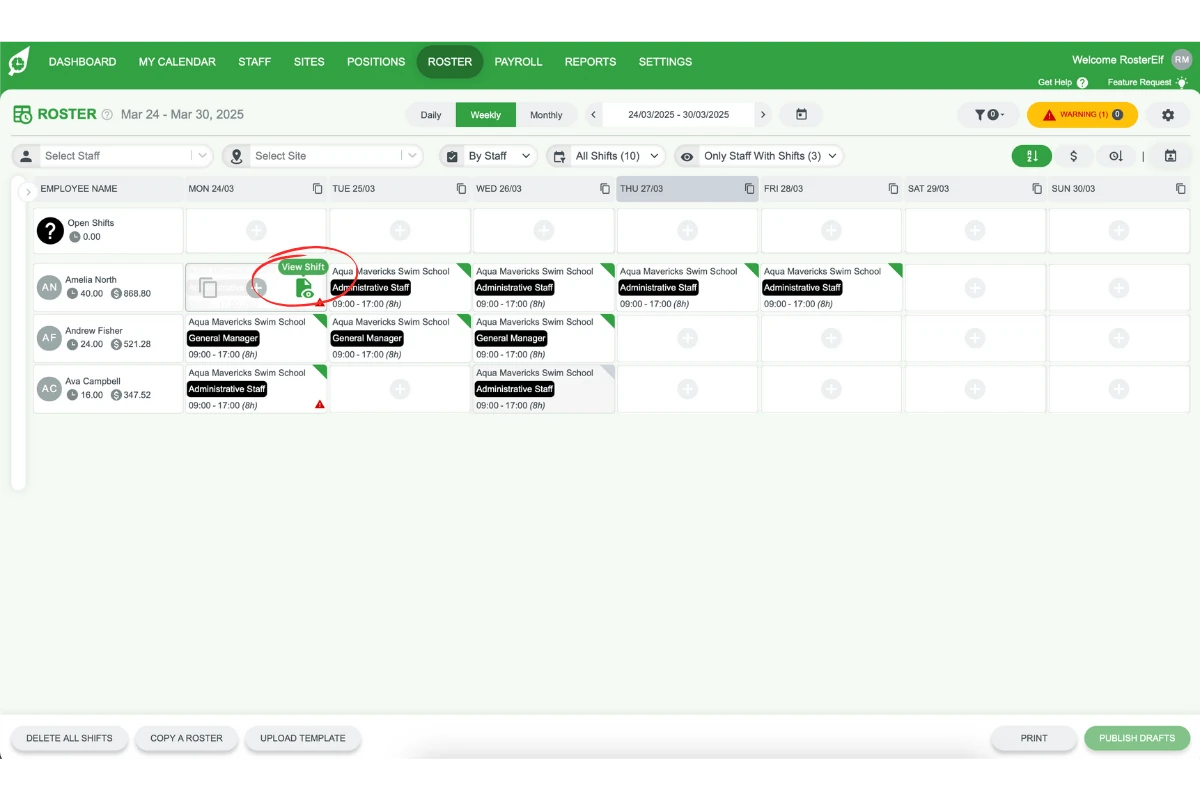
2.1.2 Check if the shift includes clock-in-out data.
2.2 delete the shift
2.2.1 If there’s no clock-in-out data, click Delete at the bottom left of the pop-up menu.
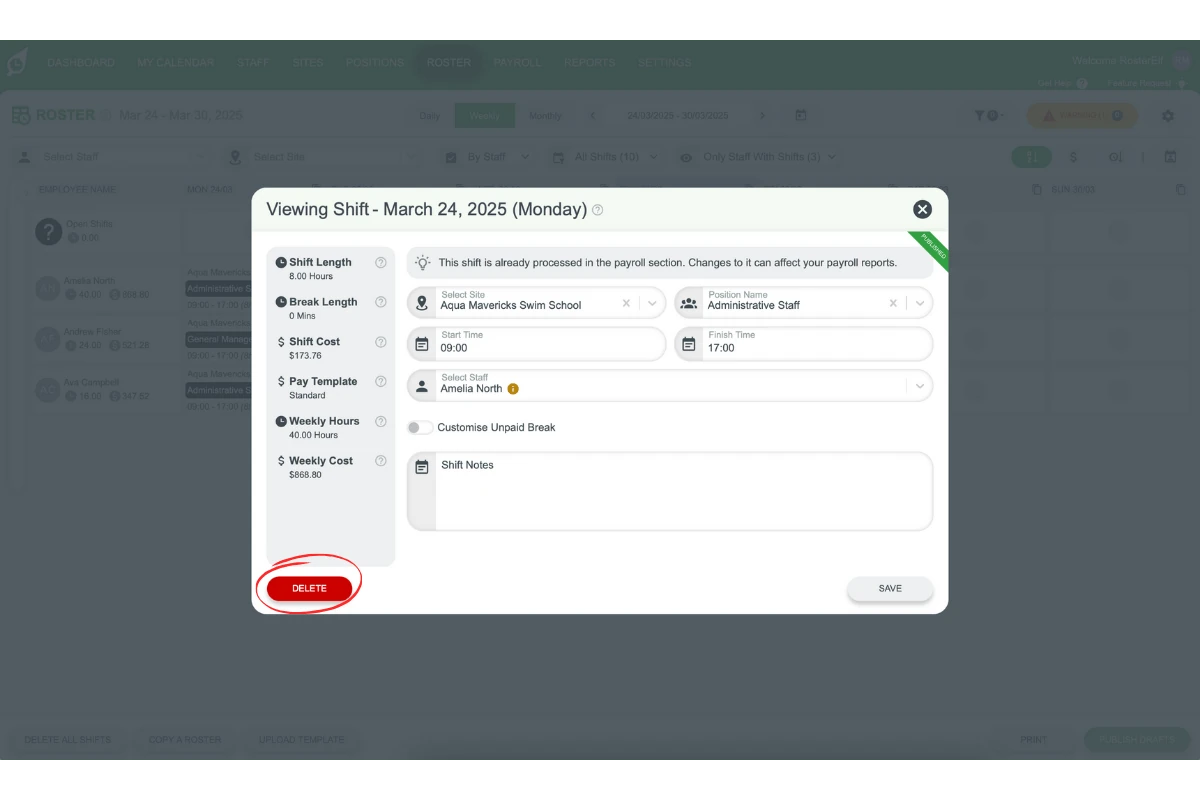
2.2.2 If clock-in-out data is present, the shift cannot be deleted.
Frequently asked questions
1. Can I edit past shifts in RosterElf?
Yes, admins and managers can edit published past shifts in RosterElf. However, it’s not possible to change rostered staff on past shifts. You can adjust shift details such as time and role.
2. How do I delete a past shift in RosterElf?
To delete a past shift, ensure it has no clock-in-out data. If the shift lacks this data, admins and managers can delete it from the Roster View by selecting the shift and choosing Delete.
3. Why can't I delete a past shift with clock-in-out data?
RosterElf prevents the deletion of past shifts with clock-in-out data to maintain accurate records. This restriction helps protect data integrity for payroll and reporting.
4. Will employees be notified if I edit a past shift?
No, employees are not notified about any changes or updates made to past shifts in RosterElf. Updates are for data accuracy only.
5. What shift details can be edited in past shifts?
You can edit shift details like start and end times and assigned roles. However, changing the rostered staff on a past shift is not permitted.