

View all information of a staff member in HR Hub
This guide explains how to view all HR-related information for an employee in RosterElf using the HR Hub. You’ll learn how to open a staff profile, view personal details, banking and tax information, superannuation, certifications, policies, and employment contracts.
By following these steps, you can easily check an employee’s details, upload or download HR documents, and support compliance requirements are up to date.
Looking to add a staff member's profile picture?
Staff set their own profile picture from My Profile in their RosterElf account. It can’t be added from their staff record or from HR Hub, and until they add one their icon shows their initials. See change your profile picture.
1. Access the staff member's profile
1.1 Open the staff tab
1.1.1 Go to the top menu and click Staff.
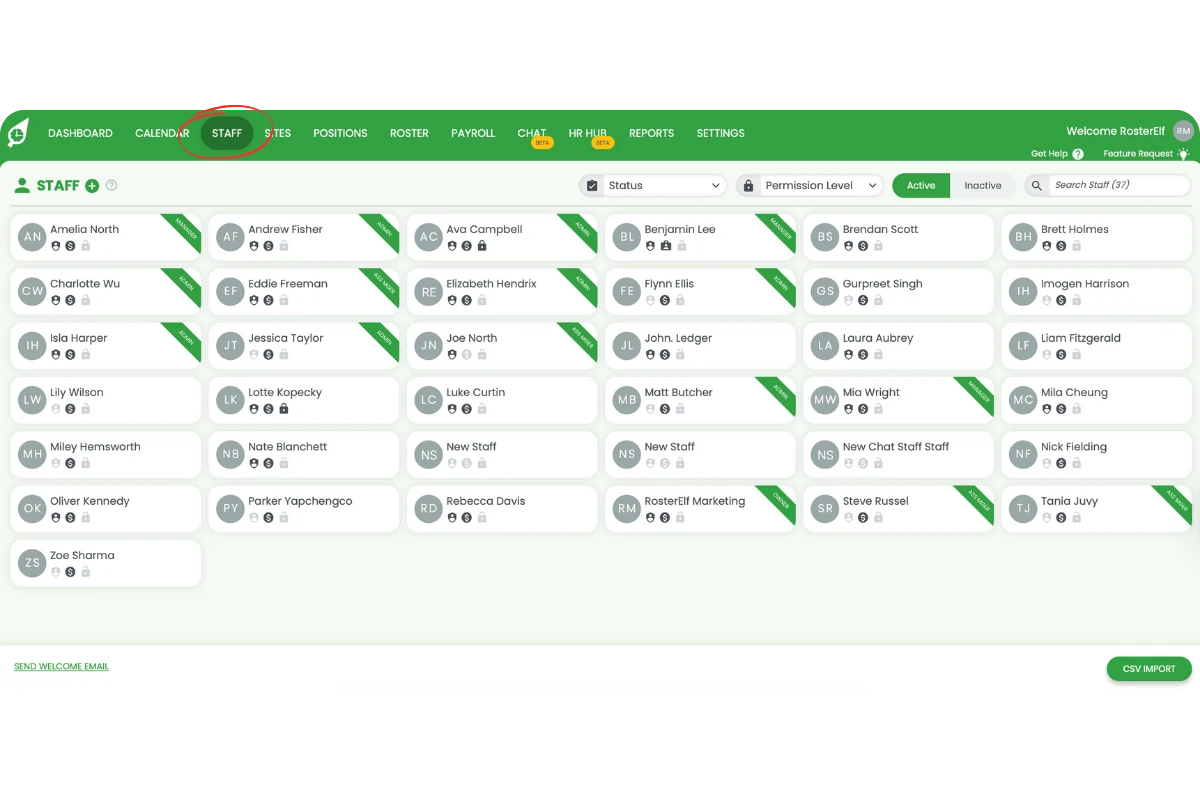
1.1.2 Use the search bar or scroll to find the staff member you want to view.
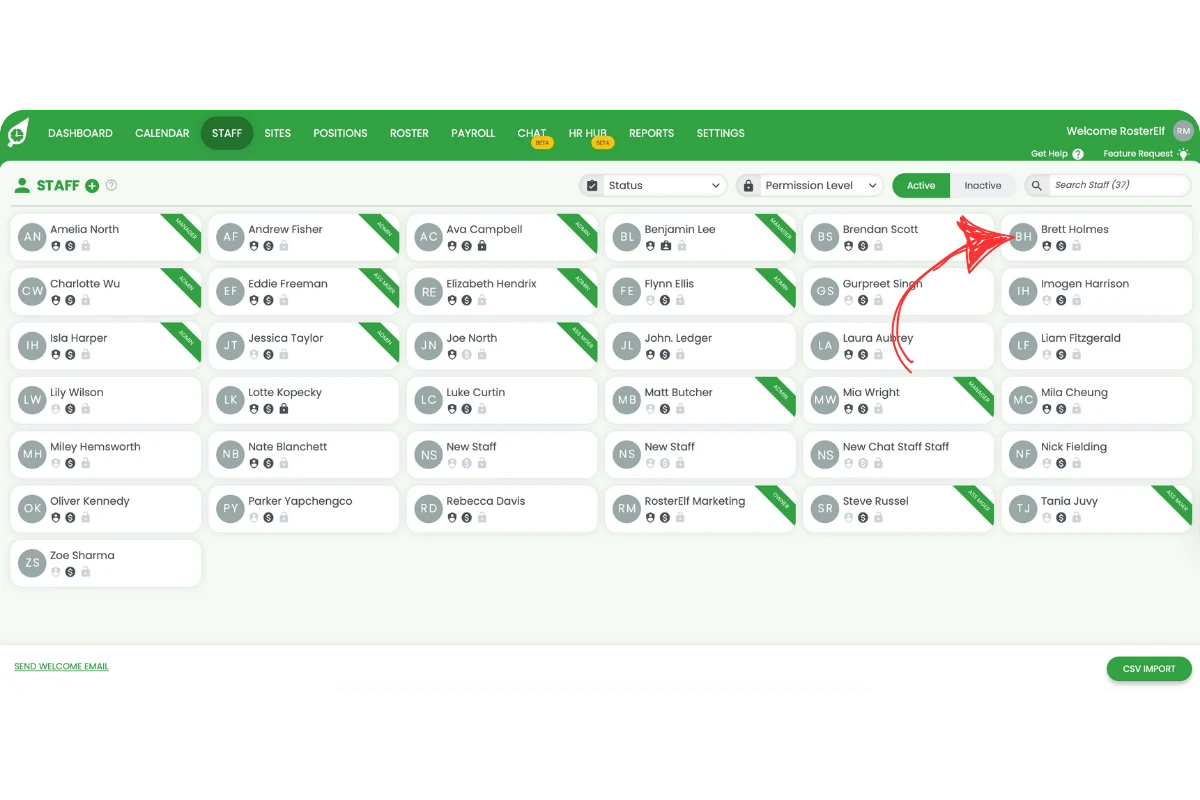
1.1.3 Click the employee’s name to open their profile tab.
2. Access HR Hub information
2.1 Open HR Hub for the selected employee
2.1.1 Inside the staff profile, click the HR Hub tab at the top right.
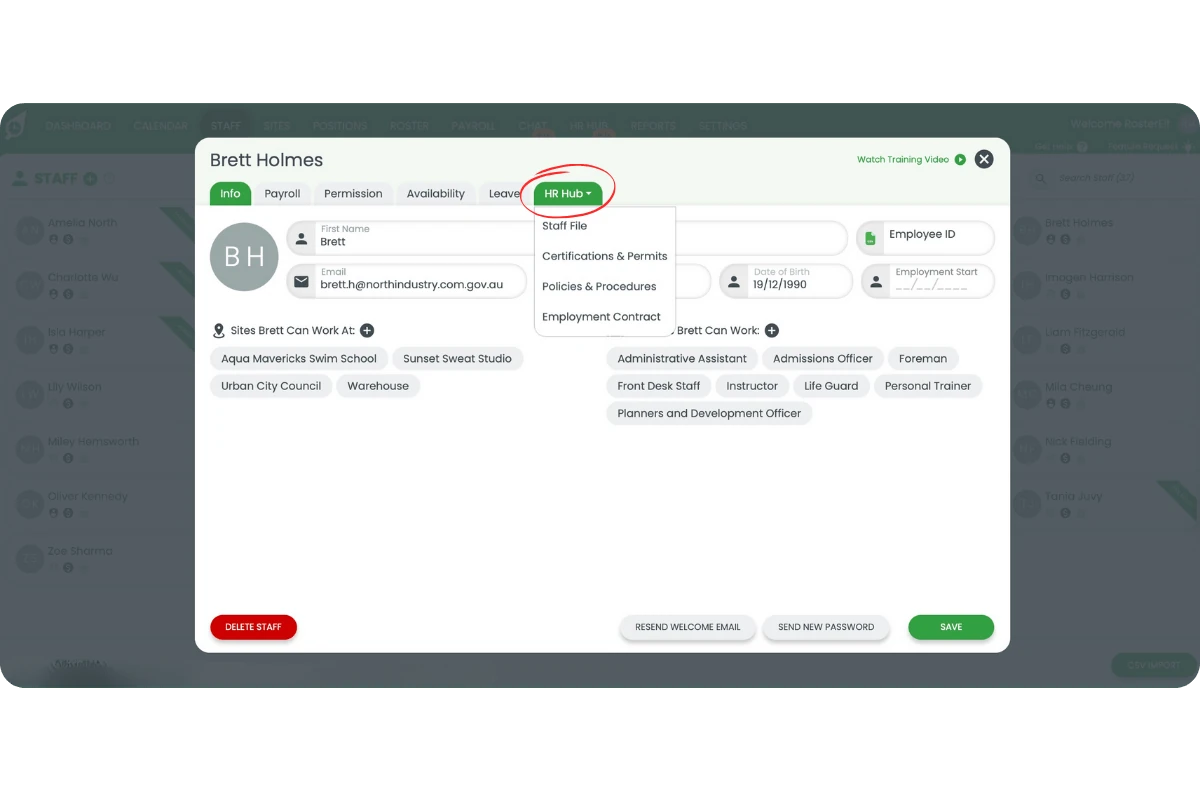
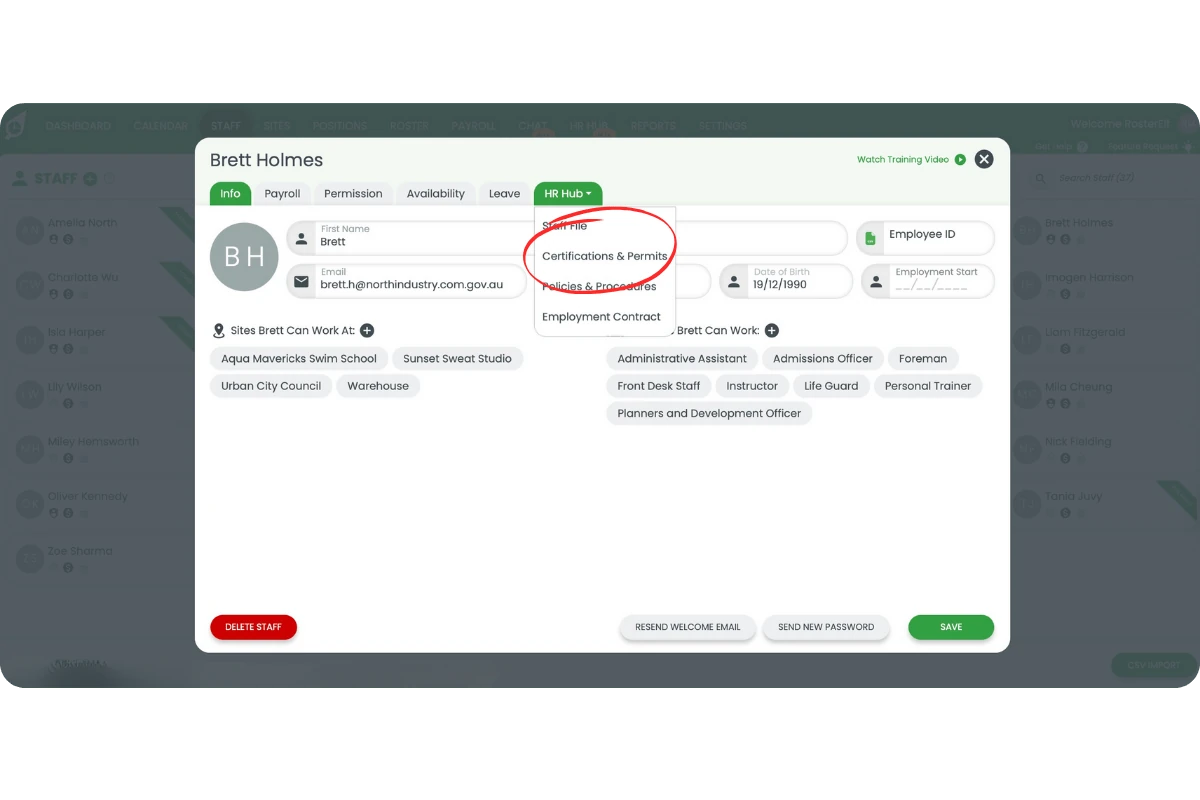
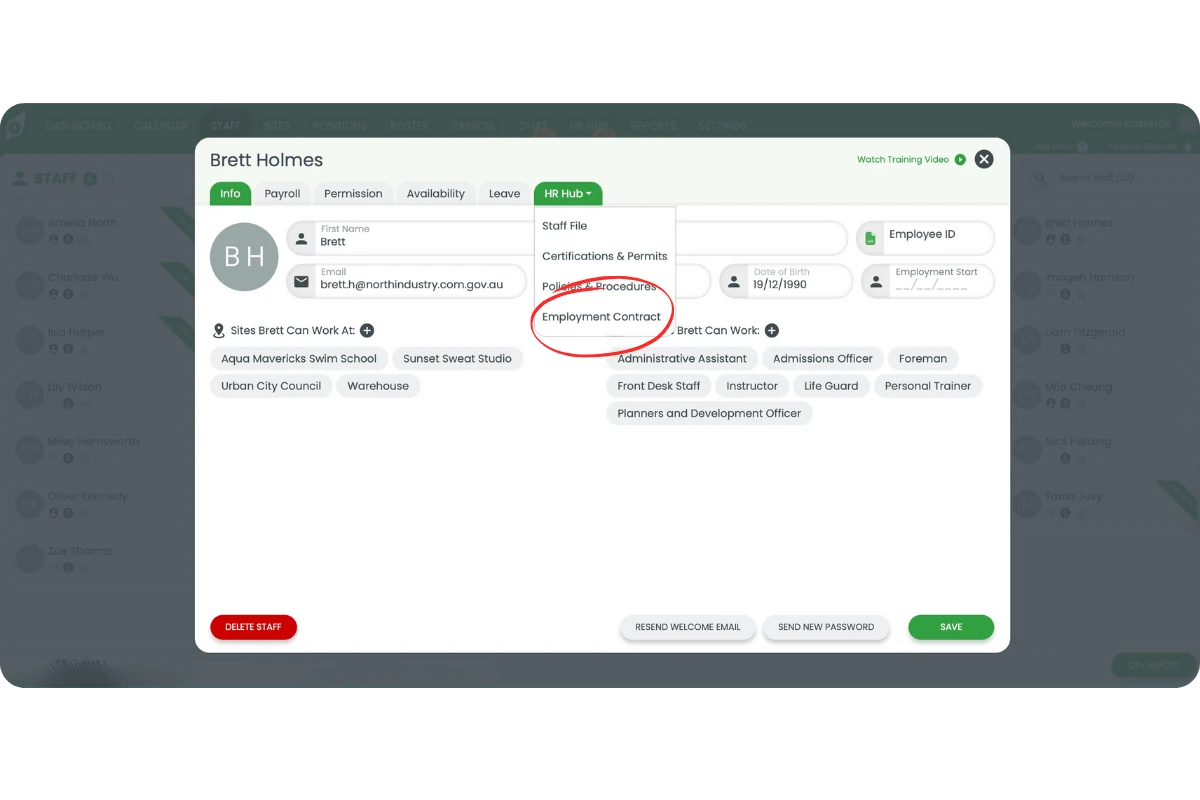
2.1.2 A dropdown will appear showing the following sections: Staff File, Certifications & Permits, Policies & Procedures, and Employment Contract.
3. Staff file overview
3.1 Information available in staff file
3.1.1 Select Staff File from the dropdown.
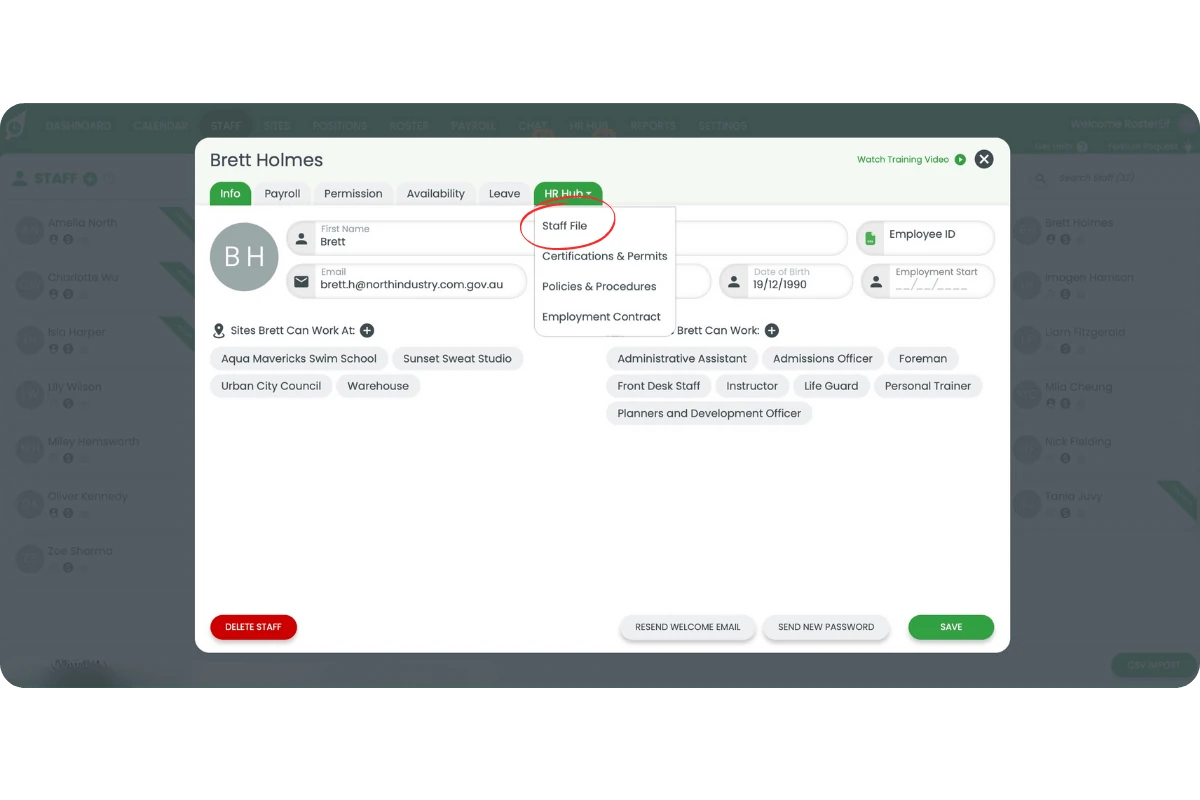
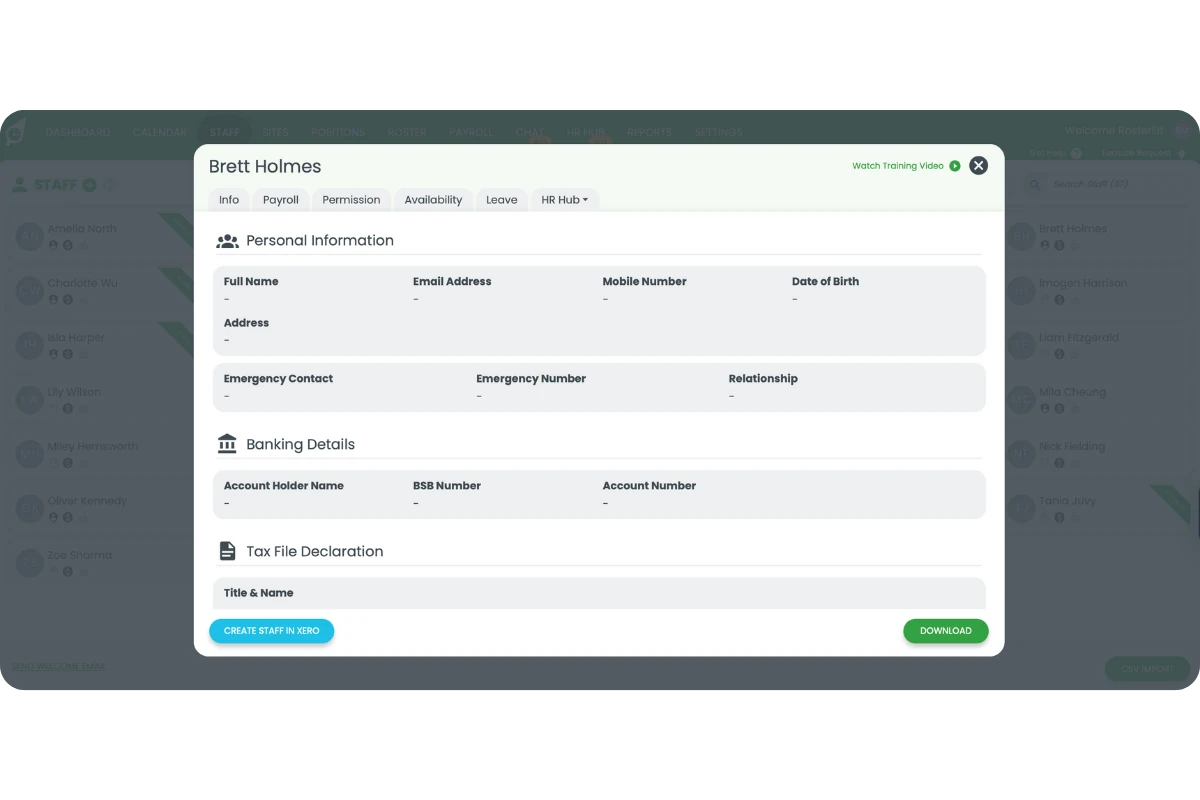
3.1.2 You’ll find all details added by the staff member, including: Personal Information (Name, Email, Mobile, Date of Birth, Address, Emergency Contacts), Banking Details (Account Name, BSB, Account Number), Tax File Declaration (Title, TFN, Residency Status, Employment Basis, HELP/HECS or SFSS Debt), and Superannuation Information (Fund Name, ABN, Member Number, USI, and Payment Direction).
4. Certifications and permits
4.1 Manage staff certifications
4.1.1 Select Certifications & Permits from the HR Hub dropdown.
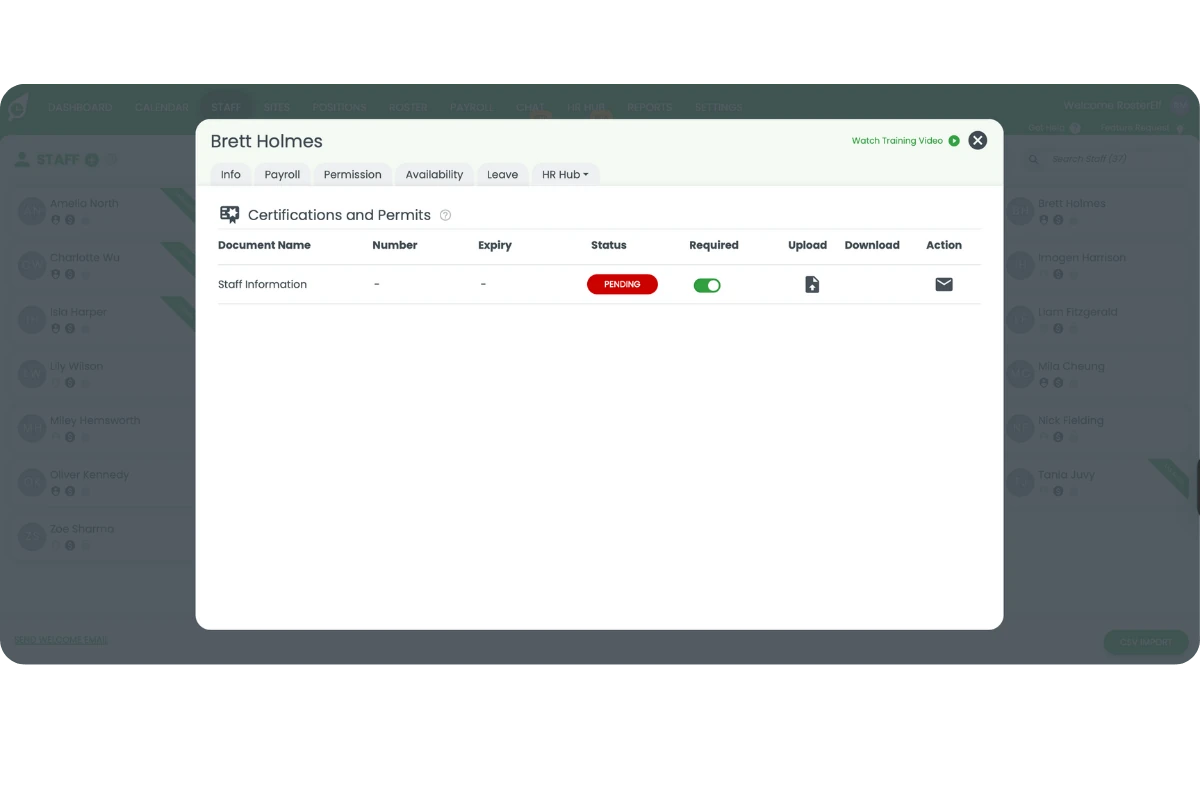
4.1.2 Here you can view the document name, number, expiry, and status. Toggle Required on or off to set if a document must be provided. Upload documents on behalf of staff or send reminders using the mail icon. Download files uploaded by staff for record-keeping.
5. Policies and procedures
5.1 Review staff policy acknowledgements
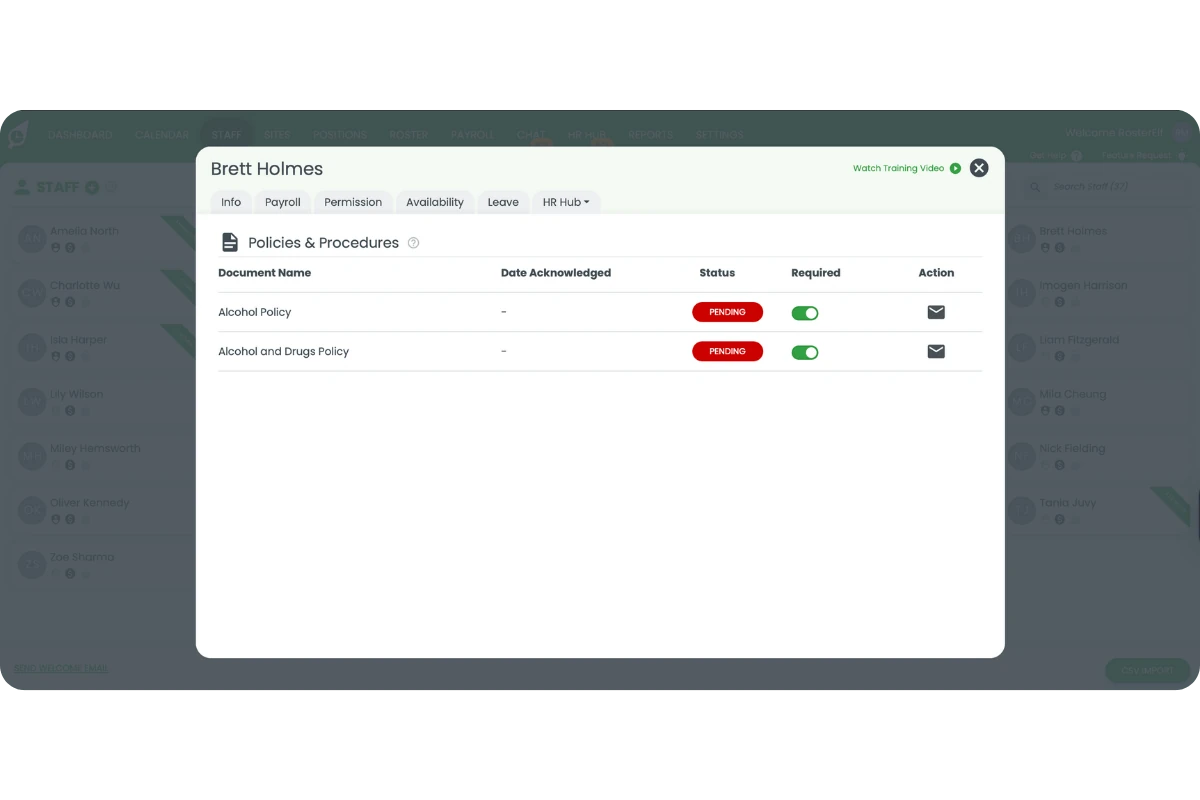
5.1.1 Select Policies & Procedures from the HR Hub dropdown.
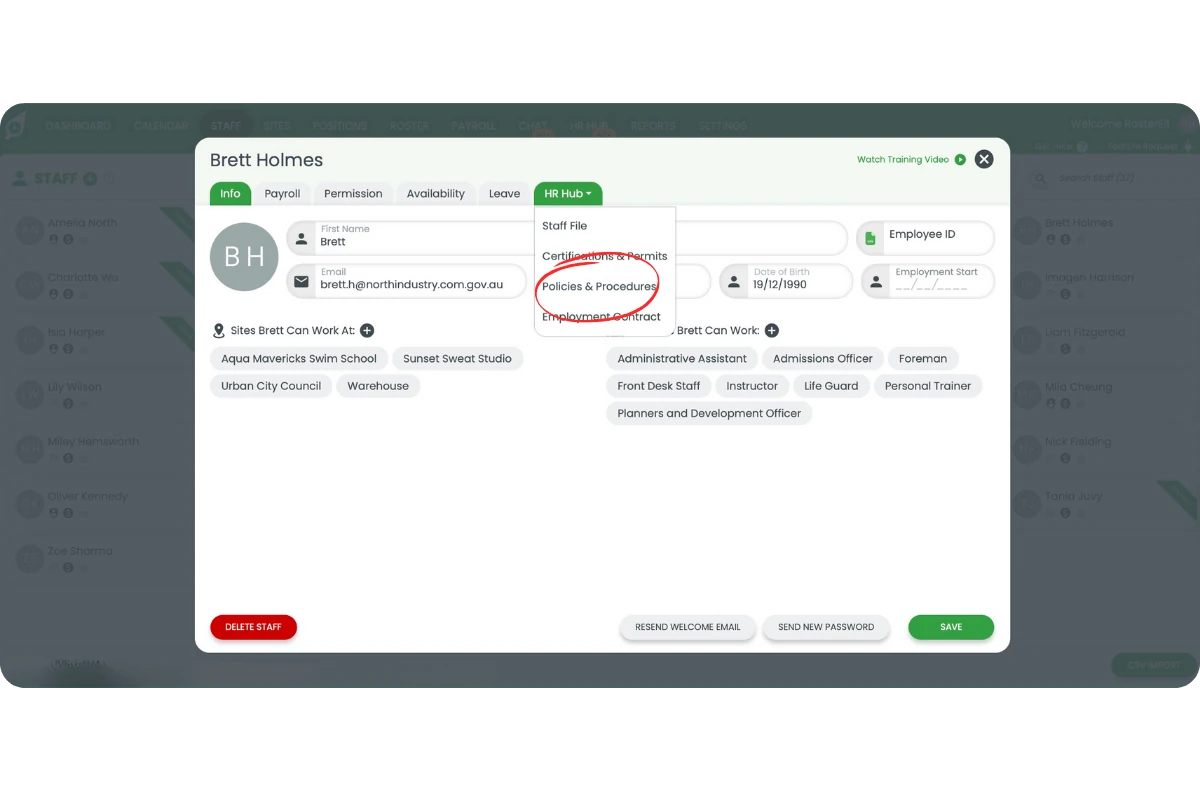
5.1.2 You can view which policies are assigned to a staff member, their Status (Pending or Completed), and the Date Acknowledged.
5.1.3 Toggle Required on or off to control whether each policy must be acknowledged.
6. Employment contract
6.1 Review and upload contracts
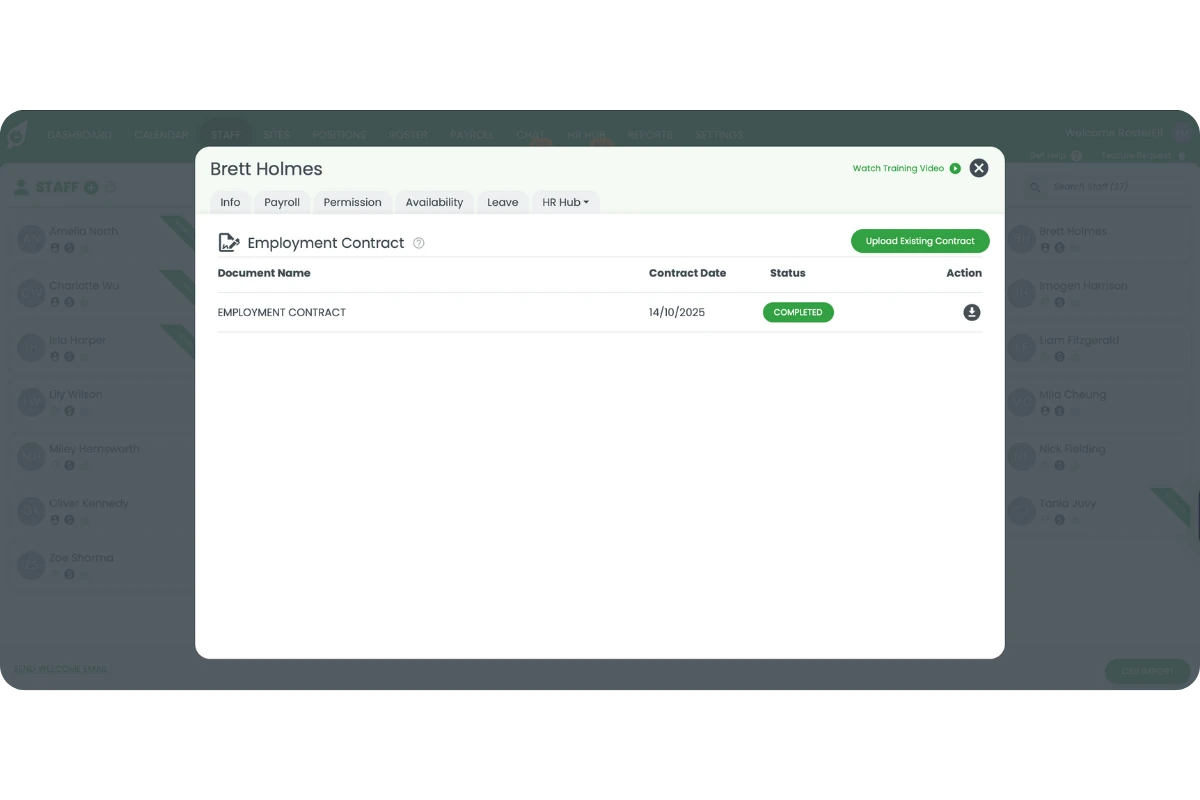
6.1.1 Select Employment Contract from the HR Hub dropdown.
6.1.2 Here you can view all contracts for that staff member, check the contract date and completion status (Completed or Pending), and download signed contracts or upload existing documents for safekeeping.
Frequently asked questions
1. How do I view a staff member's HR information?
Go to the Staff tab, click the employee’s name, open the HR Hub tab, and choose from the dropdown options such as Staff File or Employment Contract.
2. Can I upload HR documents on behalf of staff?
Yes. In Certifications & Permits or Employment Contract, click the upload icon to add a document directly to the staff profile.
3. How do I send a reminder for missing documents?
In any HR Hub section, click the Mail icon in the Action column to send an automated reminder to the staff member.
4. Can I disable certain HR requirements?
Yes. Toggle Required off for any certification, permit, or policy that isn’t mandatory for that staff member.
5. Can I download completed contracts?
Yes. Under Employment Contract, click the download icon to retrieve a signed copy for your records.
6. Can a manager or admin set a staff member's profile picture?
No. Profile pictures can only be set by the staff member, from their own RosterElf account: My Profile on the web, or More > My Profile in the app. Until they add one, their icon shows their initials. See change your profile picture.