

Access the certificates and permits report in RosterElf
This guide explains how to access and run the certificates and permits report in RosterElf. This report helps you view and manage staff qualifications, licences, and compliance records in one place. Using it ensures your employees’ certifications and permits remain up to date, helping your business support your compliance efforts and audit-ready.
By following this guide, you’ll learn how to locate the report, apply filters to view specific staff or certificate types, and export the data for recordkeeping or sharing with your compliance team.
1. Open the certificates and permits report
This section explains how to access the certificates and permits report in RosterElf. You’ll start from the Reports tab, locate the correct report, and then apply filters to customise your view. Accessing this report allows you to quickly identify expired or soon-to-expire certificates for proactive management.
1.1 locate the certificates and permits report
1.1.1 Open your RosterElf account.
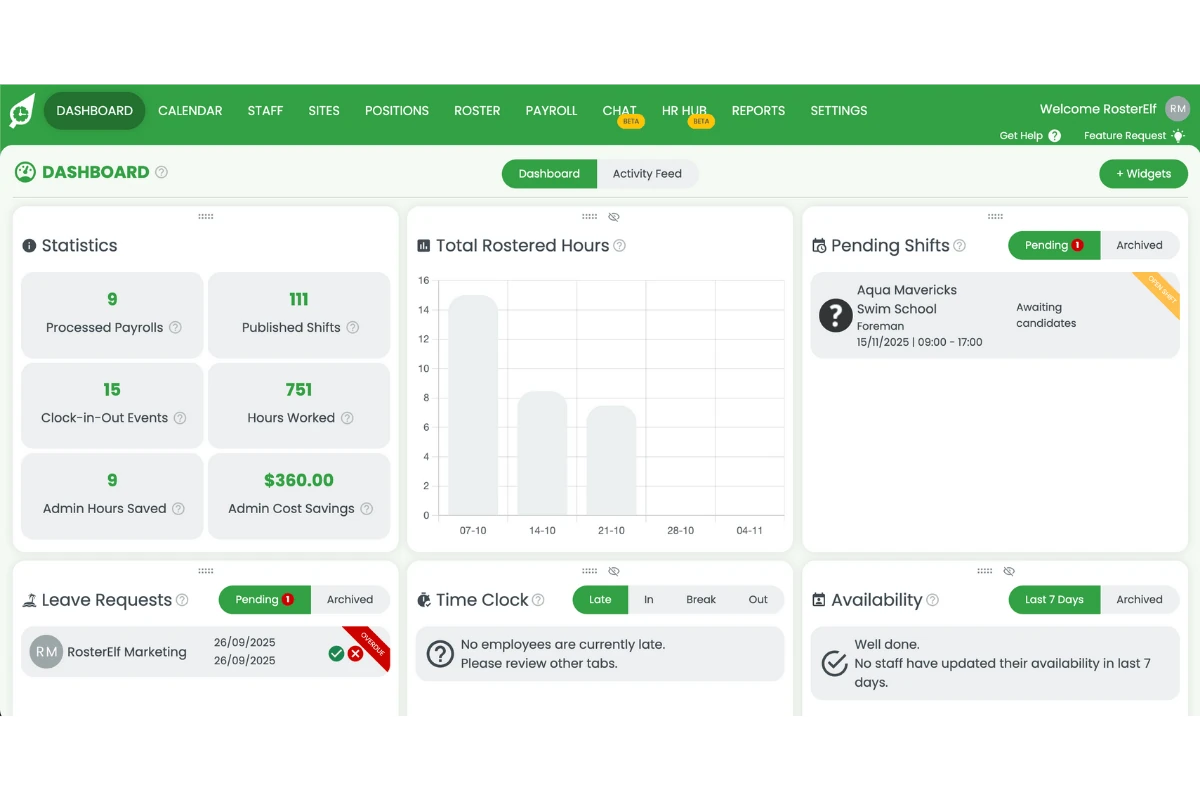
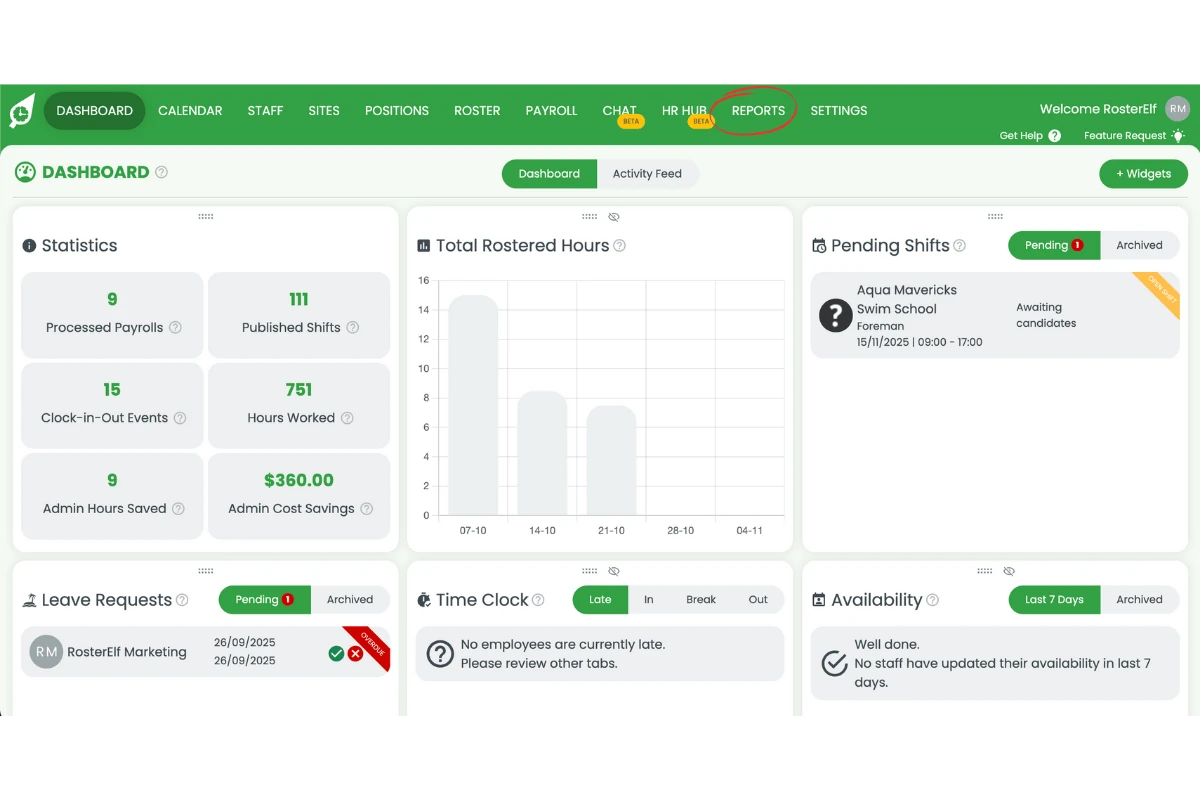
1.1.2 Click Reports from the main menu.
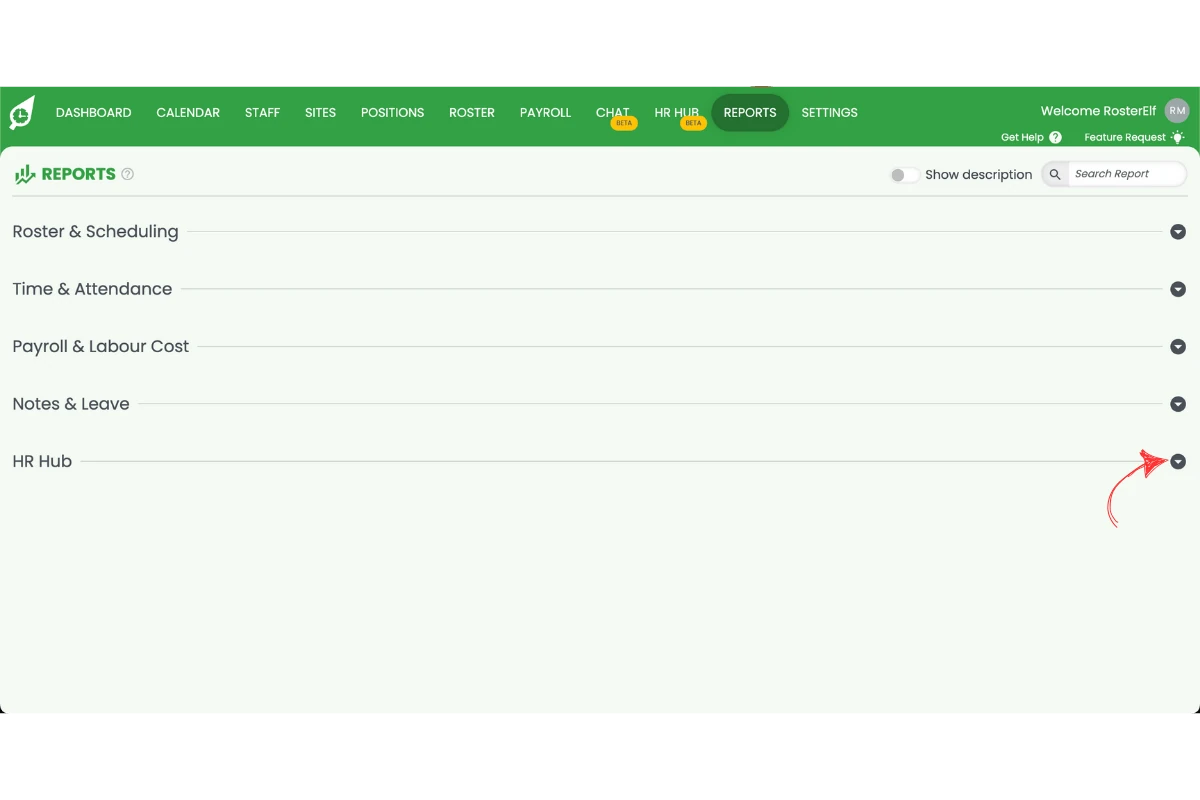
1.1.3 Search for the HR Hub category.
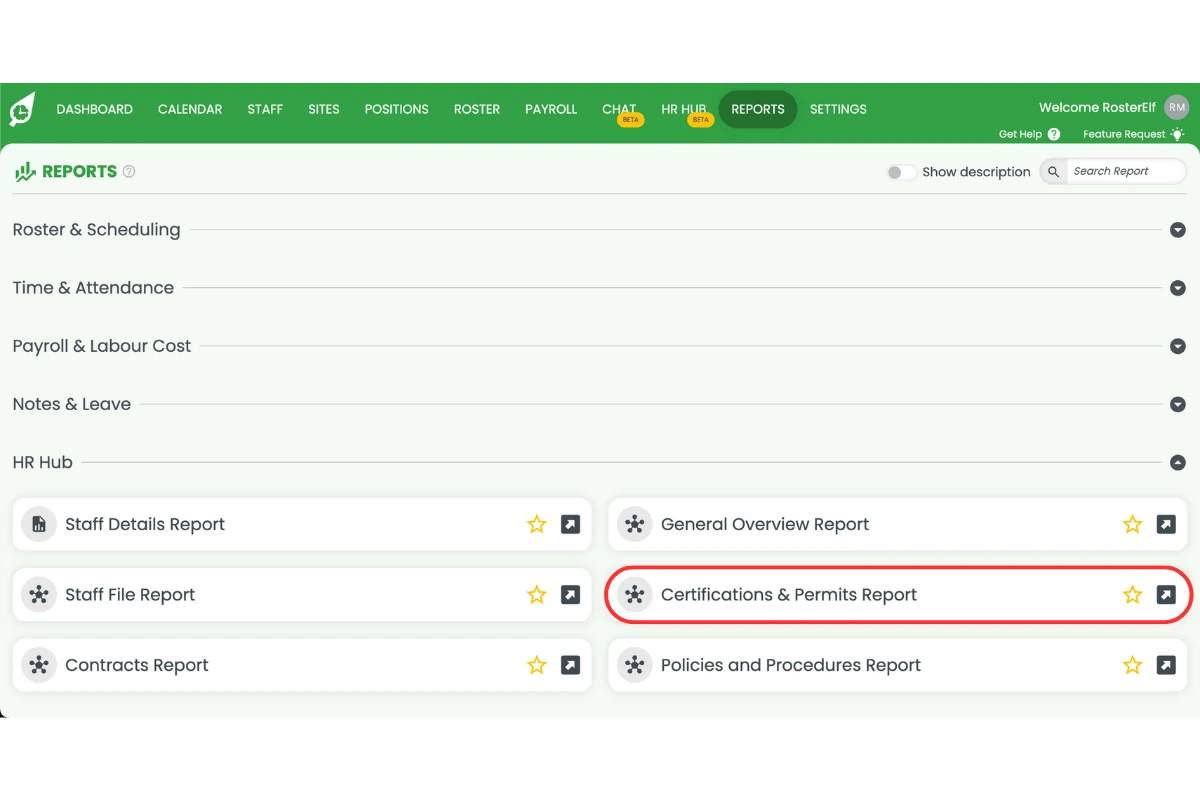
1.1.4 Select Certificates and permits report from the list.
1.1.5 Set your desired filters.
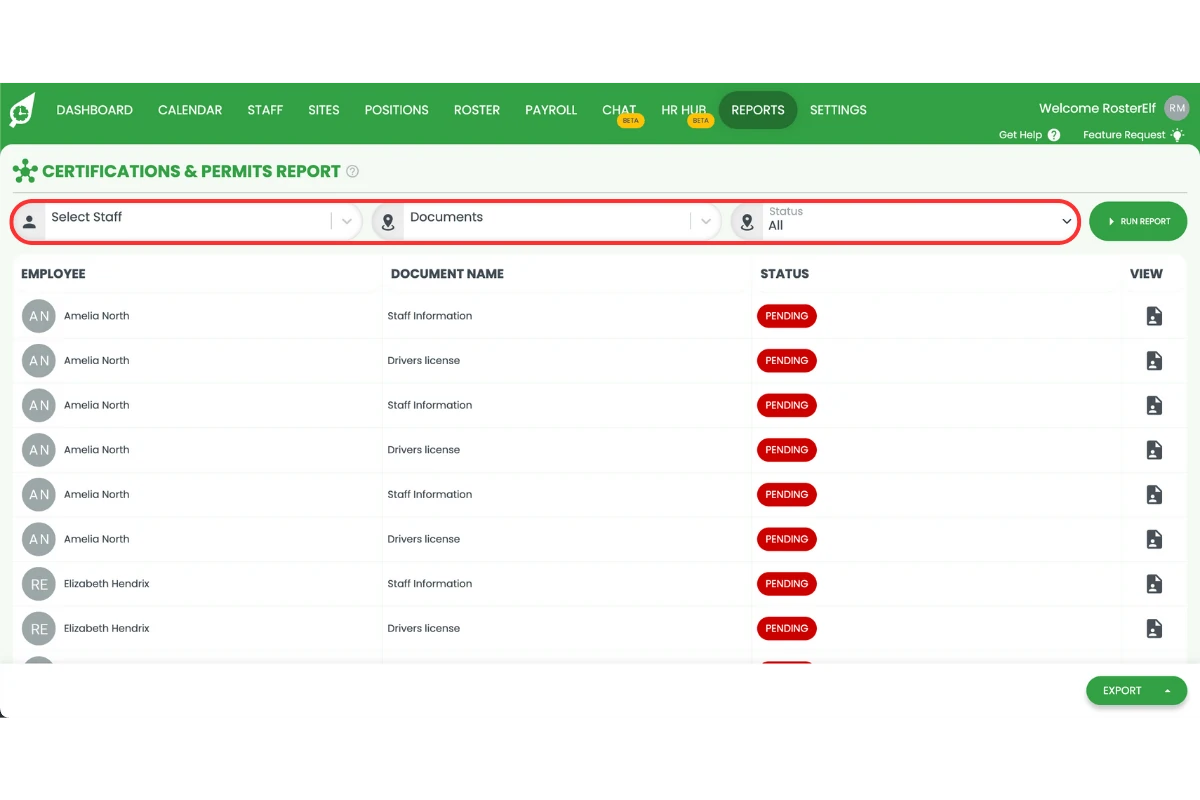
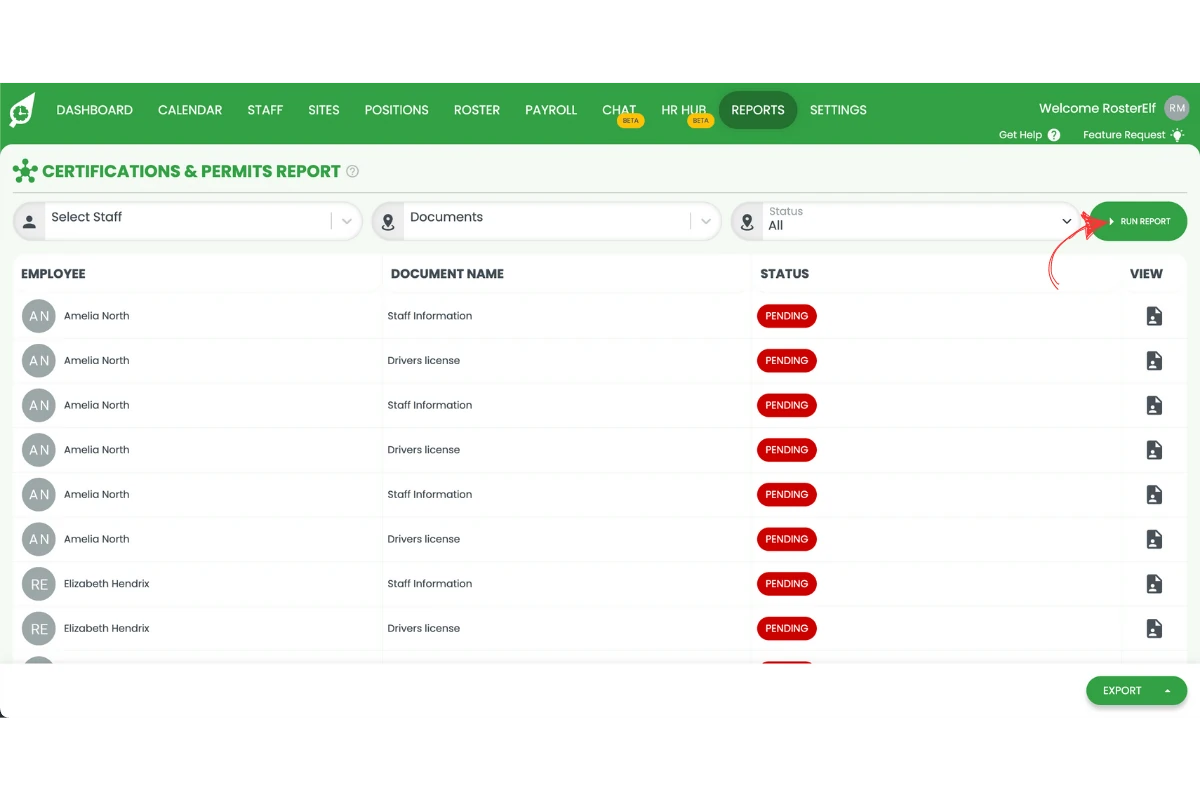
1.1.6 Click Run report to generate your results.
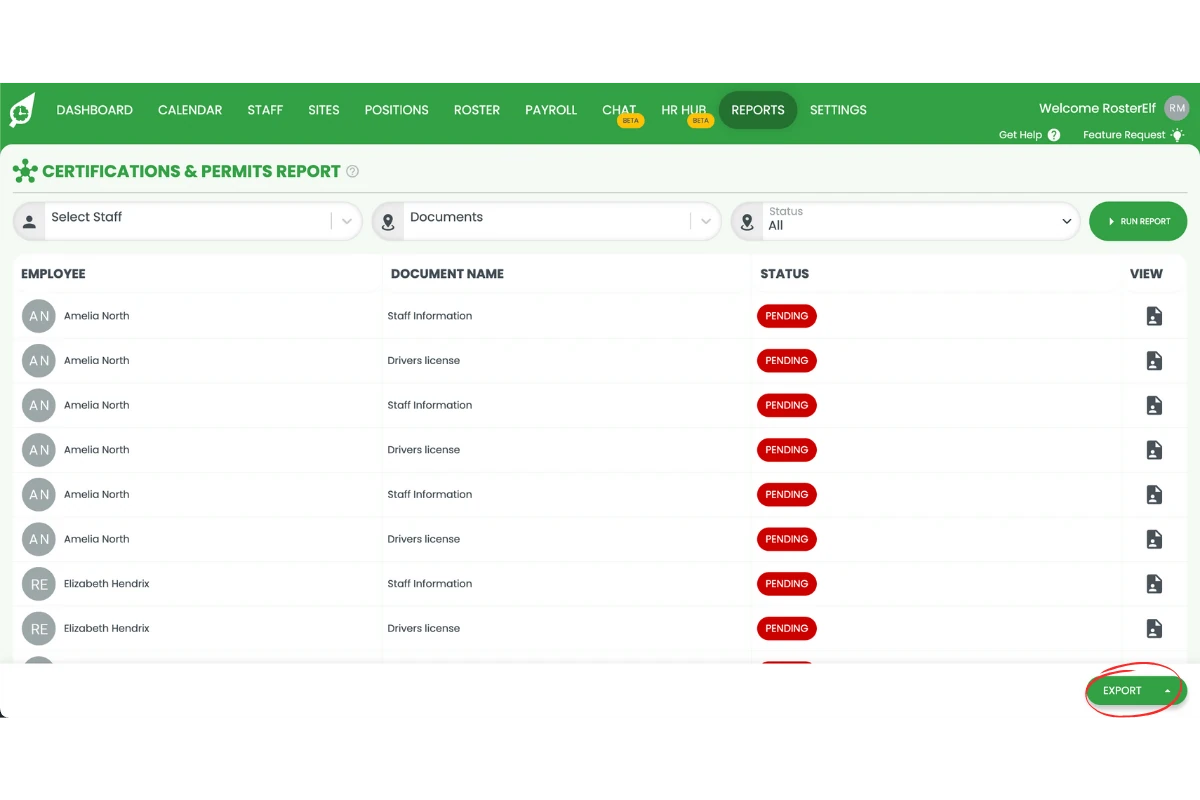
1.1.7 Click Export if you need to download or share the report.
Frequently asked questions
1. What is the certificates and permits report in RosterElf?
The certificates and permits report in RosterElf provides a summary of your staff’s qualifications, licences, and compliance documents. It helps ensure all employee records are current, reducing compliance risks and keeping your business audit-ready.
2. How do I access the certificates and permits report?
To access the report, log in to your RosterElf account, click Reports, search for Certificates and permits, and select the report. You can then apply filters such as site, position, or expiry date before running or exporting the report.
3. Can I filter certificates by expiry date or staff member?
Yes. RosterElf allows you to filter the certificates and permits report by expiry date, staff member, site, or position. This makes it easy to track which employees need renewals or have upcoming certificate expirations.
4. How do I export the certificates and permits report?
After generating the report, click Export to download it as a file. You can then share it with your compliance or HR team or keep it for internal recordkeeping and audits.
5. Why should I use the certificates and permits report?
Using this report helps your business support your compliance efforts with legal and industry requirements. It ensures you’re always aware of which staff members hold valid licences and certifications, helping prevent lapses or compliance issues.