

Resolve Xero error for employees with different pay calendars
When processing payroll for fixed salary staff on a different pay calendar to Xero, you might encounter an error stating that employees are on different pay calendars. This article provides simple steps to resolve the issue, ensuring you can process payroll smoothly.
1. Identifying the Xero error
This section will help you recognise the Xero error in RosterElf, where fixed-salary employees cannot be processed due to being on a different pay calendar. Understanding the issue is key to resolving it efficiently.
1.1 identify the issue
1.1.1 You’ll notice that the fixed salary employee is greyed out and cannot be unticked from the payroll view in RosterElf when in the by day filtered view.
2. Changing the filtered view in Xero
This section explains how to change the filtered view to address the visibility issue for fixed salary staff when using the Xero integration with RosterElf.
2.1 Switch to by employee view
2.1.1 Click on the relevant field to switch the filtered view to by employee in RosterElf.
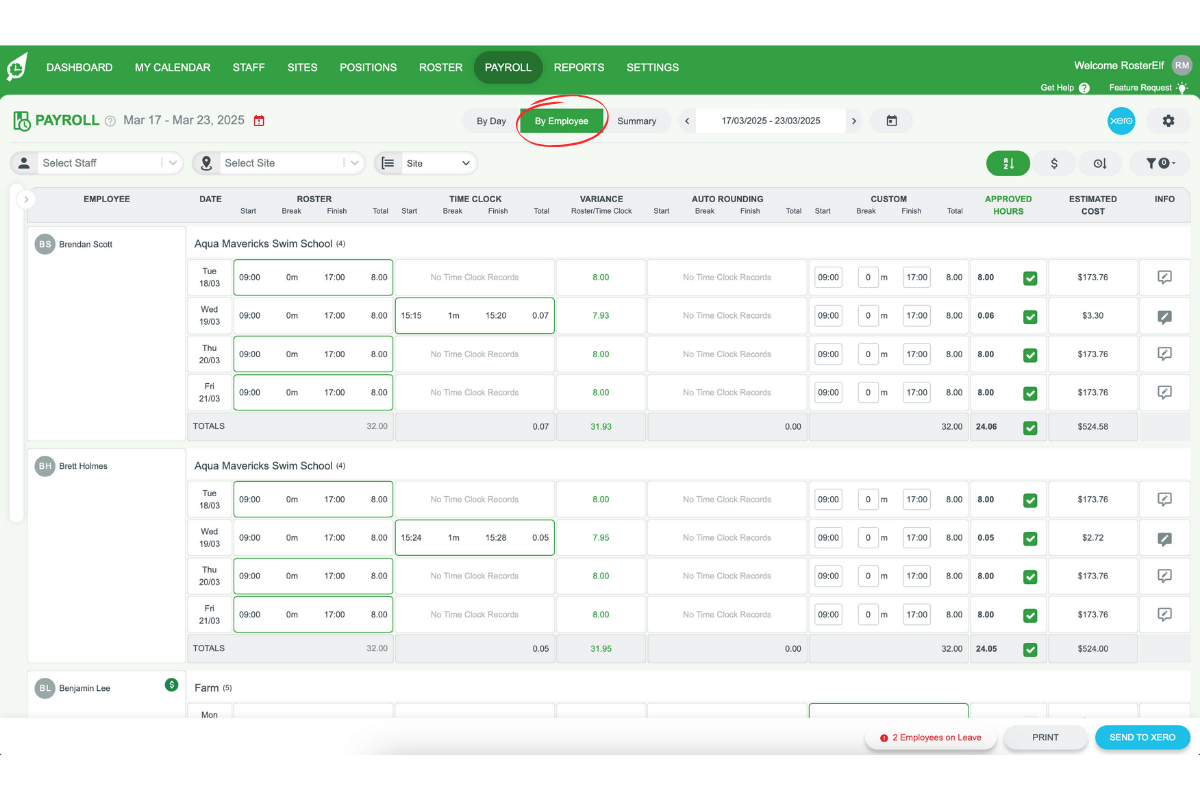
2.1.2 This will show all period shifts by the employee.
3. Unticking salary staff from payroll
In this section, you will learn how to untick salaried staff from the payroll process in RosterElf to Xero.
3.1 remove salaried staff
3.1.1 In the by employee view in RosterElf, find the salaried staff.
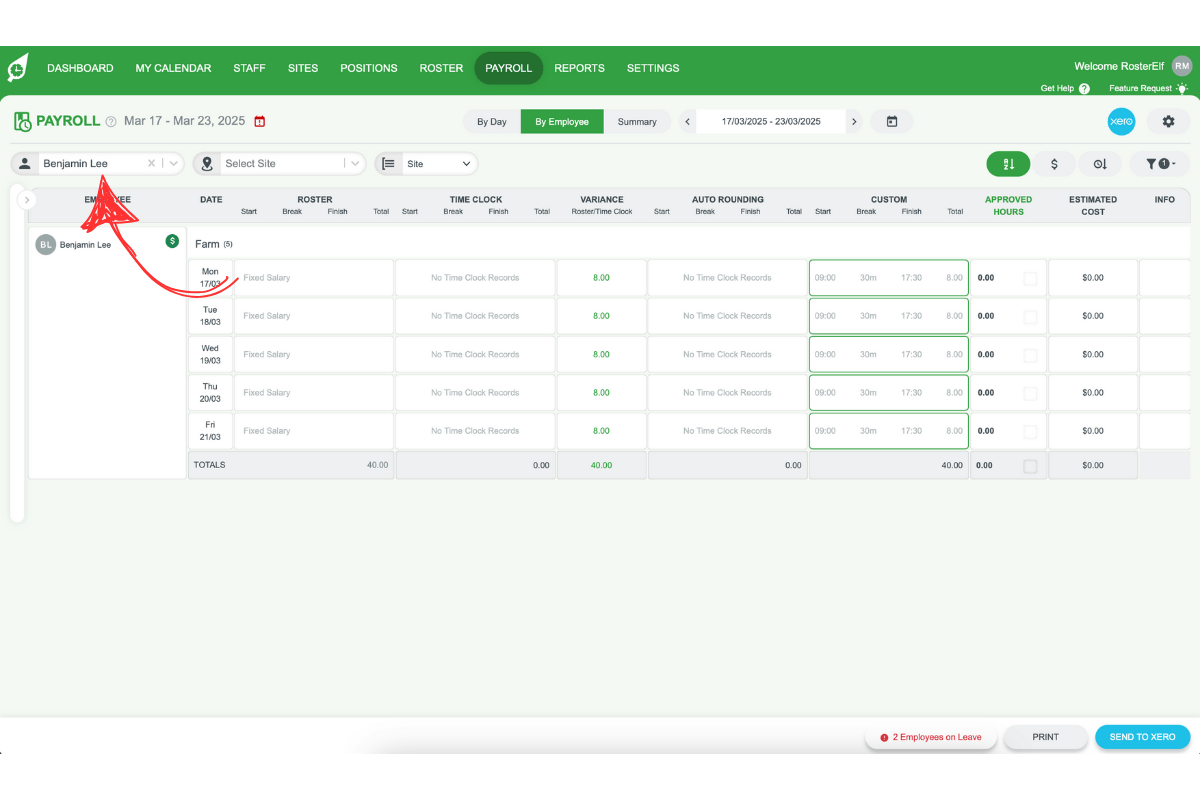
3.1.2 Untick them by selecting the bottom box for all salaried employees.
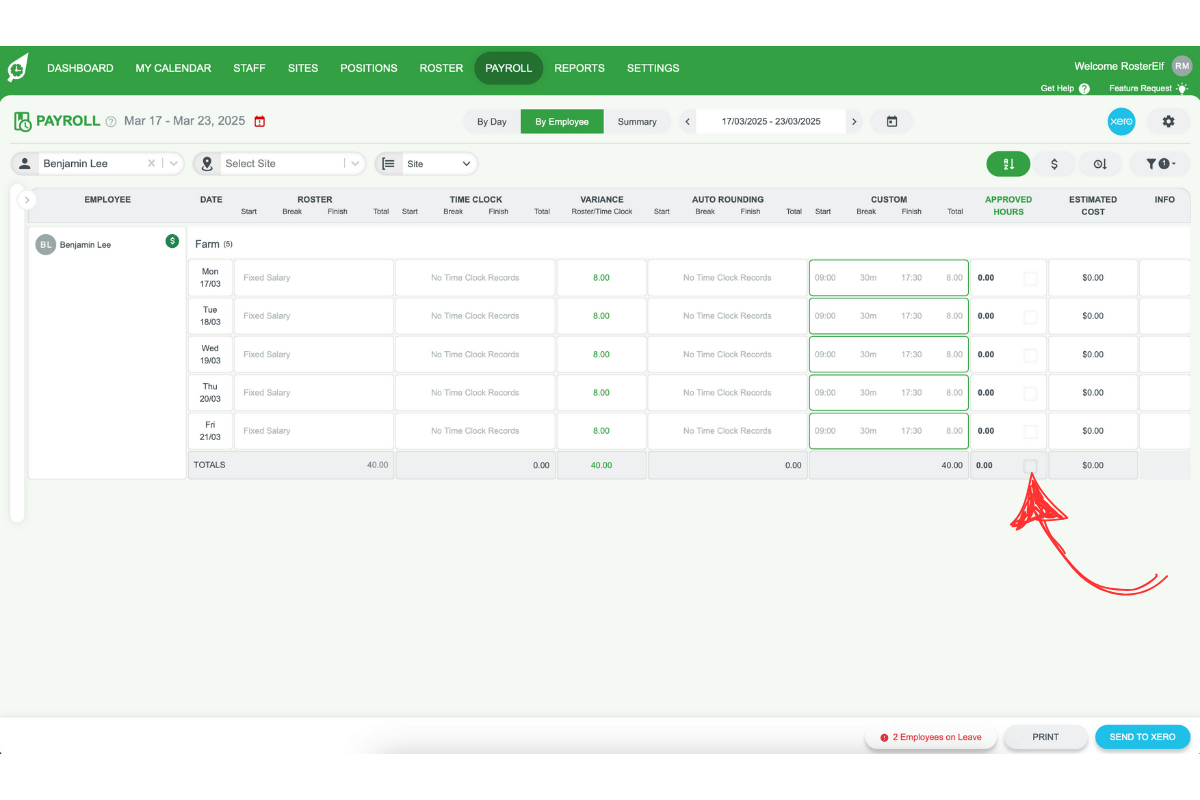
4. Processing payroll to Xero
After resolving the issue with different pay calendars, this final section guides you through completing the payroll process to Xero.
4.1 finalise payroll processing
4.1.1 Now that salaried staff have been unticked in RosterElf, you can proceed to process payroll.
4.1.2 Follow the detailed payroll processing guide to Xero for final instructions.
These steps will fix the Xero error related to employees on different pay calendars and ensure smooth payroll processing.
Frequently asked questions
1. What does it mean when Xero says employees are on different pay calendars?
When Xero displays the error that employees are on different pay calendars, it means that fixed salary staff cannot be processed because they are scheduled under a different pay calendar than the one selected for payroll in RosterElf. Learn more about Xero payroll integration.
2. How can I identify the error with fixed salary employees in Xero?
You can identify the error by checking the by day filtered view in RosterElf. If a fixed salary employee is greyed out and cannot be unticked, it indicates they are on a different pay calendar.
3. How do I change the filtered view to resolve the visibility issue?
To resolve the visibility issue, switch to the by employee view. Click on the relevant field in Xero to see all period shifts by the employee, which allows you to manage payroll more effectively.
4. What steps do I take to untick salaried staff from payroll?
To untick salaried staff, switch to the by employee view, locate the salaried employees, and select the bottom box to untick all salaried staff before proceeding with payroll processing.
5. What should I do after unticking salaried staff in Xero?
After unticking the salaried staff, you can complete the payroll process. Follow the detailed payroll processing guide in Xero to ensure everything is finalised correctly.