

RosterElf’s Time Clock offers a simple way to track employee attendance on a site-specific basis. Whether you use an iPad, an Android device, or prefer the PWA (Progressive Web App), the installation process is quick and straightforward. By using the RosterElf Time Clock on your chosen device, you ensure accurate clock-ins and clock-outs for your team. This helps you streamline payroll, reduce errors, and maintain clear records of every shift.
In this article, you will learn how to obtain the RosterElf Time Clock app for various platforms and discover how to set up PIN access for your specific site. We will also cover how to log in using that PIN so you can secure your account while still allowing quick access for day-to-day tasks. By following the steps provided here, you will have a reliable system in place that supports efficient staff management. Read on to explore the download links, implement site-specific PIN usage, and start using the RosterElf Time Clock with confidence. If a PIN isn’t working at all, this is often a site mismatch on the device rather than a wrong PIN — see why can’t I log in to RosterElf? for that and other login issues.
1. Download the RosterElf Time Clock
Before you can log in to a site-specific location, you need to install the RosterElf Time Clock. You can do this on your iPad, Android device, or older tablets and PCs via the web app. Follow the links below or find the app in your usual store. Once installed, you are ready to configure PIN access if required. Read on to discover how to set up everything for your specific site.
1.1 Get the Time Clock app for iOS, Android, or PWA
1.1.1 For iPad, visit the App Store to download the RosterElf Time Clock.
1.1.2 For Android devices, go to Google Play to install the RosterElf Time Clock.
1.1.3 For all other devices, PCs, or older tablets, use the web-based version.
2. Set up PIN access on a specific site
A unique PIN allows quick and secure logins for your specific site. By configuring site-based PIN access, you ensure that you and your team can clock in efficiently without re-entering credentials each time. Below, you will find the steps for setting up a PIN and using it to log in. If you have not yet created a PIN, simply follow the guide linked below, then return here to complete the login process.
2.1 Configure and use your PIN
2.1.1 Refer to the PIN setup guide to set up your PIN.
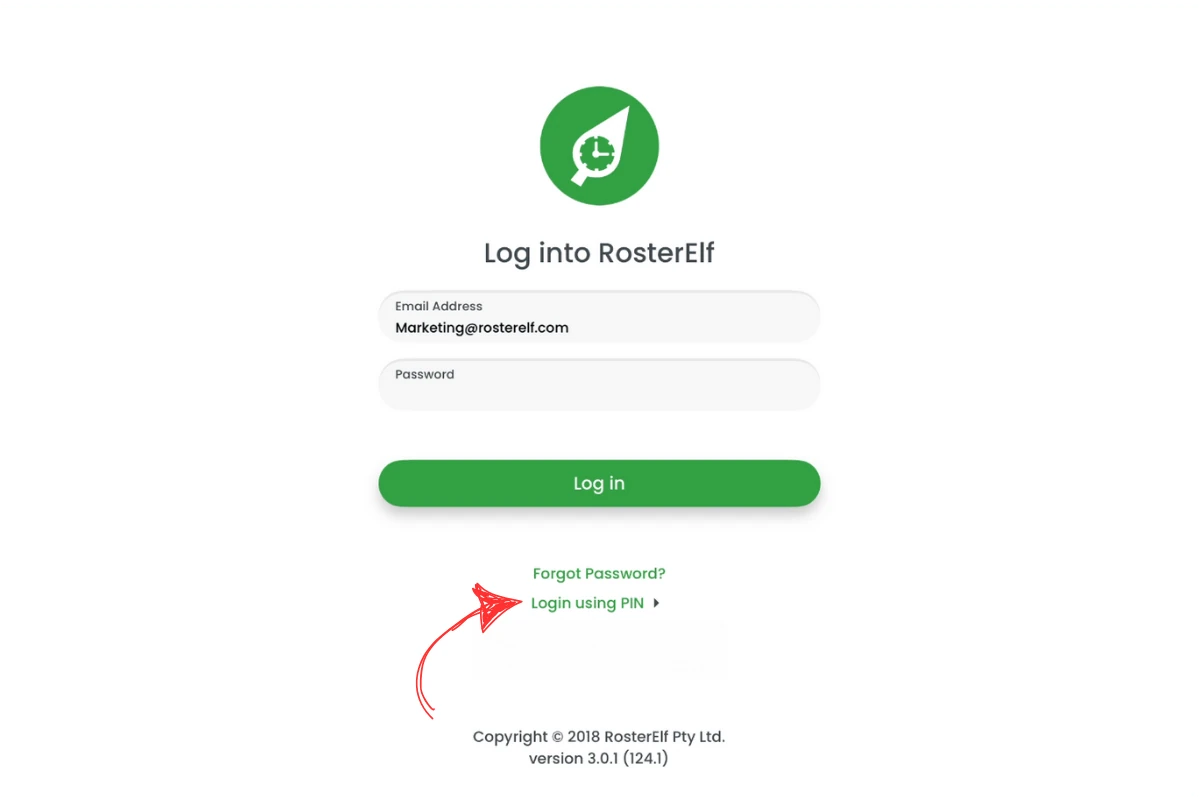
2.1.2 Once your PIN is ready, open the RosterElf Time Clock and select login using pin.
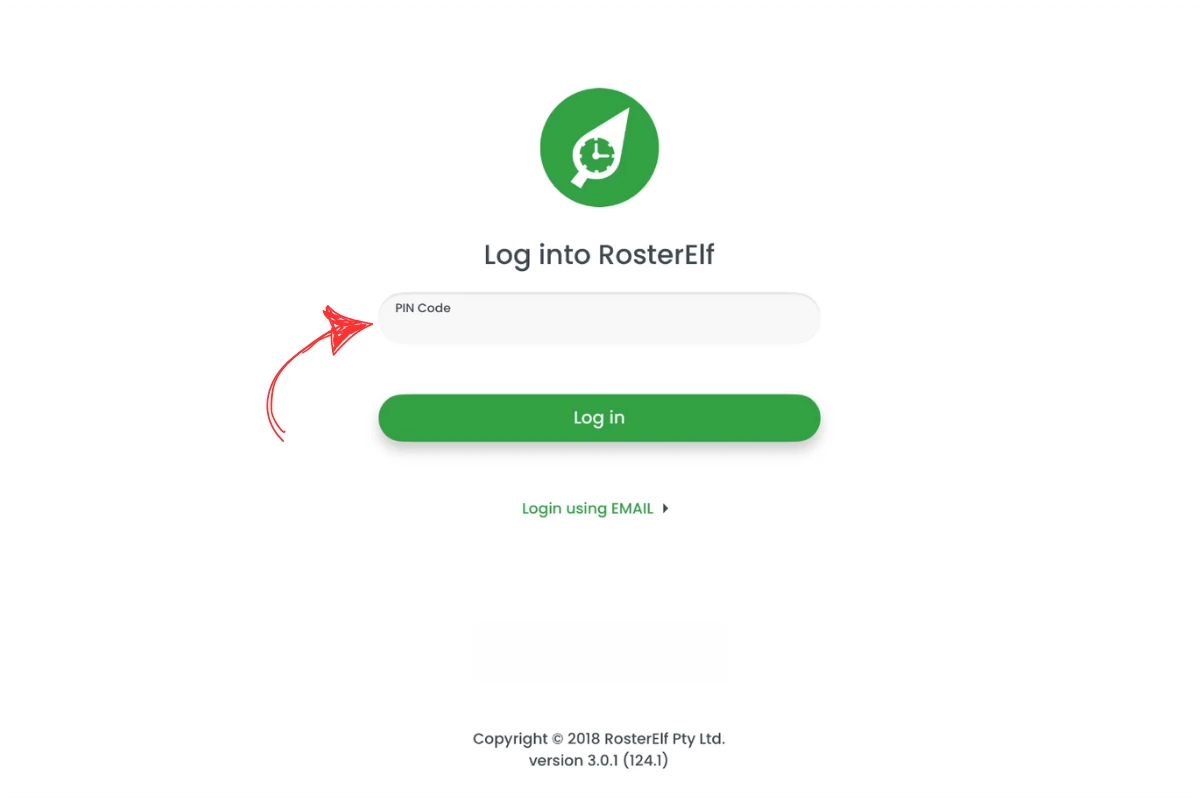
2.1.3 Enter your PIN, then click login to access your specific site.
Frequently asked questions
1. Do I need separate PINs for different sites?
Yes, each site can have its own PIN to ensure secure and organised tracking.
2. Can I switch between multiple sites?
Yes, simply log out of the current site, then log in with the PIN or credentials for another site.
3. What if my device is offline?
You need an internet connection to synchronise attendance data and confirm login details.
4. How do I change my PIN if I forget it?
The site PIN used to log a device in is different from your own personal Time Clock clock-in PIN. An admin or manager resets it from the dashboard — go to Settings > Time and Attendance and click the cloud icon to reset the global PIN, or open the site under the Sites tab and click the eye icon to reset that site’s specific PIN. See keep the Time Clock app logged in with PIN for full steps. Looking to reset your own personal clock-in PIN instead? See the Time clock PIN guide.
5. Can I use the same device for multiple sites?
Yes, you can log out and log in with different site PINs on the same device.
6. Can I set the same pin for both sites?
No, each site uses a unique pin to identify your account. If you have multiple sites you want to keep logged in under the same tablet, try using our global pin setting in Settings > Time and Attendance.