

This guide will walk you through setting up PIN clock-in and clock-out functionality for tablets using the Time and Attendance feature. By following these steps, you can enable PIN-based time recording, set up PINs for multiple sites, and securely manage your PIN information. This setup helps ensure accurate time recording across all sites and shifts within your account.
1. Enabling time and attendance on tablets
This section covers how to activate Time and Attendance on tablets within your settings. Enabling this feature allows employees to record their clock-in and clock-out times using PINs on tablet devices.
1.1 access settings
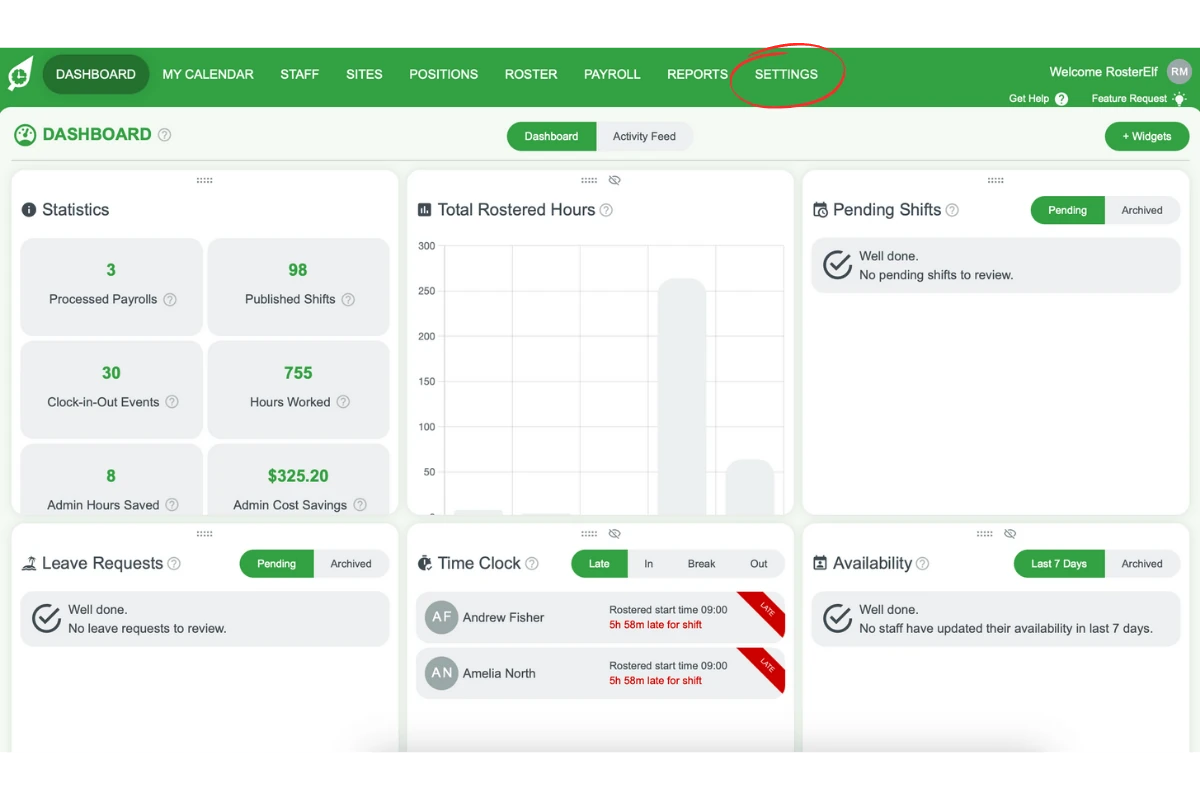
1.1.1 On the top menu, click on Settings.
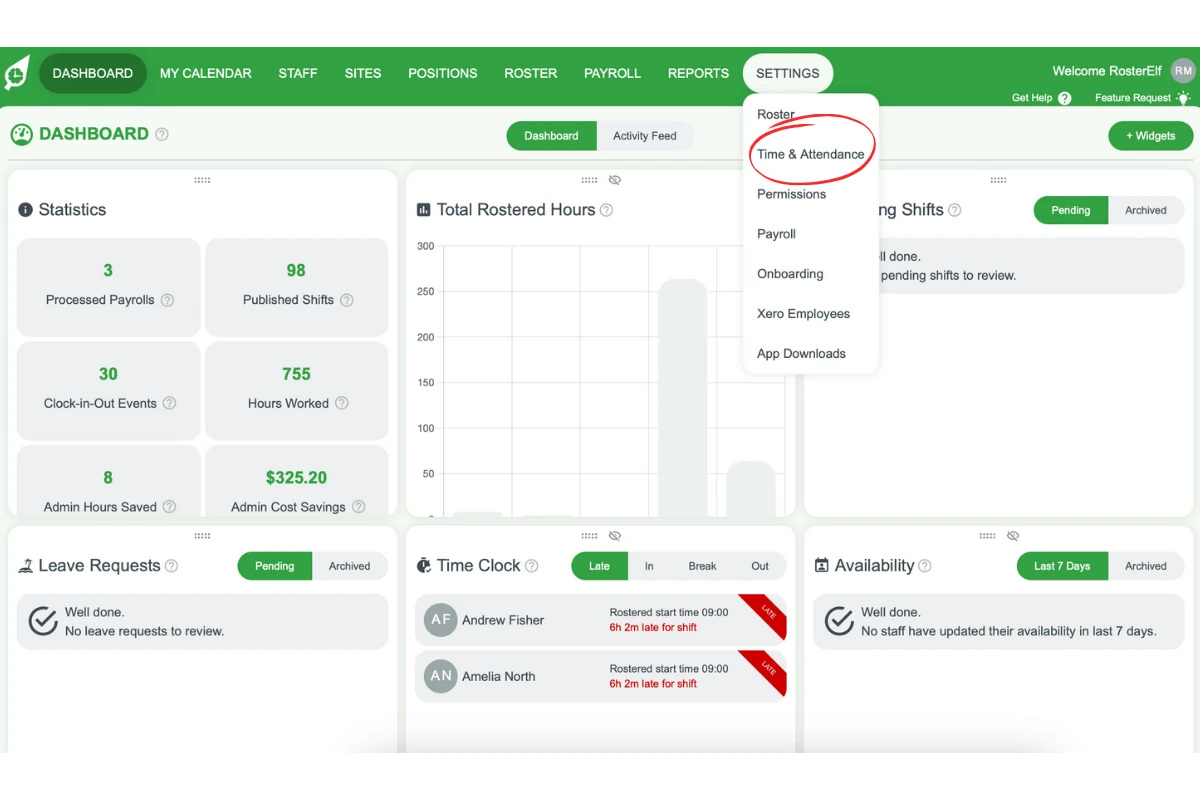
1.1.2 Select Time & Attendance from the list.
1.2 enable tablet time recording
1.2.1 Ensure the Allow Employees to Record Time and Attendance on Tablets option is turned on. The slider should be green.
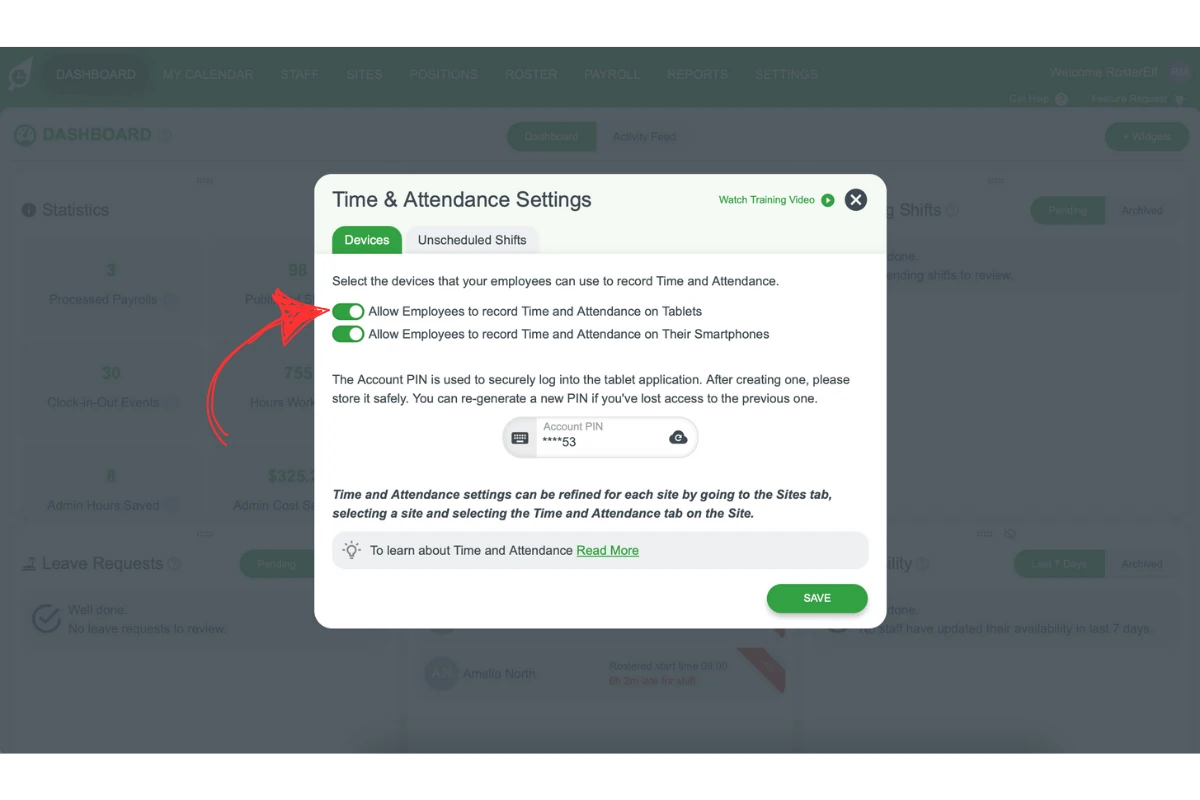
1.2.2 After enabling the option, a PIN for all sites within your account will be activated, allowing access to all sites and shifts within the account.
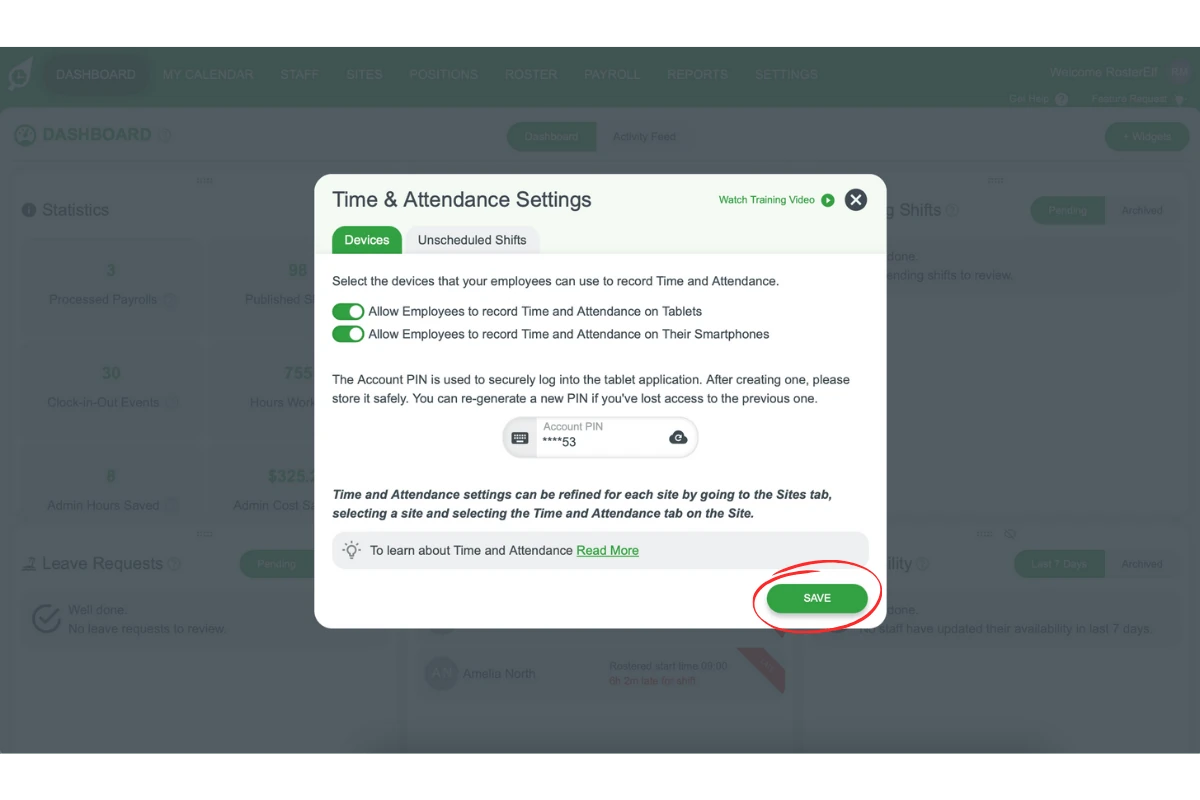
1.2.3 Click on Save to confirm the changes.
2. Finding and resetting your PIN
In this section, you’ll learn where to locate your PIN and how to reset it if necessary. The PIN is essential for accessing Time and Attendance features on tablets and managing shifts.
2.1 locate PIN
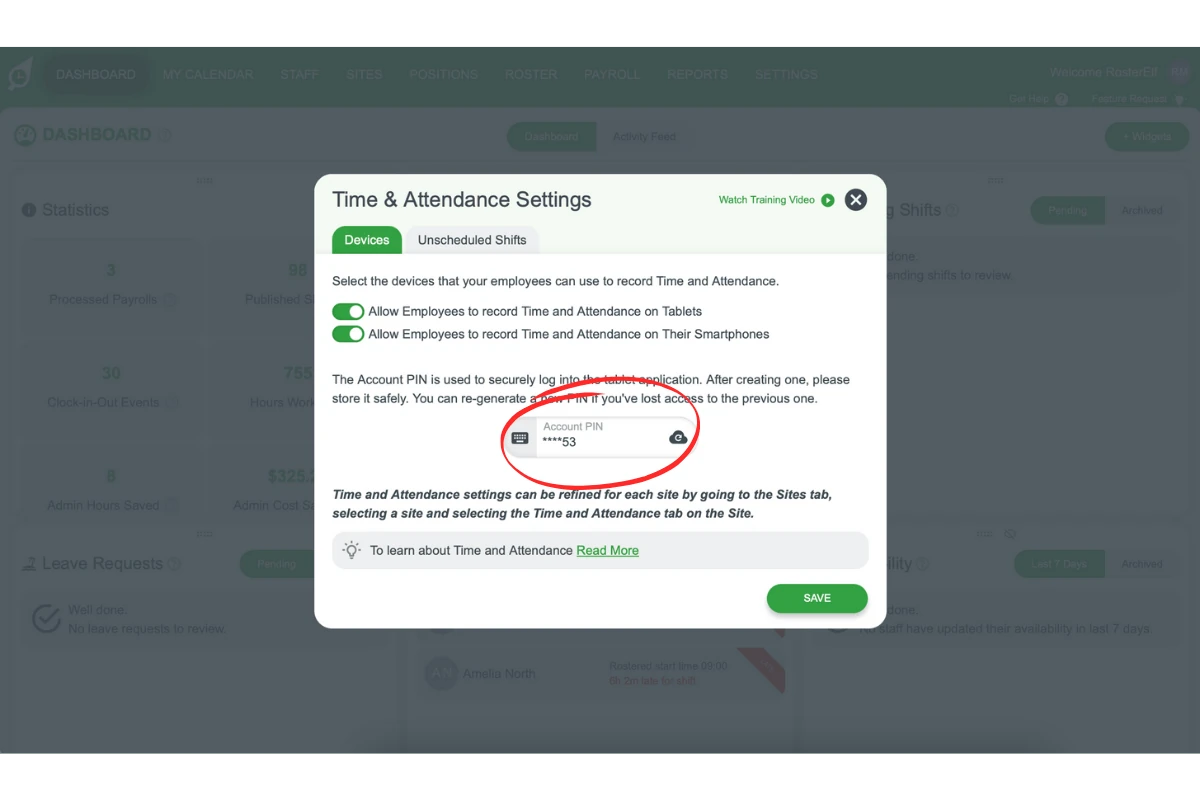
2.1.1 Scroll to the lower part of the Time & Attendance settings screen to find your PIN.
2.2 reset PIN
2.2.1 To reset the PIN, click on the cloud icon next to it.
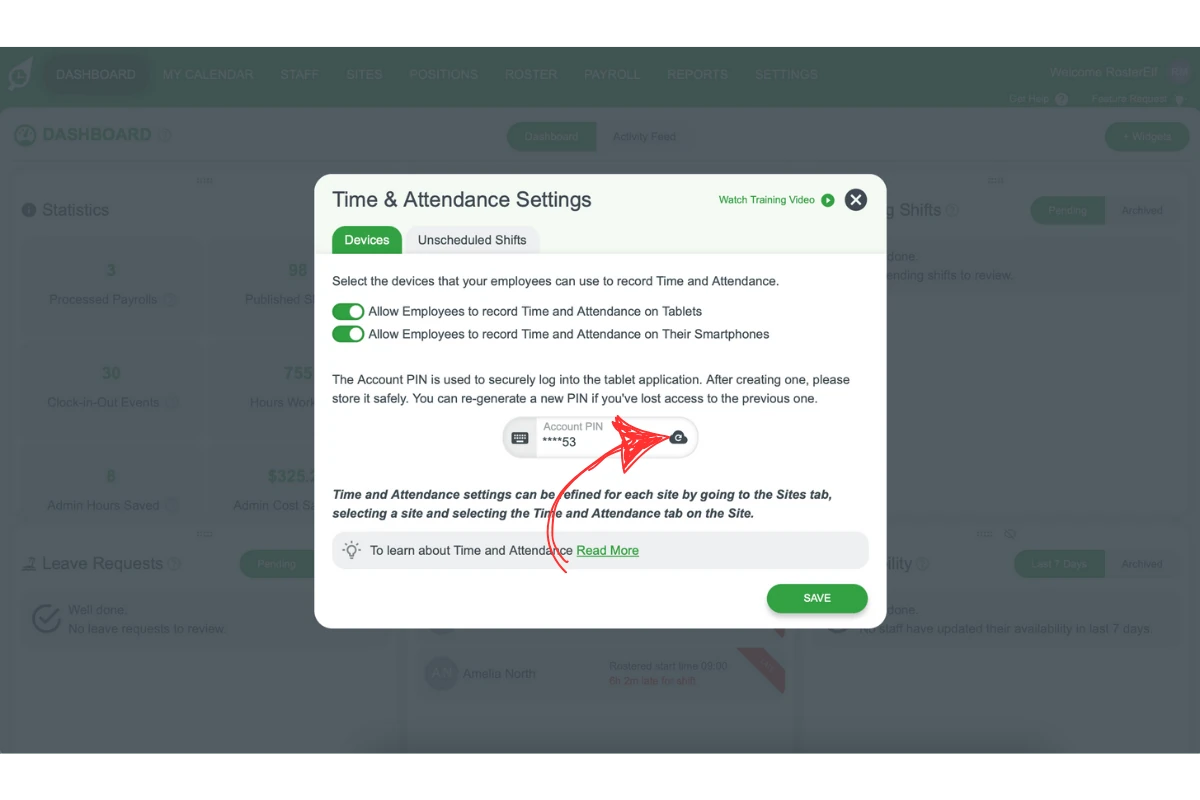
2.2.2 Remember to save by clicking on Save.
3. Setting up PINs for individual sites
This section explains how to configure site-specific PINs. Each site can have its unique PIN, allowing employees to view only the shifts relevant to their site.
3.1 Go to site settings
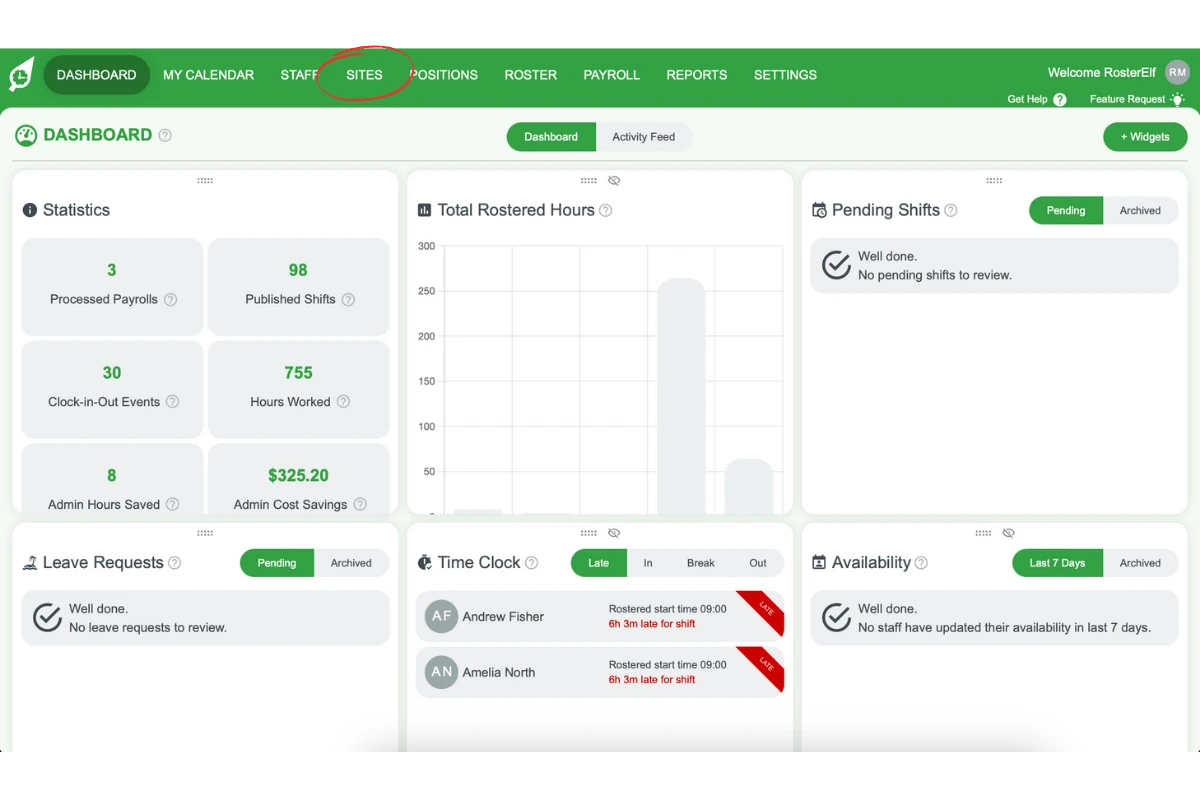
3.1.1 On the top menu, go to the Site tab.
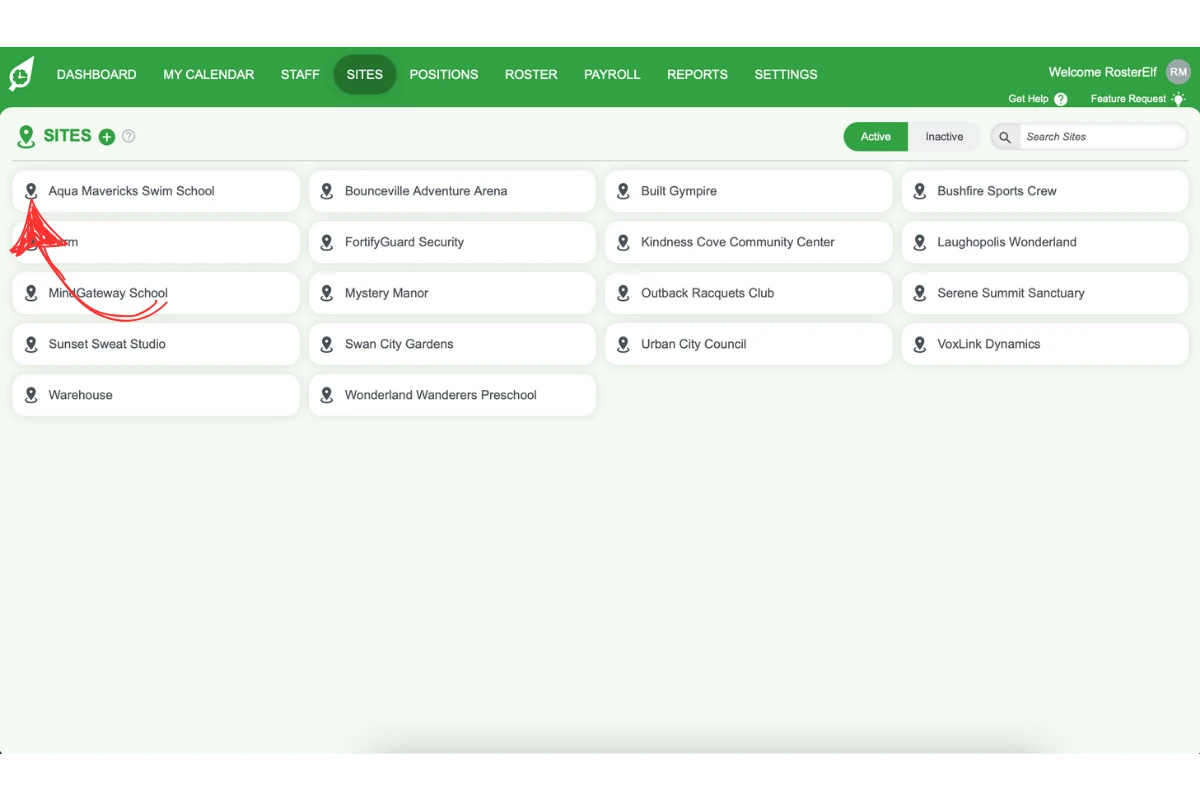
3.1.2 Click on each relevant site to open its settings.
3.2 configure site-specific PIN
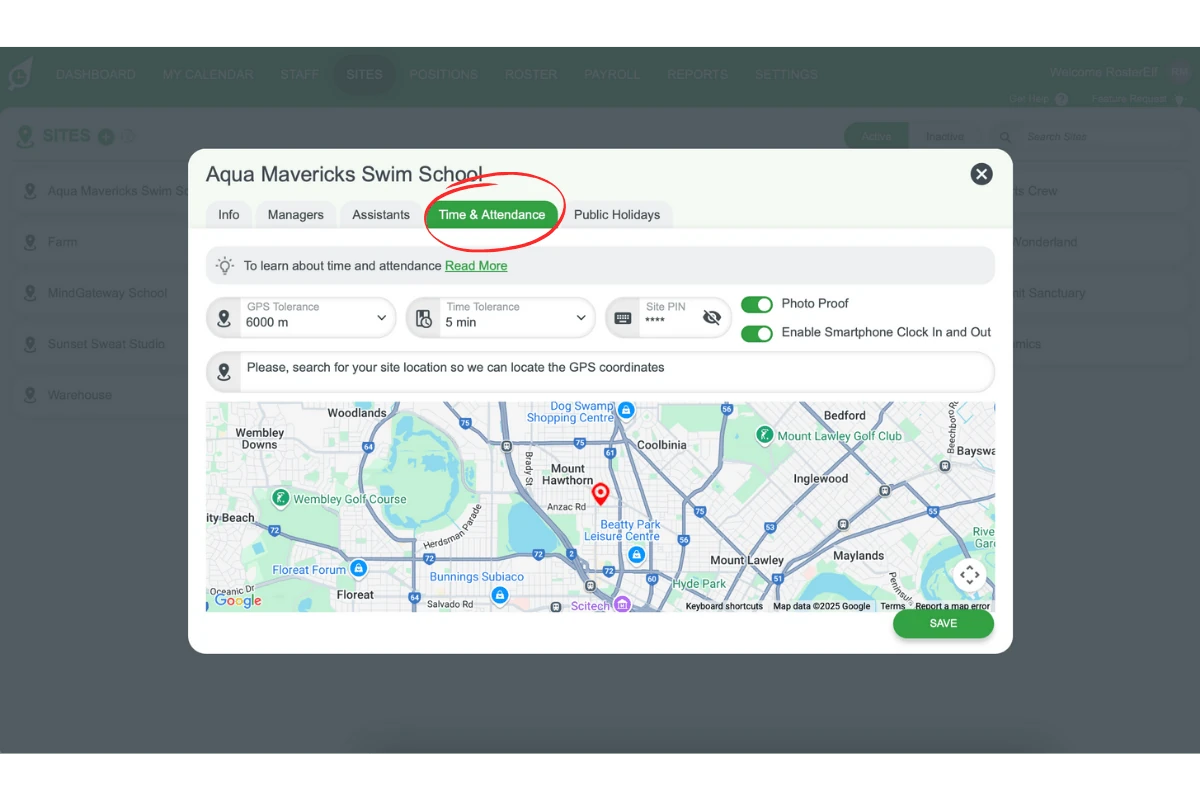
3.2.1 Within the site view, select Time & Attendance.
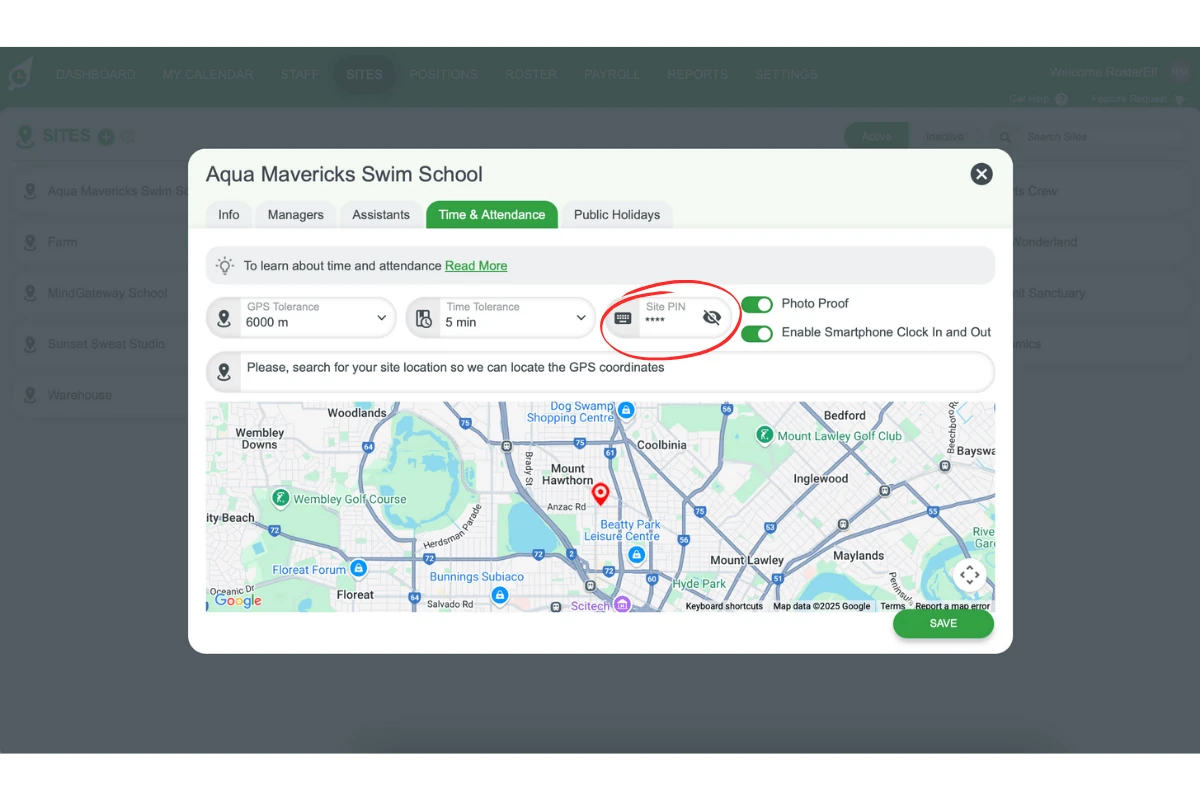
3.2.2 You’ll see a PIN specific to the site, which will allow users to see shifts relevant only to that site.
3.3 reset site-specific PIN
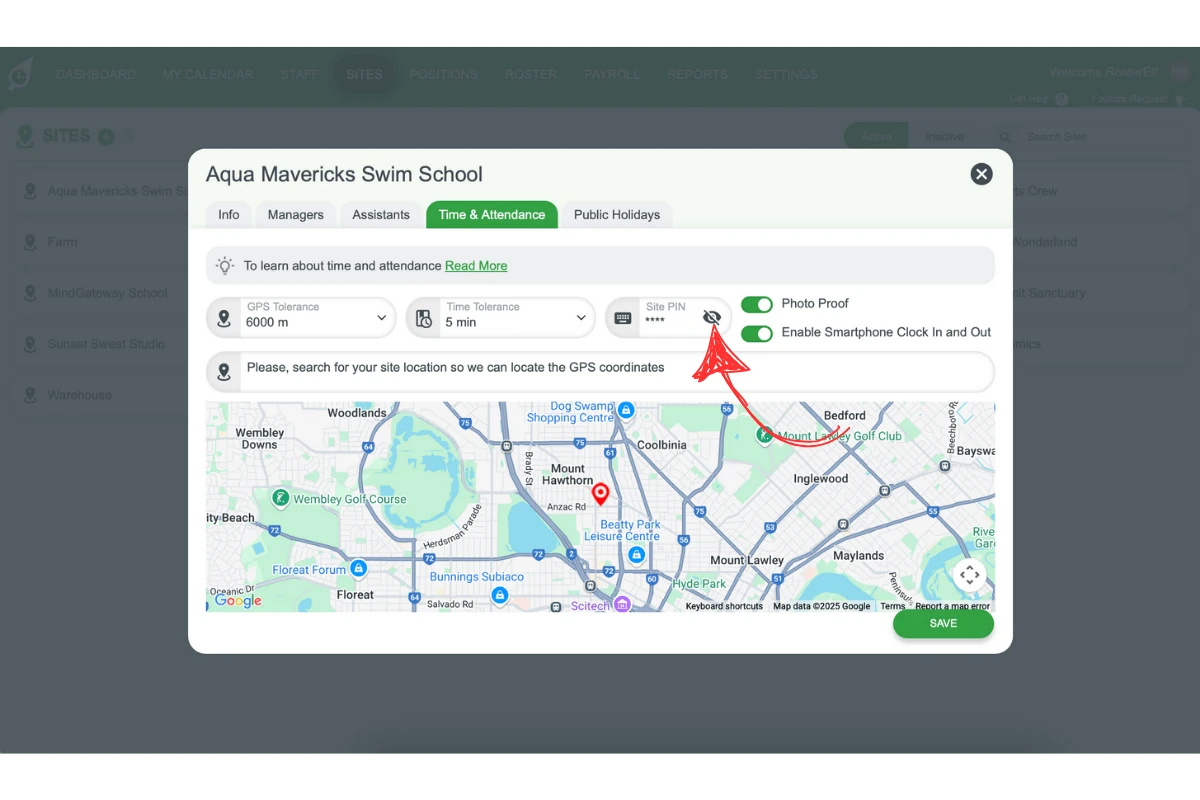
3.3.1 To reset the site-specific PIN, click on the eye icon next to it.
3.3.2 Remember to save.
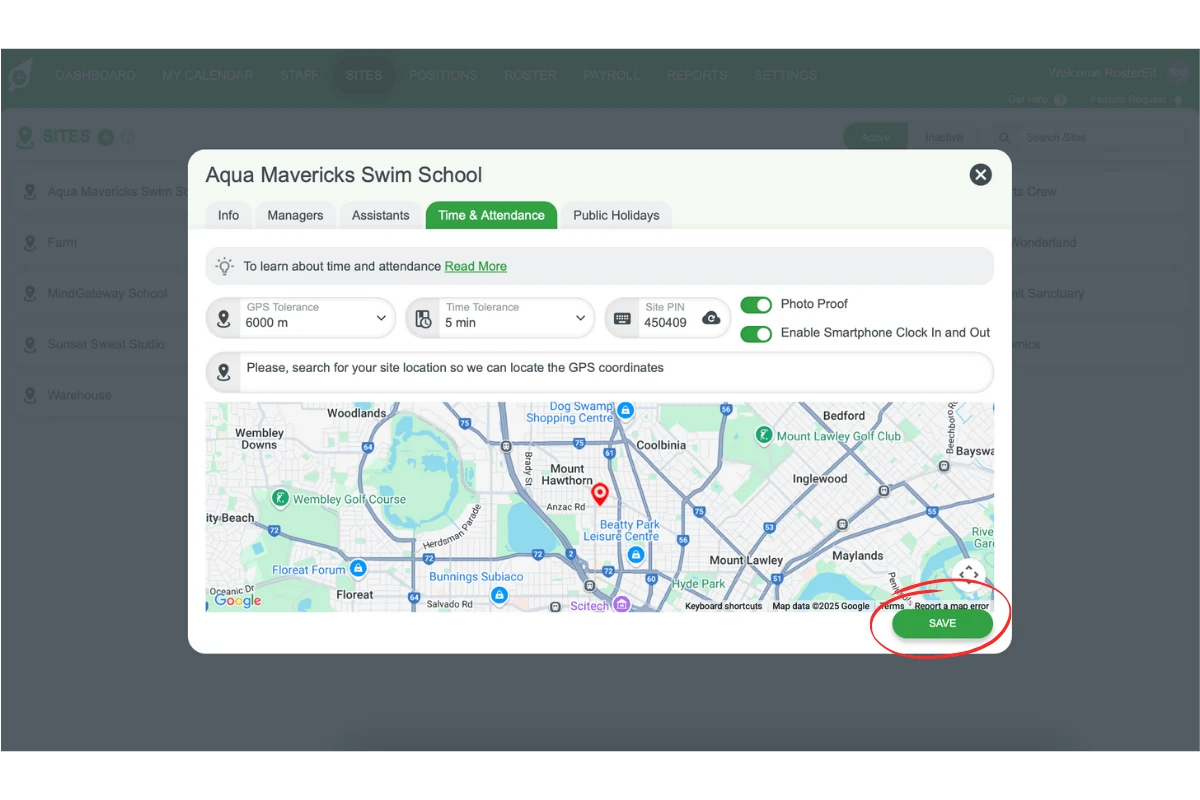
Warning/Reminder: Once saved, your PIN will be hidden for security reasons. Ensure you save it securely or write it down, as it’s essential for accessing the Time and Attendance system. You can reset it at any time if needed.
4. Logging in to the time clock app
This section guides you through logging in to the Time Clock App on a tablet using the PIN.
4.1 open the app
4.1.1 Launch the Time Clock App on your Android tablet or iPad.
4.2 enter PIN
4.2.1 Enter the PIN from the general Time & Attendance settings to access all sites and shifts.
4.2.2 Enter the site-specific PIN configured in Site settings to access only the shifts for a particular site.
Frequently asked questions
1. How do I enable Time and Attendance for PIN clock-in/out on tablets?
To enable PIN clock-in/out on tablets, go to Settings → Time & Attendance and toggle on the Allow Employees to Record Time and Attendance on Tablets option. Make sure the slider is green, then click Save to confirm.
2. Where can I find my PIN for clocking in on tablets?
You can find your PIN by scrolling to the bottom of the Time & Attendance settings screen in your account. This PIN allows employees to clock in and out using a tablet.
3. How can I reset my Time & Attendance PIN for tablets?
To reset your PIN, navigate to Time & Attendance settings and click the cloud icon next to the existing PIN. This will generate a new PIN for secure access.
4. Can I set up a different PIN for each site?
Yes, you can configure unique PINs for each site. Go to the Sites tab, select the relevant site, and under Time & Attendance, view or reset the site-specific PIN for that location.
5. How do employees log in to the Time Clock App with a PIN?
Employees should open the Time Clock App on their tablet and enter the PIN to clock in or out. There is no need to enter a username.
6. Can I set the same pin for both sites?
No, each site uses a unique pin to identify your account. If you have multiple sites you want to keep logged in under the same tablet, try using our global pin setting in Settings > Time and Attendance.