

This guide explains how to manage unscheduled shifts in the Time & Attendance section. You’ll learn how to allow employees to add themselves to unscheduled shifts without needing management approval. This setup can be applied to both tablet and smartphone apps, enabling employees to add shifts easily when needed.
1. Access time & attendance settings
This section will show you how to access the Time & Attendance settings, where you can enable or disable the option for employees to add unscheduled shifts.
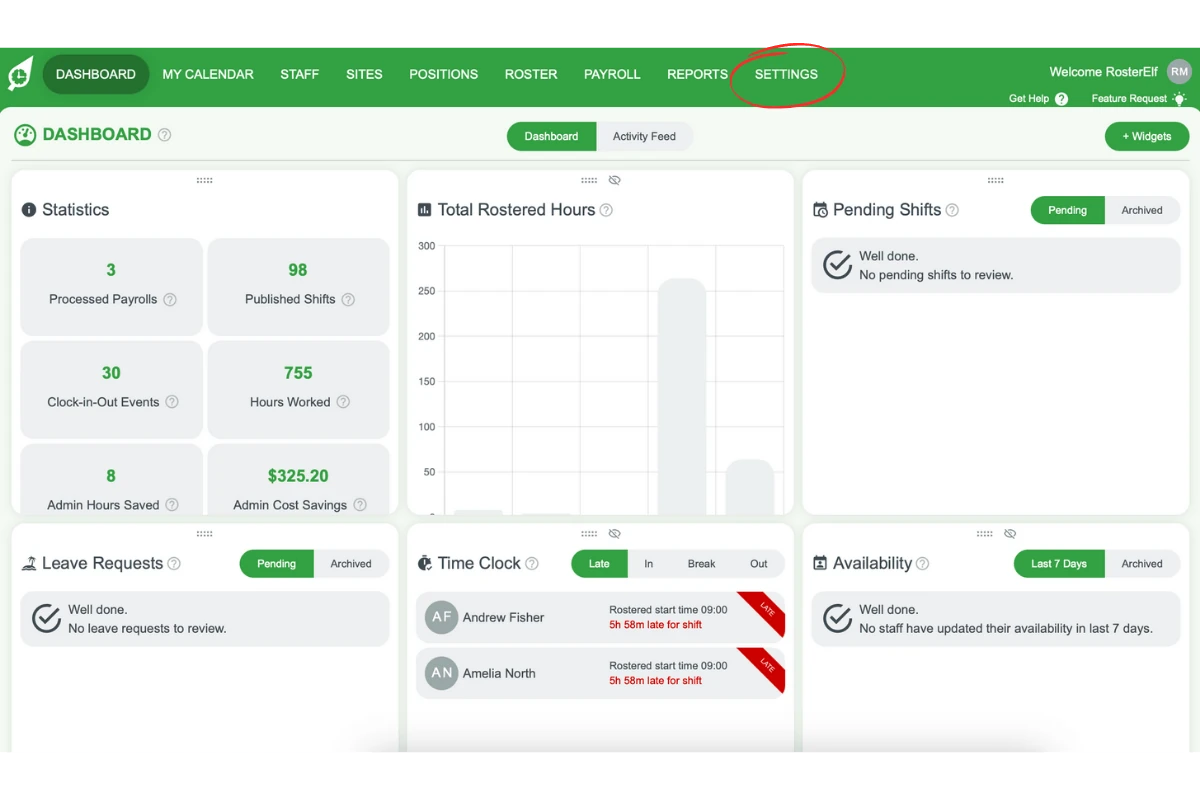
1. Go to Settings in the top menu.
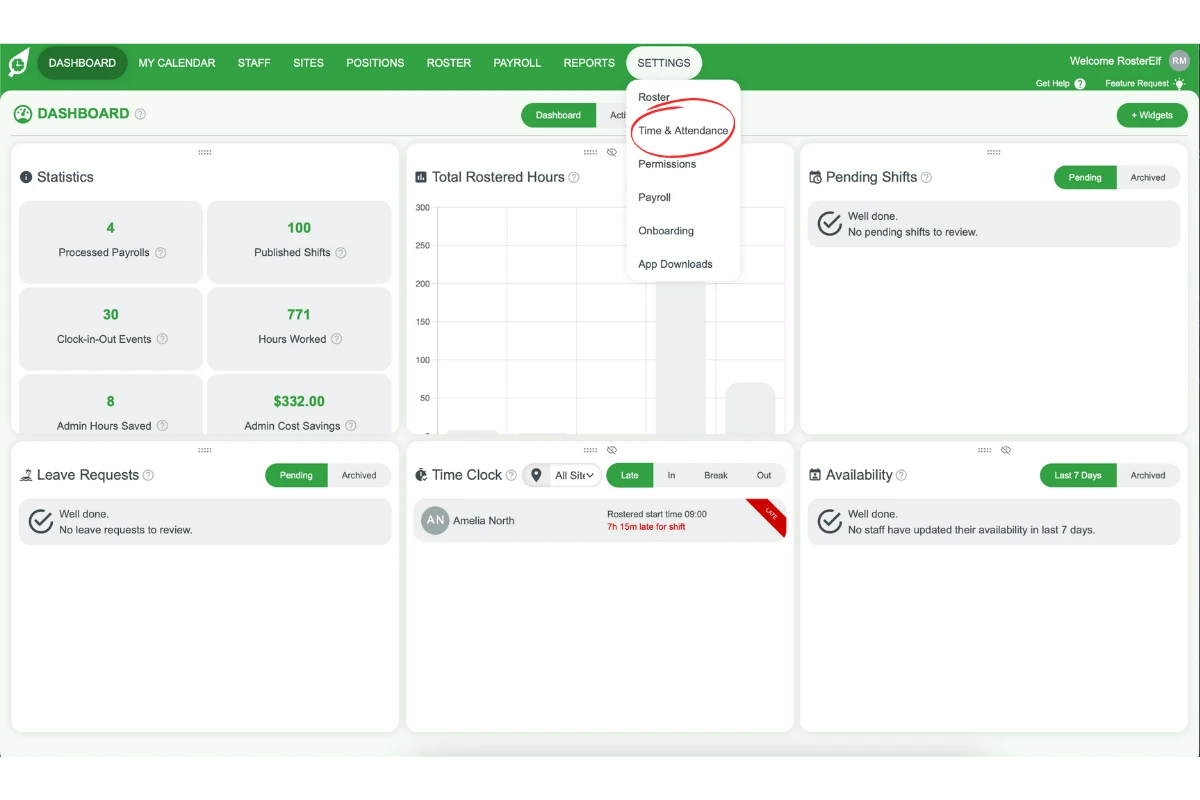
2. Select Time & Attendance from the dropdown menu.
2. Manage unscheduled shifts
This section covers how to enable or disable the option for employees to add unscheduled shifts on both tablet and smartphone apps. Follow these steps to update these settings.
2.1 Enable unscheduled shifts on tablet time clock apps
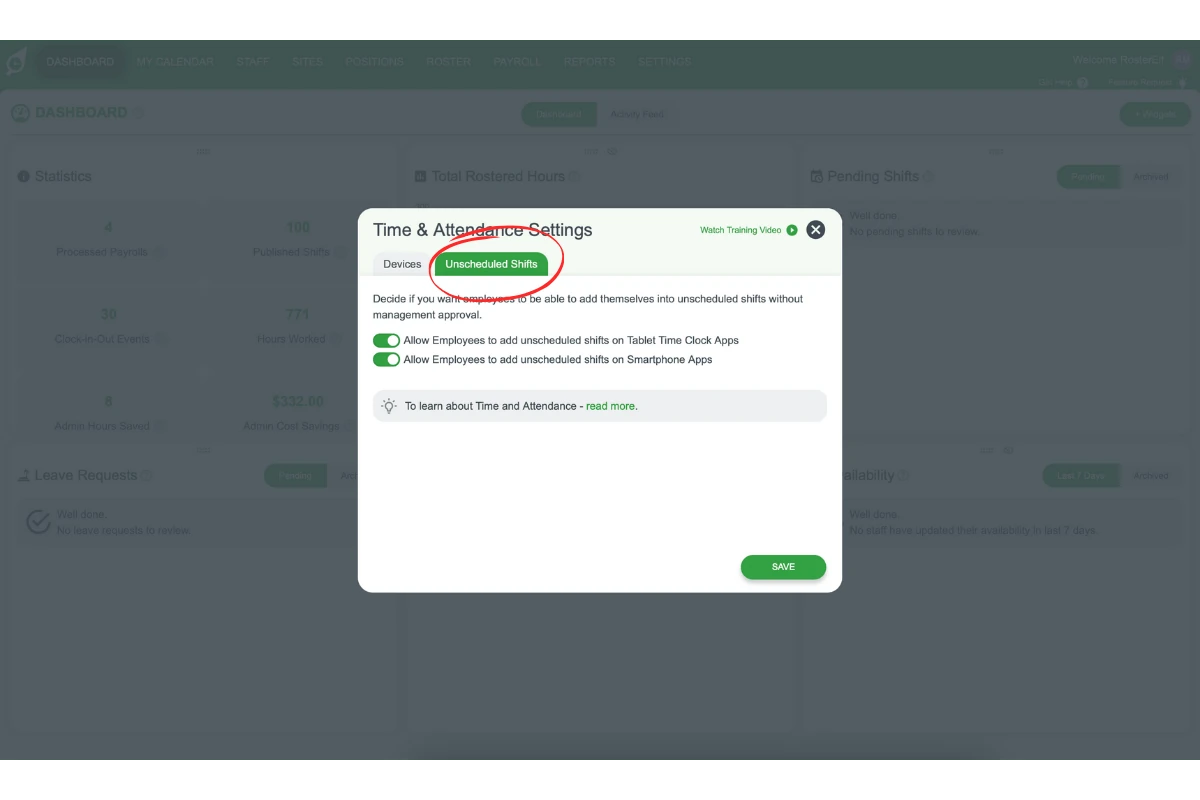
2.1.1. In the Time & Attendance Settings window, select the Unscheduled Shifts tab.
2.1.2. Click the switch for Allow Employees to add unscheduled shifts on Tablet Time Clock Apps.
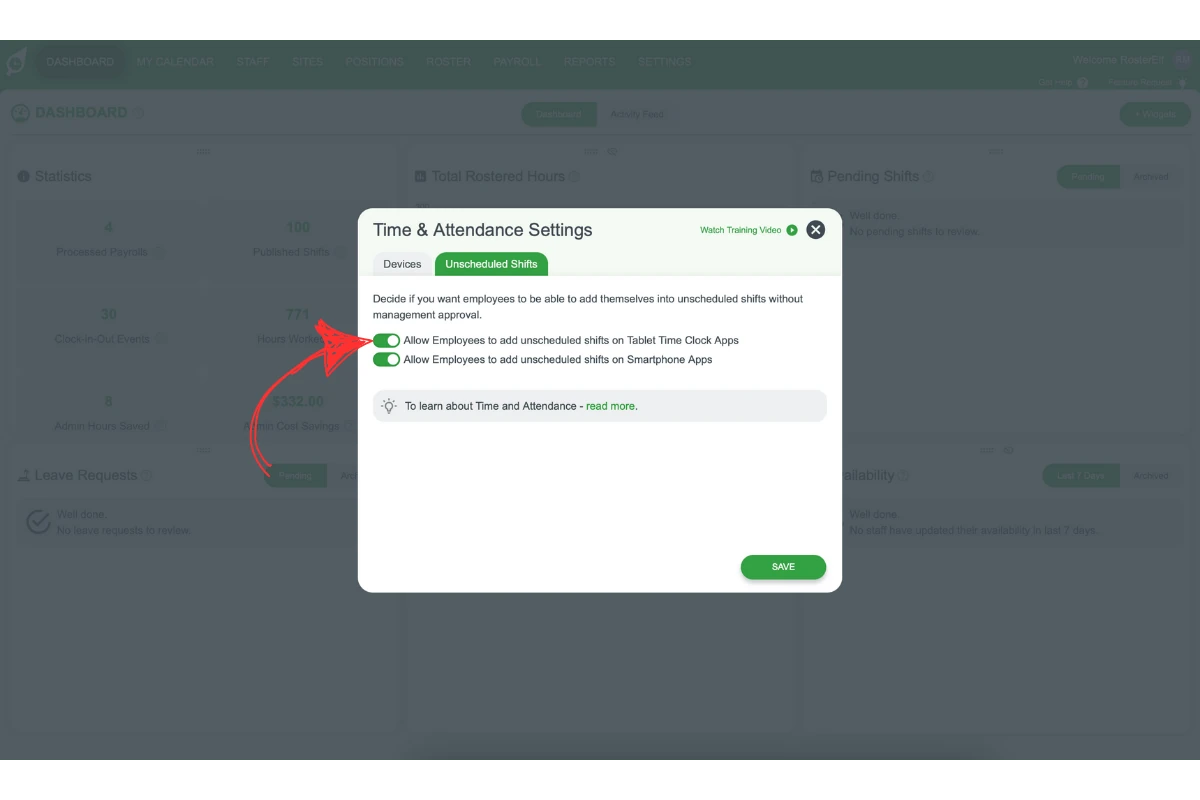
2.1.3. If enabled, the toggle will turn green.
For more details, refer to the How to Add Unscheduled Shifts Using a Tablet Time Clock App article.
2.2 Enable unscheduled shifts on smartphone apps
2.2.1. On the Unscheduled Shifts tab, click the switch for Allow Employees to add unscheduled shifts on Smartphone Apps.
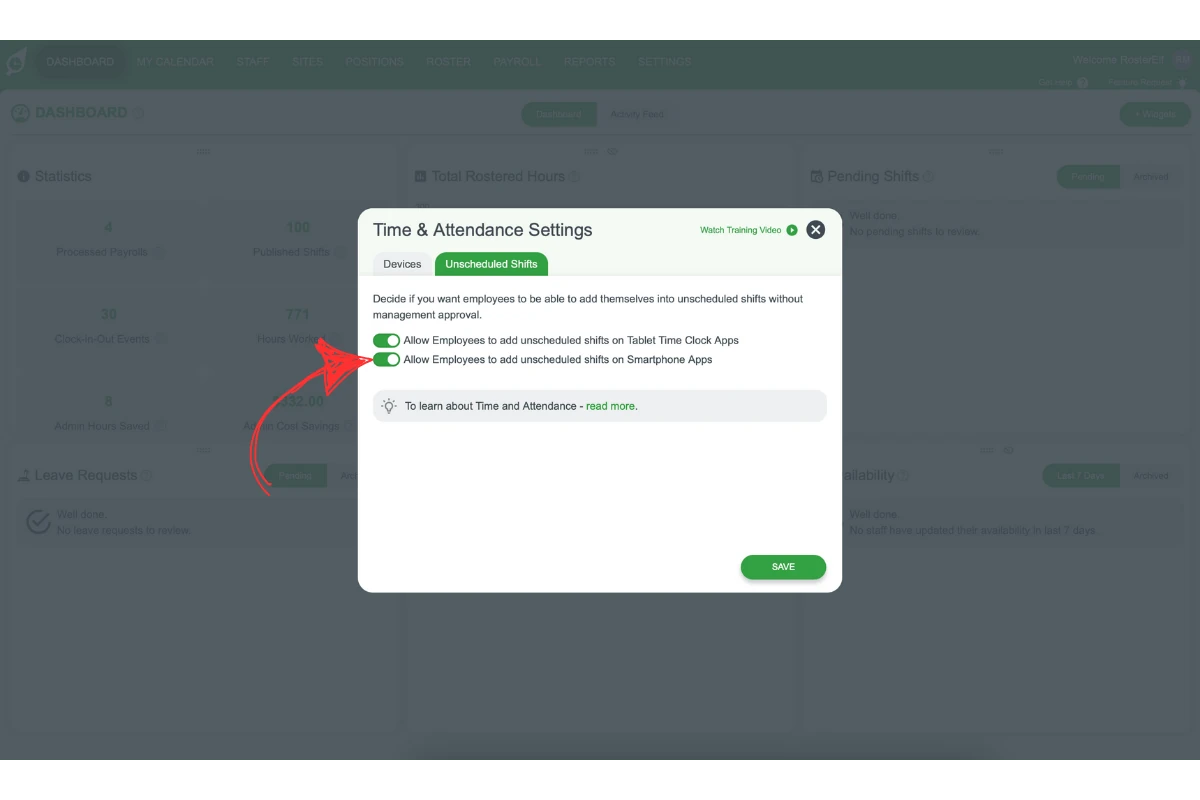
2.2.2. The toggle will turn green if enabled.
For additional help, see the How to Add Unscheduled Shifts on Your Smartphone App article.
3. Finalise settings
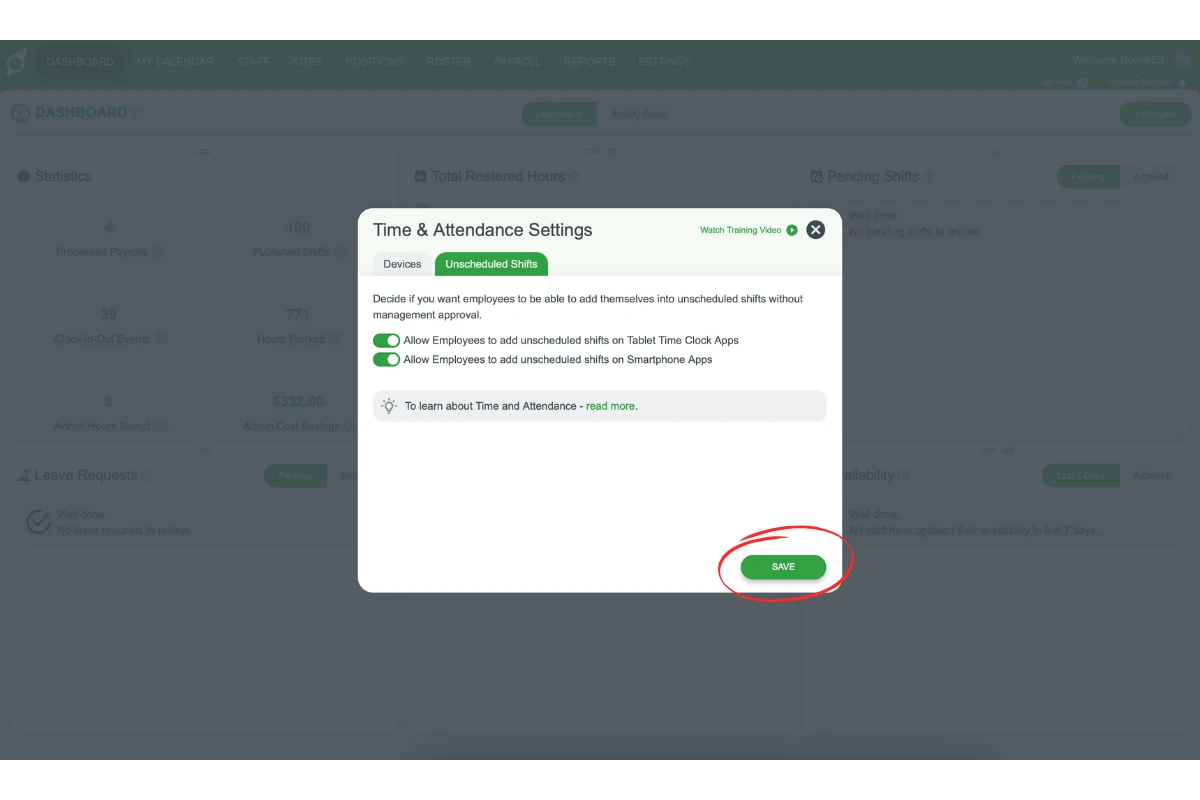
Once you’ve updated your settings for unscheduled shifts, save your changes to apply them.
3.1. Click on Save to finalise the setup.
Frequently asked questions
1. How can I allow employees to add unscheduled shifts in Time & Attendance?
To allow employees to add unscheduled shifts, go to Settings > Time & Attendance. Then, open the Unscheduled Shifts tab and turn on the switches for Tablet Time Clock Apps and Smartphone Apps.
2. Can employees add unscheduled shifts without manager approval?
Yes, by turning on the Allow Employees to add unscheduled shifts switches, employees can add shifts without needing management approval. This feature applies to both tablet and smartphone apps.
3. Where do I find the option to manage unscheduled shifts?
You can manage unscheduled shifts in the Time & Attendance section under Settings. Open the Unscheduled Shifts tab of the Time & Attendance Settings window to enable or disable the feature for tablet and smartphone apps.
4. How do I enable unscheduled shifts on the tablet Time Clock app?
In the Time & Attendance settings, open the Unscheduled Shifts tab and turn on the Allow Employees to add unscheduled shifts on Tablet Time Clock Apps toggle. When enabled, it will turn green.
5. How do I save my changes after managing unscheduled shifts?
Once you’ve configured your settings, click Save to apply the changes. This finalises the setup and allows employees to add unscheduled shifts as per the enabled options.