

Turn on live time clock in RosterElf smartphone app
This article explains how to turn on the live time clock in the RosterElf smartphone app. The live time clock lets you see real-time attendance details for staff at specific sites. When enabled, you can monitor staff clock in and out activity directly from the roster tab on your smartphone.
This feature is useful for managers who need instant visibility of attendance. By turning on the smartphone clock in and out option for each site, you ensure accurate time tracking across your business. The process is quick and easy. You only need to set it up once per site, and you can choose which locations you want to monitor.
When both settings are active, each employee’s shift card automatically expands when they are clocked in and displays a shift summary — showing their clocked-in time, any break taken, and hours elapsed in real time. If either setting is off, the card remains collapsed and this information is not shown.
Following the steps in this guide will help you stay on top of staff attendance and streamline payroll approvals. With the live time clock active, you’ll have confidence that shift data is captured correctly and available in real time.
1. Enable live time clock for sites
This section shows you how to enable the live time clock for each site in RosterElf. You will complete the setup through the web browser. Once enabled, the information flows into the roster tab on your smartphone app.
You need to turn on the smartphone clock in and out option for each site you want to track. This ensures you only see live attendance for the locations you choose. By enabling this setting, managers gain quick visibility of who has clocked in or out in real time, reducing errors and improving oversight.
1.1 Turn on smartphone clock in and out
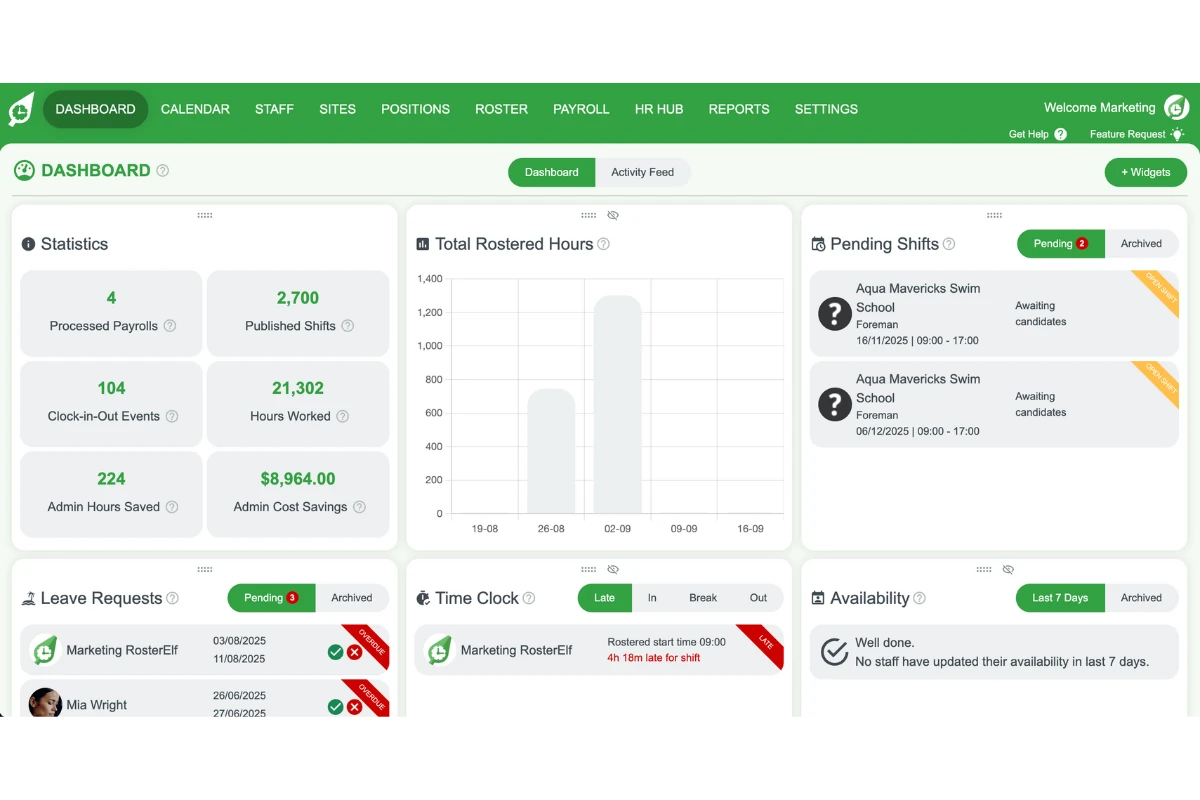
1.1.1 Open RosterElf in a web browser.
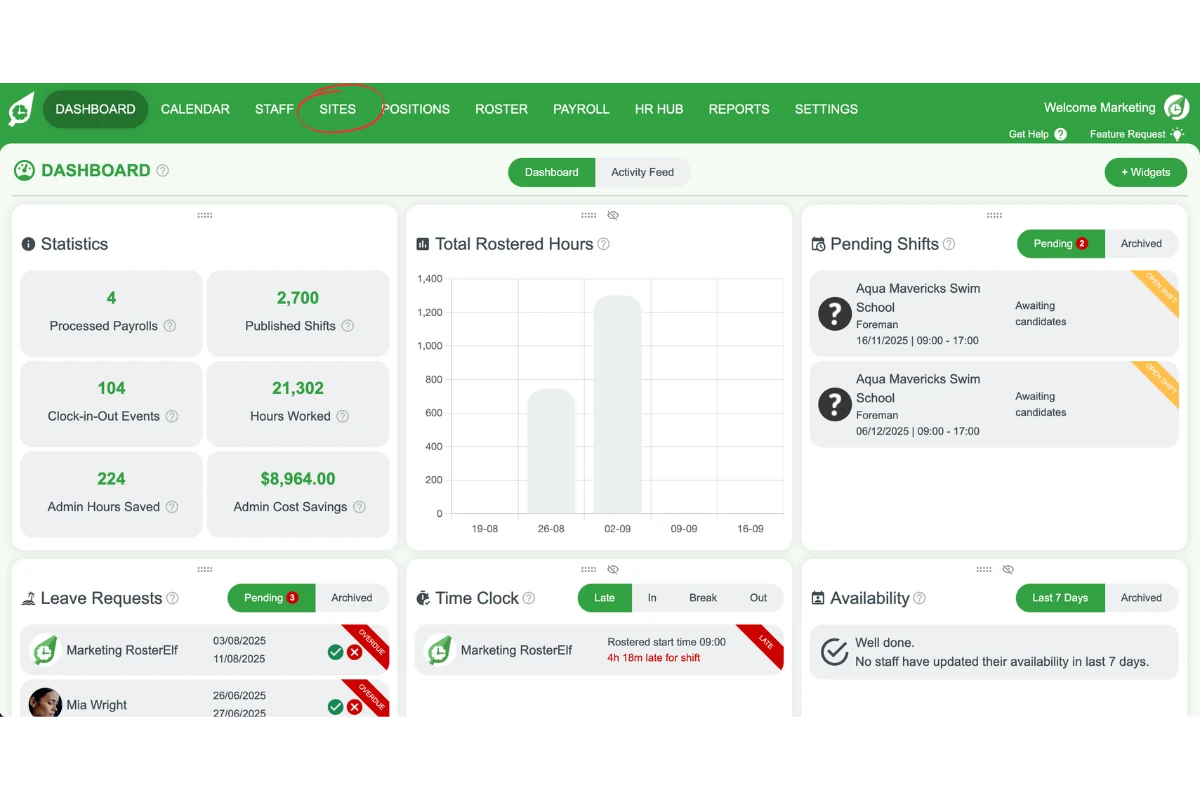
1.1.2 Click on the Sites tab.
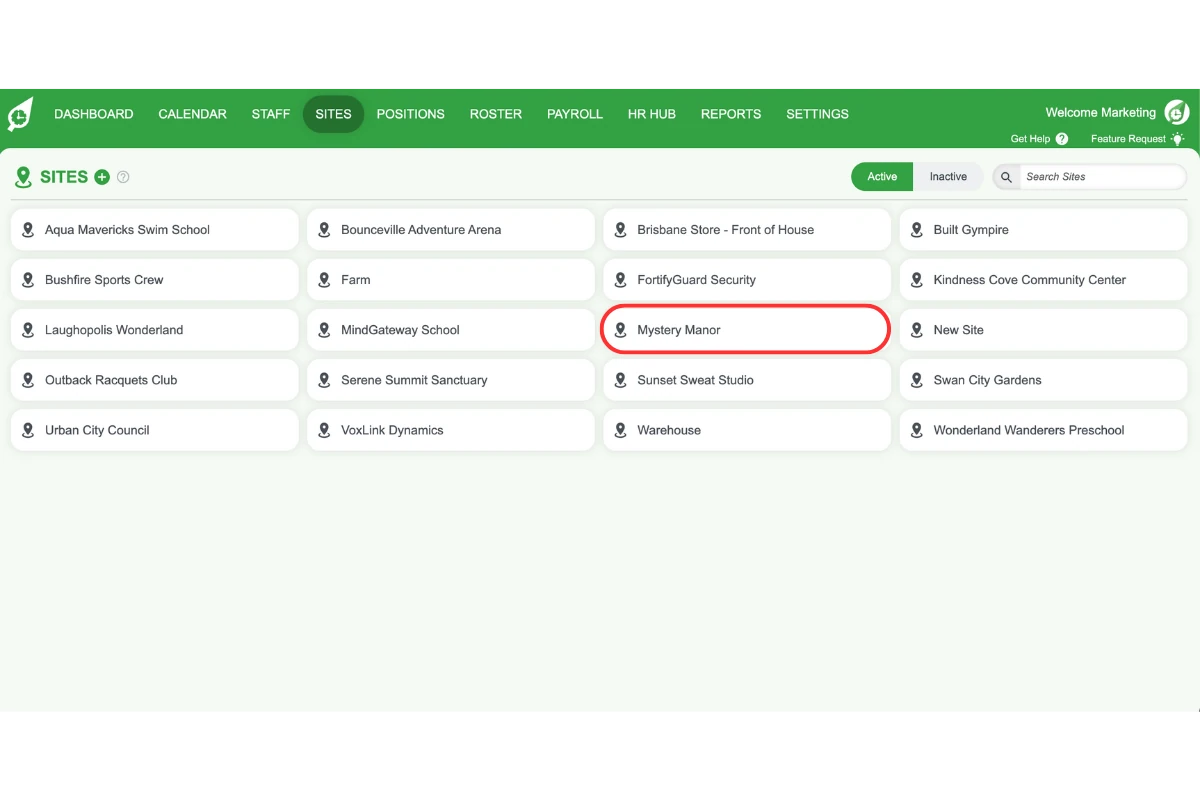
1.1.3 Select the site you want to activate.
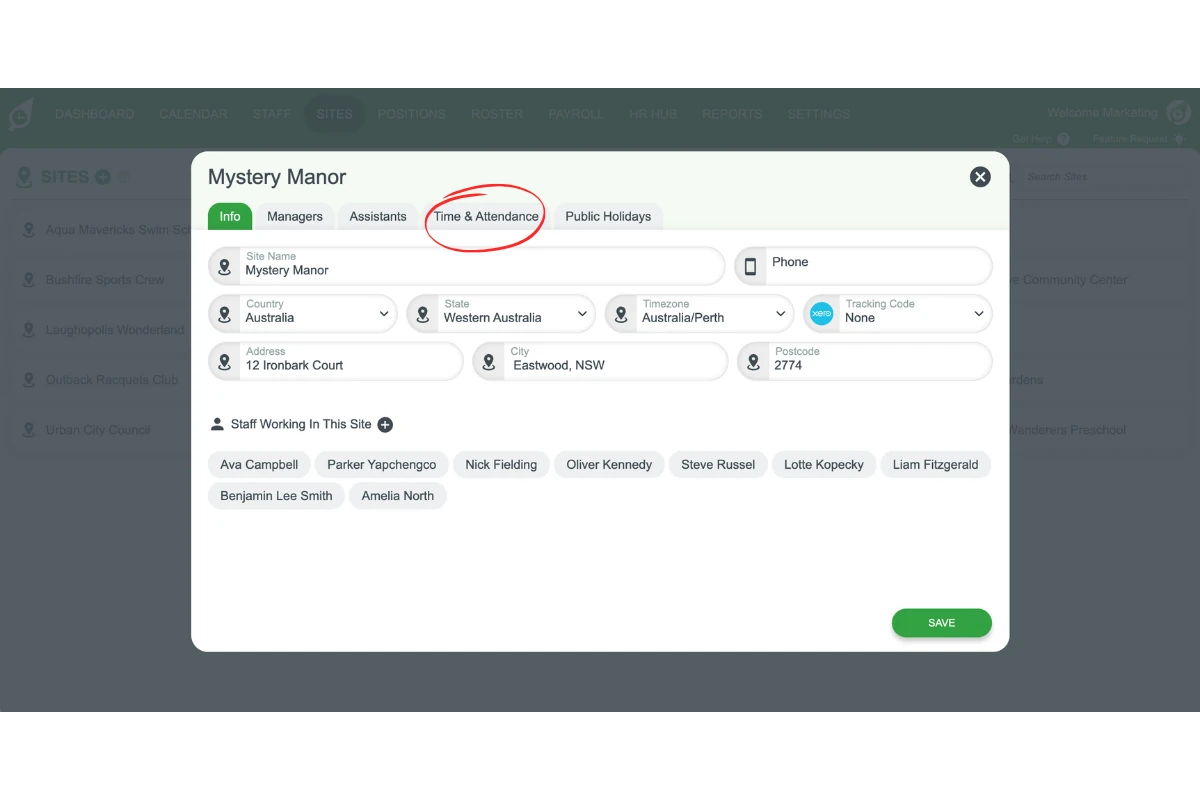
1.1.4 Press the Time & Attendance tab.
1.1.5 Toggle on Enable Phone Clock In/Out. Older versions label it Enable Smartphone Clock In and Out, as in the screenshot below.
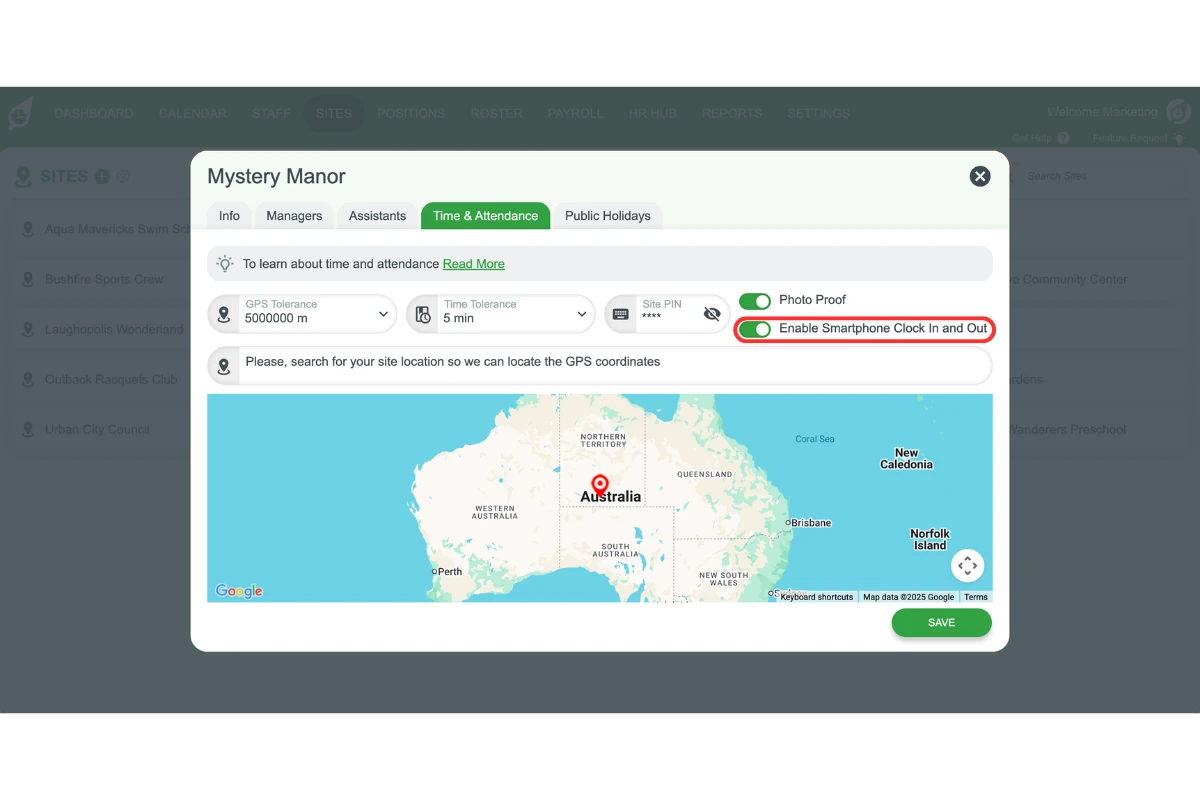
1.1.6 Press Save.
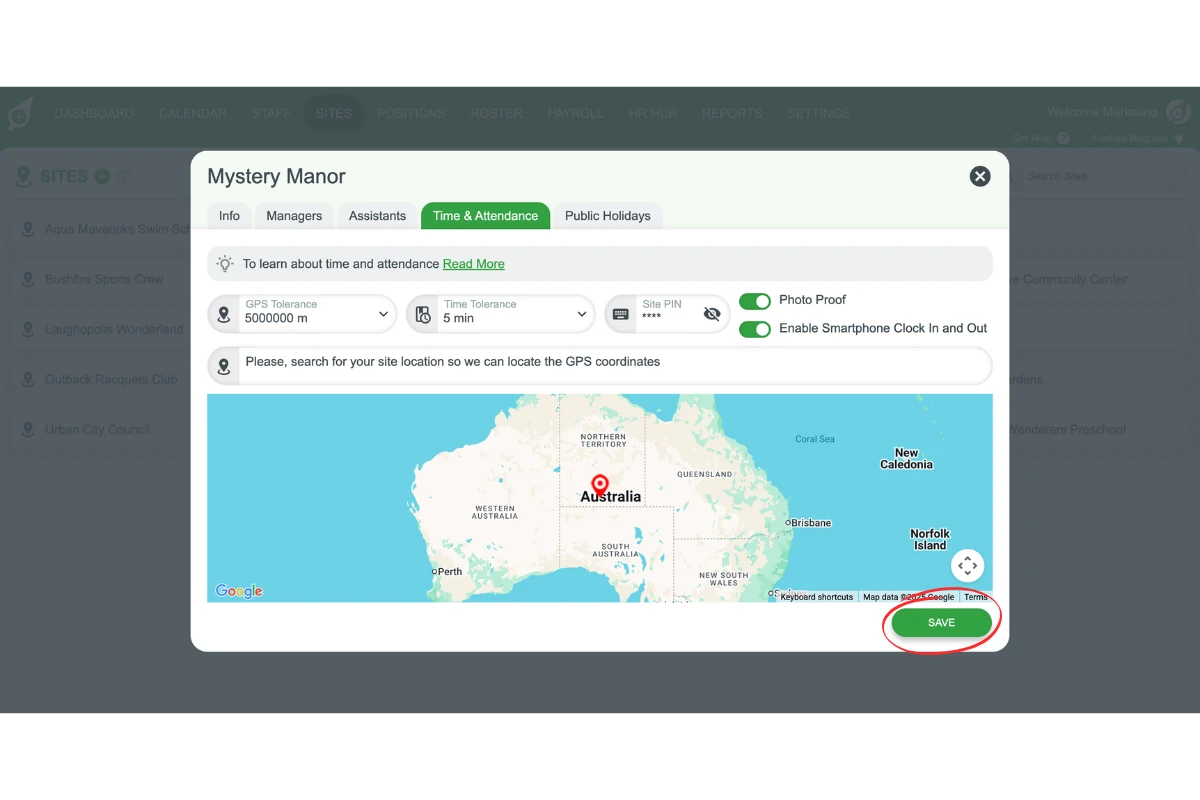
1.1.7 Repeat these steps for each site where you want the live time clock available.
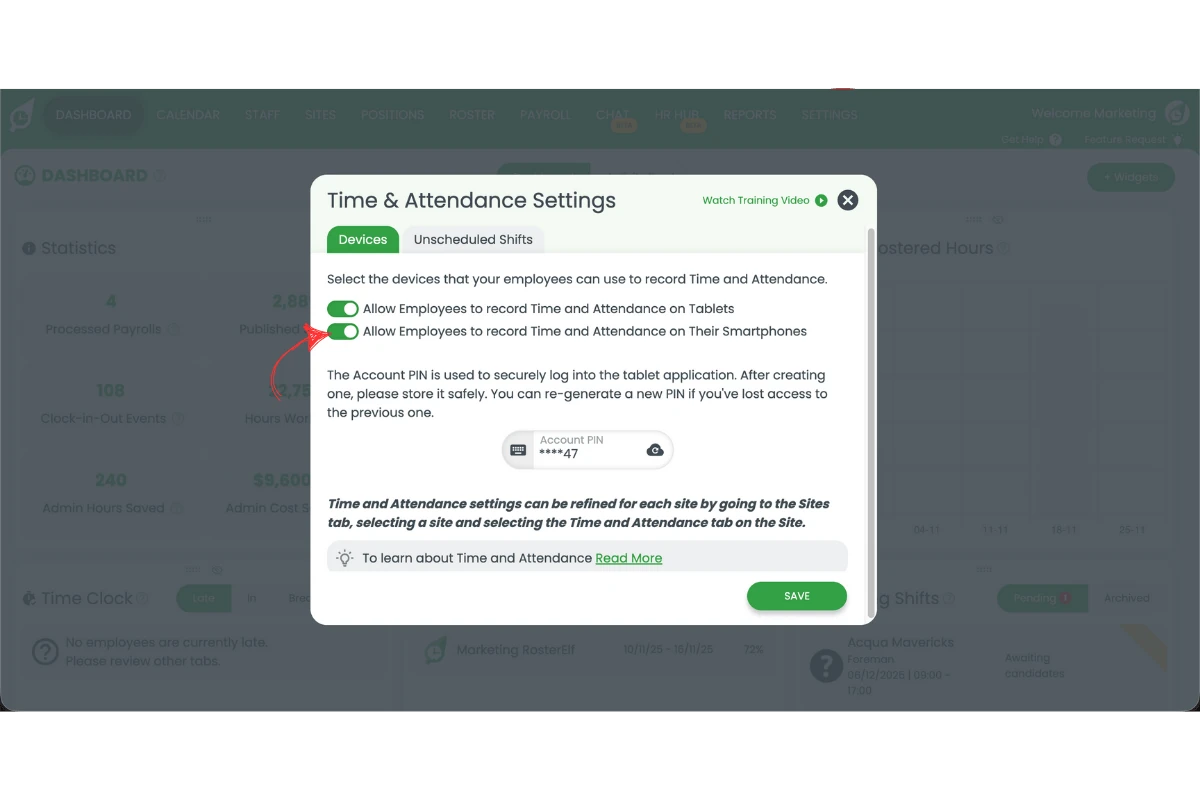
2. Turn on global time and attendance settings
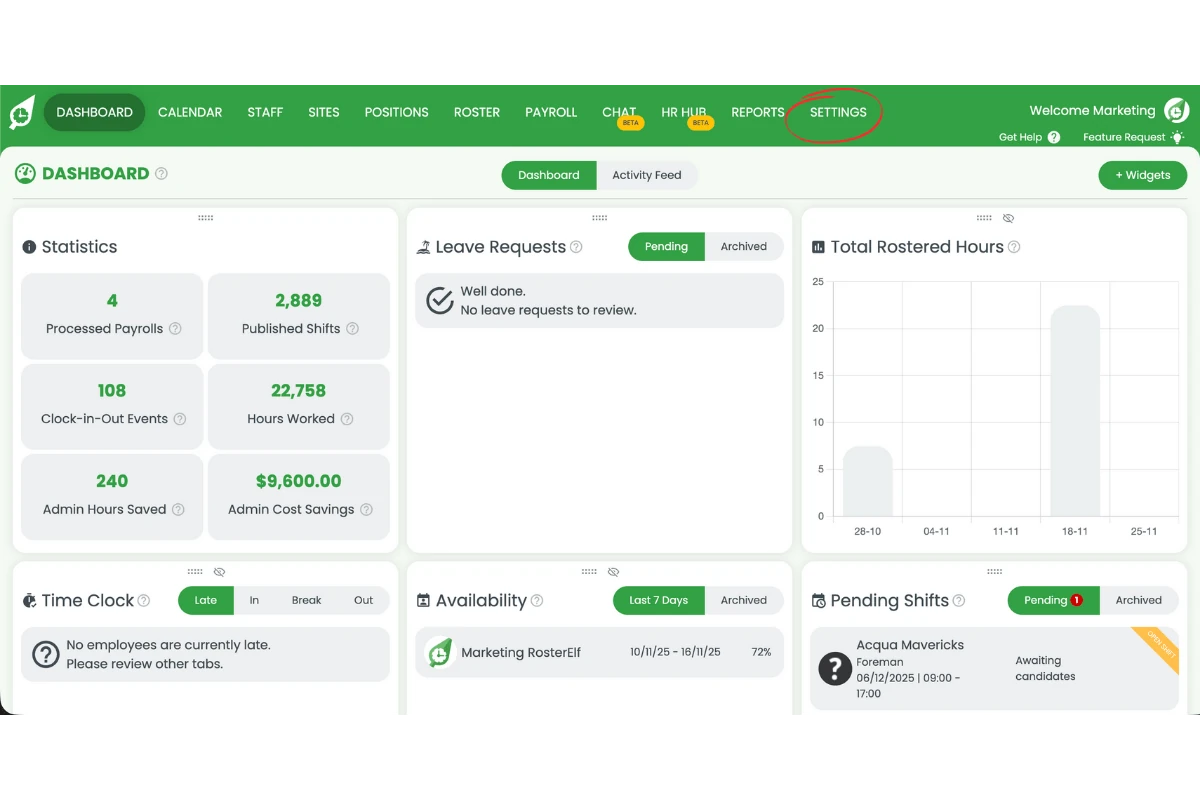
2.1 Press Settings.
2.2 Press Time & Attendance.
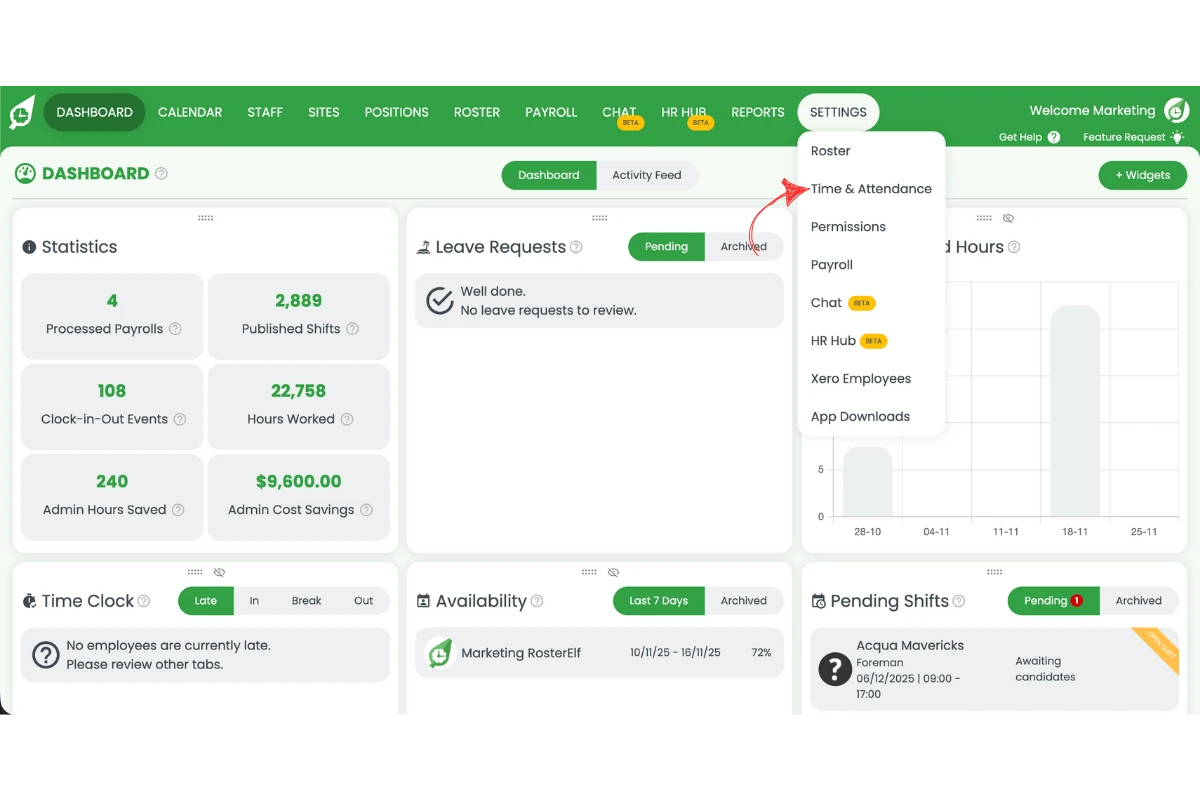
2.3 On the Devices tab, turn on Allow Employees to record Time and Attendance on Their Smartphones, then press Save.
Frequently asked questions
1. How do I turn on the live time clock in the RosterElf smartphone app?
You can turn on the live time clock by logging into RosterElf via a web browser, opening the Sites tab, selecting a site, and opening the Time & Attendance tab. From there, toggle on Enable Phone Clock In/Out. Repeat for each site you want to monitor.
2. Why should I enable the live time clock in RosterElf?
Enabling the live time clock gives managers real-time visibility of staff clock ins and clock outs. It improves accuracy in time tracking, reduces payroll errors, and ensures managers can monitor attendance instantly.
3. Can I enable the live time clock for only some sites in RosterElf?
Yes. You can choose which sites to enable. Simply repeat the setup steps for each site where you want live clock in and out data available on your smartphone app.
4. Do staff need to do anything to use the live time clock in the RosterElf app?
Staff do not need to configure anything themselves. However, two settings must be enabled by an administrator before clock-in controls appear on an employee’s shift card: Allow Employees to record Time and Attendance on Their Smartphones must be turned on for the account (Settings → Time & Attendance → Devices) and Enable Phone Clock In/Out must be on for the specific site the shift belongs to (Sites → [site] → Time & Attendance). Once both are confirmed on, the live time clock records attendance automatically.
5. Do I need to have both the Time and Attendance turned on in both sites and global setting to see the live Timeclock feed in the smartphone app?
Yes, both settings need to be enabled for the live time clock to work properly in the smartphone app.