

Filter staff by site, position, or name in RosterElf time clock
When managing multiple sites or a large workforce, narrowing down the staff list to only the relevant names is helpful. RosterElf’s Time Clock includes an advanced filter feature that lets you sort employees by site, position, or individual name. This ensures you can focus on the right team members at a glance. You also have the option to save your filtered view as a default, streamlining future use.
Following the steps below, you can quickly switch between different sites, filter specific roles, and even isolate certain employees. Whether you are handling a small location or juggling multiple venues, the Time Clock’s filtering system helps you stay organised. Continue reading to learn how to use these filters effectively and save time during daily management tasks.
1. Use advanced filters
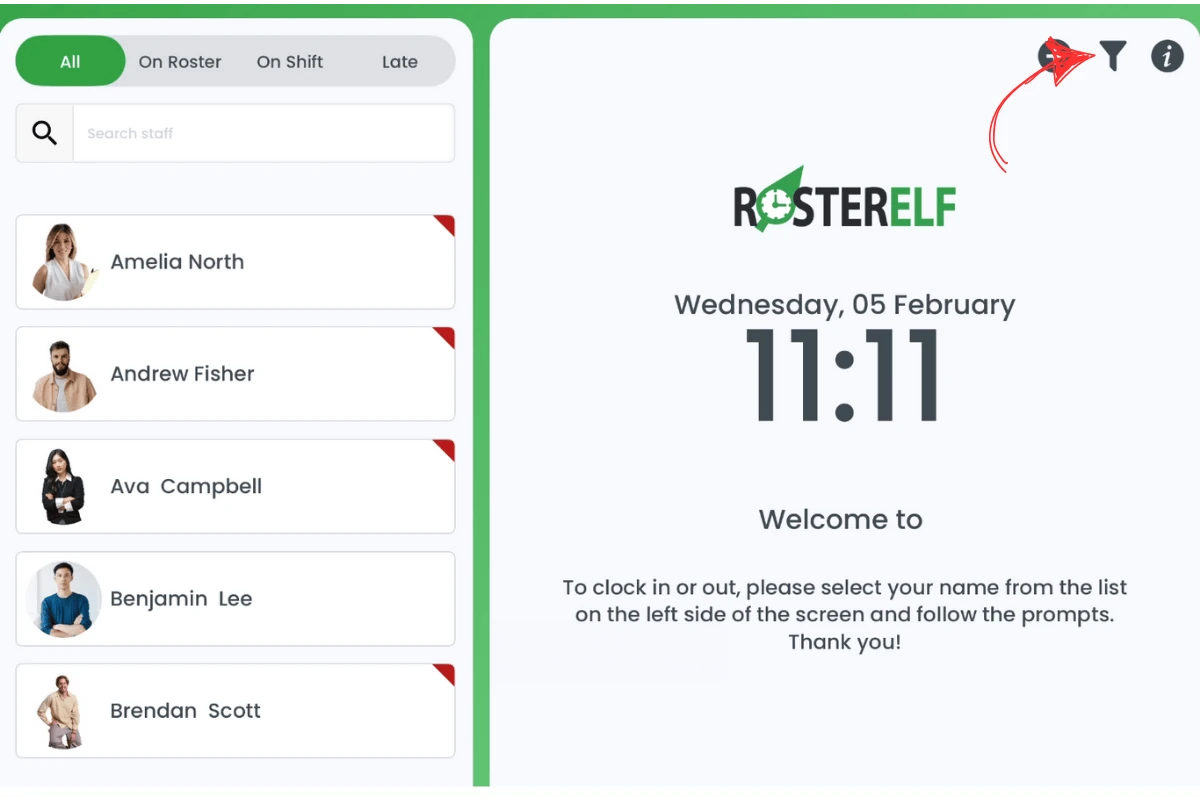
1.1.1 Tap the filter icon at the top right of the screen.
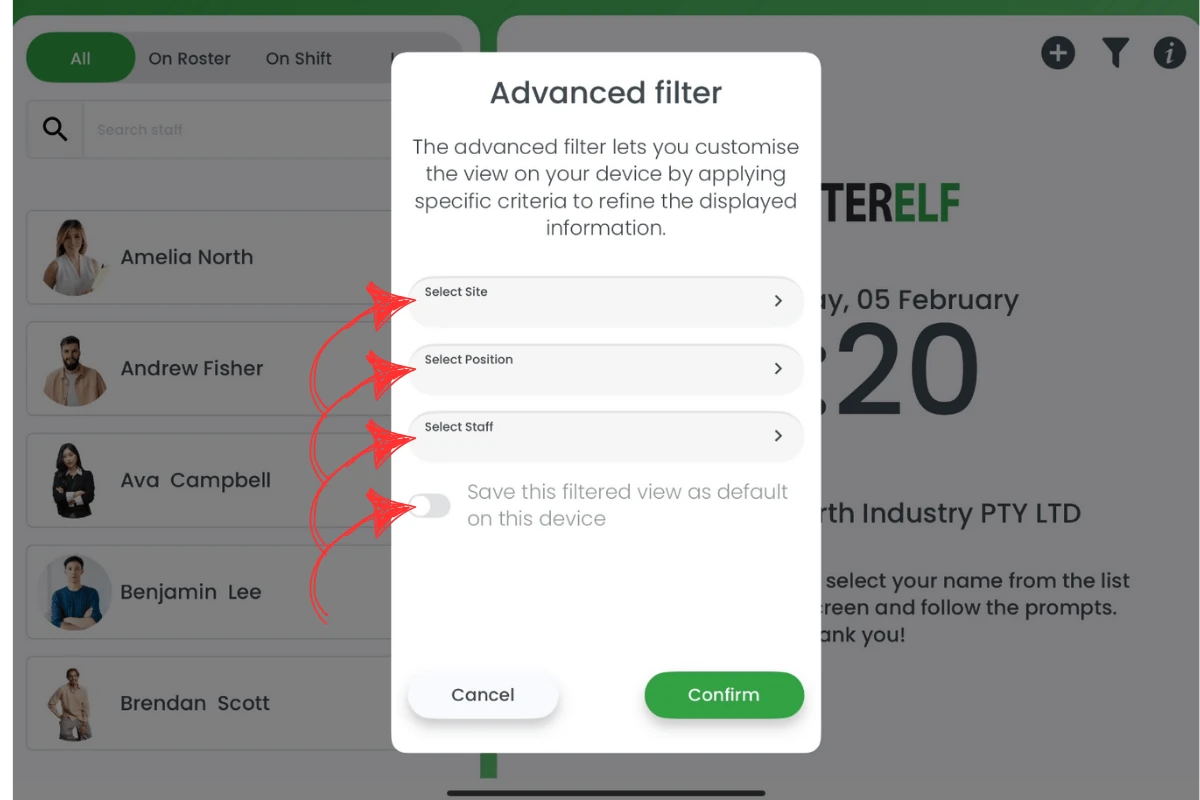
1.1.2 In the advanced filter pop-up, choose the site you wish to view from the dropdown menu.
1.1.3 Filter by position if you only want to see staff in a specific role.
1.1.4 Narrow down the list further by staff name, selecting the individual you need.
1.1.5 Save the view as a default if you want the same filtering to appear each time you open the app.
Frequently asked questions
1. Will the filters affect other managers' views?
No, your filter settings are specific to your session. Other managers can set their own filters independently.
2. Do I need manager access to use the advanced filter?
All authorised users can use filters, but only managers or admins may see certain sites or positions, depending on permissions.
3. Will the default filter remain after I close the app?
Yes, if you save the filter as default, it will appear each time you launch the Time Clock on that device.
4. Can I filter by multiple criteria at once?
Yes, you can select a site, position, and staff member simultaneously to narrow down the list extensively.
5. Will these filters update automatically when new staff or sites are added?
Yes, the filter dropdown menus will include any newly added sites, positions, or staff in real time.