

Managing staff filters in RosterElf
The Staff tab in RosterElf offers a variety of filters to help you manage your team effectively. These filters allow you to assess staff permissions and ensure that everyone is set up correctly within the platform. By using these filters, you can identify staff who have yet to log in, those missing essential pay templates, or employees not synced with Xero.
1. Understanding staff filters in RosterElf
RosterElf’s Staff tab includes two main filter categories: Status and Permission Level. These filters help you keep track of important staff details and streamline user management.
1.1 using status filters
Status filters allow you to view specific staff attributes like login status, pay templates, Xero syncing, salary settings, and MFA status.
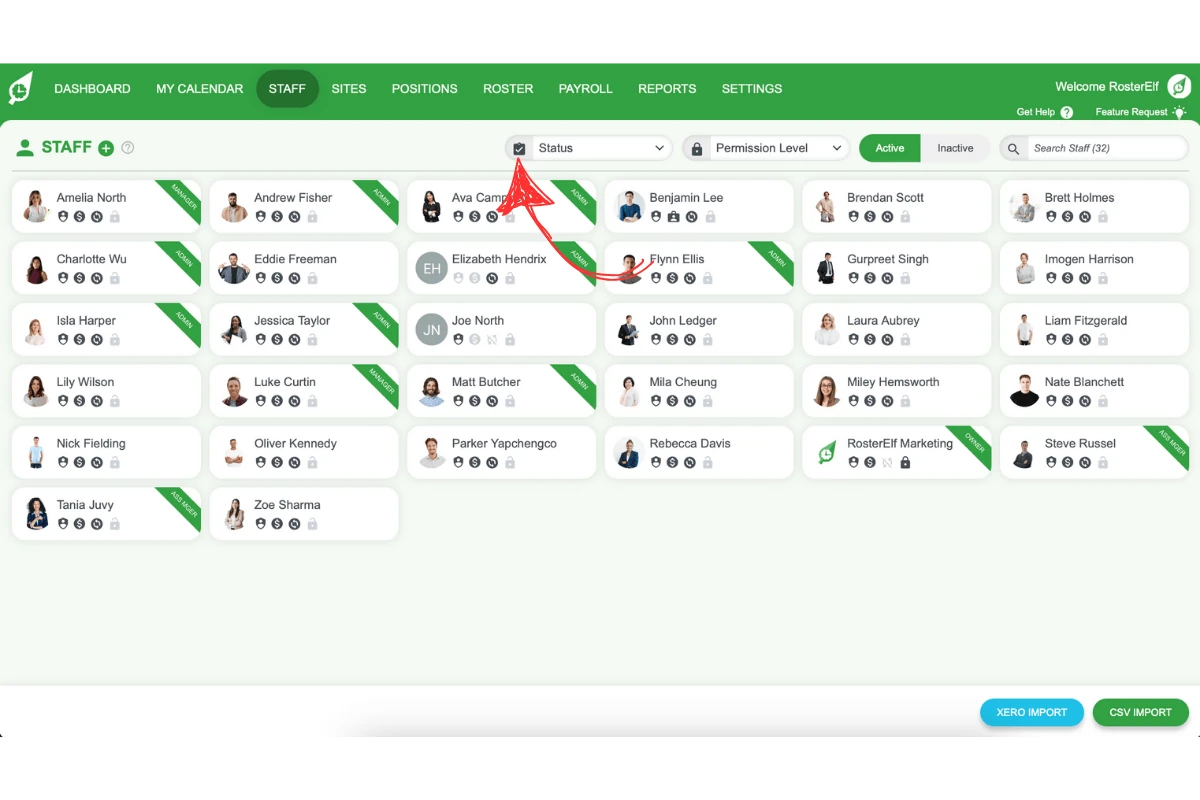
1.1.1 Yet to Login - Select this filter to display staff who haven’t logged into RosterElf. A login icon indicates whether the staff has logged in before.
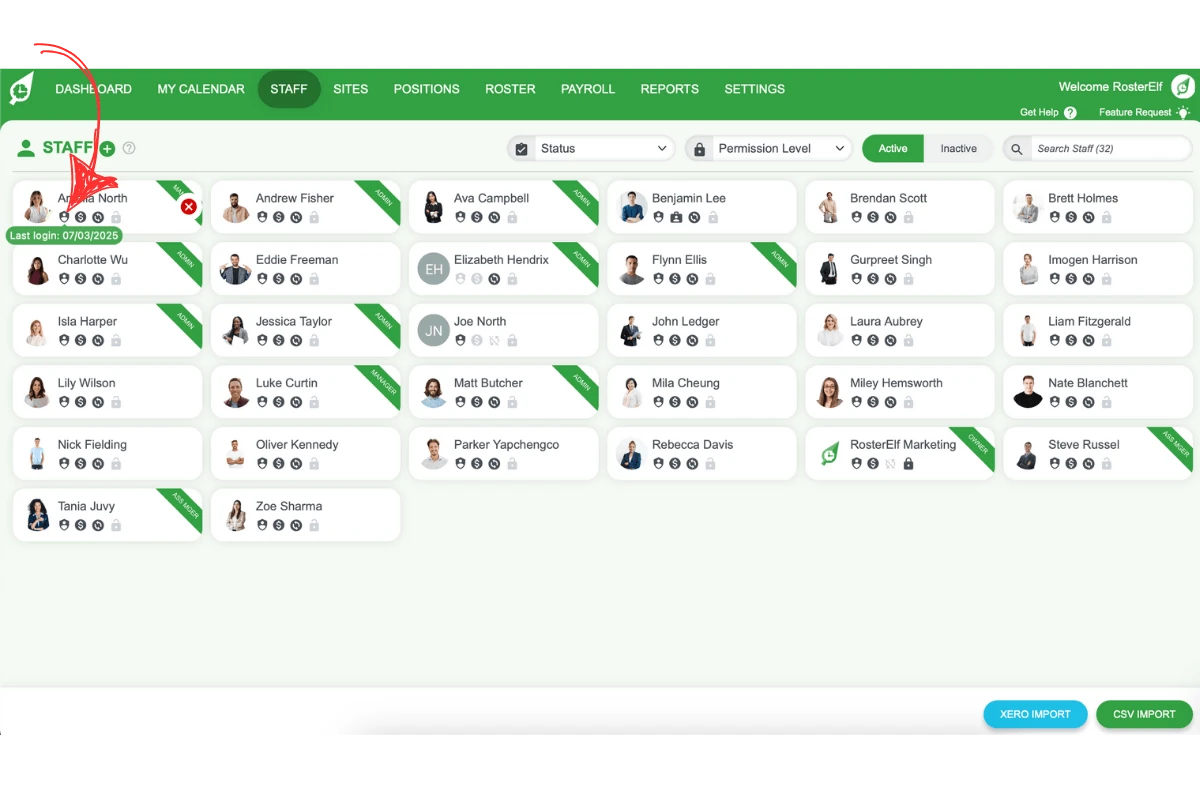
1.1.2 Missing Pay Template - Use this filter to identify staff members without a Pay Template in their Staff card for all applicable Positions or Sites.
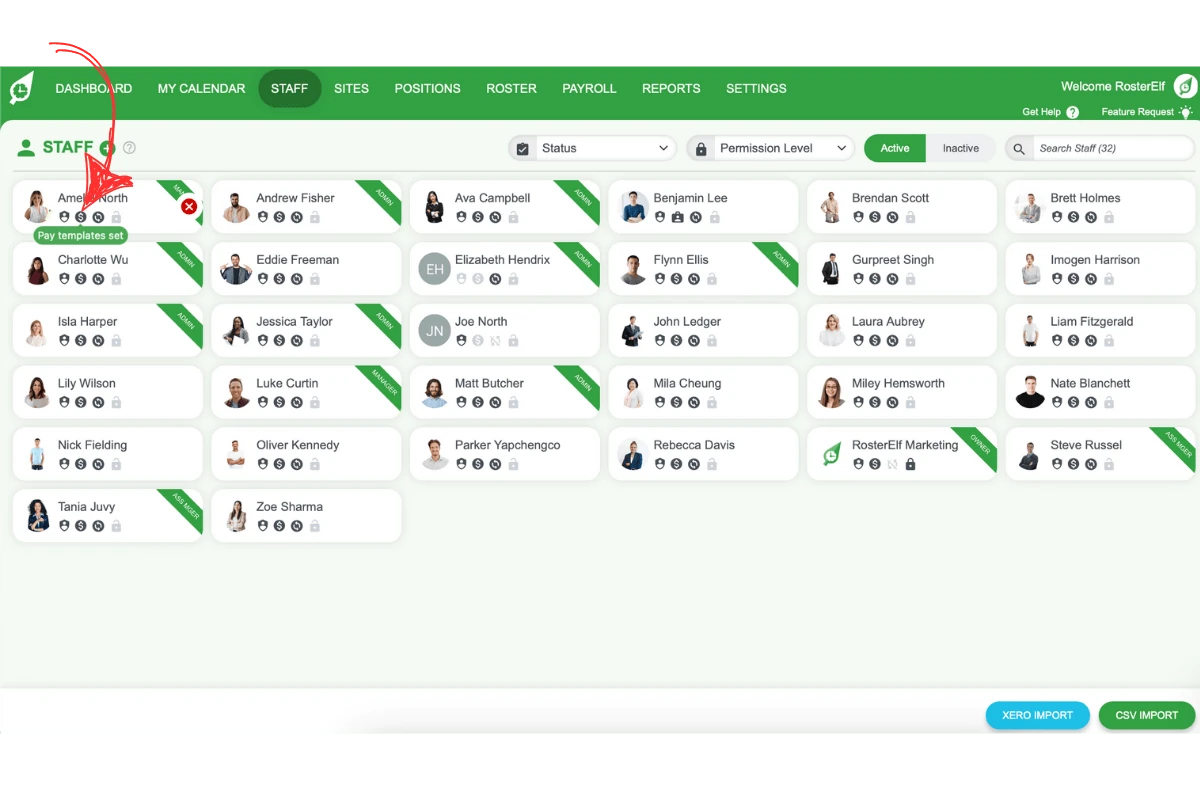
1.1.3 Not Synced to Xero - For Xero users, this filter shows staff who aren’t correctly synced with Xero.
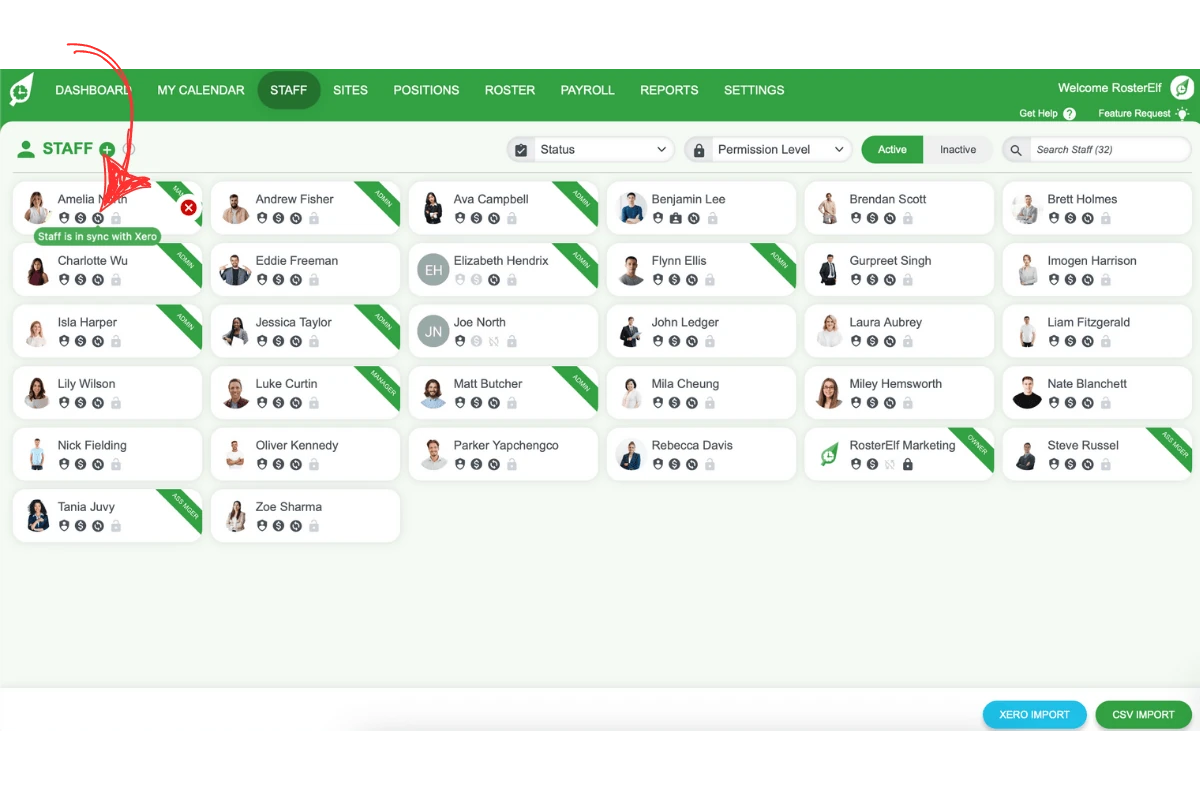
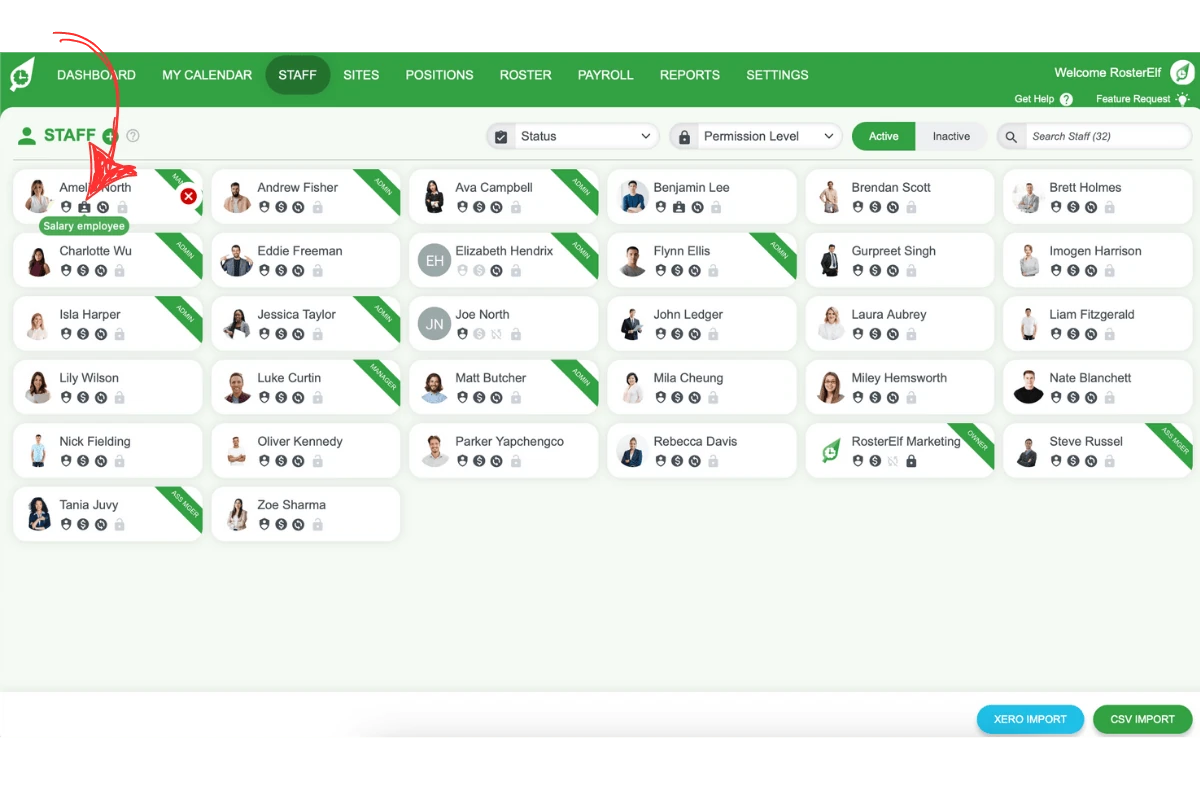
1.1.4 Salary Employees - Select this filter to display staff classified as salary employees.
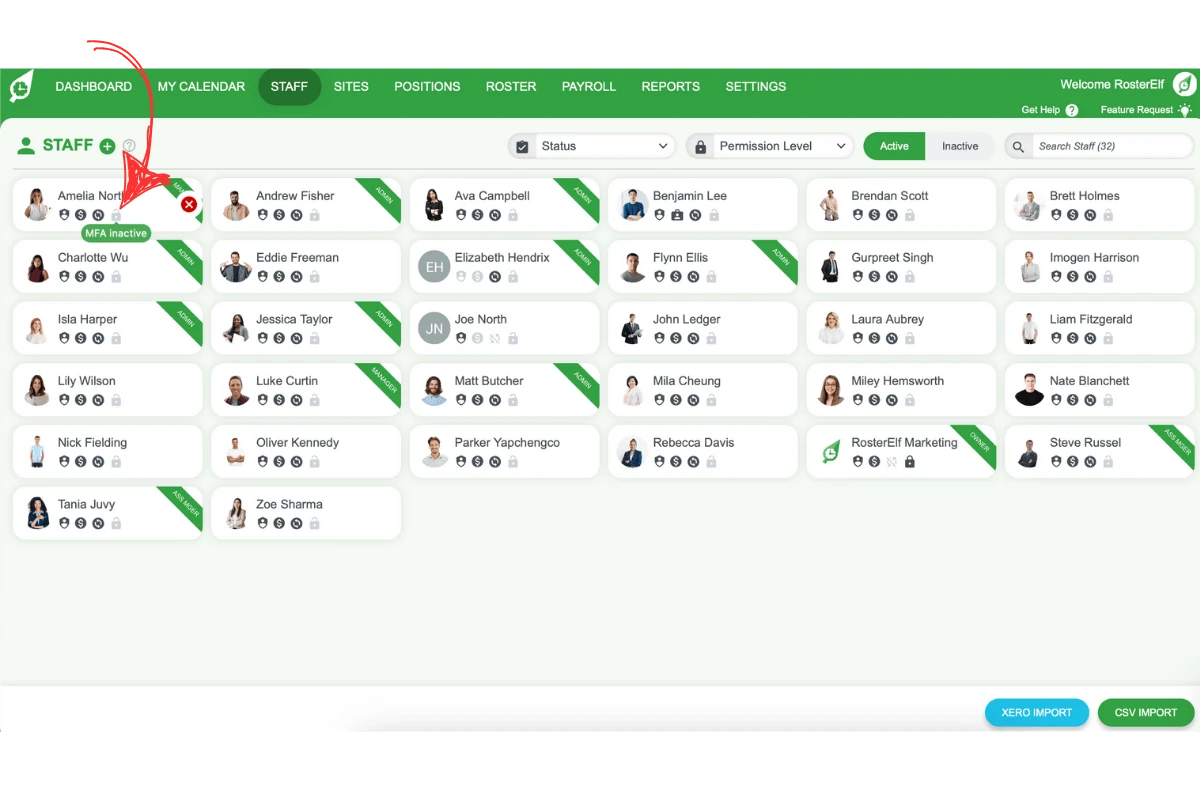
1.1.5 MFA - This icon allows you to see which staff have enabled Multi-Factor Authentication.
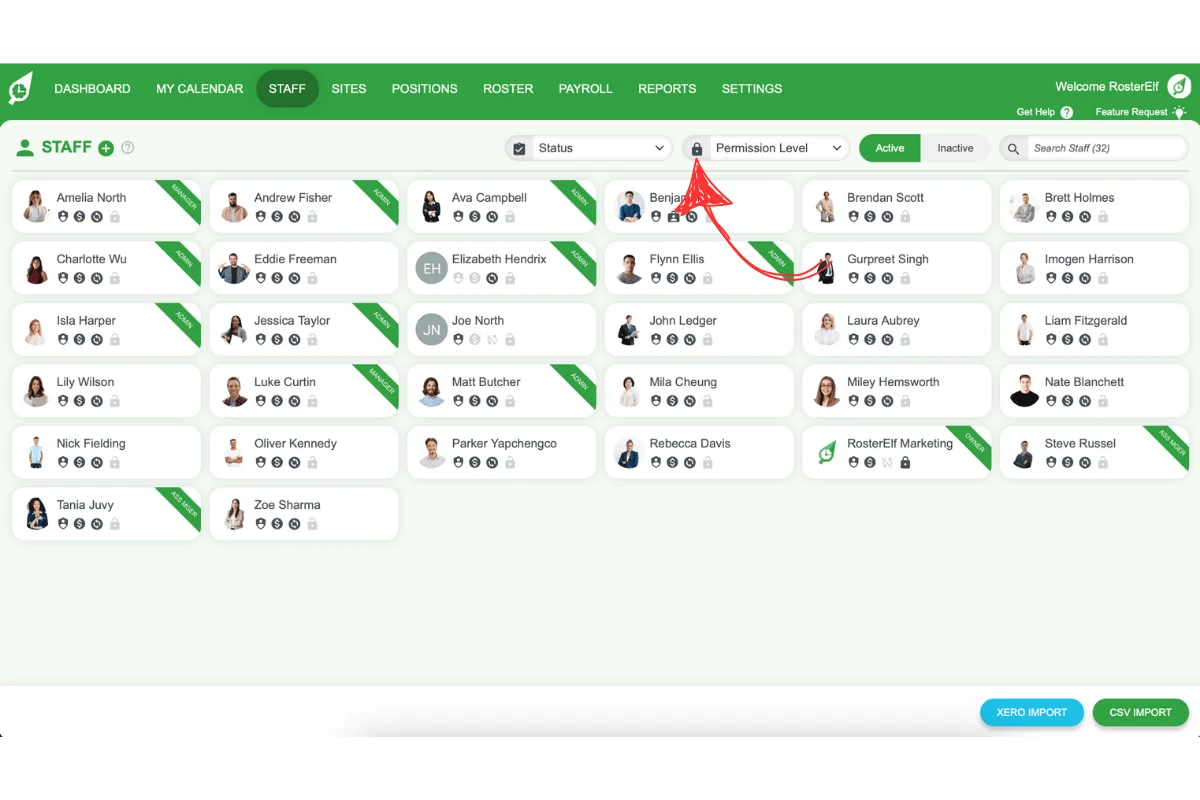
1.2 using permission level filters
Permission Level filters provide visibility into which staff members hold different permission levels within your RosterElf account.
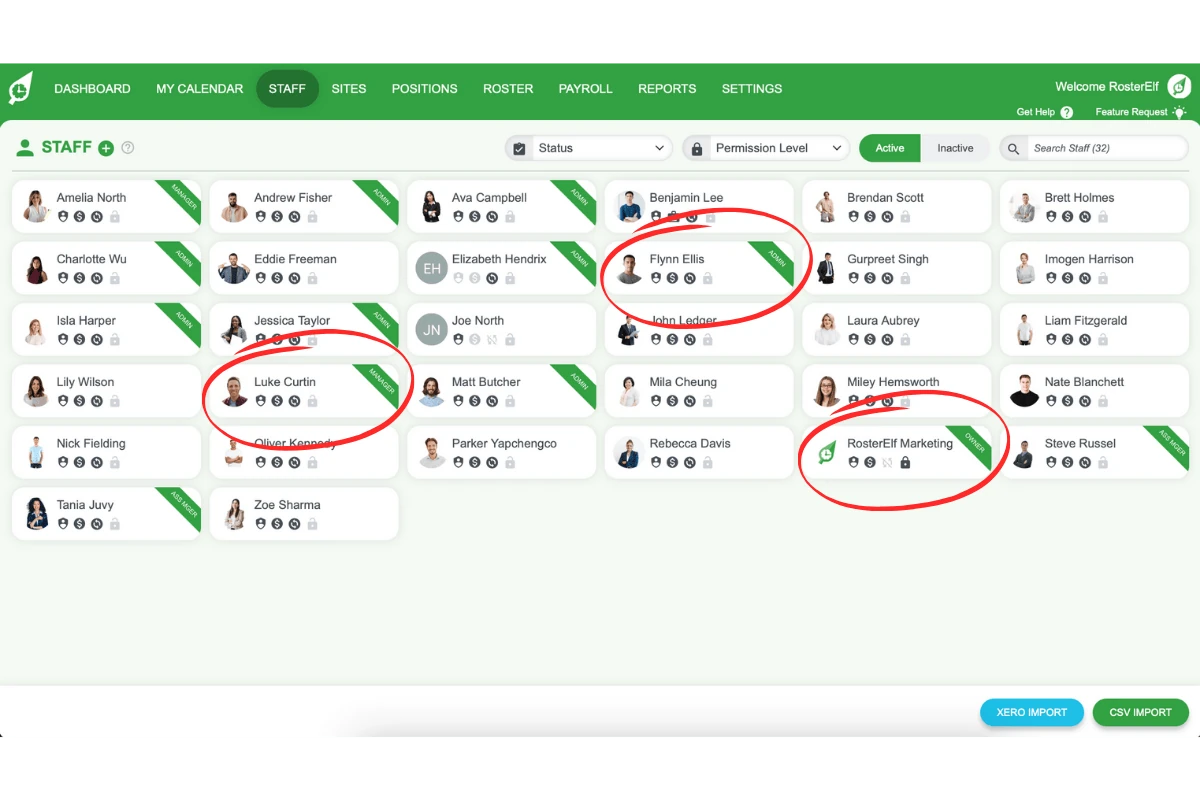
1.2.1 Elevated Permission - Any staff member with elevated permissions will have a banner on their profile in the staff list.
Frequently asked questions
1. How can I filter staff who haven't logged into RosterElf?
Use the Yet to Login filter in the Staff tab to identify team members who haven’t logged into RosterElf yet. This includes logins via smartphone or web browser.
2. How do I find staff without a pay template in RosterElf?
Select the Missing Pay Template filter to locate staff members who do not have a Pay Template assigned in their Staff card for all applicable positions and sites.
3. What should I do if staff are not synced with Xero?
Use the Not Synced to Xero filter to identify unsynced staff. Resolve syncing issues through the Xero Employees setting or create a new staff record directly from RosterElf.
4. How do I identify salary employees in RosterElf?
Use the Salary Employees filter to view staff classified as salary employees. A salary icon replaces the pay template icon for those staff members.
5. How can I check which staff have enabled MFA in RosterElf?
Use the MFA icon to see which staff have activated Multi-Factor Authentication, ensuring that staff accounts are secure with an additional layer of security.