

This article explains how to view the roster wage report in RosterElf. The report helps managers compare rostered wage costs across sites and time periods to manage labour budgets effectively. By reviewing this report, you can identify trends in rostered spending, assess wage allocation, and ensure your rosters align with financial goals. With this guide, you’ll learn how to open the Reports tab, access the Roster Wage Report, apply date filters, and export results.
Following these steps helps you maintain control over rostered labour costs and make informed scheduling decisions that support your business objectives.
Learn about the financial summary here: Financial summary and roster budgeting
Learn about setting actual revenue in payroll here: Viewing costs and adding revenue on payroll
1. Generate a roster wage report
This section explains how to generate the Roster Wage Report in the RosterElf web app. Use this report to review total rostered wages by date range, site, or department. Applying the correct date filters ensures your report displays the most relevant financial data for review and planning.
1.1 open the reports tab
1.1.1 Log in to your RosterElf account.
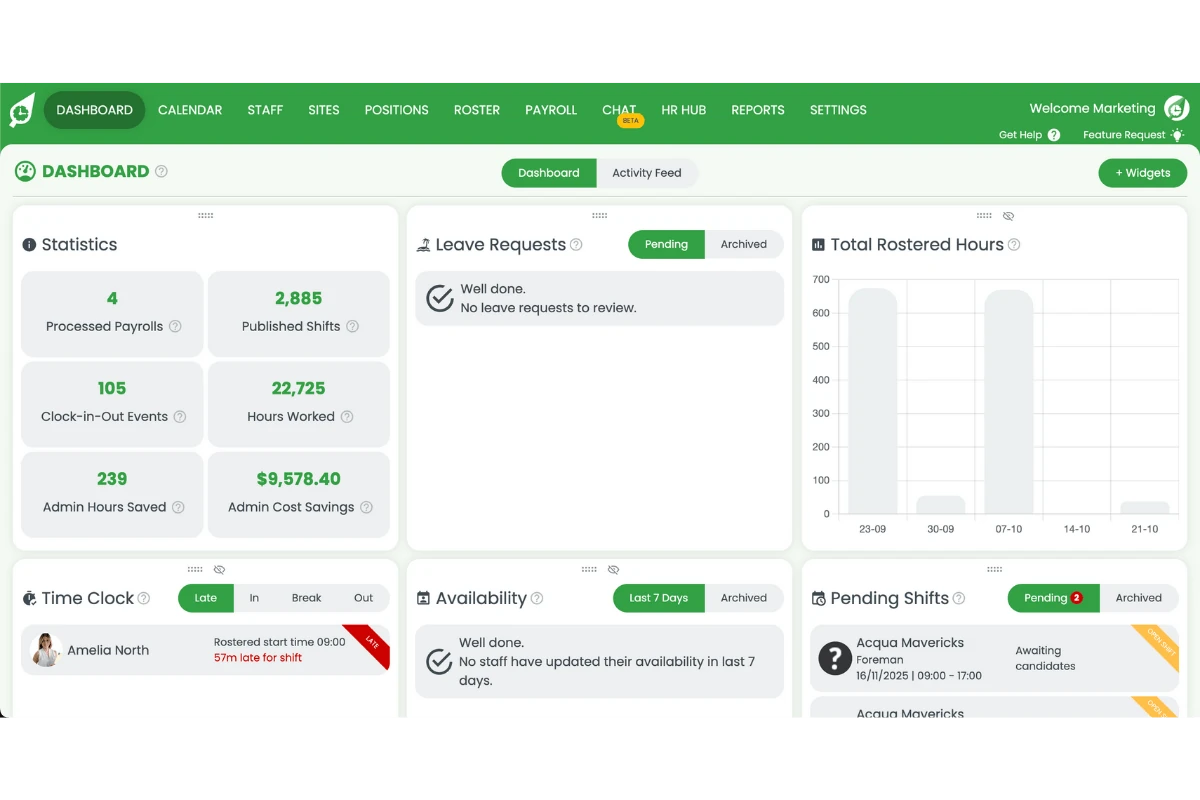
1.1.2 Click the Reports tab on the top menu.
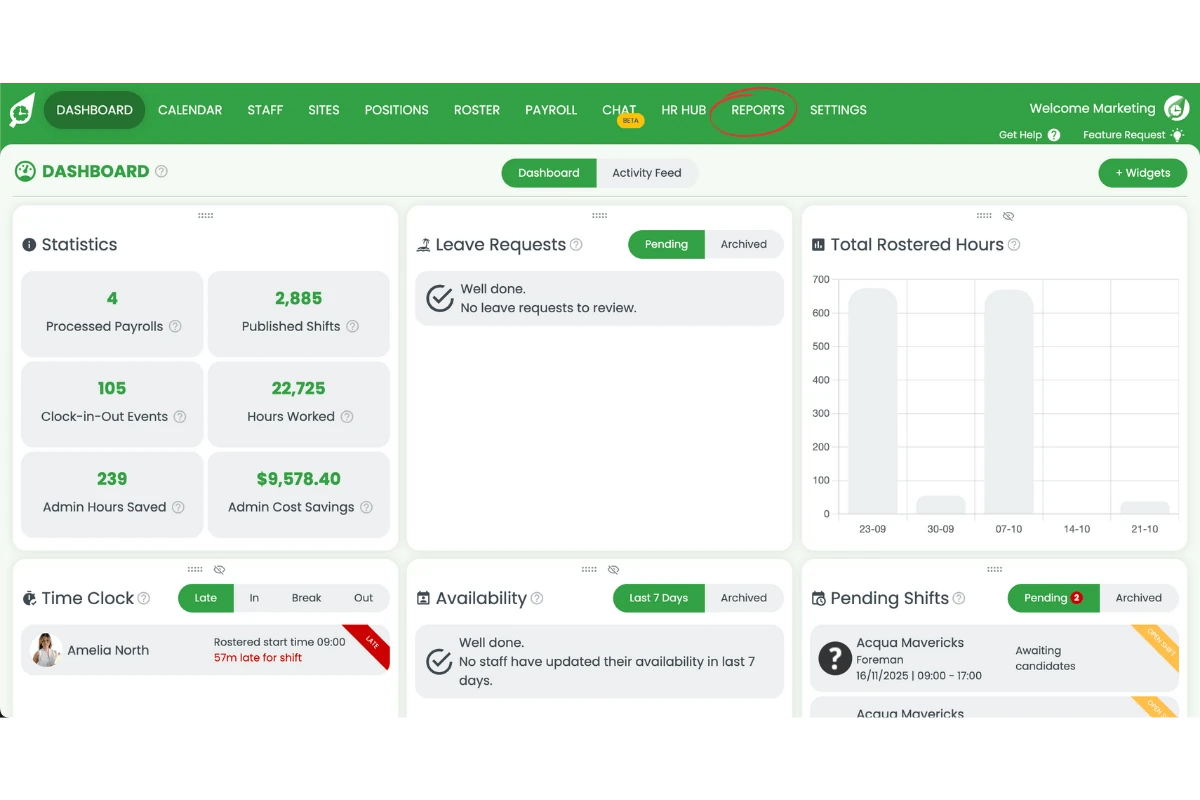
1.2 access the roster wage report
1.2.1 Find Roster Wage Report in the list — reports sit in collapsed groups, so expand the group that holds it.
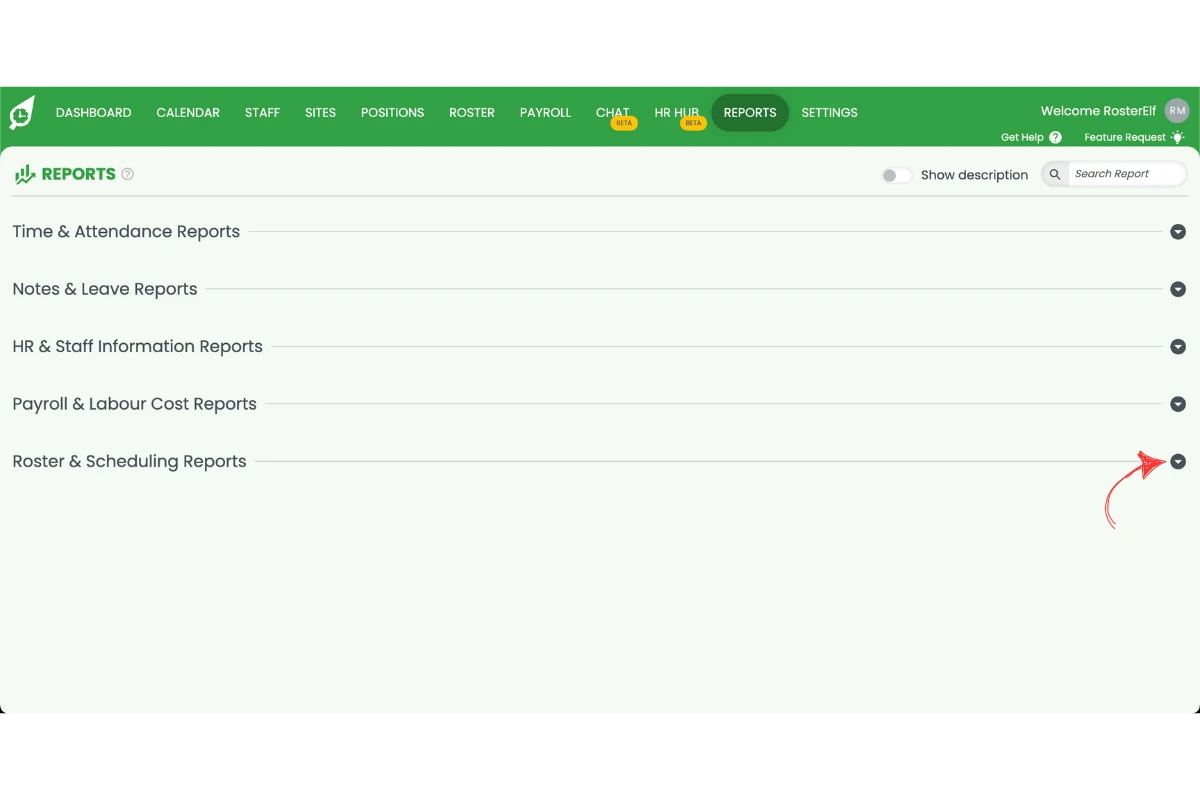
1.2.2 Click the report name to open it.
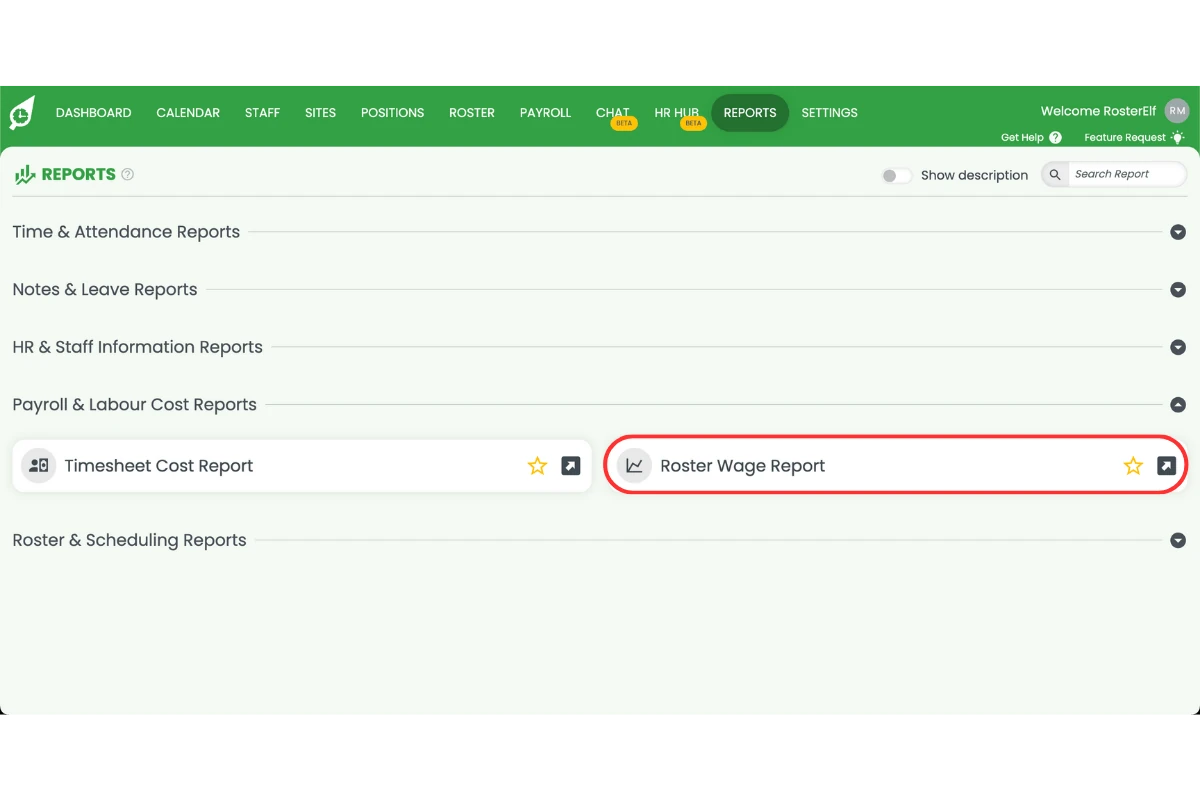
1.3 apply filters and run the report
1.3.1 Apply the date range for your report.
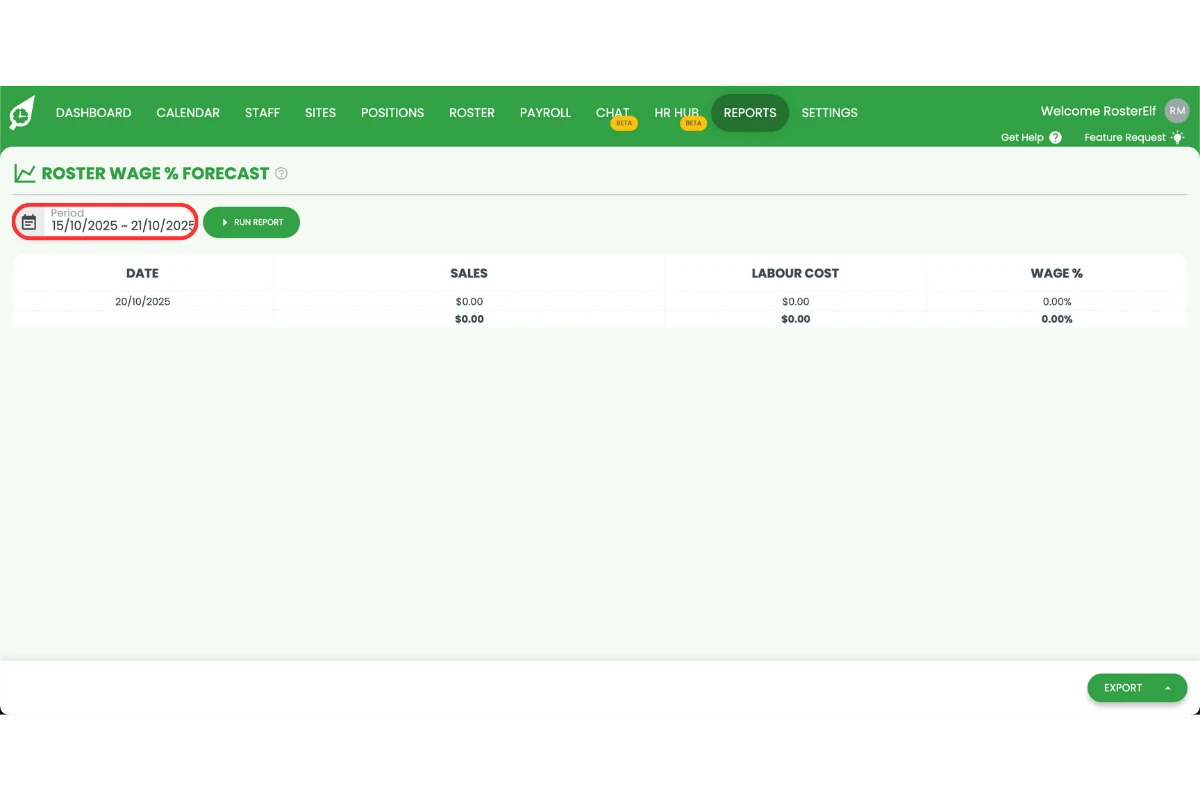
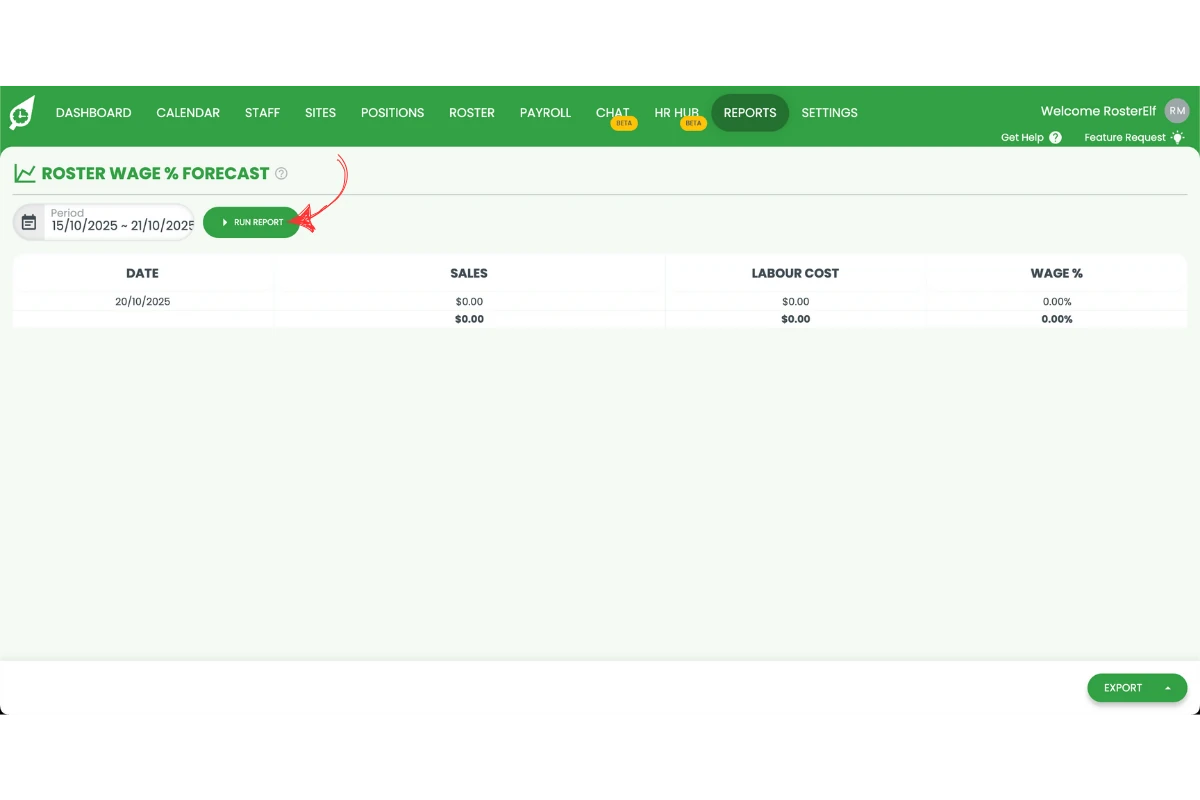
1.3.3 Click Run Report to generate results.
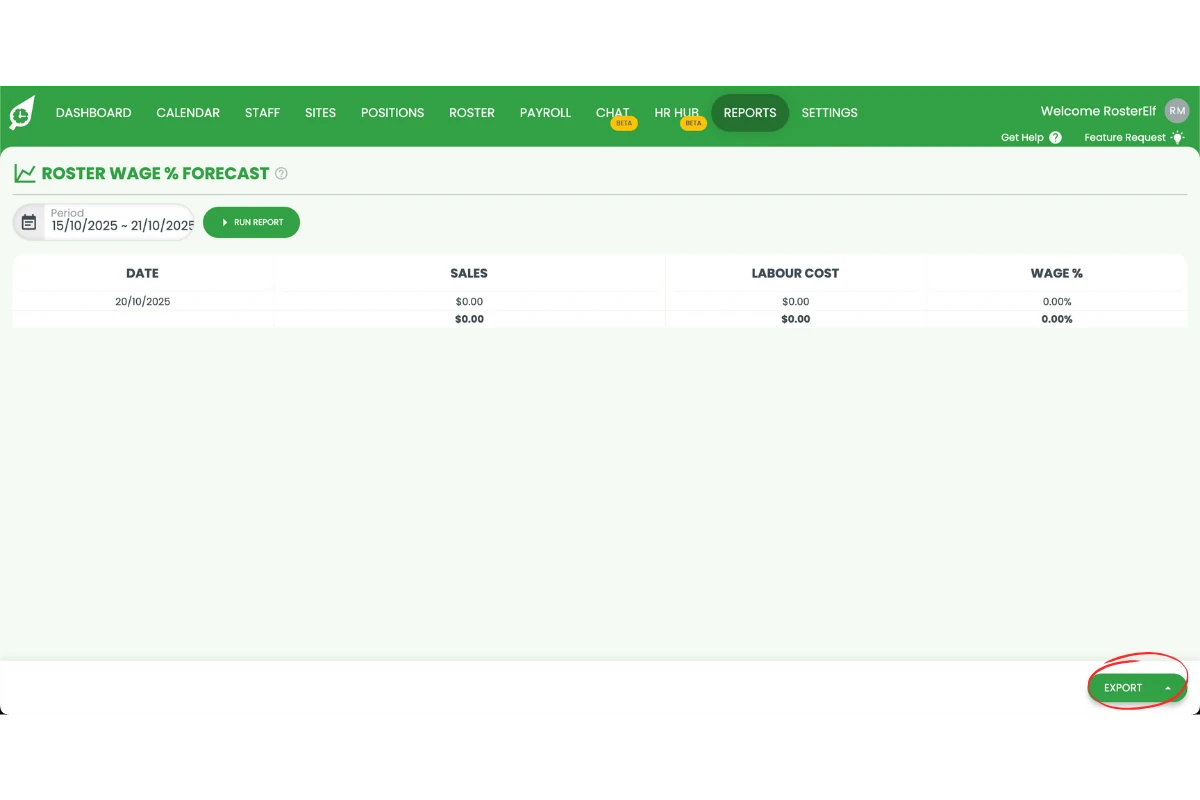
1.4 export the report
1.4.1 Click Export to download the report if required.
FAQs about the roster wage report
1. What is the roster wage report in RosterElf?
The roster wage report in RosterElf provides an overview of total rostered wage costs for selected time periods, sites, or departments. It helps managers compare wage spending and assess how well rosters align with business budgets.
2. How do I access the roster wage report?
To access the roster wage report, log in to your RosterElf account, click the Reports tab, and locate the Roster Wage Report from the list. You can use the search bar to find it quickly.
3. Can I filter the roster wage report by site or date?
Yes. You can apply filters such as date range, site, and department to focus on the most relevant financial data. Filtering helps you analyse wage trends more effectively.
4. How do I export the roster wage report?
After generating your report, click Export to download it. The exported file lets you review rostered labour costs offline or share results with other team members.
5. Why should I use the roster wage report?
Using the roster wage report helps you manage labour budgets efficiently. By reviewing rostered wage trends, you can make informed scheduling decisions, maintain financial control, and align staffing levels with business goals.
6. Why is are my sales showing as $0.00?
To set your actual sales, follow this guide: Viewing costs and adding revenue on payroll
7. Can I run the roster wage report for more than 3 months?
No, the roster wage report can only process data for a maximum of 3 months per report. To analyze roster wage costs over longer periods, run multiple 3-month reports and combine the results. This ensures the system processes your data efficiently while maintaining report accuracy.