

This article explains how to view the timesheet cost report in RosterElf. The report helps managers compare rostered hours against actual hours worked and review total labour costs across their business. By analysing this report, you can ensure payroll accuracy, manage budget performance, and identify areas for cost optimisation.
With this guide, you’ll learn how to open the Reports tab, locate the Timesheet Cost Report, apply filters, and export results. Following these steps allows you to quickly review labour spending and maintain efficient workforce management.
Learn more about costs in Rosterelf here: Viewing costs and adding revenue on payroll
1. Generate a timesheet cost report
This section explains how to generate the Timesheet Cost Report from the RosterElf web app. Use this report to view the financial summary of shifts worked, including costs by employee, site, or date range. Applying the correct filters ensures you receive accurate and relevant results for your business review.
1.1 open the reports tab
1.1.1 Log in to your RosterElf account.
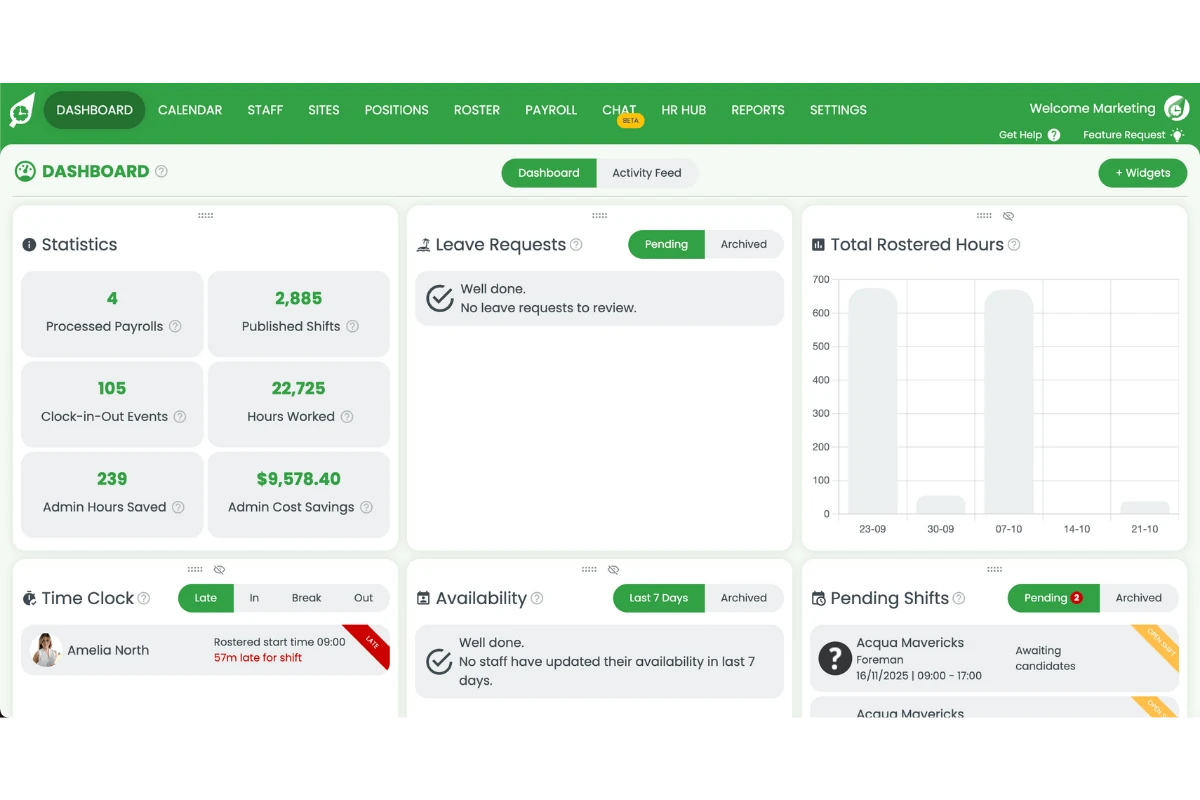
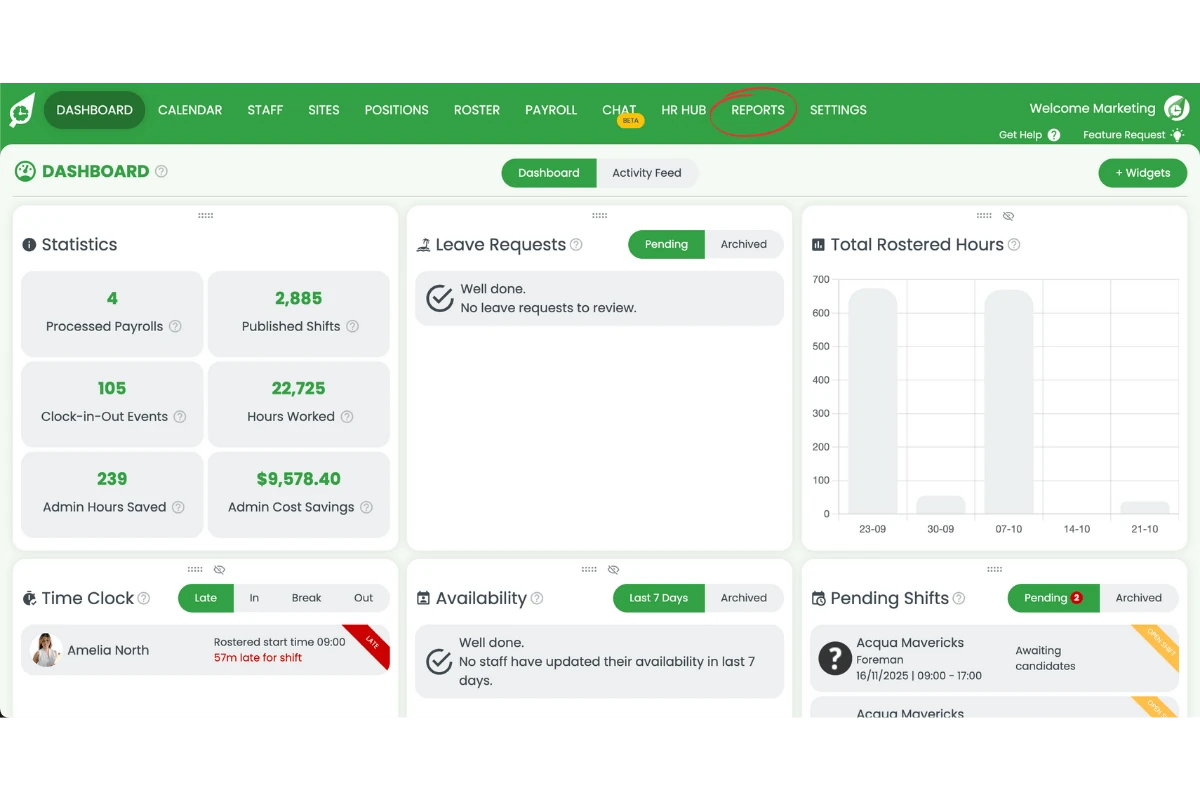
1.1.2 Click the Reports tab on the top menu.
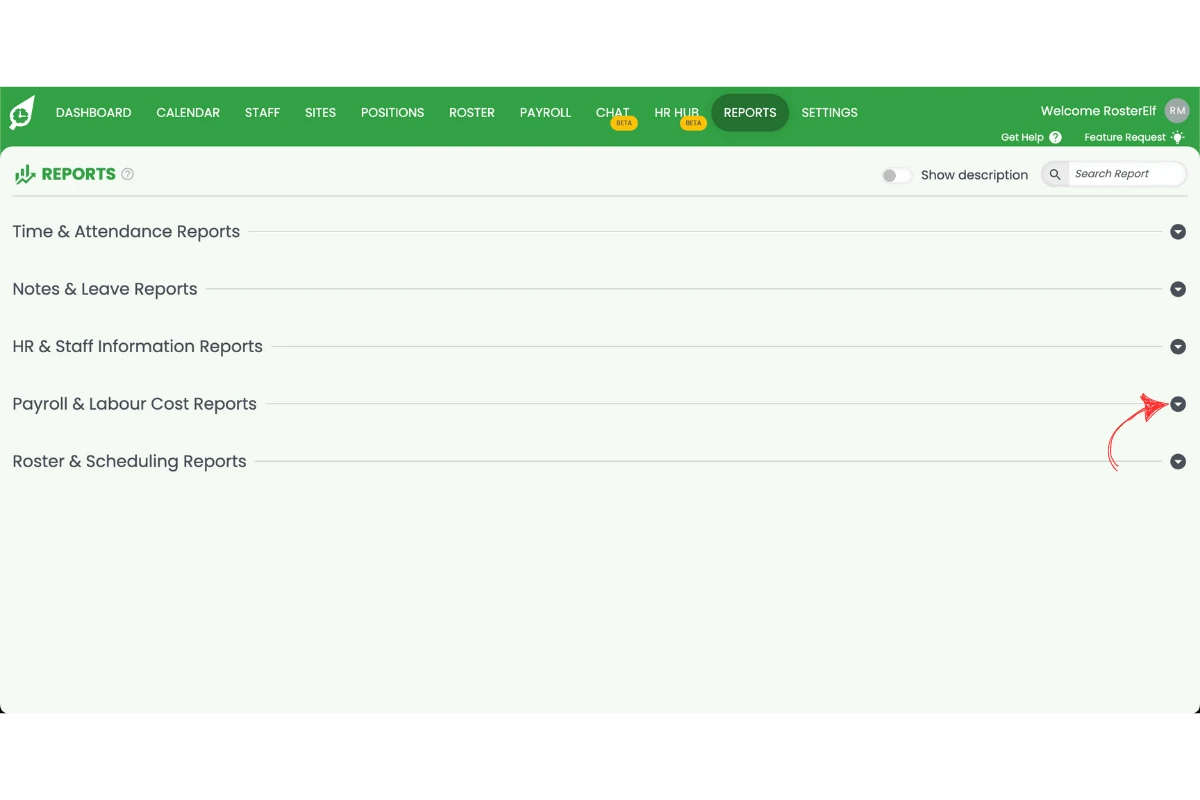
1.2 access the timesheet cost report
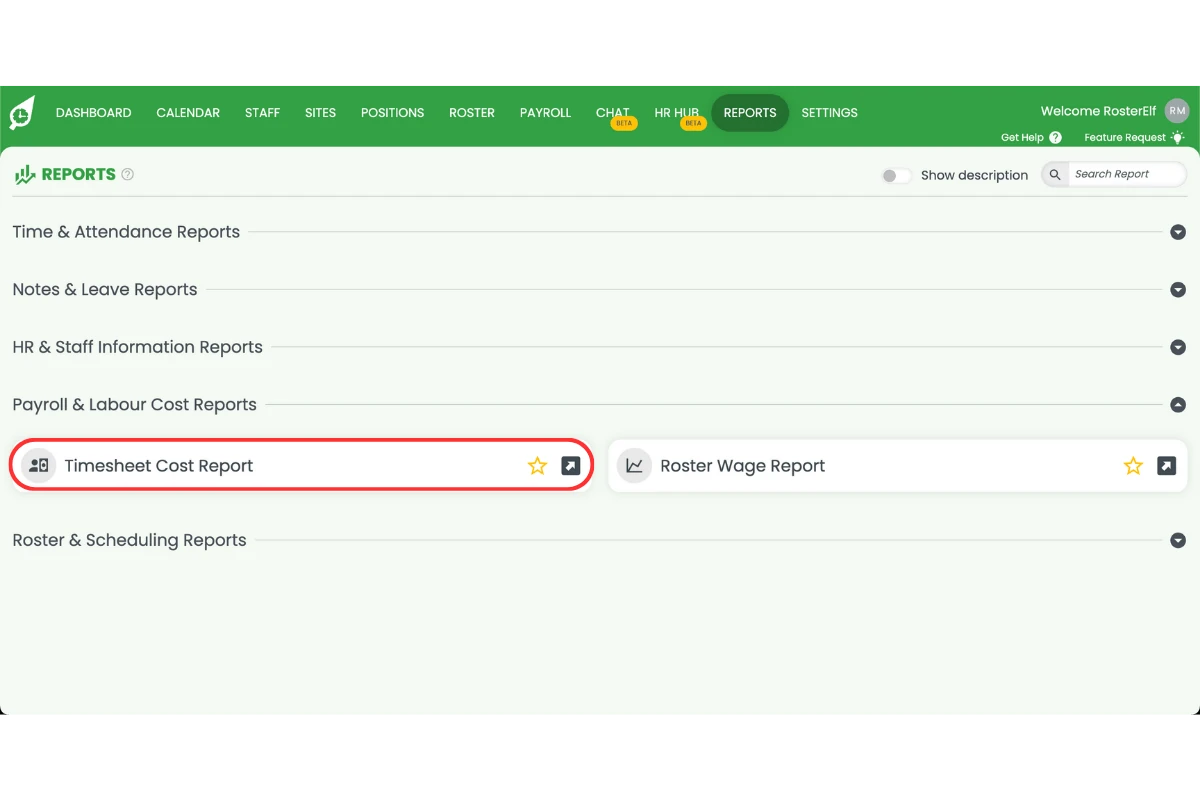
1.2.1 Find Timesheet Cost Report in the report list — reports sit in collapsed groups, so expand the group that holds it.
1.2.2 Click the report to open it.
1.3 adjust filters and run the report
1.3.1 Select filters such as date range, site, or employee as needed.
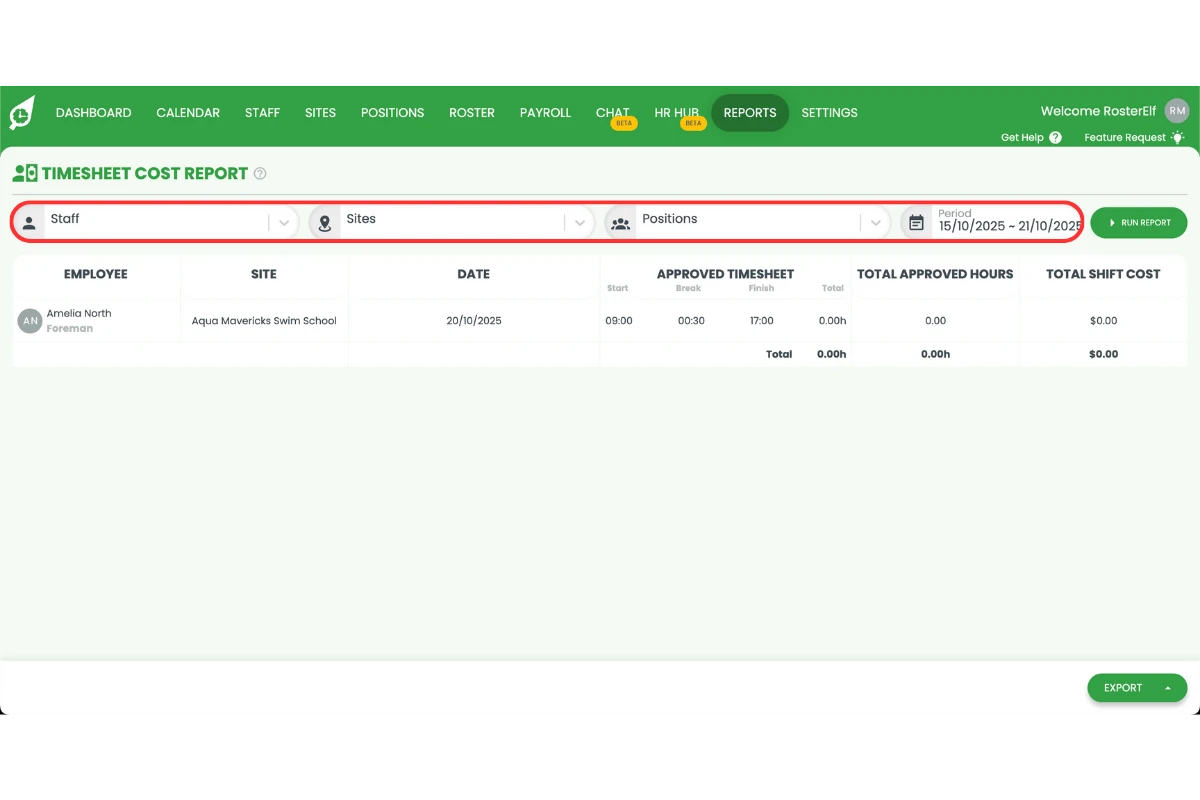
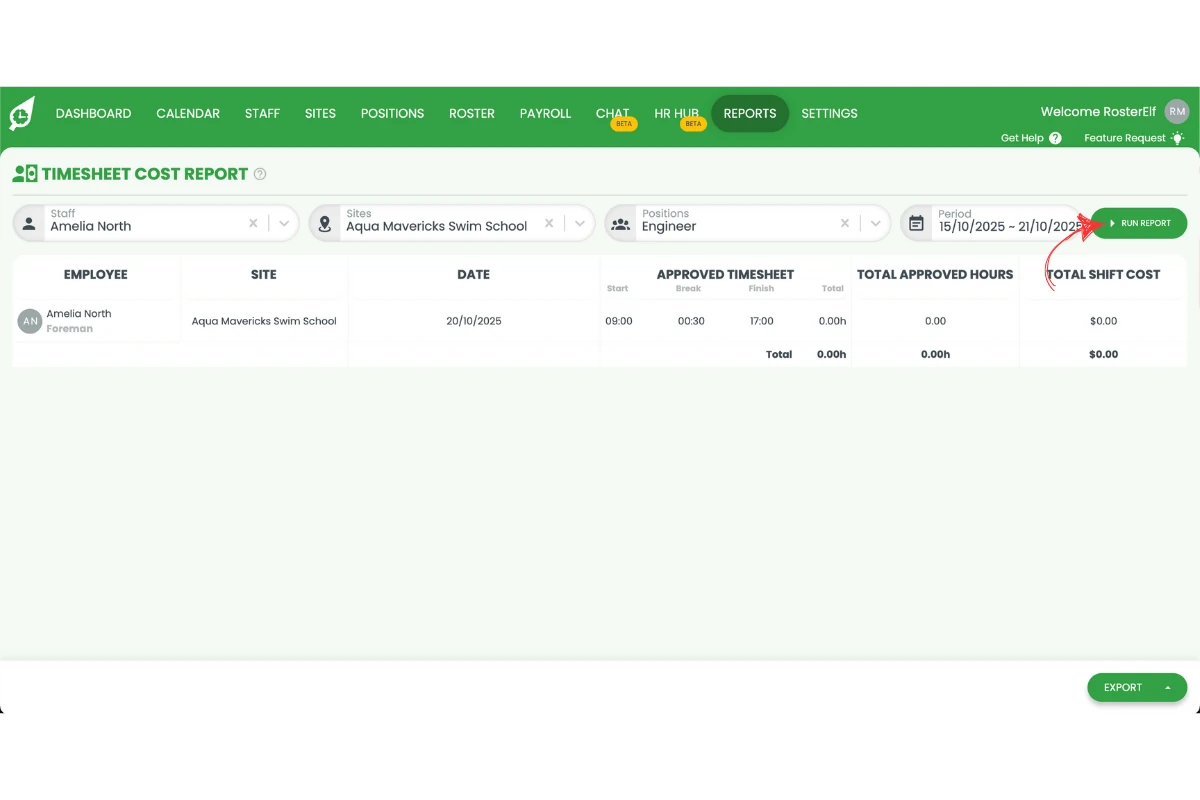
1.3.2 Click Run Report to generate results.
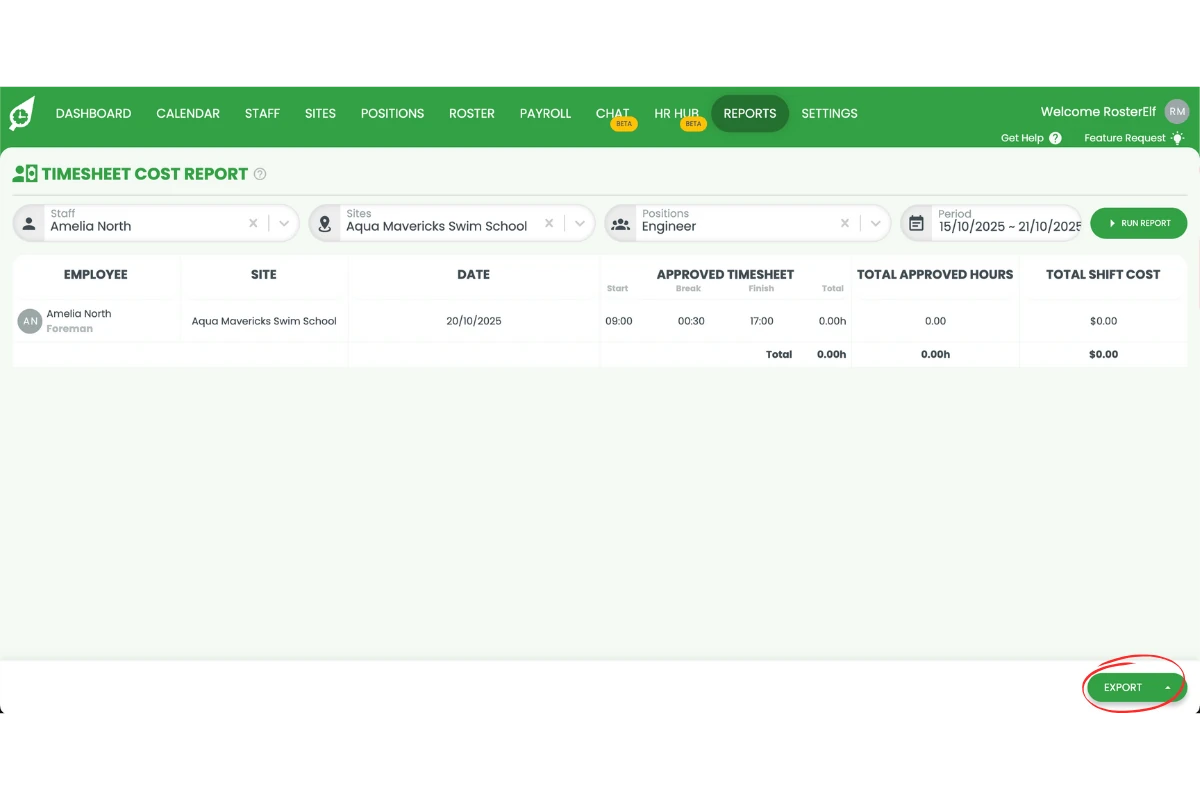
1.4 Export the report
1.4.1 Click Export if you want to download or share the report data.
Frequently asked questions about the timesheet cost report
Frequently asked questions
1. What is the Timesheet Cost Report in RosterElf?
The Timesheet Cost Report in RosterElf shows the total labour costs for completed shifts. It compares rostered hours with actual worked hours, helping managers analyse wage spending, payroll accuracy, and budget performance.
2. How do I access the Timesheet Cost Report?
Log in to your RosterElf account and click the Reports tab on the top menu. Search for Timesheet Cost Report, then click to open it.
3. What filters can I apply in the Timesheet Cost Report?
You can filter the Timesheet Cost Report by date range, employee, or site. Using filters helps you focus on specific periods or teams and ensures your report results are accurate and relevant.
4. Can I export the Timesheet Cost Report?
Yes. After running the report, click Export to download or share the data. Exporting the report allows you to keep a record for payroll reconciliation or business analysis.
5. Why should I use the Timesheet Cost Report?
Using the Timesheet Cost Report helps you monitor payroll accuracy, identify cost variances, and optimise labour spending. It ensures you stay within budget and manage workforce costs effectively.