

Sync your RosterElf schedule with Google calendar
This guide explains how to sync your RosterElf schedule with Google Calendar. By linking your schedule, you can view your shifts and commitments alongside other calendar events, helping you manage your time efficiently. While RosterElf’s web and mobile apps (iOS and Android) should remain your primary tools for up-to-date shift information, Google Calendar integration offers added convenience.
Keep in mind that Google Calendar refreshes every 8–24 hours. Updates to your schedule might not appear immediately, so always double-check the RosterElf app for the most accurate details.
This is different from the mobile app’s per-shift Add to calendar button, which adds a single shift as a one-off, static event that won’t update if that shift is later changed. This guide’s calendar link is an ongoing, auto-refreshing subscription instead — see viewing your shifts on a smartphone if you’re after the one-off option.
1. Log in to your RosterElf account
To begin syncing your schedule, access your account and locate the calendar sync option.
1.1 steps to log in and find the calendar sync link
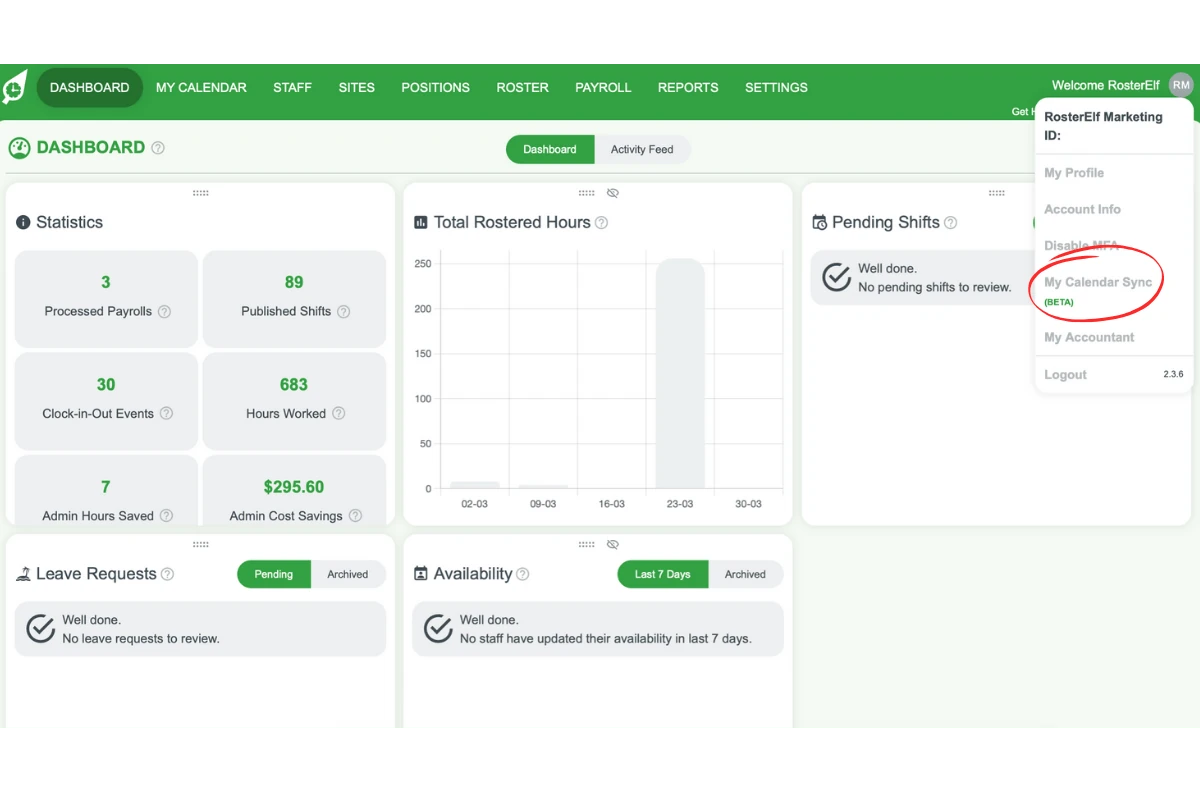
1.1.1 Open the RosterElf website or app and log in to your account.
1.1.2 Click on your profile icon in the top-right corner of the screen.
1.1.3 Select the option My Calendar Sync from the dropdown menu.
2. Copy your calendar link
Once you’ve located the calendar sync feature, you’ll need the unique calendar link to integrate with Google Calendar.
2.1 steps to copy the calendar link
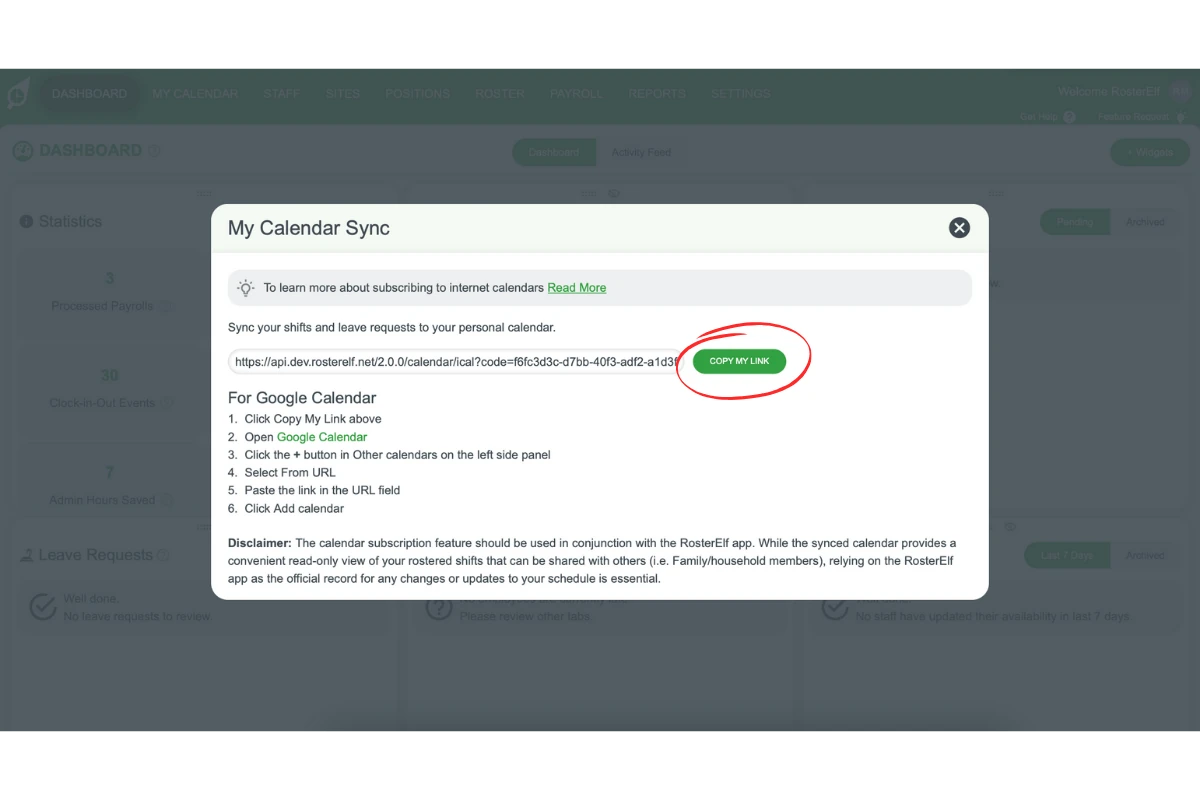
2.1.1 A pop-up window will appear after selecting My Calendar Sync.
2.1.2 Click the button COPY MY LINK to copy the unique calendar URL to your clipboard.
3. Open Google calendar
Access Google Calendar to add your RosterElf schedule.
3.1 steps to open Google calendar
3.1.1 Open your Gmail account in a web browser.
3.1.2 Navigate to Google Calendar from the app menu or directly visit the Google Calendar website.
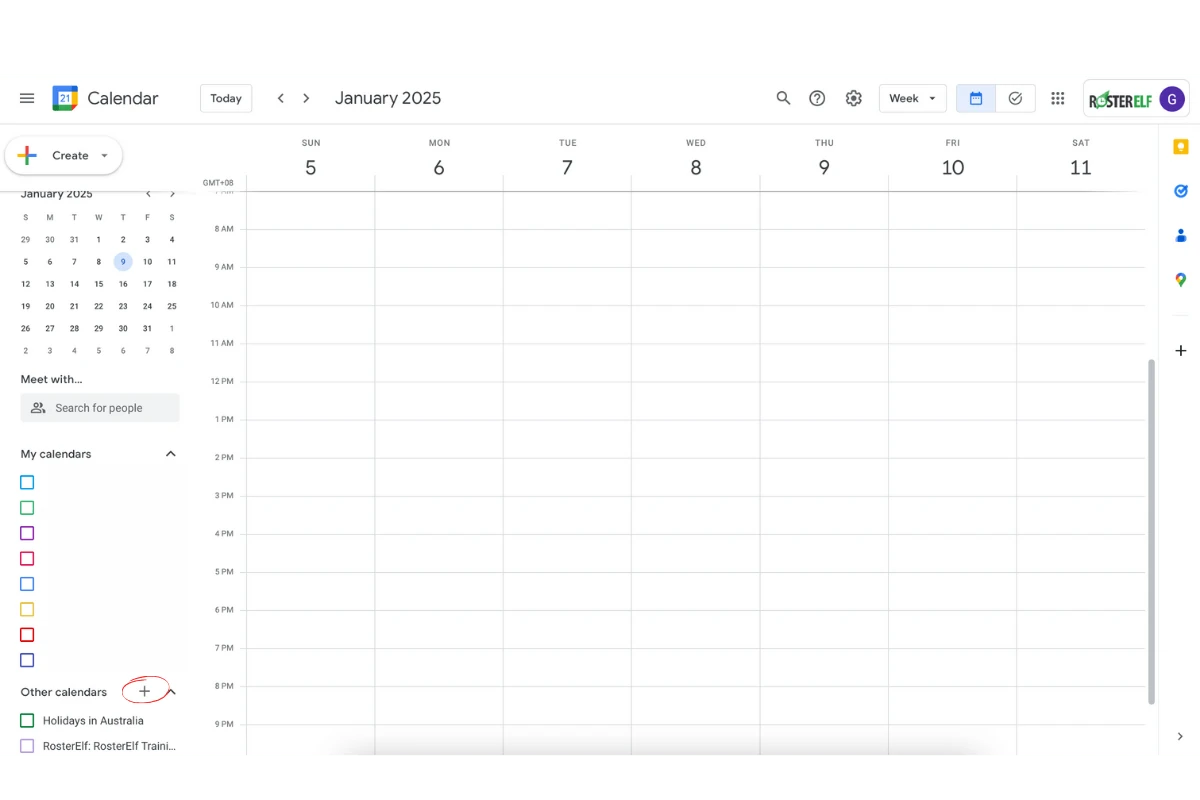
3.1.3 Look for Other Calendars in the bottom-left corner of the page.
3.1.4 Click on the + button next to Other Calendars in the bottom-left corner of the page.
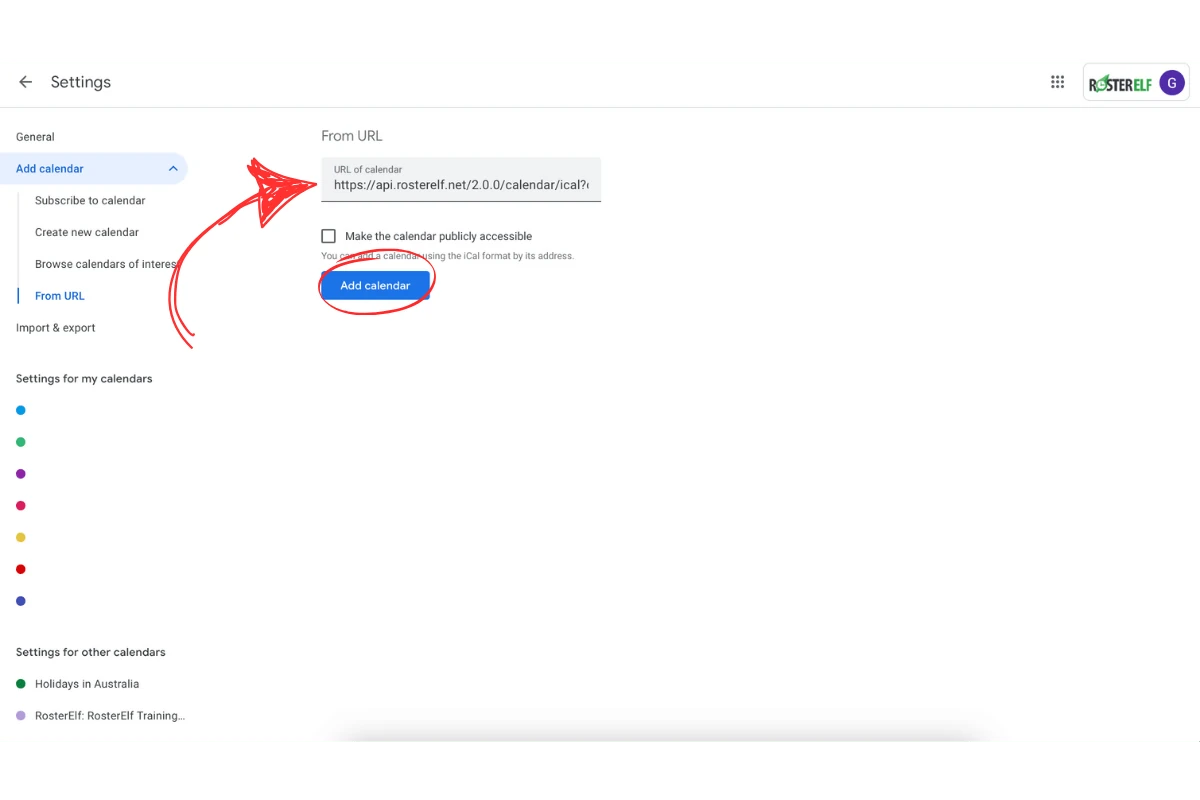
3.1.5 Copy the URL to the URL of calendar section and click on Add calendar.
Frequently asked questions
1. How do I access the calendar sync feature in RosterElf?
To access the calendar sync feature, log in to your RosterElf account and click on your profile icon in the top-right corner. From the dropdown menu, select My Calendar Sync to locate your unique calendar URL.
2. How often does Google Calendar refresh my RosterElf schedule?
Google Calendar refreshes your schedule every 8–24 hours. For the most accurate and updated shift details, always check the RosterElf app or website.
3. Can I add my RosterElf schedule to Google Calendar using a mobile device?
Yes, you can use your mobile device to sync your schedule. Open Google Calendar, find the + symbol under Other Calendars, and select From URL to paste your RosterElf calendar link.
4. What should I do if my shifts aren't appearing in Google Calendar?
If your shifts don’t appear, confirm that you’ve pasted the correct URL from the My Calendar Sync feature. Also, check Google Calendar’s refresh schedule, as updates may take up to 24 hours to show.
5. Does syncing with Google Calendar remove the need to use the RosterElf app?
No, syncing with Google Calendar is for convenience only. Use the RosterElf app or website for the most accurate and real-time schedule updates.