

How to assign managers in RosterElf
Learn how to assign Managers to a site in RosterElf. Managers can access roster staff and approve changes for their designated site. Unlike Assistant Managers, Managers can view financial data related to staff pay rates during rostering. For a detailed comparison of user permissions, refer to the permission levels summary.
1. Steps to assign a manager
Learn the process for assigning a Manager to a site within RosterElf. This section provides a clear guide to ensure that you set up Managers with the right permissions, allowing them to manage site-specific operations effectively.
1.1 Step-by-Step guide
Follow this guide to add Managers to a site within your RosterElf account.
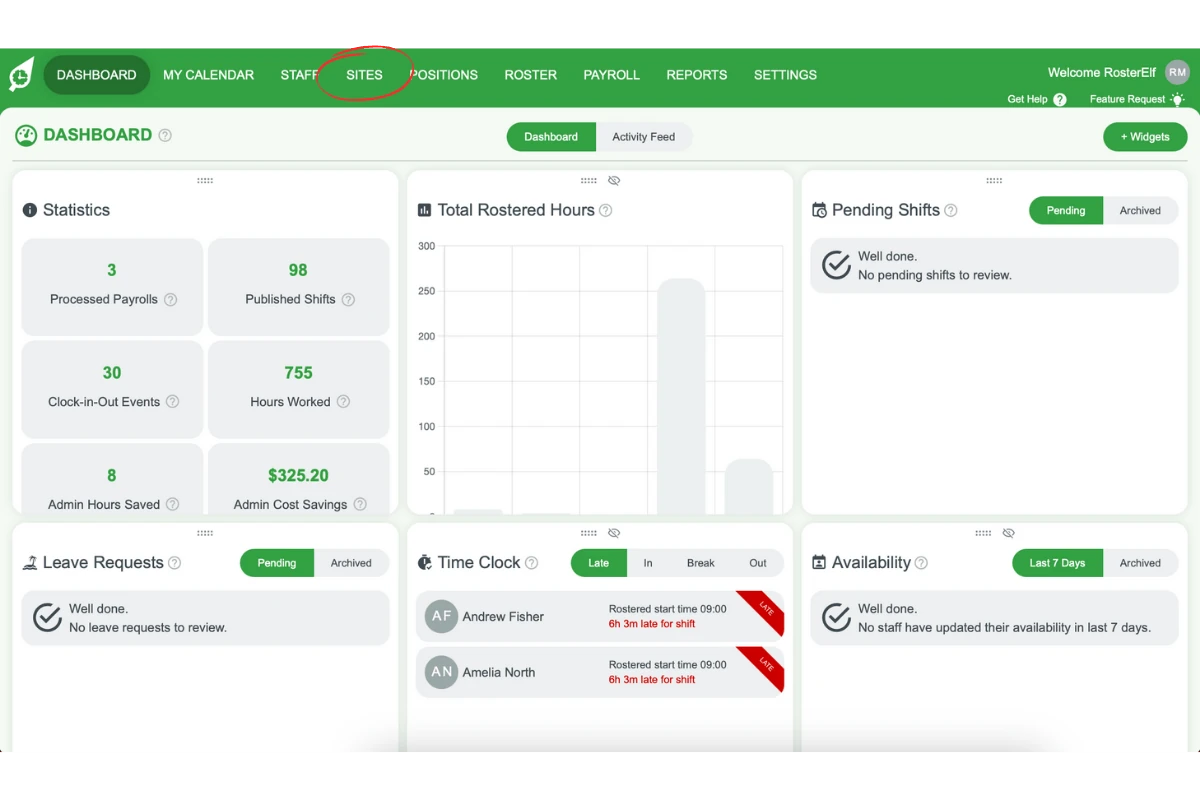
1.1.1 Click on the Sites tab.
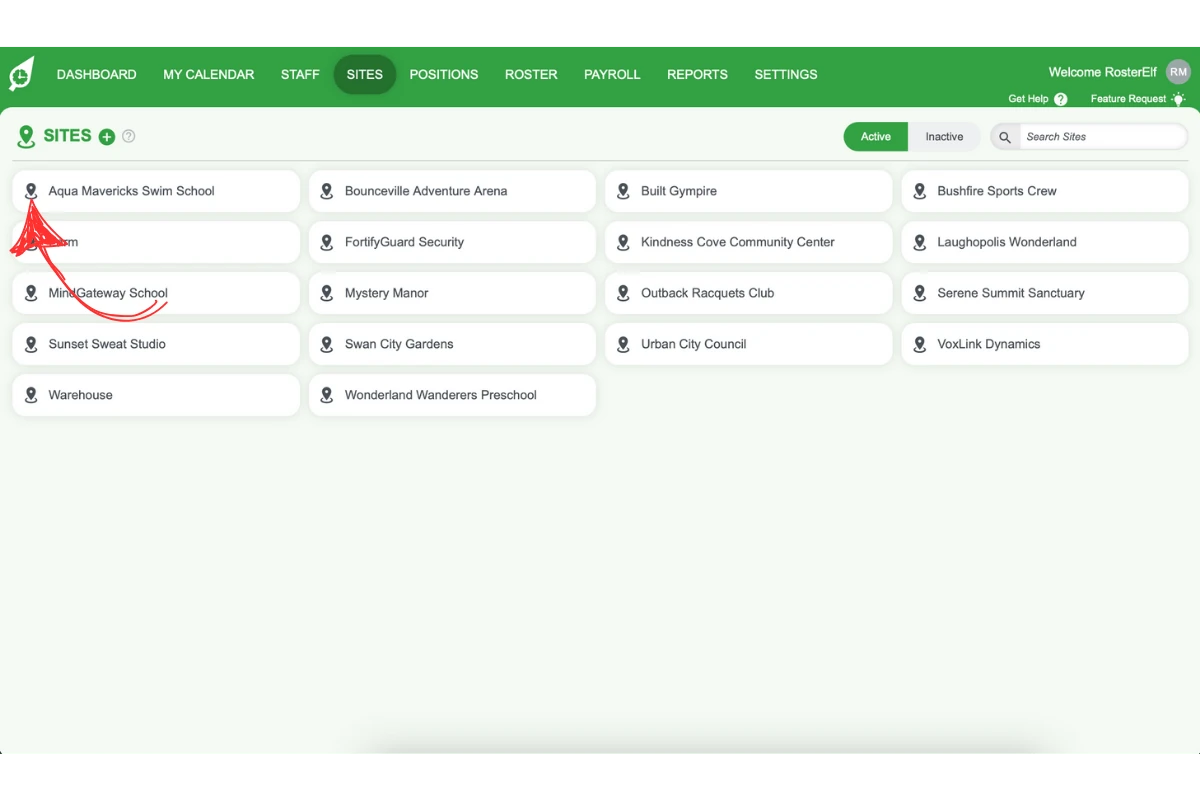
1.1.2 Select an existing site from your list of sites.
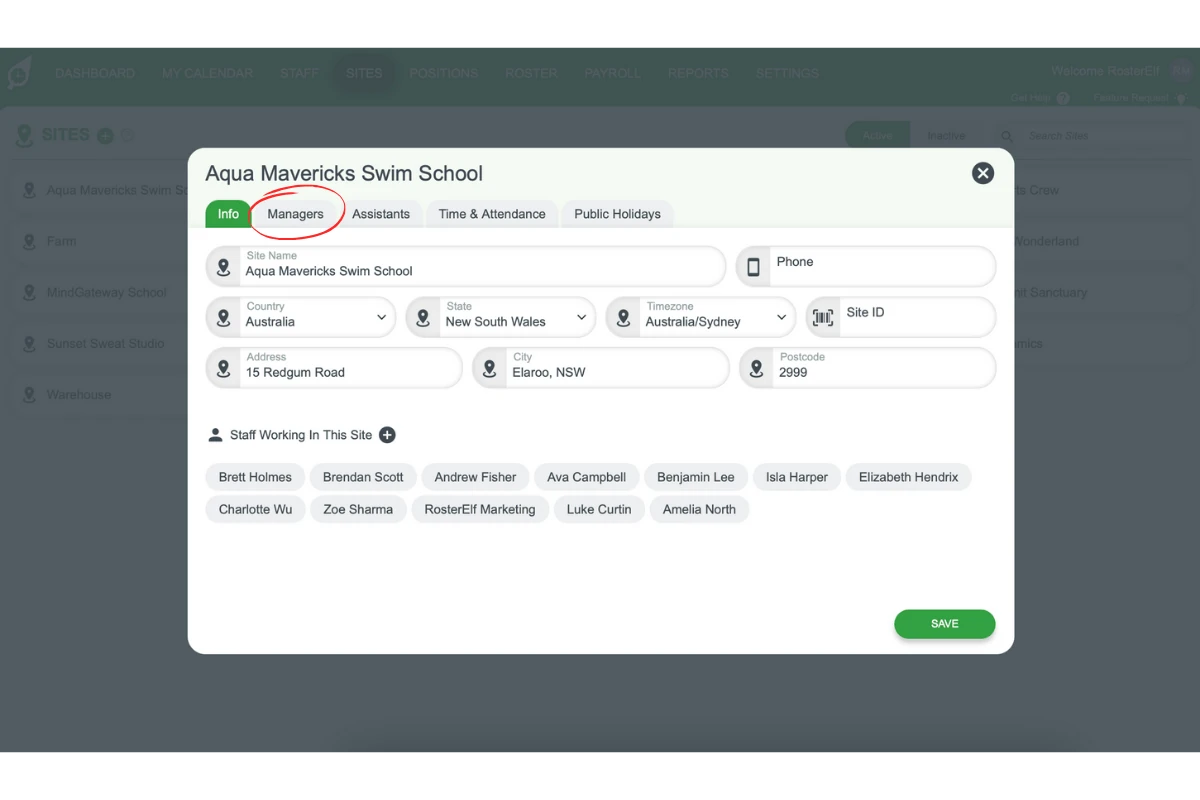
1.1.3 To assign Managers, click the Managers tab at the top of the site window.
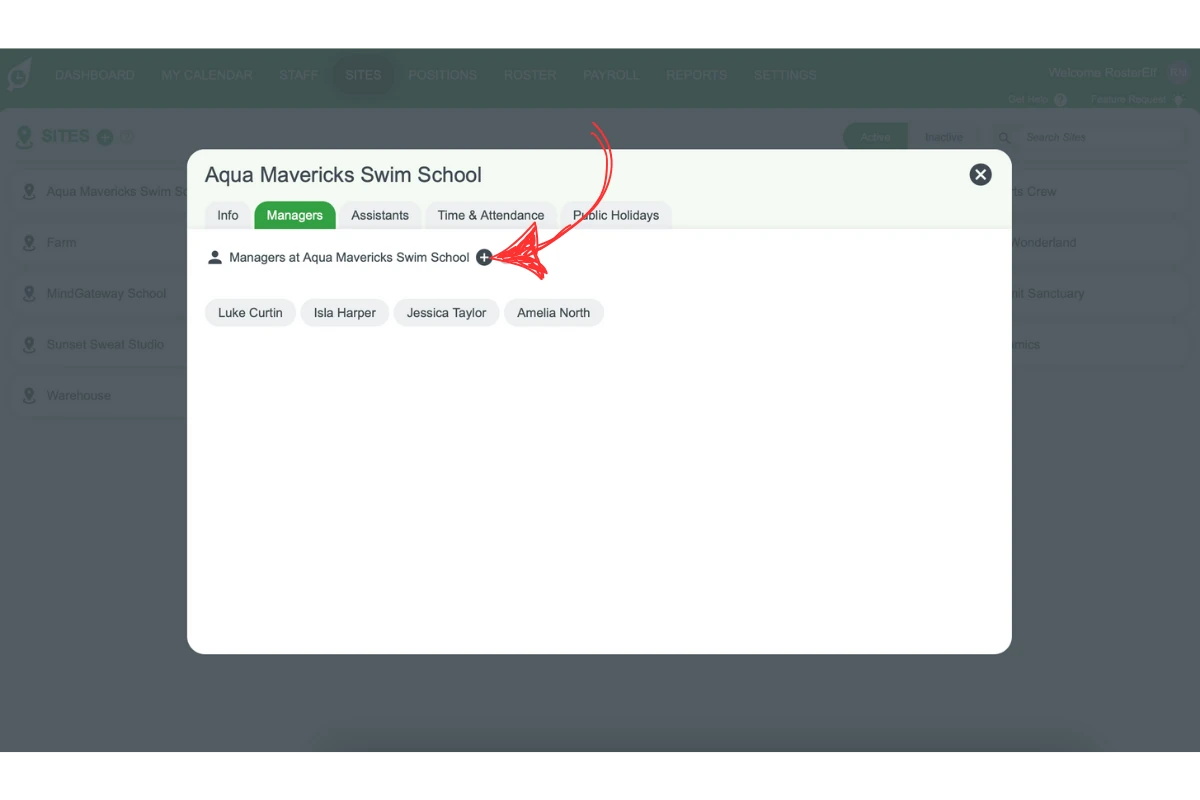
1.1.4 Then, click the + button to open the Select Staff picker. Tick the staff member, then click UPDATE to save. Ticking a name on its own saves nothing. If the staff member does not appear, check they’ve been added to this site first — they may also already have different permissions at another site or be set as an admin.
1.1.5 You can also assign Assistant Managers by clicking the Assistants tab and repeating the same steps: click +, tick the staff member, then click UPDATE.
Frequently asked questions
1. How do I assign a Manager to a site in RosterElf?
To assign a Manager, go to the Sites tab in your RosterElf account. Select the site, then click the Managers tab. Click the + button, tick the staff member in the Select Staff picker, then click UPDATE to save them as a Manager. Ensure the staff member’s permissions align with the role.
2. What is the difference between a Manager and an Assistant Manager in RosterElf?
Managers can access roster details and approve changes, including viewing financial data related to staff pay rates. Assistant Managers can manage roster details without access to financial data.
3. Why can't I see a staff member when assigning them as a Manager?
The most common cause is that the staff member simply hasn’t been added to that site yet — check the site’s Staff list first. If they are on the site, they might instead already have Admin permissions or a different role at another site. Check their permissions or adjust their role to resolve this — see permission levels summary for how Admin access is granted and removed.
4. Can I assign multiple Managers to a single site in RosterElf?
Yes, you can assign more than one Manager to a site in RosterElf. This allows multiple staff members to oversee site-specific operations and approve changes as needed.
5. How can I assign an Assistant Manager in RosterElf?
To assign an Assistant Manager, navigate to the Sites tab, select the site, and click the Assistants tab. Click the + button, tick the staff member, then click UPDATE to save them as an Assistant Manager.