

Set up HR Hub training in RosterElf
Training in the HR Hub helps businesses deliver consistent staff training from one central location. You can create courses, build training modules, assign courses to employees, and monitor completion progress. This makes it easier to onboard new staff, deliver compliance training, and keep employee knowledge up to date without relying on paper documents or external learning platforms.
HR Hub training allows you to customise every course to suit your business. You can add course descriptions, estimated completion times, pass rates, learning content, and multiple-choice assessments. Courses can then be assigned to individual employees or your entire workforce. Managers can also review training statistics, edit existing courses, duplicate training content, preview courses before publishing, and archive courses that are no longer required.
This guide explains how to activate HR Hub training, create your first course, build training modules, assign courses to employees, review training statistics, and manage existing courses. Following these steps will help you quickly set up an organised training library and deliver consistent learning across your business.
HR Hub add-on required:
Training is a module within the HR Hub add-on. If you do not see the HR Hub option in your navigation, your account may not have HR Hub enabled. See manage and enable HR Hub access for instructions.
1. Activate HR Hub training
Before creating courses, you must enable the HR Hub training component in your account settings. Once activated, the Training area becomes available within the HR Hub, allowing managers to build and manage staff training courses. Enabling the feature only takes a few moments and is the first step towards creating structured learning content for your employees. After saving your settings, you can immediately begin building your first training course.
1.1 Activate HR Hub training
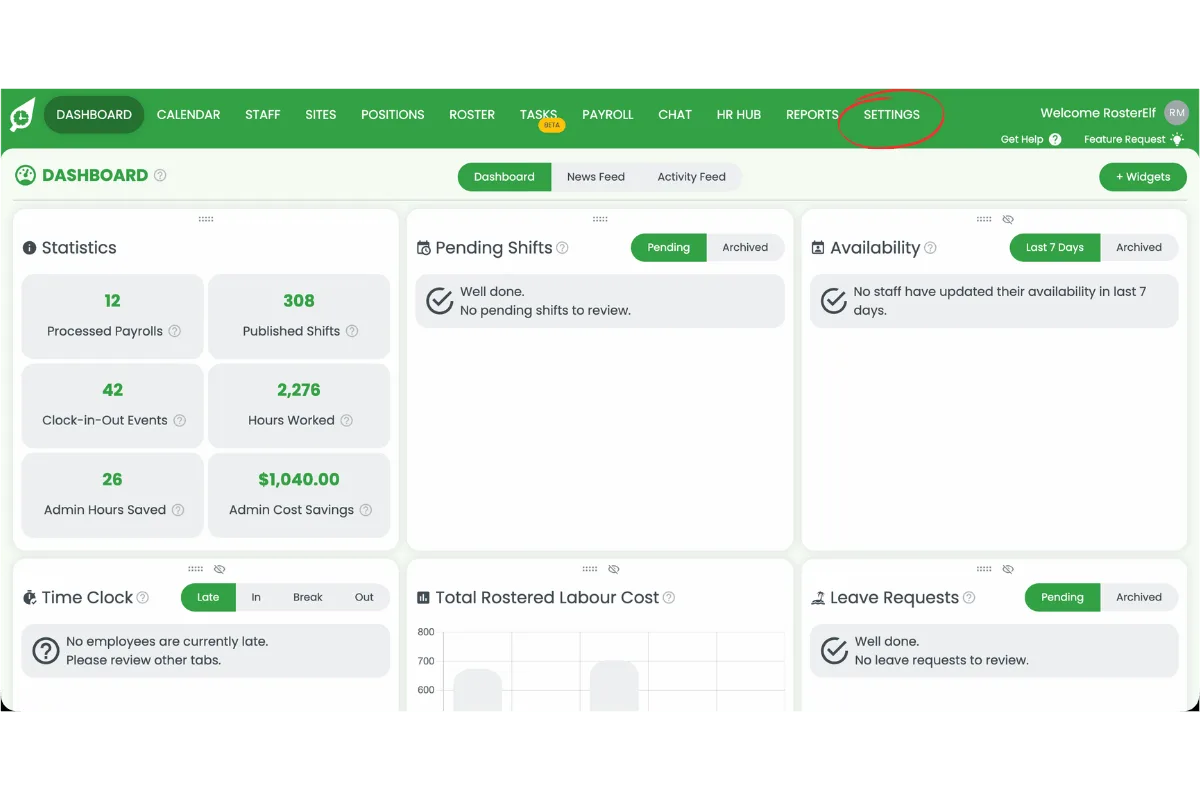
1.1.1 Open Settings.
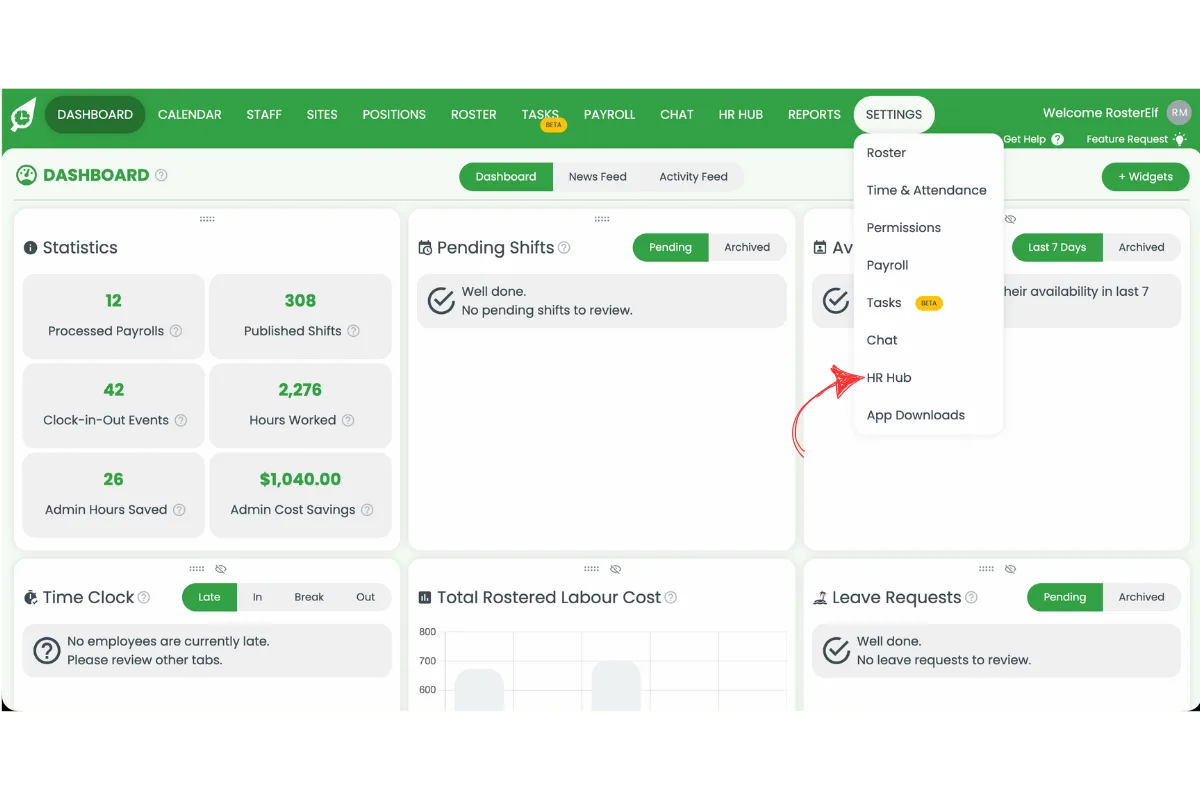
1.1.2 Select HR Hub.
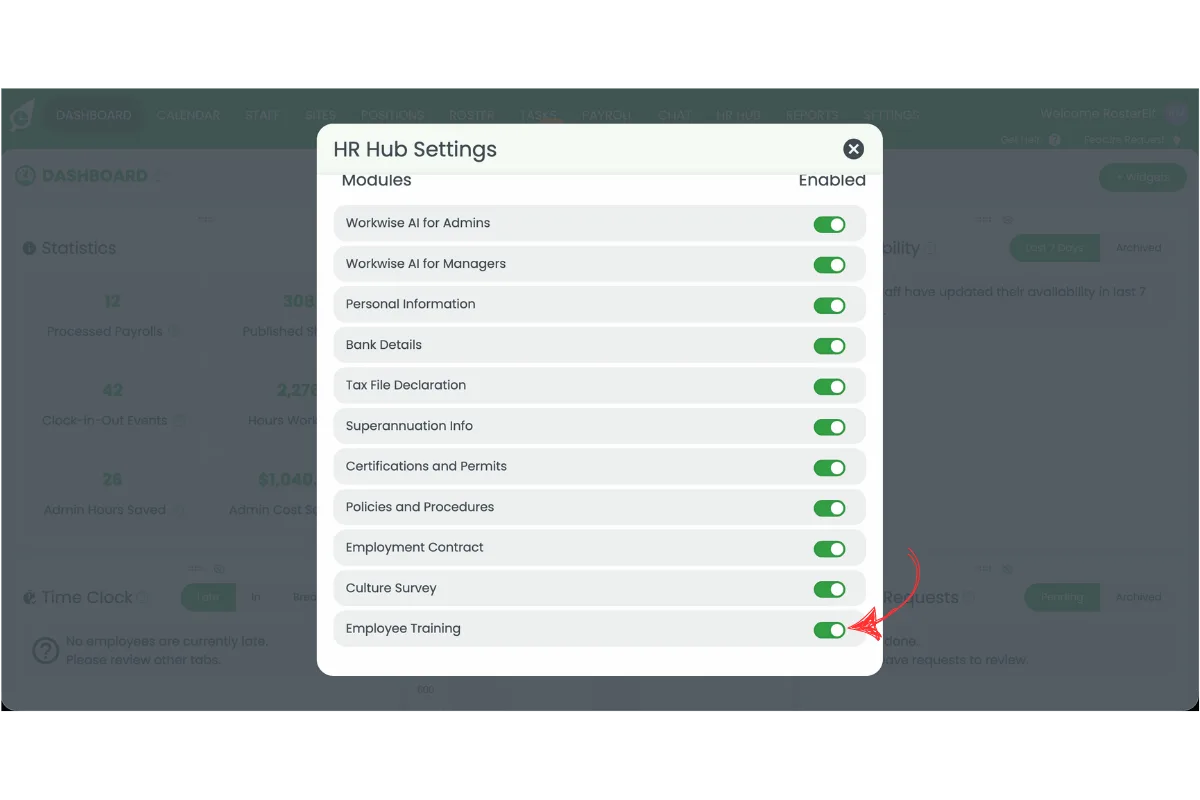
1.1.3 Toggle Training on.
2. Create your first HR Hub training course
Creating your first HR Hub training course allows you to build structured learning for your employees. Courses can include descriptions, completion times, pass marks, learning modules, and assessments. A well-structured course makes it easier for employees to complete their training and helps managers maintain consistent standards across the business. Once your course has been created, you can continue adding modules before assigning it to staff.
2.1 Start a HR Hub training course
2.1.1 Open HR Hub.
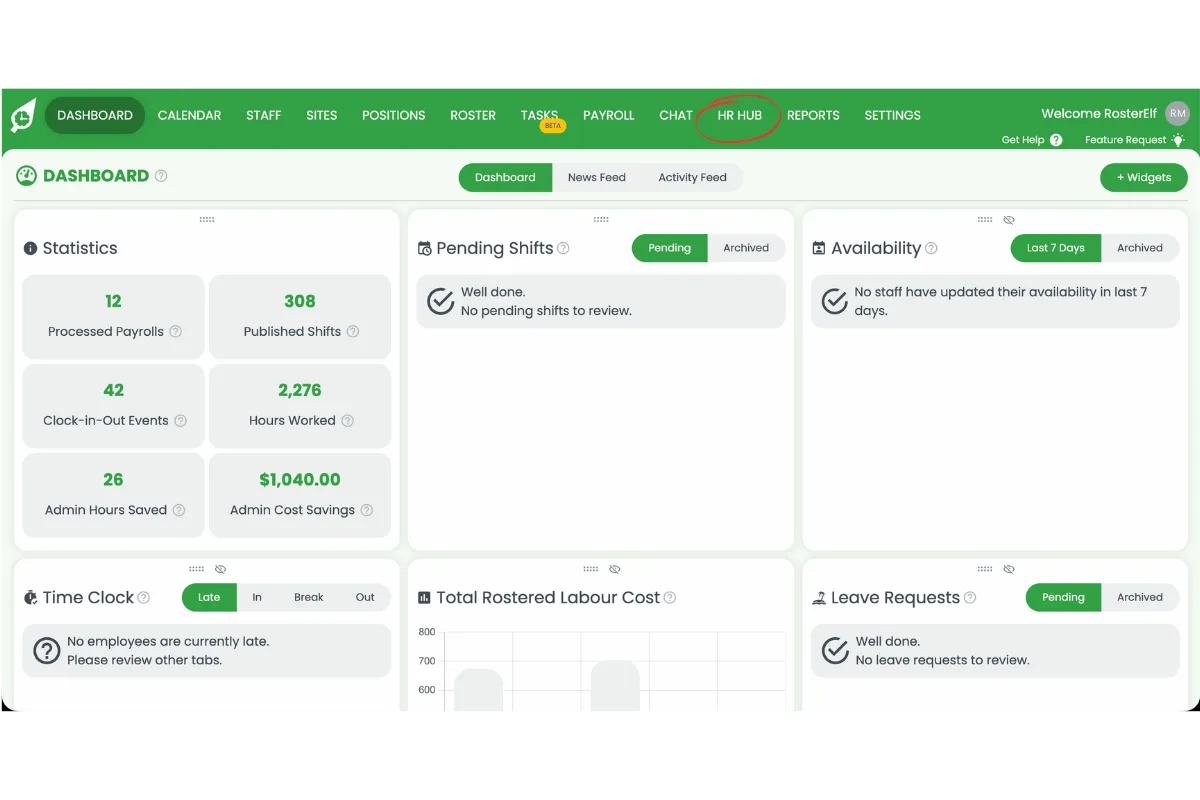
2.1.2 Select Training.
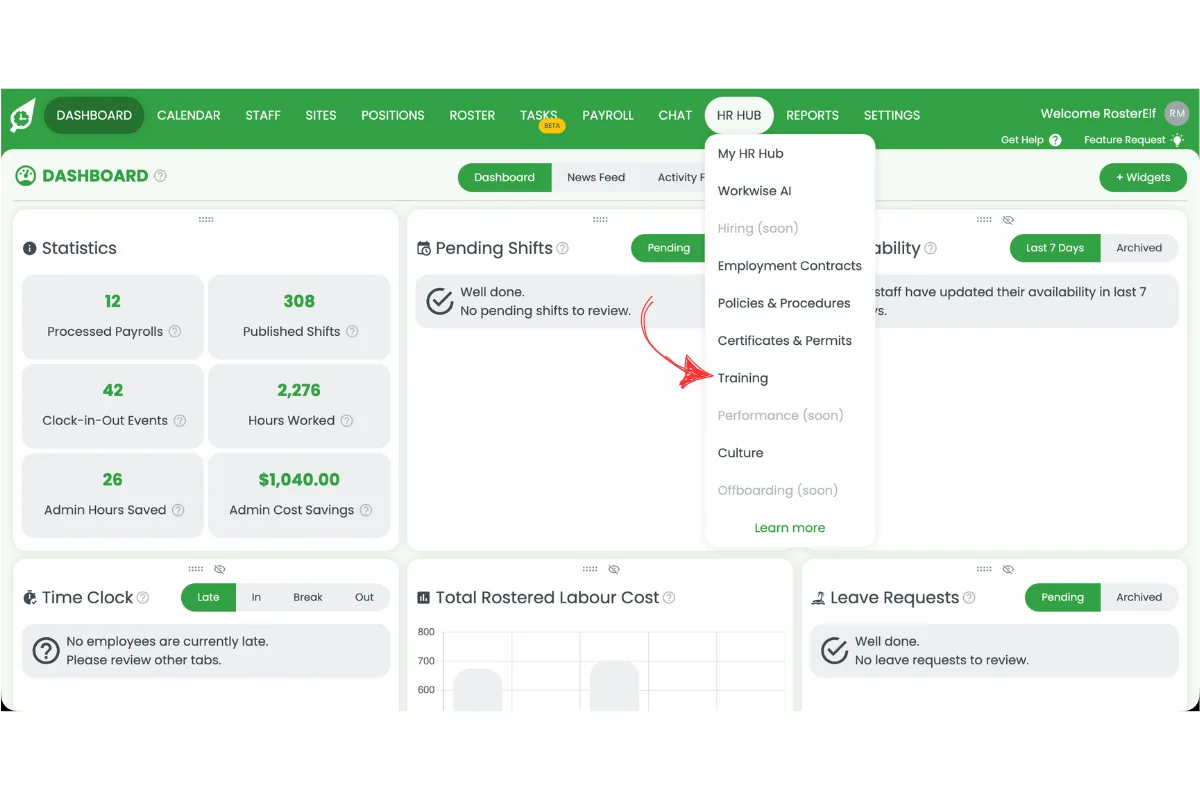
2.1.3 Press the plus (+) icon.
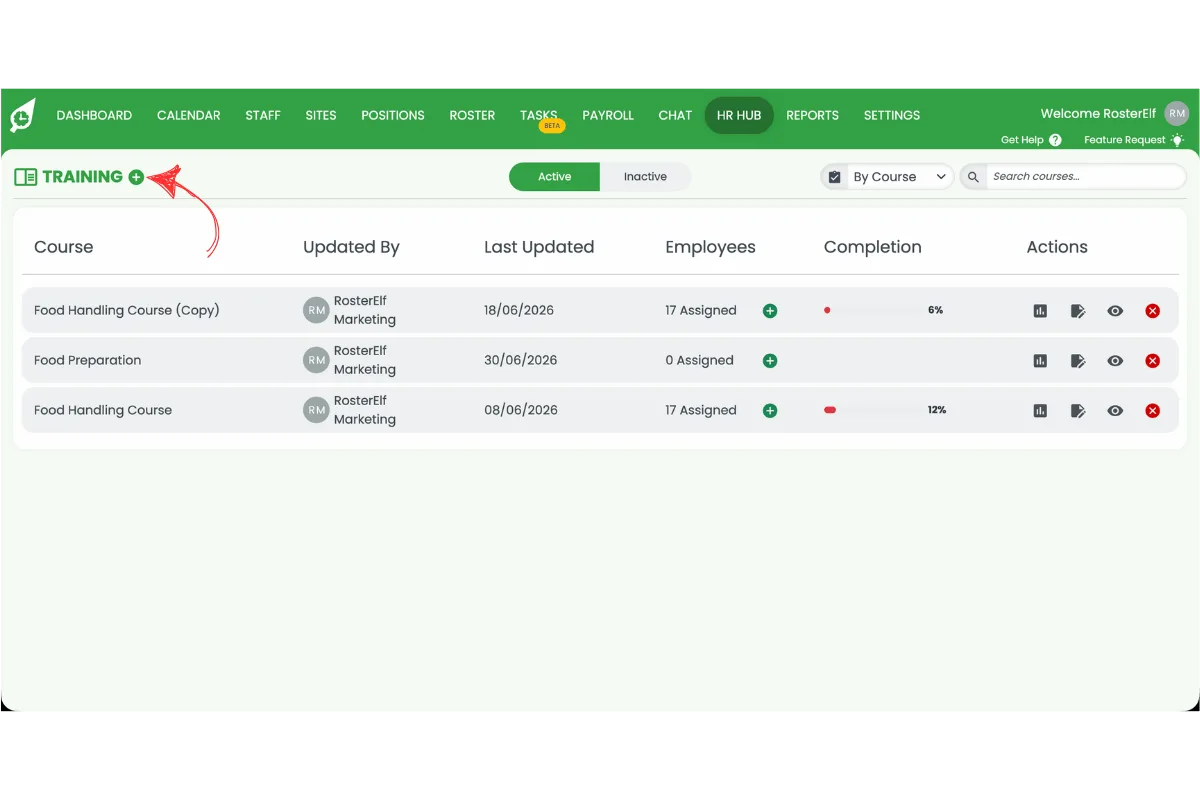
2.2 Configure a HR Hub training course
2.2.1 Enter a course title.
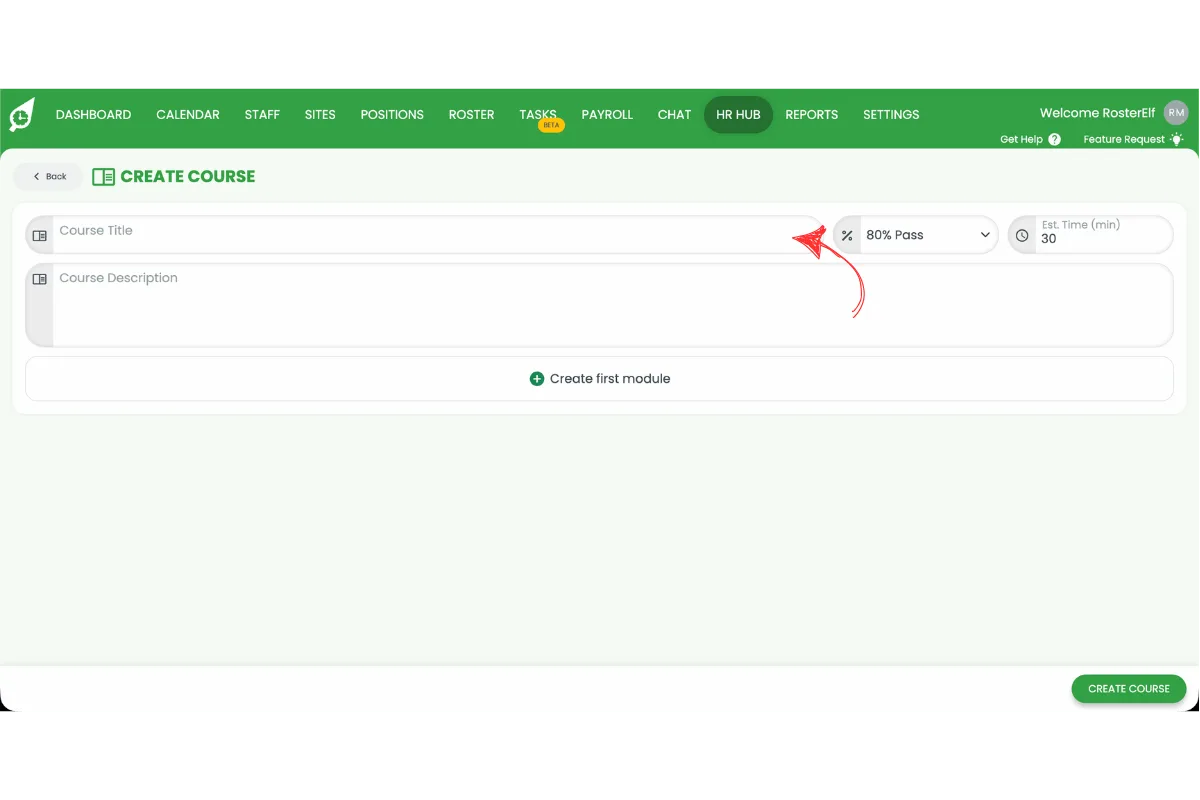
2.2.2 Set the pass rate.
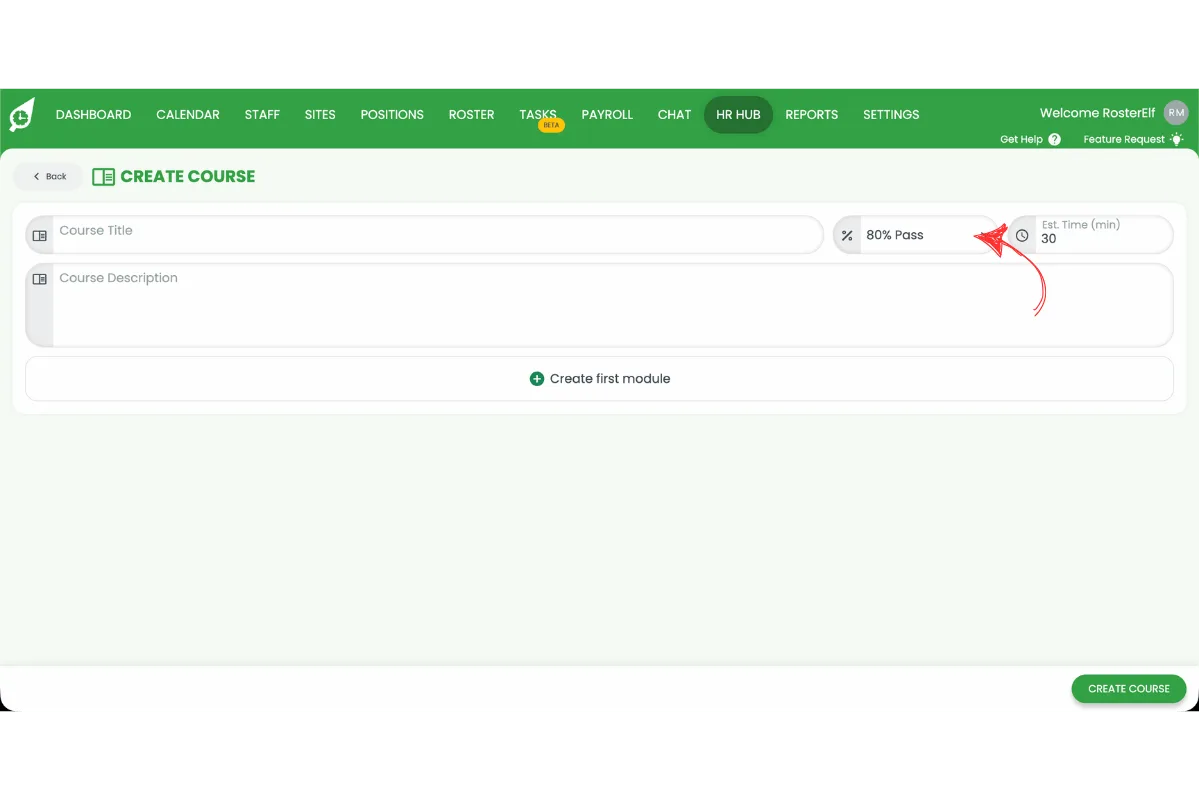
2.2.3 Enter the estimated completion time.
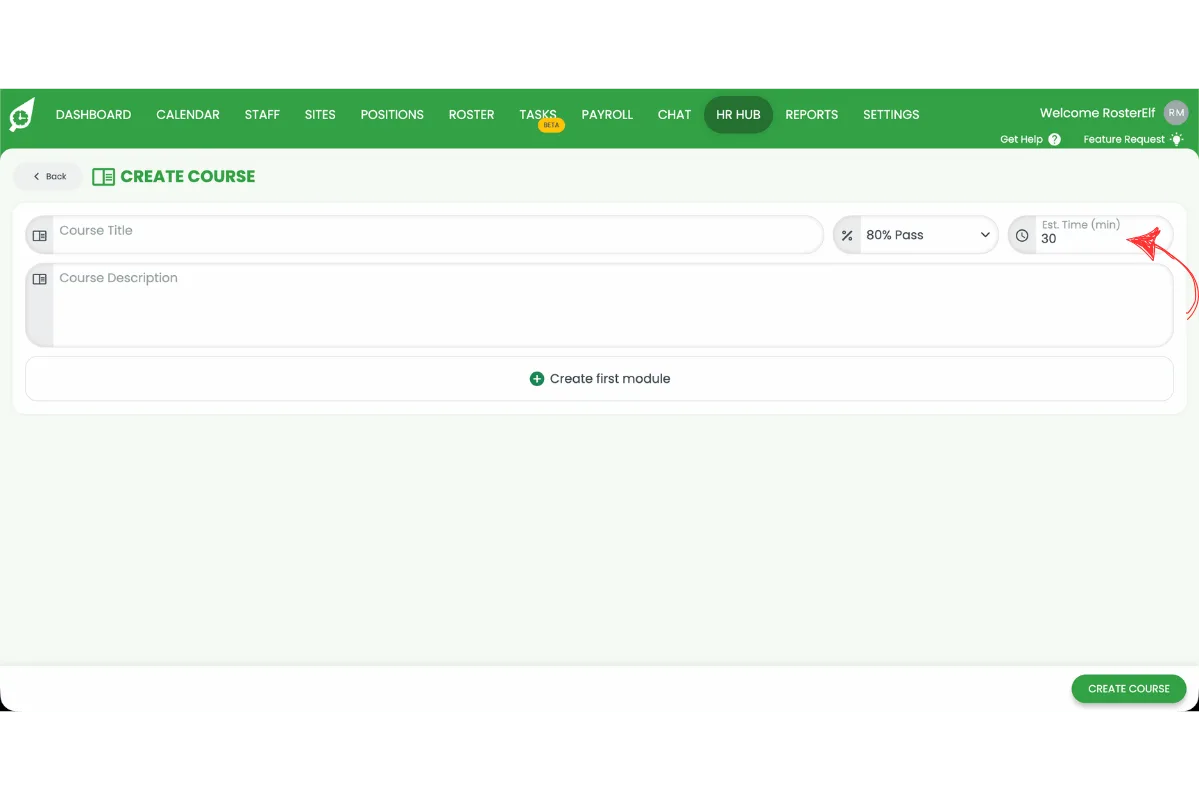
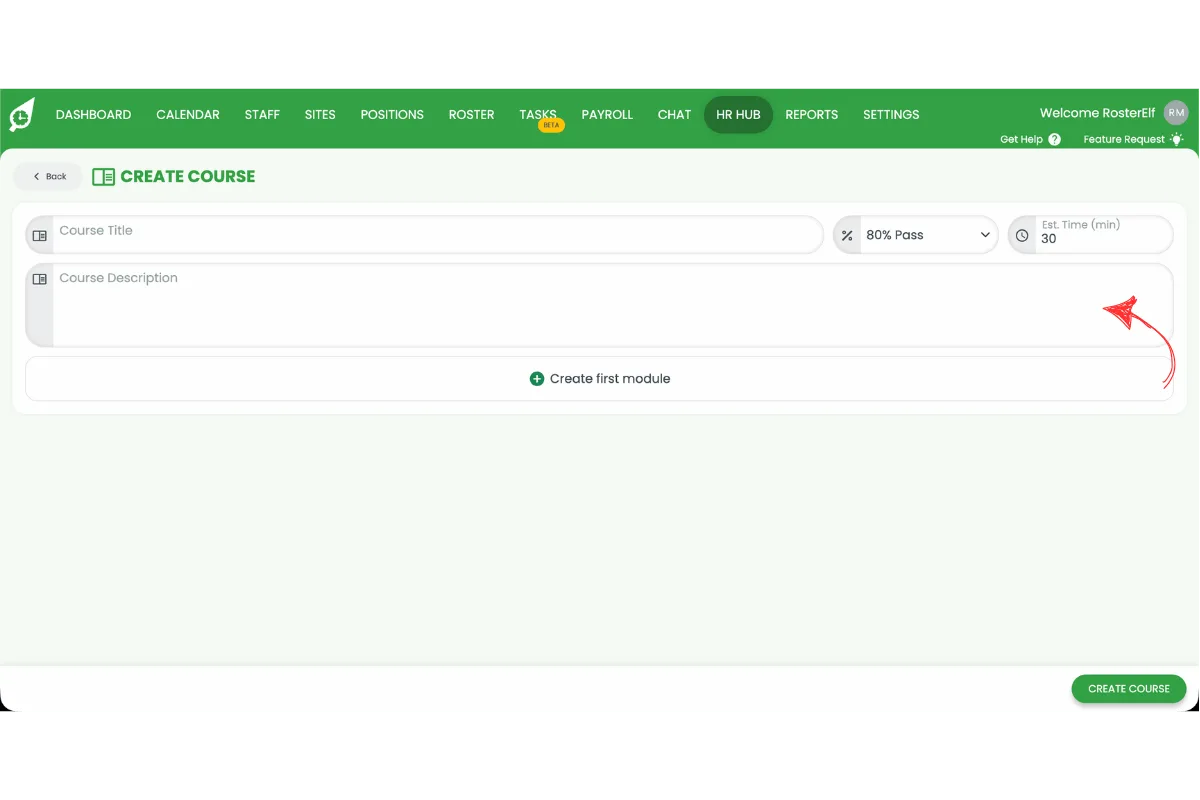
2.2.4 Add a course description.
3. Create HR Hub training modules
Training modules allow you to organise learning into manageable sections. Each module can be built from text, a document, a video link, or an image, plus multiple-choice questions to assess employee understanding. Modules help break larger courses into logical topics, making training easier to complete and maintain. You can create as many modules as required and rearrange questions to improve the learning experience.
3.1 Create a HR Hub training module
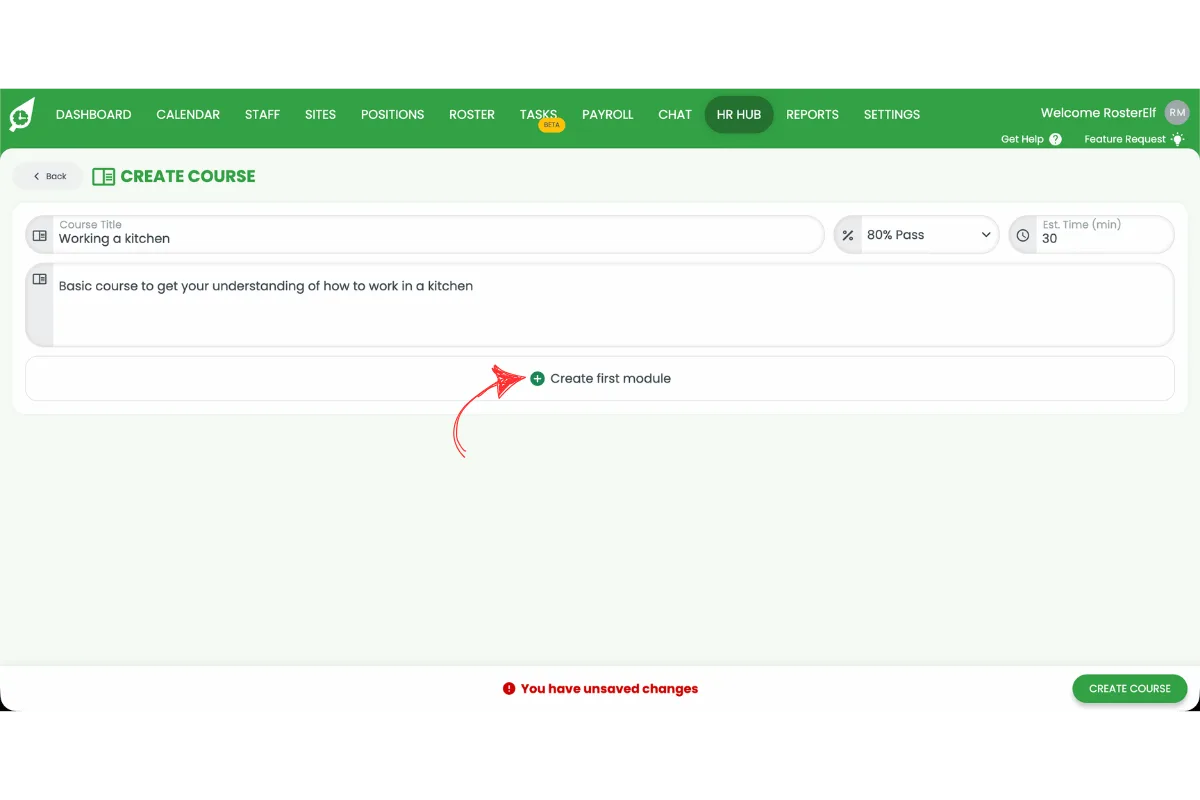
3.1.1 Press Add module.
3.1.2 Enter the module name.
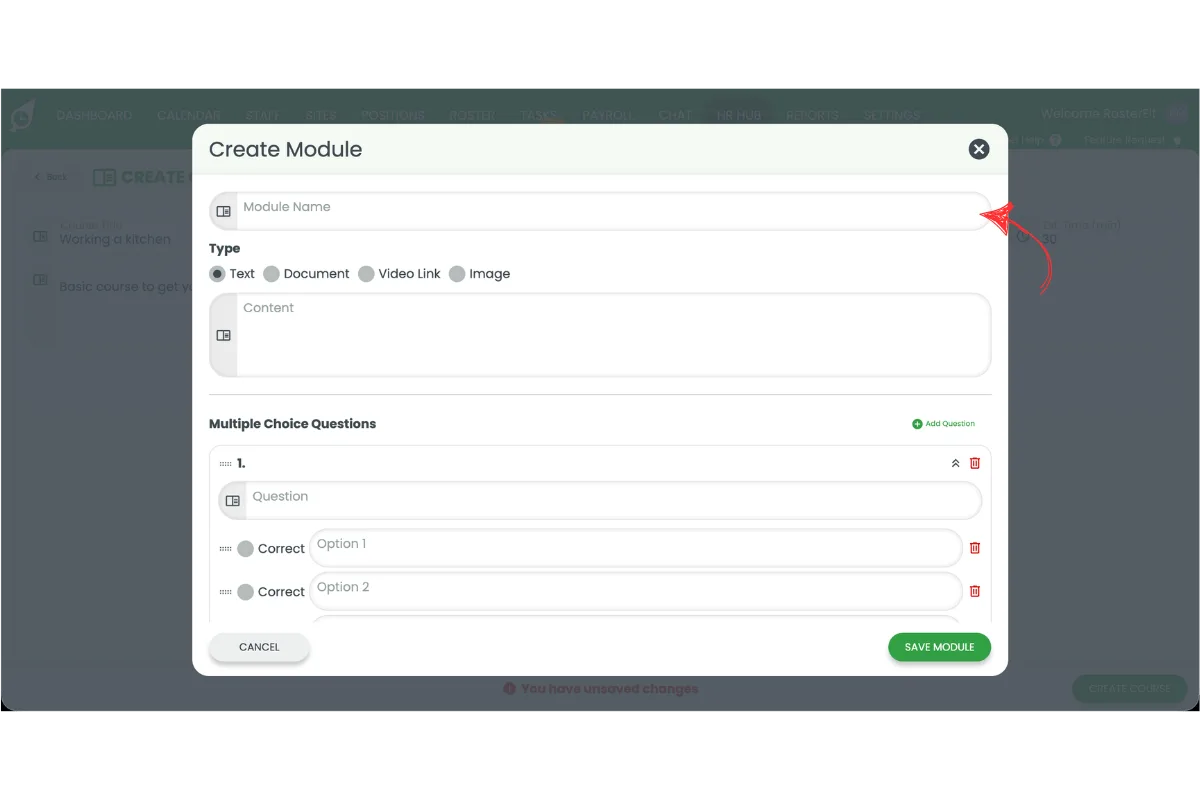
3.1.3 Select the module type: text, document, video link, or image.
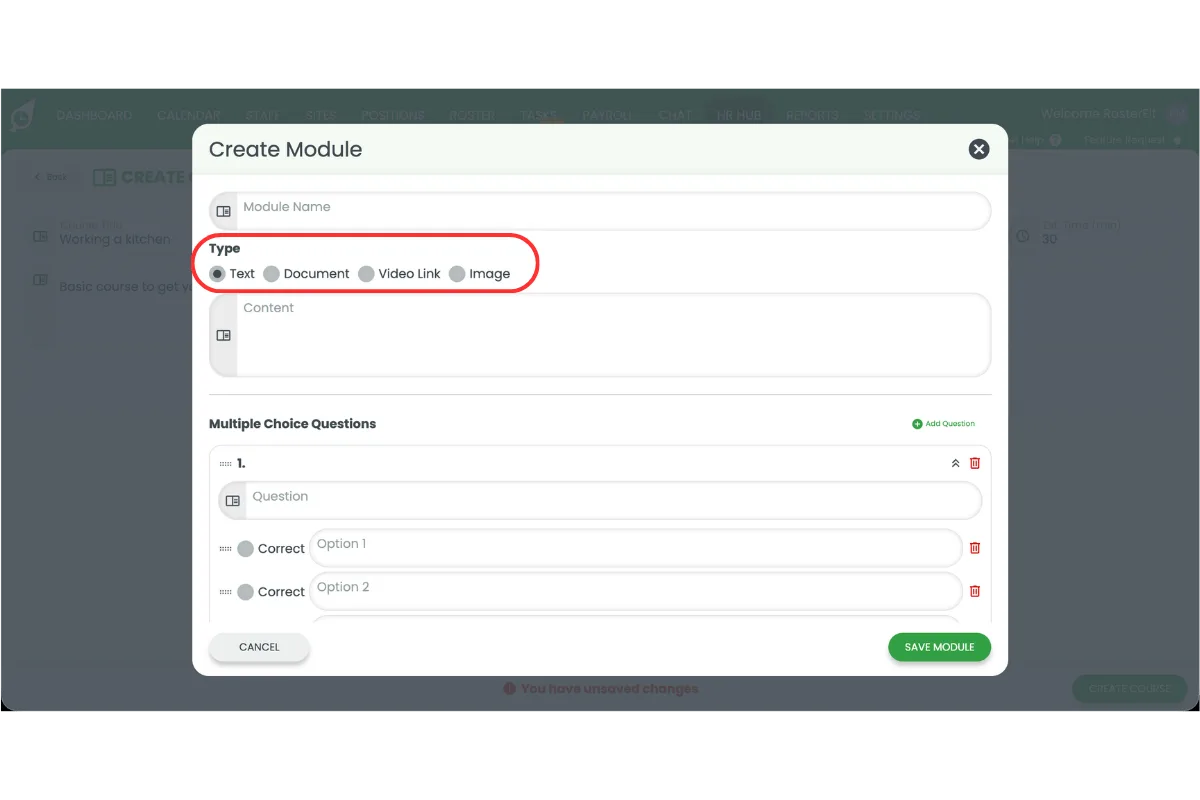
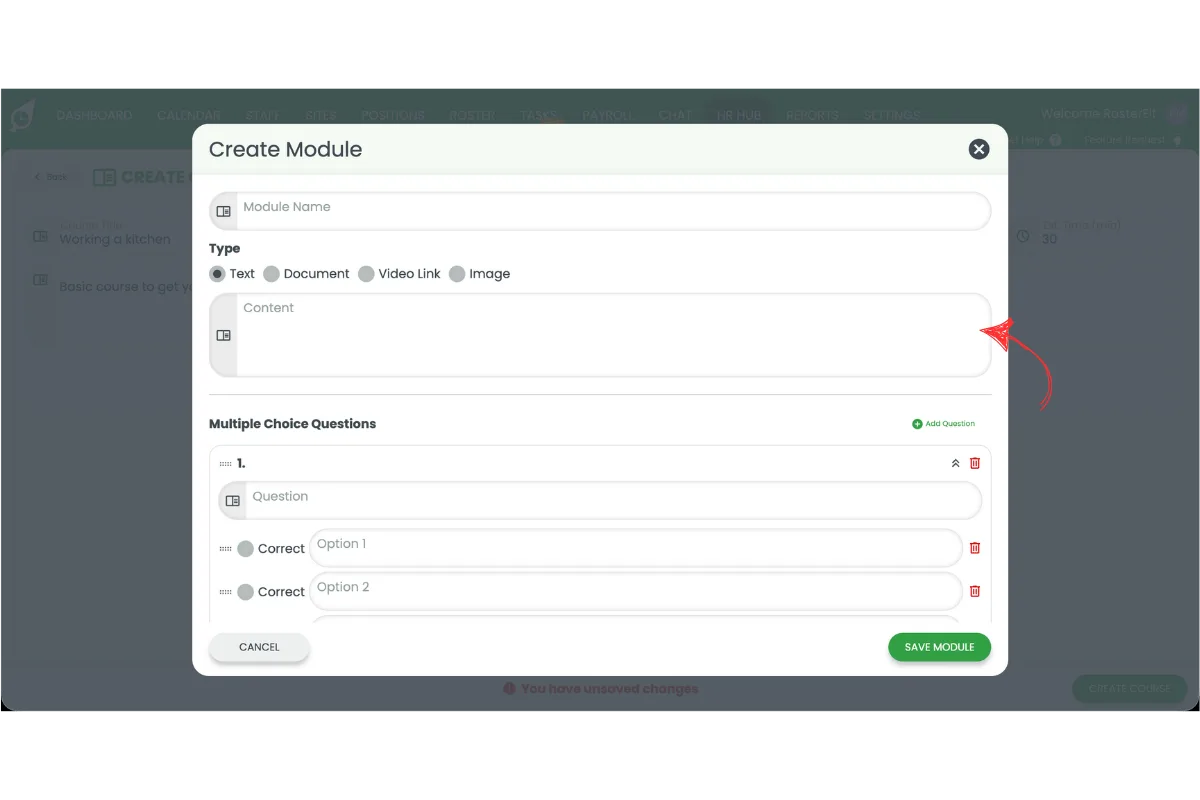
3.1.4 Add the module content.
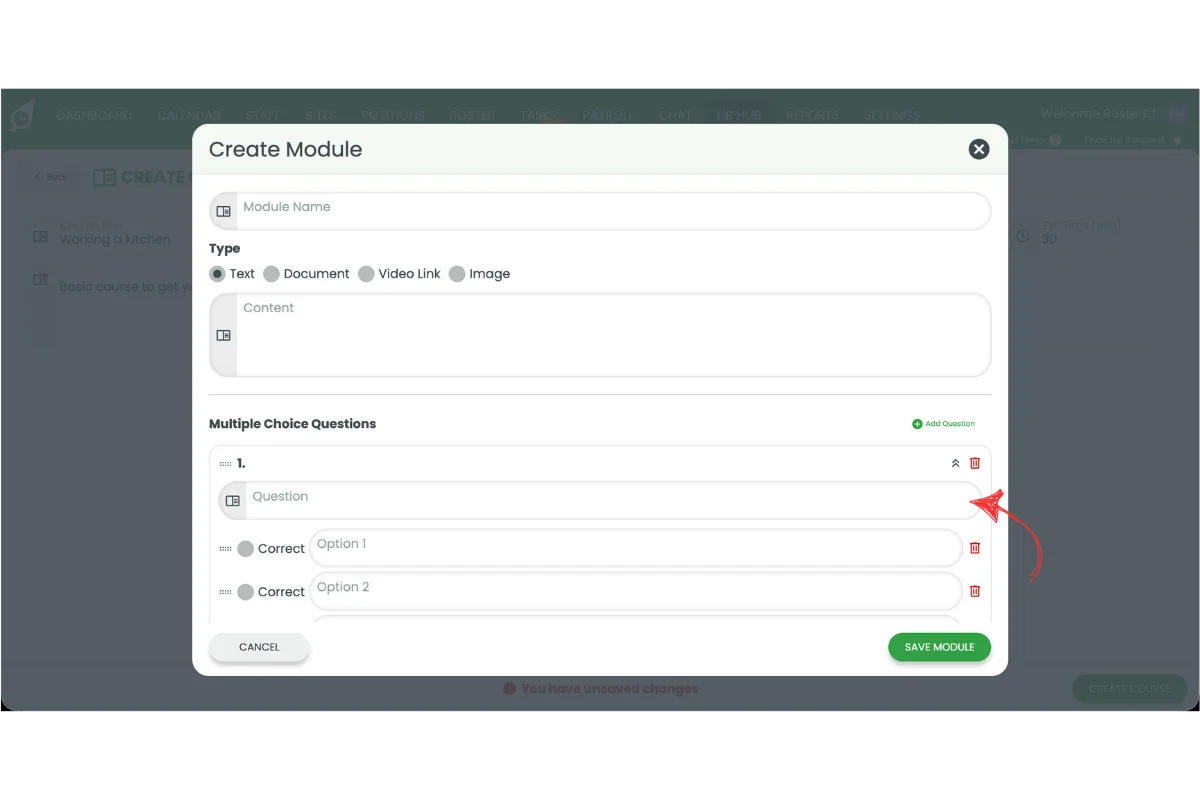
3.1.5 Add a multiple-choice question.
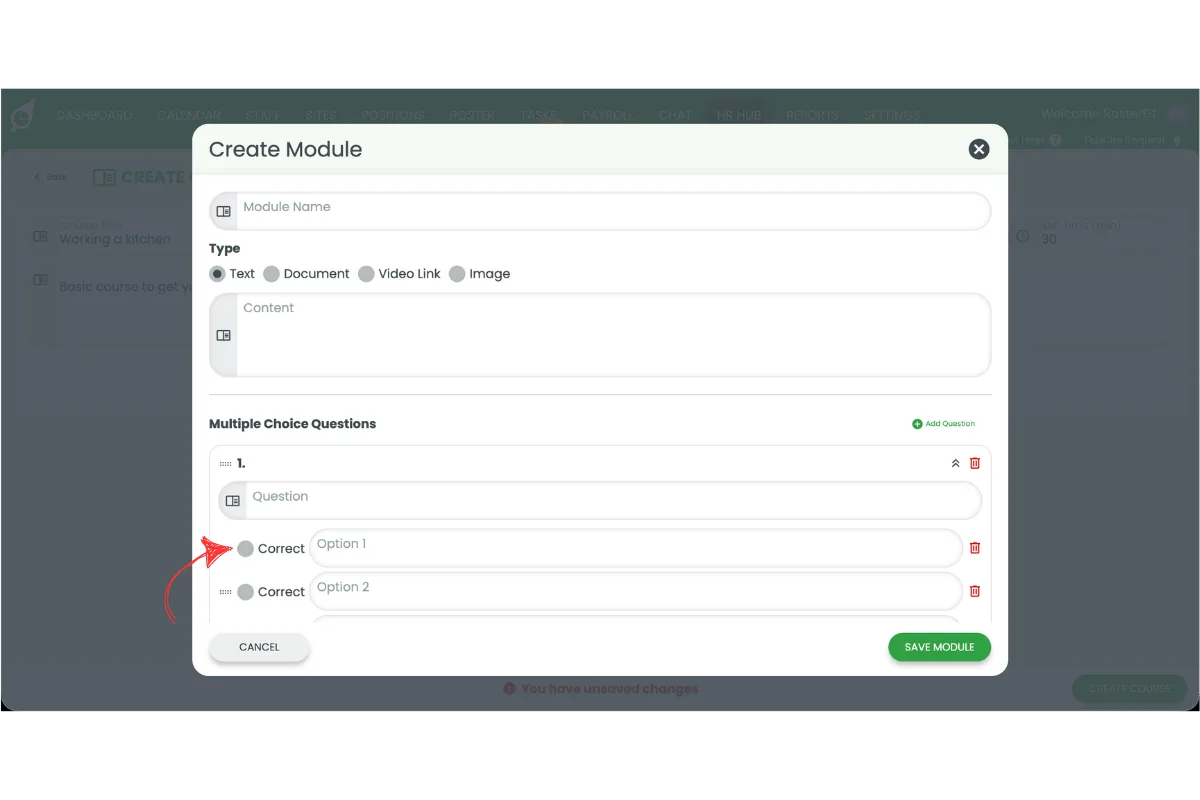
3.1.6 Select the correct answer for each question.
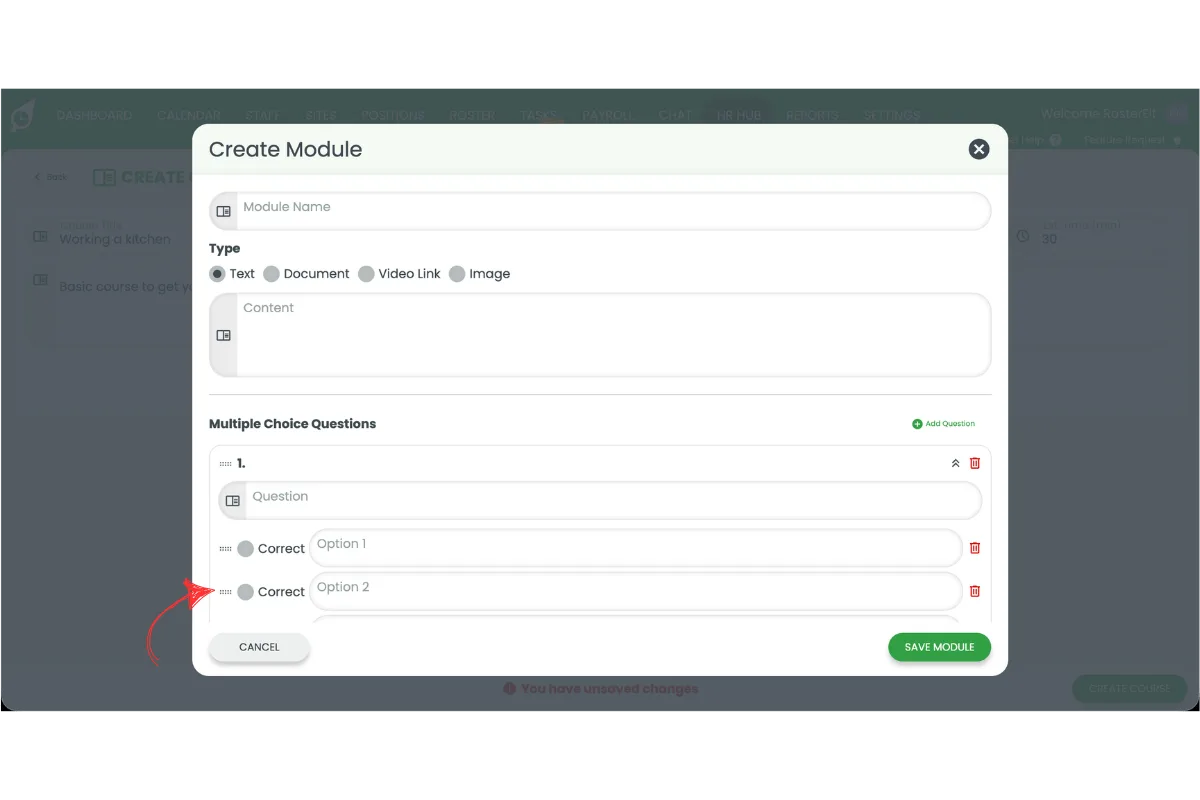
3.1.7 Click and drag questions to reorder them.
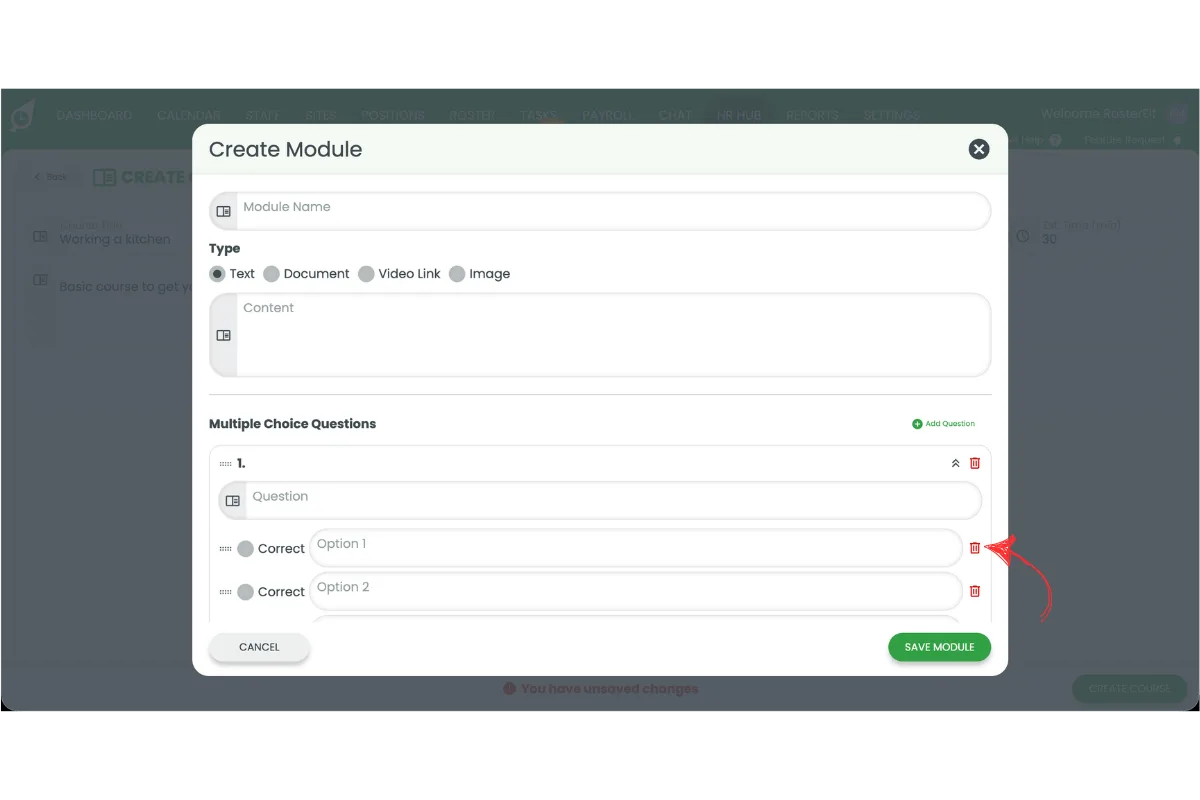
3.1.8 Press the red X to remove a question.
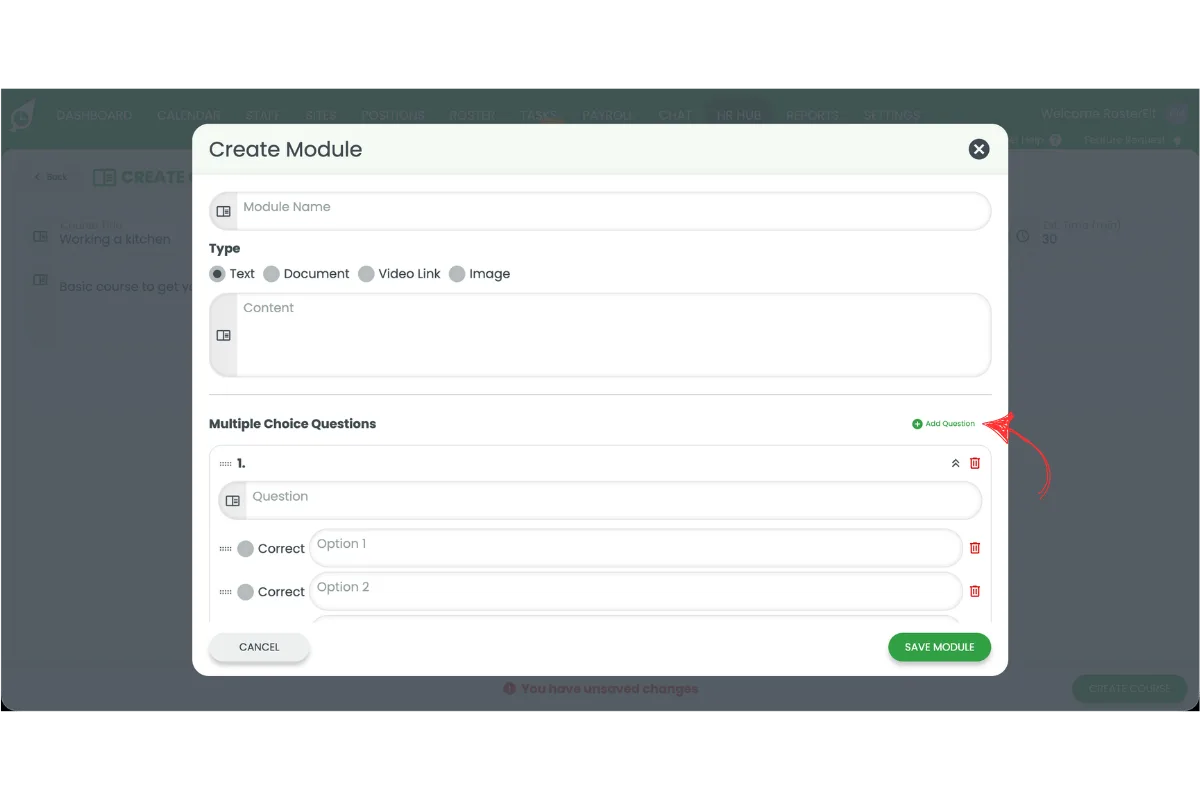
3.1.9 Add additional questions if required.
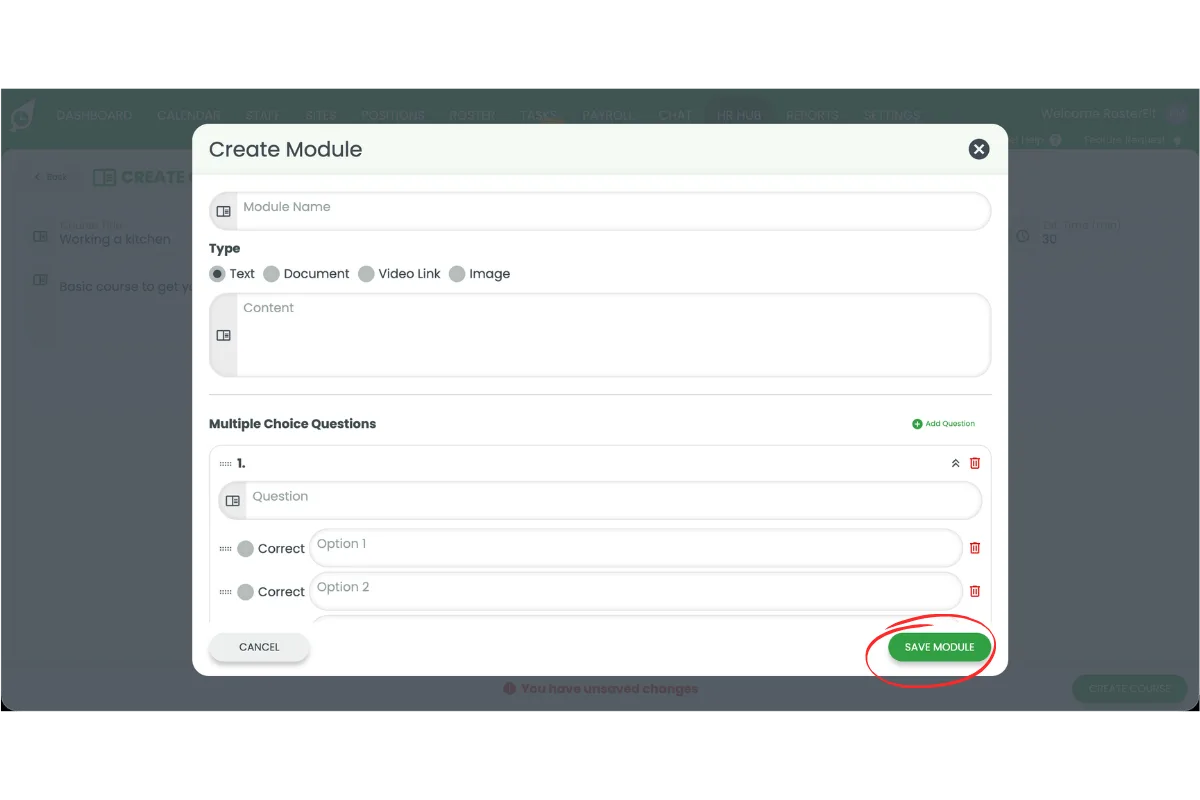
3.1.10 Press Save module.
4. Assign HR Hub training courses
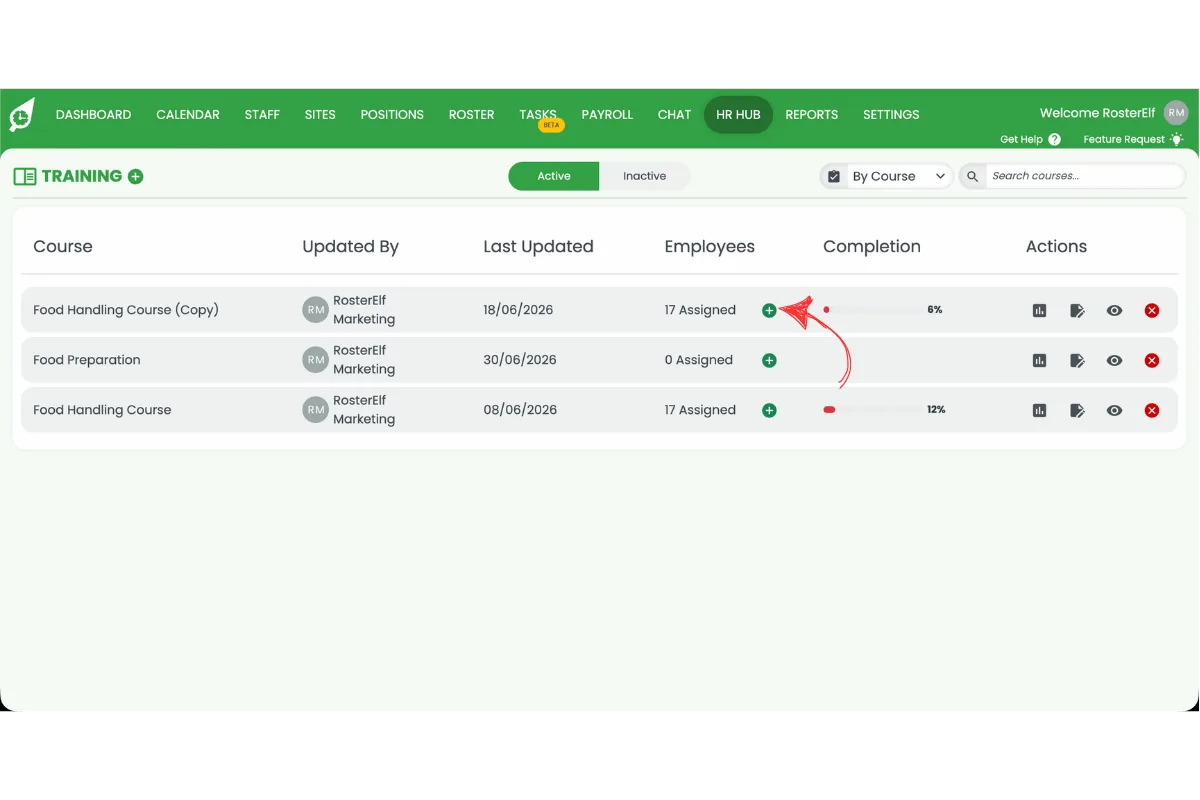
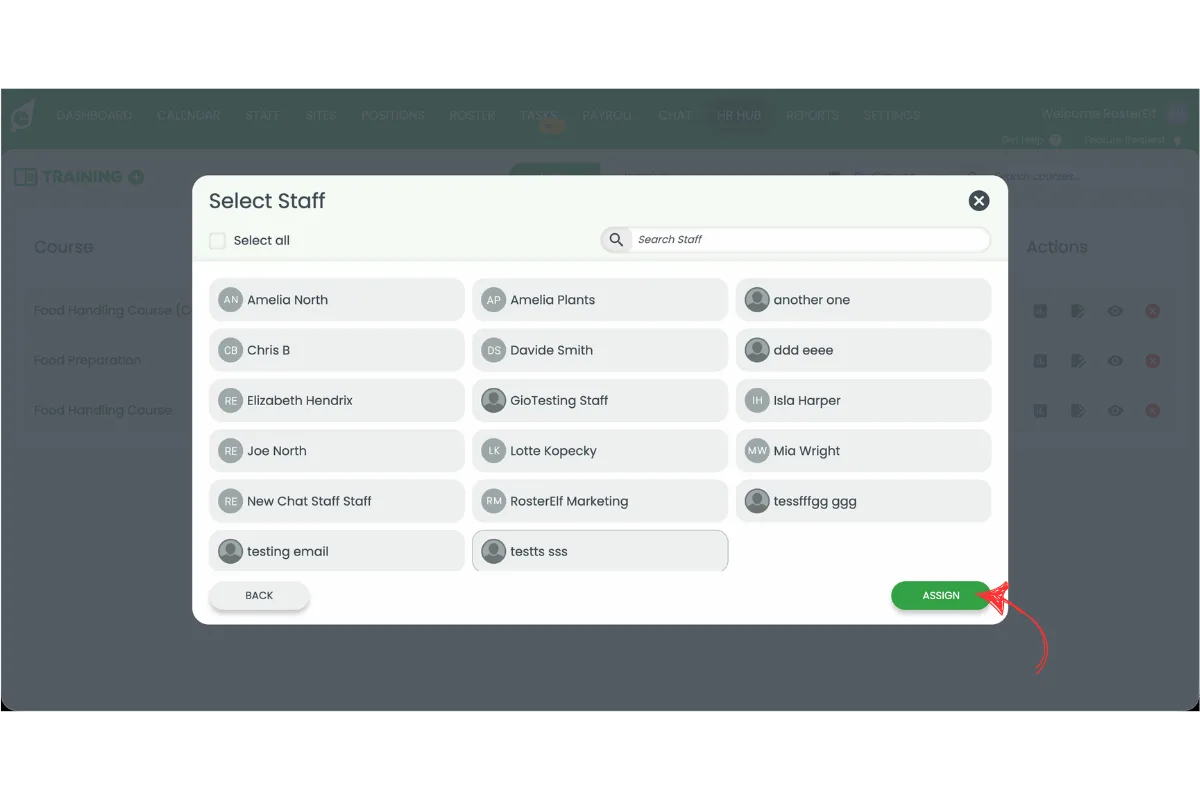
Once a course has been created, you can assign it to employees. Training can be assigned to your entire workforce or to selected employees only. Assigning courses ensures employees receive the required training and allows managers to track completion progress from the training dashboard. The assignment process is quick and can be repeated whenever new staff join your business.
4.1 Assign a HR Hub training course
4.1.1 Press the plus (+) icon.
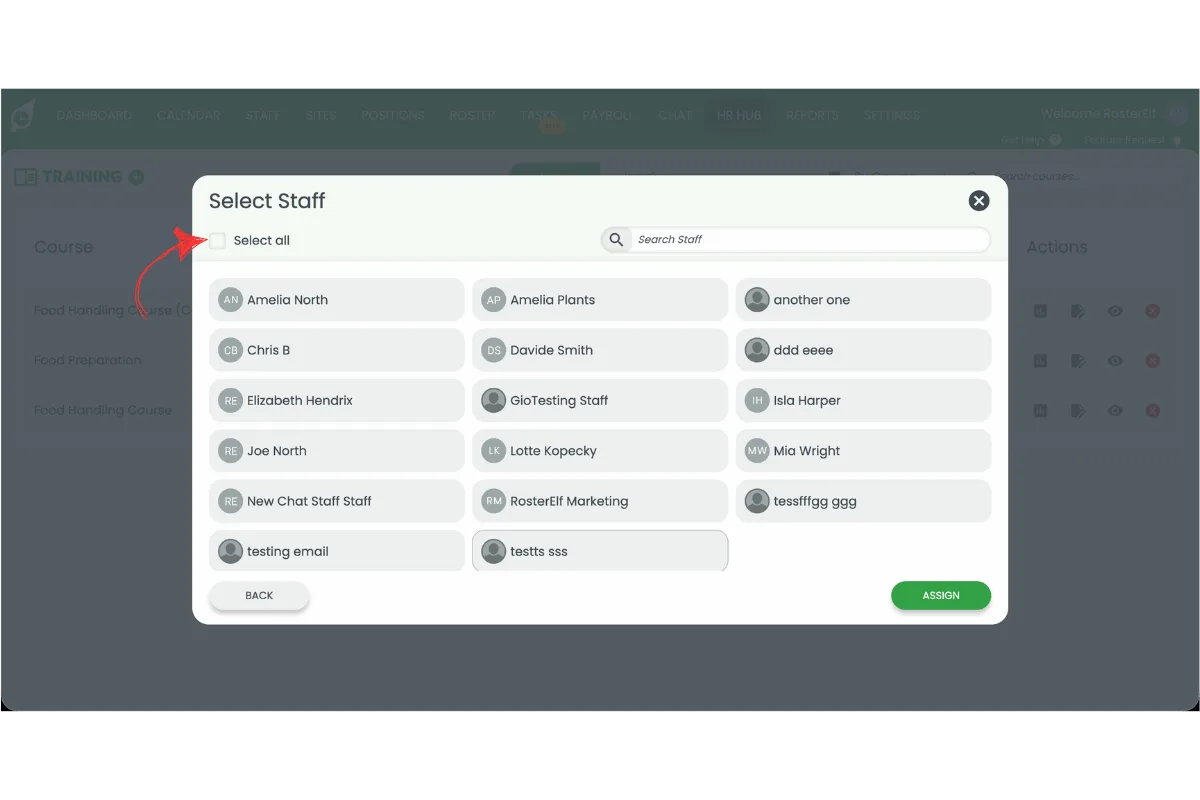
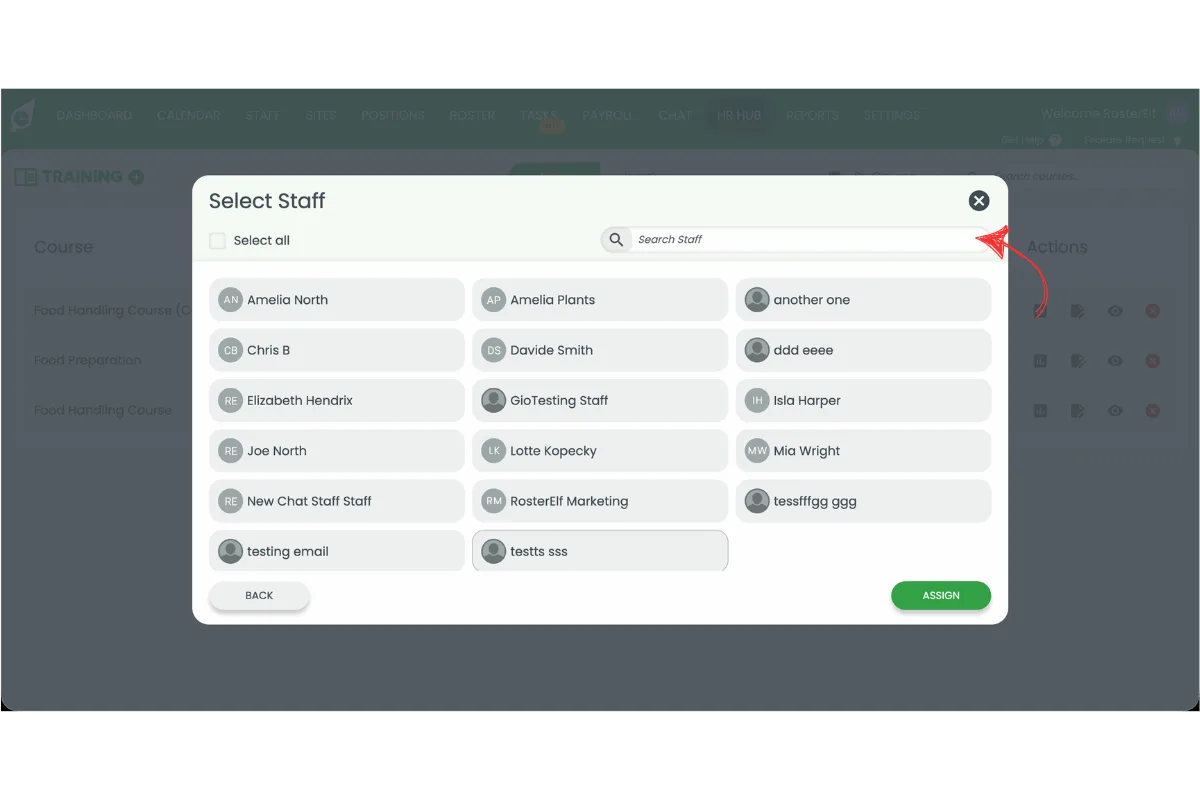
4.1.2 Select All to assign every employee, or search for specific employees.
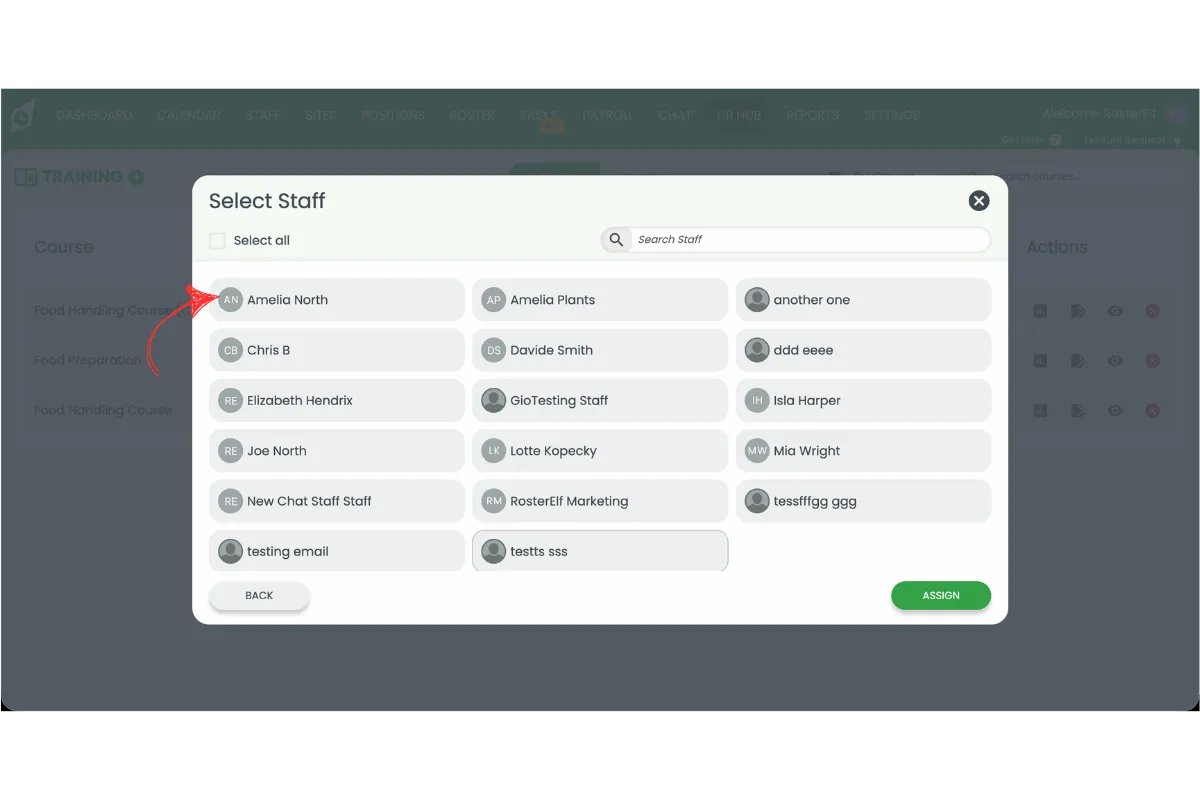
4.1.3 Select the required employees.
4.1.4 Press Assign.
5. View HR Hub training statistics
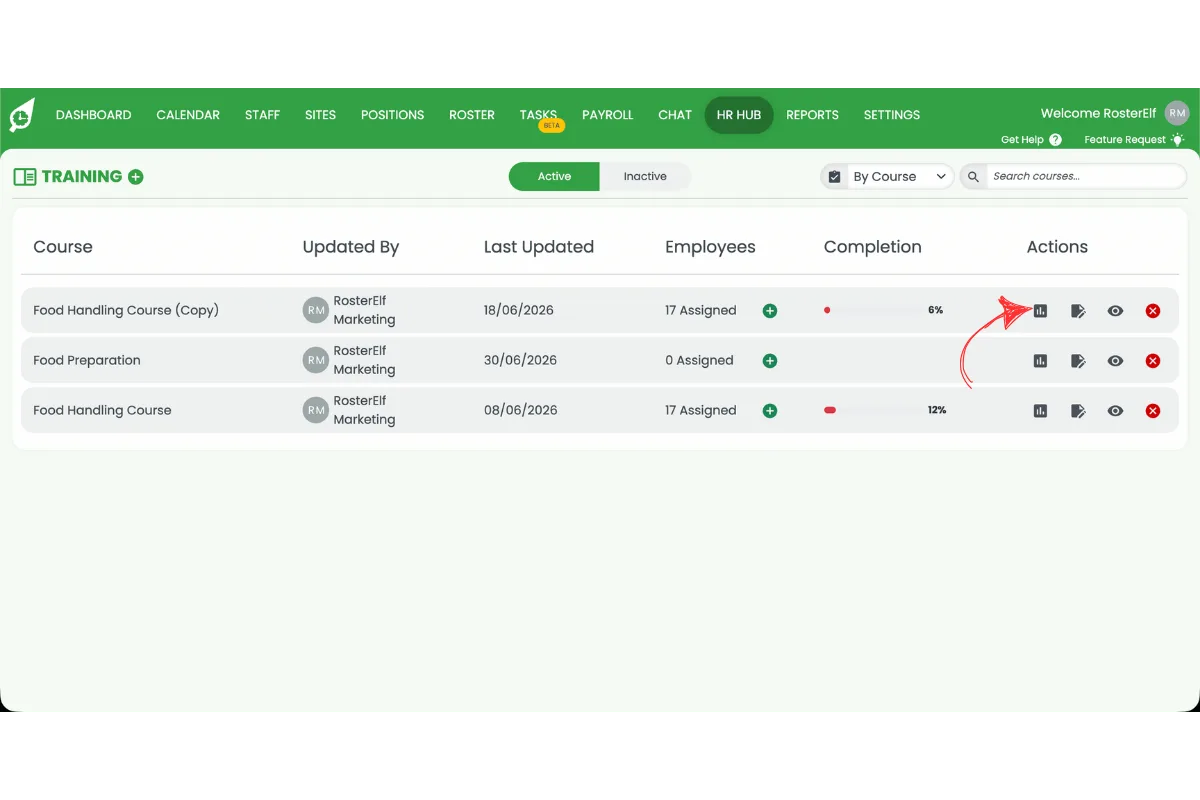
The training dashboard provides an overview of employee training progress. Managers can review course statistics and search for individual employees to quickly check completion status. This makes it easy to identify outstanding training requirements and monitor overall compliance across your business. For a company-wide view across every course, see view HR Hub training reports and statistics.
5.1 View HR Hub training statistics
5.1.1 Open the training course.
5.1.2 Press Stats.
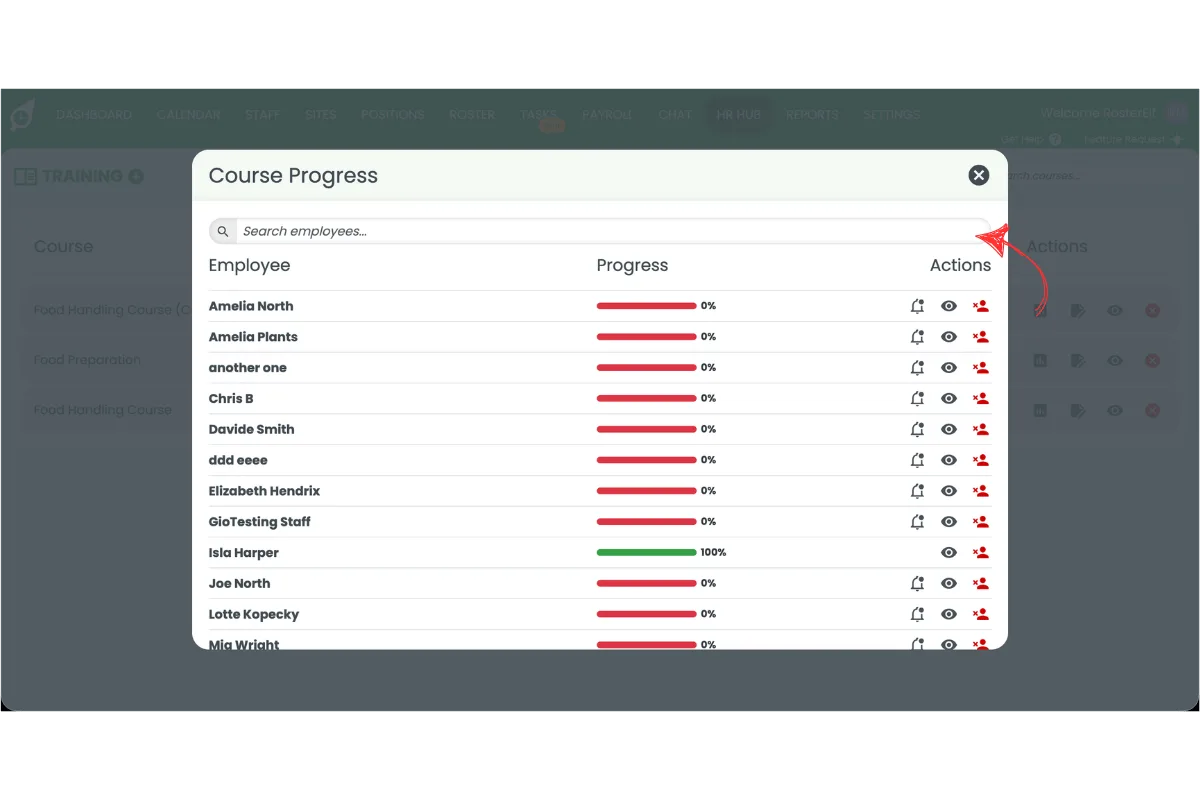
5.1.3 Search for an employee if required.
5.1.4 Send reminders.
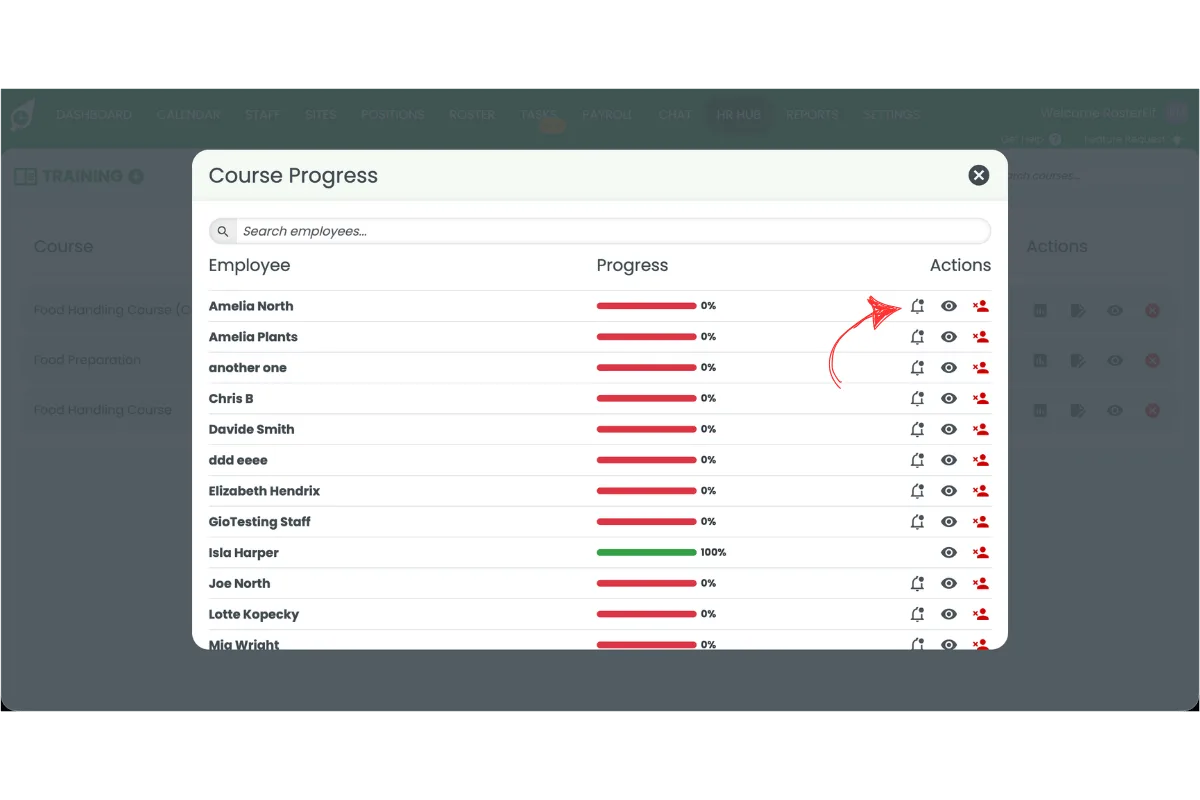
5.1.5 View results.
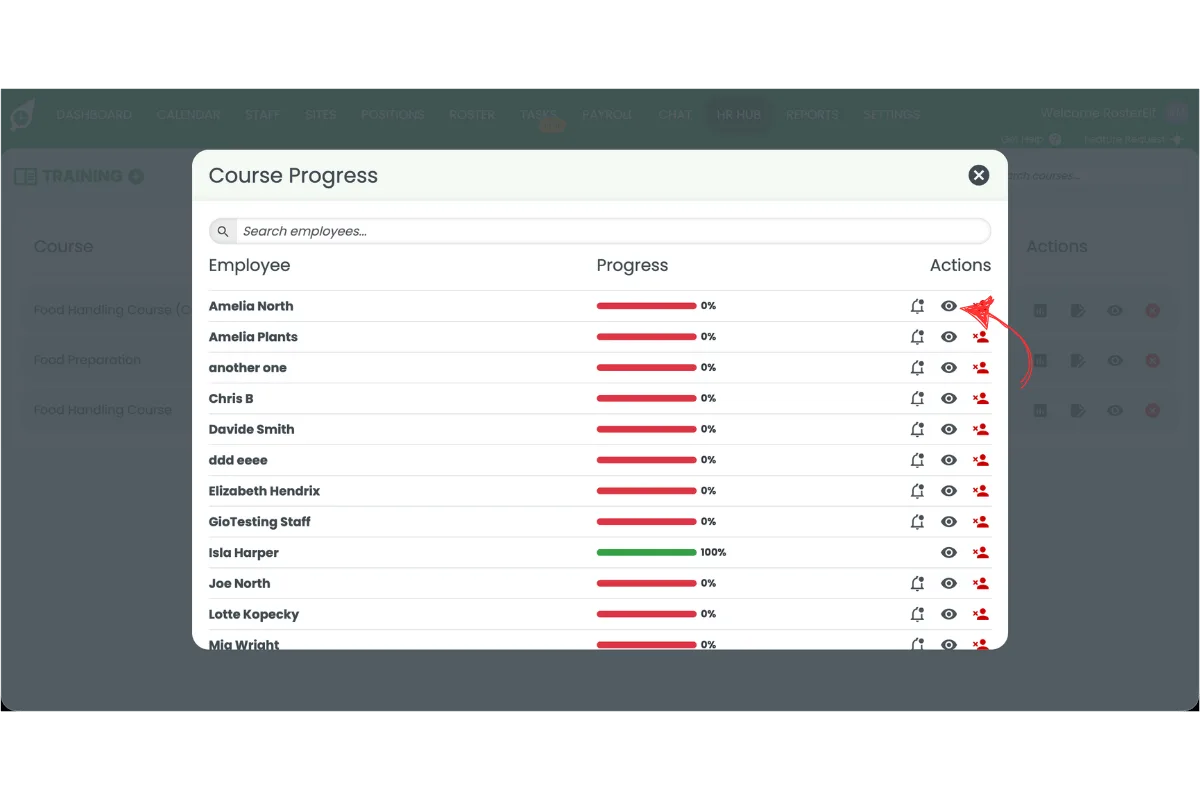
5.1.6 Unassign staff.
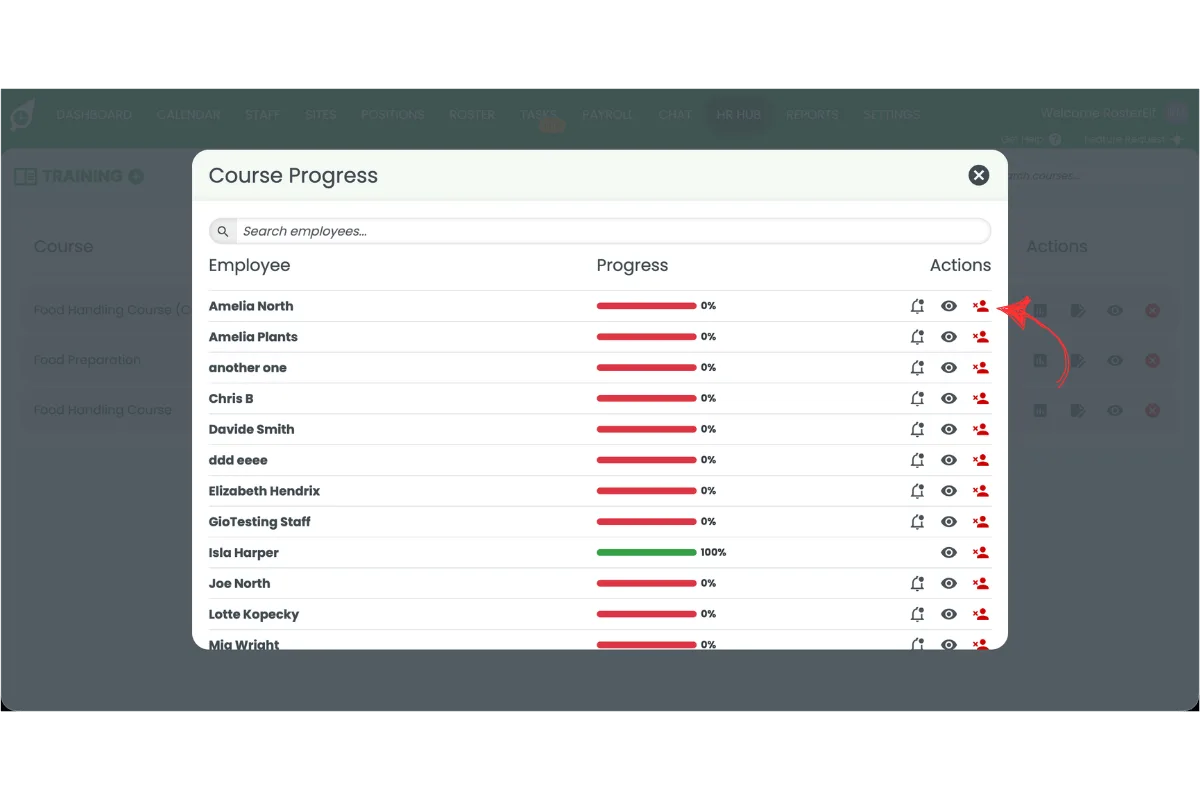
6. Manage HR Hub training courses
After creating a course, you can continue managing it as your business changes. Existing courses can be edited, duplicated to save time when creating similar training, previewed before assigning to staff, or archived when no longer required. These management tools help keep your training library organised and reduce the time required to build new learning content.
6.1 Edit a HR Hub training course
6.1.1 Press Edit.
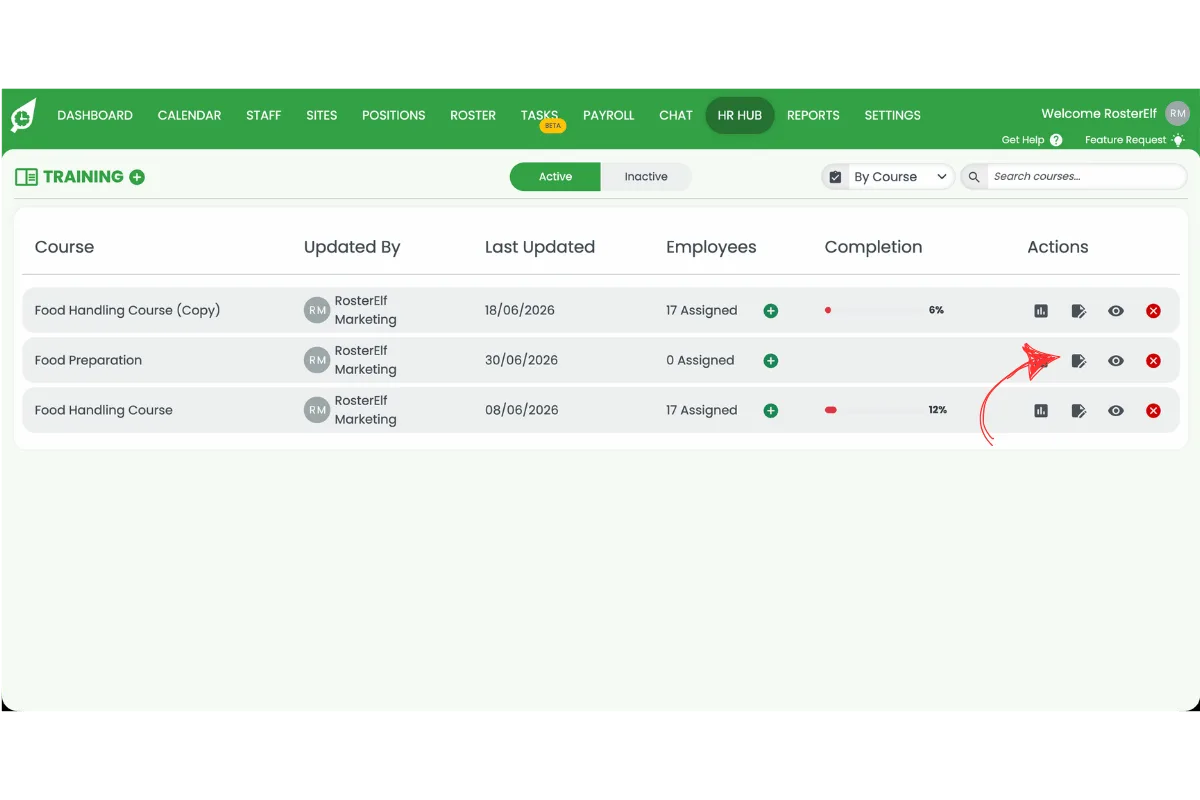
6.1.2 Make your changes.
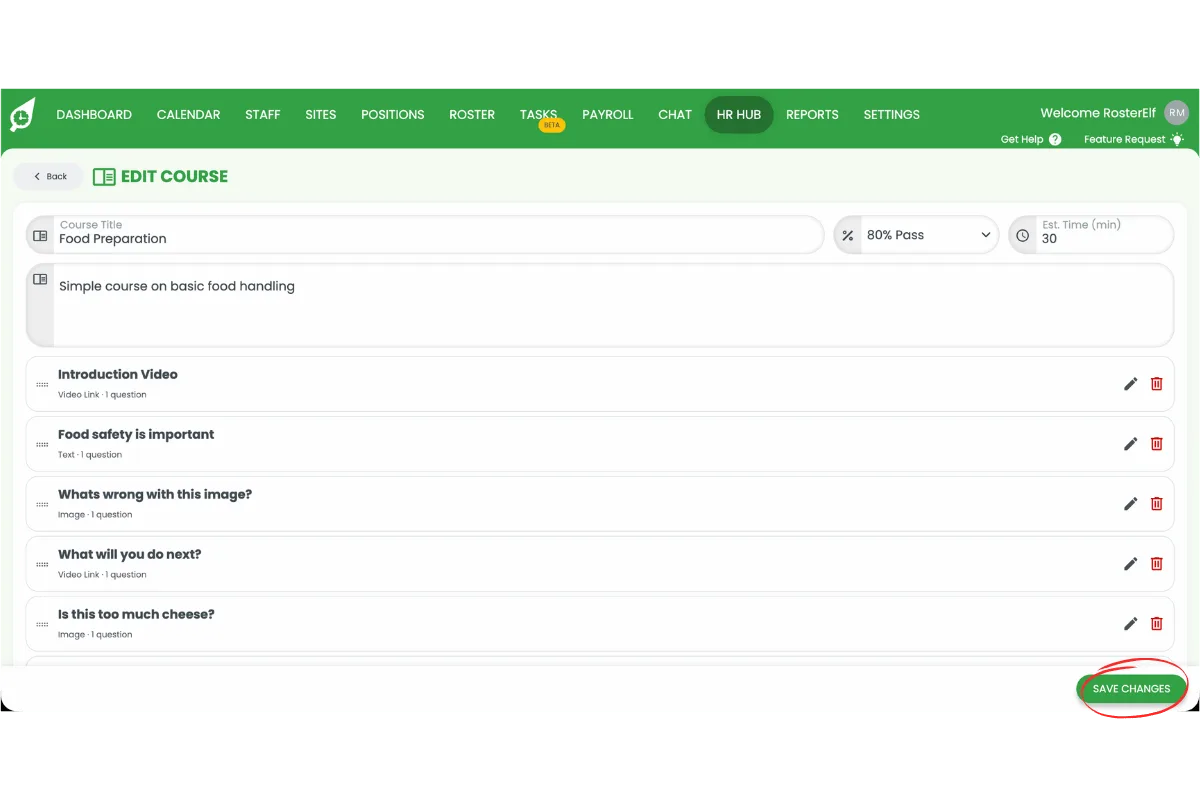
6.1.3 Press Save.
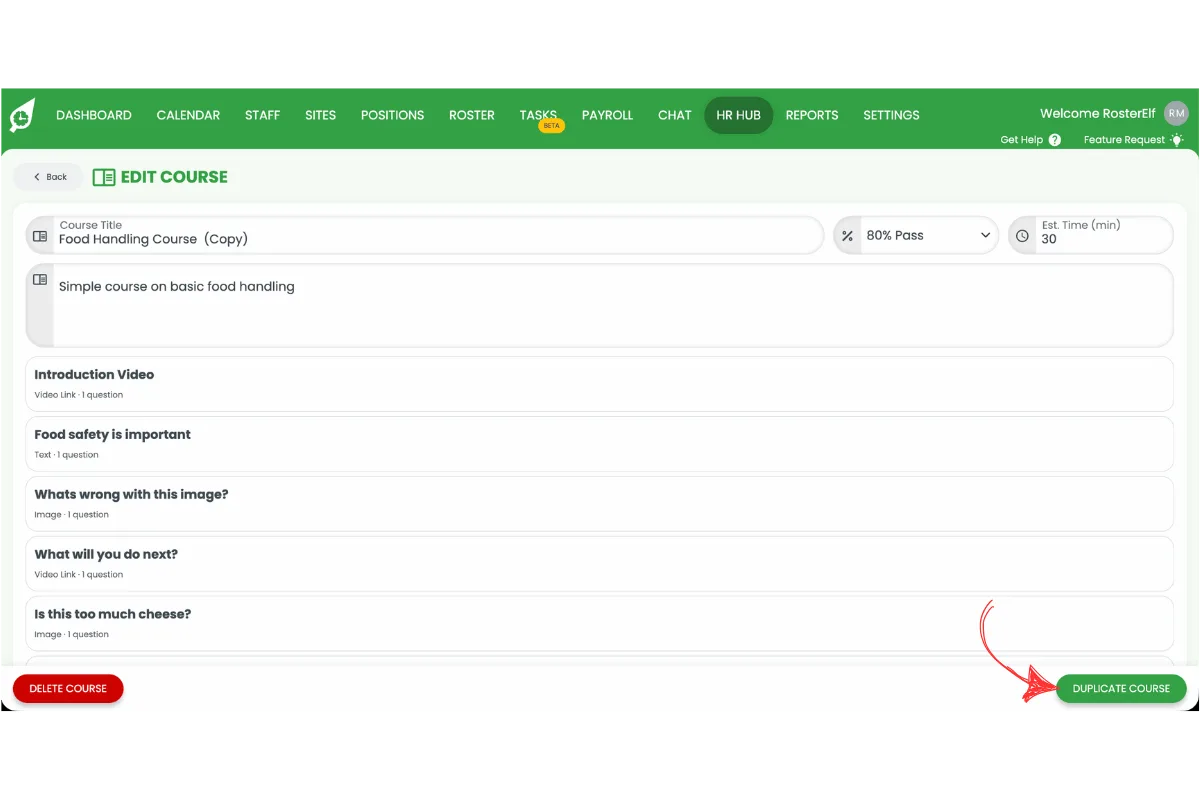
6.2 Duplicate a HR Hub training course
6.2.1 Press Edit.
6.2.2 Press Duplicate.
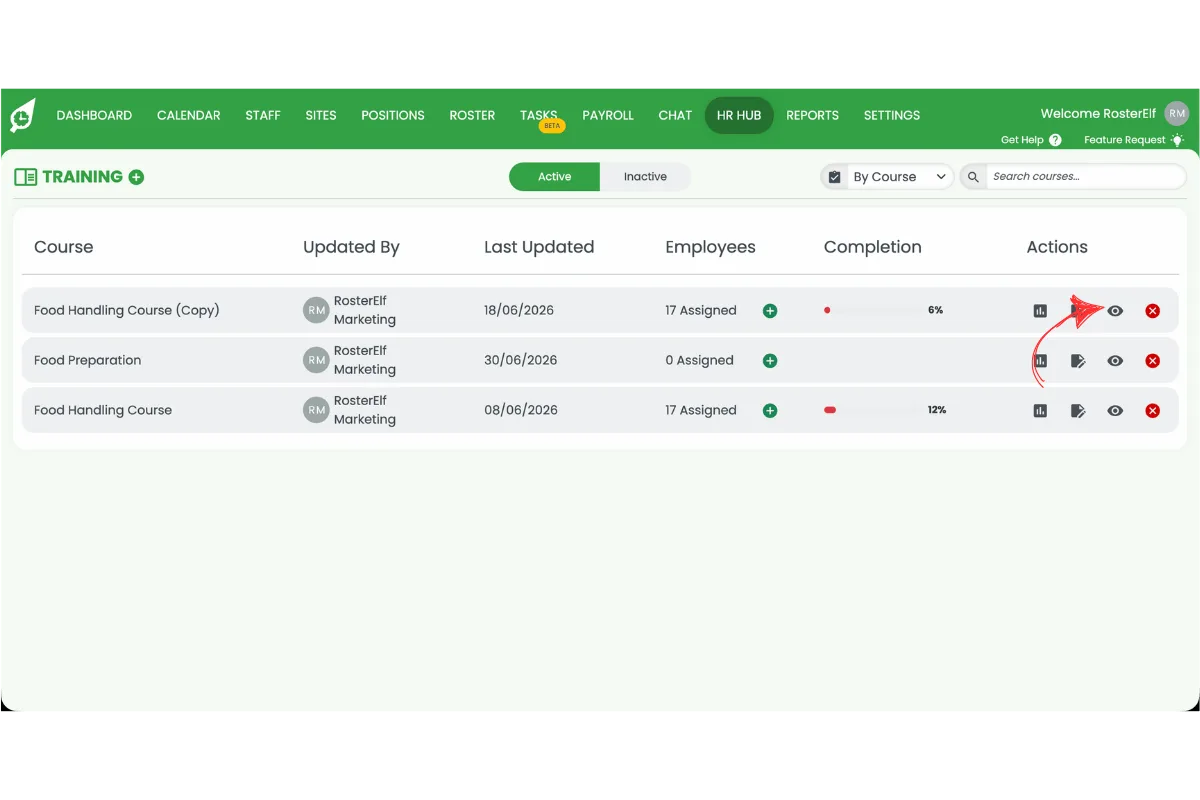
6.3 Preview a HR Hub training course
6.3.1 Press Preview.
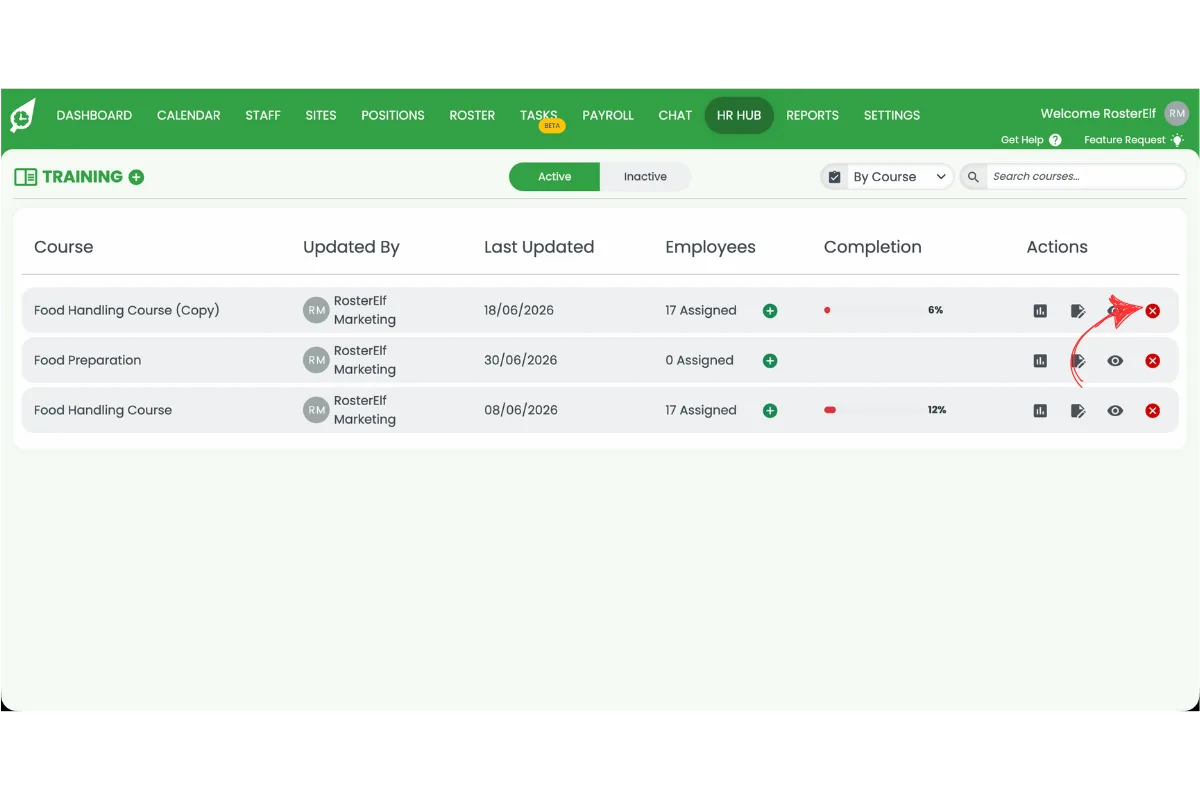
6.4 Archive a HR Hub training course
6.4.1 Press the red X to archive the course.
Related guides
For staff: how to open an assigned course and complete it on the web browser or smartphone app
Check course progress and run the Training Summary report for a company-wide view
How to turn on HR Hub and configure module permissions for admins, managers, and staff
Assign required training and other onboarding steps to new hires automatically