

Setting up allowances for staff ensures accurate payroll calculations based on work schedules. This guide walks you through creating and assigning allowances in RosterElf to fit each employee’s payroll needs. By following these steps, you will streamline payroll processing and ensure allowances are applied accurately. Understanding how award interpretation works in RosterElf can help you configure allowances correctly alongside other pay rules.
For more details on setting up pay templates, refer to our introduction to pay templates guide.
1. Create allowances in RosterElf pay templates
Creating allowances in pay templates is essential to reflect staff entitlements correctly in payroll. This section explains the setup process and each type of allowance to align with your payroll requirements.
1.1 Accessing pay templates in RosterElf
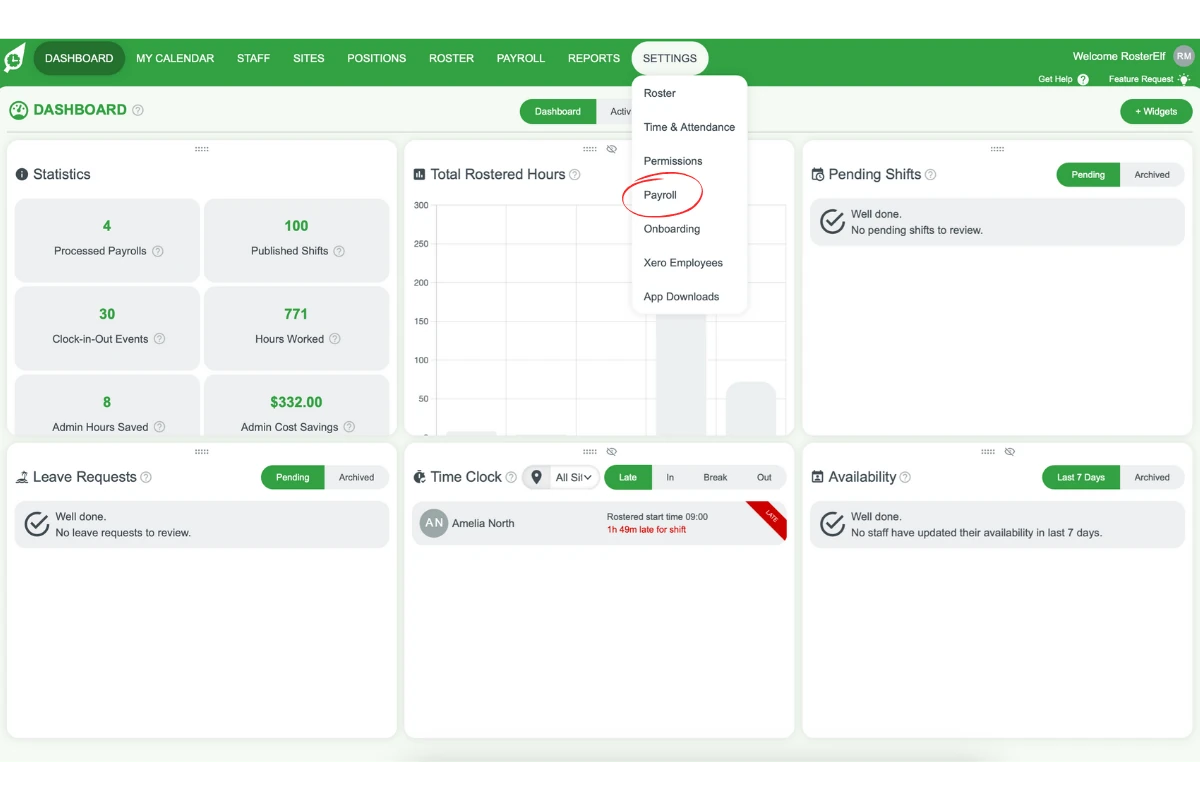
1.1.1 Click on the Settings tab, then select Payroll.
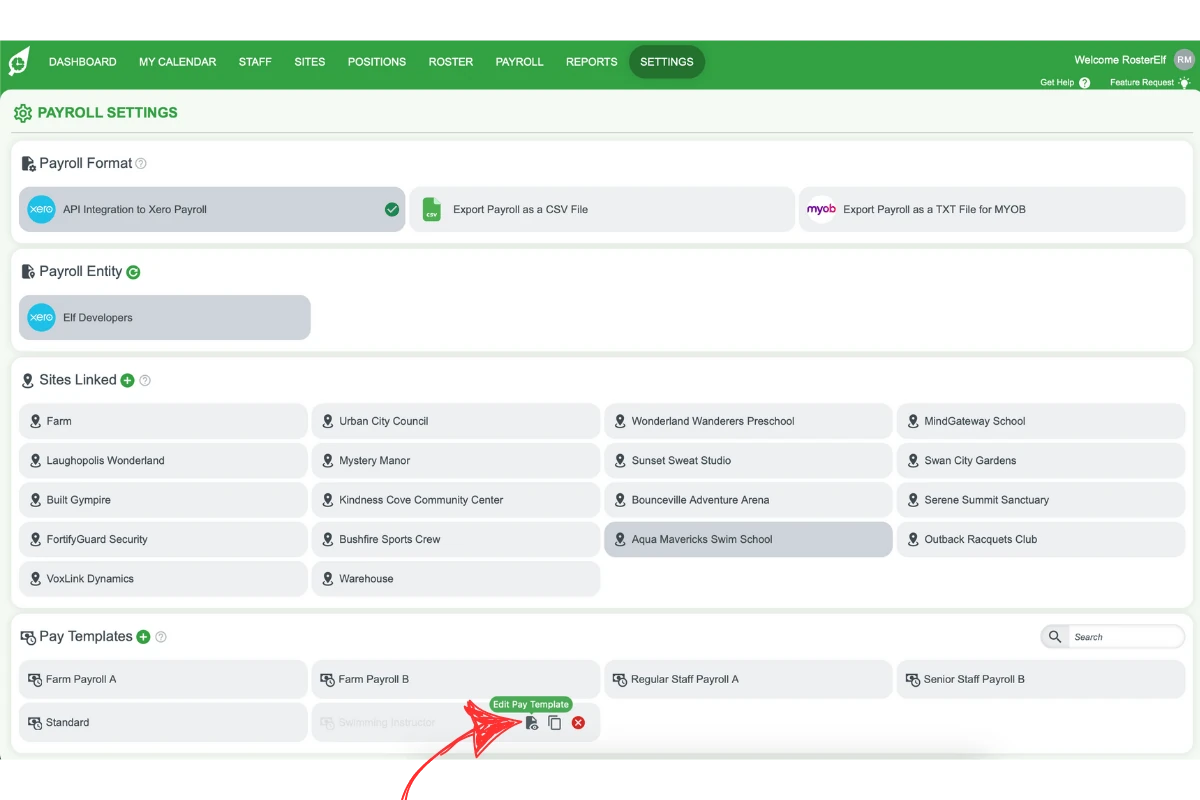
1.1.2 Choose one of your existing pay templates to open it.
1.2 Selecting the allowances tab
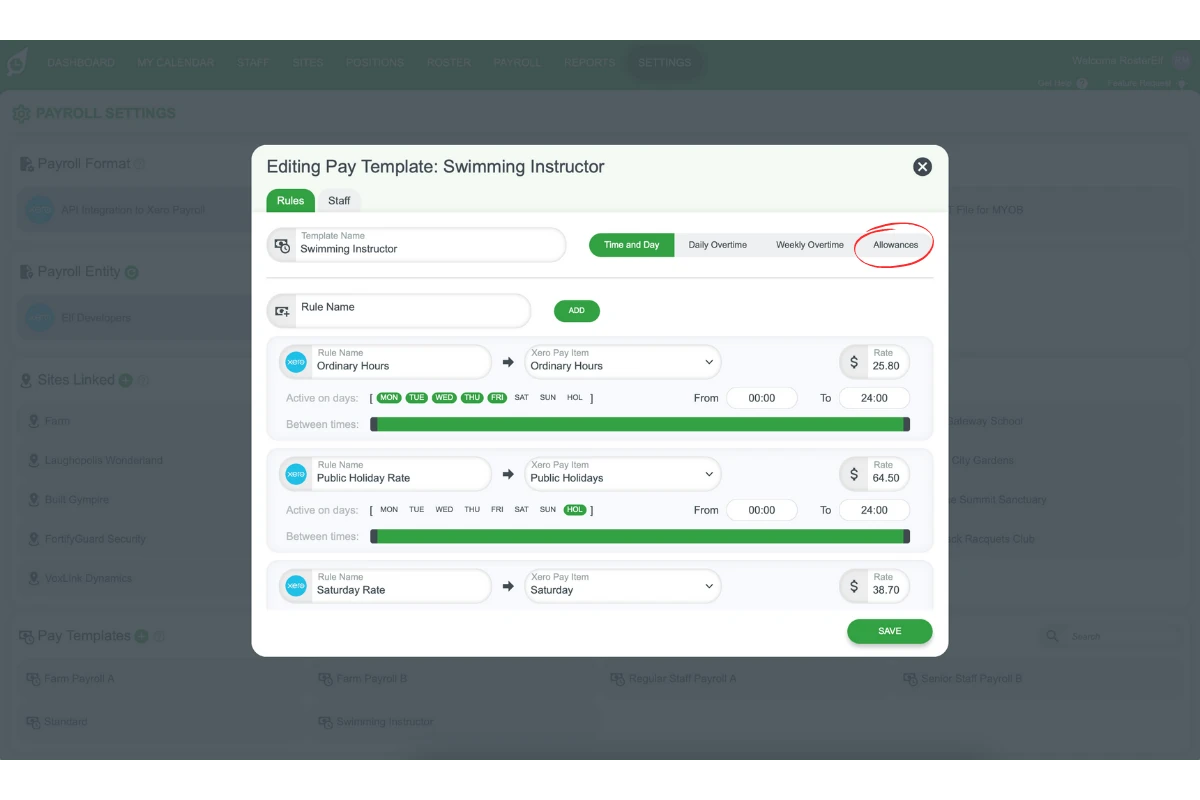
1.2.1 Open the Allowances tab. Allowances come as fixed slots (Daily Allowance 1–3, Hourly Allowance 1–3 and weekly slots), so there is no allowance type to pick from a list.
1.2.2 Use the slot that matches how the allowance is paid:
- Daily — adds an allowance unit for each day a shift is worked
- Hourly — adds an allowance unit for each hour worked
- Weekly — adds an allowance unit for each week a shift is worked
1.3 Setting allowance pay items
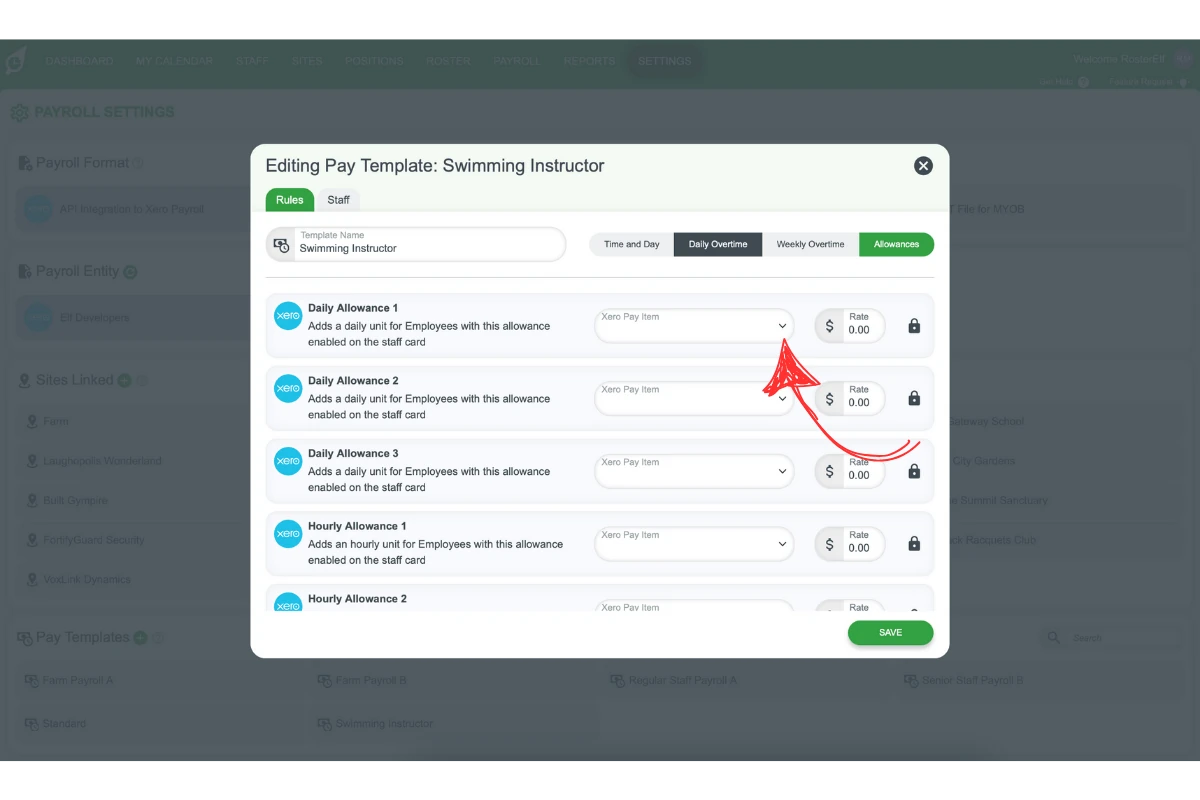
1.3.1 For Xero users, select the specific pay item for the allowance from the drop-down list.
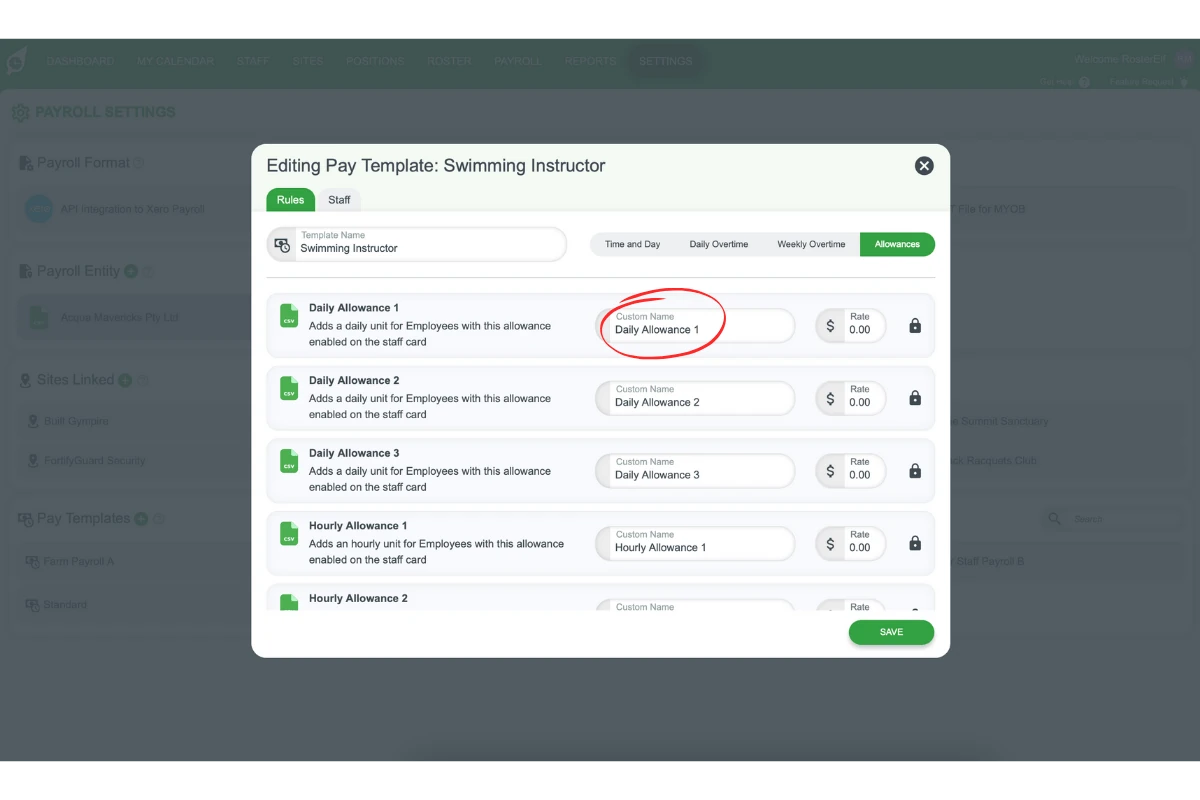
1.3.2 For other payroll platforms, copy the exact wording of your allowance from your payroll platform and paste it into the slot’s Custom Name field in RosterElf. The slot’s Rate is locked in RosterElf; see the note below on rates.
2. Assign allowances to staff in RosterElf
After creating allowances in pay templates, assign them to applicable staff members. This section covers the steps to customise each staff member’s pay template with the necessary allowances, ensuring payroll reflects accurate compensation.
2.1 Accessing staff payroll settings
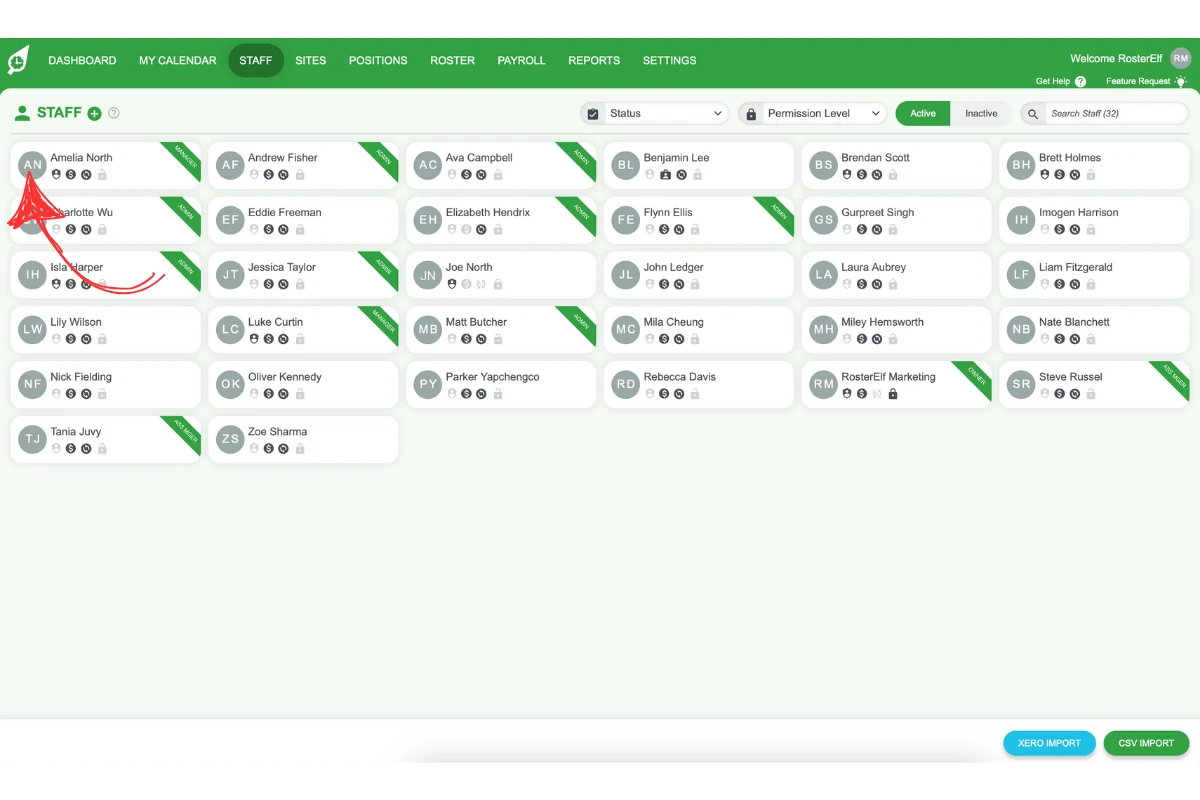
2.1.1 Click on the Staff tab and select the specific staff member.
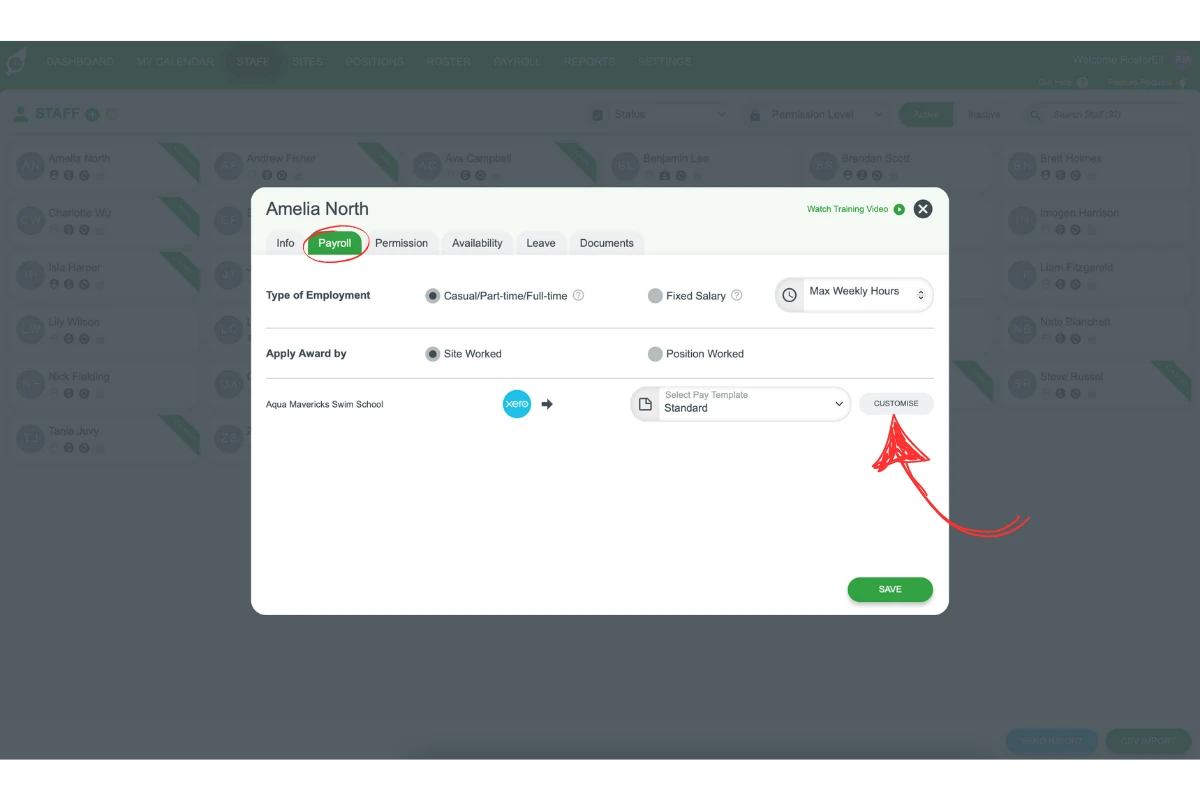
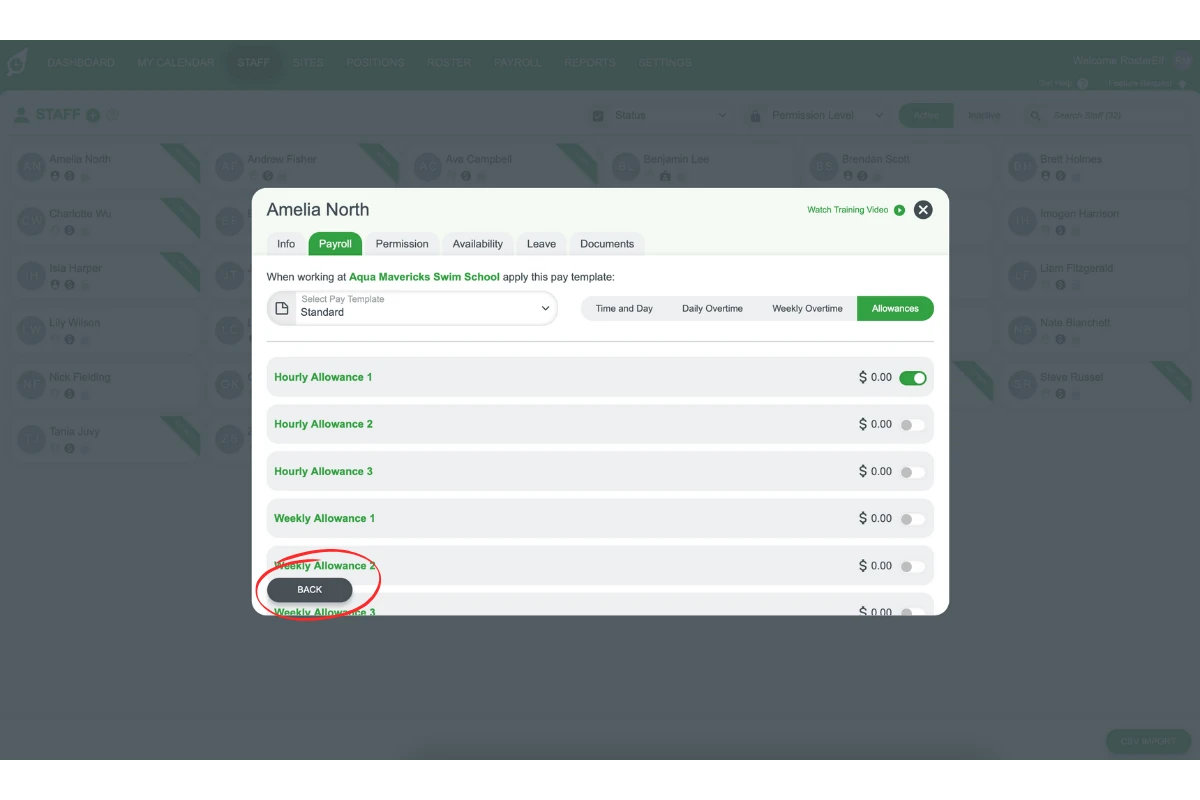
2.1.2 Click on the Payroll tab, then select Customise next to each assigned pay template.
2.2 Enabling allowances for staff
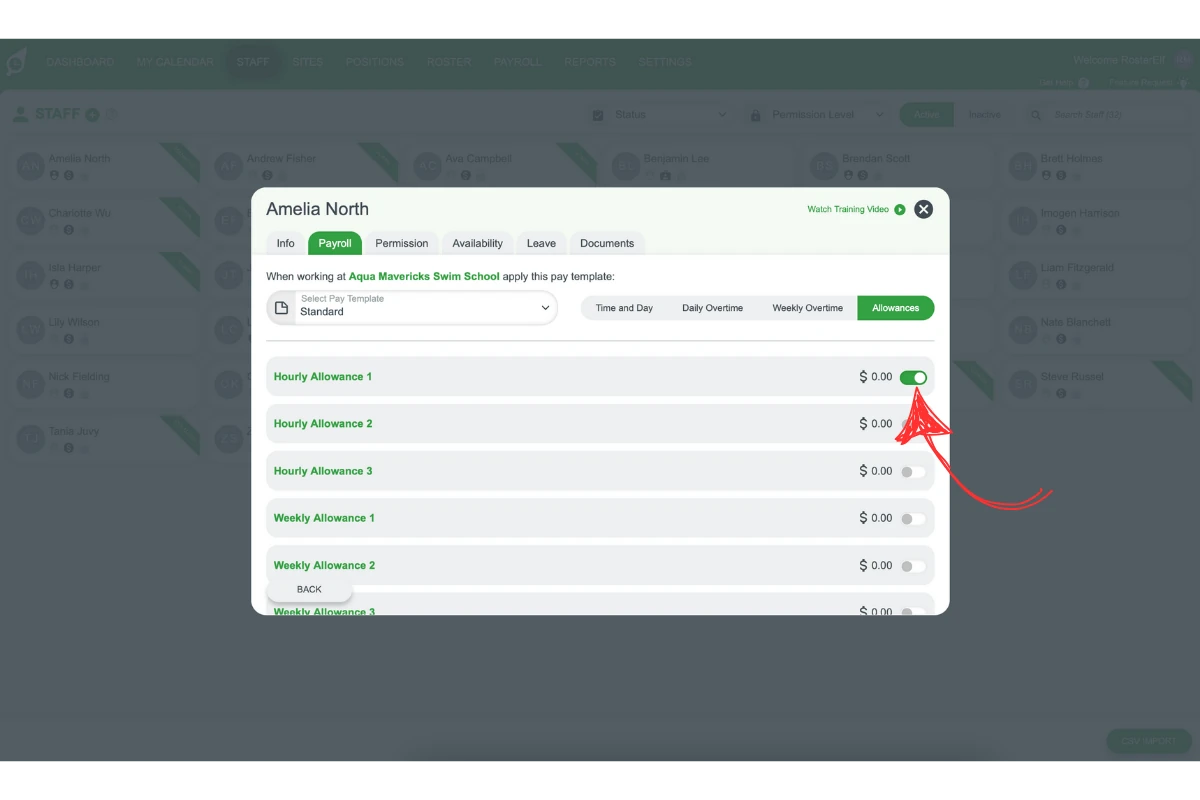
2.2.1 Within the customised pay template, open the Allowances tab.
2.2.2 Toggle ON each allowance required for the staff member.
2.2.3 Click Back and repeat the process for any additional pay templates assigned to the staff member if allowances are applicable.
Setting allowance rates
Allowance rates are controlled in your payroll platform, not inside RosterElf. If you need a rate created or updated, email our support team at customersupport@rosterelf.com and we will set it up for you. Note that rates added via the support team do not currently contribute to your overall roster budget.
For further help, visit our support centre or contact our support team.
Frequently asked questions
1. How do I create allowances in RosterElf pay templates?
To create allowances, navigate to the Settings tab and select Payroll. Open an existing pay template, go to the Allowances tab, and use the Daily, Hourly or Weekly allowance slot that matches how the allowance is paid.
2. What types of allowances can I set in RosterElf?
RosterElf allows three main types of allowances: Daily (per shift worked), Hourly (per hour worked), and Weekly (per week worked). Each comes as a set of fixed slots, such as Daily Allowance 1–3 and Hourly Allowance 1–3; use the slot that fits your payroll requirements.
3. Can I link allowances in RosterElf with my Xero pay items?
Yes, RosterElf integrates with Xero. Select the applicable pay item from the Xero dropdown menu in the Allowances tab. For other platforms, paste the exact wording from your payroll system into the slot’s Custom Name field.
4. How do I assign allowances to individual staff members?
Go to the Staff tab, select a staff member, then open their Payroll tab. Customise their pay template by toggling on the required allowances within the Allowances tab for accurate payroll application.
5. Do I need to customise each staff member pay template for allowances?
Yes, you should customise each assigned pay template per staff member to ensure allowances are enabled as needed. Repeat this process for any additional templates the staff member has.
6. Can I set the allowance rate inside RosterElf?
You can enable an allowance in RosterElf, but the rate itself is controlled in your payroll platform. If you need the rate created or updated, please email our support team at customersupport@rosterelf.com and we’ll be happy to set it up for you.
7. Does the allowance rate contribute to my overall roster budget?
Currently rates added via the support team do not contribute to your overall roster budget.