


This article explains how to publish and communicate shifts effectively to your staff. You’ll learn various methods to ensure your roster is shared correctly, keeping staff informed of their upcoming shifts. Before using these features, it may help to review:
- An overview of the roster
- Creating shift(s) on your roster
Following these methods will help you efficiently communicate shifts to individual staff members or groups, keeping your team informed and reducing scheduling errors.
1. Accessing the publish shift modal
The Publish Shift modal is where you manage shift publishing options. You can open this modal through different actions tailored to specific publishing needs.
You can access the modal by:
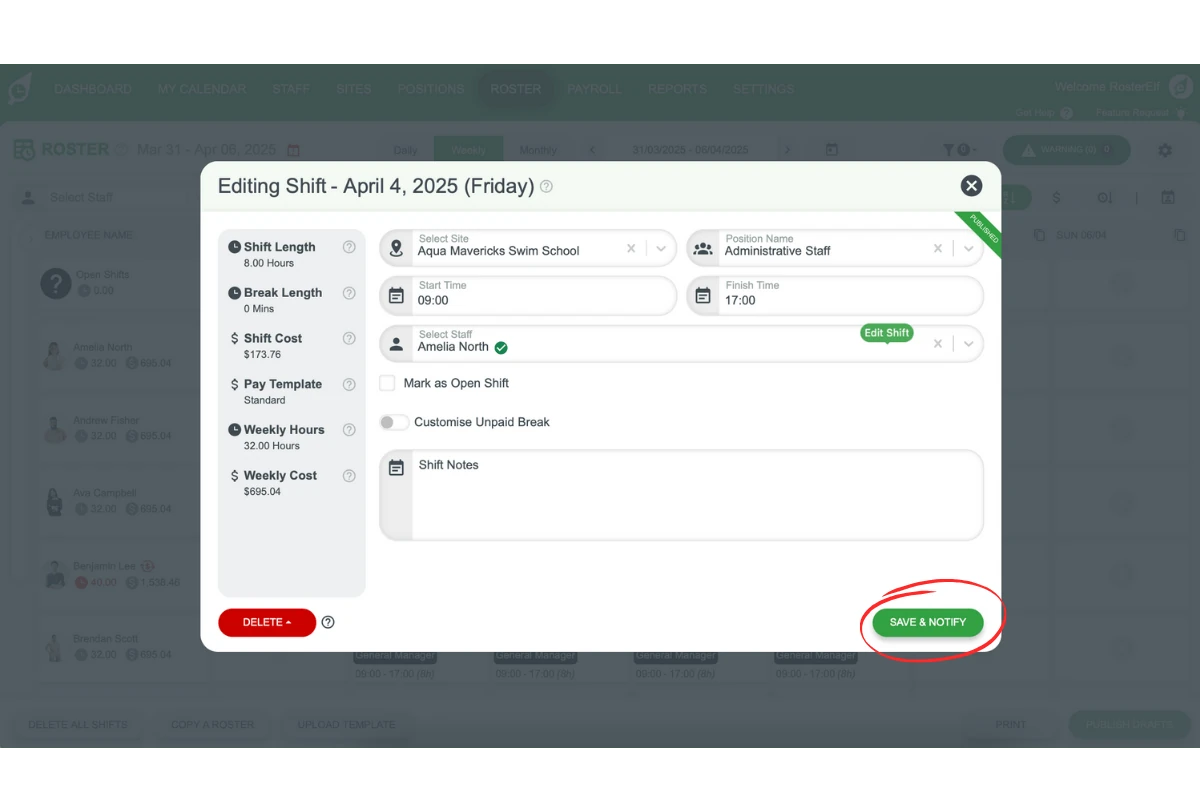
- Creating a shift on the roster and selecting Publish Now.
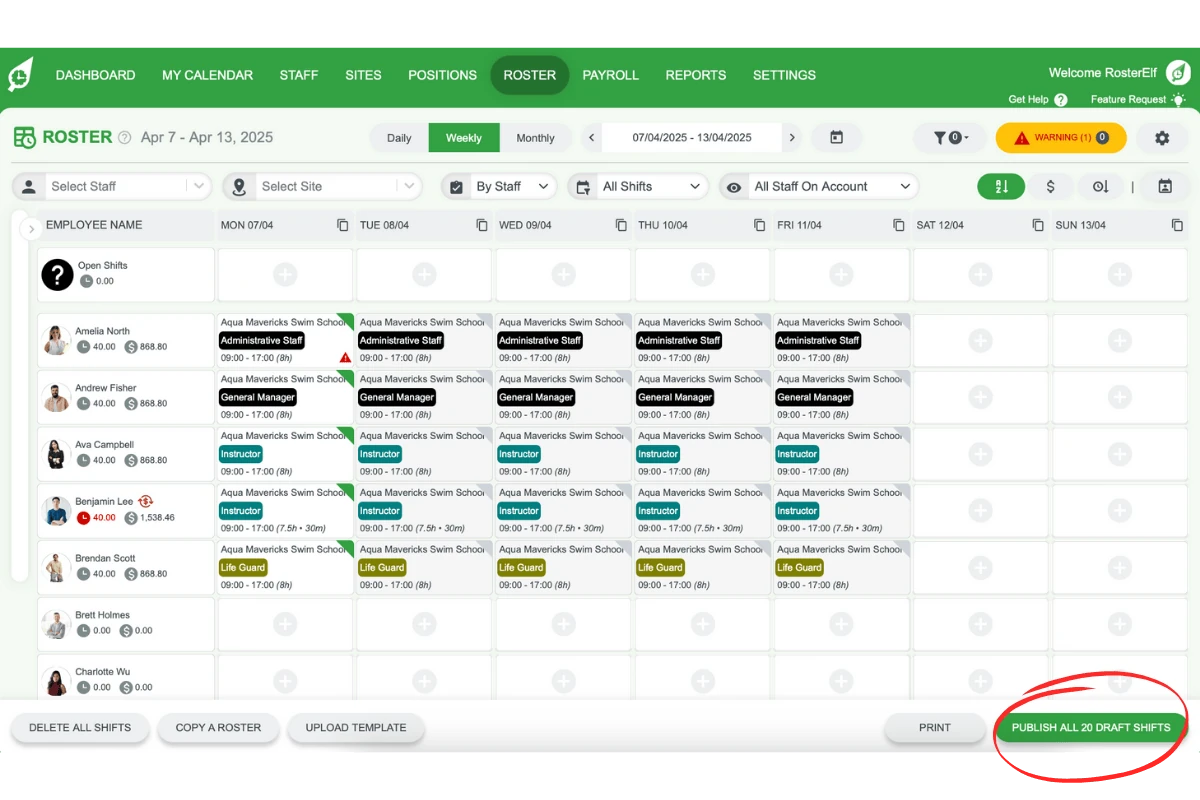
- Selecting Publish Drafts or Publish # Draft Shifts in the bottom right of the roster. The button wording will change based on the number of shifts.
1.1 publish now
The Publish Now button lets you publish a single shift you are working on. For details on creating shifts, see Creating Shift(s) on your roster.
1.2 publish drafts
The Publish Drafts button publishes all visible shifts on the roster screen. This is useful for publishing multiple shifts, like a day, week, or month. Before selecting Publish Drafts, ensure the correct period or filters are set to match your publishing needs. You can filter by date, site, or staff to narrow down the shifts.
2. Using the publish shifts modal
Once you open the Publish Shifts modal, you’ll have options to select communication methods, choose shift types, and add comments to shifts.
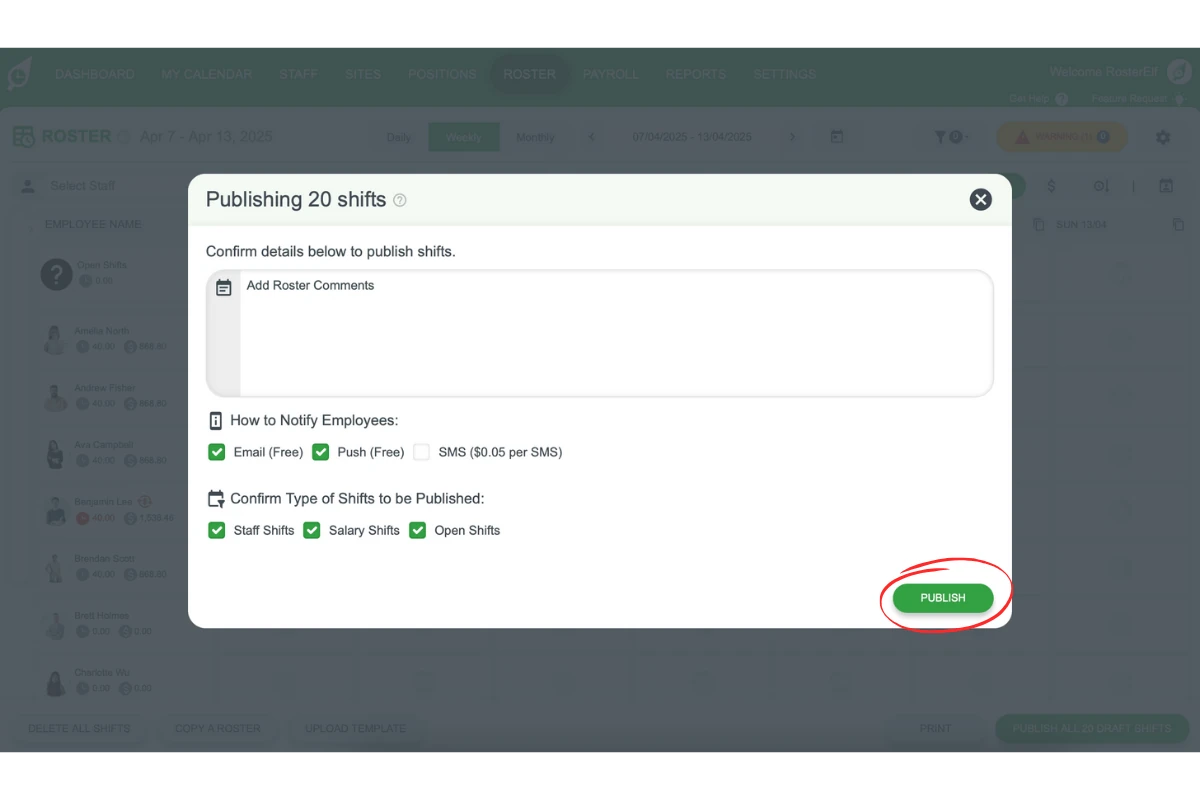
In this modal, you can:
- Add a comment – Type a message that’s included in the notification for this batch of shifts only. It isn’t a general announcement to your whole team — for that, use the newsfeed instead.
- Choose notification method – Select email, push notification, or SMS (note that SMS incurs a charge per message sent).
- Confirm shift types – Choose the types of shifts to publish, such as staff shifts, salary shifts, or open shifts.
2.1 notifying employees
You can notify employees via:
- Email and Push Notification (free options).
- SMS – Charged per SMS sent to your RosterElf account.
For example, publishing shifts to 10 staff members via SMS will result in 10 SMS charges.
2.2 shift types to be published
You can specify the types of shifts to be published, such as:
- Staff Shifts – Any non-salary or open shifts.
- Salary Shifts – Shifts listed under the fixed salary section in a staff card.
- Open Shifts – Shifts without assigned staff members.
Once you’re ready, select Publish to send the shifts and notify your staff.
Frequently asked questions
1. How do I publish a single shift to my staff?
To publish a single shift, select Publish Now after creating the shift on the roster. This will immediately communicate the shift details to the assigned staff member.
2. Can I publish multiple shifts at once?
Yes, you can publish multiple shifts at once by selecting Publish Drafts. This option publishes all visible draft shifts on your roster screen, allowing you to send notifications for a specific day, week, or month.
3. What communication methods are available for notifying staff?
You can notify staff through email, push notifications, or SMS. Email and push notifications are free, while SMS incurs a charge per message.
4. How can I include a message with the shift notifications?
In the Publish Shifts modal, you can add a custom comment that will be included in the shift notification. This helps provide additional context or instructions for the staff receiving the shifts.
5. What types of shifts can I publish?
You can choose to publish staff shifts, salary shifts, or open shifts in the Publish Shifts modal. This allows you to control which shifts are communicated based on your scheduling needs.
6. Can I unpublish a shift and turn it back into a draft?
No, once a shift is published there is no option to revert it back to a draft. If you need to make changes, edit the shift and select Save & Notify to update staff, or delete the shift and recreate it as a new draft if it hasn’t started yet.
7. Can I use this to send a general announcement to my whole team?
No — the comment you add here is only included in the notification for the batch of shifts you’re publishing right now, so it won’t reach staff who aren’t part of that batch. If you want to post a broadcast announcement that all staff (or everyone at a site) will see regardless of their shifts — like a policy update or a parking notice — use the newsfeed instead. Admins can post to the newsfeed by default, and an admin can also turn on Allow Managers to Post so managers can post too.