

This article explains how to reset password in RosterElf. RosterElf has recently updated the password reset flow to make it easier and more secure for users to update their login details. This new process ensures you can quickly regain access to your account while maintaining strong security standards.
Resetting your password is important if you forget your login details or want to improve your account security. The updated flow simplifies each step and guides you through the process using a secure email link. This helps protect your account from unauthorised access while keeping the process quick and easy to follow. You can also strengthen your account further by enabling multi-factor authentication.
By following this guide, you will be able to reset your password in just a few steps. This ensures you can access your account without delays and continue managing your roster, payroll, and staff information with confidence. To update other account details after logging in, visit your My Profile settings.
1. Reset password in RosterElf
This section explains how to reset password in RosterElf using the updated password flow. You will learn how to request a password reset, access the reset email, and set a new password securely. This process ensures you can quickly regain access to your account without needing additional support.
The updated password flow improves both usability and security. It uses a secure email link to verify your request and allows you to create a new password safely. Following these steps will help you complete the process efficiently and return to using RosterElf without interruption.
1.1 Request reset password in RosterElf
1.1.1 Open the RosterElf login screen.
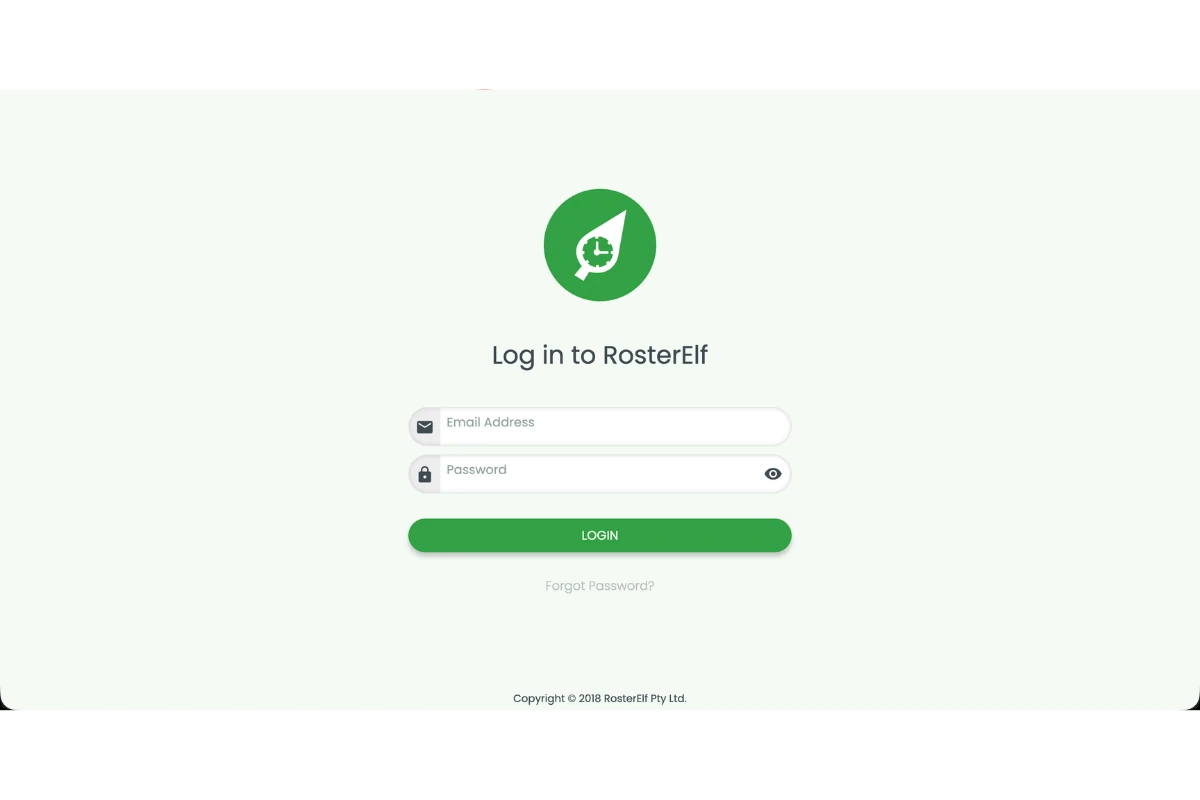
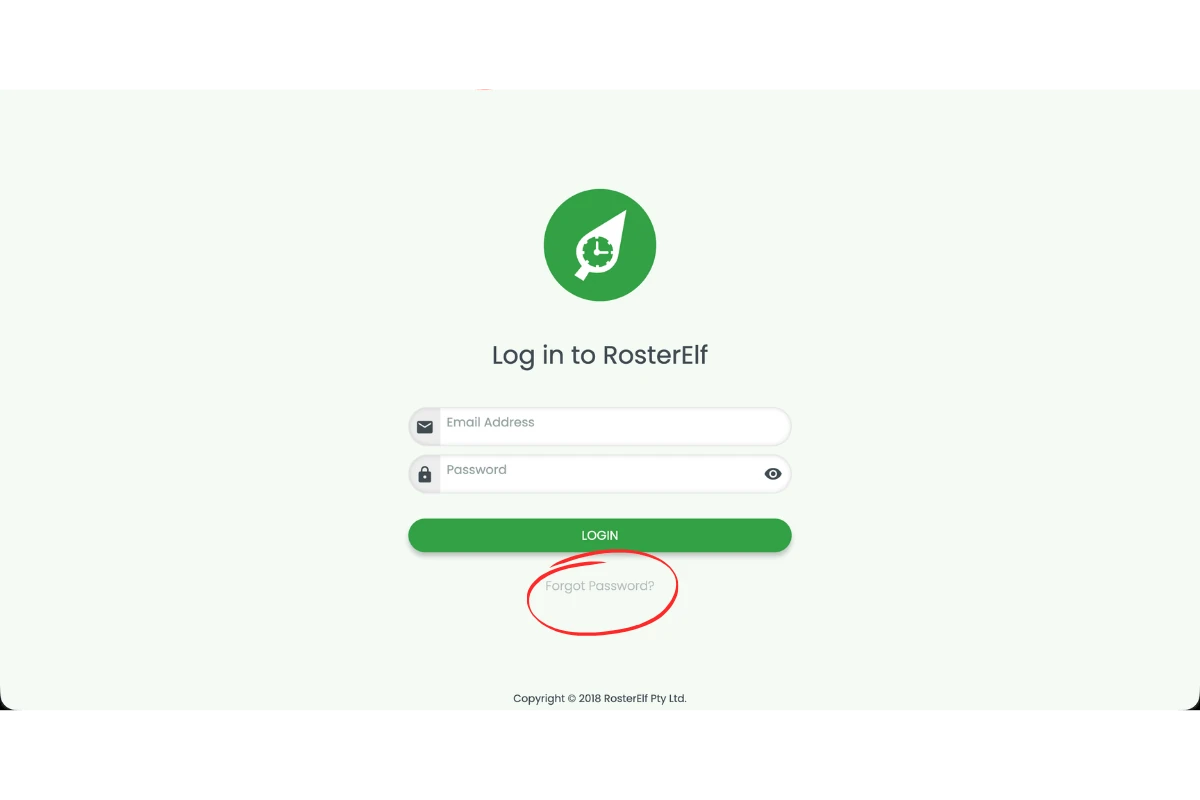
1.1.2 Click Forgot Password?
1.2 Open reset password email in RosterElf
1.2.1 Open the password reset email from RosterElf in your inbox.
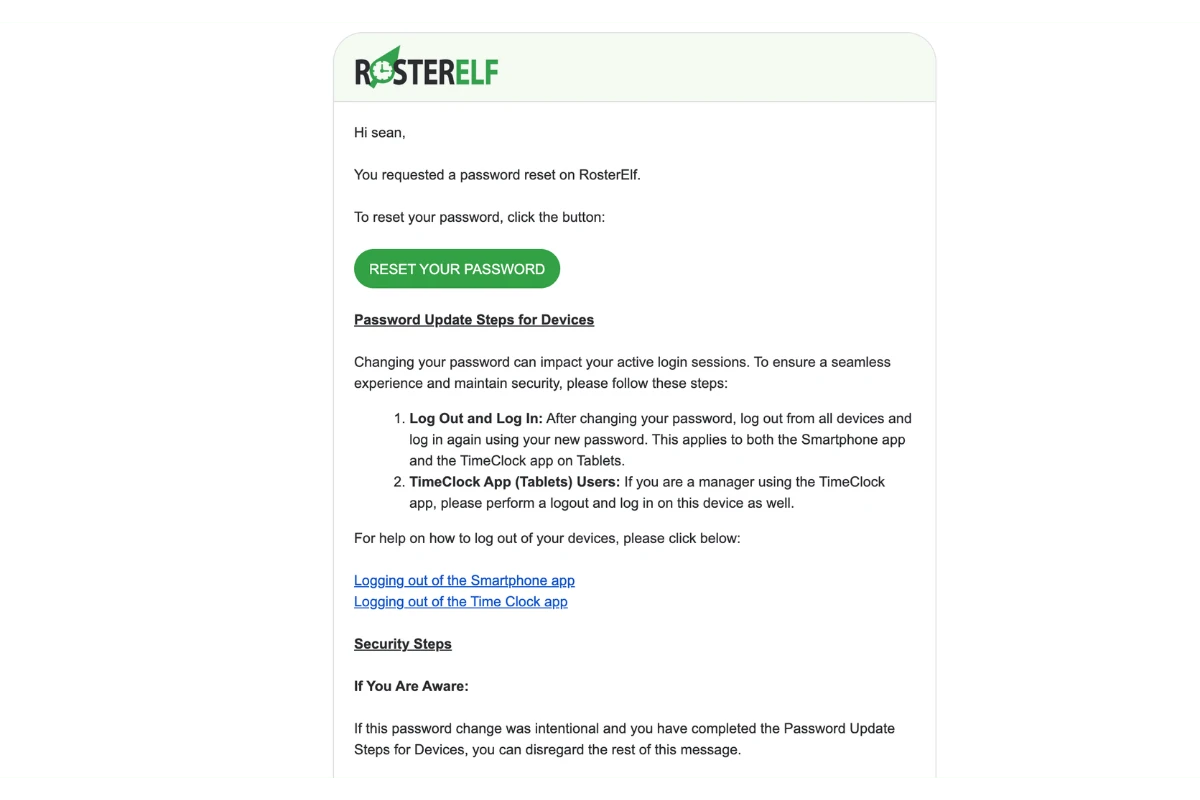
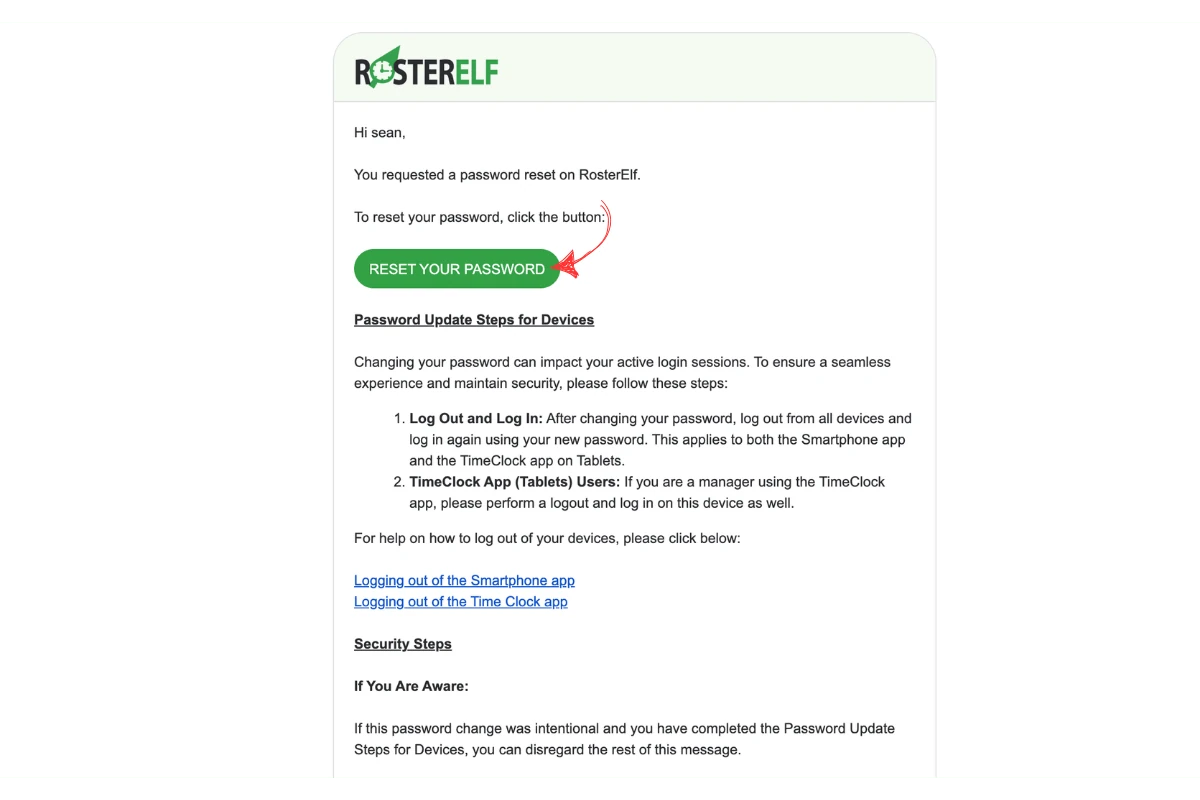
1.2.3 Click Reset Your Password.
1.3 Set new password in RosterElf
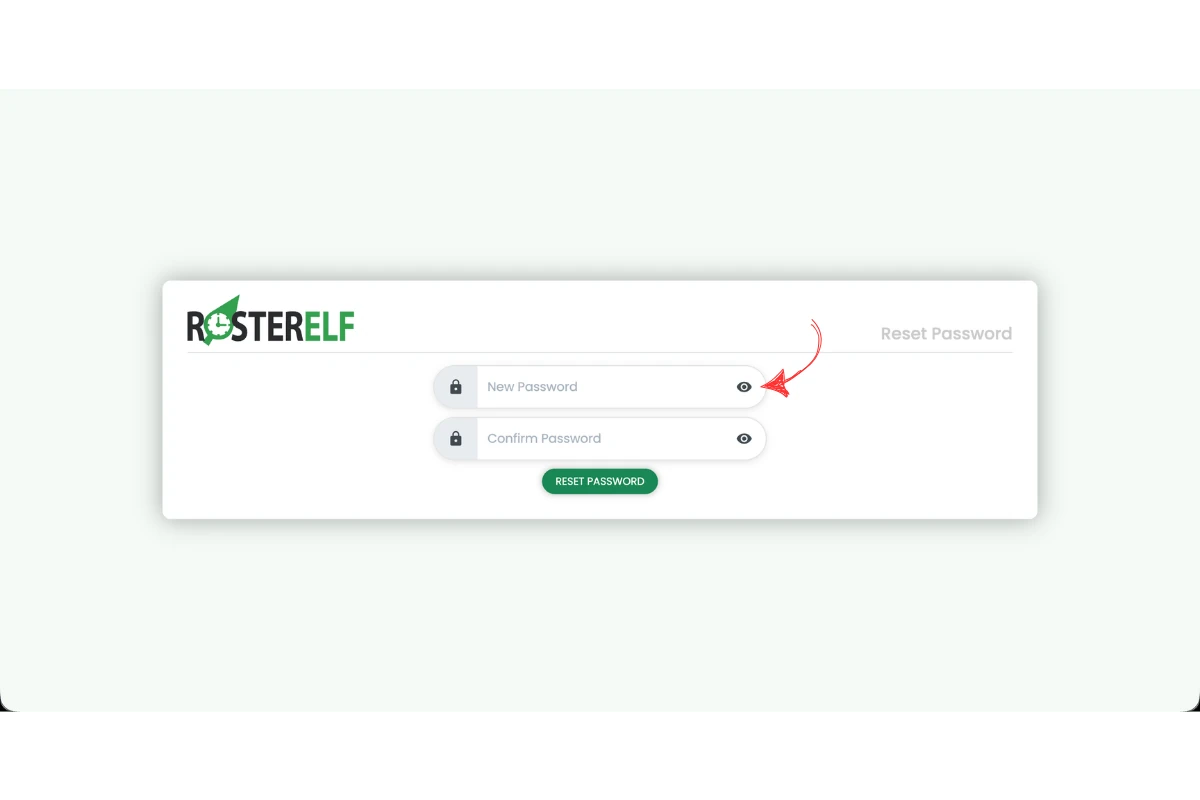
1.3.1 Enter your new password in the New Password field.
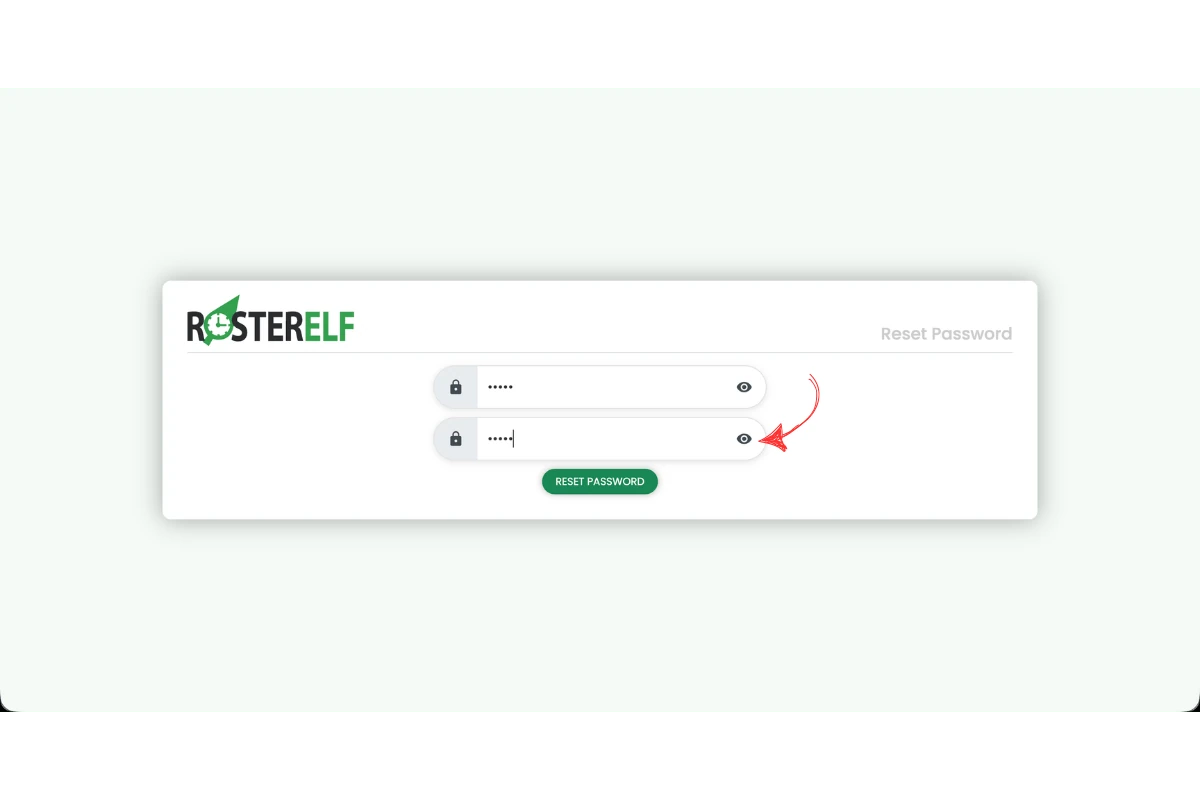
1.3.2 Confirm your new password in the Confirm Password field.
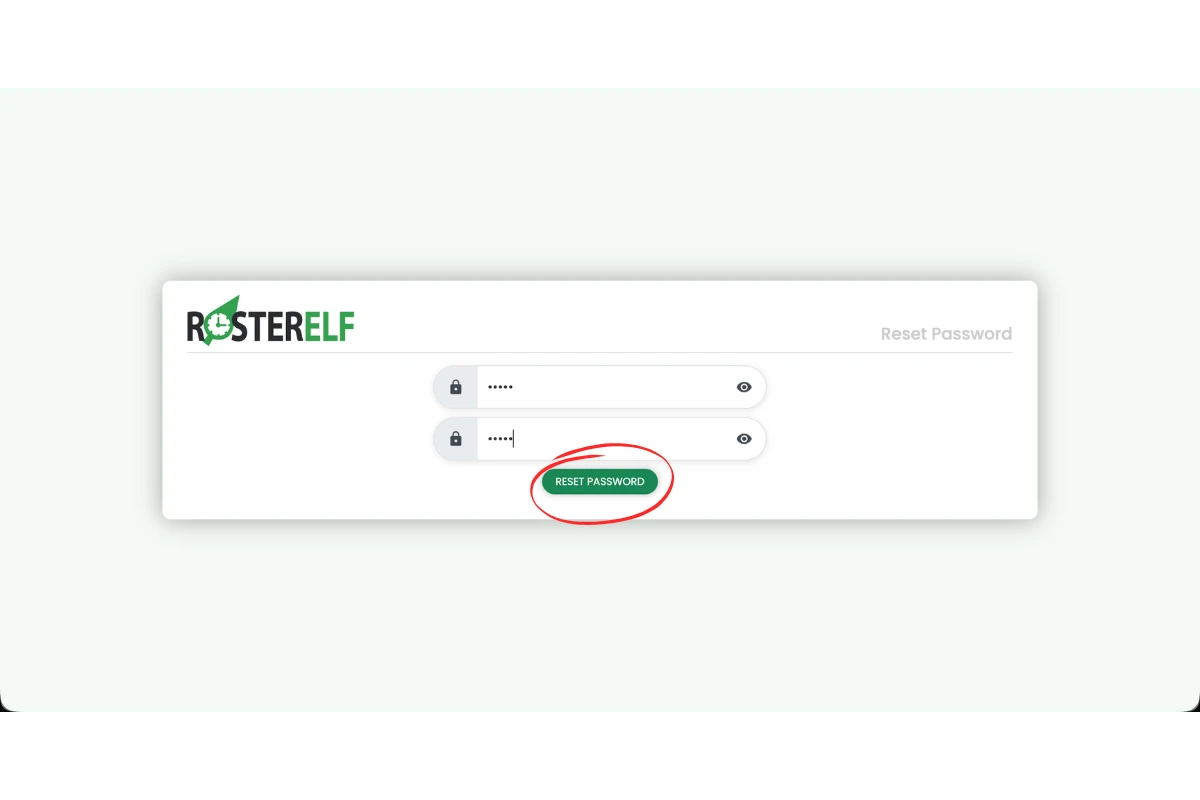
1.3.3 Click Reset Password to save your password.
After resetting your password
Changing your password affects all active login sessions. To ensure uninterrupted access across all your devices, log out and log back in on any RosterElf smartphone app or TimeClock tablet app after completing the reset.
- If you cannot access your reset email, check your spam folder or see our guide on ensuring you receive notifications.
- If you are a manager needing to reset a staff member’s password, see resetting a staff member’s password.
- Still can’t log in after resetting? See why can’t I log in to RosterElf? for other causes like MFA codes, inactive accounts or a billing paywall.
For further help, visit our support centre or contact our support team.
Frequently asked questions
1. How do I reset password in RosterElf?
To reset password in RosterElf, open the login screen and click Forgot Password. Check your email for the reset link, open the email, and click Reset Your Password. Enter your new password, confirm it, and click Reset Password to save your changes.
2. I've forgotten my password — how do I get back into RosterElf?
Open the RosterElf login screen and click Forgot Password?. RosterElf emails you a secure link; click Reset Your Password in that email, enter a new password twice and click Reset Password. You do not need a manager or support to do this for you, and RosterElf never emails you a password.
3. Why am I not receiving the reset password email in RosterElf?
If you do not receive the reset password email in RosterElf, check your spam or junk folder. Make sure you entered the correct email address on the login screen. There’s no fixed cooldown between requests, but requesting a new reset invalidates the previous email’s link — so wait a minute and check spam before requesting again, rather than triggering several in a row. For more help, see our guide on ensuring you receive notifications.
4. Why does my reset link say "invalid token"?
This usually means the link has expired because it wasn’t used soon after it was sent, or a newer password reset was requested afterwards, which invalidates the previous link. Request a new password reset and use the link straight away.
5. Is the reset password process in RosterElf secure?
Yes, the reset password process in RosterElf is secure. It uses a unique email link to verify your request before allowing you to create a new password. This helps protect your account from unauthorised access.
6. Can I reset password in RosterElf without email access?
No, you need access to your email to reset password in RosterElf. The system sends a secure reset link to your email to confirm your identity. If you cannot access your email, contact RosterElf support for assistance.
7. What should I do after I reset password in RosterElf?
After you reset password in RosterElf, log in using your new password. Make sure you store your password securely. You can then continue managing your roster, payroll, and staff information without interruption.
8. I got an email saying my password was changed — what is it, and what if it wasn't me?
RosterElf emails a confirmation whenever an account password changes, so a change you did not make is visible to you straight away. If it was you, log out and back in on the Smartphone app and the TimeClock app and you’re done. If it was not you, use Forgot password on the login screen immediately to take back control of the account, then contact support. Turning on multi-factor authentication stops it recurring.