


Photo clock-in app, so you know who worked each shift

Staff take a quick selfie when they clock in. You see who actually worked, with no buddy punching and no disputes before payroll.
-
A selfie at every clock event
-
On the kiosk or the phone, site by site
-
4.6★ on the Xero App Store, from verified reviews
Trusted by 30,000+ workplaces
From local cafés to national retail chains, New Zealand businesses roster, pay and manage their teams with RosterElf.


How a photo clock-in works
At a site with photo proof on, the selfie is part of clocking in. It adds a few seconds.
- 1 Arrive on site
- 2 Clock in
- 3 Take a selfie
- 4 Clocked in
Animated demo of clocking in on the RosterElf staff app: a bar attendant arrives inside her venue's GPS radius, taps Clock In on today's shift, gives a reason for being four minutes late, takes a selfie for photo proof, and her shift card shows Clocked In with Start Break and Clock Out.
- Step 1
Arrive on site
Staff open today’s shift in the RosterElf app, or tap their name on the tablet kiosk.
- Step 2
Tap Clock In
With a reason if they’re late, and their own 4-digit PIN on the tablet.
- Step 3
Take the selfie
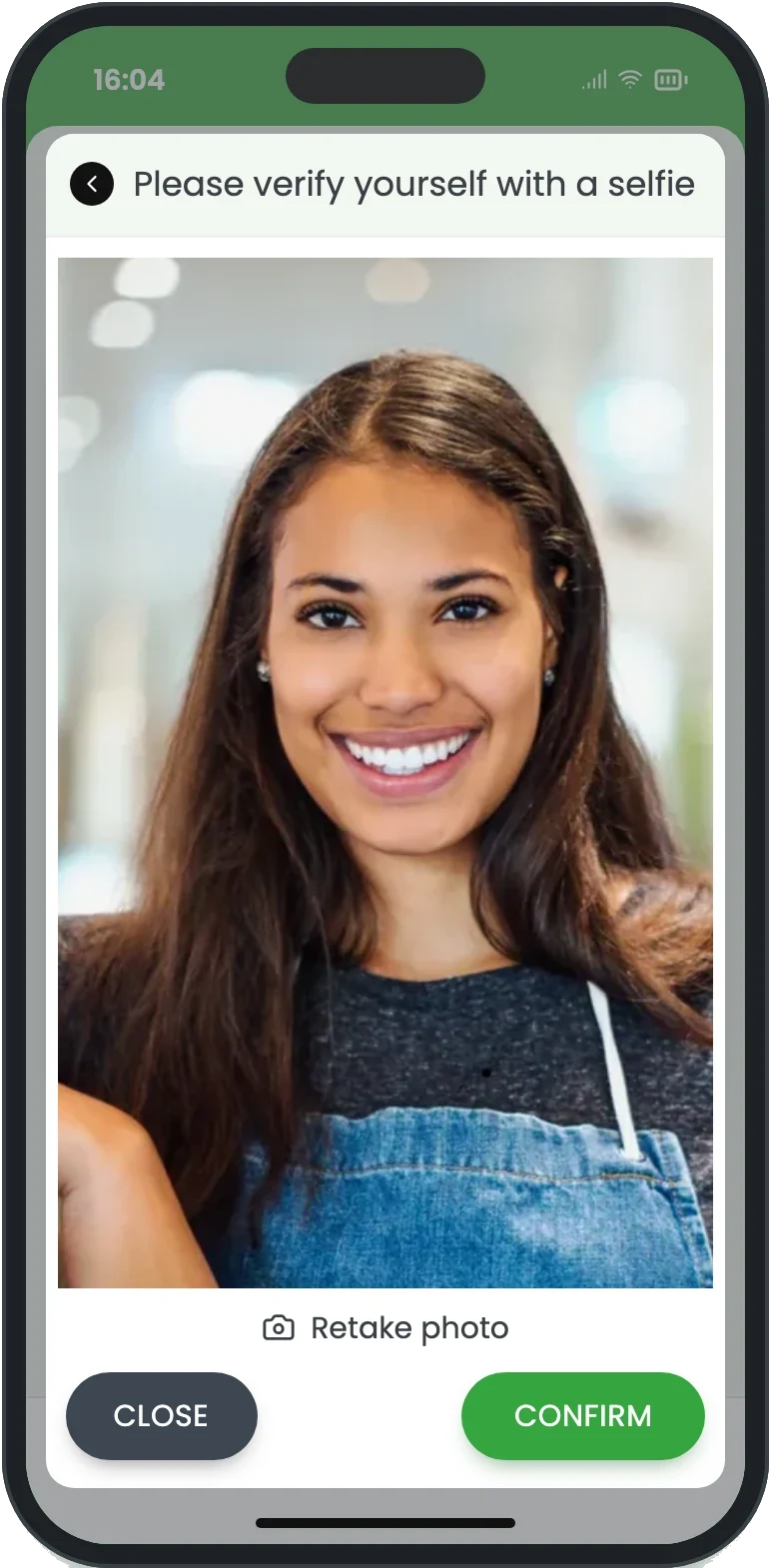
Please verify yourself with a selfie. Not clear? Retake it before confirming.
- Step 4
Photo attached
The photo is saved with the clock-in, ready to check before you approve.
A face with every clock-in, so nobody clocks in for a mate
Switch photo proof on for a site and staff take a quick selfie as they clock in. The photo is time-stamped and saved with the clock record, so you can see who was actually there.
-
Who, not just when: the photo shows the person who clocked in, beside the time
-
No biometric hardware: the camera on the tablet or the phone, no fingerprint scanner to buy
-
A few seconds: one photo, then Confirm, and the shift is clocked in
-
An audit trail: every photo stays with its shift, for your records

A photo at clock-in, both ends of the break and clock-out
Photo proof is one switch for each site. When it is on, every time event at that site asks for a selfie, not just the first one of the day.
-
Clock in: when the shift starts
-
Break start and break end: so a long break shows who came back
-
Clock out: when the shift finishes
-
Site by site: on where the risk is, off where it isn’t
On the tablet kiosk by the door, or on their own phone
The selfie works wherever staff clock in. On the tablet it follows their own 4-digit PIN; on the phone it follows the GPS check, so you know where they were and who they are.
-
On the tablet: staff tap their name, enter their own 4-digit PIN, then take the photo and confirm
-
On the phone: the Please verify yourself with a selfie screen opens after Clock In
-
Retake if needed: poor light or a blurry shot? Retake photo before confirming
-
Front or back camera: on the phone, staff can switch cameras for the selfie

See the photo beside the hours before you pay them
Open the shift from payroll approval in the RosterElf app. Its Shift Details have a Photo Proof tab next to Clock In, Breaks and Clock Out, so you check who worked before you approve.
-
Photo Proof tab: on the shift’s details, with each photo and its time
-
Roster beside time clock: the rostered times next to the clocked times
-
Approve with confidence: the hours you pay belong to the person who worked them
-
Xero or Smartly: approved timesheets go to your payroll, nothing re-keyed
Photo proof is one switch for each site
No hardware to buy and no account-wide setting. Turn it on where you need it, and leave it off where you don’t.
Open the site
Go to Sites and open the site that needs photo proof.
Switch on Photo Proof
On its Time & Attendance tab. Every clock-in, break and clock-out at that site now asks for a photo.
Staff take a selfie
On the tablet or the phone, with Retake photo before they confirm. Tell staff why in writing.
Combine photo proof with other checks
From the selfie to the pay run
Photo proof is part of RosterElf’s time and attendance, so the photo sits with the roster, the pay rules and your payroll. A standalone time clock doesn’t.
Real results from real businesses
See how hospitality, healthcare and care teams use RosterElf to cut admin, reduce costs and support your compliance efforts.

Toowoomba Catholic
5 min rosters for 86 staff

Bush Kids Childcare
Up to 95% faster payroll

Pressed Earth
Half the software cost
Switching or starting fresh? We’ll set you up.
On another time clock app, a punch clock or paper timesheets? Send us what you have and our team imports your staff, pay rates and roster templates, and stays on the call while you set up your first site. Free on every plan.
Photo proof is included, no add-ons
Time and attendance, photo proof included, comes with the Core and Full Suite plans. One price per employee a month, setup help included.
Core
Rostering and time & attendance
With payroll-ready timesheets
about NZ$7.28
per user per month
every active employee, logged in or not
billed annually in AUD
Start free trialFull Suite
Rostering, payroll export & HR
The HR Hub in one system
about NZ$8.50
per user per month
every active employee, logged in or not
billed annually in AUD
Start free trialAttendance verification guides for New Zealand businesses
Learn more about preventing buddy punching, time theft, and building accountable time tracking processes.

Identifying time theft in your business
Learn to spot the signs of time theft and implement practical controls. Covers buddy punching, early clock-ins, extended breaks, and prevention strategies.
Read article
Attendance KPI review: what to keep and what to change
Review attendance KPIs to focus on what matters. Analyse absenteeism, punctuality, and patterns to set realistic targets for your team.
Read article
Attendance anomalies that signal system issues
Learn to spot attendance patterns that indicate system, process, or compliance issues before they become major problems.
Read articlePhoto verification FAQs
- RosterElf’s photo verification, called Photo Proof in the app, asks staff to take a quick selfie when they clock in, start and end a break, and clock out. The photo is time-stamped and saved with that shift’s clock record, so managers can see who actually worked before approving the hours. It works on the tablet kiosk and in the phone app, so the hours sent to payroll belong to the person who worked them.
- RosterElf’s photo verification stops buddy punching, where one employee clocks in for another who isn’t there, because every clock event needs a selfie of the person clocking in. The photo sits beside the time, so a mate’s clock-in shows the wrong face. Managers check the shift’s Photo Proof tab before approving timesheets, so hours nobody worked are caught before payroll.
- No. In RosterElf, photo proof is one switch for each site, and it stays off until you turn it on. When it is on, staff at that site take a photo at every time event: clock in, break start, break end and clock out. Sites that don’t need it, such as a small office where everyone knows each other, can leave it off.
- Yes. RosterElf’s photo verification works on the tablet kiosk and in the staff phone app. On the tablet, staff tap their name, enter their own 4-digit PIN, then take the selfie and confirm. On the phone, the Please verify yourself with a selfie screen opens after Clock In. With GPS geofencing on as well, the location confirms the site and the photo confirms the person.
- No. RosterElf’s photo proof uses the camera on a standard iPad, Android tablet or smartphone, so there is no fingerprint scanner or face-recognition terminal to buy. It doesn’t match faces automatically: the photo is there for a manager to look at, not a match score. That keeps setup simple and the cost down, and the photo is still there as evidence if an hour is ever disputed.
- RosterElf saves each photo with the clock record for its shift. Managers see it on the shift’s Photo Proof tab, next to Clock In, Breaks and Clock Out, when they open the shift from payroll approval in the RosterElf app. There is no setting for how long photos are kept, so contact our support team if you need photos removed.
Know who worked every shift, from today.
Free for 15 days. No credit card. Real people to set you up and move your data.
No credit card 4.6 stars from 323 reviews on Google, Xero and G2 30,000+ workplaces