


GPS time clock app, for New Zealand mobile workers

Staff clock in from their own phone when they arrive. A geofence around each site checks they are actually there.
-
Free app for iPhone and Android
-
A GPS radius for every site
-
4.6★ on the Xero App Store, from verified reviews
Trusted by 30,000+ workplaces
From local cafés to national retail chains, New Zealand businesses roster, pay and manage their teams with RosterElf.


How staff clock in on their phone
Outside the site’s radius the app won’t clock them in. Once they arrive, it takes a few taps.
- 1 Outside the radius
- 2 Arrive on site
- 3 Clock in
- 4 Take a selfie
- 5 Clocked in
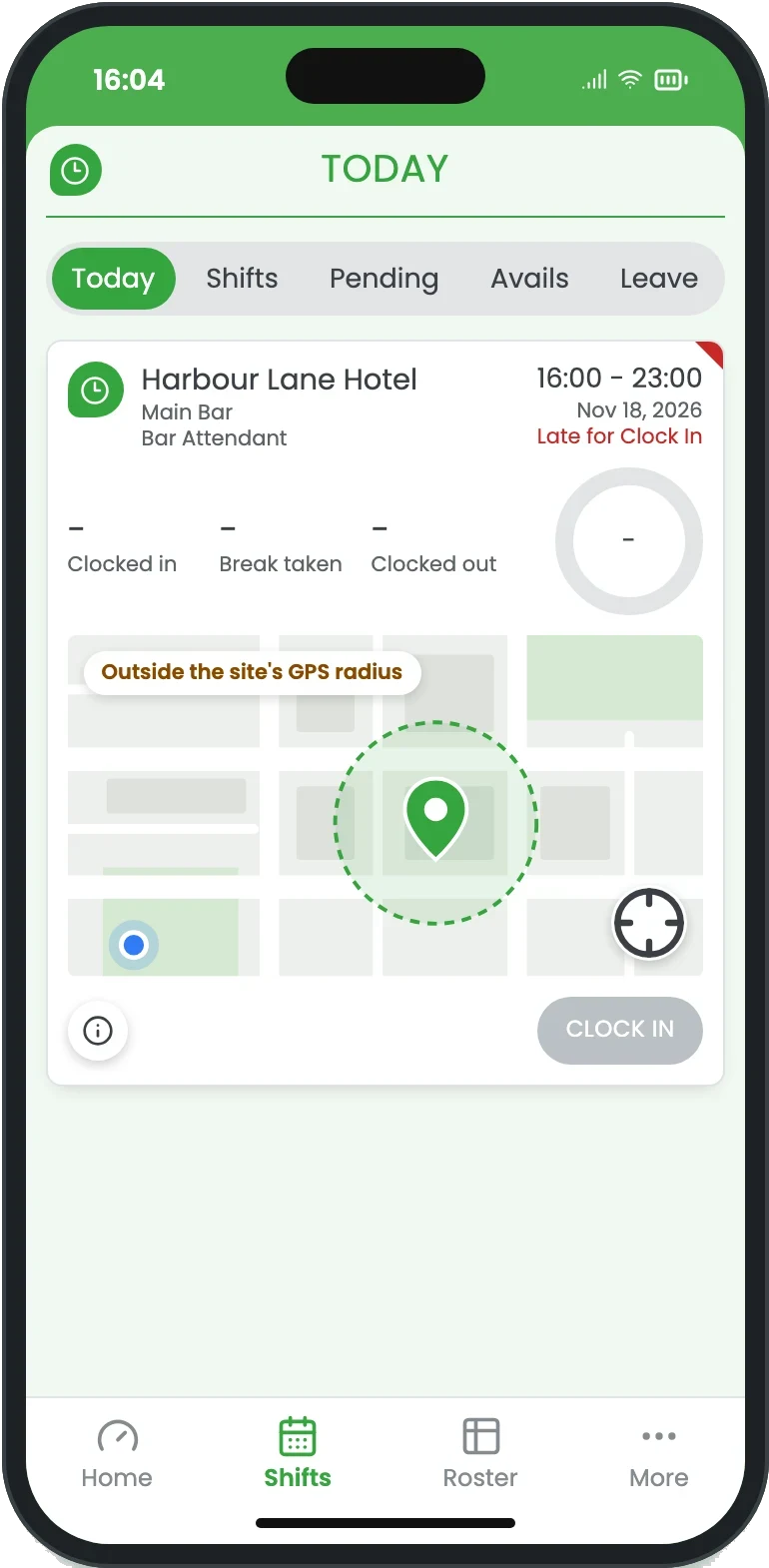
Outside the site’s GPS radius, CLOCK IN is greyed out. Tapping it does nothing.
Animated demo of a GPS clock-in on the RosterElf staff app. Outside her venue's GPS radius, a bar attendant taps the greyed-out Clock In button and nothing happens. Once she walks inside the radius the button turns green: she taps Clock In on today's shift, gives a reason for being four minutes late, takes a selfie for photo proof, and her shift card shows Clocked In with Start Break and Clock Out.
- Step 1
Outside the radius
CLOCK IN is greyed out. From home, the car or the car park, tapping it does nothing.
- Step 2
Arrive on site
Inside the site’s GPS radius, the button turns green.
- Step 3
Tap Clock In
With a reason if they’re late, and a selfie if the site has photo proof on.
- Step 4
Clocked in
The time and location go to the timesheet and live attendance.
No clock-ins from home, the car or the car park
Each site has a GPS radius around it. Until a phone is inside it, the Clock In button on the shift stays off, so staff can only clock in once they have arrived.
-
Clock In stays off: outside the radius, the shift card says so and the button is disabled
-
A radius for each site: set the GPS tolerance on the site’s Time & Attendance tab, tighter for a shop and wider for a big site
-
Pinned accurately: enter the address, or paste a Google Plus Code for a site without a street number
-
Breaks and clock-out too: staff start and end breaks and clock out from the same shift card

Make sure the person on the phone is the person on shift
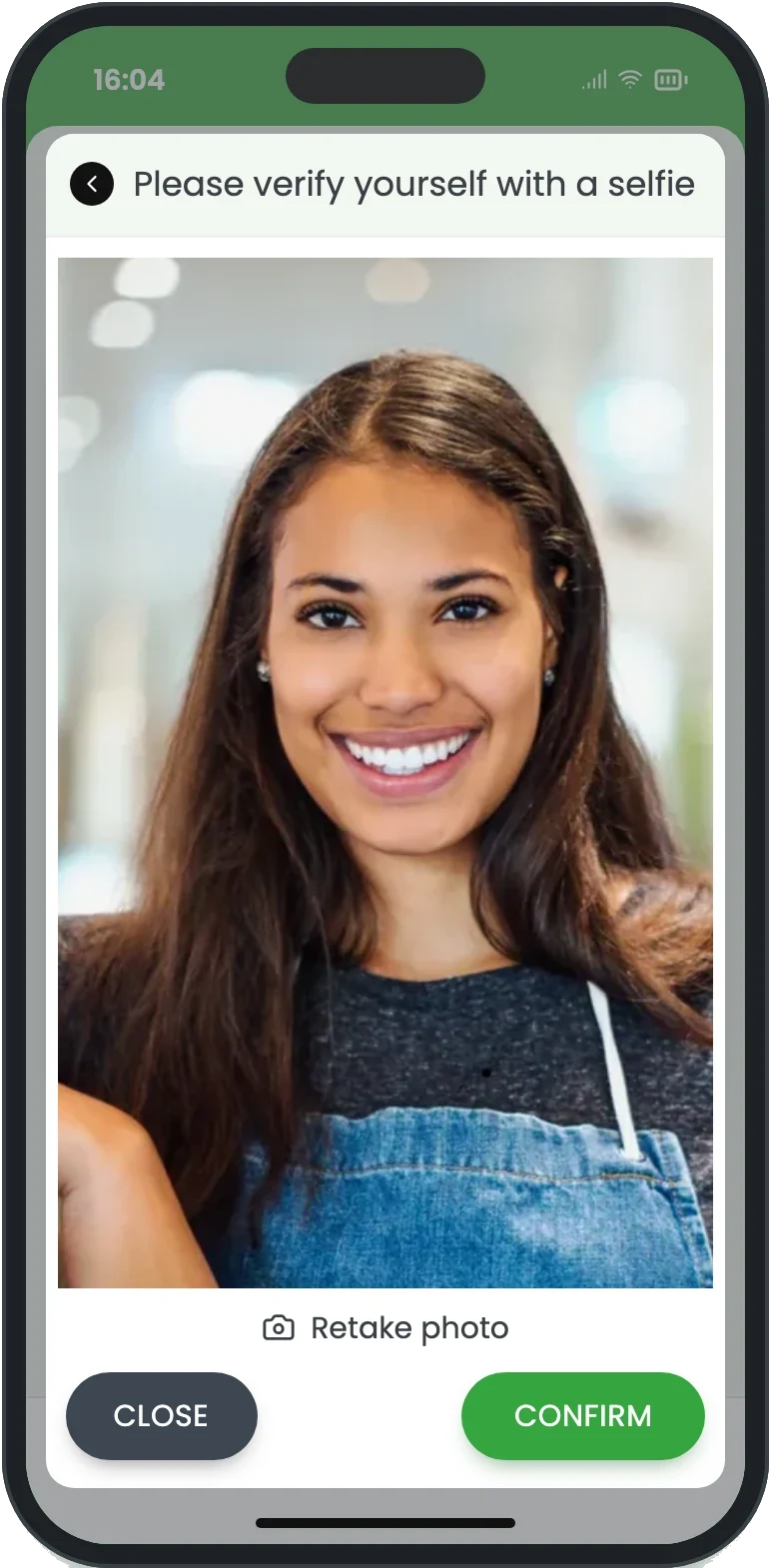
The GPS radius proves where the phone is. Photo proof shows who is holding it: switch it on for a site and staff take a selfie as they clock in.
-
Their own app: staff clock in from the RosterElf app on their own phone, signed in as themselves
-
A selfie at clock-in: at the sites where you switch photo proof on
-
Kept with the hours: the photo is saved with the clock record, so you see who clocked in before you approve
-
Site by site: one switch on the site’s Time & Attendance tab

See where every shift started and finished
The phone’s location is saved with each clock-in and clock-out. Open the timesheet in Payroll and click a clock time to see it on a map, with the GPS coordinates.
-
On a map: click a clock-in or clock-out entry in Payroll
-
GPS coordinates: saved with the time, for your records
-
The whole team: admins can see the locations for every staff member
-
Location services on: staff turn on location for the RosterElf app so it can be recorded
Clock-ins become timesheets you can approve and pay
Every clock-in from a phone lands in payroll beside the rostered shift, so you approve the hours staff actually worked, not a handwritten sheet.
-
Roster beside time clock: for every shift, then pick the right times
-
Save all: approve the whole week at once
-
Pay rules applied: overtime and public holiday rates from the hours clocked
-
Xero or Smartly: approved timesheets go to your payroll, nothing re-keyed
Setting up GPS geofencing for your sites
No hardware to buy. Turn on phone clock-in, pin each site, set its radius, and staff can clock in from the free app.
Turn on phone clock-in
In Settings → Time & Attendance → Devices, allow employees to record time and attendance on their smartphones.
Switch it on for the site
On the site’s Time & Attendance tab, turn on Enable Phone Clock In/Out. Both switches are needed.
Pin the location
Search the address, or paste a Google Plus Code and pick Google’s suggestion, then save.
Set the GPS tolerance
Choose how far from the pin a phone can be and still clock in, site by site.
Staff get the app
The RosterElf app is free on iPhone and Android. Staff turn on location services for it.
Add photo proof if you want it
One more switch on the same tab asks for a selfie with each clock-in.
Choosing the right GPS radius
From the phone to the pay run
GPS clock-in is part of RosterElf’s time and attendance, so a clock-in already knows the roster, the pay rules and your payroll. A standalone time clock app doesn’t.
Tablet kiosk
A shared iPad or Android tablet by the door, for staff who clock in at one spot.
Live attendance
Who is in, late, on a break or finished, across every site.
Photo proof
A selfie with each clock event, at the sites where you switch it on.
Breaks
Breaks recorded as they’re taken, beside the rostered break.
Pay rule compliance
Clocked hours costed with your overtime and public holiday rates.
Payroll
Approved hours flow to Xero or Smartly for your pay run.
GPS mobile clock-in guides for New Zealand businesses
Learn more about GPS time tracking, geofencing setup, and mobile workforce management for New Zealand shift-based teams.

Balancing accountability and trust with GPS clock-ins
Learn how geofencing prevents time theft without harming trust. Practical guidance for businesses implementing location-based time tracking.
Read article
Choosing the right clock-in method for your team
Compare GPS and tablet clock-in options for shift-based teams. See which time tracking method suits different work environments.
Read article
Identifying time theft without damaging trust
Spot potential time theft issues while maintaining employee trust. Learn ethical approaches to time and attendance monitoring in your business.
Read articleSwitching or starting fresh? We’ll set you up.
On another time clock app, a punch clock or paper timesheets? Send us what you have and our team imports your staff, pay rates and roster templates, and stays on the call while you set up your first site. Free on every plan.
GPS clock-in is included, no add-ons
The phone app is free, and time and attendance comes with the Core and Full Suite plans. One price per employee a month, setup help included.
Core
Rostering and time & attendance
With payroll-ready timesheets
about NZ$7.28
per user per month
every active employee, logged in or not
billed annually in AUD
Start free trialFull Suite
Rostering, payroll export & HR
The HR Hub in one system
about NZ$8.50
per user per month
every active employee, logged in or not
billed annually in AUD
Start free trialLearn more about GPS time tracking
What is GPS time tracking?
GPS time tracking uses a GPS time clock app on each employee’s own phone to check they are inside a geofence, a set radius around the work site, before a clock-in or clock-out is accepted. The location is saved with every clock event, so managers can see where each shift started and finished.
It is also called mobile time clock, geofence clock-in or location-based time tracking. It suits employees without a fixed workplace or who travel between sites during their shift: field workers and mobile teams, construction and trade sites, cleaners and maintenance staff, healthcare and aged care workers, delivery and logistics teams, and multi-site retail and hospitality.
Phone clock-in or tablet kiosk: which suits your team?
GPS clock-in suits staff who start at different doors, sites or job locations: each employee uses their own phone, and RosterElf checks they are within the site’s radius. There is no shared hardware to buy.
A tablet kiosk is a single shared device at a fixed spot: the right choice when you want every clock-in to happen at the door, and when not every employee has a smartphone. Many businesses use both, set site by site.
GPS mobile time clock questions
- GPS geofencing creates a virtual boundary around your workplace using GPS coordinates. When enabled, staff can only clock in through RosterElf's time and attendance software when they're physically inside the geofence radius. This prevents early clock-ins from home or remote locations.
- Simply enter your workplace address or Plus Code in RosterElf, then set the GPS tolerance radius (typically 50–200 metres depending on your site size). The system creates a virtual perimeter, and staff smartphones automatically detect whether they're inside the zone when attempting to clock in.
- GPS is most accurate outdoors and in urban areas, and less steady indoors or among tall buildings. RosterElf lets you adjust the geofence radius to account for GPS variance, building size, or parking areas. Larger sites can use wider tolerances while maintaining location verification.
- No. Outside the site's GPS tolerance the Clock In button stays disabled, so staff have to move closer to the site before they can clock in.
- Geofencing is designed for mobile clock-ins via smartphone. The tablet kiosk time clock is physically located at your workplace, so GPS verification isn't required. You can use both methods together for maximum flexibility.
Clock-ins from the right site, from today.
Free for 15 days. No credit card. Real people to set you up and move your data.
No credit card 4.6 stars from 323 reviews on Google, Xero and G2 30,000+ workplaces