


Payday shouldn’t mean a night of fixing timesheets

Still chasing paper timesheets on payday? Staff clock in on a shared tablet or their phone, you approve the hours against the roster, and they go to Xero NZ in one click, or to MYOB as one import file.
-
4.6★ on the Xero App Store
-
From A$6 per employee a month (about NZ$7.28), billed annually in AUD
-
Free onboarding: we help move your data across
Time and attendance software trusted by 30,000+ workplaces
From local cafés to national retail chains, New Zealand businesses roster, pay and manage their teams with RosterElf.


Clock in, check and approve this week’s hours
Staff clock in on a shared tablet or their phone, you check the hours against the roster, and approved timesheets go to payroll.
-
Clock in
On the site’s tablet with a PIN, or on their phone once they’re on site. A selfie too, if you switch it on.
-
Check
Clocked times sit beside the roster for every shift, with late reasons and breaks.
-
Approve & export
Pick the right times, save the week, and send it to Xero NZ, MYOB, Smartly or a CSV.
On the venue tablet
A shared iPad or Android tablet by the door. Staff confirm it’s them with their 4-digit PIN.
Animated demo of the RosterElf tablet time clock: a bar attendant taps her name on the venue's tablet, taps her shift and Clock in, enters her 4-digit PIN and a reason for being four minutes late, takes a selfie for photo proof, and is clocked in.
1 of 4 · Tap your name
On their own phone
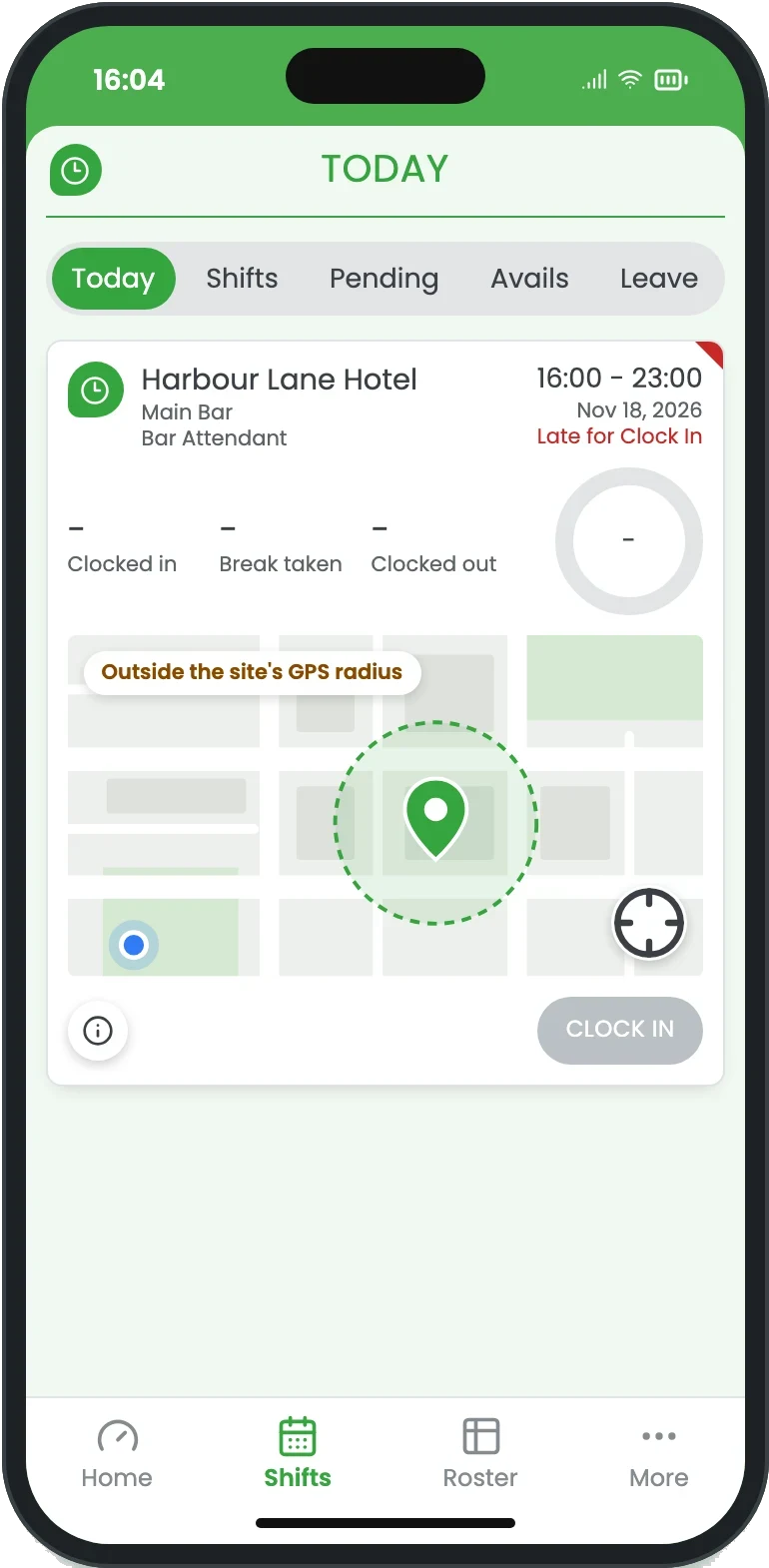
Their phone, once they're inside the site's GPS radius.
Animated demo of clocking in on the RosterElf staff app: a bar attendant arrives inside her venue's GPS radius, taps Clock In on today's shift, gives a reason for being four minutes late, takes a selfie for photo proof, and her shift card shows Clocked In with Start Break and Clock Out.
1 of 4 · Arrive on site
An employee clock in app that only works on site
Staff clock in from the RosterElf app against their rostered shift. You set a radius around each site, and outside it the Clock In button stays disabled, so nobody clocks in from home or on the way in.
-
A radius for each site: set the GPS tolerance to suit a small café or a big site
-
Location at clock-in and out: saved with the time record, never tracked during the shift
-
The exact spot: add a Plus Code to pin each site
-
iPhone and Android: the same app staff use for their roster

Turn any tablet into a staff time clock
Put an iPad or Android tablet by the door. Staff pick their name, enter their 4-digit PIN and, if you switch it on, take a selfie. Clock in outside your time tolerance and they’re asked for a reason.
-
iPad or Android: download the RosterElf Time Clock app and sign in to a site
-
A PIN for each person: staff confirm it’s them with their own 4-digit PIN
-
Breaks on the same screen: start and end a break with the same PIN
-
Kiosk mode: lock the iPad to the time clock with Guided Access

Stop buddy punching with a photo at clock-in
Switch on photo proof for a site and staff take a quick selfie at every clock event: clock in, breaks and clock out. The photo is kept with the time record, so one person can’t clock in for another without it showing.
-
Site by site: turn it on where you need it, leave it off where you don’t
-
Every clock event: clock in, start and end of a break, clock out
-
Kept with the hours: review the photos against the time record
-
Optional: no photo needed at sites where you trust the team

Decide what counts as on time
How close, how early or late, and how it’s proved: set the rules site by site. A minute either way, across a roster and a year, is the difference between a timesheet that matches what was worked and one that gets argued over.
-
How close: how far from the site a clock-in may be
-
How early or late: the minutes either side before staff give a reason
-
How it’s proved: whether a selfie is needed at each clock event
-
Which device: phone and tablet, or the site’s tablet only
See who’s in, late or on a break, live
The live time clock shows every rostered shift as it happens: who’s in, who’s on a break, who’s clocked out and who’s late, at every site. A late start gets a red flag, and the Late tab lists them all.
-
Every status: late, in, on a break, out or left early
-
Late flags: a red flag and a Late tab for anyone who hasn’t clocked in
-
Every site: filter the time clock by site, or see them all
-
On your dashboard: add the live time clock widget

Break tracking: breaks as they’re taken, not as rostered
Staff start and end their breaks on the time clock with their PIN, and a selfie if photo proof is on. The clocked break sits on the timesheet beside the rostered one, so a short or skipped break is plain to see before you approve, and the staff break report lists every break taken.
-
Start and end a break: on the tablet or in the app
-
Rostered against taken: the planned break beside the clocked one
-
Staff break report: filter by date, site and staff member
-
Paid or unpaid: you set which breaks are paid

Roster against actual, approved in one pass
Every shift shows its rostered times beside the time clock. Click the one that’s right, or type a custom start, break and finish, then save the row or the whole week. Untick anything you don’t want exported.
-
Roster beside time clock: for every shift, with auto rounding if you use it
-
Unrostered shifts: add them in payroll, or let staff add them on the clock
-
Save all: approve the whole week at once
-
Every edit logged: the activity feed shows who changed what, past shifts included
Payroll integration: no new payroll to switch to
RosterElf isn’t another payroll system to learn. Approved timesheets go to Xero NZ in one click, or to MYOB or Smartly as a file you load each pay run, and a CSV covers everything else. Your payroll still does the PAYE, KiwiSaver and payslips.
-
Xero NZ: timesheets sent straight to Xero Payroll
-
MYOB: one import file for MYOB Business or AccountRight
-
Smartly: approved hours exported as a file
-
Any other payroll: export a CSV, which opens in Excel too
 Xero
 MYOB AccountRight · Business
Labour cost against sales, before you approve the week
Every shift is costed from the employee’s pay rules. Add your weekly or daily sales in the payroll summary and you see labour cost as a percentage of sales, so a week that ran over shows up while you can still ask why.
-
Every shift costed: from each employee’s pay rules, overtime and public holiday rates included
-
Weekly or daily sales: type the revenue into the payroll summary, for the week or day by day
-
Labour cost as a % of sales: wages beside what you took, site by site
-
Plan ahead: set revenue forecasts on the roster before the week starts
Reports, staff timesheets, sites and more
AI assistant
Ask Claude, ChatGPT or Gemini for last fortnight’s timesheet costs, or who changed a shift and when.
The RosterElf AI assistantStaff timesheets
Let staff record and submit their own hours, for you to accept or amend.
Let staff submit timesheetsAuto rounding
Round start, break and end times to your rules, shown beside the clocked times.
Set up auto roundingSick days and leave
Record a sick day from the time clock, and send approved leave to Xero with the timesheets.
Record staff as sickEvery site, one payroll
Each site has its own clock-in rules. Filter the time clock by site, or see them all.
Filter between sitesActivity log
Who created, changed or deleted a shift and when, past shifts included. Admins only.
What gets recordedClock in from a browser
No tablet? Staff can clock in and out on a computer, inside the site’s distance.
Clock in from a browserPayroll-ready hours, by teams like yours
Childcare · Australia Integrating with Xero took minutes. Processing pays is quick and almost always spot-on.
Hospitality · Australia I just confirm all the hours and it feeds into Xero automatically.
Food & beverage · Australia We’re probably paying half of what we were paying.
Switching or starting fresh? We’ll set you up.
On Deputy, another platform, a punch clock or paper timesheets? Send us what you have and we’ll help move your staff, pay rates and sites across, and set up your time clock and pay rules with you. Free onboarding on every plan.
Simple pricing, no hidden add-ons
One price per employee a month. Setup help included on every plan.
Core
Rostering and time & attendance
Payroll-ready hours to Xero NZ or Smartly
about NZ$7.28
per employee a month, billed annually
Start free trialFull Suite
Everything in Core, plus HR
Onboarding, employment agreements, policies & documents
about NZ$8.50
per employee a month, billed annually
Start free trialAnnual prices in Australian dollars for each active employee, whether or not they log in. Prefer to pay monthly? A$8 Core, A$10 Full Suite. All plans on the pricing page.
Prices are in Australian dollars. We bill every customer in A$, wherever they are. The NZD figures are a guide only, converted at A$1 = NZ$1.2140 on 20 Nov 2026; your bank sets the rate actually applied, so your statement will differ slightly.
A$6.00 – A$10.00 ≈ NZ$7.28 – NZ$12.14 per user / month, across all plans
Time and attendance FAQ
For anything else, get a quick answer 24/7, or book a call with our Australian team.
- Setting up time and attendance involves configuring your time tracking preferences, deciding between tablet or mobile clock-in methods, and enabling features like GPS verification or PIN-based clocking. You can also configure break tracking and agreed-hours monitoring during setup. Our setup guide walks through all configuration options. Setting up time and attendance →
- The RosterElf Time Clock app turns any tablet into a staff clock-in station. Download from your app store, log in with your admin credentials, select your site, and staff can immediately start clocking in. Learn about compatible devices and setup steps. Download and set up time clock app →
- Staff clock in by opening the time clock app, selecting their name (or entering a PIN), and tapping "Clock In." When their shift ends, they repeat the process to clock out. All clock-in times sync automatically to create accurate timesheets for payroll. Clocking in and out guide →
- The time clock app lets staff record unpaid breaks by tapping "Start Break" and "End Break" during their shift. Unpaid break time is tracked separately from worked hours, so you can see whether the rest and meal breaks an employee is entitled to were actually taken. Recording breaks in time clock →
- Time and attendance settings control clock-in tolerance windows, early arrival restrictions, GPS requirements, break configurations, and more. Customise settings per site or globally to match your policies and break and hours compliance requirements. Time and attendance settings overview →
This week’s timesheets, approved in minutes.
Free for 15 days. No credit card. Real people to set you up and move your data.
No credit card 4.6 stars from 323 reviews on Google, Xero and G2 30,000+ workplaces