


This article explains how to create pay templates in RosterElf. Pay templates are essential for accurate staff budgeting and payroll compliance. They group multiple pay rules, covering different days and hours to ensure correct payment for all shifts.
You’ll learn how to name a template, add pay rules, set hours, and save your template for use. This guide is beneficial for businesses managing complex rosters, such as hospitality, ensuring compliance with industry standards and simplifying payroll processes.
For an introduction to pay templates and their role in simplifying payroll, see Introduction to pay templates.
If you work with an external accountant or bookkeeper, you can give them free access to your RosterElf account to help review and manage your payroll setup.
Understanding pay templates
Pay templates group pay rules to define hourly rates for different shifts, ensuring accurate staff payment. They are vital for budgeting and payroll exports. Templates can include rules for regular hours, weekends, public holidays, and late shifts. If your award is supported, you can skip manual setup and activate a ready-made Award Template as your starting point — see using award templates in RosterElf.
This section introduces the concept of pay templates and their flexibility to handle varied industry requirements. For assigning pay templates to your staff, refer to Assign pay templates to hourly staff.
What is a pay Template?
1.1.1 A pay template groups multiple pay rules into one system.
1.1.2 It defines specific pay rates for days, times, and shifts.
1.1.3 Common rules include standard weekday, weekend, and holiday rates.
1.1.4 Pay templates can handle shifts like after 9 pm or late-night.
If you need to assign pay rates to fixed-salary staff, check out Assign pay rates to salary staff.
Steps to create a pay template
This section walks you through the process of creating a pay template in RosterElf. You’ll learn how to set pay rules for all hours of the week.
Access payroll settings
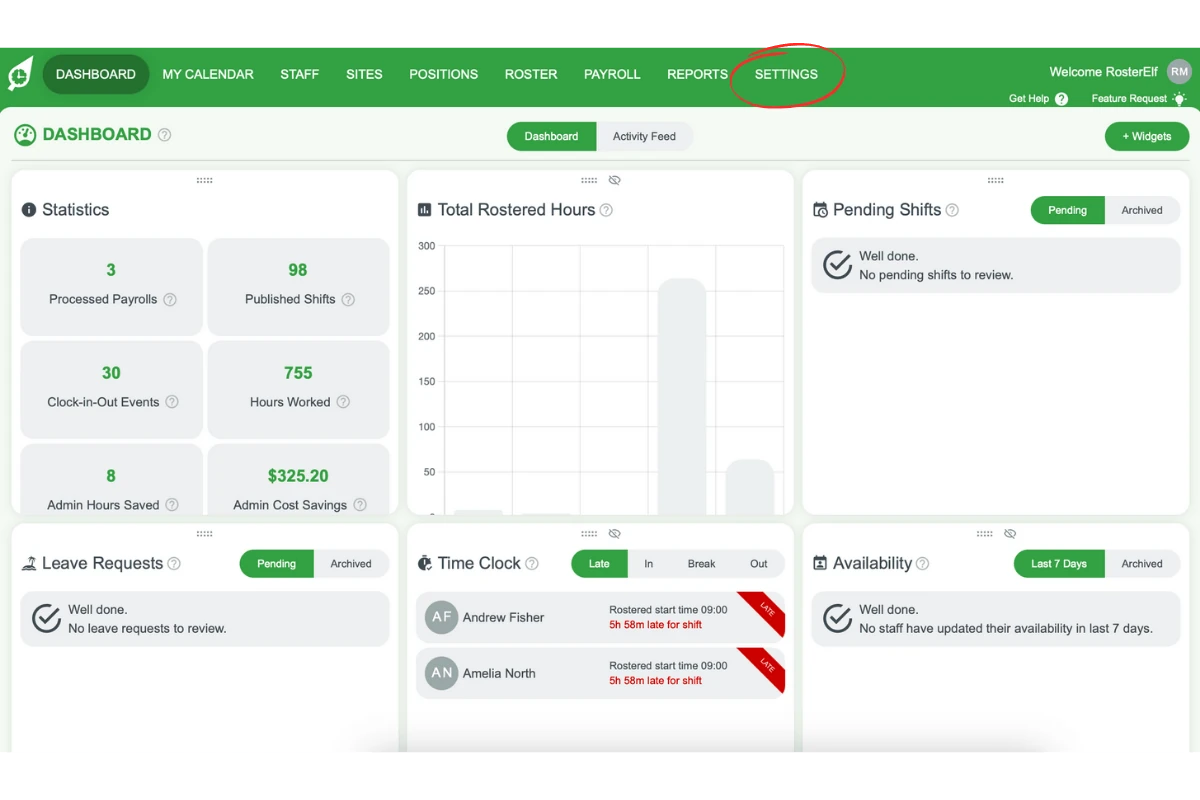
2.1.1 Log in to RosterElf and click the Settings tab.
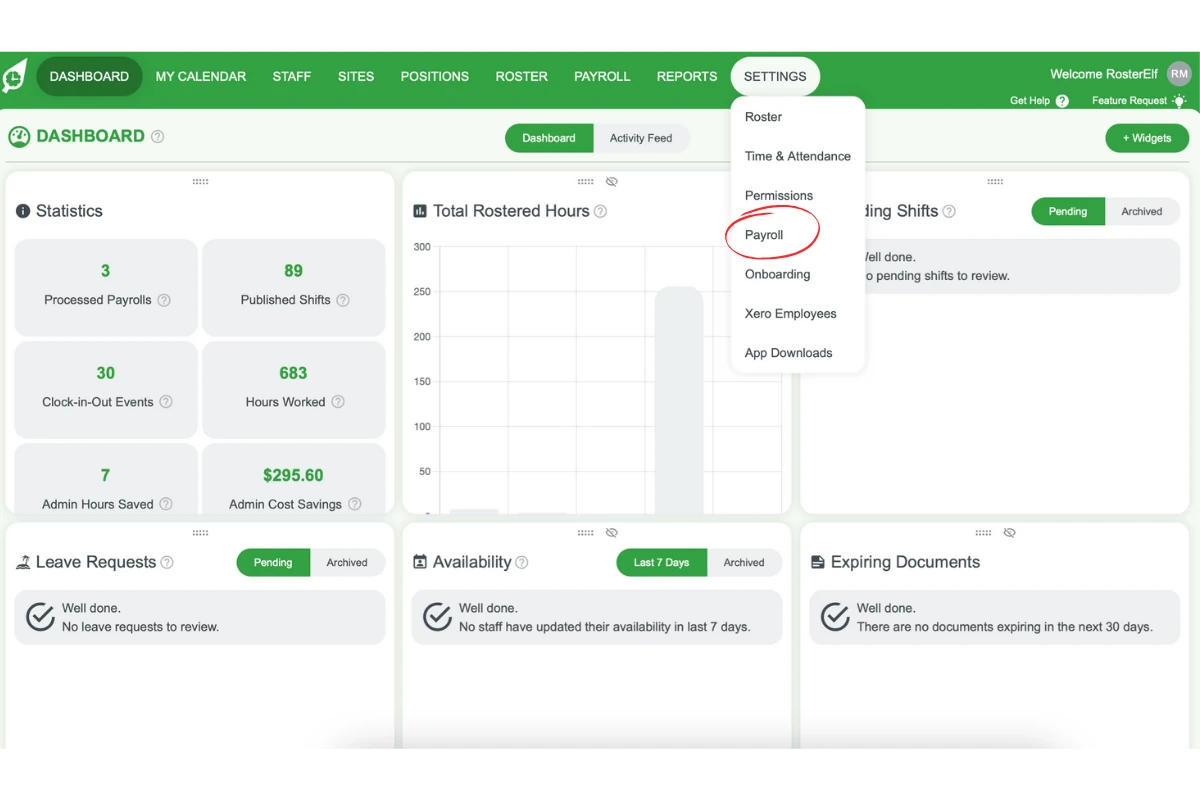
2.1.2 Select Payroll from the dropdown options.
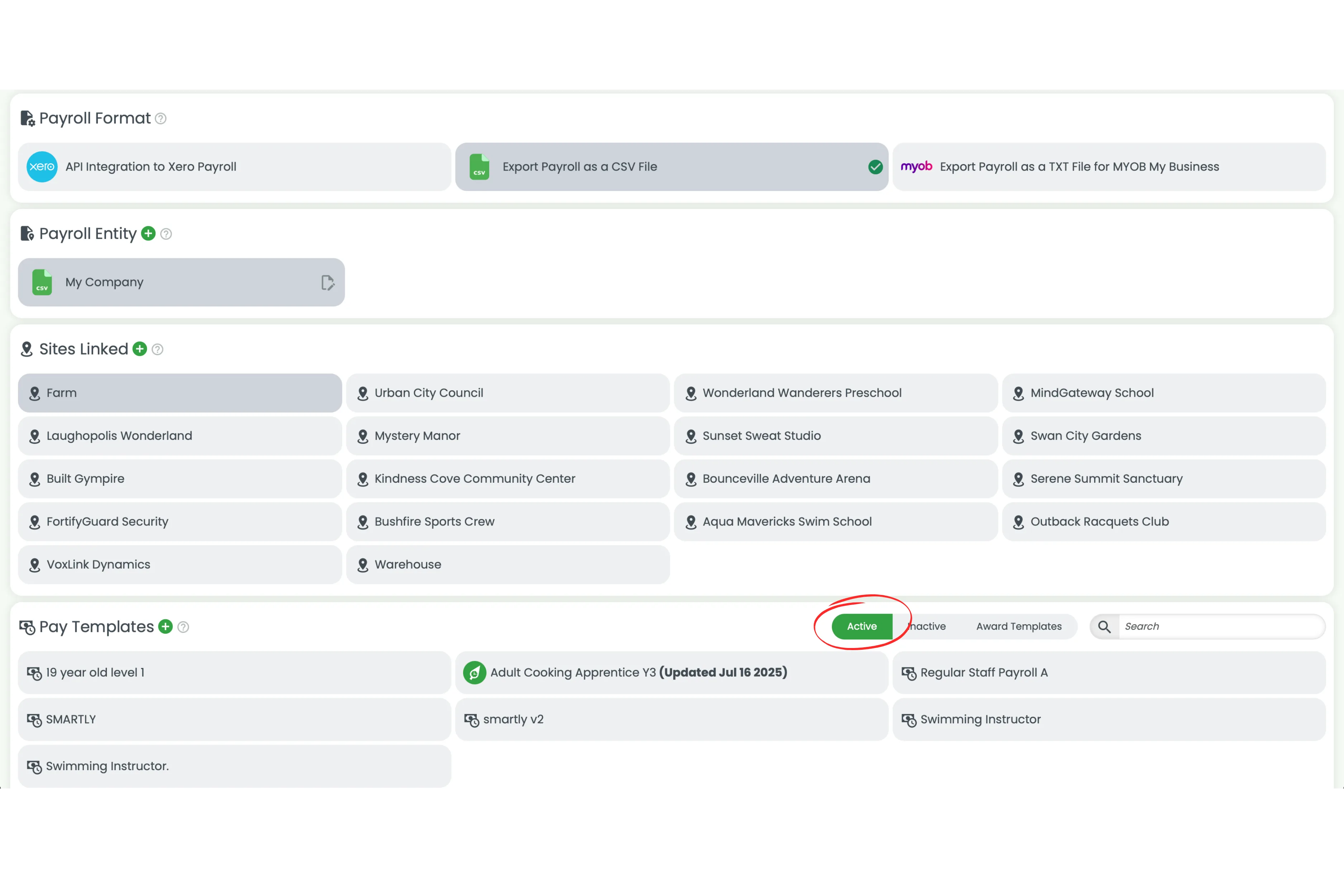
2.1.3 Click the green Plus (+) button next to the Pay Templates heading.
Name the template and add pay rules
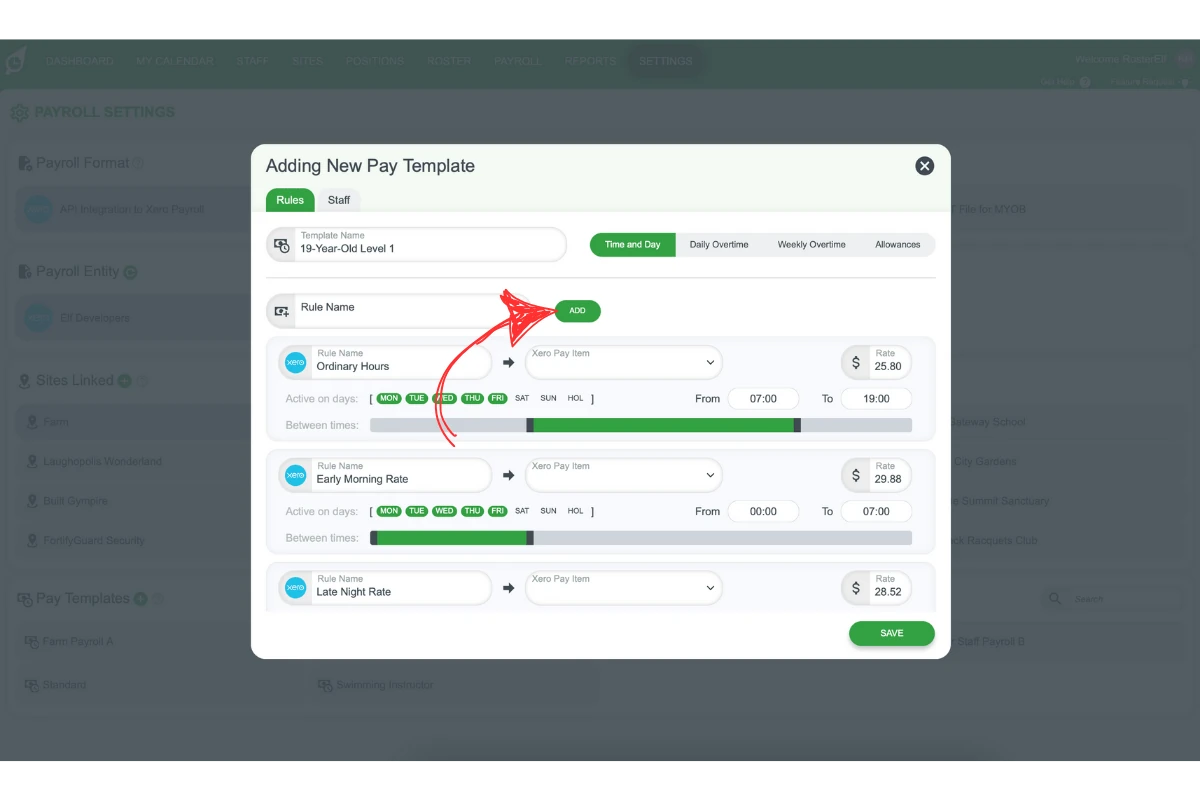
2.2.1 Give the template a clear name, e.g., 19-Year-Old Level 1.
2.2.2 Type in the name of the first pay rule, e.g., Ordinary hours (Monday - Friday).
2.2.3 Click Add to include a new rule in the template.
Frequently asked questions
1. How do pay templates simplify payroll in RosterElf?
Pay templates eliminate manual calculations by automating pay rates for different shifts. This ensures accurate payroll and reduces the time spent on manual corrections during payroll exports.
2. Can I apply different pay rates for weekdays and weekends?
Yes, you can configure specific pay rules for weekdays and weekends by assigning the appropriate days to each rule. For example, create a “Weekend Rate” rule for Saturday and Sunday shifts.
3. What happens if I miss covering certain hours in the template?
RosterElf automatically flags any hours not covered in the pay template. You will receive a warning and must adjust the pay rules to ensure all hours are included before saving.
4. How can I test a pay template before finalising it?
You can preview the pay template by assigning it to a dummy staff profile and creating mock shifts. This allows you to verify that pay rules are applied correctly and adjust as needed.
5. Are public holidays automatically recognised in pay templates?
Not until you’ve added one: public holidays are not automatically recognised in a pay template until you create a specific public holiday pay rule. Once that rule is added, RosterElf automatically applies it whenever a shift is rostered on a date flagged as a public holiday for that site. See how to pay staff for public holidays in RosterElf for the full walkthrough. Learn more about supported payroll systems in our Supported payroll systems overview. If you’re changing payroll providers, refer to Change payroll provider. If a RosterElf update notification is covering your payroll screen, see how to close the pop-up banner in RosterElf to restore full visibility before processing payroll.