


This article explains how to change your payroll export format in RosterElf. The default export format is a CSV file, but you can switch to other formats compatible with various payroll providers. This flexibility ensures smooth integration with your payroll system.
However, changing your payroll format after setup is not recommended unless necessary. Each provider uses a different pay template interface, so switching formats requires recreating all your pay templates. Follow this guide for clear and easy steps to update your payroll format and recreate your templates. For additional information on setting up pay templates, refer to Introduction to pay templates.
1. Access payroll settings
To change your payroll export format, you must first access the payroll settings in your RosterElf account. This section explains how to locate the payroll settings and prepare for changes.
1.1 open payroll settings
1.1.1 Log in to your RosterElf account.
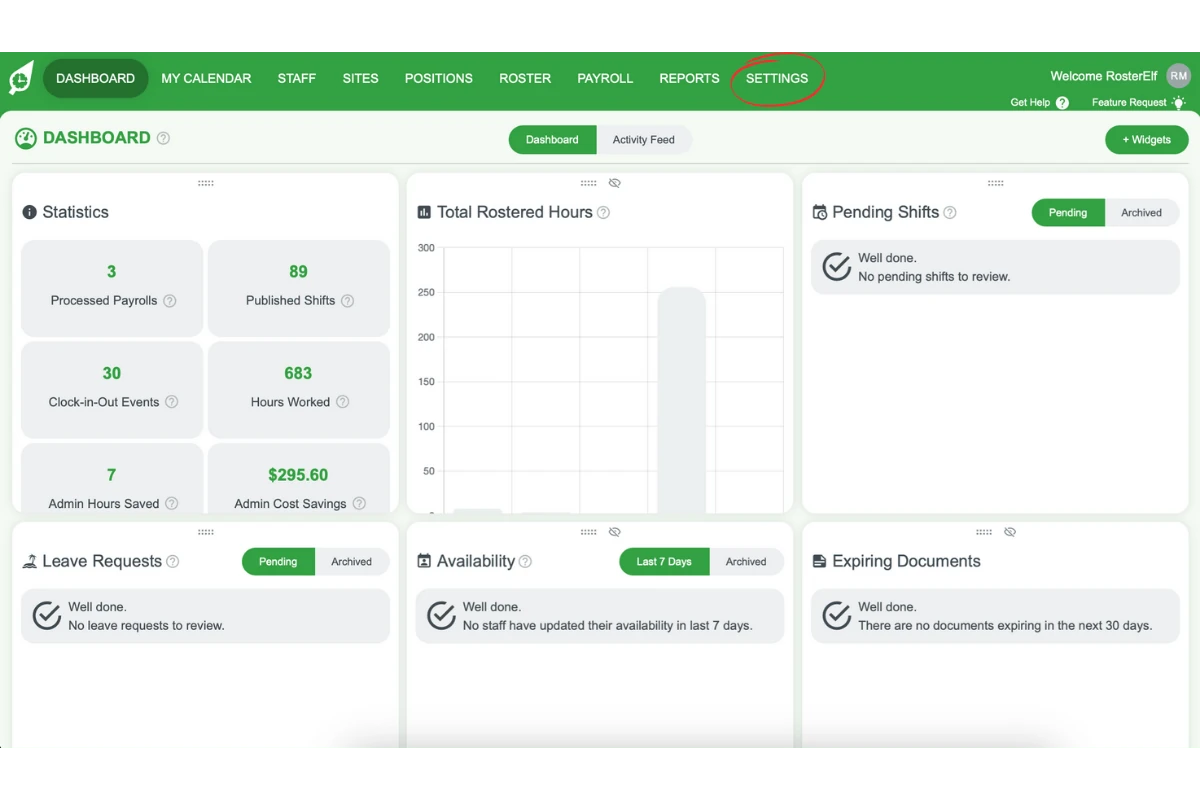
1.1.2 Click the Settings tab in the menu.
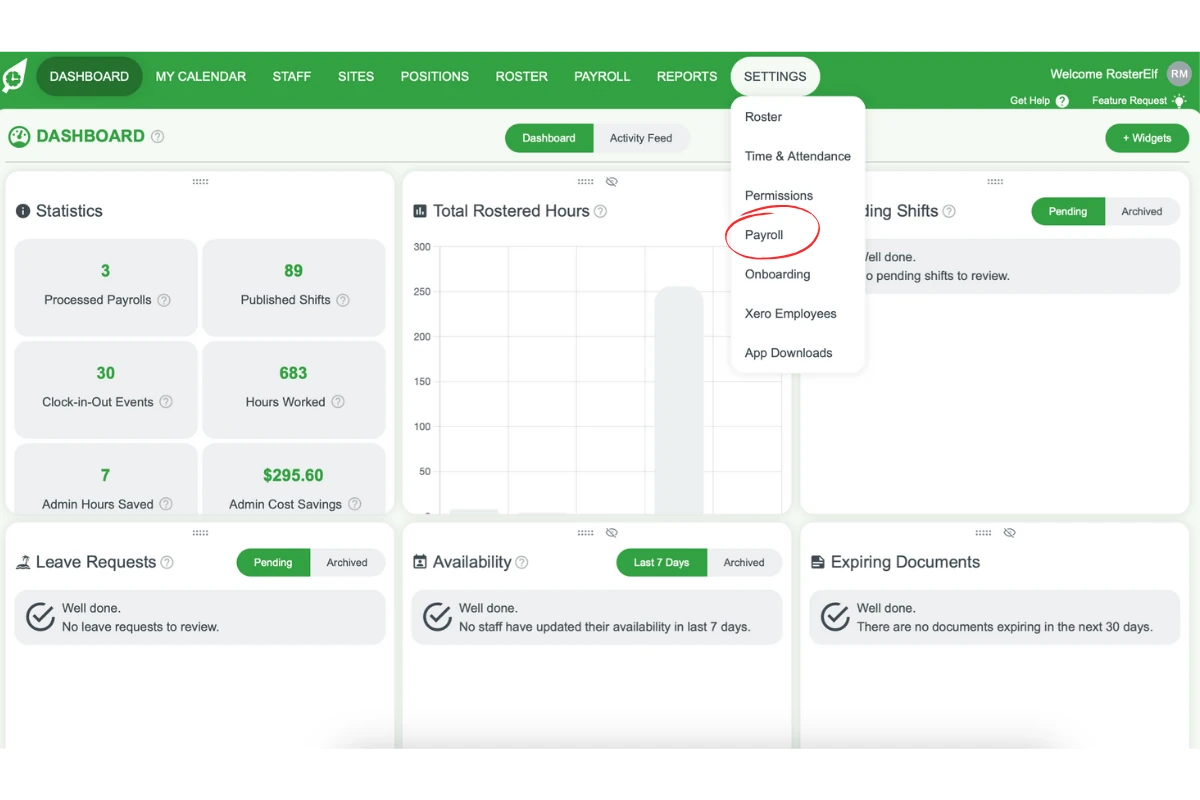
1.1.3 From the dropdown, select Payroll.
2. Change payroll format
After accessing the payroll settings, you can select the new payroll export format. This step ensures your account is aligned with your payroll provider.
2.1 select a new format
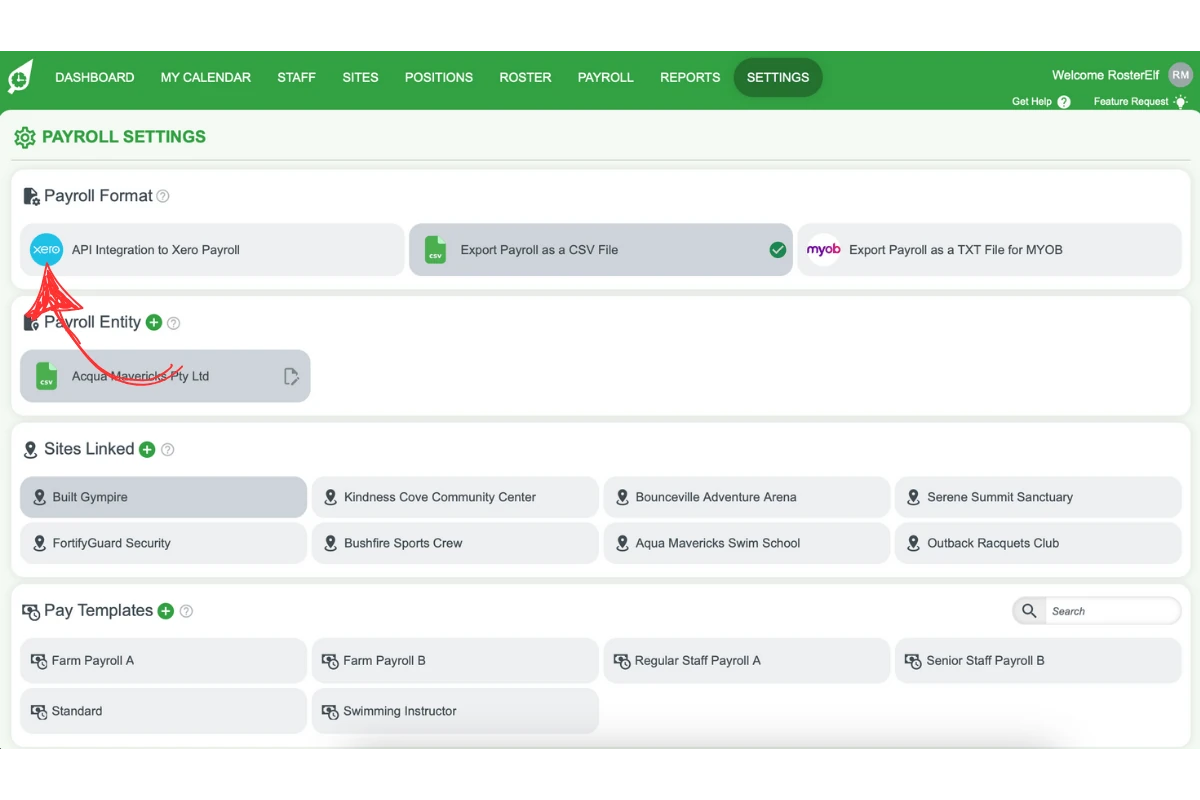
2.1.1 Locate the Payroll Format section at the top of the payroll settings page. It shows one tile per format: Export Payroll as a CSV File, API Integration to Xero Payroll and a MYOB option. A green tick marks the format you use now.
2.1.2 Click the tile for your new payroll provider.
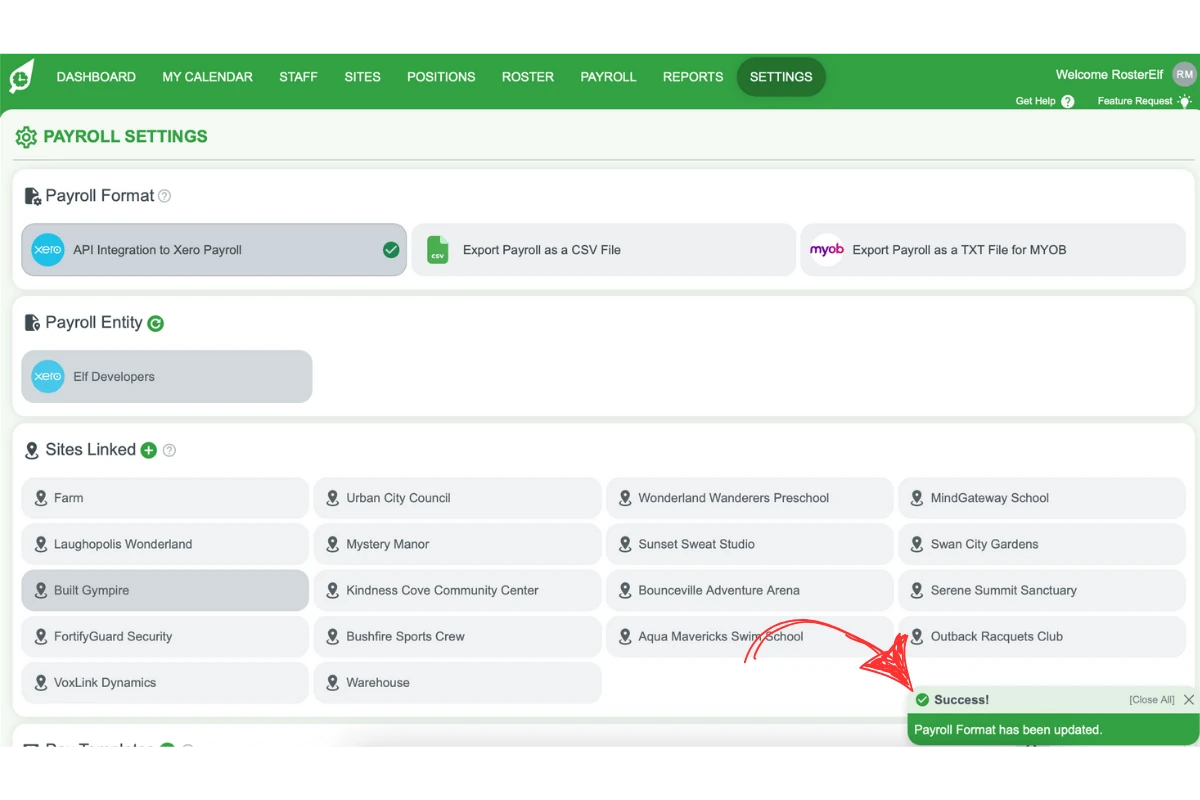
2.1.3 Confirm the new format is active: the green tick marks the current format.
3. Recreate pay templates
Switching payroll formats means your existing pay templates will no longer apply. This section explains how to recreate them for the new format.
3.1 create pay templates
3.1.1 Scroll down to the Pay Templates section on the same Payroll Settings page.
3.1.2 Set up templates for each employee group or pay category.
3.1.3 Save each template after creating it.
For a detailed guide on pay templates, visit Introduction to pay templates.
Frequently asked questions
1. How do I access payroll settings in RosterElf?
To access payroll settings, log in to your RosterElf account. Click the Settings tab in the menu and select Payroll from the dropdown options.
2. Can I change the payroll export format in RosterElf?
Yes, you can change the payroll export format in RosterElf. Go to the payroll settings, locate the Payroll Format section, and click the tile for your new payroll provider. A green tick marks the current format.
3. What happens to my pay templates when I change the payroll format?
When you change the payroll export format, your existing pay templates are no longer compatible. You’ll need to recreate pay templates in the Pay Templates section to match the new payroll provider.
4. Is it recommended to switch payroll export formats?
Switching payroll export formats is not recommended unless necessary. Different providers use unique pay template interfaces, so changing formats requires recreating all your pay templates.
5. Where can I find guidance on creating pay templates?
For detailed guidance on creating pay templates, visit Introduction to pay templates.