


How to start your RosterElf trial
This guide shows you how to start a free 15-day RosterElf trial. It takes about a minute, and you are in the app as soon as the account is created.
You will not be asked for a password or a credit card. This guide is for a business owner or manager setting up a new account — if you are an employee and your workplace already uses RosterElf, your manager invites you instead.
1. Starting your free trial
1.1 Opening the registration page
1.1.1 Go to rosterelf.com.
1.1.2 Click Start free trial in the top-right. The same button appears further down the page — either works.
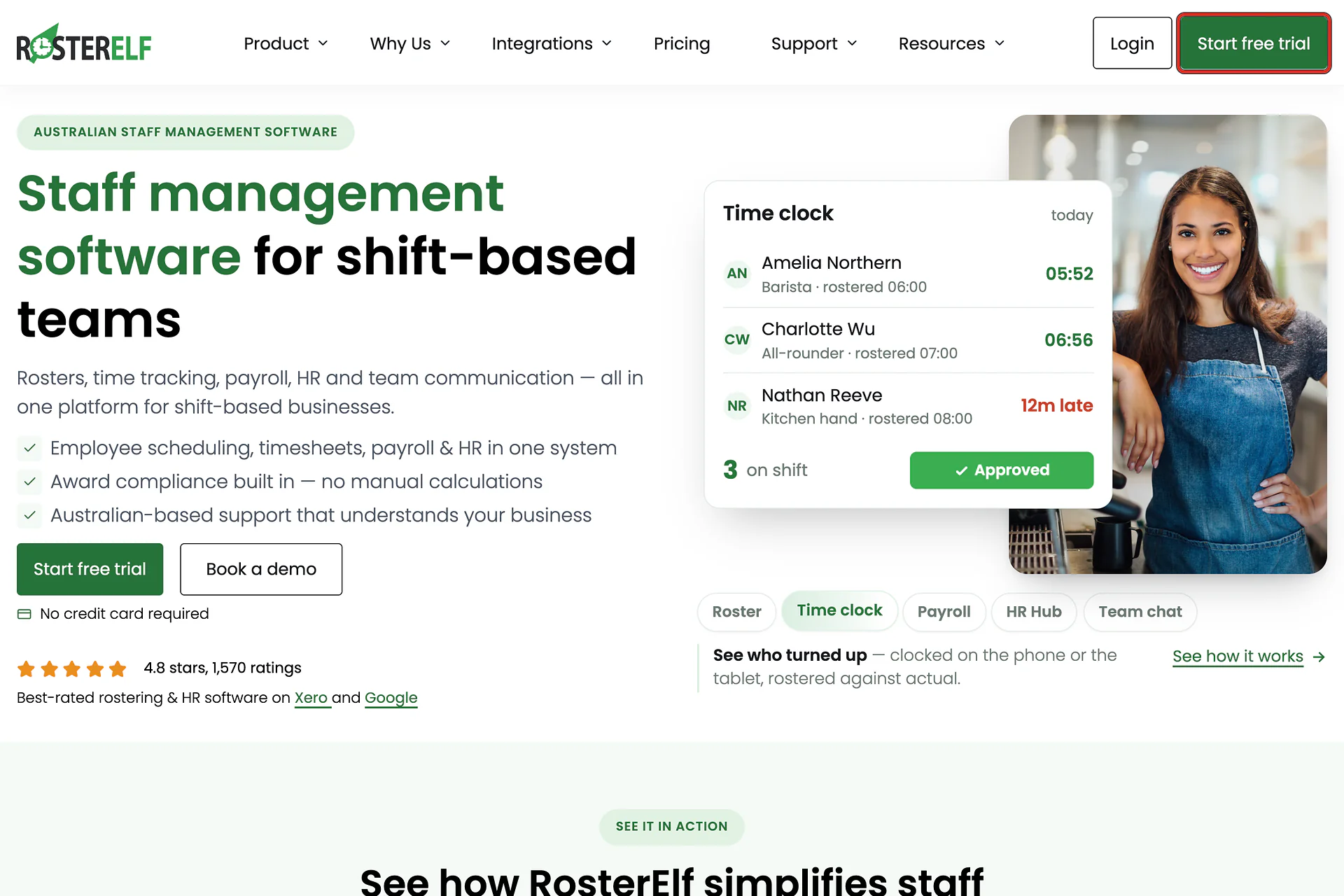
1.1.3 The registration page opens.
2. Completing the signup form
2.1 Entering your details
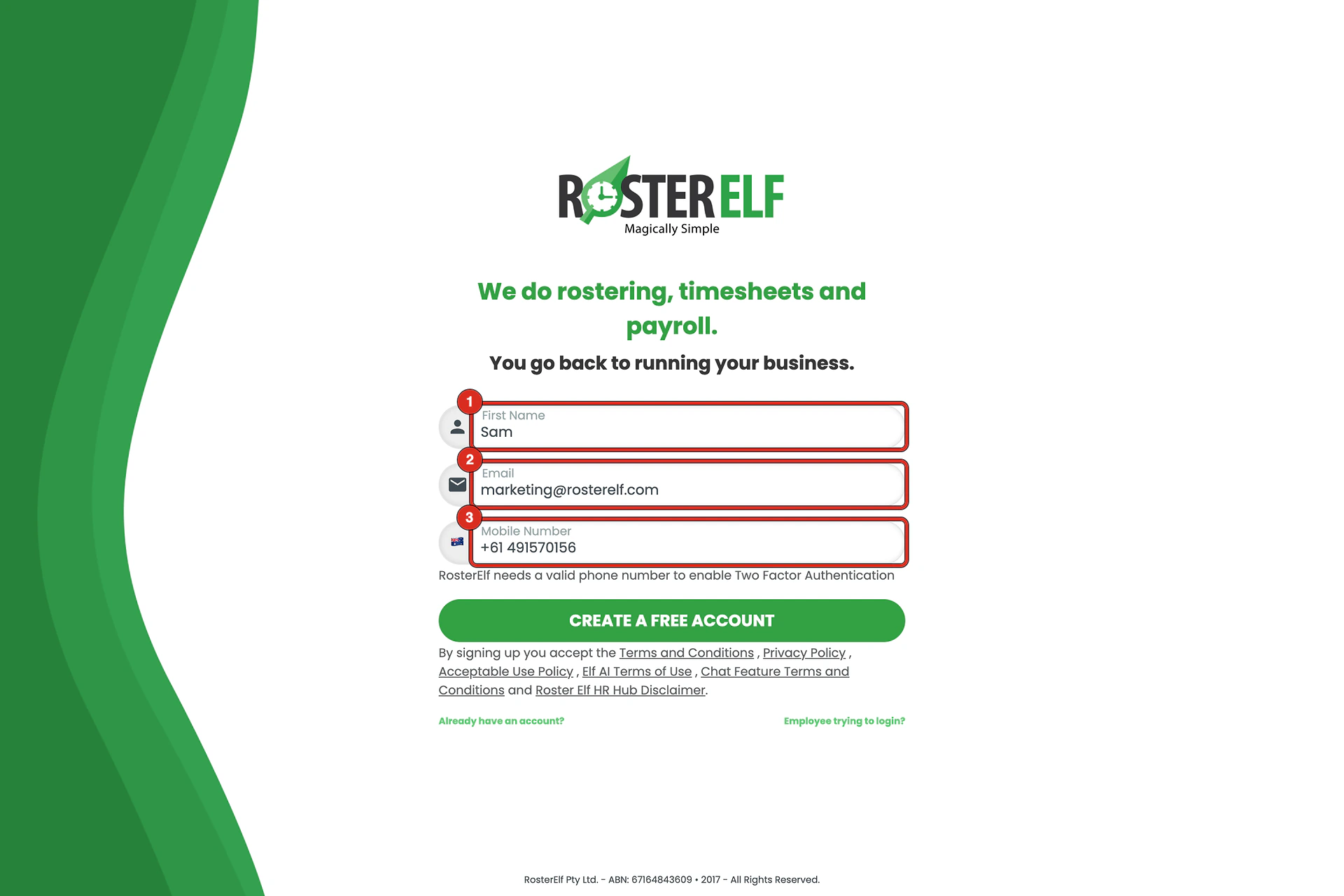
2.1.1 Enter your first name (1).
2.1.2 Enter your email address (2). This becomes your username.
2.1.3 Enter your mobile number (3). The country code is already set — type the rest of the number without the leading zero.
Why RosterElf asks for your mobile
It enables Two Factor Authentication on your account, and it is how support reaches you during the trial. The form says so under the field.
3. Creating your account
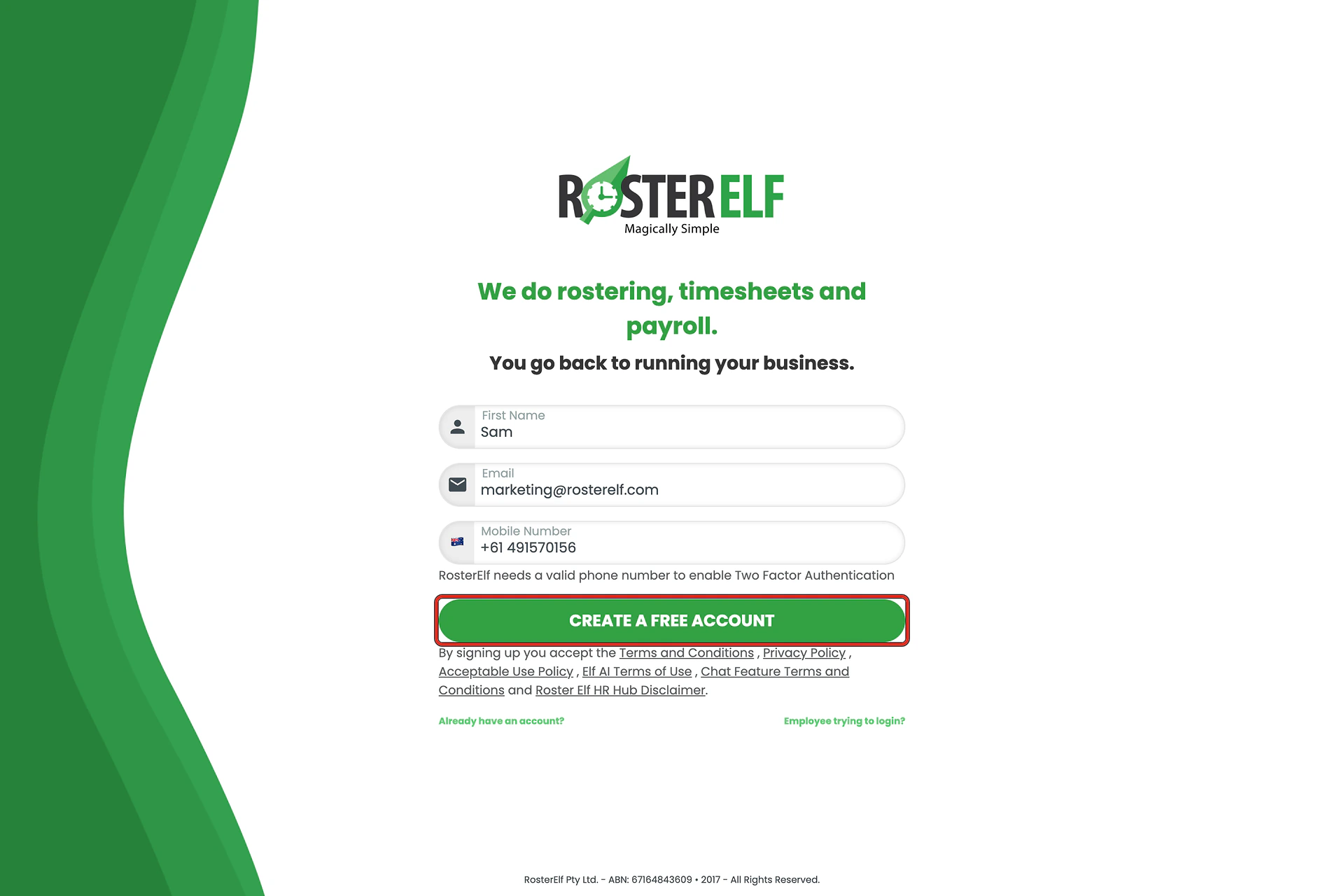
3.1.1 Click CREATE A FREE ACCOUNT.
3.1.2 You are signed in and taken straight into RosterElf. There is no password to choose and no email to confirm first.
What you agree to
Clicking the button accepts the Terms and Conditions, Privacy Policy and the other policies linked beneath it. There is no separate tick box.
4. Setting your password
While you are getting started, RosterElf emails you a link to choose a password. Nothing stops until you do it — you are already signed in.
4.1 The welcome email
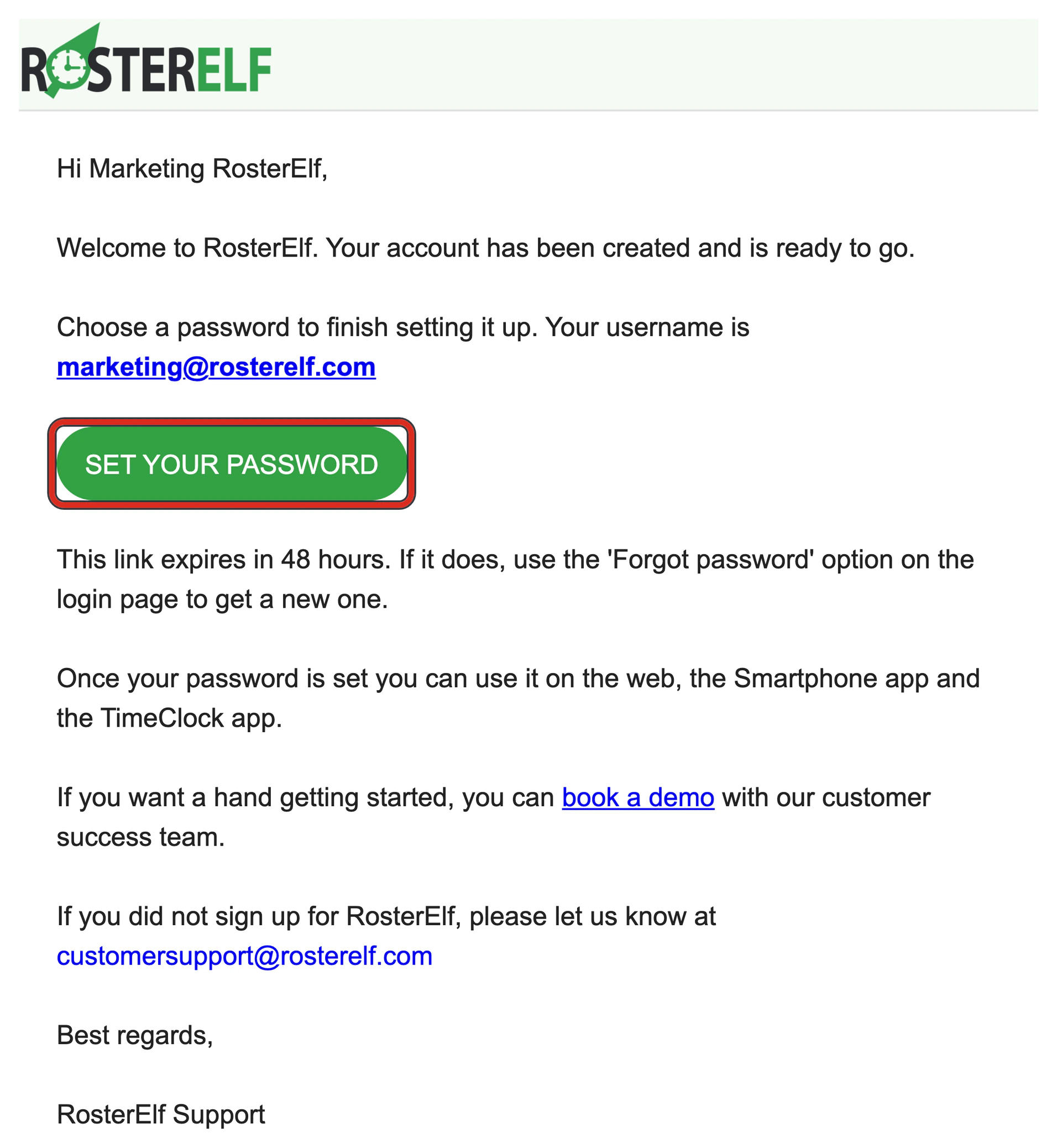
4.1.1 Look for Welcome to RosterElf - set your password. Your username is the email address you signed up with.
4.1.2 Click SET YOUR PASSWORD.
The link lasts 48 hours
After that, use Forgot password on the login page to send a new one. You do not lose the account or anything in it.
4.1.3 Choose a password and confirm it, then click SET PASSWORD. You need it to sign in again on the web, and to use the Smartphone and TimeClock apps.
5. What to do next
Your trial runs for 15 days with full access, for up to 50 staff. Nothing is charged when it ends — see pricing.
Most accounts start here:
6. When your trial ends
Your trial ends automatically after 15 days. There is no option to cancel a trial, and you do not need one — no payment details are collected, so nothing is charged when it ends.
- To keep using RosterElf, choose a plan before or after the trial ends. See pricing and changing plans.
- To stop using RosterElf, do nothing. Your access stops when the trial ends.
- Need more time? Contact the support team to ask for a trial extension.
Cancelling only applies to paid plans
The cancel subscription steps are for paid subscriptions billed through Stripe. A trial has no subscription to cancel.
Frequently asked questions
1. Do I need to create a password to start the trial?
No. You are signed in as soon as the account is created. You set a password later from your profile, or use the password reset link if you are ever signed out.
2. How long does the free trial last?
15 days, with full access. It ends on its own — nothing is charged and no card is held. See when your trial ends and pricing to choose a plan.
3. How do I cancel my RosterElf free trial?
You don’t need to — there is no option to cancel a trial, because there is nothing to cancel. The trial ends automatically after 15 days. No payment details are collected, so nothing is charged when it ends. The cancel subscription steps only apply to paid subscriptions.
4. What happens when my free trial ends?
Your access stops at the end of the 15 days and nothing is charged. To keep using RosterElf, choose a plan — see pricing and changing plans.
5. Can I extend my free trial?
Yes, on request. Contact the support team before or after your trial ends and ask for an extension.
6. What features can I access during the free trial?
All key features, including rostering, time tracking, payroll integration and leave management. Staff numbers are limited to 50 during the trial period.
7. Can I integrate RosterElf with Xero during the trial?
Yes. Xero works during the trial, so you can test payroll properly — see setting up Xero for integration.
8. Do I need a credit card to start the trial?
No. The form asks for your first name, email address and mobile number only. No payment details are collected.
9. Why does RosterElf ask for my mobile number?
It enables Two Factor Authentication on your account, and it is how the support team reaches you during the trial. The form says so under the field.
10. I'm an employee — should I sign up for a free trial?
No. This form creates a new business account. If your workplace already uses RosterElf, your manager invites you — see invite staff to activate RosterElf accounts.