


Use ChatGPT with RosterElf
Disclaimer
AI-powered tools are provided for convenience and productivity enhancement. These tools use experimental artificial intelligence technologies, which are continuously improving. While every effort is made to ensure accuracy and reliability, results generated by AI may vary and should not be considered definitive or error-free. Users are responsible for reviewing and verifying all AI-produced information before relying on it for business or compliance decisions. RosterElf and its partners make no warranties, express or implied, regarding the accuracy, completeness, or suitability of AI-generated outputs.
Looking for ChatGPT Atlas?
Atlas was OpenAI’s standalone browser. It stopped working on 9 August 2026 and OpenAI moved its browser automation into ChatGPT itself. If you followed an older version of this guide and installed Atlas, nothing is lost — the steps below set the same thing up through the ChatGPT extension instead.
This article explains how to let ChatGPT work inside your RosterElf account, so you can ask for routine jobs in plain English — drafting a roster, adjusting a pay template or adding a new starter — instead of clicking through them.
ChatGPT drives RosterElf in your own browser, signed in as you. There is no API key, and RosterElf never receives your ChatGPT account details.
1. Install the ChatGPT extension
OpenAI offers two ways to let ChatGPT see and act on a browser page. Either works with RosterElf:
- The ChatGPT extension or sidebar for Chrome — best for working alongside a RosterElf tab you already have open.
- The ChatGPT desktop app — better for longer runs that span several screens.
1.1 Add the extension to Chrome
1.1.1 Open the Chrome Web Store and search for the official ChatGPT extension from OpenAI.
1.1.2 Click Add to Chrome, then confirm.
1.1.3 Pin the extension so the sidebar is one click away.
Availability is still rolling out
OpenAI is releasing the extension in stages, and access depends on your plan, region, device and workspace settings. If you cannot see it yet, the ChatGPT desktop app covers the same ground.
2. Sign in to ChatGPT
Browser automation is a paid feature. Sign in to ChatGPT with the account that holds your subscription before you start.
2.1 Log in to ChatGPT
2.1.1 Open ChatGPT in your browser, or launch the desktop app.
2.1.2 Sign in with your OpenAI credentials.
2.1.3 Check your plan under Settings, and confirm it includes browser automation.
3. Connect to RosterElf
ChatGPT acts on the RosterElf session already open in your browser, so the only thing to “connect” is a signed-in tab. Your RosterElf password is never typed into ChatGPT.
3.1 Sign in to RosterElf
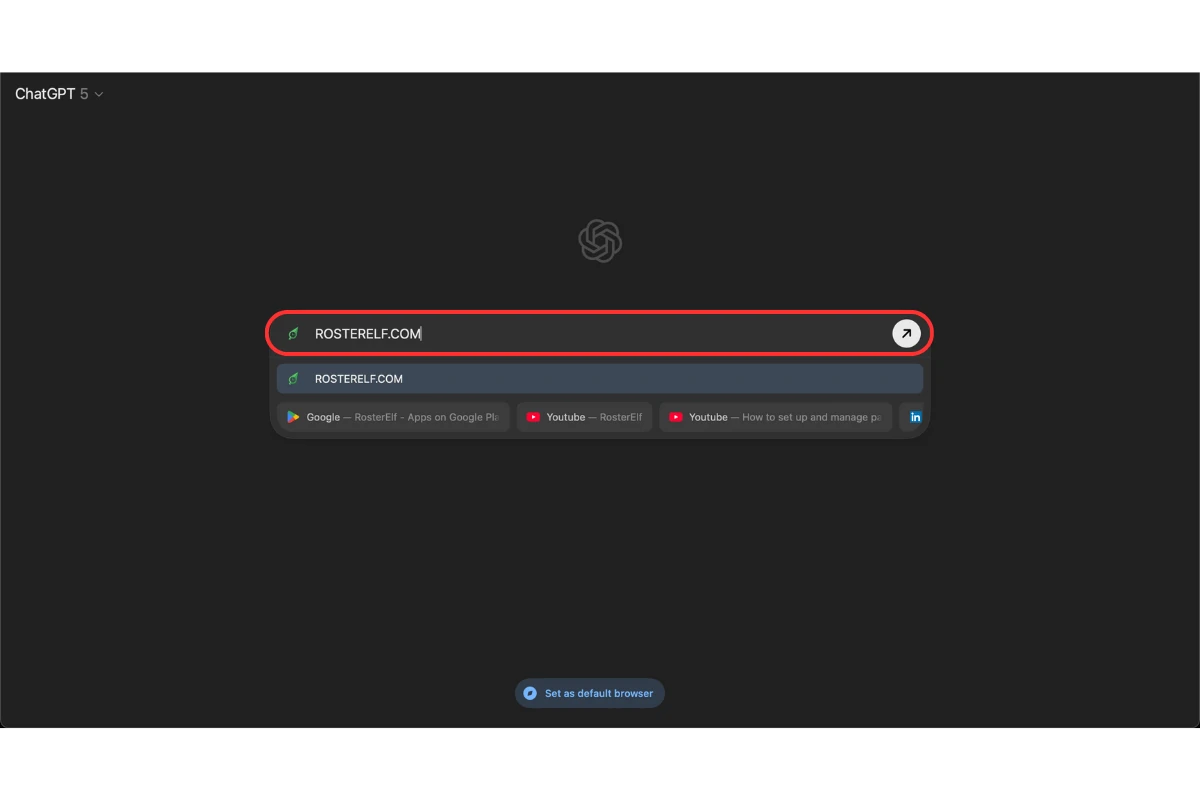
3.1.1 Go to RosterElf.com.
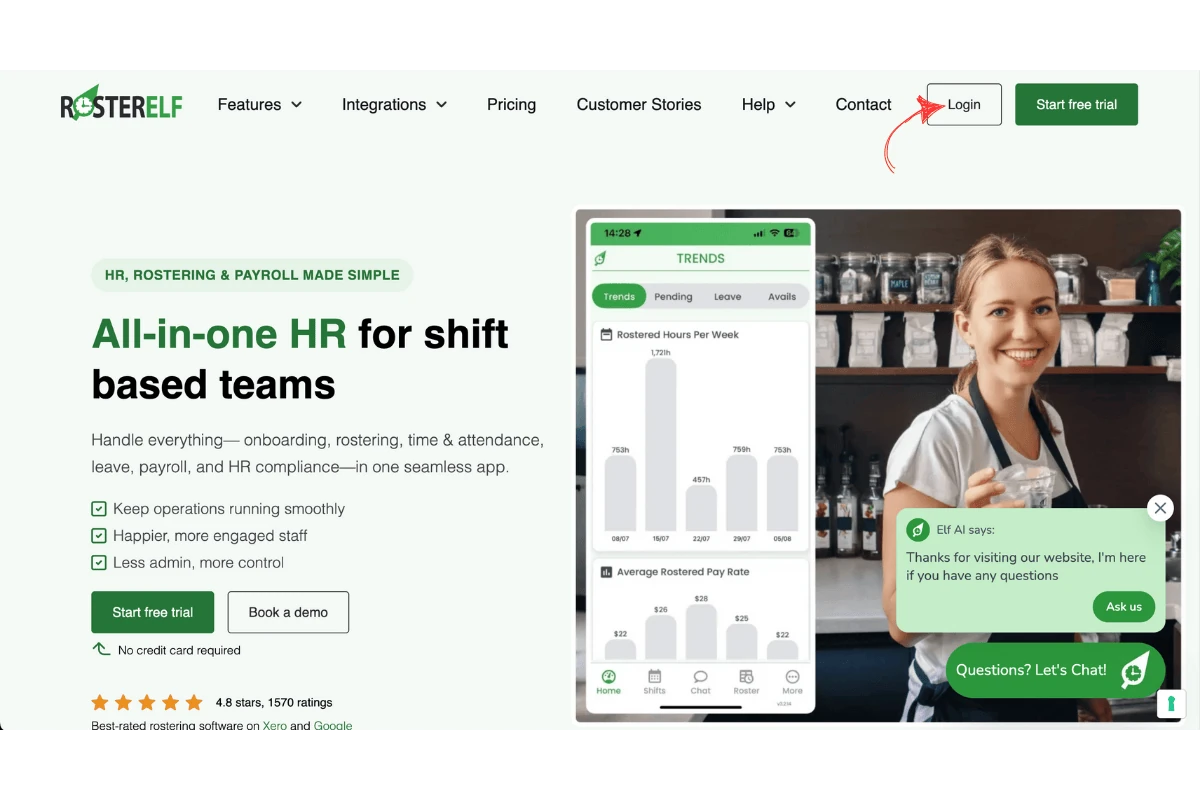
3.1.2 Click Log In.
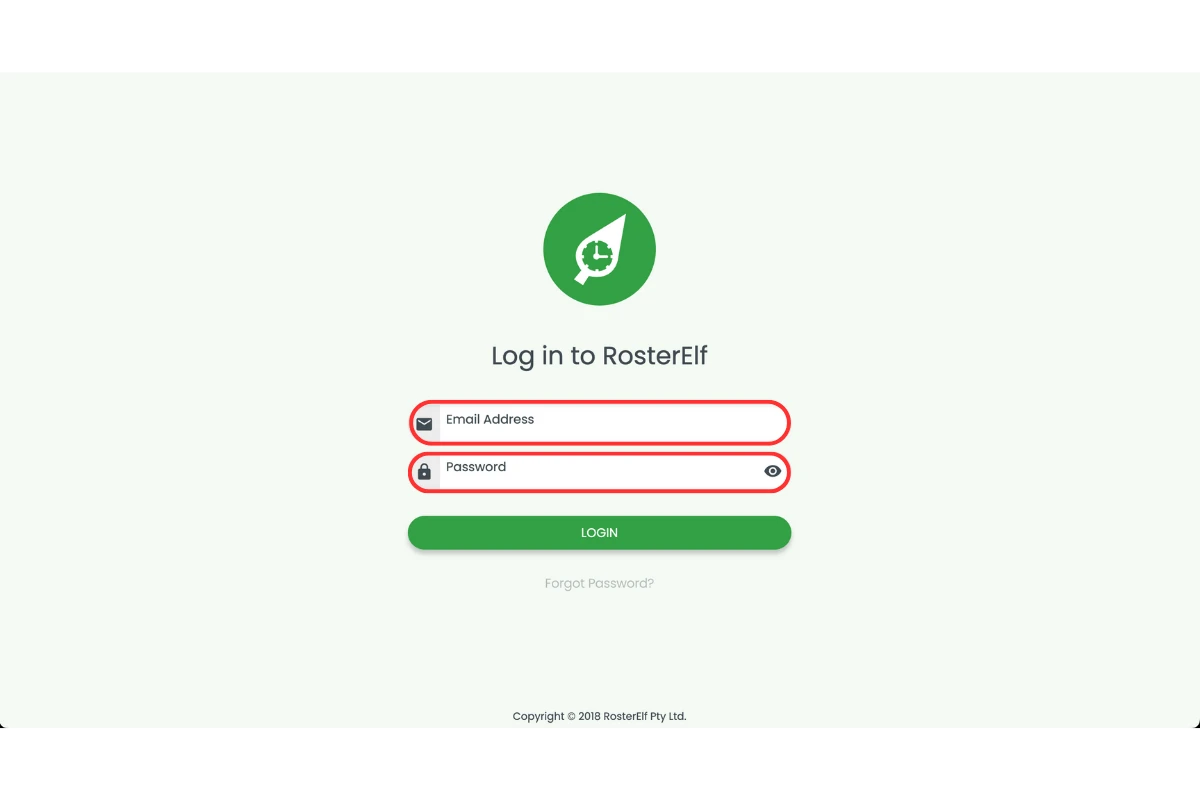
3.1.3 Enter your RosterElf account details and sign in.
3.1.4 Leave the tab open. ChatGPT reads and acts on the page you can see.
4. Perform automated tasks
With RosterElf open, open the ChatGPT sidebar and describe what you want in plain English.
4.1 Request a task
4.1.1 Ask for something specific, naming the week and the site:
- “Create a roster for the Newtown café for next week, based on saved availability.”
- “Add three casual staff to the Front of House position.”
- “Show me which shifts next week have no one assigned.”
4.1.2 Review what ChatGPT proposes before you approve it.
4.1.3 Approve the change in RosterElf. Anything that costs money or publishes to staff should be checked by you first.
ChatGPT does not know your award
ChatGPT has no access to current Fair Work modern award rates and cannot tell you whether a roster is compliant. Award interpretation is applied by RosterElf itself when the roster is costed — never rely on ChatGPT for a pay rate or a penalty calculation.
Frequently asked questions
1. What happened to ChatGPT Atlas?
Atlas was OpenAI’s standalone browser. It stopped working on 9 August 2026, and OpenAI moved browser automation into ChatGPT itself — the Chrome extension and sidebar for working alongside a page, and the desktop app for longer tasks. You do not need Atlas to use ChatGPT with RosterElf.
2. Do I need a paid ChatGPT plan to use this with RosterElf?
Yes. Browser automation is a paid ChatGPT feature and is not available on the free tier. Availability also depends on your region, device and workspace settings, so check your plan under Settings in ChatGPT before you set this up.
3. How does ChatGPT connect to my RosterElf account?
It does not connect to RosterElf directly. It acts on the RosterElf tab already open and signed in to in your browser, which is why there is no API key to create and nothing to configure in RosterElf. Your RosterElf password is never entered into ChatGPT.
4. What kind of tasks can ChatGPT do in RosterElf?
Drafting a roster from saved availability, adding staff or positions, adjusting a pay template, and answering questions about what is already on screen. Ask for one clear job at a time and name the site and week — vague requests produce vague results.
5. Can ChatGPT check my roster is award compliant?
No. ChatGPT has no access to current Fair Work modern award rates, and it cannot verify penalty rates, overtime or allowances. RosterElf applies award interpretation itself when it costs a roster. Treat anything ChatGPT tells you about pay as unverified.