


This article explains how to set up and use your Time Clock PIN in RosterElf. The Time Clock PIN is a 4-digit code that lets you clock in, clock out, and take breaks on the Time Clock app at your work site.
This PIN only works for these actions on the tablet. It does not work for logging in to the RosterElf website, mobile app, or the Time Clock app itself.
By following this guide, you’ll learn how to create your PIN and start using it for accurate shift recording. You’ll also see the difference between this PIN and the admin PIN used to keep the Time Clock app logged in. This helps you avoid confusion and ensure you’re using the right PIN for the right purpose.
This guide covers setting your PIN from a web browser. You can set the exact same PIN from the RosterElf smartphone app instead — see set your TimeClock PIN in the RosterElf app.
1. How to set up your time clock PIN
This section shows you how to create your 4-digit Time Clock PIN in RosterElf.
Setting up your PIN is quick and easy. Once saved, you can use it on the Time Clock app tablet to clock in, clock out, and manage breaks.
1.1 access your profile settings
1.1.1 Go to rosterelf.net and log in.
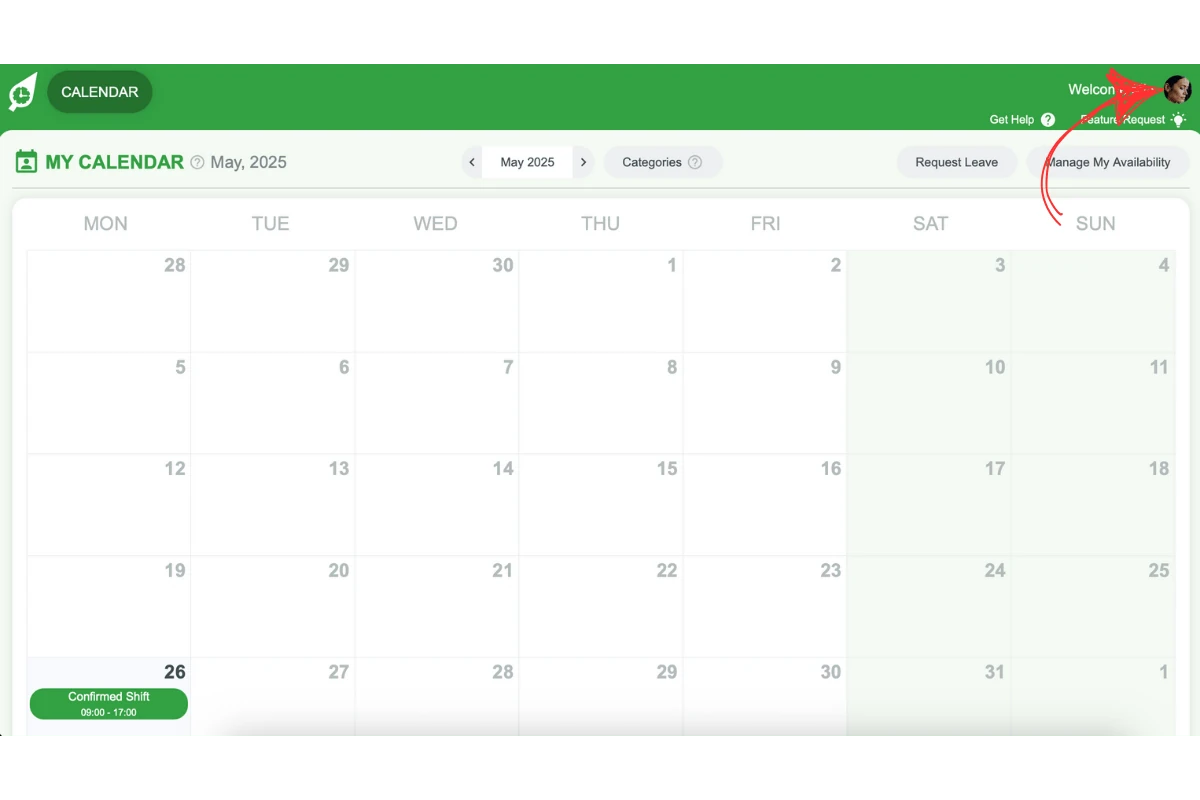
1.1.2 Click on your profile picture in the top right corner.
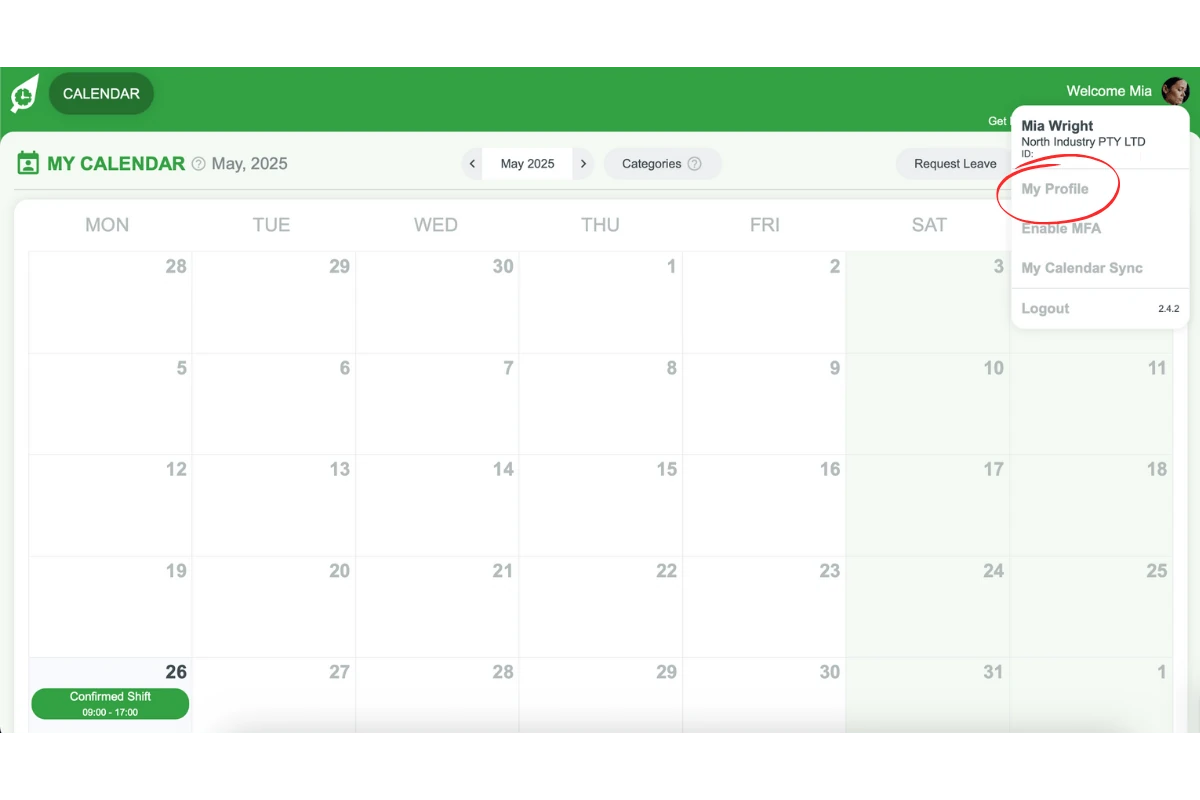
1.1.3 From the dropdown menu, click on My Profile.
1.1.4 A modal will open with your profile details.
1.2 set your 4-digit time clock PIN
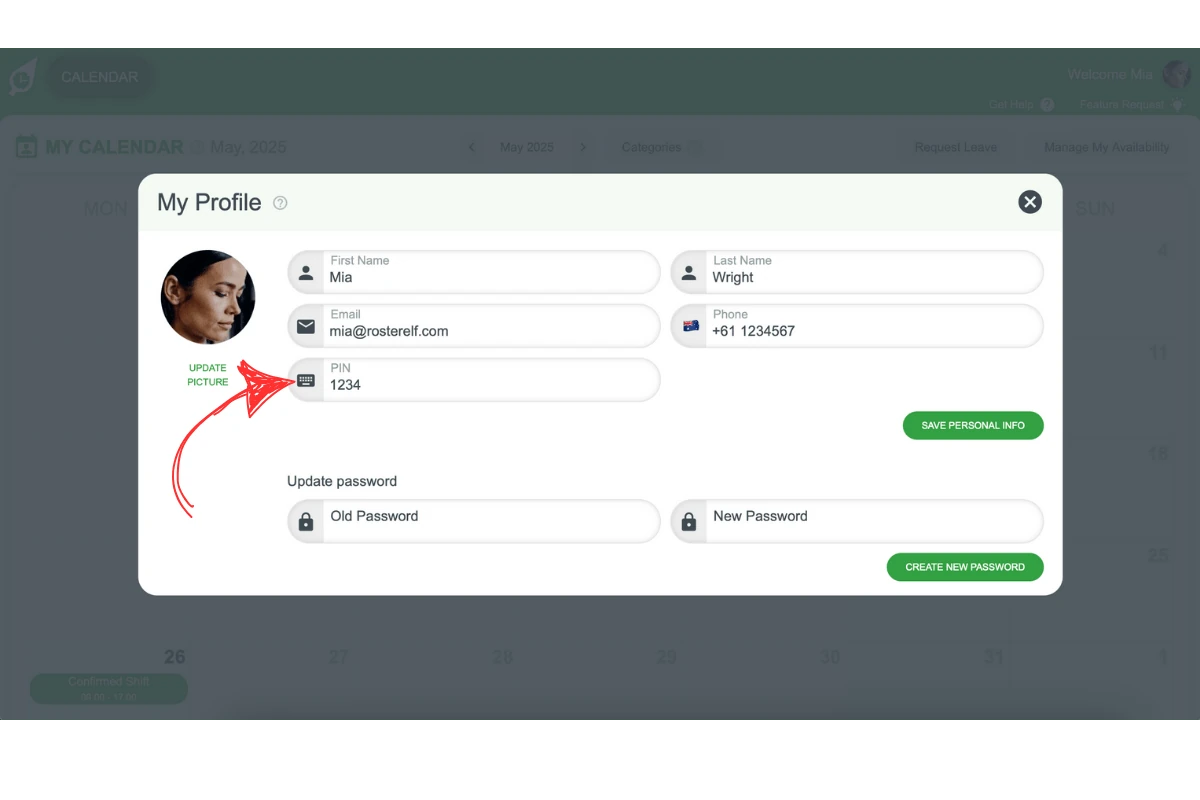
1.2.1 In the modal, find the PIN field.
1.2.2 Enter a 4-digit number for your Time Clock PIN.
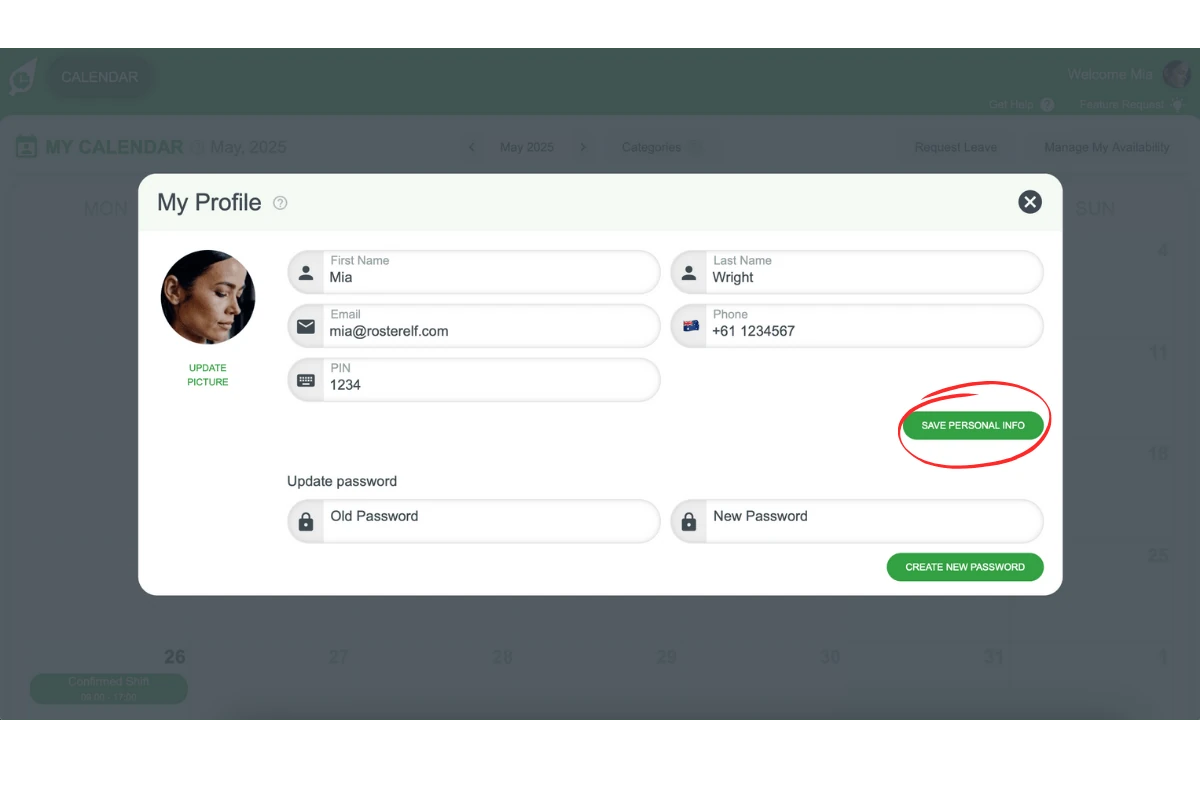
1.2.3 Click on Save Personal Info to save your new PIN.
2. How to use your time clock PIN
This section explains how to use your PIN on the tablet at your workplace.
You’ll use this PIN to clock in and out of shifts and to manage your breaks.
2.1 clock in and out using your PIN
2.1.1 Go to the tablet at your work site with the Time Clock app open.
2.1.2 Enter your 4-digit Time Clock PIN in the field labelled Confirm your password — that label refers to your Time Clock PIN, not your RosterElf account login password.
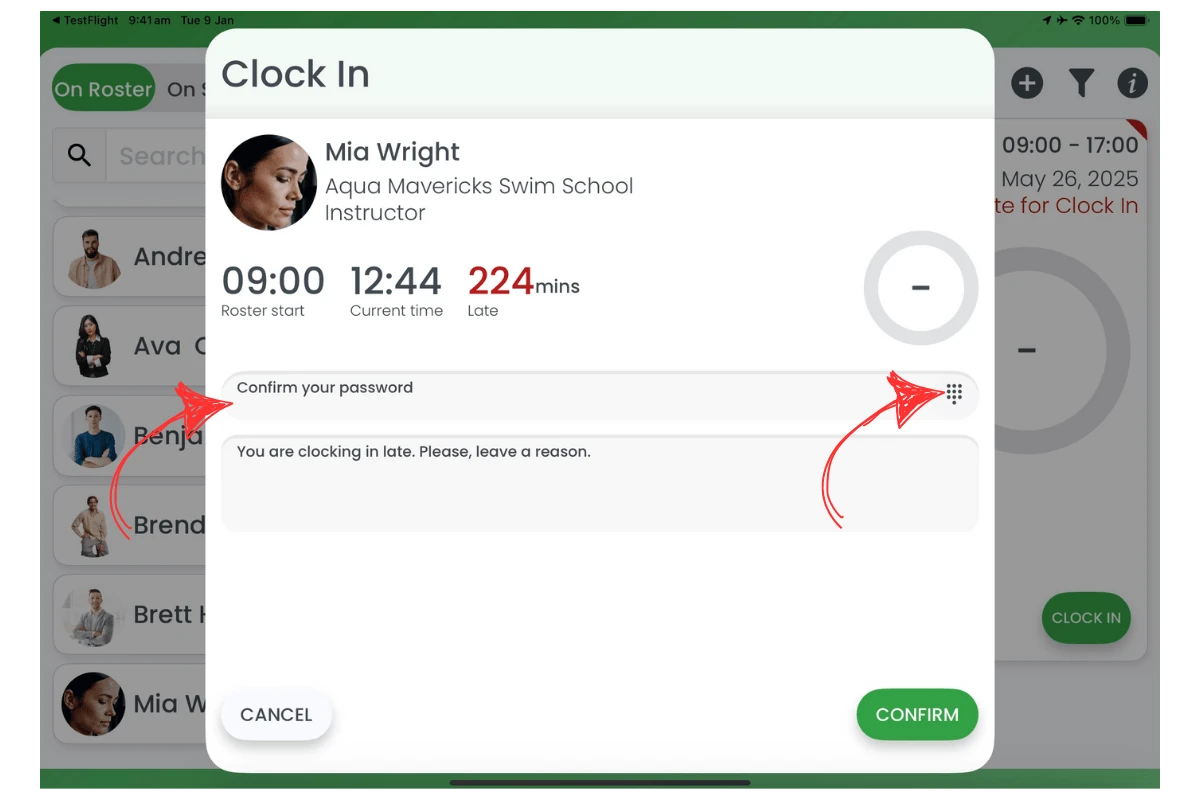
2.1.3 Use the same PIN to clock out when your shift ends.
2.2 take breaks with your PIN
2.2.1 On the tablet, enter your PIN to start your break.
2.2.2 Enter the PIN again to end your break.
3. Important details about your time clock PIN
This section explains what your Time Clock PIN does and how it’s different from the admin PIN used to keep the Time Clock app logged in.
3.1 your PIN is only for the time clock app
3.1.1 Your 4-digit Time Clock PIN is for clocking in, clocking out, and managing breaks.
3.1.2 It does not work for logging in or out of the RosterElf website or mobile app.
3.1.3 It also does not work for logging in to the Time Clock app itself.
3.2 difference from the time clock app login PIN
3.2.1 The 4-digit Time Clock PIN is for employees to clock in/out and take breaks on the tablet.
3.2.2 It does not log you in to the Time Clock app itself.
3.2.3 The admin PIN that keeps the Time Clock app logged in on a tablet is separate. It’s managed in the Time & Attendance settings by admins.
3.2.4 This admin PIN allows access to all sites and shifts within your account. It’s not used for employee clock in/out.
3.2.5 For steps to set up this admin PIN, see how to keep the Time Clock app logged in with PIN.
4. More help with the time clock PIN
This section provides extra guides to help you with clocking in/out and taking breaks on the Time Clock app.
4.1 helpful guides
Frequently asked questions
1. What is a Time Clock PIN in RosterElf?
Time Clock PIN in RosterElf is a 4-digit code that employees use on the tablet’s Time Clock app. It lets you clock in, clock out, and manage breaks for your shift.
2. Can I use my Time Clock PIN to log in to the RosterElf mobile app?
No, your Time Clock PIN only works for clocking in and out on the tablet at your work site. It does not work for logging in to the mobile app or the website.
3. How do I create my Time Clock PIN in RosterElf?
To create your PIN, log in to rosterelf.net, click your profile picture, select My Profile, enter your 4-digit PIN in the modal, and click Save Personal Info.
4. Is my Time Clock PIN the same as the Time Clock app login PIN?
No, they are different. The Time Clock PIN is for employees to clock in and out. The admin PIN keeps the Time Clock app logged in on the tablet and is managed in the Time & Attendance settings.
5. Can I reset my Time Clock PIN if I forget it?
Yes, you can change your Time Clock PIN anytime by going back to your My Profile page and entering a new 4-digit PIN. Don’t forget to click Save Personal Info!
6. Can I set my Time Clock PIN from the RosterElf mobile app instead of a web browser?
Yes — it’s the same PIN either way. On the RosterElf smartphone app, go to More > My profile > TimeClock PIN to set or change it. See set your TimeClock PIN in the RosterElf app for full steps.
7. Why does the tablet ask me to "confirm your password" when I'm supposed to enter my PIN?
That’s the correct screen — the field is labelled Confirm your password on the tablet, but for staff clocking in, out, or taking a break, it’s asking for your personal 4-digit Time Clock PIN, not your RosterElf account login password. Enter your Time Clock PIN there.