


The Activity Feed in your account provides a complete audit log of important actions, such as who submitted leave for a staff member, who approved it, and any adjustments made to the roster or payroll. This feature gives you visibility over key changes, helping you stay informed and monitor activity for better team management and compliance. In this article, you’ll learn how to access, filter, and review entries in the Activity Feed, making it easy to find and track specific actions within your account.
Not sure what types of actions are tracked? See the full reference: Activity log: what gets recorded in RosterElf.
1. Accessing the activity feed
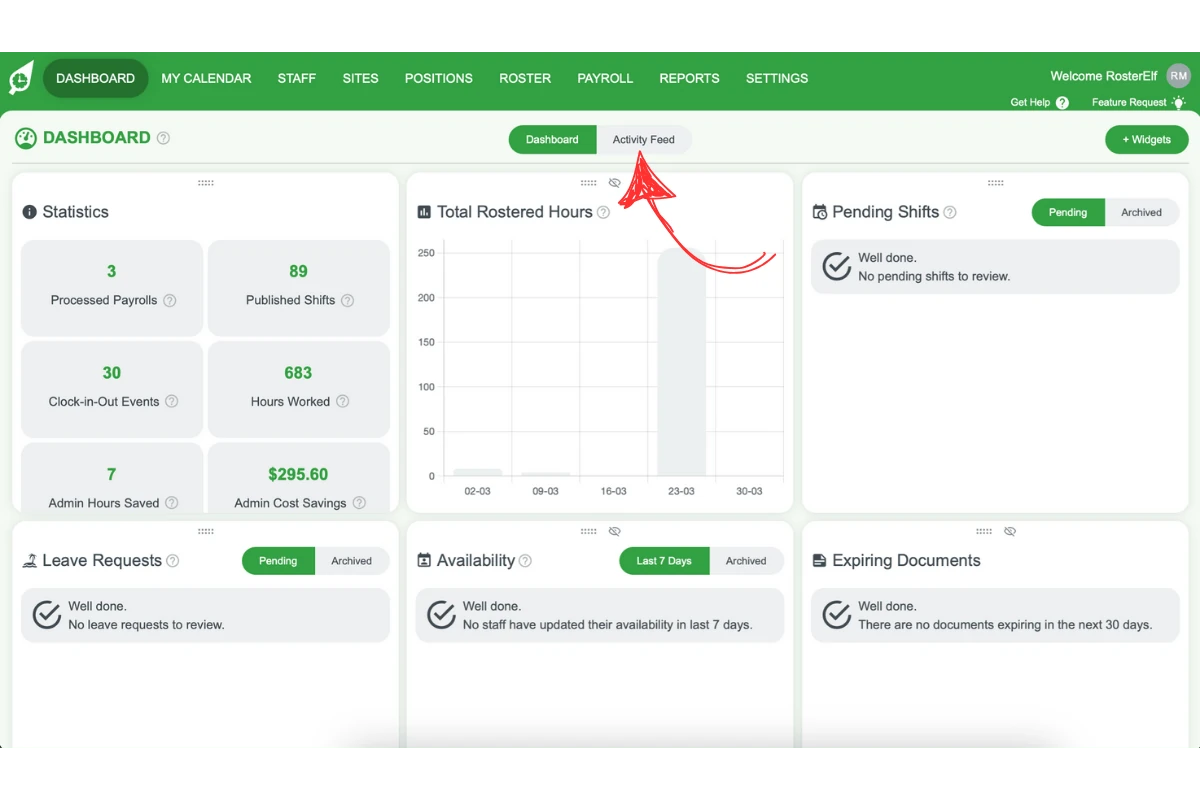
This section explains how to access the Activity Feed from the dashboard, enabling you to quickly review recent actions. Accessing the feed is simple, and from there, you can browse recent activity to stay updated on account changes.
1.1 opening the activity feed
1.1.1 Navigate to the dashboard header.
1.1.2 Click the toggle located in the middle of the header to open the Activity Feed.
2. Filtering and searching the activity feed
To make it easier to find specific actions, the Activity Feed includes filtering and search options. This section will guide you on how to use the Type of Activity dropdown and the search bar to locate particular entries quickly.
2.1 using the type of activity dropdown
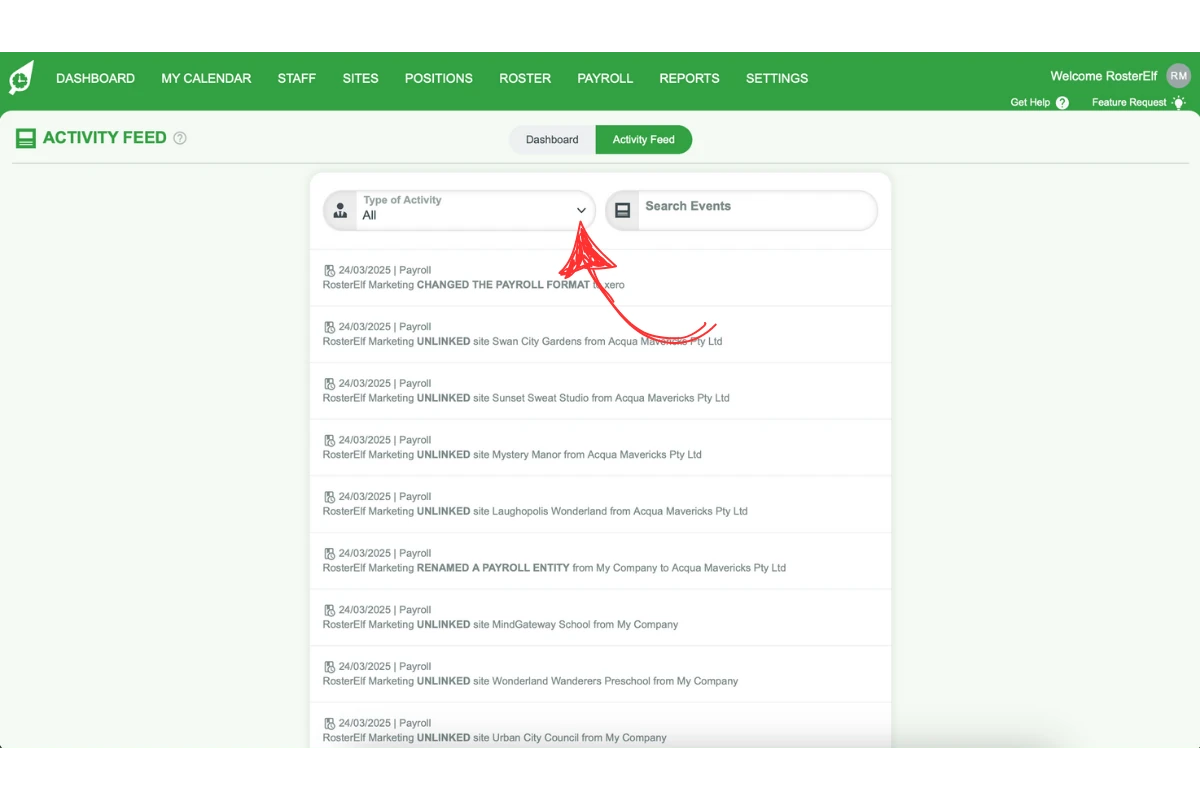
2.1.1 In the Activity Feed, locate the Type of Activity dropdown.
2.1.2 Click on it to open the list of activity types.
2.1.3 Select the desired activity type to filter the feed.
2.2 searching the activity feed
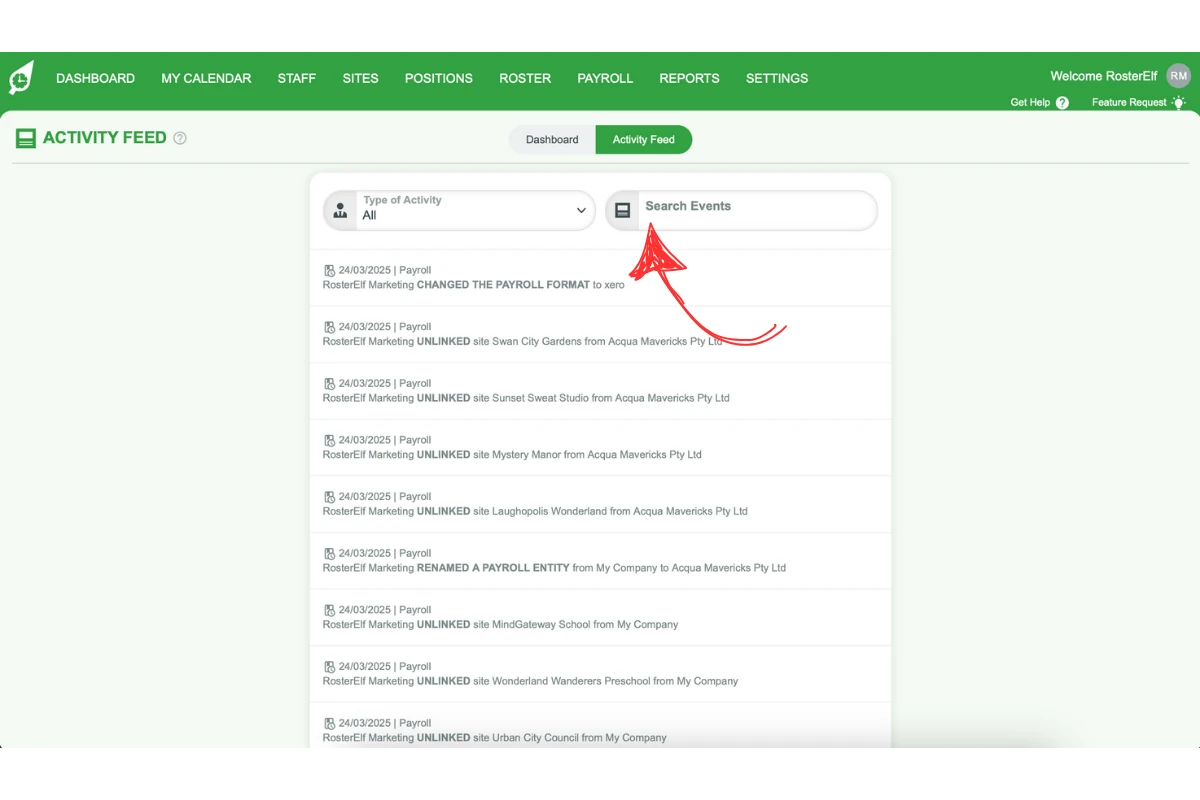
2.2.1 In the Activity Feed, go to the search bar.
2.2.2 Type keywords related to the event or action you want to review.
2.2.3 The results filter as you type in Search Events. There is no need to press Enter, and the magnifying glass is not a button.
3. Reviewing activity details
After finding the specific event, you can access more detailed information about the action taken. This section covers how to view these details in the Activity Feed to gain full context on any changes or approvals made.
3.1 viewing event details
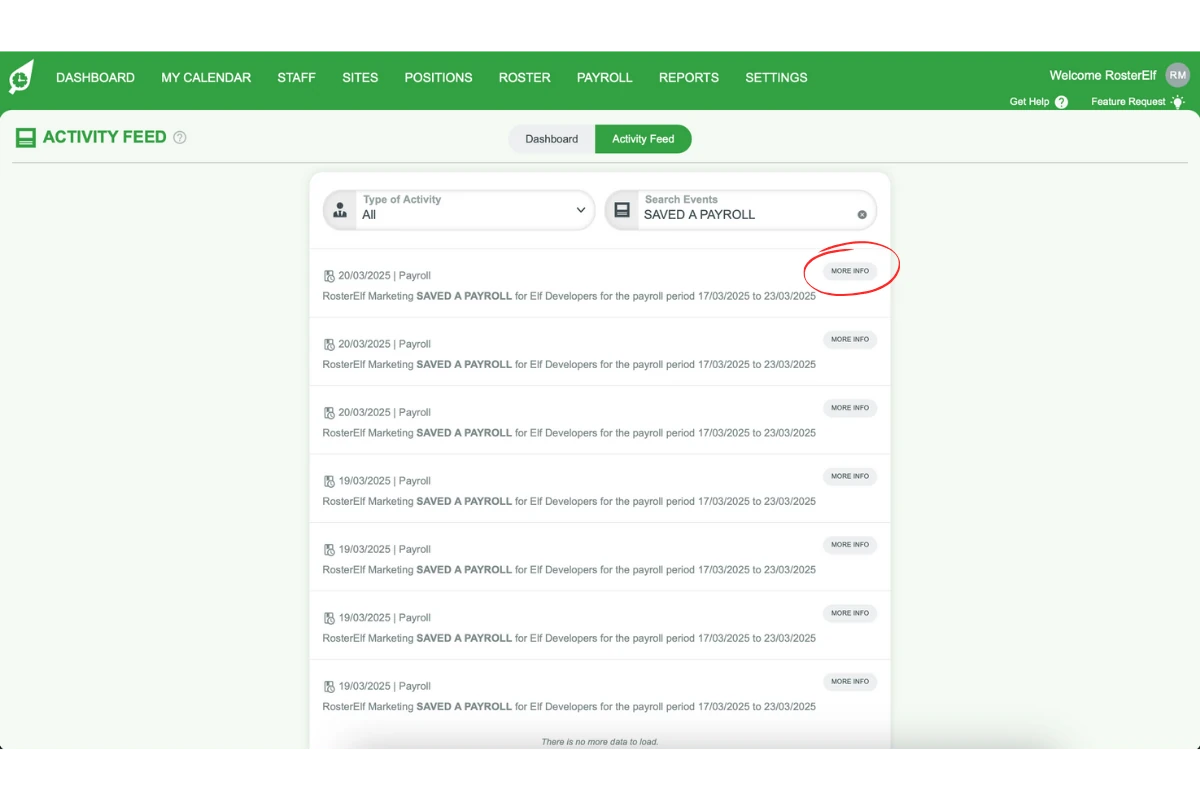
3.1.1 Locate the event you wish to review in the filtered feed.
3.1.2 For a leave entry, click MORE INFO to open a detailed summary of the event. The MORE INFO button appears on leave entries only.
Frequently asked questions
1. What is the Activity Feed in my account?
The Activity Feed provides a complete log of actions in your account, such as leave approvals, roster adjustments, and payroll changes. It helps you monitor key events to stay informed and maintain compliance.
2. How do I access the Activity Feed?
To access the Activity Feed, go to the dashboard header and click the toggle located in the centre. This opens the Activity Feed, where you can review recent actions.
3. Can I filter the Activity Feed to see specific actions?
Yes, you can filter the Activity Feed by using the Type of Activity dropdown. Select the desired activity type to view specific actions, making it easier to track relevant entries.
4. How do I search for a specific event in the Activity Feed?
Use the search bar in the Activity Feed to type keywords related to the action you’re looking for. The results filter as you type, so there is no need to press Enter.
5. How can I see details about an action in the Activity Feed?
To view more details on a leave entry, find it in the feed and click MORE INFO, which appears on leave entries only. This provides a summary of who performed the action, what was done, and when, offering insights for better team management.
6. Does the Activity Feed show the timestamp with hours?
No, the Activity Feed only shows the date — specifically the day, calendar month, and year.