


Shift swaps & open shifts overview
Shift Swaps and Open Shifts allow employees to manage shift changes, providing flexibility and ensuring coverage for all shifts. Before using these features, you need to enable them in Roster Settings on a computer. This article explains what Shift Swaps and Open Shifts are, how they work, and the steps to review, approve, or decline them effectively. By following these steps, you can manage shift changes smoothly, maintain coverage, and notify employees promptly about shift status updates.
1. Enabling shift swaps & open shifts
To use Shift Swaps and Open Shifts, enable the feature through Roster Settings. Once enabled, employees can swap shifts or volunteer for open shifts, providing flexibility in scheduling. The following steps outline how to enable this feature and ensure it is ready for use.
1.1 accessing roster settings
1.1.1 Log into RosterElf on your computer.
1.1.2 Navigate to Roster Settings.
1.1.3 Enable Shift Swaps & Open Shifts.
2. Reviewing shift swaps & open shifts
When employees request a shift swap or apply for an open shift, you’ll see these requests on your dashboard. Each shift will display its current status, indicating if it’s awaiting coverage or has candidates nominated to take the shift. This section outlines how to review each request and select the most suitable employee.
2.1 reviewing available candidates or potential matches
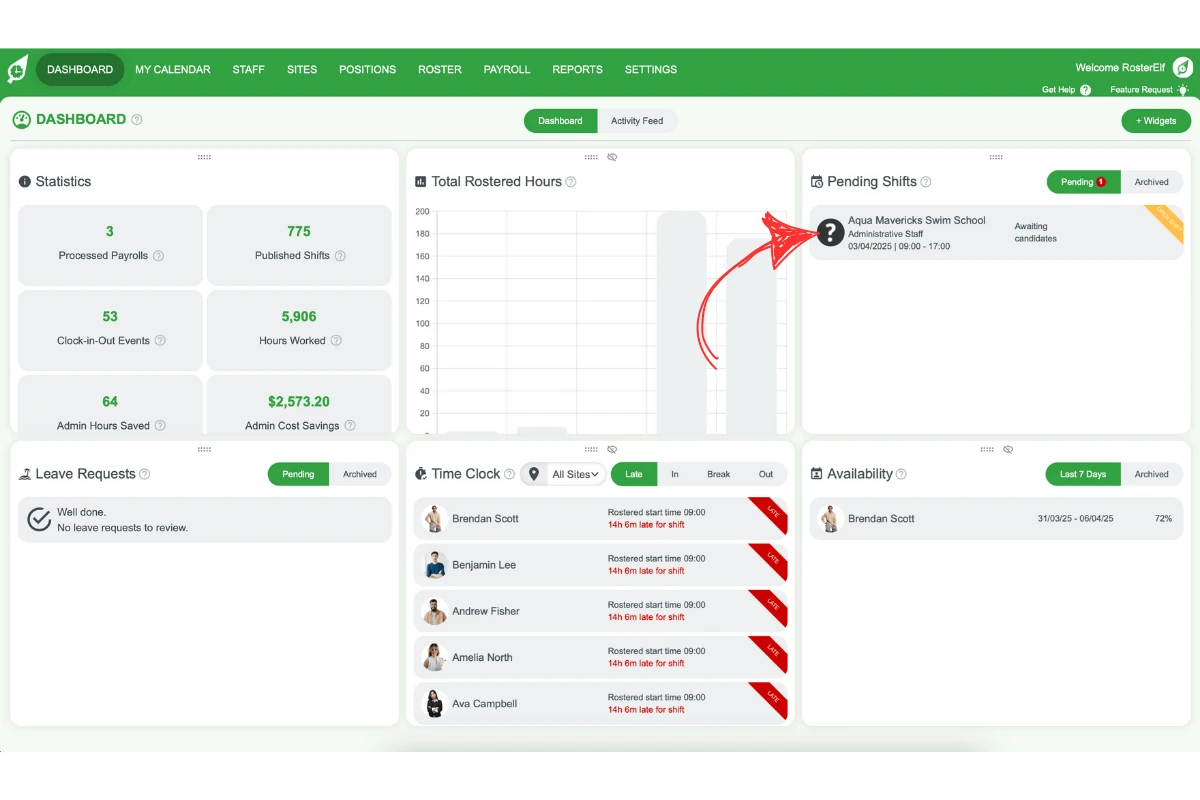
2.1.1 From the dashboard, select the shift swap or open shift to review.
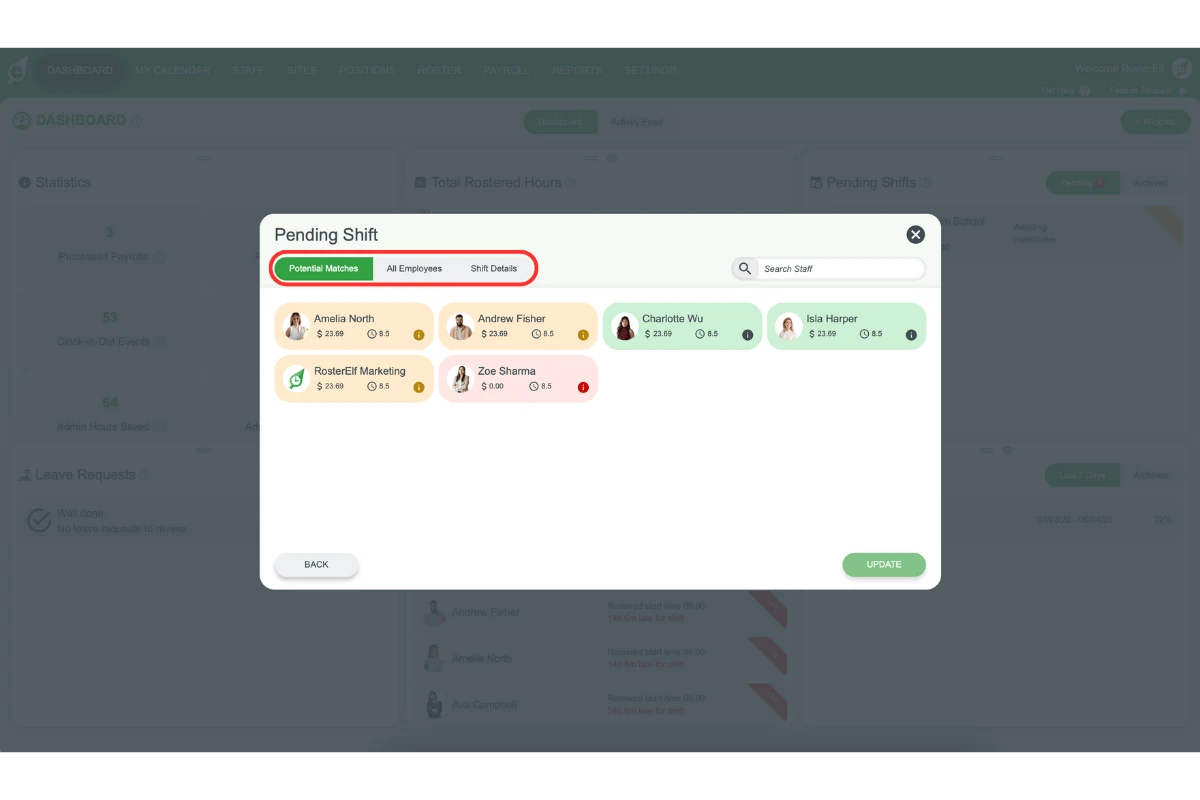
2.1.2 A popup window will display:
- Available Candidates: Staff who have nominated themselves for the shift.
- Potential Matches: Suggested staff if no one has volunteered yet.
2.1.3 Review candidates or matches and determine suitability for the shift.
2.2 allocating a candidate
2.2.1 Choose the employee you wish to allocate to the shift.
2.2.2 Click Select and Notify to confirm your choice.
2.2.3 Notifications will be sent to:
- All nominated staff members about the decision.
- The original employee who requested the swap (for shift swaps only).
2.2.4 If you decline a shift swap, close the popup and select the red X on the dashboard.
3. Finalising shift swaps & open shifts
Once a shift swap or open shift has been addressed, it will move from the Pending tab to the Archived tab. This process ensures that completed shift changes are recorded and only active requests appear in the pending list.
Frequently asked questions
1. How do I enable Shift Swaps and Open Shifts in RosterElf?
To enable Shift Swaps and Open Shifts, log into RosterElf on a computer, navigate to Roster Settings, and activate the Shift Swaps & Open Shifts option. Once enabled, employees can swap shifts or volunteer for open ones.
2. How can I review shift swap or open shift requests?
Go to your dashboard to view shift swap or open shift requests. Select the shift to open a popup window showing Available Candidates and Potential Matches. Review and choose the best candidate to fill the shift.
3. What happens after I approve or decline a shift swap?
Once you approve or decline a shift swap, all involved employees receive notifications. Approved shifts move forward with the selected employee, while declined requests are notified to the relevant staff.
4. Can I allocate a specific employee to an open shift?
Yes, from the list of available candidates or suggested matches, you can select a specific employee for the open shift. Confirm your selection by clicking Select and Notify, which will alert all nominees about your choice.
5. Where do approved shift swaps and open shifts go in RosterElf?
Approved and completed shift swaps or open shifts are archived. They move from the Pending tab to the Archived tab, helping you keep only active requests in your pending list.
6. How do I reduce email notifications when staff respond to open shifts?
If you are receiving too many emails each time staff nominate themselves for an open shift, the best solution is to enable auto-approval on your open shifts. With auto-approval turned on, staff can claim an open shift instantly without triggering a manager approval request, which significantly reduces the volume of notification emails. You can enable auto-approval when creating an open shift from the roster screen. See the guide on adding an open shift with auto-approval for step-by-step instructions.
7. Why didn't a manager or admin get notified about a shift swap or open shift?
Notification eligibility is based on site, position, and availability — a manager or admin who is themselves rostered elsewhere, on leave, or otherwise unavailable at that time won’t receive the notification, even if they’re assigned to the site and position. It’s also worth noting that if you manually assign a replacement yourself rather than waiting for a staff member to self-nominate, other site managers aren’t notified — only the person who gained the shift and the person who gave it up receive a confirmation.
8. Can a staff member cancel their own shift swap request once it's pending?
No, there’s currently no option for staff to cancel or undo a pending or already-approved shift swap themselves. If a swap needs to be reversed, a manager needs to reopen or reassign the shift from this dashboard, or from the roster directly.
9. Why don't all staff appear as candidates for an open shift?
RosterElf only notifies staff who are assigned to the shift’s site and position, have availability covering the full shift time, aren’t already working another shift at that time, aren’t on approved leave, and are active. Staff who meet only some of these criteria won’t be emailed automatically, but you can still find and select them from Potential Matches. See Add open shift with auto-approval for the full eligibility criteria.