


Use HR Hub offboarding in RosterElf
HR Hub offboarding turns every staff exit into a consistent, recorded process. Deactivating a departing employee captures their exit date and reason and automatically sends them a customisable exit survey — no separate step, no forgotten follow-up. Responses come back to a Pending/Done/Archived list on the Offboarding page, so you always know who has completed their exit survey.
This guide covers three workflows: turning HR Hub offboarding on or off, customising the exit survey questions, and sending the survey by deactivating a staff member. Follow the sections in order when setting up for the first time, or jump directly to the section you need. For the bigger picture on what HR Hub offboarding does for your business, see the offboarding feature.
HR Hub add-on required
HR Hub offboarding is part of the HR Hub add-on. If you do not see the HR Hub option in your navigation, your account may not have HR Hub enabled. See manage and enable HR Hub access for instructions.
Exit reasons and who can deactivate
Exit reasons appear for Account Owners, Administrators, Managers and Assistant Managers, so any of these roles can select an exit reason and send the exit survey.
What differs is scope, not access. Managers and Assistant Managers can only deactivate and reactivate staff at the sites they are assigned to. Account Owners and Administrators can do it for any staff member across the whole account.
So if a staff member does not appear for you to deactivate, it is because they are not at one of your assigned sites — ask an Account Owner or Administrator, or have yourself assigned to that site.
1. Check the offboarding toggle
Offboarding is switched on by default, so there is nothing to enable before you start. This section shows where the toggle lives if you want to confirm it is on, or switch it off.
You will find the toggle in your Settings. With it on, the Offboarding option appears in the HR Hub navigation.
1.1 Find the offboarding toggle
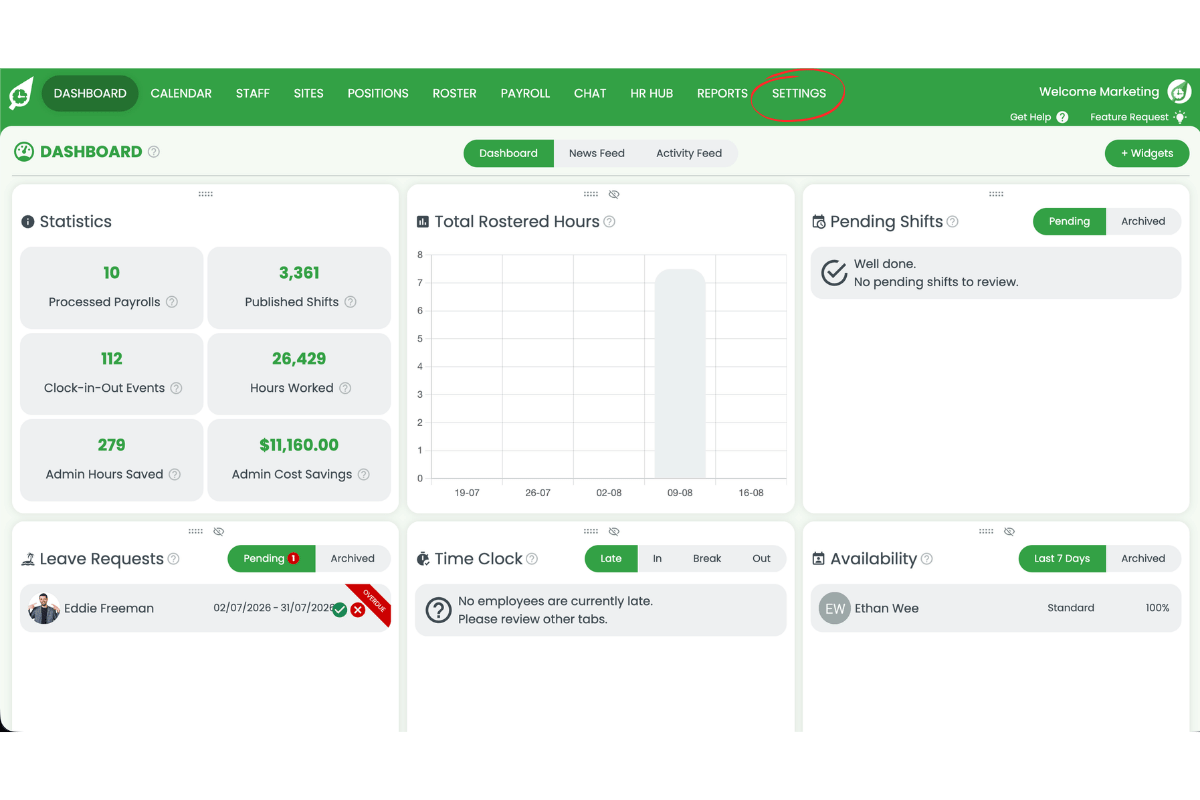
1.1.1 Press Settings in the top navigation bar.
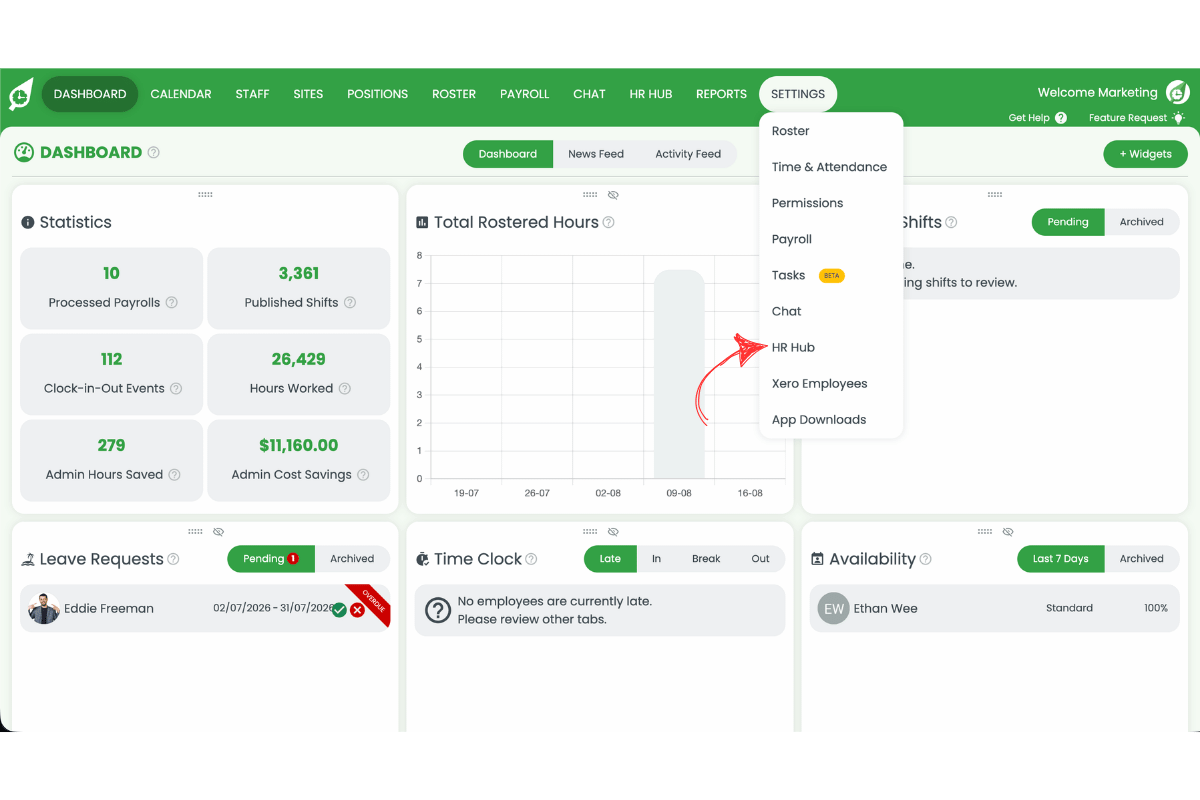
1.1.2 Press HR Hub from the Settings dropdown.
1.1.3 Check the Offboarding toggle in the modules list — it is on by default.
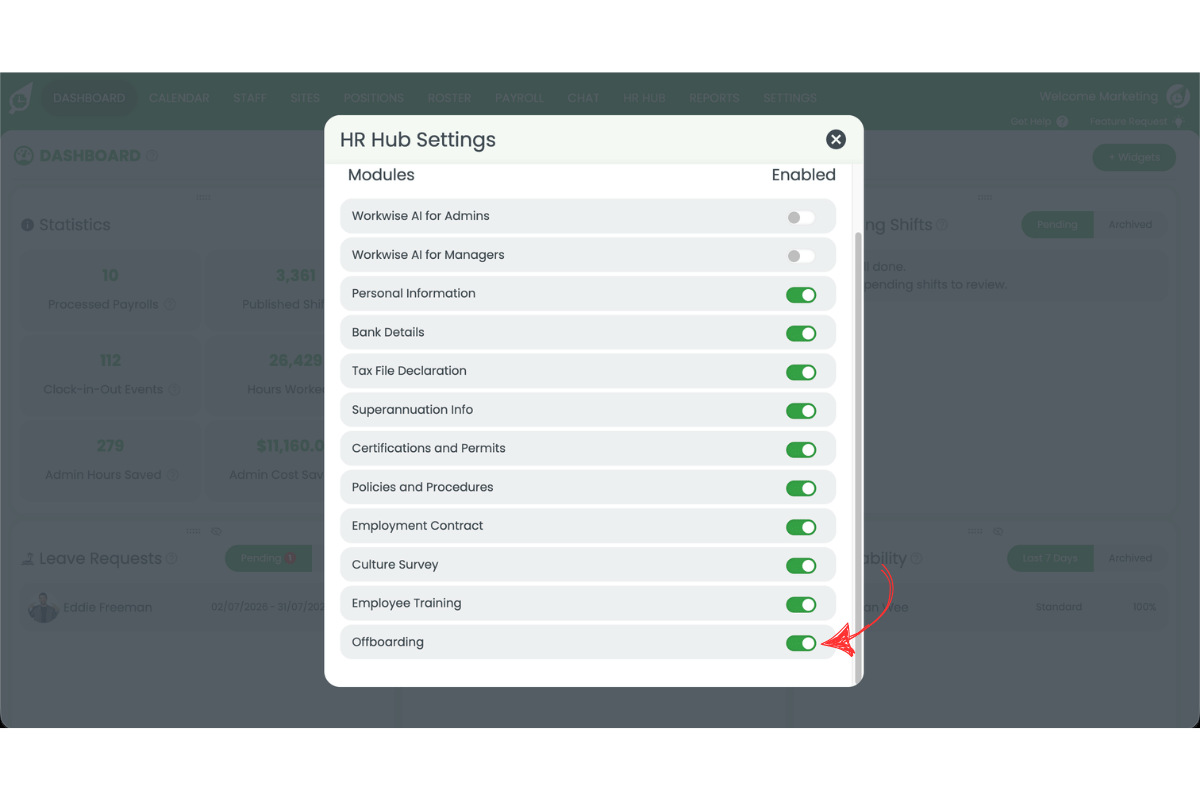
1.1.4 To stop using offboarding, switch the toggle off. Turning it off does not delete any exit records already collected.
2. Customise the HR Hub offboarding exit survey
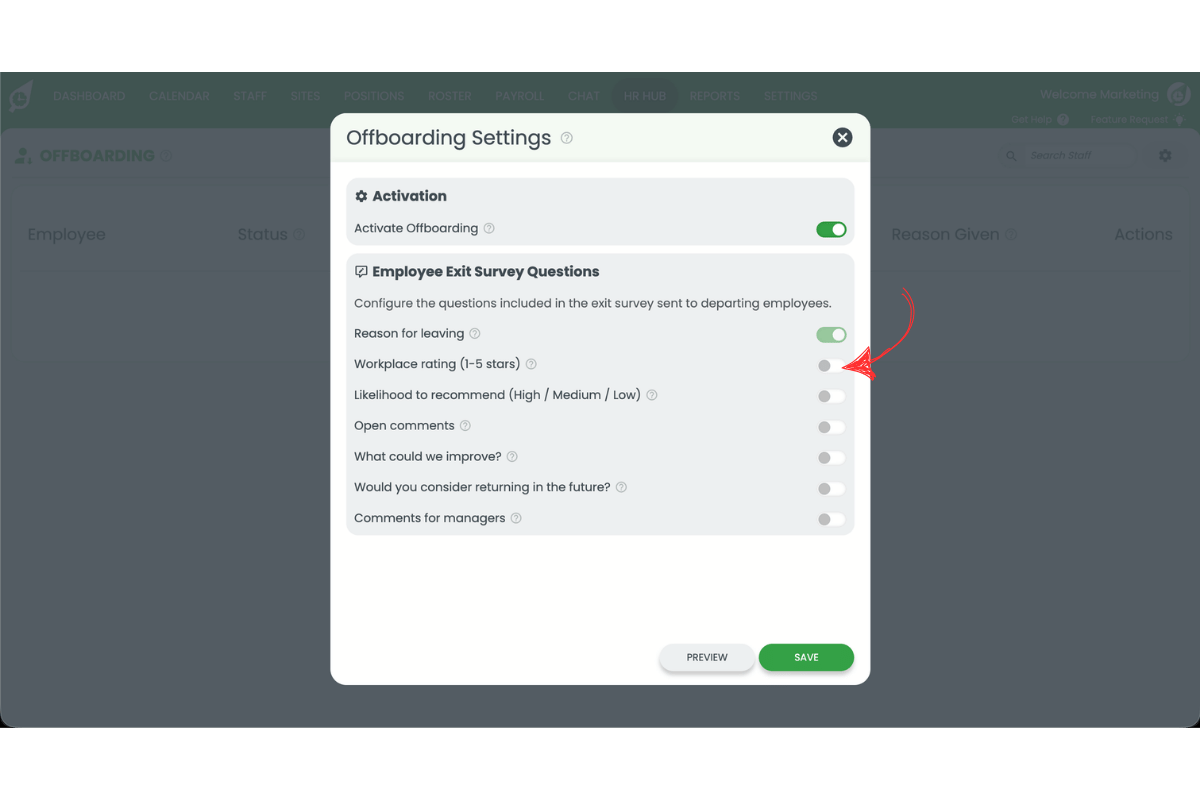
This section explains how to choose which questions appear in the offboarding exit survey. By default, only Reason for leaving is switched on — the rest are optional questions you can enable to build a fuller picture of why staff leave.
2.1 Open offboarding settings
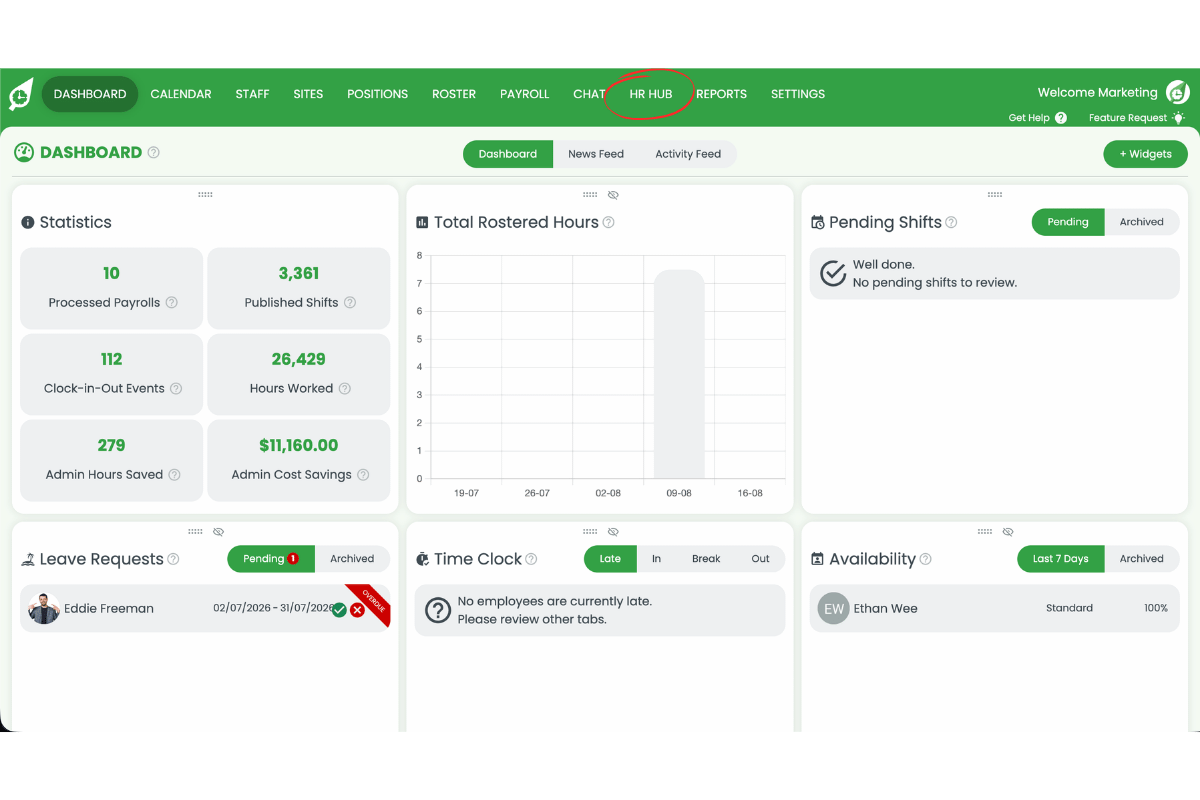
2.1.1 Press HR Hub in the top navigation.
2.1.2 Press Offboarding from the HR Hub menu.
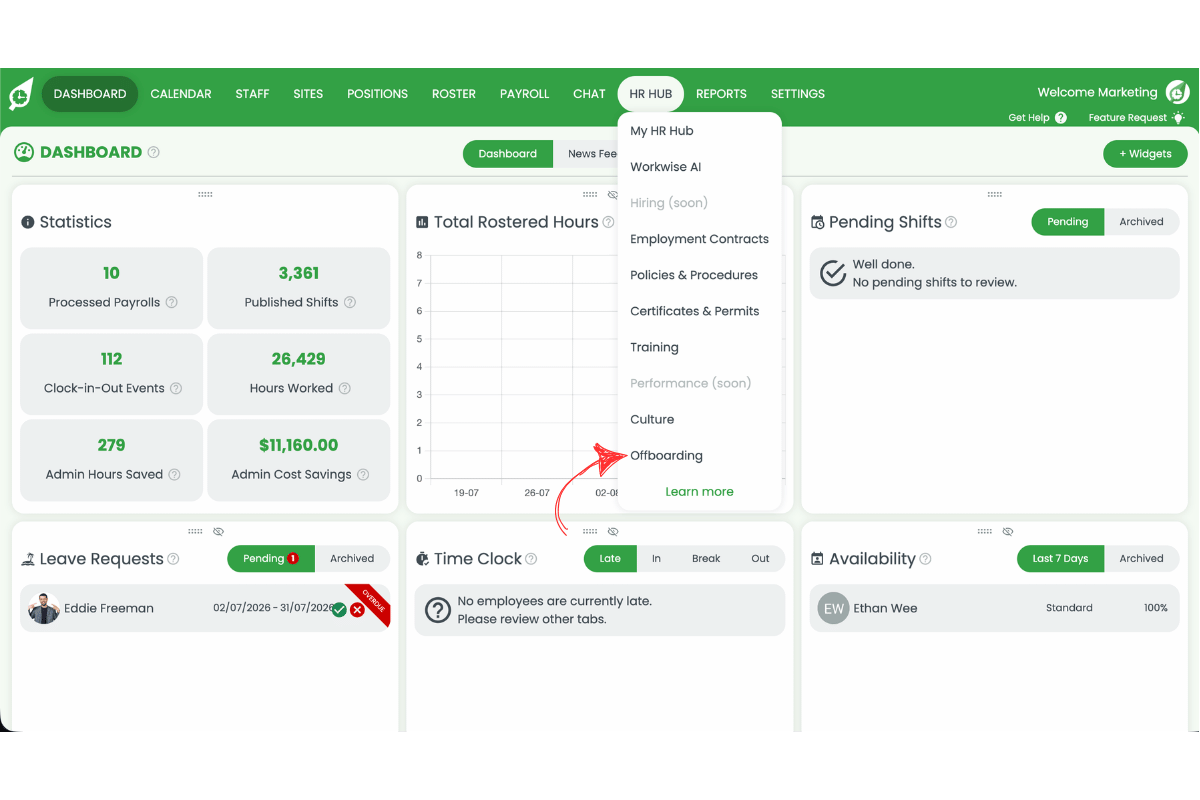
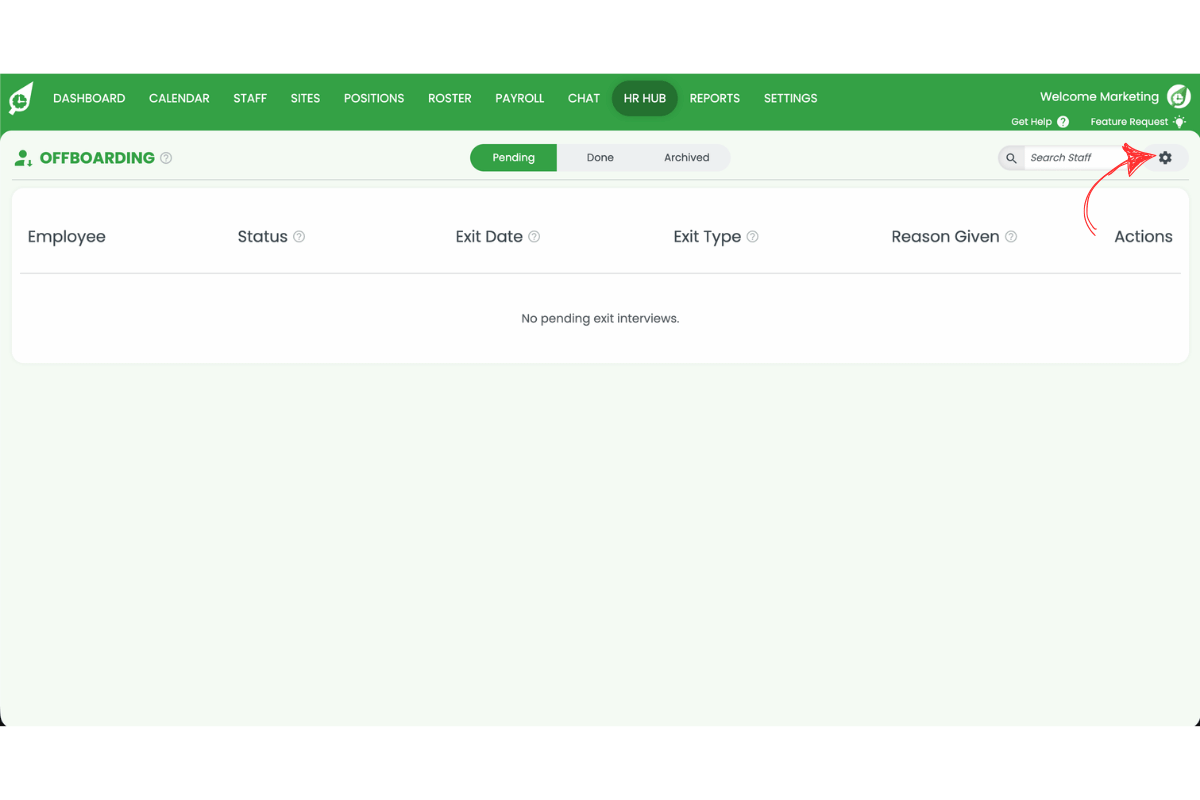
2.1.3 Press the settings cog in the top right of the Offboarding page.
2.2 Choose your exit survey questions
2.2.1 Toggle on the questions you want to include — such as workplace rating, likelihood to recommend, open comments, or whether they’d consider returning. Toggle off any you want to exclude.
2.2.2 Press Preview to see the questionnaire as your staff will see it.
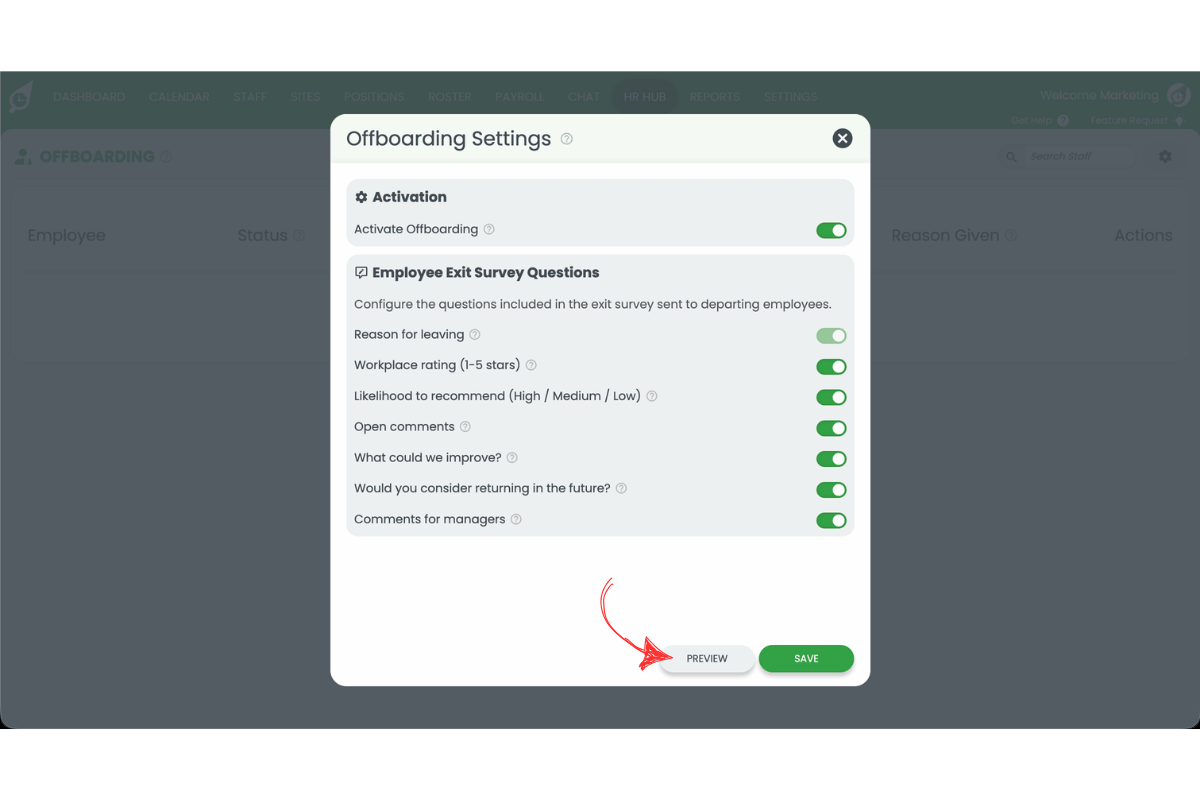
2.2.3 Press Save to confirm your offboarding settings.
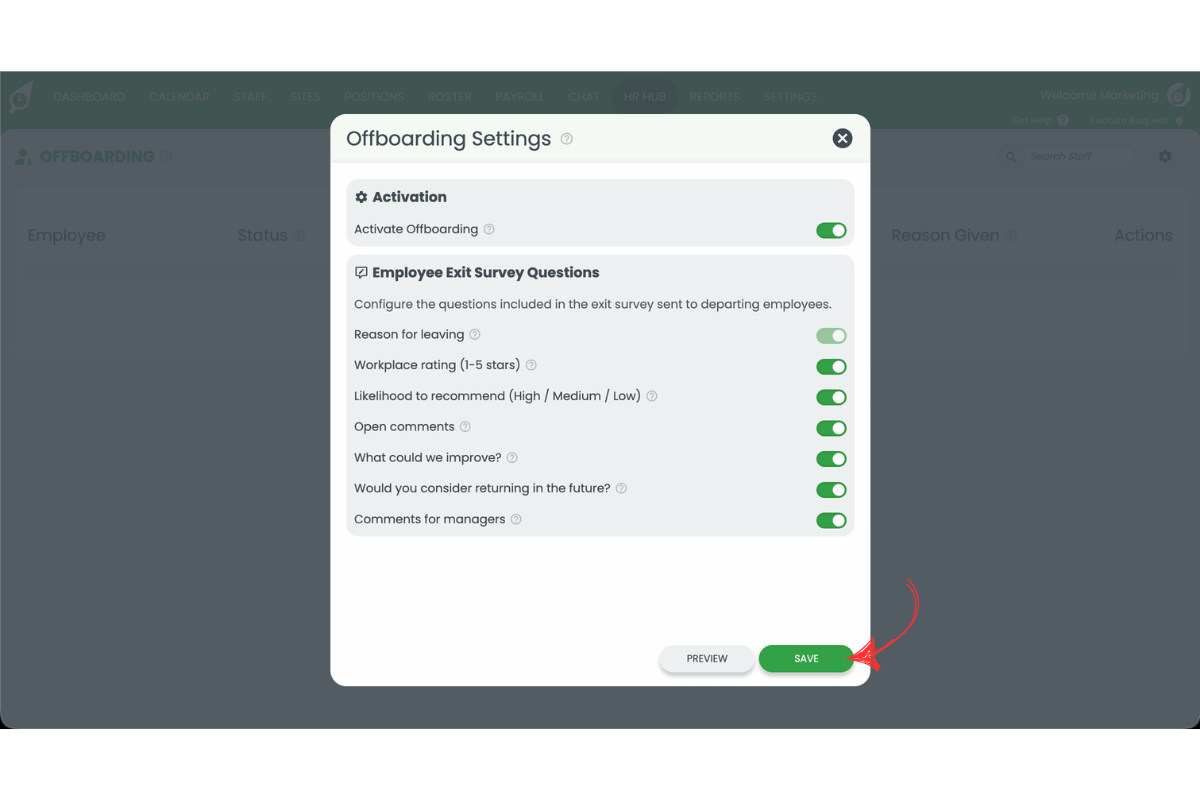
Only "Reason for leaving" is on by default
Workplace rating, likelihood to recommend, open comments, improvement suggestions, rehire interest and manager comments all start switched off. Turn on whichever combination best suits your business before you save.
2.3 Track offboarding status
The Offboarding page lists every departing employee under Pending, Done or Archived, alongside their exit date, exit type and reason given — so you always know who still needs to complete their exit survey.
3. Send the offboarding exit survey to a departing employee
This section explains how the exit survey actually gets sent. There is no separate “send survey” button — deactivating a staff member automatically triggers it.
3.1 Deactivate a departing staff member
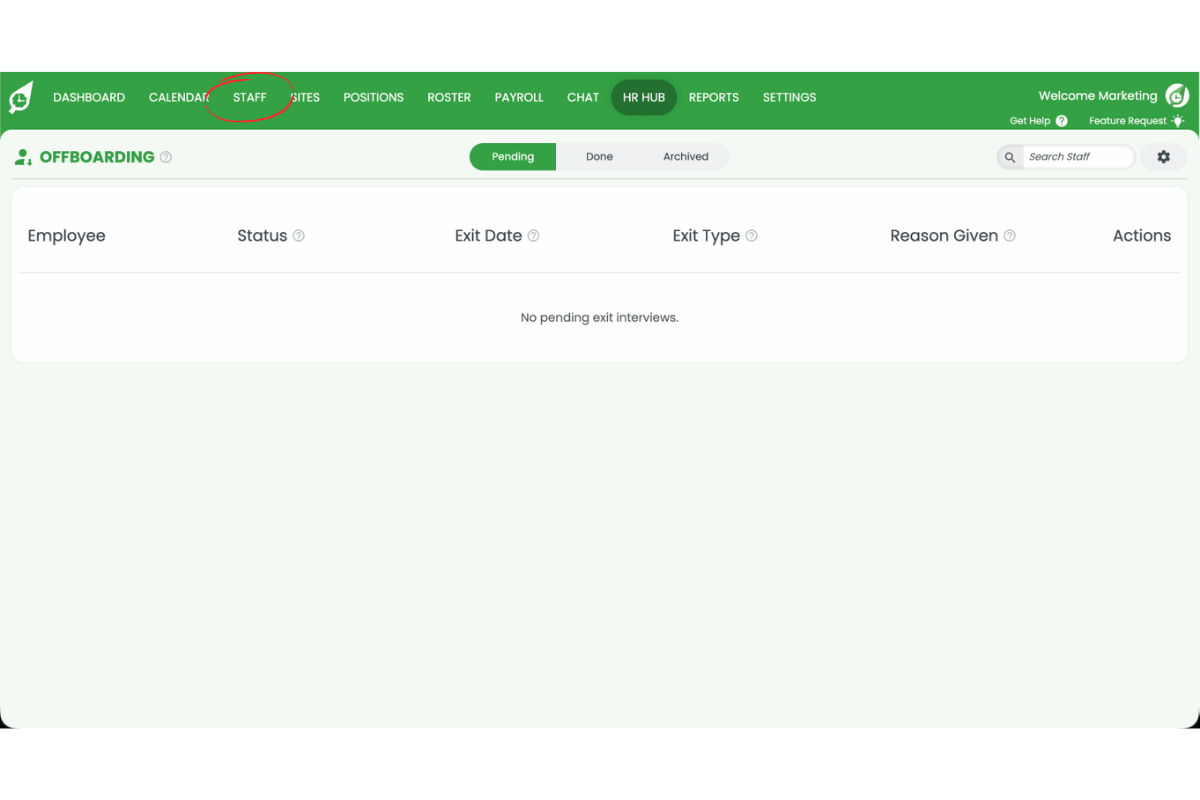
3.1.1 Press the Staff tab.
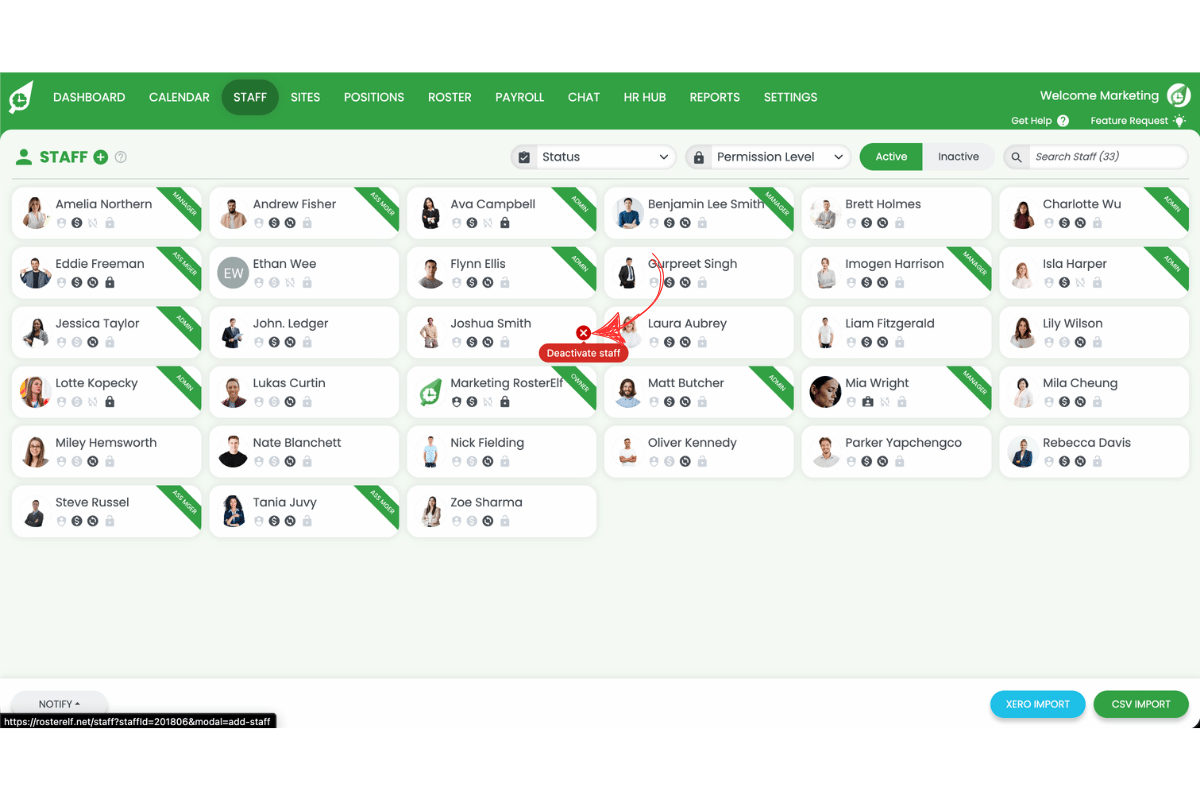
3.1.2 Hover over the departing employee’s card and press the deactivate staff icon.
3.1.3 Select the exit date.
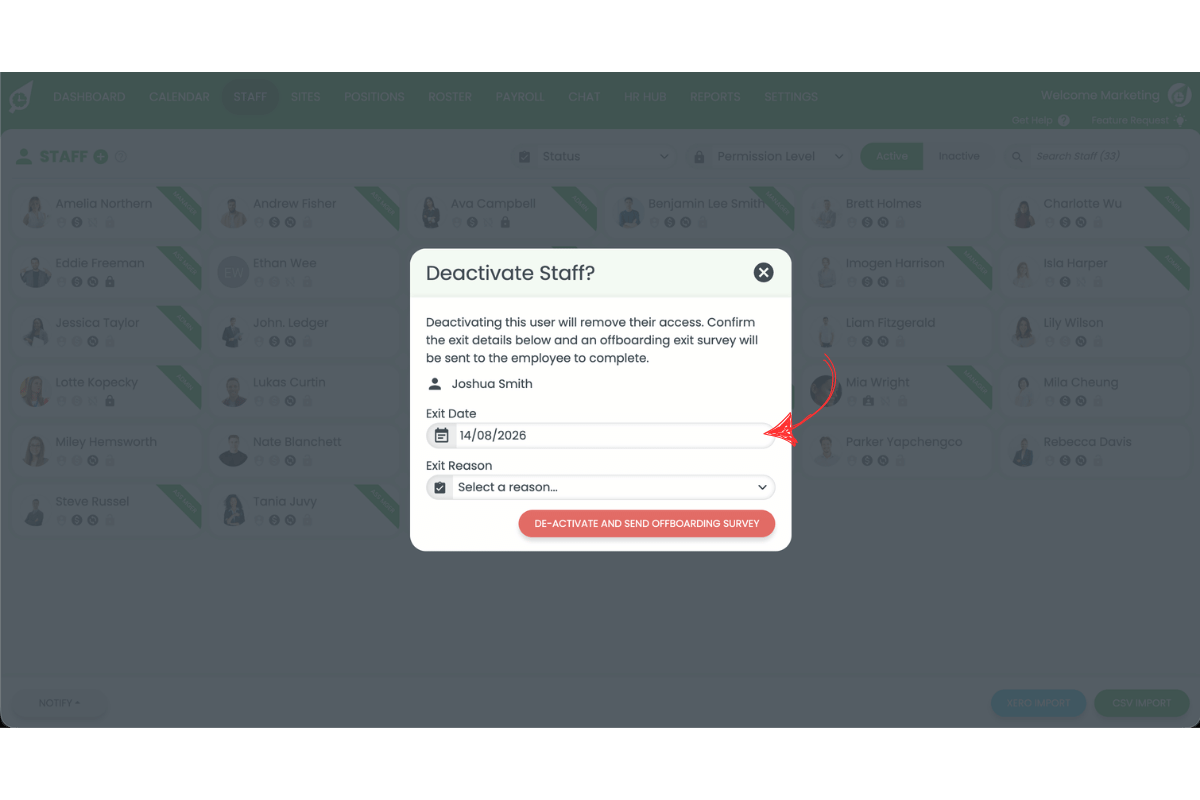
3.1.4 Select the exit reason.
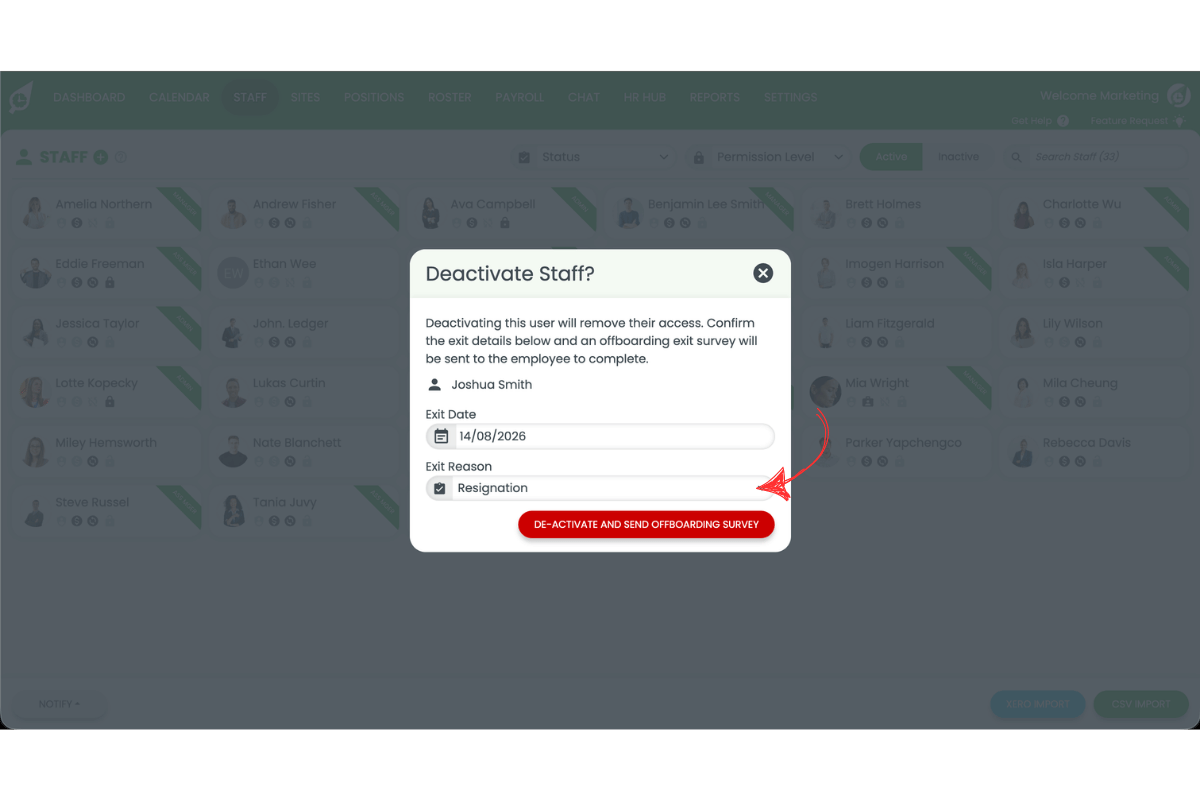
3.1.5 Press De-activate and send offboarding survey.
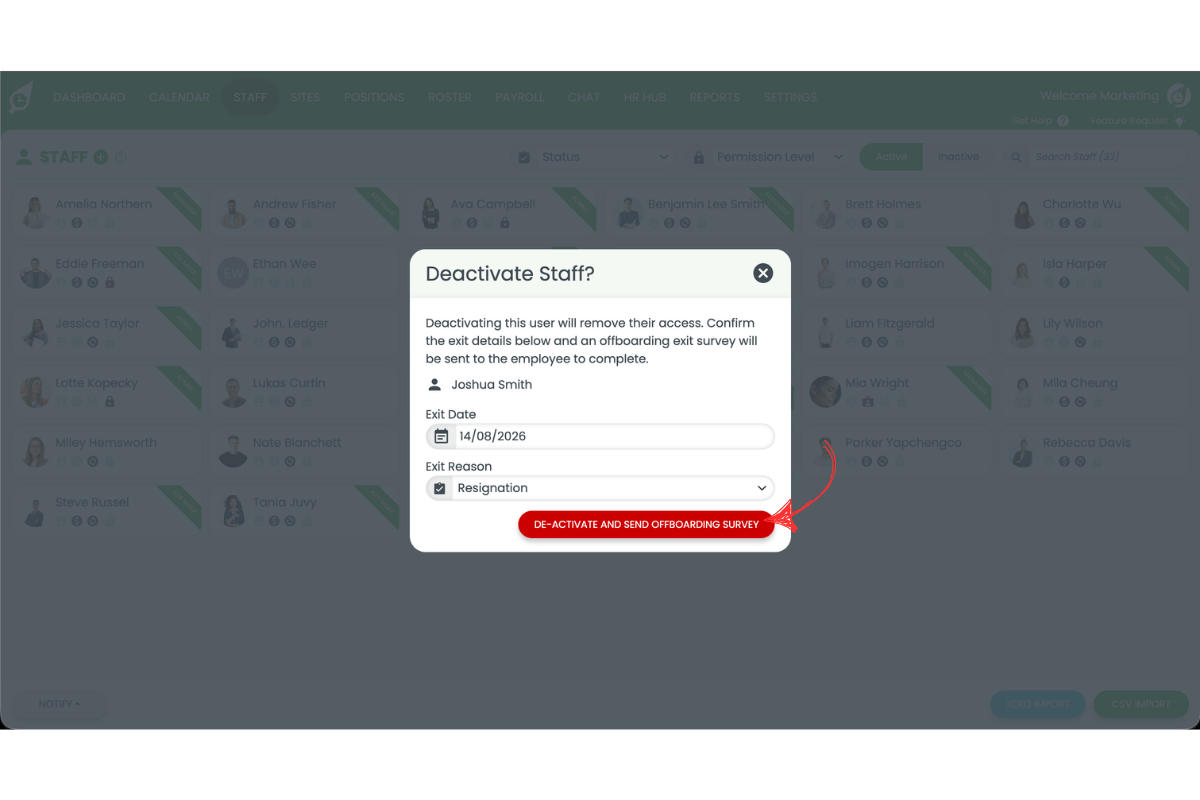
Deactivating staff does more than send a survey
This guide focuses on the offboarding exit survey. For the full mechanics of deactivating and reactivating staff — including future rostered shifts, approved leave and seat billing — see delete staff manually.
Frequently asked questions
1. What is HR Hub offboarding in RosterElf?
HR Hub offboarding is a module within RosterElf’s HR Hub add-on that automates the exit process for departing staff. Deactivating an employee captures their exit date and reason and automatically sends them a customisable exit survey — replacing a manual exit interview with a consistent, digital record.
2. Do I need to switch HR Hub offboarding on?
No — it is on by default. If you want to check, press Settings in the top navigation, select HR Hub from the dropdown, and look for the Offboarding toggle in the HR Hub Settings modal. The Offboarding option appears in the HR Hub navigation menu. For help with broader HR Hub access, see manage and enable HR Hub access.
3. How do I customise the offboarding exit survey?
Press HR Hub → Offboarding, then press the settings cog. Under Employee Exit Survey Questions, toggle on the questions you want to ask — such as workplace rating, likelihood to recommend, or open comments — press Preview to check the questionnaire, then press Save. Only Reason for leaving is enabled by default.
4. Why can't I deactivate a particular staff member?
Exit reasons are available to Account Owners, Administrators, Managers and Assistant Managers, so the reason list itself is not the limitation.
What limits you is site scope. Managers and Assistant Managers can only deactivate and reactivate staff at the sites they are assigned to, so a staff member at another site will not be available to you. Account Owners and Administrators can deactivate any staff member across the whole account.
Either ask an Account Owner or Administrator to complete it, or have yourself assigned to that site.
5. Does the offboarding survey send automatically?
Yes. The exit survey sends automatically whenever you deactivate a staff member — you just need to select an exit date and exit reason and press De-activate and send offboarding survey. There is no separate step to trigger the survey.
6. Where can I see completed offboarding surveys?
Go to HR Hub → Offboarding. The Pending, Done and Archived tabs list each departing employee alongside their exit date, exit type and reason given, so you can track who has completed their exit survey.
7. How is this different from deleting a staff member?
Deactivating staff is the same action either way — HR Hub offboarding simply adds an exit date, exit reason, and automatic exit survey on top of it. For the full mechanics of deactivating and reactivating staff, including what happens to future shifts, approved leave and seat billing, see delete staff manually.