


Managing multiple sites in RosterElf
Learn how to manage multiple sites in RosterElf for better organisation and flexibility. Setting up sites helps you separate different physical locations, departments, or teams, making it easier to manage staff, budgets, and schedules. This article explains the benefits of creating multiple sites and how it can help you streamline your business operations.
1. Setting up geographical locations as sites
Separating physical locations into different sites within RosterElf simplifies management for businesses with multiple locations. By setting up sites for each location, you can easily manage schedules, staff assignments, and track performance for each place individually.
1.1 creating sites for each location
1.1.1 Log into your RosterElf account.
1.1.2 Navigate to the Sites section in the top menu.
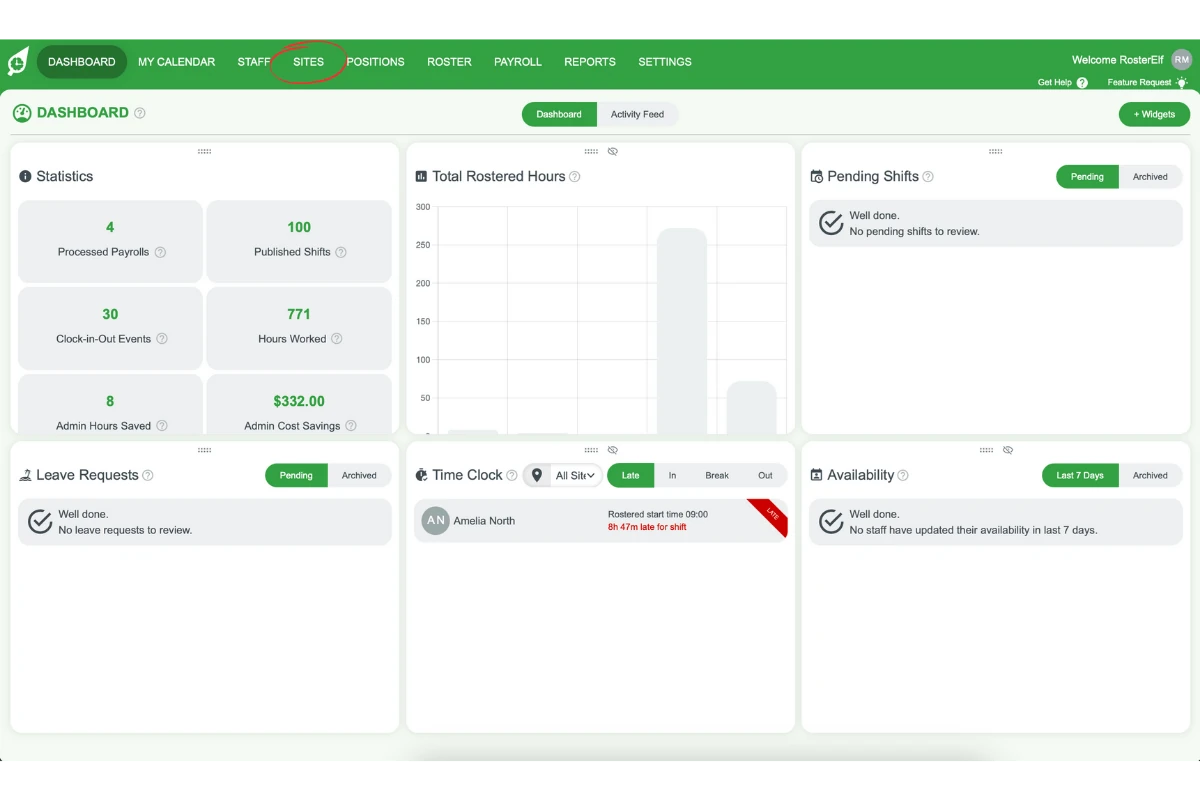
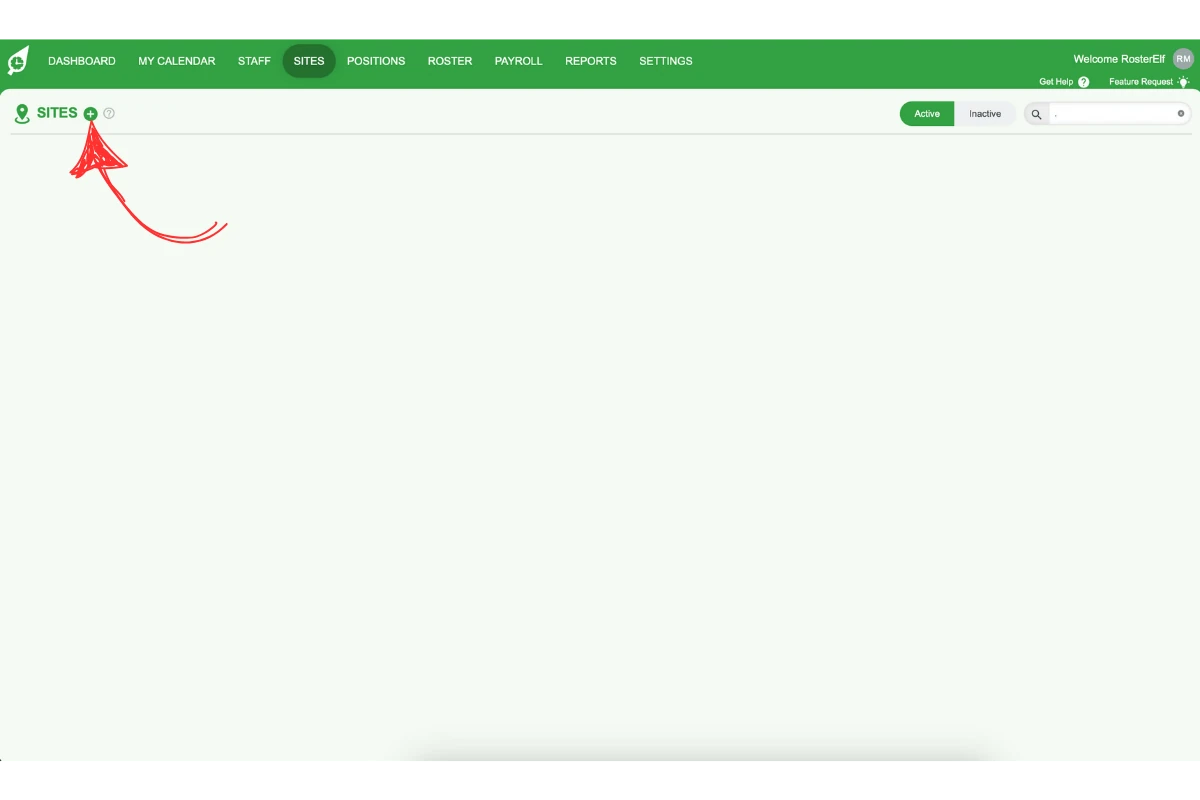
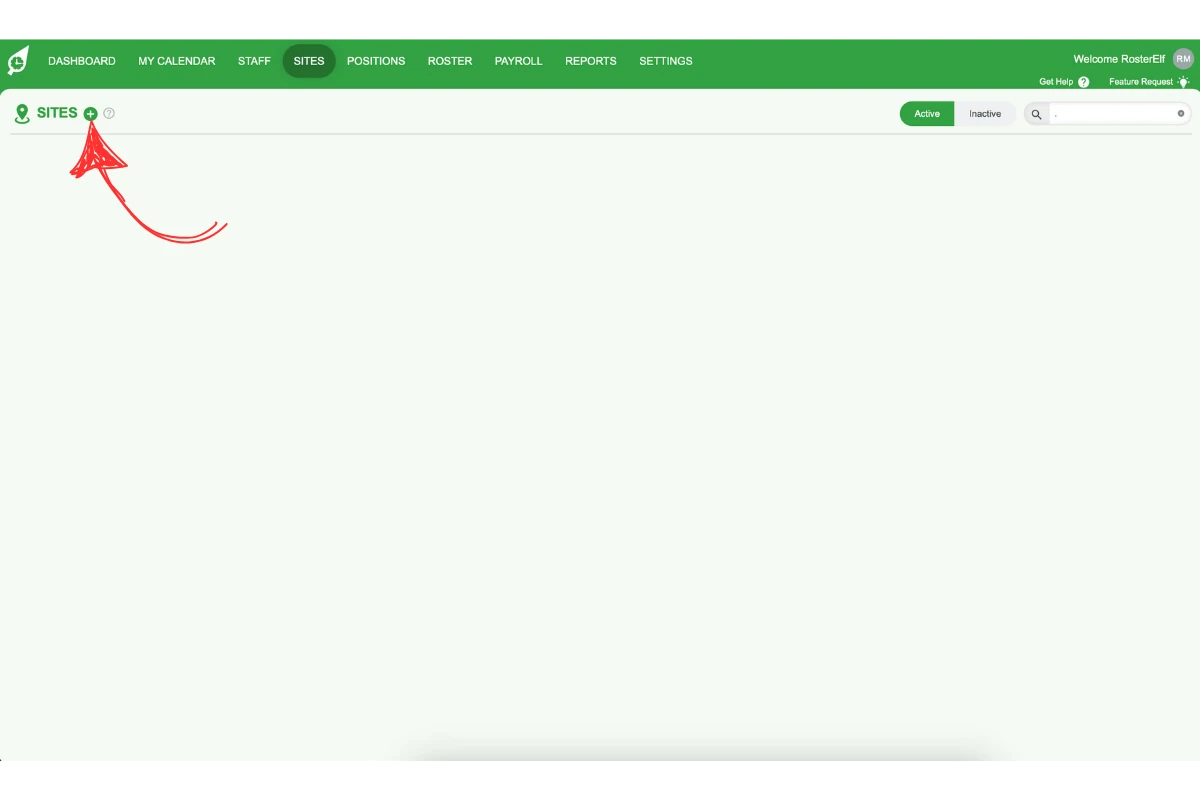
1.1.3 Click the plus beside SITES to open the Add Site window, then enter the location’s name.
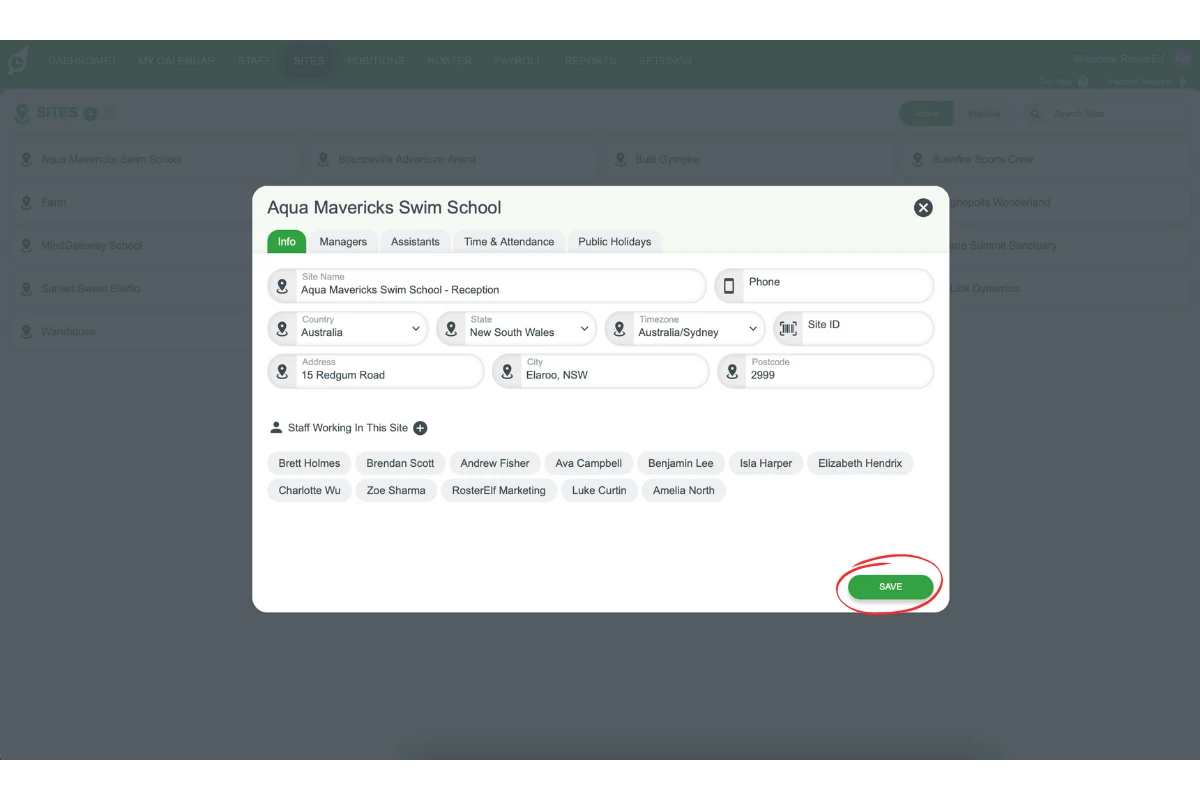
1.1.4 Save the details to create a new site for that location.
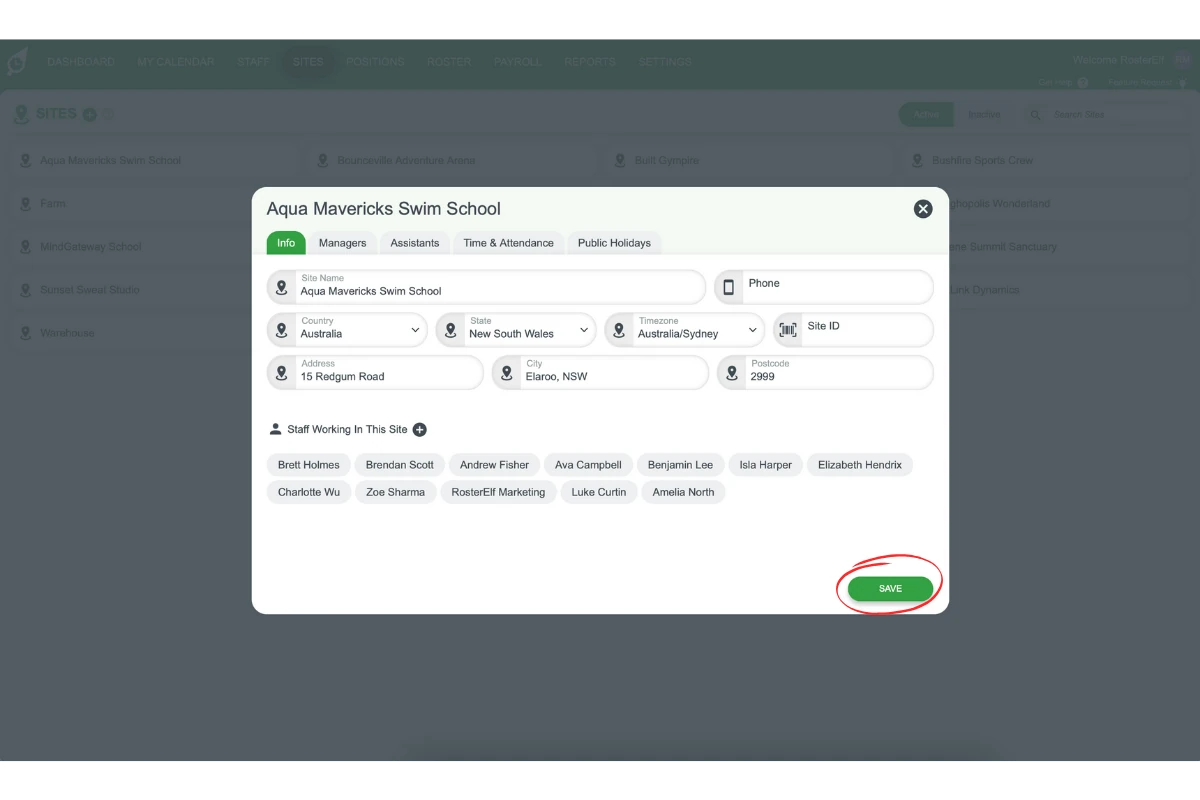
1.1.5 Repeat for each physical location you wish to manage separately.
2. Using sites to manage departments
You can also use RosterElf’s site feature to manage different departments within the same physical location. This setup helps businesses like restaurants, retail stores, or service providers where different departments operate under the same roof but need separate schedules and rosters.
2.1 setting up department-based sites
2.1.1 Log into your RosterElf account.
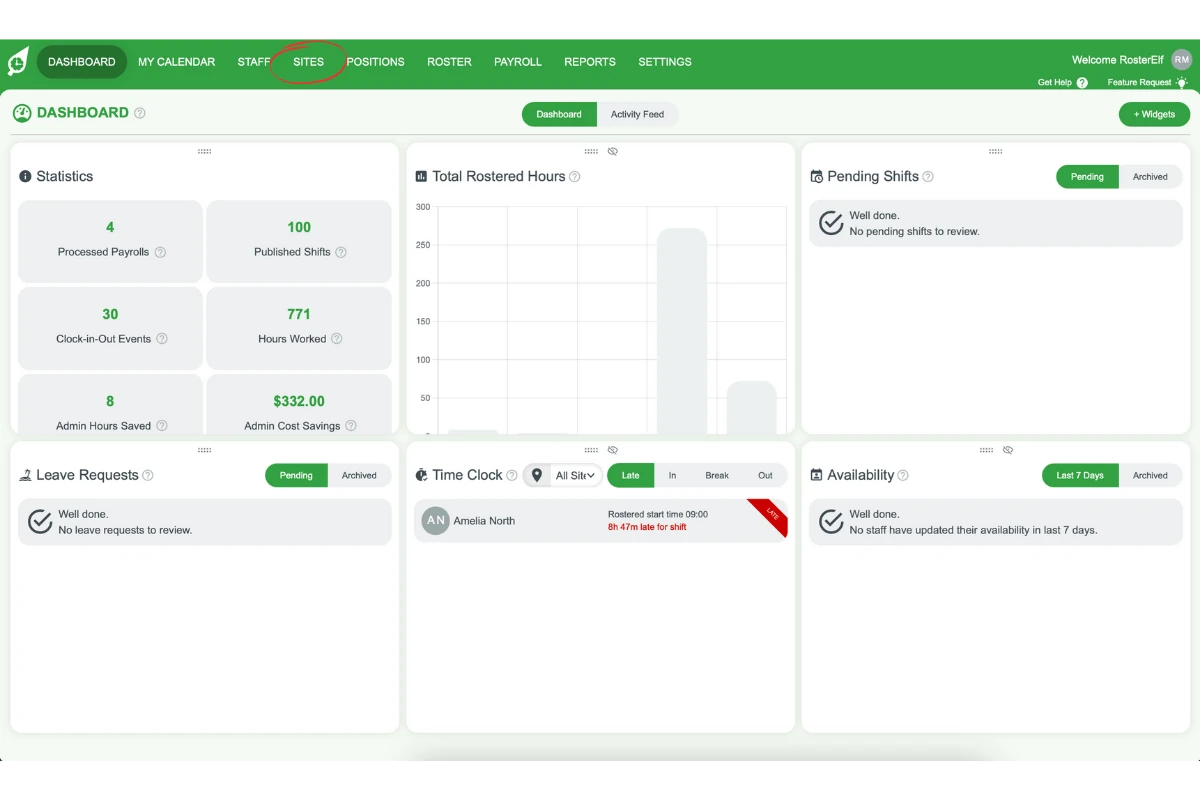
2.1.2 Go to Sites in the top menu.
2.1.3 Click the plus beside SITES to open the Add Site window, and name the site after the department (e.g., Reception, Back of House, etc.).
2.1.4 Save the details to create a new site for each department.
2.1.5 Repeat the process for each department you need to manage separately.
3. Benefits of setting up multiple sites
Creating multiple sites in RosterElf provides several advantages for businesses of various sizes:
3.1 budget tracking filtered by site
3.1.1 Publish each site’s schedule individually to monitor financial performance.
3.1.2 Filter your roster or payroll view by site to see budget and labour cost figures scoped to just that location, rather than your whole account.
3.1.3 Adjust rosters or staffing levels based on each site’s financial data.
3.2 assigning management roles to specific sites
3.2.1 Managers can access only their designated site’s roster and approve changes.
3.2.2 This feature is ideal for businesses with multiple managers overseeing different areas.
3.2.3 Managers can process payroll and schedules for their assigned site without affecting others.
3.3 preventing shift overlaps between sites
3.3.1 Employees are rostered only at the site where they are assigned.
3.3.2 This helps avoid accidental shift allocation at a location where an employee does not work.
3.3.3 Improves efficiency in managing staffing across multiple locations.
Related guides: Add and manage sites, assign an employee to a site, and delete or reactivate a site.
Frequently asked questions
1. How do I set up multiple sites in RosterElf?
Log into your account, click Sites in the top menu, click the plus beside SITES to open the Add Site window, enter the name of the location or department, and save the details. Repeat for each site.
2. Can I use RosterElf to manage different departments in the same location?
Yes, you can manage different departments within the same physical location using the site feature. Create separate sites for each department, such as Front of House or Kitchen.
3. What are the benefits of setting up multiple sites?
Multiple sites help you streamline operations by managing schedules, budgets, and staff separately for each location or department. It also allows better financial tracking and prevents scheduling conflicts.
4. How can I manage budgets for each site?
There isn’t a separately configured budget target stored per site — instead, viewing your roster or payroll filtered by a specific site scopes the budget and labour cost figures to just that site, rather than your whole account. Publish each site’s schedule and use the site filter to monitor its financial performance against actual labour costs individually.
5. Can I assign managers to specific sites?
Yes, managers can be assigned to specific sites. They can access only their assigned site’s rosters, approve changes, and handle payroll without affecting other sites.