

Edit documents in HR Hub
This article explains how to edit documents in HR Hub using either Simple or Advanced view. These editing options are available for both Employment Contracts and Policies & Procedures. You’ll learn how to format text, use headings, insert placeholders, and manage paragraph controls to customize templates efficiently.
1. Opening the editing view
1.1 Navigate to HR Hub and select either Employment Contracts or Policies & Procedures from the dropdown menu.
1.2 Choose the document or template you want to edit, then click the Edit icon to open the editor.
Can't see the Edit icon?
This is a display issue, not a settings problem — the icons are hidden when the browser window is too narrow or zoomed in. Maximise your browser window to full screen. If they are still hidden, zoom out (Ctrl and - on Windows, Cmd and - on Mac) until they appear. Still missing? Check you are signed in as an Admin, then contact support.
2. Choosing your editing mode
You can edit your document in two ways:
- Simple View – a visual editor where each paragraph can be edited, added, or deleted individually.
- Advanced View – a text editor that accepts simple markup (such as # for headings and **bold**) or HTML, for more precise control over formatting.
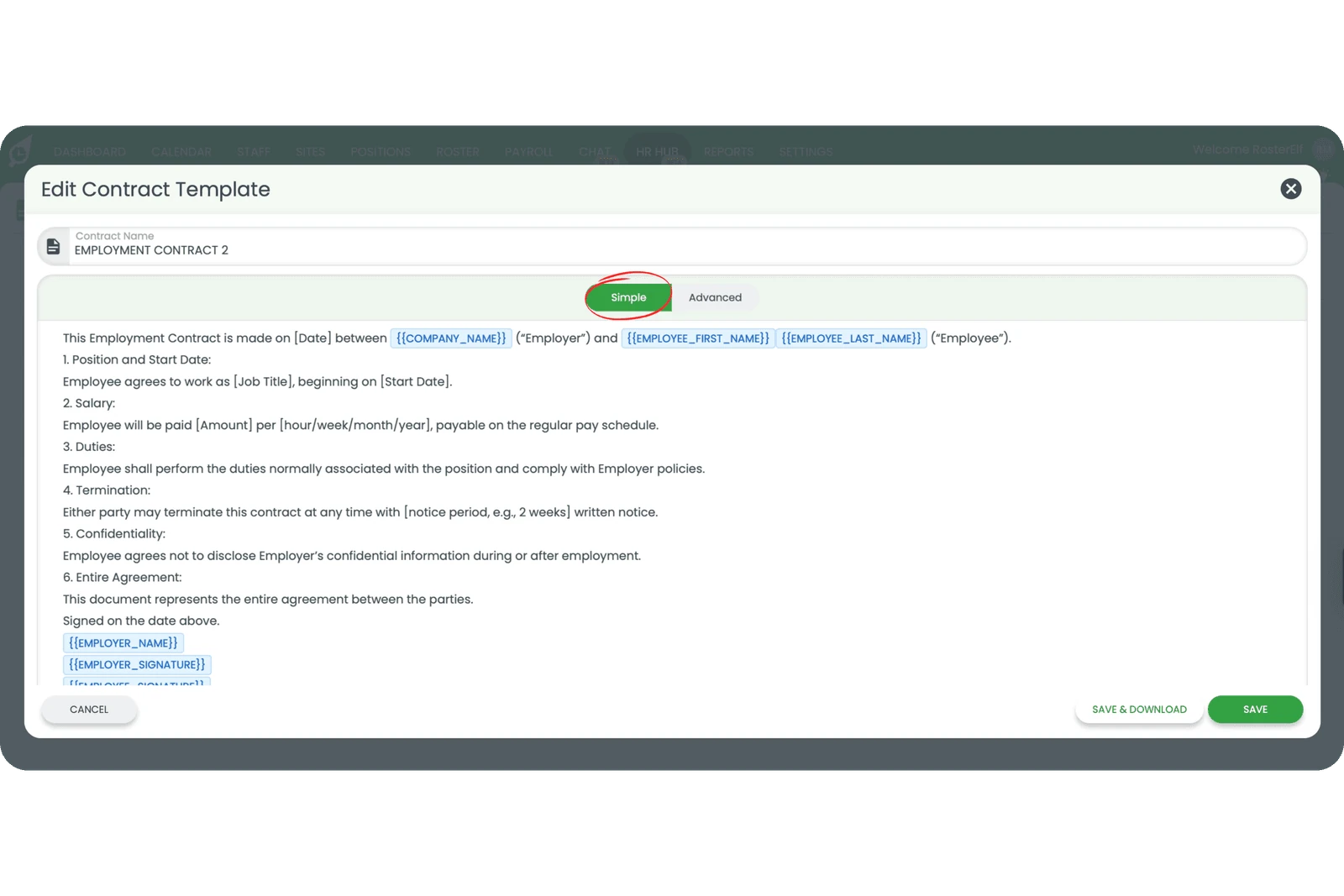
2.1 Select your preferred editing mode using the toggle at the top of the editor.
2.2 Make your changes to the document using the available formatting tools.
2.3 Save your changes when you’re finished editing.
Note
Changes made to templates only affect new documents created after the edit. Existing contracts or policies that have already been issued to staff will not be modified.
Frequently asked questions
1. What is the difference between Simple and Advanced view?
Simple View is a visual editor where each paragraph can be edited, added, or deleted individually. Advanced View accepts simple markup or HTML for more complex formatting and customisation.
2. Can I use placeholders in my contracts and policies?
Yes. Both Simple and Advanced views support placeholders that automatically populate with staff information such as name, position, start date, and salary when the document is generated.
3. Who can edit contracts and policies in the HR Hub?
Only Admins have permission to edit employment contracts and policies in the HR Hub. This ensures that important documents remain controlled and compliant.
4. Will editing a template affect existing staff contracts?
No. Changes to templates only affect new contracts or policies created after the edit. Existing documents that have already been sent to staff remain unchanged.
5. How do I add headings and formatting to my documents?
In Simple View, use the toolbar to apply bold, italic, headings, lists, and other formatting. In Advanced View, you can use simple markup or HTML tags for more precise control over document appearance — see using advanced mode for the markup syntax.
6. Why can't I see the Edit icon on my contract or policy?
The Edit icon sits at the right of each row in the template list, and it disappears from view when the browser window is too narrow or zoomed in. This is a display issue, not a settings problem. Maximise your browser window to full screen. If they are still hidden, zoom out (Ctrl and - on Windows, Cmd and - on Mac) until they appear. Still missing? Check you are signed in as an Admin, then contact support. See manage employment contracts and create and manage policies for the full list of row icons.